自动创建项目文件夹
- 核心需求
- 配置示例
- [1. 创建工具窗口](#1. 创建工具窗口)
- [2. 创建配置文件](#2. 创建配置文件)
-
- [2.1. 检查配置文件是否存在](#2.1. 检查配置文件是否存在)
- [2.2. 创建示例配置文件](#2.2. 创建示例配置文件)
- [3. 创建目录结构](#3. 创建目录结构)
-
- [3.1. 检查配置的内容是否有效](#3.1. 检查配置的内容是否有效)
- [3.2. 创建多个文件夹](#3.2. 创建多个文件夹)
- 扩展功能
- 演示视频
- 交互优化
每次创建新工程或者新的功能模块时,都要把工程结构目录重新创建一遍。
反复执行右键->Create->Folder->重命名文件夹的行为。(好像很忙又好像啥也没忙)
于是,一个自动创建项目文件夹的工具就很有必要了。
核心需求
-
想把旧项目的目录结构移植到新工程。
复制路径
UI\HUD\Settings,根据这个字符串自动创建文件夹。 -
用命名空间创建文件夹。
-
在Assets下自定义创建文件夹。
配置示例
markdown
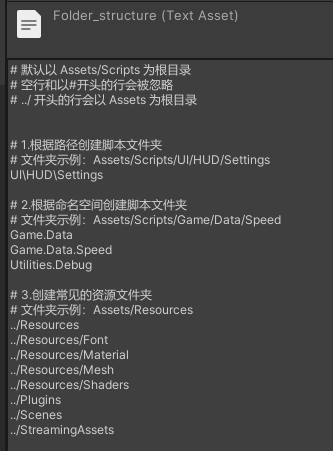
# 默认以 Assets/Scripts 为根目录
# 空行和以#开头的行会被忽略
# ../ 开头的行会以 Assets 为根目录


# 1.根据路径创建脚本文件夹
# 文件夹示例:Assets/Scripts/UI/HUD/Settings
UI\HUD\Settings

# 2.根据命名空间创建脚本文件夹
# 文件夹示例:Assets/Scripts/Game/Data/Speed
Game.Data
Game.Data.Speed
Utilities.Debug

# 3.创建常见的资源文件夹
# 文件夹示例:Assets/Resources
../Resources
../Resources/Font
../Resources/Material
../Resources/Mesh
../Resources/Shaders
../Plugins
../Scenes
../StreamingAssets
1. 创建工具窗口
在Assets/Editor下创建脚本AutoCreateGameFolders.cs
c#
using System.Collections.Generic;
using System.IO;
using System.Text;
using UnityEditor;
using UnityEngine;

namespace Assets.Editor
{
    public class AutoCreateGameFolders : EditorWindow
    {
        string basePath = "Assets/Scripts";
        private string configFileName = "Editor/folder_structure.txt";
        private string configFilePath = "";

        [MenuItem("Tools/Auto Create Folders")]
        public static void ShowWindow()
        {
            AutoCreateGameFolders window = GetWindow<AutoCreateGameFolders>("Create Game Folders");
            window.minSize = new Vector2(400, 300);
            window.LoadConfigPath();
            window.Show();
        }

        private void LoadConfigPath()
        {
            configFilePath = Path.Combine(Application.dataPath, configFileName);
        }

        private void OnGUI()
        {
            GUILayout.Label("动态读取配置文件创建文件夹", EditorStyles.boldLabel);
            GUILayout.Space(10);

            EditorGUILayout.HelpBox(@$"读取文件夹结构配置:
{configFilePath}

以 {basePath} 为根目录创建所有文件夹",
                MessageType.Info
            );
            GUILayout.Space(10);

            if (CheckConfigExists())
            {
                GUI.backgroundColor = Color.green;
                if (GUILayout.Button("Create Folder Structure", GUILayout.Height(40)))
                {
                    CreateFoldersFromConfig();
                }
                GUILayout.Space(10);
            }
        }

        // 2.创建配置文件
        private bool CheckConfigExists() {}

        // 3.创建目录结构
        private void CreateFoldersFromConfig() {}
    }
}
2. 创建配置文件
2.1. 检查配置文件是否存在
c#
/// <summary> 检查配置文件是否存在  </summary>
private bool CheckConfigExists()
{
    // 检查配置文件是否存在
    bool configExists = File.Exists(configFilePath);
    if (!configExists)
    {
        EditorGUILayout.HelpBox(
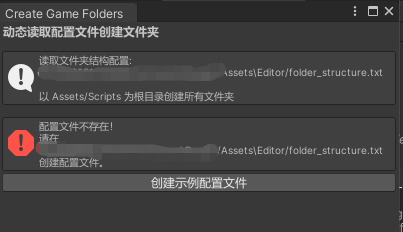
            $"配置文件不存在!\n请在 {configFilePath} 创建配置文件。",
            MessageType.Error
        );

        if (GUILayout.Button("创建示例配置文件"))
        {
            CreateExampleConfig();
        }
    }
    return configExists;
}
2.2. 创建示例配置文件
c#
private void CreateExampleConfig()
{
    string exampleContent = @"# 默认以 Assets/Scripts 为根目录
# 空行和以#开头的行会被忽略
# ../ 开头的行会以 Assets 为根目录


# 1.根据路径创建脚本文件夹
# 文件夹示例:Assets/Scripts/UI/HUD/Settings
UI\HUD\Settings

# 2.根据命名空间创建脚本文件夹
# 文件夹示例:Assets/Scripts/Game/Data/Speed
Game.Data
Game.Data.Speed
Utilities.Debug

# 3.创建常见的资源文件夹
# 文件夹示例:Assets/Resources
../Resources
../Resources/Font
../Resources/Material
../Resources/Mesh
../Resources/Shaders
../Plugins
../Scenes
../StreamingAssets
";
    File.WriteAllText(configFilePath, exampleContent);
    AssetDatabase.Refresh();

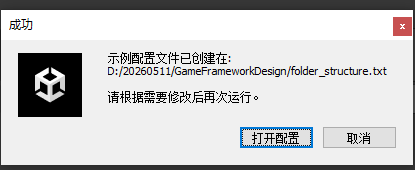
    string log = $"示例配置文件已创建在:\n{configFilePath}";
    Debug.Log(log);
    EditorUtility.DisplayDialog("成功", $"{log}\n\n请根据需要修改后再次运行。", "确定");
}
3. 创建目录结构
3.1. 检查配置的内容是否有效
c#
private bool TryReadConfigFile(out List<string> folders)
{
    if (!File.Exists(configFilePath))
        return false;

    folders = new List<string>();

    string[] lines = File.ReadAllLines(configFilePath);
    foreach (string line in lines)
    {
        string trimmedLine = line.Trim();

        // 跳过空行和注释行
        if (string.IsNullOrEmpty(trimmedLine) || trimmedLine.StartsWith("#"))
        {
            continue;
        }

        // 确保路径使用正斜杠
        trimmedLine = trimmedLine.Replace("\\", "/");
        folders.Add(trimmedLine);
    }

    return folders.Count > 0;
}
3.2. 创建多个文件夹
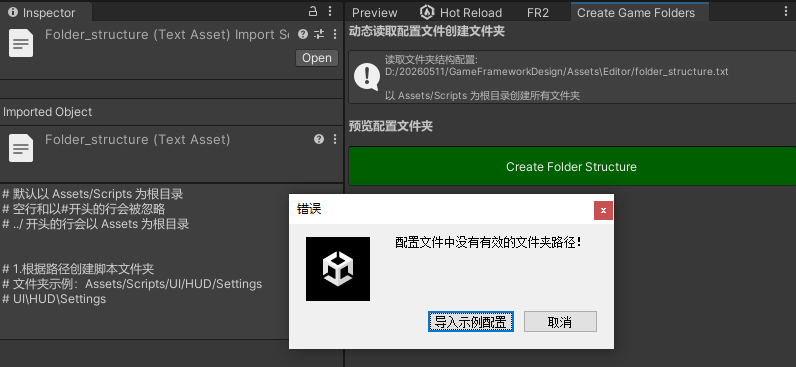
配置的内容无效时,导入示例配置
c#
private void CreateFoldersFromConfig()
{
    if (!TryReadConfigFile(out List<string> folders))
    {
        bool reloaad = EditorUtility.DisplayDialog("错误",
            "配置文件中没有有效的文件夹路径!",
            "导入示例配置", "取消");
        if (reloaad)
        {
            CreateExampleConfig();
        }
        return;
    }

    // 创建基础目录
    if (!Directory.Exists(basePath))
    {
        Directory.CreateDirectory(basePath);
        Debug.Log($"创建基础目录: {basePath}");
    }

    // 创建每个子文件夹
    CreateFolders(folders);

    AssetDatabase.Refresh();
}
- 创建每个的子文件夹
c#
private void CreateFolders(List<string> folders)
{
    int createdCount = 0;
    int existCount = 0;

    StringBuilder logSkipped = new StringBuilder("文件夹已存在,跳过:\n");
    StringBuilder logCreated = new StringBuilder("创建文件夹:\n");
    // 创建每个子文件夹
    foreach (string folder in folders)
    {
        string fullPath;
        if (folder.StartsWith("../")) // 以 Assets 为根目录
        {
            fullPath = Path.Combine("Assets", folder.Replace("../", "").Replace(".", "/"));
        }
        else // 根据路径、命名空间创建
        {
            fullPath = Path.Combine(basePath, folder.Replace(".", "/"));
        }

        if (!Directory.Exists(fullPath))
        {
            Directory.CreateDirectory(fullPath);
            logCreated.AppendLine($"{fullPath}");
            createdCount++;
        }
        else
        {
            logSkipped.AppendLine($"{fullPath}");
            existCount++;
        }
    }
    if (createdCount > 0) Debug.Log(logCreated);
    if (existCount > 0) Debug.Log(logSkipped);

    // 显示结果
    string message = $"文件夹结构创建完成!\n\n新创建: {createdCount} 个\n已存在: {existCount} 个\n总计: {folders.Count} 个";
    Debug.Log(message);
    EditorUtility.DisplayDialog("完成", message, "确定");
}
扩展功能
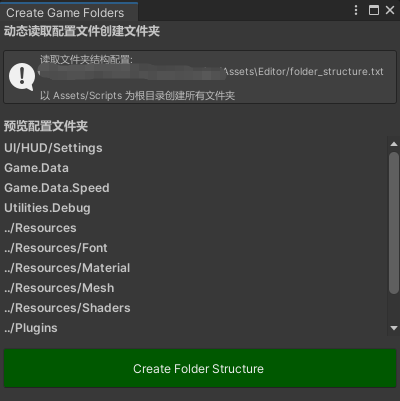
预览配置中的有效内容
c#
public class AutoCreateGameFolders : EditorWindow
{
    private Vector2 scrollPosition;

    // ......

    private void PreviewFolderStructure()
    {
        EditorGUILayout.LabelField("预览配置文件夹", EditorStyles.boldLabel);
        bool result = TryReadConfigFile(out List<string> foldersToCreate);
        if (!result) return;

        scrollPosition = EditorGUILayout.BeginScrollView(scrollPosition, GUILayout.Height(200));

        foreach (string folder in foldersToCreate)
        {
        	EditorGUILayout.LabelField(folder, EditorStyles.boldLabel);
        }

        EditorGUILayout.EndScrollView();
    }
}
在窗口中显示预览
c#
private void OnGUI()
{
	// ......

    if (CheckConfigExists())
    {
        PreviewFolderStructure();
        GUILayout.Space(10);
        // ......
    }
}
演示视频
根据txt内容,自动创建项目文件夹。 可根据路径、命名空间、自定义路径自动创建。 支持正反斜杠、行注释。
自动创建项目文件夹结构
交互优化
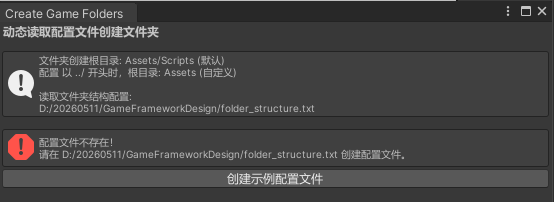
配置创建在项目根目录下
为了减少不必要*.txt.meta生成,期望把配置文件创建在项目根目录下。
修改LoadConfigPath()和configFileName
c#
public class AutoCreateGameFolders : EditorWindow
{
    private string configFileName = "folder_structure.txt";

    private void LoadConfigPath()
    {
        string projectRootPath = Application.dataPath.Remove(Application.dataPath.Length - 6);
        configFilePath = Path.Combine(projectRootPath, configFileName);
    }
}
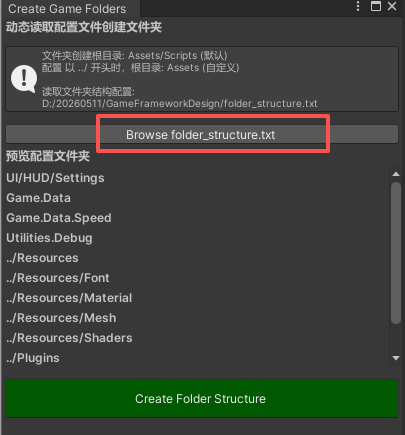
从编辑器中浏览配置文件
为了快速修改配置文件,在工具窗口和创建配置时,允许直接打开文件编辑。
- 在窗口中增加跳转
c#
private void OnGUI()
{
    // ......

    if (CheckConfigExists())
	{
	    if (GUILayout.Button($"Browse {configFileName}", GUILayout.Height(20)))
	    {
	        BrowseConfigFile(configFilePath);
	    }
	    // ......
    }
}

private void BrowseConfigFile()
{
    System.Diagnostics.Process.Start($"{configFilePath}");
}
- 创建示例配置文件后,允许直接打开
c#
private void CreateExampleConfig()
{
    // ......

    string log = $"示例配置文件已创建在:\n{configFilePath}";
    Debug.Log(log);
    bool browse = EditorUtility.DisplayDialog("成功",
        $"{log}\n\n请根据需要修改后再次运行。",
        "打开配置", "取消");
    if (browse) BrowseConfigFile();
}