背景
在 用 Tkinter 实现简单的 15 puzzle 一文中,我们用 Tkinter 实现了简单的 15 puzzle。我想到如果用 Pygame 应该可以让界面更美观,于是我决定在那篇文章的基础上用 Pygame 来实现 15 puzzle。
正文
代码
在 用 Tkinter 实现简单的 15 puzzle 一文中,提到了 15 puzzle 的介绍以及需要解决的问题,这里不赘述。由于我刚开始学习 Pygame,对它的了解很有限,再加上现在人工智能的能力非常强大,我就想到先用 trae 来完成 Tkinter→Pygame 的转化,而我只需要在它的基础上,再做调整即可。转化的过程如下图所示(trae 回答的内容有点长,下图只截取了一部分内容)
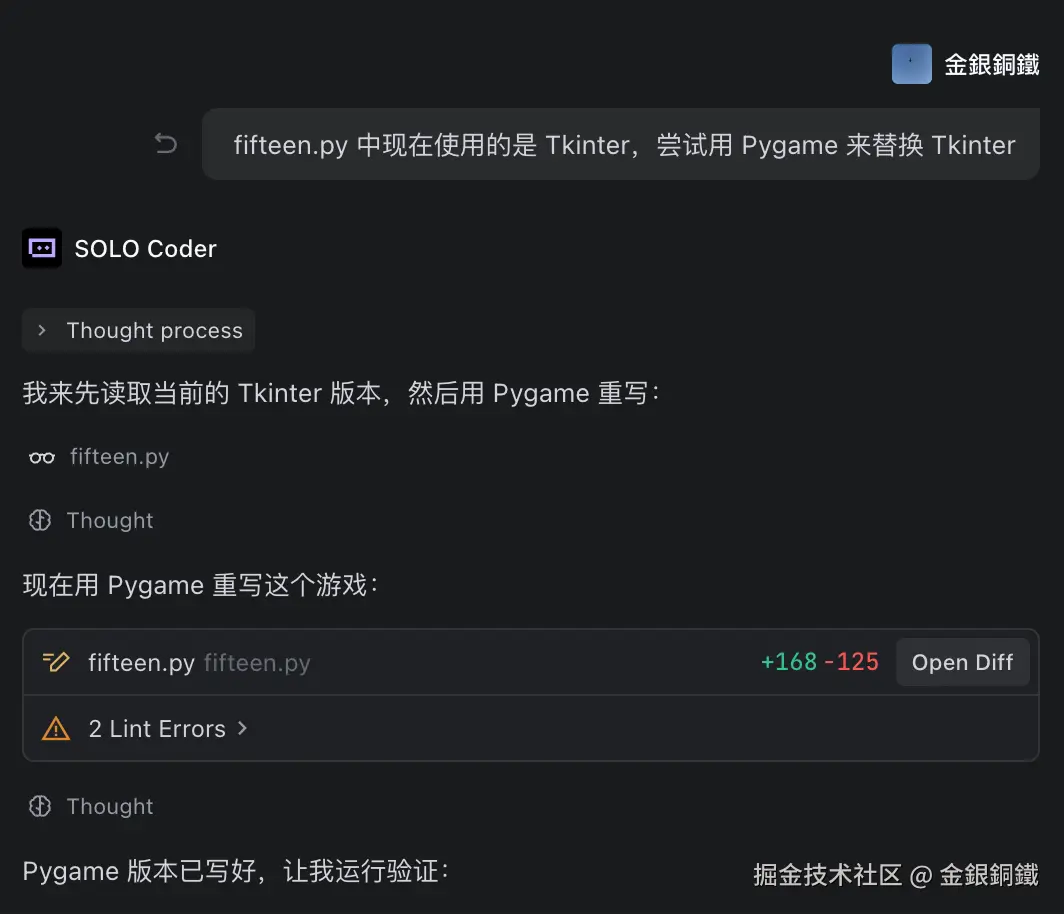
转化完的代码虽然并非完全准确,但也算质量很高了。我又调整了些细节,最终的代码如下
python
import pygame
import random

class FifteenPuzzle:
    CELL_SIZE = 100
    CELL_GAP = 5
    N = 4
    WINDOW_SIZE = N * CELL_SIZE + (N + 1) * CELL_GAP + 150
    FONT_SIZE = 50

    WHITE = (255, 255, 255)
    BLACK = (0, 0, 0)
    GRAY = (200, 200, 200)
    BLUE = (100, 149, 237)
    GREEN = (60, 179, 113)
    DARK_BLUE = (70, 130, 180)

    VALUE_FOR_EMPTY_POS = N * N

    def __init__(self):
        pygame.init()
        self.screen = pygame.display.set_mode((self.WINDOW_SIZE, self.WINDOW_SIZE))
        pygame.display.set_caption("15 Puzzle")
        self.clock = pygame.time.Clock()
        self.font = pygame.font.Font(None, self.FONT_SIZE)
        self.button_font = pygame.font.Font(None, 36)

        self.board = []
        self.empty_pos = (self.N - 1, self.N - 1)
        self.click_cnt = 0
        self.game_won = False

        self.new_game_rect = pygame.Rect(
            self.WINDOW_SIZE // 2 - 80,
            self.WINDOW_SIZE - 60,
            160,
            40
        )

        self.create_board()
        self.shuffle_board()

    def create_board(self):
        self.board = []
        for row in range(self.N):
            self.board.append([])
            for col in range(self.N):
                value = row * self.N + col + 1
                self.board[row].append(value)

    def is_inside_board(self, pos):
        row, col = pos
        return 0 <= row < self.N and 0 <= col < self.N

    def shuffle_board(self):
        while True:
            for _ in range(100):
                row, col = self.empty_pos
                candidates = [(row - 1, col), (row + 1, col), (row, col - 1), (row, col + 1)]
                while True:
                    candidate = random.choice(candidates)
                    if self.is_inside_board(candidate):
                        break
                r, c = candidate
                self.board[self.empty_pos[0]][self.empty_pos[1]] = self.board[r][c]
                self.board[r][c] = self.VALUE_FOR_EMPTY_POS
                self.empty_pos = candidate
            if not self.all_at_original_position():
                break

    def all_at_original_position(self):
        for row in range(self.N):
            for col in range(self.N):
                target = row * self.N + col + 1
                if self.board[row][col] != target:
                    return False
        return True

    def get_cell_rect(self, row, col):
        x = self.CELL_GAP + col * (self.CELL_SIZE + self.CELL_GAP)
        y = self.CELL_GAP + row * (self.CELL_SIZE + self.CELL_GAP)
        return pygame.Rect(x, y, self.CELL_SIZE, self.CELL_SIZE)

    def draw_cell(self, row, col, color, text_color=BLACK):
        rect = self.get_cell_rect(row, col)
        pygame.draw.rect(self.screen, color, rect, border_radius=8)
        if (row, col) != self.empty_pos:
            text = self.font.render(str(self.board[row][col]), True, text_color)
            text_rect = text.get_rect(center=rect.center)
            self.screen.blit(text, text_rect)

    def draw_button(self, text, rect, color, hover_color):
        mouse_pos = pygame.mouse.get_pos()
        if rect.collidepoint(mouse_pos):
            pygame.draw.rect(self.screen, hover_color, rect, border_radius=8)
        else:
            pygame.draw.rect(self.screen, color, rect, border_radius=8)
        text_surf = self.button_font.render(text, True, self.WHITE)
        text_rect = text_surf.get_rect(center=rect.center)
        self.screen.blit(text_surf, text_rect)

    def draw(self):
        self.screen.fill(self.GRAY)

        for row in range(self.N):
            for col in range(self.N):
                if self.game_won:
                    self.draw_cell(row, col, self.GREEN)
                elif (row, col) == self.empty_pos:
                    self.draw_cell(row, col, self.WHITE)
                else:
                    self.draw_cell(row, col, self.BLUE)

        if self.game_won:
            msg = f"You won after {self.click_cnt} clicks!"
        else:
            msg = f"Clicks: {self.click_cnt}"
        click_text = self.button_font.render(msg, True, self.BLACK)
        click_rect = click_text.get_rect(center=(self.WINDOW_SIZE // 2, self.WINDOW_SIZE - 105))
        self.screen.blit(click_text, click_rect)

        self.draw_button("New Game", self.new_game_rect, self.BLUE, self.DARK_BLUE)

        pygame.display.flip()

    def handle_click(self, pos):
        if self.new_game_rect.collidepoint(pos):
            self.create_board()
            self.shuffle_board()
            self.click_cnt = 0
            self.game_won = False
            return

        if self.game_won:
            return

        for row in range(self.N):
            for col in range(self.N):
                if self.get_cell_rect(row, col).collidepoint(pos):
                    row_diff = abs(row - self.empty_pos[0])
                    col_diff = abs(col - self.empty_pos[1])
                    if (row_diff == 1 and col_diff == 0) or (col_diff == 1 and row_diff == 0):
                        self.board[self.empty_pos[0]][self.empty_pos[1]] = self.board[row][col]
                        self.board[row][col] = self.VALUE_FOR_EMPTY_POS
                        self.empty_pos = (row, col)

                        self.click_cnt += 1
                        if self.all_at_original_position():
                            self.game_won = True
                    break

    def run(self):
        running = True
        while running:
            for event in pygame.event.get():
                if event.type == pygame.QUIT:
                    running = False
                elif event.type == pygame.MOUSEBUTTONDOWN:
                    if event.button == 1:
                        self.handle_click(event.pos)

            self.draw()
            self.clock.tick(60)

        pygame.quit()

if __name__ == "__main__":
    game = FifteenPuzzle()
    game.run()
运行效果
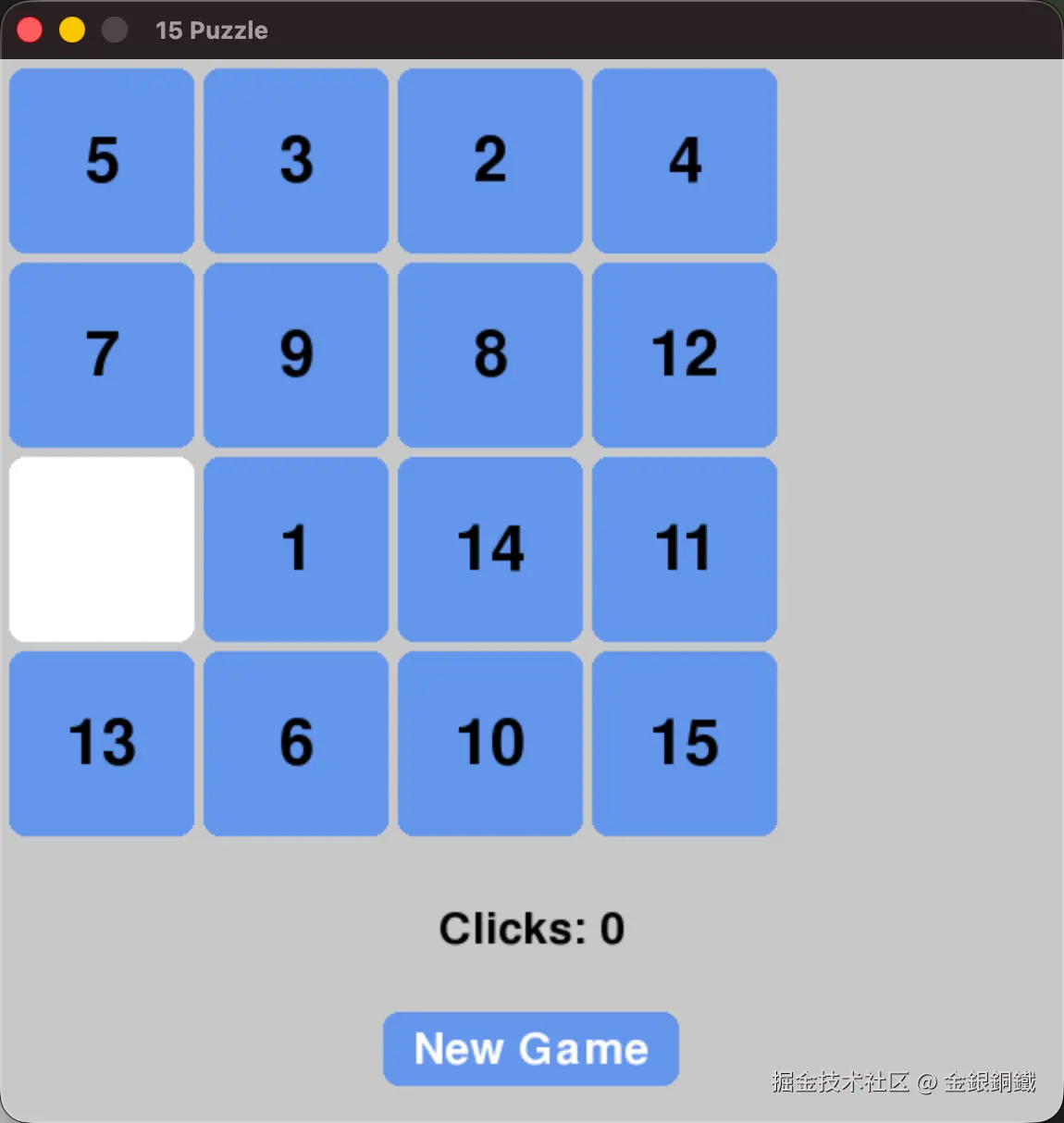
请将完整的代码(上一小节已提供)保存为 fifteen.py。使用下方的命令可以运行 fifteen.py
python3 fifteen.py运行效果如下图所示 ⬇️ (您在自己电脑上运行该程序得到的开局很可能和下图展示的局面不同)
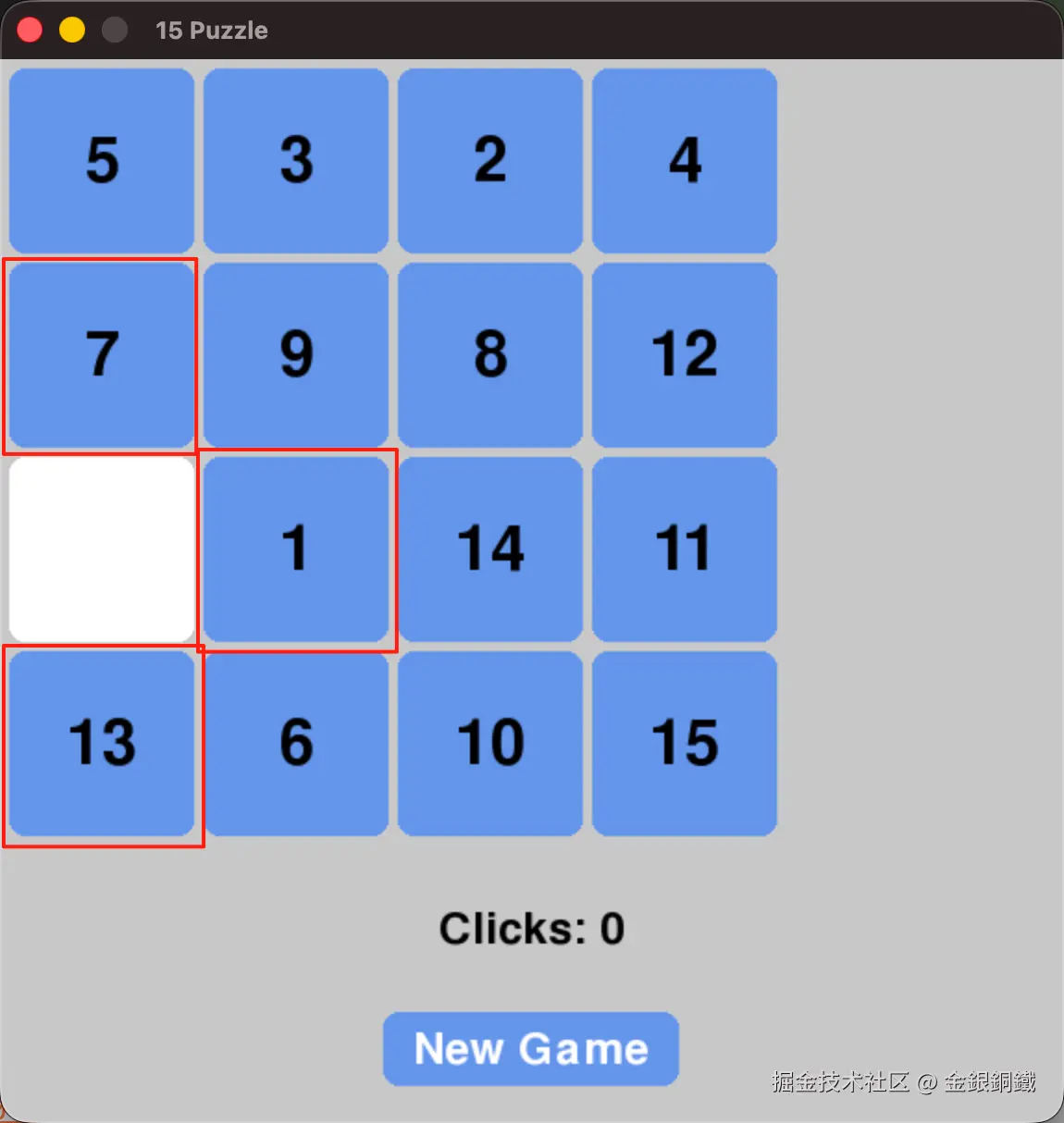
此时可以点击空格旁边的 1,7,13 中的任意一个数字。
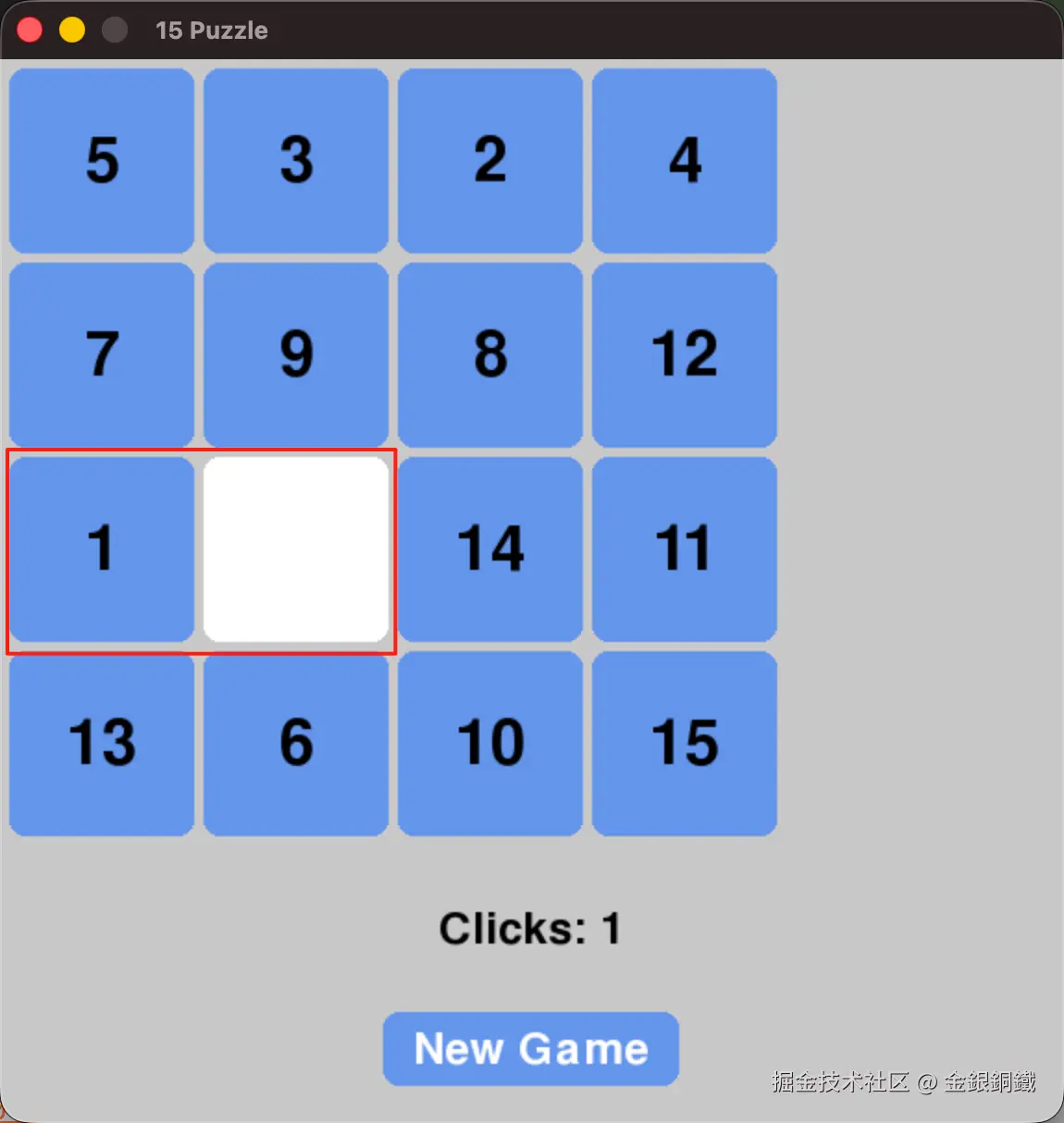
如果点击 1,会看到如下的效果("空位置" 和 1 发生了交换)
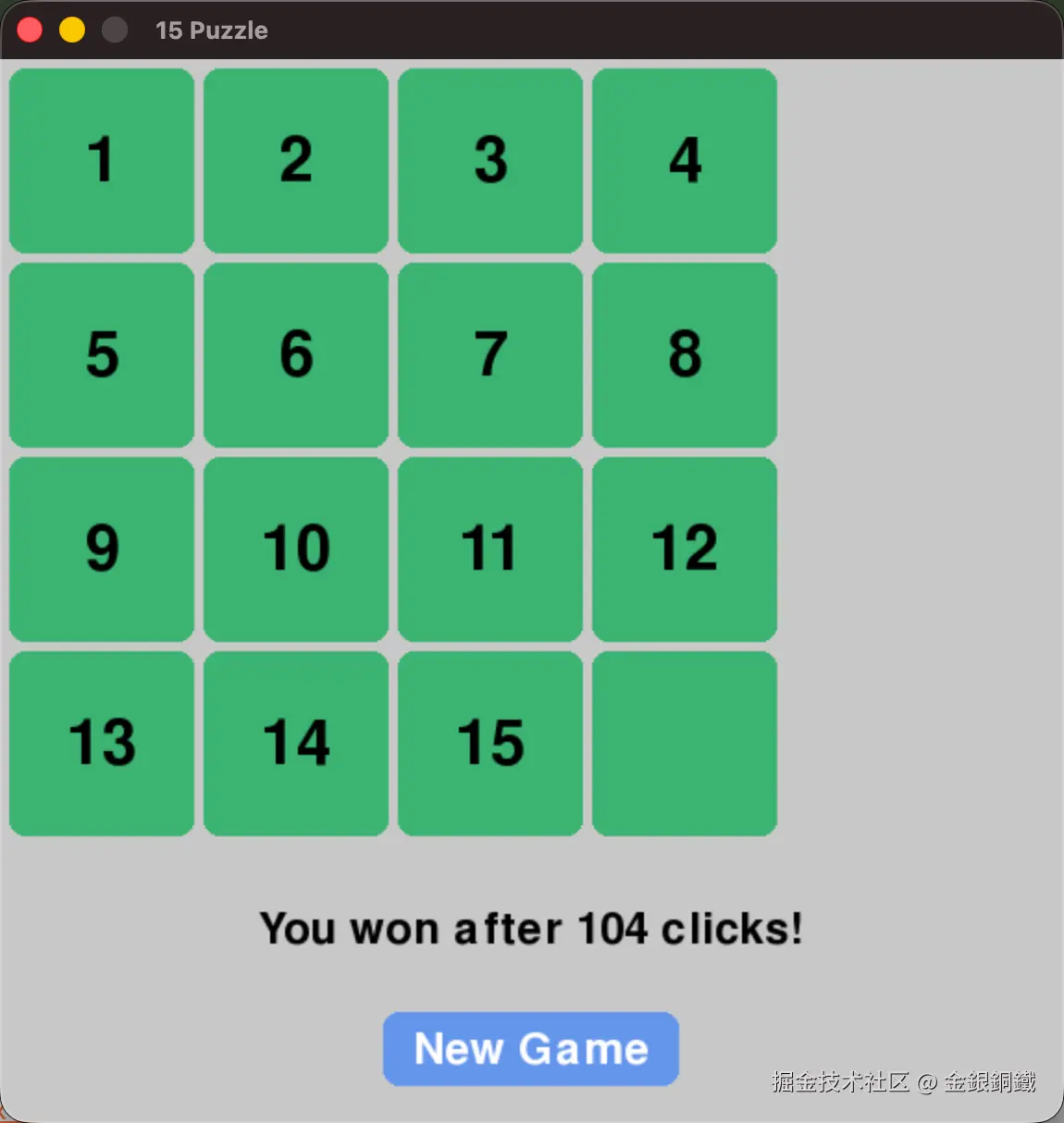
我玩了一会儿,终于得到了预期的局面 ⬇️ (一共有 104 次有效的点击)
参考资料
- TkDocs tutorial 中的
- 15 puzzle (Wolfram 中关于 15 puzzle 的介绍)
- 用 Tkinter 实现简单的 15 puzzle