HarmonyOS技术精讲:从零构建智能家居蓝牙控制应用
HarmonyOS NEXT 开发中,蓝牙相关 API 经常被同时使用,但开发者容易混淆。一个是传统蓝牙(Classic Bluetooth),用于高带宽场景如音频传输;另一个是低功耗蓝牙(BLE),用于小数据量、低功耗的设备控制。很多人在实际开发中会面临一个典型问题:如何在一个应用里同时管理两种蓝牙协议,并处理它们复杂的重连和异常逻辑? 蓝牙音箱的播放和智能灯的控制看似是两个独立功能,但在一个智能家居场景里,它们需要协同工作。比如,检测到温度过高时,自动播放报警提示音。
这个功能本身不复杂,真正的难点在于生命周期管理 、状态同步 以及异常重连。官方示例大多只演示了单一功能的连接和通信,没有解释在真实项目中,当页面销毁、蓝牙连接断开、权限变化时,如何保证整个系统稳定运行。
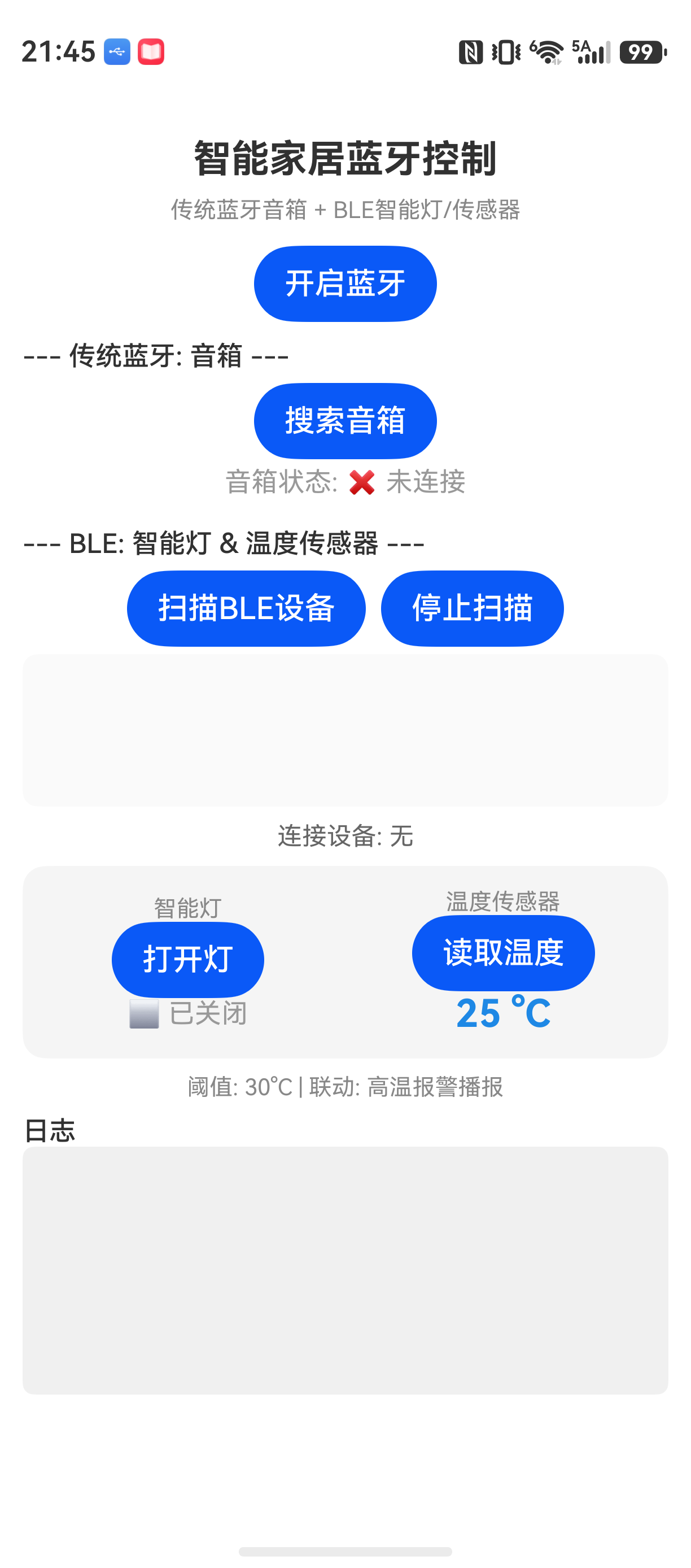
本文目标很明确:通过一个完整的智能家居控制 Demo,体验如何在一个应用中融合传统蓝牙和 BLE,实现音箱播报和灯控、温度采集的联动。代码会完整贴出,并解释每一步的设计取舍。
它解决什么问题
蓝牙 API 主要分为两类场景:
| 场景 | 协议 | 特点 | 适合场景 | 不适合场景 |
|---|---|---|---|---|
| 音频播放 | 传统蓝牙 (BR) | 高带宽,支持 A2DP/HSP/HFP | 播放音乐、通话、语音播报 | 低功耗、小数据量设备控制 |
| 设备控制 | BLE | 低功耗,支持 GATT 协议,服务与特征 | 智能开关、传感器、穿戴设备 | 需要持续高带宽音频流 |
| 高带宽数据 | 传统蓝牙 (SPP) | 串口模拟,双向通信 | 数据传输、外设控制 | 低功耗、广播 |
在智能家居场景中,一套音响系统通常使用传统蓝牙(A2DP)播放音频;而智能灯和温度传感器则基于 BLE 的 GATT 服务进行读写和控制。
环境说明
text
DevEco Studio 版本:DevEco Studio 6.1.0 及以上
HarmonyOS SDK 版本:HarmonyOS 6.1.0(23) 及以上
目标设备:手机 / 平板(需支持蓝牙)
核心实现
项目结构如下:
SmartHomeDemo/
├── entry/
│   ├── src/main/
│   │   ├── ets/
│   │   │   ├── Service/
│   │   │   │   ├── BluetoothService.ets        // 蓝牙封装核心类
│   │   │   │   ├── SpeakerConnector.ets         // 音箱连接器(传统蓝牙)
│   │   │   │   └── LightConnector.ets           // 灯控连接器(BLE)
│   │   │   ├── pages/
│   │   │   │   └── Index.ets                    // 主页面
│   │   │   └── model/
│   │   │       └── DeviceInfo.ets               // 设备数据类型
│   │   └── resources/
│   │       └── base/
│   │           └── profile/
│   │               └── main_pages.json
1. 权限配置
在 module.json5 中添加蓝牙和位置权限:
json
"requestPermissions": [
  {
    "name": "ohos.permission.USE_BLUETOOTH"
  },
  {
    "name": "ohos.permission.DISCOVER_BLUETOOTH"
  },
  {
    "name": "ohos.permission.ACCESS_BLUETOOTH"
  }
]这里需要注意:ACCESS_FINE_LOCATION 在新版本 API 中已不再强制要求,但若需要扫描 BLE 设备,仍需确保位置服务开启。
2. 蓝牙基础封装
我们创建一个单例 BluetoothService 管理全局蓝牙开关、配对、连接等核心生命周期。
typescript
// BluetoothService.ets
import { bluetooth } from '@kit.ConnectivityKit';

class BluetoothService {
  private static instance: BluetoothService;
  private state: bluetooth.BluetoothState = bluetooth.BluetoothState.STATE_OFF;
  private connectedDevice: string = '';
  private central: bluetooth.BLE | null = null;

  static getInstance(): BluetoothService {
    if (!BluetoothService.instance) {
      BluetoothService.instance = new BluetoothService();
    }
    return BluetoothService.instance;
  }

  constructor() {
    this.init();
  }

  private init() {
    // 监听蓝牙状态变化
    bluetooth.on('stateChange', (data: bluetooth.BluetoothState) => {
      console.info(`蓝牙状态变化: ${data}`);
      this.state = data;
    });
  }

  // 开启蓝牙
  async enableBluetooth(): Promise<boolean> {
    return new Promise((resolve, reject) => {
      bluetooth.enableBluetooth().then(() => {
        console.info('蓝牙已开启');
        resolve(true);
      }).catch((err: Error) => {
        console.error('开启蓝牙失败: ' + JSON.stringify(err));
        reject(false);
      });
    });
  }

  // 检查蓝牙是否开启
  isBluetoothEnabled(): boolean {
    return this.state === bluetooth.BluetoothState.STATE_ON;
  }

  // 获取已配对设备列表
  getPairedDevices(): Array<bluetooth.BondState> {
    return bluetooth.getPairedDevices();
  }
}
export default BluetoothService;
设计意图 :BluetoothService 作为全局状态管家,任何页面都能获取到蓝牙状态。为什么不写在页面 @Component 里?因为蓝牙生命周期贯穿整个应用,页面销毁后蓝牙连接需要继续保持。
3. 传统蓝牙:连接音箱播放
传统蓝牙连接喇叭,这里使用 A2DP profile。完整连接流程是:先配对 → 再连接 A2DP。
typescript
// SpeakerConnector.ets
import { bluetooth } from '@kit.ConnectivityKit';
import BluetoothService from './BluetoothService';

class SpeakerConnector {
  private a2dp: bluetooth.A2dpSourceProfile | null = null;

  async connectToSpeaker(deviceId: string): Promise<boolean> {
    // 1. 获取 A2DP profile
    return new Promise((resolve, reject) => {
      bluetooth.createProfileInstance(bluetooth.ProfileId.PROFILE_A2DP_SOURCE)
        .then((profile: bluetooth.A2dpSourceProfile) => {
          this.a2dp = profile;
          return this.a2dp.connect(deviceId);
        })
        .then(() => {
          console.info('音箱连接成功');
          resolve(true);
        })
        .catch((err: Error) => {
          console.error('连接音箱失败: ' + JSON.stringify(err));
          reject(false);
        });
    });
  }

  // 断开连接
  disconnect() {
    this.a2dp?.disconnect();
  }
}
export default SpeakerConnector;
为什么选择 A2DP 而不是 HSP?
A2DP 用于高质量的立体声音频流,适合播放提示音、音乐。HSP/HFP 主要用于通话,音质较低。在智能家居场景里,显然是 A2DP 更合适。
4. BLE:连接智能灯与传感器
BLE 连接核心是 GATT 通信。我们需要发现服务、然后读写特征。
typescript
// LightConnector.ets
import { bluetooth } from '@kit.ConnectivityKit';

class LightConnector {
  private ble: bluetooth.BLE;
  private device: bluetooth.BLEDevice | null = null;
  private gattClient: bluetooth.GattClientDevice | null = null;

  constructor() {
    this.ble = bluetooth.getProfileInstance();
  }

  // 扫描并连接
  async connectToLight(deviceId: string): Promise<boolean> {
    return new Promise((resolve, reject) => {
      this.ble.on('BLEDeviceFind', (data: Array<bluetooth.ScanResult>) => {
        const device = data.find((item) => item.deviceId === deviceId);
        if (device) {
          this.ble.stopScan();
          this.device = device;
          // 连接 GATT
          bluetooth.connectGattClientDevice(device.deviceId)
            .then((client: bluetooth.GattClientDevice) => {
              this.gattClient = client;
              return this.gattClient.on('BLEConnectionStateChange', (state) => {
                console.info('BLE 连接状态变化: ' + JSON.stringify(state));
              });
            })
            .then(() => resolve(true))
            .catch((err: Error) => reject(err));
        }
      });
      this.ble.startScan();
    });
  }

  // 写入特征(控制灯开关)
  async writeCharacteristic(serviceUuid: string, characteristicUuid: string, data: ArrayBuffer): Promise<void> {
    if (!this.gattClient) {
      throw new Error('BLE 未连接');
    }
    return this.gattClient.writeCharacteristicValue(serviceUuid, characteristicUuid, data);
  }

  // 读取特征(获取温度传感器数据)
  async readCharacteristic(serviceUuid: string, characteristicUuid: string): Promise<ArrayBuffer> {
    if (!this.gattClient) {
      throw new Error('BLE 未连接');
    }
    return this.gattClient.readCharacteristicValue(serviceUuid, characteristicUuid);
  }

  // 断开连接
  disconnect() {
    this.gattClient?.disconnect();
  }
}
export default LightConnector;细节说明:
startScan需要在前置条件(蓝牙开启、位置权限、位置服务开启)下才能生效。很多人在真机上发现扫描不到设备,往往是因为位置服务没开。- 写特征前需要先发现服务,否则 GATT 读写会失败。这个步骤在
connectGattClientDevice内部会自动完成,但在某些设备上可能有延迟,建议在连接状态回调完成后再进行读写。
5. 联动逻辑:温度过高自动播报
这个功能在主页面的 @Component 中实现。我们会在 BLE 读取温度后,根据阈值调用音箱播放音频。
typescript
// Index.ets
@Entry
@Component
struct Index {
  @State isLightOn: boolean = false;
  @State temperature: number = 25.0;
  @State speakerConnected: boolean = false;
  private speakerConnector: SpeakerConnector = new SpeakerConnector();
  private lightConnector: LightConnector = new LightConnector();

  build() {
    Column() {
      // 蓝牙状态显示
      Text(`音箱状态: ${this.speakerConnected ? '已连接' : '未连接'}`)
      Button('连接音箱')
        .onClick(() => {
          this.speakerConnector.connectToSpeaker('音箱设备MAC地址')
            .then(() => {
              this.speakerConnected = true;
            }).catch(() => {
              // 连接失败处理
            });
        })

      // 灯控开关
      Button(this.isLightOn ? '关闭灯' : '打开灯')
        .onClick(() => {
          const data = new Uint8Array([this.isLightOn ? 0x00 : 0x01]).buffer;
          this.lightConnector.writeCharacteristic('灯的Service UUID', '开关特征UUID', data)
            .then(() => {
              this.isLightOn = !this.isLightOn;
            }).catch(() => {
              // 写入失败提醒
            });
        })

      // 温度显示与联动
      Text(`当前温度: ${this.temperature}°C`)
      Button('读取温度')
        .onClick(() => {
          this.lightConnector.readCharacteristic('温度Service UUID', '温度特征UUID')
            .then((buffer) => {
              this.temperature = new Float32Array(buffer)[0];
              // 联动逻辑:温度 > 30,播放警报
              if (this.temperature > 30 && this.speakerConnected) {
                this.playAlarmHint();
              }
            });
        })
    }
    .padding(16)
    .onPageShow(() => {
      // 页面显示时检查蓝牙状态
    })
  }

  async playAlarmHint() {
    // 这里可以调用系统媒体播放器播放预设音频
    // 或者通过 A2DP 传输音频流
    console.info('播放警报提示音');
  }
}设计取舍:
- 为什么把蓝牙状态放在页面组件?因为 UI 交互需要实时绑定状态。但蓝牙连接的生命周期由
BluetoothService管理,页面销毁后不影响蓝牙后台运行。 - 为什么读取温度后直接联动?这属于业务逻辑,放在页面层方便管理,但要注意避免在异步回调里频繁更新
@State导致性能问题。实际项目中最好将联动逻辑抽成独立 Service。
常见问题 1:传统蓝牙与 BLE 同时连接时的冲突
现象:当同时连接音箱(传统蓝牙)和智能灯(BLE)时,音箱播放音频后 BLE 连接自动断开。
原因:在某些设备上,传统蓝牙的音频流(A2DP)和 BLE 共存时,可能存在带宽竞争。尤其是音箱在播放高码率音频时,会占用大量蓝牙带宽,导致 BLE 连接不稳定。
解决方案:
- 在播放音频前,先确保 BLE 连接不在传输高负载数据。
- 使用
bluetooth.getBluetoothState()检查蓝牙状态,若正在播放音频,可考虑降低音频码率或调整 BLE 通信间隔。 - 在
BluetoothService中维护一个isAudioStreaming状态,Ble 写入特征前检查该状态。
常见问题 2:页面返回后蓝牙状态丢失
现象:用户从主页面跳转到其他页面,再返回时,蓝牙连接显示断开,但实际上蓝牙还连着。
原因 :页面组件的 @State 在页面销毁时重置,重新创建时变量恢复默认值。蓝牙 Service 虽然是单例,但页面并没有自动同步。
解决方案 :使用 @Link 或全局 Store 共享蓝牙状态。推荐在 BluetoothService 中增加一个 @State 引用,页面通过 @Watch 订阅变化。
typescript
// 在 BluetoothService 中新增
private _stateEmitter: (state: boolean) => void = () => {};

setStateChangeCallback(cb: (state: boolean) => void) {
  this._stateEmitter = cb;
}
// 在 Index.ets 中
aboutToAppear() {
  BluetoothService.getInstance().setStateChangeCallback((connected: boolean) => {
    this.speakerConnected = connected;
  });
}
最佳实践
-
管理蓝牙连接生命周期 :不要在
@Component的build()中频繁调用connect/disconnect,应该使用单例 Service 统一管理。页面仅做 UI 和事件触发。 -
封装异步回调 :蓝牙 API 大量使用回调,容易造成回调地狱。推荐使用
Promise+async/await包装。但要注意 Promise 的错误处理,尤其是连接超时场景。在connect调用上建议增加超时处理。 -
异常重连机制 :蓝牙连接时常不稳定。可以在
BluetoothService中实现重连策略:- 断开后等待 3 秒尝试重连。
- 连续失败 3 次后暂停。
- 重连次数过多时通知用户检查设备。
FAQ
Q:真机上扫描不到 BLE 设备,但模拟器可以?
A:模拟器通常不支持 BLE 广播,需要真机。真机扫描失败的原因主要是:
- 没有开启位置服务(蓝牙扫描需要精细位置权限)。
- 蓝牙未开启。
- 设备处于不可发现模式。
Q:为什么写入 BLE 特征后 UI 没更新?
A:UI 更新需要通过 @State 变量触发。如果写入成功回调里直接赋值,注意上下文中的 this。使用箭头函数或 bind(this)。
Q:传统蓝牙断开后如何自动重连?
A:在 bluetooth.on('stateChange') 或 bluetooth.on('bluetoothDeviceFind') 回调中加入重连逻辑。但注意不要无限重试,应设定最大重试次数和间隔。
结语
在 HarmonyOS 中同时管理传统蓝牙和 BLE,核心挑战不是调用 API,而是理解生命周期 和设计稳定的状态同步机制。把蓝牙状态集中到一个 Service 里处理,页面只关注 UI 展示和事件触发,这样你的应用才能在各种异常场景下连续工作。官方文档对蓝牙 API 描述得比较抽象,建议结合真机调试一步一步验证。如果你也遇到类似的问题,可以重点检查是否遗漏了位置服务权限或状态同步逻辑。