项目演示
引言
在移动应用开发中,拖拽排序是一种常见的交互模式,允许用户通过手势操作调整列表项的顺序。这种交互方式直观、自然,能够显著提升用户体验。在鸿蒙HarmonyOS NEXT中,开发者可以利用ArkUI框架提供的PanGesture手势组件,结合响应式状态管理,实现流畅的拖拽排序功能。
本文将深入探讨如何在HarmonyOS ArkTS中使用PanGesture实现拖拽排序,涵盖从基础概念到高级优化的完整技术路径。
第一章 ArkTS与ArkUI基础
1.1 ArkTS概述
ArkTS是HarmonyOS NEXT的主要应用开发语言,它是TypeScript的超集,为开发者提供了更强大的类型系统和更好的开发体验。ArkTS保留了TypeScript的核心语法特性,并针对鸿蒙应用开发场景进行了扩展和优化。
1.1.1 ArkTS的关键特性
- 强类型系统:ArkTS采用严格的类型检查机制,在编译阶段就能发现大部分类型错误,提高代码的可靠性。
- 声明式UI:通过声明式语法描述UI结构和状态,简化UI开发流程。
- 响应式状态管理 :使用
@State、@Prop、@Link等装饰器实现状态与UI的双向绑定。 - 组件化开发:基于组件的开发模式,支持组件复用和模块化。
1.1.2 ArkTS与TypeScript的差异
虽然ArkTS基于TypeScript,但两者之间存在一些重要差异:
typescript
// ArkTS不支持的TypeScript特性

// 1. 不支持any类型
// TypeScript: let value: any = "test";
// ArkTS: 需要使用具体类型
let value: string = "test";

// 2. 不支持解构赋值
// TypeScript: const { name, age } = person;
// ArkTS: 需要手动赋值
const name: string = person.name;
const age: number = person.age;

// 3. 不支持对象字面量类型
// TypeScript: let item: { id: number; name: string } = { id: 1, name: "test" };
// ArkTS: 需要定义显式类
class DataItem {
  id: number = 0;
  name: string = "";
}
let item: DataItem = { id: 1, name: "test" };

// 4. 不支持函数表达式
// TypeScript: const func = function() {};
// ArkTS: 使用箭头函数
const func = () => {};

// 5. 不支持in运算符
// TypeScript: if ("field" in obj) {}
// ArkTS: 使用instanceof或显式检查
if (obj instanceof SomeClass) {}
1.2 ArkUI框架
ArkUI是HarmonyOS的原生UI框架,提供了丰富的组件库和交互能力。ArkUI支持声明式开发范式,开发者可以通过组合各种UI组件来构建复杂的用户界面。
1.2.1 核心组件
ArkUI提供了一系列核心UI组件,用于构建应用界面:
- 基础组件 :
Text、Image、Button、TextInput等 - 容器组件 :
Column、Row、Stack、Flex等 - 列表组件 :
List、Grid、Scroll等 - 手势组件 :
TapGesture、LongPressGesture、PanGesture、PinchGesture等
1.2.2 布局系统
ArkUI的布局系统基于Flexbox布局模型,提供了灵活的布局能力:
typescript
Column({ space: 10 }) {
  Text("标题")
    .fontSize(24)
    .fontWeight(FontWeight.Bold);

  Row() {
    Text("左侧")
      .flexGrow(1);
    Text("右侧")
      .width(100);
  }
  .width("100%");
}
.width("100%")
.height("100%");
第二章 PanGesture手势详解
2.1 PanGesture概述
PanGesture是ArkUI提供的滑动手势组件,用于识别用户的拖拽操作。当用户按下手指并移动时,PanGesture会捕获这个动作并触发相应的回调函数。
2.1.1 PanGesture的基本用法
typescript
@Entry
@Component
struct PanGestureBasicExample {
  @State offsetX: number = 0;
  @State offsetY: number = 0;

  build() {
    Column() {
      Text("拖拽我")
        .width(200)
        .height(100)
        .backgroundColor("#4CAF50")
        .fontColor("#FFFFFF")
        .textAlign(TextAlign.Center)
        .translate({ x: this.offsetX, y: this.offsetY })
        .gesture(
          PanGesture({
            direction: PanDirection.All,
            fingers: 1,
            distance: 5
          })
            .onActionStart((event: GestureEvent) => {
              console.info("PanGesture started");
            })
            .onActionUpdate((event: GestureEvent) => {
              this.offsetX = event.offsetX;
              this.offsetY = event.offsetY;
            })
            .onActionEnd((event: GestureEvent) => {
              console.info("PanGesture ended");
              this.offsetX = 0;
              this.offsetY = 0;
            })
        );
    }
    .width("100%")
    .height("100%")
    .justifyContent(FlexAlign.Center)
    .alignItems(HorizontalAlign.Center);
  }
}
2.1.2 PanGestureOptions配置项
PanGesture支持通过PanGestureOptions进行配置:
| 配置项 | 类型 | 默认值 | 说明 |
|---|---|---|---|
| direction | PanDirection | PanDirection.All | 允许的滑动方向 |
| fingers | number | 1 | 触发手势所需的手指数 |
| distance | number | 5 | 触发手势的最小滑动距离(vp) |
2.1.3 PanDirection枚举
PanDirection枚举定义了手势允许的滑动方向:
| 枚举值 | 说明 |
|---|---|
| PanDirection.None | 不允许任何方向滑动 |
| PanDirection.Horizontal | 允许水平方向滑动 |
| PanDirection.Vertical | 允许垂直方向滑动 |
| PanDirection.Left | 允许向左滑动 |
| PanDirection.Right | 允许向右滑动 |
| PanDirection.Up | 允许向上滑动 |
| PanDirection.Down | 允许向下滑动 |
| PanDirection.All | 允许所有方向滑动 |
支持使用位运算符组合多个方向:
typescript
PanGesture({
  direction: PanDirection.Left | PanDirection.Right
});
2.2 GestureEvent事件对象
在PanGesture的回调函数中,开发者可以通过GestureEvent对象获取手势的详细信息。
2.2.1 GestureEvent的主要属性
| 属性 | 类型 | 说明 |
|---|---|---|
| offsetX | number | 当前手势在X轴方向的累积偏移量 |
| offsetY | number | 当前手势在Y轴方向的累积偏移量 |
| timestamp | number | 事件发生的时间戳 |
2.2.2 事件回调方法
PanGesture提供了三个主要的事件回调方法:
- onActionStart:手势开始时触发,即用户按下手指时
- onActionUpdate:手势更新时触发,即用户移动手指时,会持续触发
- onActionEnd:手势结束时触发,即用户抬起手指时
typescript
PanGesture({ direction: PanDirection.Vertical })
  .onActionStart((event: GestureEvent) => {
    // 手势开始,初始化状态
  })
  .onActionUpdate((event: GestureEvent) => {
    // 手势更新,处理移动逻辑
    const deltaX = event.offsetX;
    const deltaY = event.offsetY;
  })
  .onActionEnd((event: GestureEvent) => {
    // 手势结束,清理状态
  });
2.3 PanGesture与其他手势的协作
在实际应用中,PanGesture经常需要与其他手势协作,处理手势冲突。
2.3.1 手势组(GestureGroup)
ArkUI提供了GestureGroup来组合多个手势,支持三种组合模式:
typescript
// 1. 并行模式:多个手势同时识别
GestureGroup(GestureMode.Parallel,
  PanGesture({ direction: PanDirection.Vertical }),
  LongPressGesture()
);

// 2. 互斥模式:只有一个手势能被识别
GestureGroup(GestureMode.Exclusive,
  TapGesture(),
  LongPressGesture()
);

// 3. 顺序模式:按顺序识别手势
GestureGroup(GestureMode.Sequence,
  LongPressGesture(),
  PanGesture()
);
2.3.2 手势冲突处理
当PanGesture与Scroll组件同时存在时,可能会发生手势冲突:
typescript
Scroll() {
  Column() {
    ForEach(items, (item, index) => {
      Text(item.name)
        .width("100%")
        .height(60)
        .gesture(
          PanGesture({ direction: PanDirection.Vertical })
            .onActionUpdate((event: GestureEvent) => {
              // 处理拖拽逻辑
            })
        );
    });
  }
}在这种情况下,可以通过onGestureRecognizerJudgeBegin来处理冲突:
typescript
Scroll() {
  // ...
}
.onGestureRecognizerJudgeBegin((event: BaseGestureEvent, current: GestureRecognizer, others: Array<GestureRecognizer>) => {
  // 根据业务逻辑决定哪个手势应该被识别
  for (let i = 0; i < others.length; i++) {
    const target = others[i].getEventTargetInfo();
    if (target.getId() === "draggable-item") {
      current.setEnabled(false);
      others[i].setEnabled(true);
      break;
    }
  }
});
第三章 拖拽排序核心实现
3.1 需求分析
在实现拖拽排序之前,我们需要明确需求:
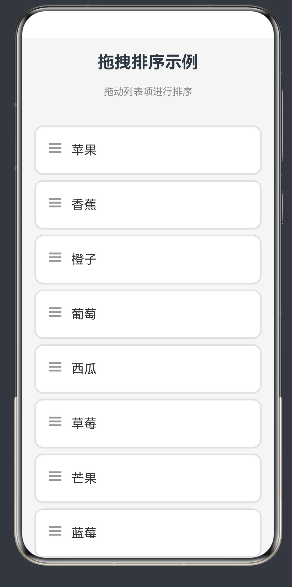
- 用户可以拖动列表中的任意项
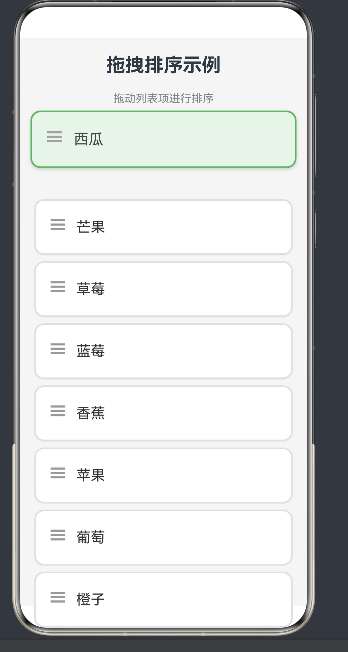
- 拖动过程中,列表项应该跟随手指移动
- 当拖动项经过其他项时,应该自动交换位置
- 松开手指后,列表项应该平滑地定位到目标位置
- 需要提供视觉反馈,如阴影、放大效果等
3.2 核心数据结构
在ArkTS中,我们需要定义数据模型来存储列表项信息。由于ArkTS不支持对象字面量类型,我们需要定义显式的类:
typescript
class ListItem {
  id: number = 0;
  name: string = "";
}

@Entry
@Component
struct DragSortPage {
  // 数据源
  @State items: Array<ListItem> = [
    { id: 1, name: "苹果" },
    { id: 2, name: "香蕉" },
    { id: 3, name: "橙子" },
    { id: 4, name: "葡萄" },
    { id: 5, name: "西瓜" },
    { id: 6, name: "草莓" },
    { id: 7, name: "芒果" },
    { id: 8, name: "蓝莓" }
  ];

  // 当前拖拽项的索引
  @State draggedIndex: number = -1;

  // 拖拽偏移量
  @State dragOffsetY: number = 0;

  // 列表项高度
  @State itemHeight: number = 70;
}
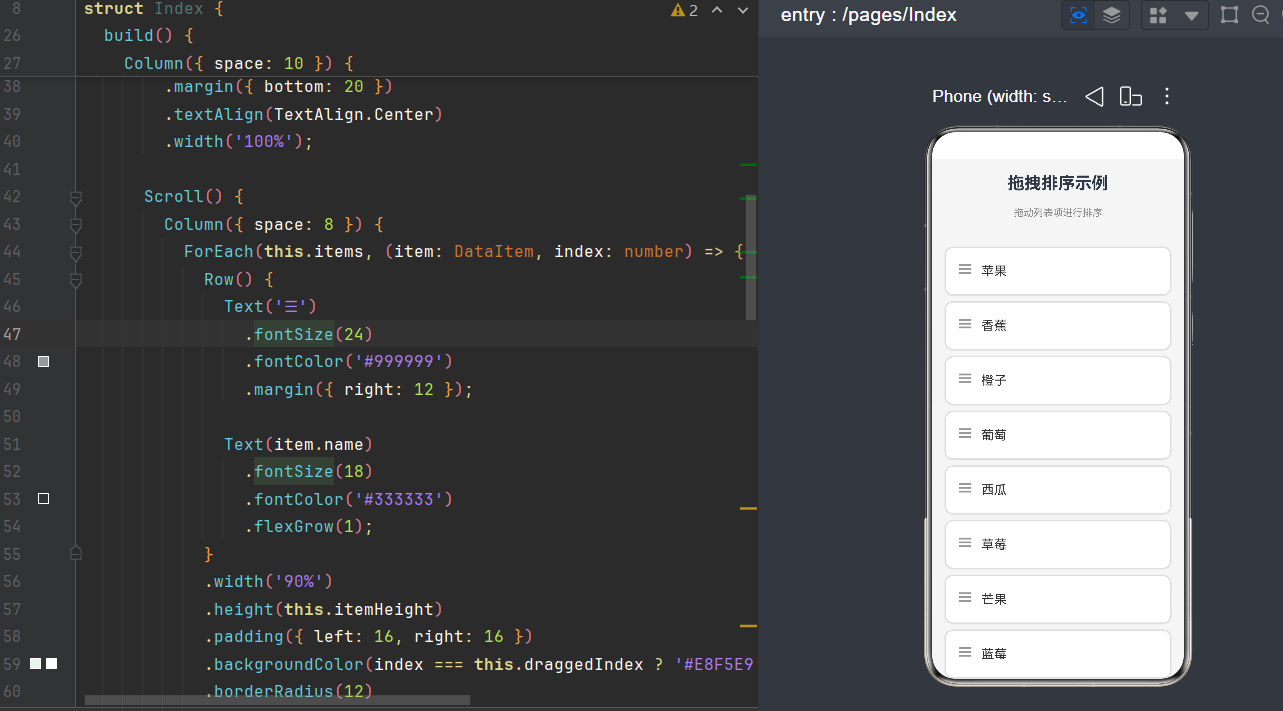
3.3 列表渲染
使用ForEach组件渲染列表项:
typescript
build() {
  Column({ space: 10 }) {
    Text("拖拽排序示例")
      .fontSize(24)
      .fontWeight(FontWeight.Bold)
      .margin({ top: 20, bottom: 10 })
      .textAlign(TextAlign.Center)
      .width("100%");

    Scroll() {
      Column({ space: 8 }) {
        ForEach(this.items, (item: ListItem, index: number) => {
          Row() {
            Text("☰")
              .fontSize(24)
              .fontColor("#999999")
              .margin({ right: 12 });

            Text(item.name)
              .fontSize(18)
              .fontColor("#333333")
              .flexGrow(1);
          }
          .width("90%")
          .height(this.itemHeight)
          .padding({ left: 16, right: 16 })
          .backgroundColor(index === this.draggedIndex ? "#E8F5E9" : "#FFFFFF")
          .borderRadius(12)
          .borderWidth(2)
          .borderColor(index === this.draggedIndex ? "#4CAF50" : "#E0E0E0")
          .shadow({
            radius: index === this.draggedIndex ? 10 : 2,
            color: index === this.draggedIndex ? "rgba(0,0,0,0.2)" : "rgba(0,0,0,0.1)",
            offsetY: index === this.draggedIndex ? 5 : 1
          })
          .justifyContent(FlexAlign.Center)
          .alignItems(VerticalAlign.Center)
          .translate({ y: index === this.draggedIndex ? this.dragOffsetY : 0 })
          .scale({ x: index === this.draggedIndex ? 1.03 : 1, y: index === this.draggedIndex ? 1.03 : 1 })
          .opacity(index === this.draggedIndex ? 0.9 : 1)
          .zIndex(index === this.draggedIndex ? 100 : 1)
          .gesture(this.createPanGesture(index));
        }, (item: ListItem) => {
          return item.id.toString();
        });
      }
      .width("100%")
      .padding({ top: 10, bottom: 10 })
    }
    .width("100%")
    .flexGrow(1)
    .backgroundColor("#F5F5F5");
  }
  .width("100%")
  .height("100%")
  .backgroundColor("#F5F5F5");
}
3.4 PanGesture实现
创建createPanGesture方法来生成拖拽手势:
typescript
private createPanGesture(index: number) {
  let panOption: PanGestureOptions = new PanGestureOptions({
    direction: PanDirection.Vertical,
    fingers: 1,
    distance: 5
  });

  return PanGesture(panOption)
    .onActionStart((event: GestureEvent) => {
      this.draggedIndex = index;
      this.dragOffsetY = 0;
    })
    .onActionUpdate((event: GestureEvent) => {
      if (this.draggedIndex >= 0) {
        this.dragOffsetY = event.offsetY;

        const currentY = this.draggedIndex * this.itemHeight + this.dragOffsetY;
        let newTargetIndex = Math.round(currentY / this.itemHeight);
        newTargetIndex = Math.max(0, Math.min(newTargetIndex, this.items.length - 1));

        if (newTargetIndex !== this.draggedIndex) {
          let newItems: Array<ListItem> = [...this.items];
          const temp = newItems[this.draggedIndex];
          newItems[this.draggedIndex] = newItems[newTargetIndex];
          newItems[newTargetIndex] = temp;
          this.items = newItems;

          const offsetDelta = (this.draggedIndex - newTargetIndex) * this.itemHeight;
          this.dragOffsetY = this.dragOffsetY + offsetDelta;
          this.draggedIndex = newTargetIndex;
        }
      }
    })
    .onActionEnd((event: GestureEvent) => {
      animateTo({
        duration: 200,
        curve: Curve.EaseOut
      }, () => {
        this.draggedIndex = -1;
        this.dragOffsetY = 0;
      });
    });
}
3.5 关键技术点分析
3.5.1 状态管理
使用@State装饰器管理拖拽相关的状态:
typescript
@State draggedIndex: number = -1;  // 当前拖拽项索引
@State dragOffsetY: number = 0;     // 拖拽偏移量
@State itemHeight: number = 70; // 列表项高度@State装饰器会自动触发UI更新,当状态值发生变化时,相关的UI组件会重新渲染。
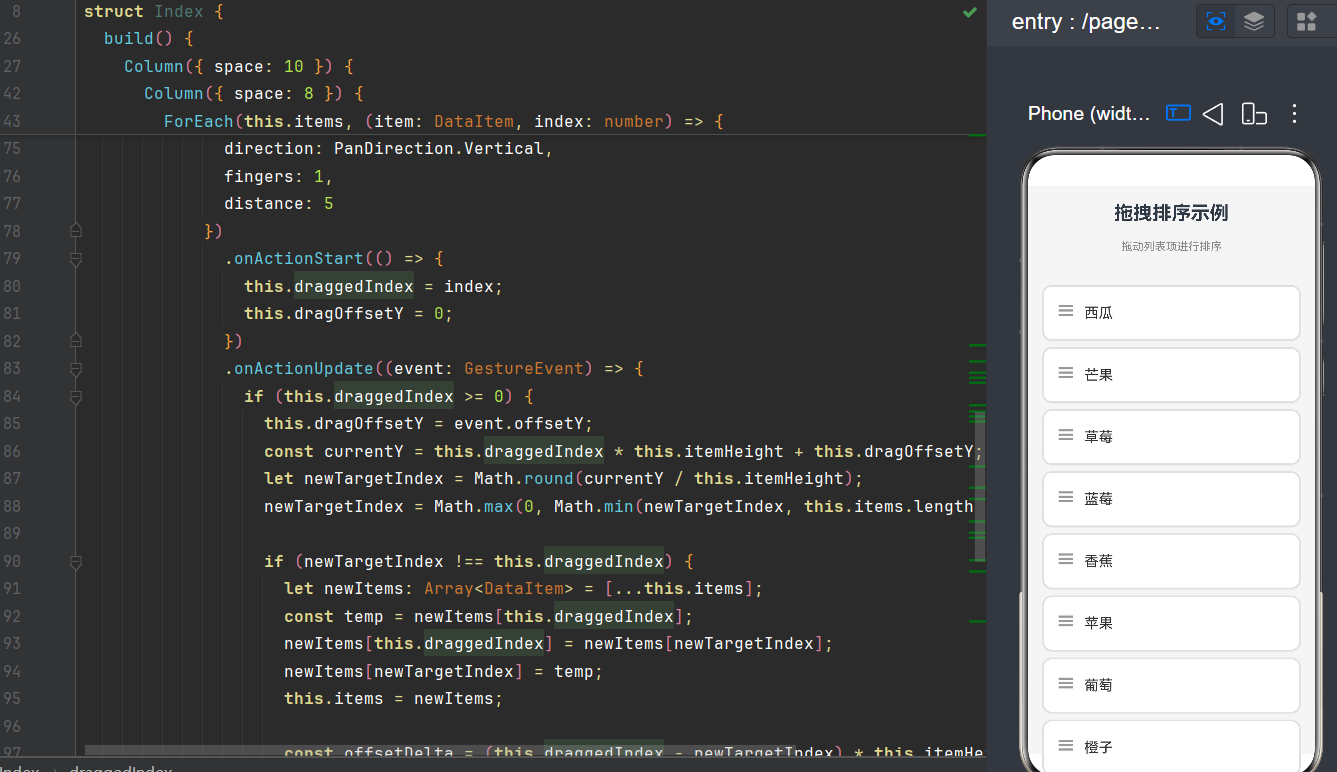
3.5.2 数据交换逻辑
在onActionUpdate回调中,我们需要计算目标索引并执行数据交换:
typescript
const currentY = this.draggedIndex * this.itemHeight + this.dragOffsetY;
let newTargetIndex = Math.round(currentY / this.itemHeight);
newTargetIndex = Math.max(0, Math.min(newTargetIndex, this.items.length - 1));
这里的计算逻辑是:
- 根据当前拖拽项的索引和偏移量,计算实际的Y坐标
- 根据Y坐标和列表项高度,计算目标索引
- 使用
Math.round进行四舍五入,实现吸附效果 - 使用
Math.max和Math.min限制索引范围
3.5.3 数组响应式更新
ArkTS中,直接修改数组元素不会触发响应式更新,需要创建新的数组引用:
typescript
let newItems: Array<ListItem> = [...this.items];
const temp = newItems[this.draggedIndex];
newItems[this.draggedIndex] = newItems[newTargetIndex];
newItems[newTargetIndex] = temp;
this.items = newItems;通过展开运算符[...this.items]创建数组副本,然后交换元素,最后重新赋值给this.items,这样才能触发@State的响应式更新。
3.5.4 偏移量补偿
当两个列表项交换位置后,拖拽项的基准位置会发生变化,需要调整偏移量以避免视觉跳跃:
typescript
const offsetDelta = (this.draggedIndex - newTargetIndex) * this.itemHeight;
this.dragOffsetY = this.dragOffsetY + offsetDelta;
this.draggedIndex = newTargetIndex;
偏移量补偿的原理是:
- 如果拖拽项向上移动(newTargetIndex < draggedIndex),基准位置会上移,需要增加偏移量
- 如果拖拽项向下移动(newTargetIndex > draggedIndex),基准位置会下移,需要减少偏移量
3.5.5 平滑动画
在onActionEnd回调中,使用animateTo实现平滑复位动画:
typescript
animateTo({
  duration: 200,
  curve: Curve.EaseOut
}, () => {
  this.draggedIndex = -1;
  this.dragOffsetY = 0;
});animateTo会自动检测回调函数中修改的状态,并为这些状态的变化添加动画效果。
第四章 高级优化技巧
4.1 性能优化
4.1.1 减少不必要的渲染
在拖拽过程中,onActionUpdate会频繁触发,如果每次都重新渲染整个列表,会影响性能。可以通过以下方式优化:
- 使用
ForEach的key函数 :确保ForEach能够正确识别列表项的变化,只更新必要的组件
typescript
ForEach(this.items, (item: ListItem, index: number) => {
  // 渲染逻辑
}, (item: ListItem) => {
  return item.id.toString();  // 使用唯一ID作为key
});- 限制重渲染范围:只对拖拽项和受影响的项进行重渲染
4.1.2 使用renderGroup
对于包含复杂子组件的列表项,可以使用renderGroup减少渲染批次:
typescript
Row() {
  // 复杂子组件
}
.renderGroup(true);
4.2 交互优化
4.2.1 增加拖拽阈值
设置合理的最小拖拽距离,避免误触:
typescript
PanGesture({
  distance: 10  // 增加拖拽阈值
});
4.2.2 长按触发拖拽
结合LongPressGesture和PanGesture,实现长按后才能拖拽:
typescript
GestureGroup(GestureMode.Sequence,
  LongPressGesture({ duration: 300 }),
  PanGesture({ direction: PanDirection.Vertical })
);
4.2.3 添加拖拽手柄
使用专门的拖拽手柄区域,明确指示用户可以拖拽:
typescript
Row() {
  // 拖拽手柄
  Text("☰")
    .fontSize(24)
    .fontColor("#999999")
    .margin({ right: 12 });

  // 内容区域
  Text(item.name)
    .fontSize(18)
    .flexGrow(1);
}
4.3 边界处理
4.3.1 列表边界检测
确保拖拽项不会超出列表边界:
typescript
let newTargetIndex = Math.round(currentY / this.itemHeight);
newTargetIndex = Math.max(0, Math.min(newTargetIndex, this.items.length - 1));
4.3.2 自动滚动
当拖拽项靠近列表边缘时,自动滚动列表:
typescript
.onActionUpdate((event: GestureEvent) => {
  const threshold = 50;  // 边缘阈值

  if (this.dragOffsetY < -threshold) {
    // 向上滚动
    this.scrollController.scrollBy({ x: 0, y: -10 });
  } else if (this.dragOffsetY > this.itemHeight + threshold) {
    // 向下滚动
    this.scrollController.scrollBy({ x: 0, y: 10 });
  }
});
4.4 视觉优化
4.4.1 拖拽项样式变化
为拖拽项添加明显的视觉反馈:
typescript
.backgroundColor(index === this.draggedIndex ? "#E8F5E9" : "#FFFFFF")
.borderColor(index === this.draggedIndex ? "#4CAF50" : "#E0E0E0")
.shadow({
  radius: index === this.draggedIndex ? 10 : 2,
  color: index === this.draggedIndex ? "rgba(0,0,0,0.2)" : "rgba(0,0,0,0.1)",
  offsetY: index === this.draggedIndex ? 5 : 1
})
.scale({ x: index === this.draggedIndex ? 1.03 : 1, y: index === this.draggedIndex ? 1.03 : 1 })
.opacity(index === this.draggedIndex ? 0.9 : 1)
.zIndex(index === this.draggedIndex ? 100 : 1)
4.4.2 目标位置指示
在拖拽过程中,显示目标位置的指示:
typescript
Column({ space: 8 }) {
  ForEach(this.items, (item: ListItem, index: number) => {
    // 目标位置指示线
    if (index === this.targetIndex && index !== this.draggedIndex) {
      Row()
        .width("90%")
        .height(2)
        .backgroundColor("#4CAF50");
    }

    // 列表项
    Row() {
      // ...
    }
    // ...
  });
}
第五章 完整代码示例
5.1 基础版
typescript
class ListItem {
  id: number = 0;
  name: string = "";
}

@Entry
@Component
struct DragSortBasic {
  @State items: Array<ListItem> = [
    { id: 1, name: "苹果" },
    { id: 2, name: "香蕉" },
    { id: 3, name: "橙子" },
    { id: 4, name: "葡萄" },
    { id: 5, name: "西瓜" },
    { id: 6, name: "草莓" },
    { id: 7, name: "芒果" },
    { id: 8, name: "蓝莓" }
  ];

  @State draggedIndex: number = -1;
  @State dragOffsetY: number = 0;
  @State itemHeight: number = 70;

  build() {
    Column({ space: 10 }) {
      Text("拖拽排序基础版")
        .fontSize(24)
        .fontWeight(FontWeight.Bold)
        .margin({ top: 20, bottom: 10 })
        .textAlign(TextAlign.Center)
        .width("100%");

      Scroll() {
        Column({ space: 8 }) {
          ForEach(this.items, (item: ListItem, index: number) => {
            Row() {
              Text("☰")
                .fontSize(24)
                .fontColor("#999999")
                .margin({ right: 12 });

              Text(item.name)
                .fontSize(18)
                .fontColor("#333333")
                .flexGrow(1);
            }
            .width("90%")
            .height(this.itemHeight)
            .padding({ left: 16, right: 16 })
            .backgroundColor(index === this.draggedIndex ? "#E8F5E9" : "#FFFFFF")
            .borderRadius(12)
            .borderWidth(2)
            .borderColor(index === this.draggedIndex ? "#4CAF50" : "#E0E0E0")
            .shadow({
              radius: index === this.draggedIndex ? 10 : 2,
              color: index === this.draggedIndex ? "rgba(0,0,0,0.2)" : "rgba(0,0,0,0.1)",
              offsetY: index === this.draggedIndex ? 5 : 1
            })
            .justifyContent(FlexAlign.Center)
            .alignItems(VerticalAlign.Center)
            .translate({ y: index === this.draggedIndex ? this.dragOffsetY : 0 })
            .scale({ x: index === this.draggedIndex ? 1.03 : 1, y: index === this.draggedIndex ? 1.03 : 1 })
            .opacity(index === this.draggedIndex ? 0.9 : 1)
            .zIndex(index === this.draggedIndex ? 100 : 1)
            .gesture(this.createPanGesture(index));
          }, (item: ListItem) => {
            return item.id.toString();
          });
        }
        .width("100%")
        .padding({ top: 10, bottom: 10 })
      }
      .width("100%")
      .flexGrow(1)
      .backgroundColor("#F5F5F5");
    }
    .width("100%")
    .height("100%")
    .backgroundColor("#F5F5F5");
  }

  private createPanGesture(index: number) {
    let panOption: PanGestureOptions = new PanGestureOptions({
      direction: PanDirection.Vertical,
      fingers: 1,
      distance: 5
    });

    return PanGesture(panOption)
      .onActionStart((event: GestureEvent) => {
        this.draggedIndex = index;
        this.dragOffsetY = 0;
      })
      .onActionUpdate((event: GestureEvent) => {
        if (this.draggedIndex >= 0) {
          this.dragOffsetY = event.offsetY;

          const currentY = this.draggedIndex * this.itemHeight + this.dragOffsetY;
          let newTargetIndex = Math.round(currentY / this.itemHeight);
          newTargetIndex = Math.max(0, Math.min(newTargetIndex, this.items.length - 1));

          if (newTargetIndex !== this.draggedIndex) {
            let newItems: Array<ListItem> = [...this.items];
            const temp = newItems[this.draggedIndex];
            newItems[this.draggedIndex] = newItems[newTargetIndex];
            newItems[newTargetIndex] = temp;
            this.items = newItems;

            const offsetDelta = (this.draggedIndex - newTargetIndex) * this.itemHeight;
            this.dragOffsetY = this.dragOffsetY + offsetDelta;
            this.draggedIndex = newTargetIndex;
          }
        }
      })
      .onActionEnd((event: GestureEvent) => {
        animateTo({
          duration: 200,
          curve: Curve.EaseOut
        }, () => {
          this.draggedIndex = -1;
          this.dragOffsetY = 0;
        });
      });
  }
}
5.2 进阶版(带自动滚动)
typescript
class ListItem {
  id: number = 0;
  name: string = "";
}

@Entry
@Component
struct DragSortAdvanced {
  @State items: Array<ListItem> = [
    { id: 1, name: "苹果" },
    { id: 2, name: "香蕉" },
    { id: 3, name: "橙子" },
    { id: 4, name: "葡萄" },
    { id: 5, name: "西瓜" },
    { id: 6, name: "草莓" },
    { id: 7, name: "芒果" },
    { id: 8, name: "蓝莓" },
    { id: 9, name: "樱桃" },
    { id: 10, name: "荔枝" },
    { id: 11, name: "菠萝" },
    { id: 12, name: "榴莲" }
  ];

  @State draggedIndex: number = -1;
  @State dragOffsetY: number = 0;
  @State itemHeight: number = 70;

  private scrollController: ScrollController = new ScrollController();
  private autoScrollTimer: number = 0;

  build() {
    Column({ space: 10 }) {
      Text("拖拽排序进阶版(带自动滚动)")
        .fontSize(24)
        .fontWeight(FontWeight.Bold)
        .margin({ top: 20, bottom: 10 })
        .textAlign(TextAlign.Center)
        .width("100%");

      Scroll(this.scrollController) {
        Column({ space: 8 }) {
          ForEach(this.items, (item: ListItem, index: number) => {
            Row() {
              Text("☰")
                .fontSize(24)
                .fontColor("#999999")
                .margin({ right: 12 });

              Text(item.name)
                .fontSize(18)
                .fontColor("#333333")
                .flexGrow(1);
            }
            .width("90%")
            .height(this.itemHeight)
            .padding({ left: 16, right: 16 })
            .backgroundColor(index === this.draggedIndex ? "#E8F5E9" : "#FFFFFF")
            .borderRadius(12)
            .borderWidth(2)
            .borderColor(index === this.draggedIndex ? "#4CAF50" : "#E0E0E0")
            .shadow({
              radius: index === this.draggedIndex ? 10 : 2,
              color: index === this.draggedIndex ? "rgba(0,0,0,0.2)" : "rgba(0,0,0,0.1)",
              offsetY: index === this.draggedIndex ? 5 : 1
            })
            .justifyContent(FlexAlign.Center)
            .alignItems(VerticalAlign.Center)
            .translate({ y: index === this.draggedIndex ? this.dragOffsetY : 0 })
            .scale({ x: index === this.draggedIndex ? 1.03 : 1, y: index === this.draggedIndex ? 1.03 : 1 })
            .opacity(index === this.draggedIndex ? 0.9 : 1)
            .zIndex(index === this.draggedIndex ? 100 : 1)
            .gesture(this.createPanGesture(index));
          }, (item: ListItem) => {
            return item.id.toString();
          });
        }
        .width("100%")
        .padding({ top: 10, bottom: 10 })
      }
      .width("100%")
      .flexGrow(1)
      .backgroundColor("#F5F5F5");
    }
    .width("100%")
    .height("100%")
    .backgroundColor("#F5F5F5");
  }

  private createPanGesture(index: number) {
    let panOption: PanGestureOptions = new PanGestureOptions({
      direction: PanDirection.Vertical,
      fingers: 1,
      distance: 5
    });

    return PanGesture(panOption)
      .onActionStart((event: GestureEvent) => {
        this.draggedIndex = index;
        this.dragOffsetY = 0;
      })
      .onActionUpdate((event: GestureEvent) => {
        if (this.draggedIndex >= 0) {
          this.dragOffsetY = event.offsetY;

          const currentY = this.draggedIndex * this.itemHeight + this.dragOffsetY;
          let newTargetIndex = Math.round(currentY / this.itemHeight);
          newTargetIndex = Math.max(0, Math.min(newTargetIndex, this.items.length - 1));

          if (newTargetIndex !== this.draggedIndex) {
            let newItems: Array<ListItem> = [...this.items];
            const temp = newItems[this.draggedIndex];
            newItems[this.draggedIndex] = newItems[newTargetIndex];
            newItems[newTargetIndex] = temp;
            this.items = newItems;

            const offsetDelta = (this.draggedIndex - newTargetIndex) * this.itemHeight;
            this.dragOffsetY = this.dragOffsetY + offsetDelta;
            this.draggedIndex = newTargetIndex;
          }

          this.handleAutoScroll();
        }
      })
      .onActionEnd((event: GestureEvent) => {
        this.stopAutoScroll();

        animateTo({
          duration: 200,
          curve: Curve.EaseOut
        }, () => {
          this.draggedIndex = -1;
          this.dragOffsetY = 0;
        });
      });
  }

  private handleAutoScroll() {
    const threshold = 100;
    const scrollSpeed = 15;

    if (this.dragOffsetY < -threshold && this.draggedIndex > 0) {
      this.scrollController.scrollBy({ x: 0, y: -scrollSpeed });
    } else if (this.dragOffsetY > threshold && this.draggedIndex < this.items.length - 1) {
      this.scrollController.scrollBy({ x: 0, y: scrollSpeed });
    }
  }

  private stopAutoScroll() {
    if (this.autoScrollTimer !== 0) {
      clearInterval(this.autoScrollTimer);
      this.autoScrollTimer = 0;
    }
  }
}
第六章 常见问题与解决方案
6.1 拖拽项跳动问题
问题描述:在拖拽过程中,列表项会出现突然跳动的现象。
原因分析:
- 数组响应式更新导致列表重新渲染
- 偏移量计算错误
- ForEach的key函数不正确
解决方案:
typescript
// 确保使用唯一ID作为key
ForEach(this.items, (item: ListItem, index: number) => {
  // ...
}, (item: ListItem) => {
  return item.id.toString();  // 使用唯一ID
});

// 正确计算偏移量补偿
const offsetDelta = (this.draggedIndex - newTargetIndex) * this.itemHeight;
this.dragOffsetY = this.dragOffsetY + offsetDelta;
6.2 手势冲突问题
问题描述:Scroll组件的滚动手势与PanGesture冲突,导致拖拽无法正常工作。
解决方案:
typescript
// 使用onGestureRecognizerJudgeBegin处理冲突
Scroll() {
  // ...
}
.onGestureRecognizerJudgeBegin((event: BaseGestureEvent, current: GestureRecognizer, others: Array<GestureRecognizer>) => {
  for (let i = 0; i < others.length; i++) {
    const target = others[i].getEventTargetInfo();
    if (target.getId() === "draggable-item") {
      current.setEnabled(false);
      others[i].setEnabled(true);
      break;
    }
  }
});
6.3 响应式更新不生效
问题描述:修改数组元素后,UI没有更新。
解决方案:
typescript
// 错误做法:直接修改数组元素
this.items[this.draggedIndex] = this.items[newTargetIndex];

// 正确做法:创建新数组引用
let newItems: Array<ListItem> = [...this.items];
newItems[this.draggedIndex] = newItems[newTargetIndex];
newItems[newTargetIndex] = temp;
this.items = newItems;
6.4 拖拽项超出边界
问题描述:拖拽项可以被拖到列表边界之外。
解决方案:
typescript
// 限制目标索引范围
let newTargetIndex = Math.round(currentY / this.itemHeight);
newTargetIndex = Math.max(0, Math.min(newTargetIndex, this.items.length - 1));
第七章 性能测试与优化建议
7.1 性能测试方法
7.1.1 使用HarmonyOS Profiler
DevEco Studio提供了Profiler工具,可以分析应用的性能:
- CPU分析:查看函数执行时间
- 内存分析:检测内存泄漏
- UI分析:查看UI渲染性能
7.1.2 手动测试
通过以下方式进行手动性能测试:
typescript
@Entry
@Component
struct PerformanceTest {
  @State items: Array<ListItem> = [];
  @State fps: number = 0;

  private frameCount: number = 0;
  private startTime: number = 0;

  aboutToAppear() {
    // 初始化大量数据
    for (let i = 0; i < 100; i++) {
      this.items.push({ id: i, name: `Item ${i}` });
    }

    // 计算FPS
    this.startTime = Date.now();
    setInterval(() => {
      const elapsed = Date.now() - this.startTime;
      this.fps = Math.round(this.frameCount / (elapsed / 1000));
    }, 1000);
  }

  build() {
    Column() {
      Text(`FPS: ${this.fps}`)
        .fontSize(16)
        .fontColor("#FF0000");

      Scroll() {
        Column() {
          ForEach(this.items, (item: ListItem, index: number) => {
            // ...
          });
        }
      }
    }
  }
}
7.2 优化建议
7.2.1 减少列表项复杂度
- 避免在列表项中使用复杂的嵌套组件
- 使用
renderGroup减少渲染批次 - 避免在列表项中使用过多的状态变量
7.2.2 优化拖拽逻辑
- 减少
onActionUpdate中的计算量 - 使用节流或防抖减少频繁更新
- 只在必要时更新UI
7.2.3 使用虚拟化列表
对于大量数据,使用List组件的虚拟化功能:
typescript
List({ space: 8 }) {
  ForEach(this.items, (item: ListItem, index: number) => {
    ListItem() {
      Row() {
        // ...
      }
    }
    .height(this.itemHeight);
  });
}
.width("100%")
.flexGrow(1);
第八章 总结与展望
8.1 核心技术要点
- PanGesture手势 :使用
PanGesture组件捕获用户的拖拽操作 - 状态管理 :使用
@State装饰器管理拖拽状态,实现响应式UI更新 - 数据交换:通过创建新数组引用来触发响应式更新
- 偏移量补偿:计算偏移量变化,避免拖拽过程中的视觉跳跃
- 平滑动画 :使用
animateTo实现手势结束后的复位动画
8.2 最佳实践
- 使用唯一ID作为ForEach的key:确保列表项正确跟踪
- 设置合理的拖拽阈值:避免误触
- 添加视觉反馈:提升用户体验
- 处理手势冲突:确保拖拽与滚动等其他手势和谐共存
- 优化性能:减少不必要的渲染和计算
8.3 未来发展方向
随着HarmonyOS的不断发展,拖拽排序功能可能会有以下改进:
- 原生支持:未来版本可能会提供更高级的拖拽排序组件
- 跨组件拖拽:支持在不同组件之间拖拽
- 3D拖拽效果:提供更丰富的视觉效果
- 拖拽复制:支持拖拽复制列表项
附录:API参考
A.1 PanGesture构造函数
typescript
PanGesture(value?: PanGestureOptions)参数:
value:可选,PanGestureOptions类型,配置手势参数
A.2 PanGestureOptions
typescript
interface PanGestureOptions {
  direction?: PanDirection;  // 滑动方向,默认PanDirection.All
  fingers?: number;          // 手指数,默认1
  distance?: number;         // 最小滑动距离,默认5
}
A.3 PanDirection枚举
typescript
enum PanDirection {
  None = 0,
  Horizontal = 1,
  Vertical = 2,
  Left = 4,
  Right = 8,
  Up = 16,
  Down = 32,
  All = 63
}
A.4 GestureEvent
typescript
interface GestureEvent {
  offsetX: number;  // X轴偏移量
  offsetY: number;  // Y轴偏移量
  timestamp: number;  // 时间戳
}
A.5 animateTo函数
typescript
animateTo(value: AnimateToParam, event: () => void): void参数:
value:AnimateToParam类型,动画配置event:回调函数,包含需要动画的状态修改
A.6 AnimateToParam
typescript
interface AnimateToParam {
  duration?: number;        // 动画时长,默认400ms
  curve?: Curve;            // 动画曲线,默认Curve.Ease
  delay?: number;           // 延迟时间,默认0ms
  iterations?: number;      // 重复次数,默认1
  playMode?: PlayMode;      // 播放模式,默认PlayMode.Normal
}