HarmonyOS API 24 交互事件与动画效果技术详解
引言
在鸿蒙应用开发中,交互事件和动画效果是提升用户体验的关键。ArkUI框架提供了丰富的事件处理能力和动画API,为开发者提供了构建生动交互体验的工具。本文将深入探讨HarmonyOS API 24中交互事件和动画效果的核心技术,包括点击事件、手势识别、属性动画、显式动画以及交互反馈机制。
第一章:交互事件概述
1.1 交互事件的重要性
交互事件是用户与应用之间沟通的桥梁,良好的交互设计能够:
- 提升用户体验
- 增强应用的可用性
- 引导用户完成操作
- 提供及时的反馈
1.2 ArkUI事件体系
ArkUI框架提供了多种类型的交互事件:
| 事件类型 | 说明 | 适用场景 |
|---|---|---|
| 点击事件 | onClick | 按钮点击、列表项点击 |
| 触摸事件 | onTouch | 自定义触摸交互 |
| 手势事件 | onGesture | 滑动、捏合、旋转等手势 |
| 焦点事件 | onFocus/onBlur | 输入框焦点管理 |
| 生命周期事件 | onAppear/onDisappear | 组件出现/消失 |
1.3 事件处理的工作原理
ArkUI框架的事件处理基于事件冒泡机制:
- 用户触发事件
- 事件从最内层组件向外层组件冒泡
- 每个组件可以选择处理或忽略事件
- 调用stopPropagation()可以阻止事件冒泡
第二章:点击事件详解
2.1 onClick事件概述
onClick是最常用的交互事件,用于处理点击操作。
2.2 基本用法
typescript
@Entry
@Component
struct ClickDemo {
  @State count: number = 0

  build() {
    Column() {
      Button(`Click count: ${this.count}`)
        .width(200)
        .height(50)
        .onClick(() => {
          this.count++
        })
    }
    .width('100%')
    .height('100%')
    .justifyContent(FlexAlign.Center)
  }
}
2.3 点击事件的特性
2.3.1 Lambda表达式
onClick事件处理函数使用Lambda表达式:
typescript
Button('Click')
  .onClick(() => {
    // 处理逻辑
  })
2.3.2 访问组件状态
事件处理函数可以访问组件的状态变量:
typescript
@State message: string = 'Hello'

Button('Change')
  .onClick(() => {
    this.message = 'World'  // 修改状态变量
  })
2.3.3 传递参数
可以通过闭包传递参数:
typescript
items: string[] = ['item1', 'item2', 'item3']

ForEach(this.items, (item: string) => {
  Button(item)
    .onClick(() => {
      console.log(`Clicked: ${item}`)  // 访问item参数
    })
})
2.4 点击事件的高级用法
2.4.1 防抖处理
防止重复点击:
typescript
@State lastClickTime: number = 0

handleClick() {
  let currentTime = Date.now()
  if (currentTime - this.lastClickTime < 500) {
    return  // 500ms内不处理
  }
  this.lastClickTime = currentTime

  // 处理逻辑
}

Button('Click')
  .onClick(() => {
    this.handleClick()
  })
2.4.2 条件点击
根据条件决定是否处理点击:
typescript
@State isEnabled: boolean = true

Button('Click')
  .enabled(this.isEnabled)  // 禁用按钮
  .onClick(() => {
    // 只有在enabled为true时才会触发
  })
2.4.3 事件委托
将多个组件的点击事件委托给父组件处理:
typescript
Column() {
  Text('Item 1')
    .onClick(() => {
      this.handleItemClick(0)
    })

  Text('Item 2')
    .onClick(() => {
      this.handleItemClick(1)
    })

  Text('Item 3')
    .onClick(() => {
      this.handleItemClick(2)
    })
}

handleItemClick(index: number) {
  console.log(`Clicked item: ${index}`)
}
第三章:触摸事件详解
3.1 onTouch事件概述
onTouch事件用于处理更复杂的触摸交互,包括按下、移动、抬起等操作。
3.2 基本用法
typescript
@Entry
@Component
struct TouchDemo {
  @State position: string = 'X: 0, Y: 0'

  build() {
    Column() {
      Text(this.position)
        .fontSize(16)
        .margin({ bottom: 16 })

      Row()
        .width(200)
        .height(200)
        .backgroundColor(Color.Blue)
        .onTouch((event: TouchEvent) => {
          switch (event.type) {
            case TouchType.Down:
              console.log('Touch down')
              break
            case TouchType.Move:
              this.position = `X: ${event.touches[0].x}, Y: ${event.touches[0].y}`
              break
            case TouchType.Up:
              console.log('Touch up')
              break
          }
        })
    }
    .width('100%')
    .height('100%')
    .justifyContent(FlexAlign.Center)
  }
}
3.3 TouchEvent接口
typescript
interface TouchEvent {
  type: TouchType        // 触摸类型
  touches: TouchInfo[]   // 触摸点信息
  target: EventTarget    // 事件目标
  timestamp: number      // 时间戳
}
3.4 TouchType枚举
typescript
enum TouchType {
  Down      // 按下
  Up        // 抬起
  Move      // 移动
  Cancel    // 取消
}
3.5 TouchInfo接口
typescript
interface TouchInfo {
  id: number     // 触摸点ID
  x: number      // X坐标
  y: number      // Y坐标
  size: number   // 触摸面积
}
3.6 onTouch的使用场景
场景一:拖拽操作
typescript
@State x: number = 0
@State y: number = 0
@State isDragging: boolean = false

Row()
  .width(100)
  .height(100)
  .backgroundColor(Color.Red)
  .position({ x: this.x, y: this.y })
  .onTouch((event: TouchEvent) => {
    switch (event.type) {
      case TouchType.Down:
        this.isDragging = true
        break
      case TouchType.Move:
        if (this.isDragging) {
          this.x = event.touches[0].x - 50
          this.y = event.touches[0].y - 50
        }
        break
      case TouchType.Up:
        this.isDragging = false
        break
    }
  })
场景二:手势识别
typescript
@State startX: number = 0
@State startY: number = 0

Row()
  .width(200)
  .height(200)
  .backgroundColor(Color.Blue)
  .onTouch((event: TouchEvent) => {
    switch (event.type) {
      case TouchType.Down:
        this.startX = event.touches[0].x
        this.startY = event.touches[0].y
        break
      case TouchType.Up:
        let deltaX = event.touches[0].x - this.startX
        let deltaY = event.touches[0].y - this.startY

        if (Math.abs(deltaX) > Math.abs(deltaY)) {
          if (deltaX > 50) {
            console.log('向右滑动')
          } else if (deltaX < -50) {
            console.log('向左滑动')
          }
        } else {
          if (deltaY > 50) {
            console.log('向下滑动')
          } else if (deltaY < -50) {
            console.log('向上滑动')
          }
        }
        break
    }
  })
第四章:手势事件详解
4.1 手势事件概述
ArkUI框架提供了多种手势事件,用于识别复杂的用户手势。
4.2 常用手势事件
4.2.1 滑动手势
typescript
@Entry
@Component
struct SwipeDemo {
  @State direction: string = 'No swipe'

  build() {
    Column() {
      Text(this.direction)
        .fontSize(16)
        .margin({ bottom: 16 })

      Row()
        .width(200)
        .height(200)
        .backgroundColor(Color.Green)
        .onGesture(Gesture.Swipe({
          direction: SwipeDirection.All,
          speed: 100
        }))
        .onSwipe((event: SwipeGestureEvent) => {
          switch (event.direction) {
            case SwipeDirection.Left:
              this.direction = '向左滑动'
              break
            case SwipeDirection.Right:
              this.direction = '向右滑动'
              break
            case SwipeDirection.Up:
              this.direction = '向上滑动'
              break
            case SwipeDirection.Down:
              this.direction = '向下滑动'
              break
          }
        })
    }
    .width('100%')
    .height('100%')
    .justifyContent(FlexAlign.Center)
  }
}
4.2.2 捏合手势
typescript
@Entry
@Component
struct PinchDemo {
  @State scale: number = 1

  build() {
    Column() {
      Image($r('app.media.image'))
        .width(200)
        .height(200)
        .scale({ x: this.scale, y: this.scale })
        .onGesture(Gesture.Pinch({}))
        .onPinch((event: PinchGestureEvent) => {
          this.scale = event.scale
        })
    }
    .width('100%')
    .height('100%')
    .justifyContent(FlexAlign.Center)
  }
}
4.2.3 旋转手势
typescript
@Entry
@Component
struct RotateDemo {
  @State angle: number = 0

  build() {
    Column() {
      Text('旋转我')
        .fontSize(24)
        .width(100)
        .height(100)
        .backgroundColor(Color.Yellow)
        .rotate({ angle: this.angle })
        .onGesture(Gesture.Rotation({}))
        .onRotation((event: RotationGestureEvent) => {
          this.angle = event.angle
        })
    }
    .width('100%')
    .height('100%')
    .justifyContent(FlexAlign.Center)
  }
}
4.2.4 双击手势
typescript
@Entry
@Component
struct DoubleClickDemo {
  @State count: number = 0

  build() {
    Column() {
      Text(`Double click count: ${this.count}`)
        .fontSize(16)
        .margin({ bottom: 16 })

      Row()
        .width(200)
        .height(200)
        .backgroundColor(Color.Purple)
        .onGesture(Gesture.DoubleTap({}))
        .onDoubleTap(() => {
          this.count++
        })
    }
    .width('100%')
    .height('100%')
    .justifyContent(FlexAlign.Center)
  }
}
4.3 手势组合
可以将多个手势组合在一起:
typescript
@Entry
@Component
struct GestureComboDemo {
  @State scale: number = 1
  @State angle: number = 0

  build() {
    Column() {
      Text('组合手势')
        .fontSize(24)
        .width(100)
        .height(100)
        .backgroundColor(Color.Pink)
        .scale({ x: this.scale, y: this.scale })
        .rotate({ angle: this.angle })
        .onGesture(Gesture.Sequence(Gesture.Pinch({}), Gesture.Rotation({})))
        .onPinch((event: PinchGestureEvent) => {
          this.scale = event.scale
        })
        .onRotation((event: RotationGestureEvent) => {
          this.angle = event.angle
        })
    }
    .width('100%')
    .height('100%')
    .justifyContent(FlexAlign.Center)
  }
}
第五章:属性动画详解
5.1 属性动画概述
属性动画是通过改变组件的属性值来实现动画效果。
5.2 基本用法
typescript
@Entry
@Component
struct PropertyAnimationDemo {
  @State scale: number = 1
  @State opacity: number = 1

  build() {
    Column() {
      Text('动画演示')
        .fontSize(24)
        .scale({ x: this.scale, y: this.scale })
        .opacity(this.opacity)
        .margin({ bottom: 16 })

      Button('缩放')
        .onClick(() => {
          animateTo({ duration: 300 }, () => {
            this.scale = this.scale === 1 ? 1.5 : 1
          })
        })

      Button('淡入淡出')
        .onClick(() => {
          animateTo({ duration: 500 }, () => {
            this.opacity = this.opacity === 1 ? 0.5 : 1
          })
        })
    }
    .width('100%')
    .height('100%')
    .justifyContent(FlexAlign.Center)
    .space(16)
  }
}
5.3 animateTo函数
typescript
animateTo(options: AnimateToOptions, event: () => void)5.4 AnimateToOptions接口
typescript
interface AnimateToOptions {
  duration?: number           // 动画时长,默认300ms
  curve?: Curve               // 动画曲线,默认Curve.Ease
  delay?: number              // 延迟时间,默认0ms
  iterations?: number         // 重复次数,默认1,-1表示无限重复
  playMode?: PlayMode         // 播放模式,默认PlayMode.Normal
  onFinish?: () => void       // 动画完成回调
}
5.5 Curve枚举
typescript
enum Curve {
  Linear          // 线性
  Ease            // 缓动
  EaseIn          // 缓入
  EaseOut         // 缓出
  EaseInOut       // 缓入缓出
  FastOutSlowIn   // 快速出缓慢入
  LinearOutSlowIn // 线性出缓慢入
}
5.6 PlayMode枚举
typescript
enum PlayMode {
  Normal          // 正常播放
  Reverse         // 反向播放
  Alternate       // 交替播放
  AlternateReverse // 交替反向播放
}
5.7 属性动画的使用场景
场景一:点击反馈
typescript
@State clickedItemId: number = -1

ListItem() {
  Row() {
    Text('列表项')
  }
  .scale({
    x: this.clickedItemId === item.id ? 0.95 : 1,
    y: this.clickedItemId === item.id ? 0.95 : 1
  })
  .onClick(() => {
    this.clickedItemId = item.id
    setTimeout(() => {
      this.clickedItemId = -1
    }, 150)
  })
}
场景二:状态切换
typescript
@State isExpanded: boolean = false

Column() {
  Text('点击展开')
    .onClick(() => {
      animateTo({ duration: 300 }, () => {
        this.isExpanded = !this.isExpanded
      })
    })

  if (this.isExpanded) {
    Text('展开的内容')
      .fontSize(14)
      .margin({ top: 12 })
  }
}
场景三:列表项入场动画
typescript
@State items: string[] = ['item1', 'item2', 'item3']
@State visibleItems: number[] = []

aboutToAppear() {
  this.items.forEach((_, index) => {
    setTimeout(() => {
      this.visibleItems.push(index)
    }, index * 100)
  })
}

List() {
  ForEach(this.items, (item: string, index: number) => {
    ListItem() {
      Text(item)
        .opacity(this.visibleItems.includes(index) ? 1 : 0)
        .translate({ y: this.visibleItems.includes(index) ? 0 : 20 })
    }
  })
}
第六章:显式动画详解
6.1 显式动画概述
显式动画是通过Animation组件来实现更复杂的动画效果。
6.2 基本用法
typescript
@Entry
@Component
struct ExplicitAnimationDemo {
  @State rotateAngle: number = 0

  build() {
    Column() {
      Text('旋转动画')
        .fontSize(24)
        .rotate({ angle: this.rotateAngle })
        .margin({ bottom: 16 })

      Button('旋转')
        .onClick(() => {
          animateTo({
            duration: 1000,
            curve: Curve.EaseInOut
          }, () => {
            this.rotateAngle += 360
          })
        })
    }
    .width('100%')
    .height('100%')
    .justifyContent(FlexAlign.Center)
    .space(16)
  }
}
6.3 动画属性
6.3.1 translate属性
typescript
translate(value: { x?: number; y?: number; z?: number })使用示例:
typescript
Text('平移')
  .translate({ x: 50, y: 30 })
6.3.2 scale属性
typescript
scale(value: { x?: number; y?: number; z?: number; centerX?: number; centerY?: number })使用示例:
typescript
Text('缩放')
  .scale({ x: 1.5, y: 1.5 })
6.3.3 rotate属性
typescript
rotate(value: { angle: number; centerX?: number; centerY?: number })使用示例:
typescript
Text('旋转')
  .rotate({ angle: 45 })
6.3.4 opacity属性
typescript
opacity(value: number)使用示例:
typescript
Text('透明')
  .opacity(0.5)
6.4 显式动画的组合
可以组合多个动画属性:
typescript
@Entry
@Component
struct CombinedAnimationDemo {
  @State scale: number = 1
  @State opacity: number = 1
  @State rotate: number = 0

  build() {
    Column() {
      Text('组合动画')
        .fontSize(24)
        .scale({ x: this.scale, y: this.scale })
        .opacity(this.opacity)
        .rotate({ angle: this.rotate })
        .margin({ bottom: 16 })

      Button('播放动画')
        .onClick(() => {
          animateTo({ duration: 500 }, () => {
            this.scale = 1.5
            this.opacity = 0.5
            this.rotate = 45
          })

          setTimeout(() => {
            animateTo({ duration: 500 }, () => {
              this.scale = 1
              this.opacity = 1
              this.rotate = 0
            })
          }, 500)
        })
    }
    .width('100%')
    .height('100%')
    .justifyContent(FlexAlign.Center)
    .space(16)
  }
}
第七章:帧动画详解
7.1 帧动画概述
帧动画是通过逐帧播放来实现动画效果。
7.2 基本用法
typescript
@Entry
@Component
struct FrameAnimationDemo {
  @State currentFrame: number = 0
  private frames: string[] = ['frame1', 'frame2', 'frame3', 'frame4']

  build() {
    Column() {
      Image($r(`app.media.${this.frames[this.currentFrame]}`))
        .width(100)
        .height(100)
        .margin({ bottom: 16 })

      Button('播放')
        .onClick(() => {
          let interval = setInterval(() => {
            this.currentFrame = (this.currentFrame + 1) % this.frames.length
          }, 100)

          setTimeout(() => {
            clearInterval(interval)
          }, 1000)
        })
    }
    .width('100%')
    .height('100%')
    .justifyContent(FlexAlign.Center)
    .space(16)
  }
}
7.3 帧动画的优化
7.3.1 使用Animation组件
typescript
@Entry
@Component
struct FrameAnimationOptimized {
  @State currentFrame: number = 0
  private frames: string[] = ['frame1', 'frame2', 'frame3', 'frame4']

  build() {
    Column() {
      Image($r(`app.media.${this.frames[this.currentFrame]}`))
        .width(100)
        .height(100)
        .margin({ bottom: 16 })

      Button('播放')
        .onClick(() => {
          for (let i = 0; i < this.frames.length; i++) {
            setTimeout(() => {
              animateTo({ duration: 100 }, () => {
                this.currentFrame = i
              })
            }, i * 100)
          }
        })
    }
    .width('100%')
    .height('100%')
    .justifyContent(FlexAlign.Center)
    .space(16)
  }
}
第八章:交互反馈机制
8.1 交互反馈的重要性
交互反馈是用户操作后的响应,良好的反馈能够:
- 让用户知道操作已被识别
- 提供操作结果的信息
- 增强用户的信任感
- 提升用户体验
8.2 常见的交互反馈方式
8.2.1 Toast提示
typescript
import { promptAction } from '@kit.ArkUI'

Button('Show Toast')
  .onClick(() => {
    promptAction.showToast({ message: '操作成功' })
  })
ToastOptions接口:
typescript
interface ToastOptions {
  message: string        // 提示内容
  duration?: number      // 显示时长,默认1500ms
  bottom?: number        // 底部距离,默认100px
}
8.2.2 对话框
typescript
import { promptAction } from '@kit.ArkUI'

Button('Show Dialog')
  .onClick(() => {
    promptAction.showDialog({
      title: '提示',
      message: '确定要删除吗?',
      buttons: [
        { text: '取消', color: '#666666' },
        { text: '确定', color: '#007DFF' }
      ]
    }).then((result: { index: number }) => {
      if (result.index === 1) {
        console.log('用户点击了确定')
      }
    })
  })
DialogOptions接口:
typescript
interface DialogOptions {
  title?: string         // 标题
  message: string        // 内容
  buttons?: DialogButton[] // 按钮列表
  autoCancel?: boolean   // 是否自动取消,默认true
}
8.2.3 Loading提示
typescript
import { promptAction } from '@kit.ArkUI'

Button('Show Loading')
  .onClick(() => {
    promptAction.showLoading({ message: '加载中...' })

    setTimeout(() => {
      promptAction.hideLoading()
    }, 2000)
  })
LoadingOptions接口:
typescript
interface LoadingOptions {
  message?: string       // 提示内容
}
8.2.4 震动反馈
typescript
import { vibrator } from '@kit.ArkUI'

Button('Vibrate')
  .onClick(() => {
    vibrator.vibrate(100)  // 震动100ms
  })
8.3 自定义反馈组件
可以创建自定义的反馈组件:
typescript
@Component
struct CustomToast {
  @State message: string = ''
  @State isVisible: boolean = false

  show(message: string) {
    this.message = message
    this.isVisible = true

    setTimeout(() => {
      this.isVisible = false
    }, 2000)
  }

  build() {
    if (this.isVisible) {
      Column() {
        Text(this.message)
          .fontSize(14)
          .fontColor(Color.White)
          .padding({ left: 20, right: 20, top: 12, bottom: 12 })
      }
      .backgroundColor(Color.Black)
      .opacity(0.8)
      .borderRadius(20)
      .position({ x: '50%', y: '50%' })
      .translate({ x: -50, y: -50 })
    }
  }
}

// 使用
@Entry
@Component
struct CustomToastDemo {
  private customToast: CustomToast = new CustomToast()

  build() {
    Column() {
      Button('Show Custom Toast')
        .onClick(() => {
          this.customToast.show('自定义提示')
        })

      this.customToast
    }
    .width('100%')
    .height('100%')
    .justifyContent(FlexAlign.Center)
  }
}
第九章:交互事件与动画实战案例
9.1 案例一:列表项点击效果
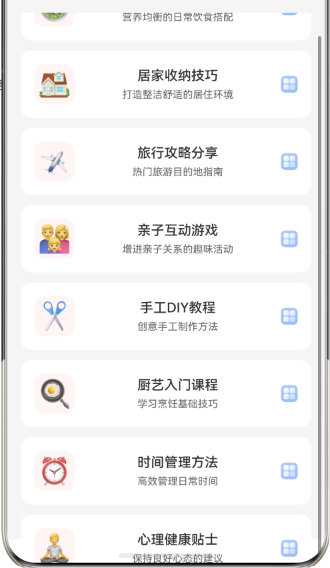
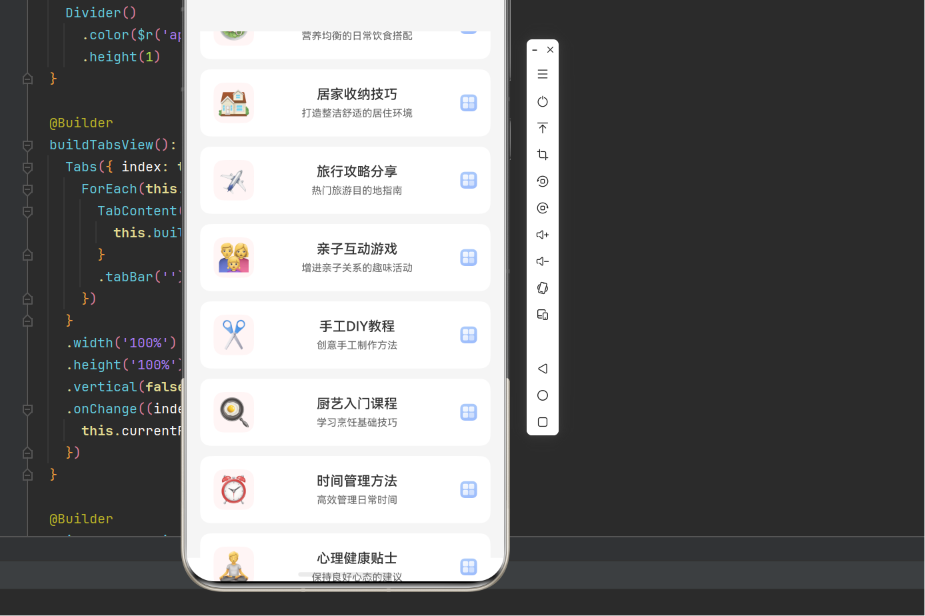
实现列表项的缩放点击效果和Toast提示:
typescript
import { promptAction } from '@kit.ArkUI'
import { ItemData } from '../data/CategoryData'

@Entry
@Component
struct ListItemInteraction {
  @State clickedItemId: number = -1
  @State items: ItemData[] = [
    { id: 1, title: '学习', subtitle: '编程入门', icon: '📚' },
    { id: 2, title: '生活', subtitle: '健康饮食', icon: '🍎' },
    { id: 3, title: '工作', subtitle: '项目管理', icon: '💼' }
  ]

  build() {
    List({ space: 12 }) {
      ForEach(this.items, (item: ItemData) => {
        ListItem() {
          this.buildListItem(item)
        }
        .height(80)
        .backgroundColor(Color.White)
        .borderRadius(12)
      })
    }
    .width('100%')
    .height('100%')
    .padding({ left: 16, right: 16, top: 16 })
    .backgroundColor(Color.Gray)
  }

  @Builder
  buildListItem(item: ItemData) {
    Row({ space: 16 }) {
      Text(item.icon)
        .fontSize(32)
        .width(48)
        .height(48)
        .backgroundColor(Color.Blue)
        .borderRadius(12)
        .textAlign(TextAlign.Center)
        .alignSelf(ItemAlign.Center)

      Column({ space: 6 }) {
        Text(item.title)
          .fontSize(16)
          .fontWeight(FontWeight.Medium)
          .fontColor(Color.Black)

        Text(item.subtitle)
          .fontSize(12)
          .fontColor(Color.Gray)
      }
      .flexGrow(1)
      .alignSelf(ItemAlign.Center)

      Image($r('app.media.arrow'))
        .width(20)
        .height(20)
        .opacity(0.4)
        .alignSelf(ItemAlign.Center)
    }
    .width('100%')
    .padding({ left: 16, right: 16 })
    .scale({
      x: this.clickedItemId === item.id ? 0.95 : 1,
      y: this.clickedItemId === item.id ? 0.95 : 1
    })
    .onClick(() => {
      this.onItemClick(item)
    })
  }

  onItemClick(item: ItemData): void {
    this.clickedItemId = item.id
    setTimeout(() => {
      this.clickedItemId = -1
    }, 150)
    promptAction.showToast({ message: item.title })
  }
}
9.2 案例二:Tab切换动画
实现Tab切换时的平滑过渡动画:
typescript
@Entry
@Component
struct TabAnimationDemo {
  @State currentPage: number = 0
  @State tabs: string[] = ['学习', '生活', '工作', '娱乐', '运动']

  build() {
    Column() {
      // 自定义TabBar
      Row({ space: 0 }) {
        ForEach(this.tabs, (tab: string, index: number) => {
          Column() {
            Text(tab)
              .fontSize(16)
              .fontWeight(index === this.currentPage ? FontWeight.Bold : FontWeight.Normal)
              .fontColor(index === this.currentPage ? Color.Blue : Color.Gray)
              .padding({ left: 20, right: 20, top: 16, bottom: 12 })

            if (index === this.currentPage) {
              Row()
                .width(24)
                .height(3)
                .backgroundColor(Color.Blue)
                .borderRadius(2)
            }
          }
          .onClick(() => {
            animateTo({ duration: 200 }, () => {
              this.currentPage = index
            })
          })
        })
      }
      .width('100%')
      .justifyContent(FlexAlign.Center)

      Divider()
        .color(Color.Gray)
        .height(1)

      // Tabs内容区域
      Tabs({ index: this.currentPage }) {
        ForEach(this.tabs, (tab: string) => {
          TabContent() {
            Text(`${tab}内容`)
              .fontSize(24)
          }
          .tabBar('')
        })
      }
      .width('100%')
      .height('100%')
      .animationDuration(200)
      .animationCurve(Curve.EaseInOut)
      .onChange((index: number) => {
        this.currentPage = index
      })
    }
    .width('100%')
    .height('100%')
  }
}
9.3 案例三:下拉刷新动画
实现下拉刷新功能,包含加载动画:
typescript
@Entry
@Component
struct PullRefreshDemo {
  @State isRefreshing: boolean = false
  @State items: string[] = ['item1', 'item2', 'item3']

  build() {
    Column() {
      List() {
        LazyForEach(this.items, (item: string) => {
          ListItem() {
            Text(item)
              .padding(16)
              .fontSize(16)
          }
          .height(60)
          .backgroundColor(Color.White)
          .borderRadius(8)
        })

        if (this.isRefreshing) {
          ListItem() {
            Row({ space: 12 }) {
              Text('⏳')
                .fontSize(20)
                .rotate({ angle: this.isRefreshing ? 360 : 0 })

              Text('加载中...')
                .fontSize(14)
                .fontColor(Color.Gray)
            }
            .padding(16)
          }
        }
      }
      .width('100%')
      .height('100%')
      .padding({ left: 16, right: 16, top: 16 })
      .onPullDown(() => {
        this.isRefreshing = true
        this.refreshData()
      })
    }
    .width('100%')
    .height('100%')
    .backgroundColor(Color.Gray)
  }

  async refreshData() {
    await new Promise((resolve) => setTimeout(resolve, 2000))

    this.items = Array.from({ length: 5 }, (_, i) => `item${i + 1}`)
    this.isRefreshing = false
  }
}
第十章:性能优化策略
10.1 动画性能问题分析
动画常见的性能问题包括:
- 卡顿:帧率下降,动画不流畅
- 抖动:动画过程中出现跳帧
- 内存泄漏:动画资源未及时释放
10.2 性能优化策略
10.2.1 避免修改布局属性
错误写法:
typescript
animateTo({ duration: 300 }, () => {
  this.width = '50%'  // 修改宽度会触发布局重排
})
正确写法:
typescript
animateTo({ duration: 300 }, () => {
  this.scale = 0.5  // 使用transform属性
})
说明:
- 修改width、height、padding等属性会触发布局重排
- 使用transform(scale、rotate、translate)不会触发布局重排
10.2.2 使用renderGroup优化渲染
typescript
Column() {
  Row() {
    Text('内容')
    Text('内容')
    Text('内容')
  }
  .renderGroup(true)  // 合并渲染批次
}
10.2.3 限制动画时长
typescript
animateTo({ duration: 200 }, () => {  // 短动画更流畅
  this.scale = 1.5
})
建议值:
- 简单动画:100-200ms
- 复杂动画:300-500ms
10.2.4 及时释放动画资源
typescript
@Component
struct AnimationComponent {
  private animationId: number | null = null

  startAnimation() {
    this.animationId = setInterval(() => {
      // 动画逻辑
    }, 16)
  }

  aboutToDisappear() {
    if (this.animationId) {
      clearInterval(this.animationId)
      this.animationId = null
    }
  }
}
第十一章:常见问题与解决方案
11.1 点击事件不触发
问题描述:
点击组件时没有触发onClick事件。
解决方案:
- 检查组件是否被禁用
- 检查是否有其他组件遮挡
- 检查事件处理函数是否正确绑定
typescript
Button('Click')
  .enabled(true)  // 确保按钮启用
  .onClick(() => {
    // 处理逻辑
  })
11.2 动画卡顿
问题描述:
动画播放时出现卡顿。
解决方案:
- 减少动画复杂度
- 使用transform属性替代布局属性
- 限制动画时长
typescript
animateTo({ duration: 200 }, () => {
  this.scale = 0.5  // 使用transform属性
})
11.3 Toast提示不显示
问题描述:
调用showToast后提示不显示。
解决方案:
- 检查是否正确导入promptAction
- 检查message参数是否正确
- 检查是否在UI线程调用
typescript
import { promptAction } from '@kit.ArkUI'

promptAction.showToast({ message: '提示内容' })
11.4 手势冲突
问题描述:
多个手势之间发生冲突。
解决方案:
- 使用手势优先级
- 使用手势组合
- 避免在同一组件上绑定多个冲突手势
typescript
.onGesture(Gesture.Sequence(Gesture.Swipe({}), Gesture.Pinch({})))11.5 动画无法停止
问题描述:
动画开始后无法停止。
解决方案:
- 使用clearInterval或clearTimeout
- 在组件销毁时清理动画资源
- 使用状态变量控制动画
typescript
aboutToDisappear() {
  if (this.intervalId) {
    clearInterval(this.intervalId)
  }
}
第十二章:API 24特性与未来展望
12.1 API 24交互与动画特性总结
通过本文的深入探讨,我们掌握了交互事件和动画效果的核心技术:
- 点击事件:onClick处理点击操作
- 触摸事件:onTouch处理复杂触摸交互
- 手势事件:支持滑动、捏合、旋转等手势
- 属性动画:animateTo实现属性变化动画
- 显式动画:通过transform属性实现复杂动画
- 帧动画:逐帧播放实现动画效果
- 交互反馈:Toast、Dialog、Loading等反馈机制
12.2 最佳实践建议
1. 提供及时反馈:
- 每次用户操作都应该有反馈
- 使用Toast、震动等方式提供反馈
2. 使用合适的动画时长:
- 简单动画:100-200ms
- 复杂动画:300-500ms
3. 优先使用transform属性:
- 避免修改布局属性
- 使用scale、rotate、translate实现动画
4. 优化动画性能:
- 使用renderGroup合并渲染
- 及时释放动画资源
5. 保持交互一致性:
- 相同类型的操作应该有相同的反馈
- 保持操作逻辑的一致性
12.3 未来发展方向
随着HarmonyOS的不断发展,交互和动画能力将继续演进:
- 更丰富的手势识别:支持更多复杂手势
- 更强大的动画引擎:支持3D动画和物理模拟
- 更好的性能优化:自动优化动画性能
- 更丰富的反馈机制:支持更多类型的反馈
结语
交互事件和动画效果是鸿蒙应用开发中提升用户体验的关键技术。通过深入理解事件处理和动画API的用法和原理,我们可以构建出生动、流畅的交互体验。希望本文能够帮助开发者更好地掌握交互和动画技术,为用户提供优质的应用体验。
在实际开发中,建议结合具体场景灵活运用交互和动画的各项特性,不断优化性能和用户体验。同时,关注HarmonyOS官方文档的更新,及时了解API的新特性和最佳实践。