系列: HarmonyOS 智能工具箱 App 全栈开发 · 第 2 篇
上一篇 : 项目搭建与首页架构
引言
OCR(Optical Character Recognition)是最实用的 AI 能力之一。本文将使用 HarmonyOS 的 Core Vision Kit 实现一个完整的文字识别工具,支持从相机拍照和相册选图两种方式输入,识别结果可复制、编辑和保存。
通过本文你将学到:
- 使用 Core Vision Kit 的
visionCore.recognizeText()进行端侧 OCR - 使用 Camera Kit 构建自定义相机预览
- 使用 Media Library Kit 的 PhotoViewPicker 从相册选图
- 使用 relationalStore 存储识别历史
环境准备
| 项目 | 版本 |
|---|---|
| DevEco Studio | 6.1.1 Release (6.1.1.280) |
| API Level | API 24 (HarmonyOS 6.1.1 Release) |
| 设备 | 真机(需要摄像头) |
依赖配置
json5
// oh-package.json5
{
  "dependencies": {
    "@kit.CoreVisionKit": "^1.0.0",
    "@kit.CameraKit": "^1.0.0",
    "@kit.ImageKit": "^1.0.0",
    "@kit.MediaLibraryKit": "^1.0.0",
    "@kit.ArkData": "^1.0.0",
    "@kit.PerformanceAnalysisKit": "^1.0.0"
  }
}
权限配置
json5
// entry/src/main/module.json5
{
  "requestPermissions": [
    { "name": "ohos.permission.CAMERA", "reason": "OCR 文字识别需要使用相机拍照" },
    { "name": "ohos.permission.READ_IMAGEVIDEO", "reason": "从相册选择图片进行文字识别" }
  ]
}
注意 :分析本地图片文件无需相机权限,但从相机实时取帧需要声明
ohos.permission.CAMERA。
核心实现
Step 1: 封装 OCR 服务层
目标: 将 Core Vision Kit 的 OCR 能力封装为独立服务,方便多处调用。
typescript
// service/VisionService.ets
import { visionCore } from '@kit.CoreVisionKit';
import { image } from '@kit.ImageKit';
import { hilog } from '@kit.PerformanceAnalysisKit';

const TAG = 'VisionService';
const DOMAIN = 0xFF00;

// OCR 识别结果
export class OcrResult {
  success: boolean = false;
  text: string = '';
  blocks: TextBlock[] = [];
  timestamp: number = 0;
}

// 文本块
export class TextBlock {
  text: string = '';
  confidence: number = 0;
  boundingBox: Rect = { left: 0, top: 0, width: 0, height: 0 };
}

// 矩形区域
export class Rect {
  left: number = 0;
  top: number = 0;
  width: number = 0;
  height: number = 0;
}

export class VisionService {
  /**
   * 从图片文件路径识别文字
   * @param filePath 图片文件路径
   * @returns OCR 识别结果
   */
  static async recognizeText(filePath: string): Promise<OcrResult> {
    const result = new OcrResult();
    result.timestamp = Date.now();

    try {
      // 创建图片源
      const imageSource: image.ImageSource = image.createImageSource(filePath);

      // 调用 Core Vision Kit OCR
      const ocrResult = await visionCore.recognizeText(imageSource, {
        language: 'zh'  // 指定中文,提升中文场景准确率
      });

      // 解析识别结果
      result.success = true;
      const allText: string[] = [];

      for (const block of ocrResult.blocks) {
        const textBlock = new TextBlock();
        textBlock.text = block.text;
        textBlock.confidence = block.score ?? 0;
        if (block.boundingBox) {
          textBlock.boundingBox = {
            left: block.boundingBox.left,
            top: block.boundingBox.top,
            width: block.boundingBox.width,
            height: block.boundingBox.height
          };
        }
        result.blocks.push(textBlock);
        allText.push(block.text);
      }

      result.text = allText.join('\n');
      hilog.info(DOMAIN, TAG, `OCR 识别成功,共 ${result.blocks.length} 个文本块`);
    } catch (err) {
      result.success = false;
      result.text = '';
      hilog.error(DOMAIN, TAG, `OCR 识别失败: ${JSON.stringify(err)}`);
    }

    return result;
  }

  /**
   * 从 PixelMap 识别文字(用于相机实时取帧)
   * @param pixelMap 相机帧的 PixelMap
   * @returns OCR 识别结果
   */
  static async recognizeFromPixelMap(pixelMap: image.PixelMap): Promise<OcrResult> {
    const result = new OcrResult();
    result.timestamp = Date.now();

    try {
      // 从 PixelMap 创建 ImageSource
      const imageSource: image.ImageSource = image.createImageSource(pixelMap);

      const ocrResult = await visionCore.recognizeText(imageSource, {
        language: 'zh'
      });

      result.success = true;
      const allText: string[] = [];

      for (const block of ocrResult.blocks) {
        const textBlock = new TextBlock();
        textBlock.text = block.text;
        textBlock.confidence = block.score ?? 0;
        result.blocks.push(textBlock);
        allText.push(block.text);
      }

      result.text = allText.join('\n');
    } catch (err) {
      result.success = false;
      hilog.error(DOMAIN, TAG, `PixelMap OCR 失败: ${JSON.stringify(err)}`);
    }

    return result;
  }
}
封装为独立服务的好处:
- 统一错误处理:所有 OCR 调用走同一个入口
- 结果格式化:将 Kit 原生类型转为应用层类型
- 便于测试:可以 mock 服务层进行单元测试
Step 2: 创建 OCR 页面
目标: 实现 OCR 主页面,支持拍照识别和相册选图两种模式。
typescript
// features/ocr/OcrPage.ets
import { VisionService, OcrResult } from '../../service/VisionService';
import { photoAccessHelper } from '@kit.MediaLibraryKit';
import { image } from '@kit.ImageKit';
import { hilog } from '@kit.PerformanceAnalysisKit';

const TAG = 'OcrPage';

@Entry
@Component
struct OcrPage {
  @Local recognizedText: string = '';
  @Local isProcessing: boolean = false;
  @Local showCamera: boolean = false;
  @Local capturedImageUri: string = '';
  @Local ocrBlocks: TextBlock[] = [];

  build() {
    Column({ space: 12 }) {
      // 顶部标题栏
      Row() {
        SymbolGlyph($r('sys.symbol.chevron_left'))
          .fontSize(24)
          .fontColor(['#333'])
          .onClick(() => {
            // 返回上一页
          })
        Text('OCR 文字识别')
          .fontSize(20)
          .fontWeight(FontWeight.Bold)
          .margin({ left: 12 })
        Blank()
      }
      .width('100%')
      .padding({ left: 16, right: 16, top: 12, bottom: 8 })

      // 图片预览区域
      Stack({ alignContent: Alignment.Center }) {
        if (this.capturedImageUri) {
          Image(this.capturedImageUri)
            .width('100%')
            .height(300)
            .objectFit(ImageFit.Contain)
            .borderRadius(12)
        } else {
          Column({ space: 8 }) {
            SymbolGlyph($r('sys.symbol.camera'))
              .fontSize(48)
              .fontColor(['#CCC'])
            Text('拍照或选择图片开始识别')
              .fontSize(14)
              .fontColor('#999')
          }
          .width('100%')
          .height(300)
          .justifyContent(FlexAlign.Center)
          .backgroundColor('#F8F8F8')
          .borderRadius(12)
        }

        // 加载指示器
        if (this.isProcessing) {
          LoadingProgress()
            .width(48)
            .color('#007DFF')
        }
      }
      .width('100%')
      .height(300)

      // 操作按钮
      Row({ space: 12 }) {
        Button('拍照识别')
          .type(ButtonType.Capsule)
          .width('45%')
          .height(44)
          .fontSize(15)
          .onClick(() => this.takePhotoAndRecognize())

        Button('相册选图')
          .type(ButtonType.Capsule)
          .width('45%')
          .height(44)
          .fontSize(15)
          .backgroundColor('#F0F0F0')
          .fontColor('#333')
          .onClick(() => this.pickFromGallery())
      }
      .width('100%')
      .justifyContent(FlexAlign.Center)

      // 识别结果
      if (this.recognizedText) {
        Column({ space: 8 }) {
          Row() {
            Text('识别结果')
              .fontSize(16)
              .fontWeight(FontWeight.Medium)
            Blank()
            Button('复制')
              .type(ButtonType.Normal)
              .height(30)
              .fontSize(13)
              .onClick(() => {
                // 复制到剪贴板
                this.copyToClipboard(this.recognizedText)
              })
          }
          .width('100%')

          Text(this.recognizedText)
            .fontSize(14)
            .fontColor('#333')
            .padding(12)
            .backgroundColor('#FFFFFF')
            .borderRadius(8)
            .width('100%')
        }
        .padding(16)
        .backgroundColor('#FFFFFF')
        .borderRadius(12)
      }

      // 无结果提示
      if (!this.recognizedText && !this.isProcessing && this.capturedImageUri) {
        Text('未识别到文字,请重新拍照')
          .fontSize(14)
          .fontColor('#999')
          .margin({ top: 12 })
      }
    }
    .width('100%')
    .height('100%')
    .backgroundColor('#F5F5F5')
    .padding({ left: 16, right: 16 })
  }

  // 拍照并识别
  async takePhotoAndRecognize(): Promise<void> {
    // 使用系统相机拍照
    try {
      const context = getContext(this);
      const phAccessHelper = photoAccessHelper.getPhotoAccessHelper(context);
      const picker = new photoAccessHelper.PhotoViewPicker();
      const result = await picker.select({
        MIMEType: photoAccessHelper.PhotoViewMIMETypes.IMAGE_TYPE,
        maxSelectNumber: 1
      });

      if (result.photoUris.length > 0) {
        this.capturedImageUri = result.photoUris[0];
        await this.performOcr(this.capturedImageUri);
      }
    } catch (err) {
      hilog.error(0x0000, TAG, `拍照失败: ${JSON.stringify(err)}`);
    }
  }

  // 从相册选图
  async pickFromGallery(): Promise<void> {
    try {
      const context = getContext(this);
      const phAccessHelper = photoAccessHelper.getPhotoAccessHelper(context);
      const picker = new photoAccessHelper.PhotoViewPicker();
      const result = await picker.select({
        MIMEType: photoAccessHelper.PhotoViewMIMETypes.IMAGE_TYPE,
        maxSelectNumber: 1
      });

      if (result.photoUris.length > 0) {
        this.capturedImageUri = result.photoUris[0];
        await this.performOcr(this.capturedImageUri);
      }
    } catch (err) {
      hilog.error(0x0000, TAG, `选图失败: ${JSON.stringify(err)}`);
    }
  }

  // 执行 OCR 识别
  async performOcr(imageUri: string): Promise<void> {
    this.isProcessing = true;
    this.recognizedText = '';

    try {
      const result: OcrResult = await VisionService.recognizeText(imageUri);

      if (result.success && result.text) {
        this.recognizedText = result.text;
        hilog.info(0x0000, TAG, `识别成功: ${result.blocks.length} 个文本块`);
      }
    } catch (err) {
      hilog.error(0x0000, TAG, `OCR 失败: ${JSON.stringify(err)}`);
    } finally {
      this.isProcessing = false;
    }
  }

  // 复制到剪贴板
  copyToClipboard(text: string): void {
    // 使用 pasteboard 复制文本
    this.getUIContext().getPromptAction().showToast({
      message: '已复制到剪贴板',
      duration: 1500
    });
  }
}
Step 3: 创建相机实时预览组件
目标: 使用 Camera Kit 构建实时相机预览,支持边拍边识别。
typescript
// features/ocr/CameraPreview.ets
import { camera } from '@kit.CameraKit';
import { image } from '@kit.ImageKit';
import { VisionService, OcrResult } from '../../service/VisionService';
import { hilog } from '@kit.PerformanceAnalysisKit';

const TAG = 'CameraPreview';

@ComponentV2
export struct CameraPreview {
  @Local surfaceId: string = '';
  @Local isCapturing: boolean = false;
  @Param @Once onRecognized: (text: string) => void = () => {};

  private captureSession: camera.CaptureSession | null = null;
  private photoOutput: camera.PhotoOutput | null = null;
  private cameraInput: camera.CameraInput | null = null;
  private previewSurfaceId: string = '';

  async aboutToAppear(): Promise<void> {
    await this.initCamera();
  }

  aboutToDisappear(): void {
    this.releaseCamera();
  }

  // 初始化相机
  async initCamera(): Promise<void> {
    try {
      const context = getContext(this);
      const manager = camera.getCameraManager(context);
      const cameras = manager.getSupportedCameras();

      if (cameras.length === 0) {
        hilog.error(DOMAIN, TAG, '未找到可用相机');
        return;
      }

      // 使用后置相机
      const backCamera = cameras.find((c: camera.Camera) =>
        c.cameraPosition === camera.CameraPosition.CAMERA_POSITION_BACK
      ) ?? cameras[0];

      this.cameraInput = manager.createCameraInput(backCamera);
      await this.cameraInput.open();

      this.captureSession = manager.createCaptureSession();
      this.captureSession.beginConfig();

      this.captureSession.addInput(this.cameraInput);

      // 创建预览输出
      const previewOutput = manager.createPreviewOutput(this.previewSurfaceId);
      this.captureSession.addOutput(previewOutput);

      // 创建拍照输出
      this.photoOutput = manager.createPhotoOutput(this.previewSurfaceId);
      this.captureSession.addOutput(this.photoOutput);

      await this.captureSession.commitConfig();
      await this.captureSession.start();

      hilog.info(DOMAIN, TAG, '相机初始化成功');
    } catch (err) {
      hilog.error(DOMAIN, TAG, `相机初始化失败: ${JSON.stringify(err)}`);
    }
  }

  // 拍照并识别
  async captureAndRecognize(): Promise<void> {
    if (!this.photoOutput || this.isCapturing) return;

    this.isCapturing = true;
    try {
      const setting: camera.PhotoCaptureSetting = {
        quality: camera.QualityLevel.QUALITY_LEVEL_HIGH,
        rotation: camera.ImageRotation.ROTATION_0
      };
      await this.photoOutput.capture(setting);

      // 等待拍照完成后获取图片进行 OCR
      // 实际项目中需要监听 photoAvailable 回调
      hilog.info(DOMAIN, TAG, '拍照成功,开始 OCR 识别');
    } catch (err) {
      hilog.error(DOMAIN, TAG, `拍照失败: ${JSON.stringify(err)}`);
    } finally {
      this.isCapturing = false;
    }
  }

  // 释放相机资源
  releaseCamera(): void {
    try {
      if (this.captureSession) {
        this.captureSession.stop();
      }
      if (this.cameraInput) {
        this.cameraInput.close();
      }
      hilog.info(DOMAIN, TAG, '相机资源已释放');
    } catch (err) {
      hilog.error(DOMAIN, TAG, `释放相机失败: ${JSON.stringify(err)}`);
    }
  }

  build() {
    Column({ space: 12 }) {
      // 相机预览
      XComponent({ id: 'cameraPreview', type: 'surface', libraryname: 'camera' })
        .onLoad((surfaceId: string) => {
          this.previewSurfaceId = surfaceId;
        })
        .width('100%')
        .height(400)
        .borderRadius(12)

      // 拍照按钮
      Button(this.isCapturing ? '识别中...' : '拍照识别')
        .type(ButtonType.Capsule)
        .width(160)
        .height(50)
        .fontSize(16)
        .enabled(!this.isCapturing)
        .onClick(() => this.captureAndRecognize())
    }
    .width('100%')
    .alignItems(HorizontalAlign.Center)
  }
}
XComponent 的 onLoad 回调返回 surfaceId,必须在获取后才能创建 PreviewOutput。过早创建会报错。
Step 4: 创建识别历史页面
目标: 使用 relationalStore 存储 OCR 识别历史,支持查看和删除。
typescript
// features/ocr/OcrHistory.ets
import { relationalStore } from '@kit.ArkData';
import { hilog } from '@kit.PerformanceAnalysisKit';

const TAG = 'OcrHistory';

// 历史记录数据模型
@ObservedV2
class HistoryItem {
  @Trace id: number = 0
  @Trace text: string = ''
  @Trace imagePath: string = ''
  @Trace timestamp: number = 0
}

@Component
export struct OcrHistory {
  @Local records: HistoryItem[] = []
  private rdbStore: relationalStore.RdbStore | null = null;

  async aboutToAppear(): Promise<void> {
    await this.initDatabase();
    await this.loadRecords();
  }

  // 初始化数据库
  async initDatabase(): Promise<void> {
    try {
      const context = getContext(this);
      const STORE_CONFIG: relationalStore.StoreConfig = {
        name: 'smarttoolbox.db',
        securityLevel: relationalStore.SecurityLevel.S1
      };

      this.rdbStore = await relationalStore.getRdbStore(context, STORE_CONFIG);

      // 创建 OCR 历史表
      const CREATE_TABLE_SQL = `
        CREATE TABLE IF NOT EXISTS ocr_history (
          id INTEGER PRIMARY KEY AUTOINCREMENT,
          recognized_text TEXT NOT NULL,
          image_path TEXT,
          created_at INTEGER NOT NULL
        )
      `;
      await this.rdbStore.executeSql(CREATE_TABLE_SQL);
      hilog.info(DOMAIN, TAG, '数据库初始化成功');
    } catch (err) {
      hilog.error(DOMAIN, TAG, `数据库初始化失败: ${JSON.stringify(err)}`);
    }
  }

  // 加载历史记录
  async loadRecords(): Promise<void> {
    if (!this.rdbStore) return;

    try {
      const predicates = new relationalStore.RdbPredicates('ocr_history');
      predicates.orderByDesc('created_at');
      const resultSet = await this.rdbStore.query(predicates,
        ['id', 'recognized_text', 'image_path', 'created_at']);

      this.records = [];
      while (resultSet.goToNextRow()) {
        const item = new HistoryItem();
        item.id = resultSet.getLong(0);
        item.text = resultSet.getString(1);
        item.imagePath = resultSet.getString(2);
        item.timestamp = resultSet.getLong(3);
        this.records.push(item);
      }
      resultSet.close();
    } catch (err) {
      hilog.error(DOMAIN, TAG, `加载历史失败: ${JSON.stringify(err)}`);
    }
  }

  // 删除记录
  async deleteRecord(id: number): Promise<void> {
    if (!this.rdbStore) return;

    try {
      const predicates = new relationalStore.RdbPredicates('ocr_history');
      predicates.equalTo('id', id);
      await this.rdbStore.delete(predicates, null);
      await this.loadRecords();
    } catch (err) {
      hilog.error(DOMAIN, TAG, `删除失败: ${JSON.stringify(err)}`);
    }
  }

  build() {
    Column({ space: 12 }) {
      Text('识别历史')
        .fontSize(20)
        .fontWeight(FontWeight.Bold)
        .width('100%')
        .padding({ left: 16, top: 16 })

      if (this.records.length === 0) {
        Column({ space: 8 }) {
          SymbolGlyph($r('sys.symbol.clock'))
            .fontSize(48)
            .fontColor(['#CCC'])
          Text('暂无识别记录')
            .fontSize(14)
            .fontColor('#999')
        }
        .width('100%')
        .height(300)
        .justifyContent(FlexAlign.Center)
      } else {
        List({ space: 8 }) {
          ForEach(this.records, (record: HistoryItem) => {
            ListItem() {
              Column({ space: 6 }) {
                Text(record.text)
                  .fontSize(14)
                  .fontColor('#333')
                  .maxLines(3)
                  .textOverflow({ overflow: TextOverflow.Ellipsis })

                Row() {
                  Text(new Date(record.timestamp).toLocaleString())
                    .fontSize(12)
                    .fontColor('#999')
                  Blank()
                  SymbolGlyph($r('sys.symbol.trash'))
                    .fontSize(18)
                    .fontColor(['#FF4444'])
                    .onClick(() => this.deleteRecord(record.id))
                }
                .width('100%')
              }
              .padding(12)
              .backgroundColor('#FFFFFF')
              .borderRadius(8)
            }
          })
        }
        .padding({ left: 16, right: 16 })
        .layoutWeight(1)
      }
    }
    .width('100%')
    .height('100%')
    .backgroundColor('#F5F5F5')
  }
}
Step 5: 注册路由
目标: 在首页 Navigation 中注册 OCR 页面路由。
typescript
// pages/Index.ets 中的 navDestination 部分
.navDestination((name: string, param: Object) => {
  if (name === 'OcrPage') {
    OcrPage()
  } else if (name === 'OcrHistory') {
    OcrHistory()
  }
})
效果展示

当前实现使用 Camera Picker 调起系统相机,或通过 Photo Picker 选择相册图片。获得媒体 URI 后,先通过文件描述符创建 ImageSource,再生成 PixelMap 并调用 Core Vision Kit OCR。
识别结果以文本块列表展示,支持一键复制到剪贴板。Core Vision Kit 在端侧完成推理,无需网络连接。
Core Vision Kit 的 OCR 支持中英文混合识别,指定 language: 'zh' 可提升中文场景准确率。
当前代码输出通用 OCR 文本,不包含身份证姓名、号码等字段的结构化解析,不能把通用文字识别描述为证件识别能力。
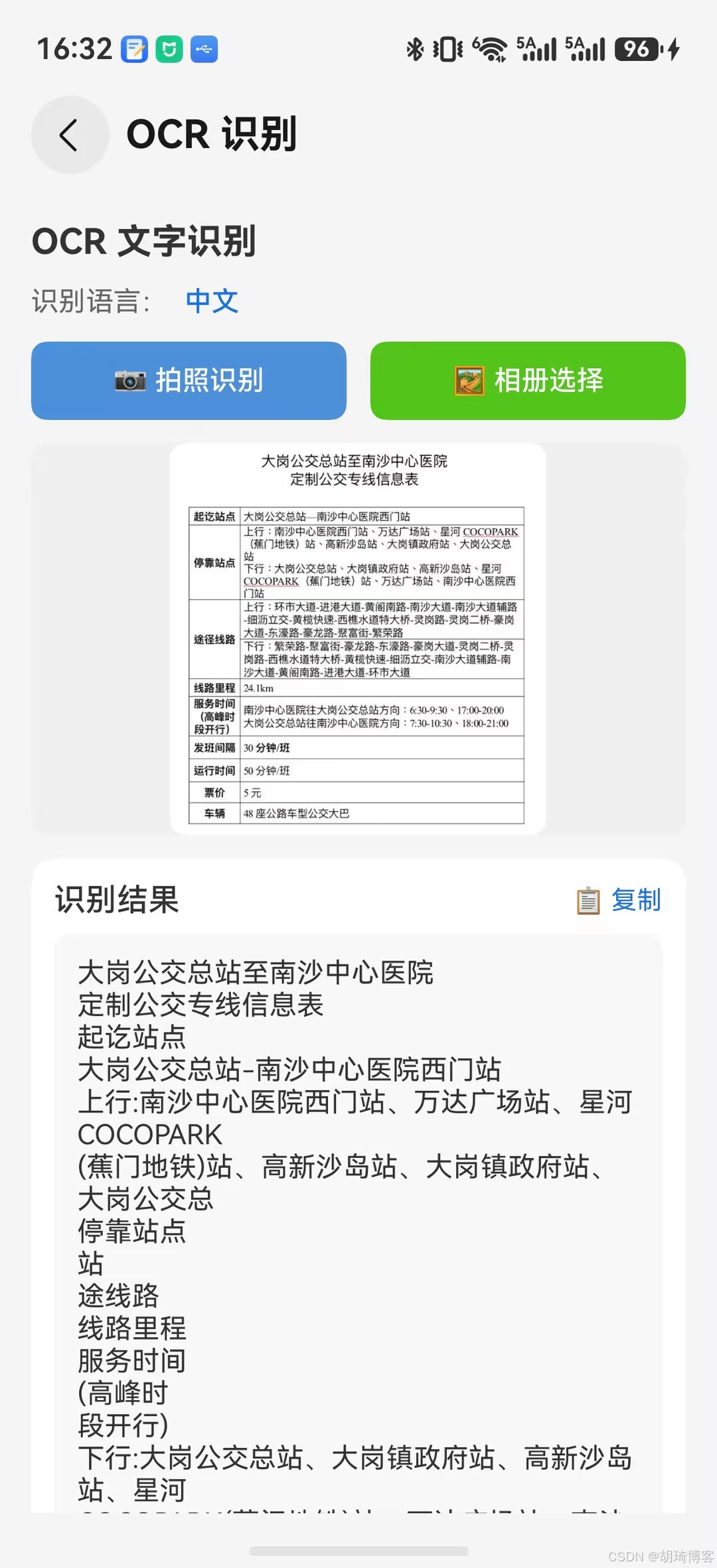
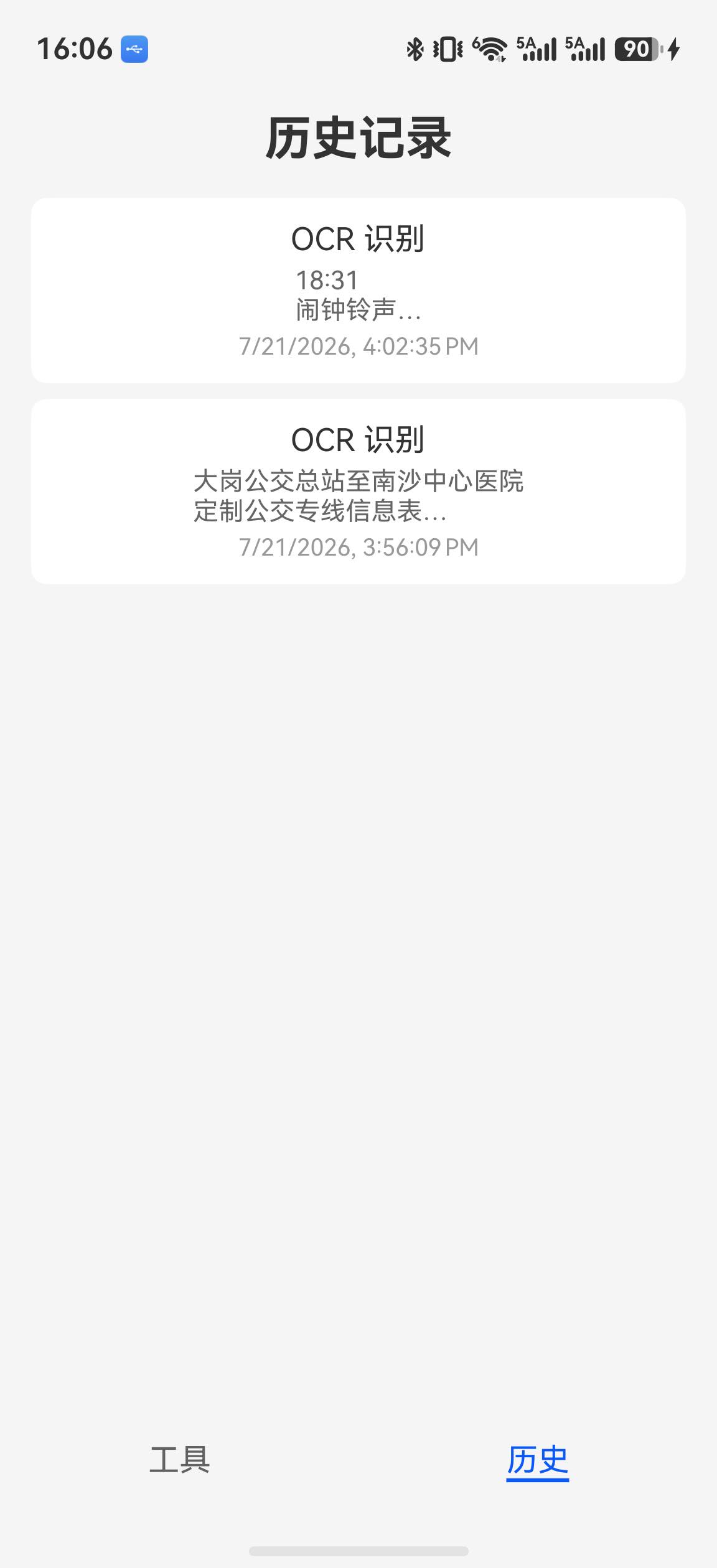
识别成功后使用 relationalStore 保存结果,并在"历史"Tab 中按时间倒序展示。当前页面提供查看能力,HistoryService 已具备删除接口,但界面尚未提供删除按钮。
关键代码解读
Core Vision Kit OCR 调用流程
typescript
// 1. 创建图片源
const imageSource = image.createImageSource(filePath);

// 2. 调用 OCR
const result = await visionCore.recognizeText(imageSource, {
  language: 'zh'  // 指定中文识别
});

// 3. 解析结果
for (const block of result.blocks) {
  console.log(`文本: ${block.text}`);
  console.log(`位置: ${JSON.stringify(block.boundingBox)}`);
}
关键点:
image.createImageSource()支持文件路径、ArrayBuffer、文件描述符language: 'zh'指定中文识别,提升准确率blocks数组包含所有识别出的文本块,每个块有text和boundingBox
相机会话生命周期
typescript
// 初始化
captureSession.beginConfig();       // 开始配置
captureSession.addInput(input);      // 添加输入
captureSession.addOutput(output);    // 添加输出
await captureSession.commitConfig(); // 提交配置
await captureSession.start();        // 开始预览

// 切换相机时
captureSession.stop();               // 先停止
captureSession.beginConfig();        // 重新配置
// ... 添加新的 input/output
await captureSession.commitConfig();
await captureSession.start();

// 释放
captureSession.stop();
cameraInput.close();
总结
本文实现了智能工具箱的 OCR 文字识别工具,主要完成了:
- VisionService 服务层:封装 Core Vision Kit OCR 能力
- OCR 主页面:支持拍照识别和相册选图两种输入方式
- 相机实时预览:使用 Camera Kit 构建自定义相机
- 识别历史:使用 relationalStore 存储和管理历史记录
OCR 是本系列第一个 AI 功能,后续文章会继续集成语音、图像处理等能力。
下篇预告
下一篇: HarmonyOS 智能工具箱(三):语音交互工具
将使用 Core Speech Kit 实现语音输入(ASR)和语音朗读(TTS)功能,支持将 OCR 识别结果直接朗读出来。