【iOS】天气预报仿写总结
文章目录
首页
在首页我用了一个TableView来展示添加的页面,在这里我用了一个数组来储存所有添加的城市model,然后每次进入主页就将存起来的数组拿出来,然后网络请求
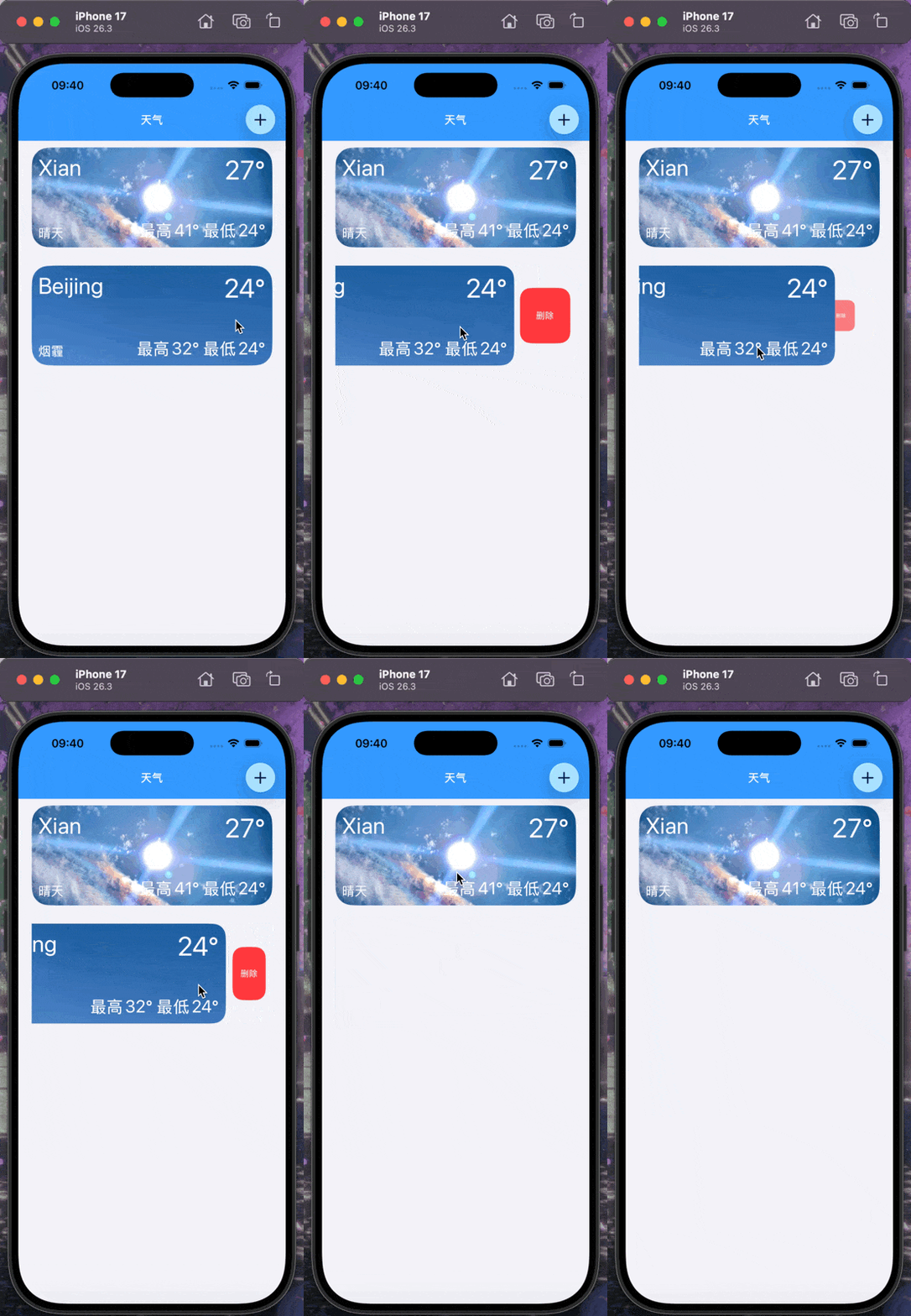
对于删除cell,我这次用的是tableview的代理方法
我设置了一个默认保存城市,这个城市是无法进入编辑状态的
objc
-(UISwipeActionsConfiguration *)tableView:(UITableView *)tableView trailingSwipeActionsConfigurationForRowAtIndexPath:(NSIndexPath *)indexPath {
    UIContextualAction* deleteAction = [UIContextualAction contextualActionWithStyle:UIContextualActionStyleDestructive title:@"删除" handler:^(UIContextualAction * _Nonnull action, __kindof UIView * _Nonnull sourceView, void (^ _Nonnull completionHandler)(BOOL)) {
        NSInteger index = indexPath.section;
        [SavedCityStore removeCity:self.cityModelArray[index]];
        [self.cityModelArray removeObjectAtIndex:index];
        [self.WeatherModelArray removeObjectAtIndex:index];
        [tableView deleteSections:[NSIndexSet indexSetWithIndex:index] withRowAnimation:UITableViewRowAnimationAutomatic];
        completionHandler(YES);
    }];
    UISwipeActionsConfiguration *config = [UISwipeActionsConfiguration configurationWithActions:@[deleteAction]];
    config.performsFirstActionWithFullSwipe = YES;
    return config;
}
-(BOOL)tableView:(UITableView *)tableView canEditRowAtIndexPath:(NSIndexPath *)indexPath {
    if (indexPath.section == 0) {
        return NO;
    }
    return YES;
}
网络请求部分我在另一篇博客已有介绍,这里不多赘述:
搜索页面
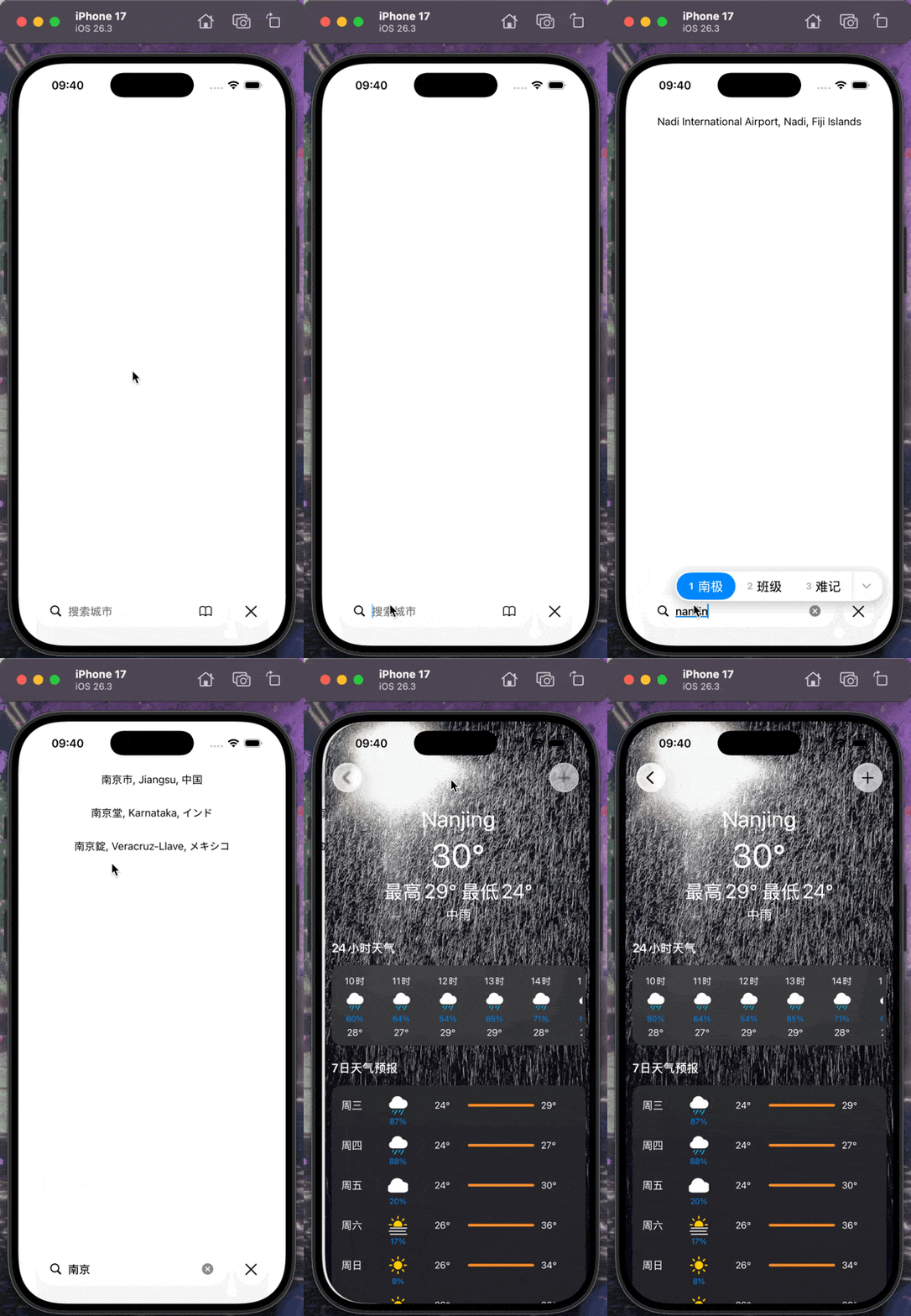
这个页面主要是searchControll搜索搭配TableView搜索结果,主要用到了searchControll的代理方法,在里面调用天气API的搜索API
在搜索时,用到了一个防抖的设计,当searchControll里的内容改变,搜索结果也要随之改变
objc
-(void)updateSearchResultsForSearchController:(UISearchController *)searchController {
    NSString* text = searchController.searchBar.text;
    [NSObject cancelPreviousPerformRequestsWithTarget:self selector:@selector(performSearchWithText:) object:self.lastSearchText];
    self.lastSearchText = text;
    if (text.length == 0) {
        [self.searchResults removeAllObjects];
        [self.cityListTableview reloadData];
        return;
    }
    [self performSelector:@selector(performSearchWithText:) withObject:text afterDelay:0.3];
}
- (void)performSearchWithText:(NSString *)text {
    __weak typeof(self) weakSelf = self;
    [[WeatherAPIService sharedManager] searchCityWithKeyword:text completion:^(NSArray<CityModel *> * _Nullable cities, NSError * _Nullable error) {
        __strong typeof(weakSelf) strongSelf = weakSelf;
        if (!strongSelf) {
            return;
        }
        if (error) {
            NSLog(@"搜索失败: %@", error.localizedDescription);
            return;
        }
        strongSelf.searchResults = [cities mutableCopy];
        [strongSelf.cityListTableview reloadData];
    }];
}
然后在点击搜索结果跳转结果页面时,也要做到防抖,因为在网不好时,你可能点击了好几次cell,但肯定不能多次网络请求然后出现多个详情页面,因此我们要判断此时是不是已经在搜索
objc
-(void)tableView:(UITableView *)tableView didSelectRowAtIndexPath:(NSIndexPath *)indexPath {
    if (self.isLoading) {
        return;
    }
    self.isLoading = YES;
    CityModel* city = self.searchResults[indexPath.row];
    NSString *latLonQuery = [NSString stringWithFormat:@"%f,%f", city.cityLat, city.cityLon];
    __weak typeof(self)weakSelf = self;
    [[WeatherAPIService sharedManager] fetchTotalWeatherWithCity:latLonQuery completion:^(totalWeatherModel * _Nullable model, NSError * _Nullable error) {
        self.isLoading = NO;
        __strong typeof(weakSelf)strongSelf = weakSelf;
        if (!strongSelf) {
            return;
        }
        if (error) {
            NSLog(@"查询失败: %@",error.localizedDescription);
            return;
        }
        weatherDetailViewController *detailVC =[[weatherDetailViewController alloc] init];
        detailVC.model = model;
        detailVC.cityModel = city;
        [strongSelf.navigationController pushViewController:detailVC animated:YES];
    }];
}
城市详情页
在这个页面,分为两种情况,一种是从搜索页面点进去,一种是从首页点进去,对于从搜索页面点进去,我用的是push推出,由于在导航栏我需要一个addItem来添加城市,但需要注意的是我们需要判重,在这里我用的判重逻辑就是添加城市到数组的方法返回值BOOL
objc
+(BOOL)addCity:(CityModel *)city {
    NSMutableArray* cityArray = [[[NSUserDefaults standardUserDefaults] objectForKey:@"savedCities"] mutableCopy];
    if (!cityArray) {
        cityArray = [NSMutableArray array];
    }
    for (NSDictionary* dict in cityArray) {
        if ([dict[@"cityName"] isEqualToString:city.cityName]) {
            return NO;
        }
    }
    NSDictionary* dict = @{@"cityLat" : @(city.cityLat) ?: @"", @"cityLon" :@(city.cityLon) ?:@"", @"cityName" : city.cityName ?: @""};
    [cityArray addObject:dict];
    [[NSUserDefaults standardUserDefaults] setObject:cityArray forKey:@"savedCities"];
    [[NSUserDefaults standardUserDefaults] synchronize];
    return YES;
}
    UIBarButtonItem* addItem = [[UIBarButtonItem alloc] initWithBarButtonSystemItem:UIBarButtonSystemItemAdd target:self action:@selector(addCity)];
    self.navigationItem.rightBarButtonItem = addItem;
-(void)addCity {
    BOOL success = [SavedCityStore addCity:self.cityModel];
    UIAlertController *alert;
    if (success) {
        alert = [UIAlertController alertControllerWithTitle:@"添加成功"message:nil preferredStyle:UIAlertControllerStyleAlert];
    } else {
        alert = [UIAlertController alertControllerWithTitle:@"该城市已存在" message:nil preferredStyle:UIAlertControllerStyleAlert];
    }
    [alert addAction: [UIAlertAction actionWithTitle:@"确定"style:UIAlertActionStyleDefault handler:nil]];
    [self presentViewController:alert animated:YES completion:nil];
}
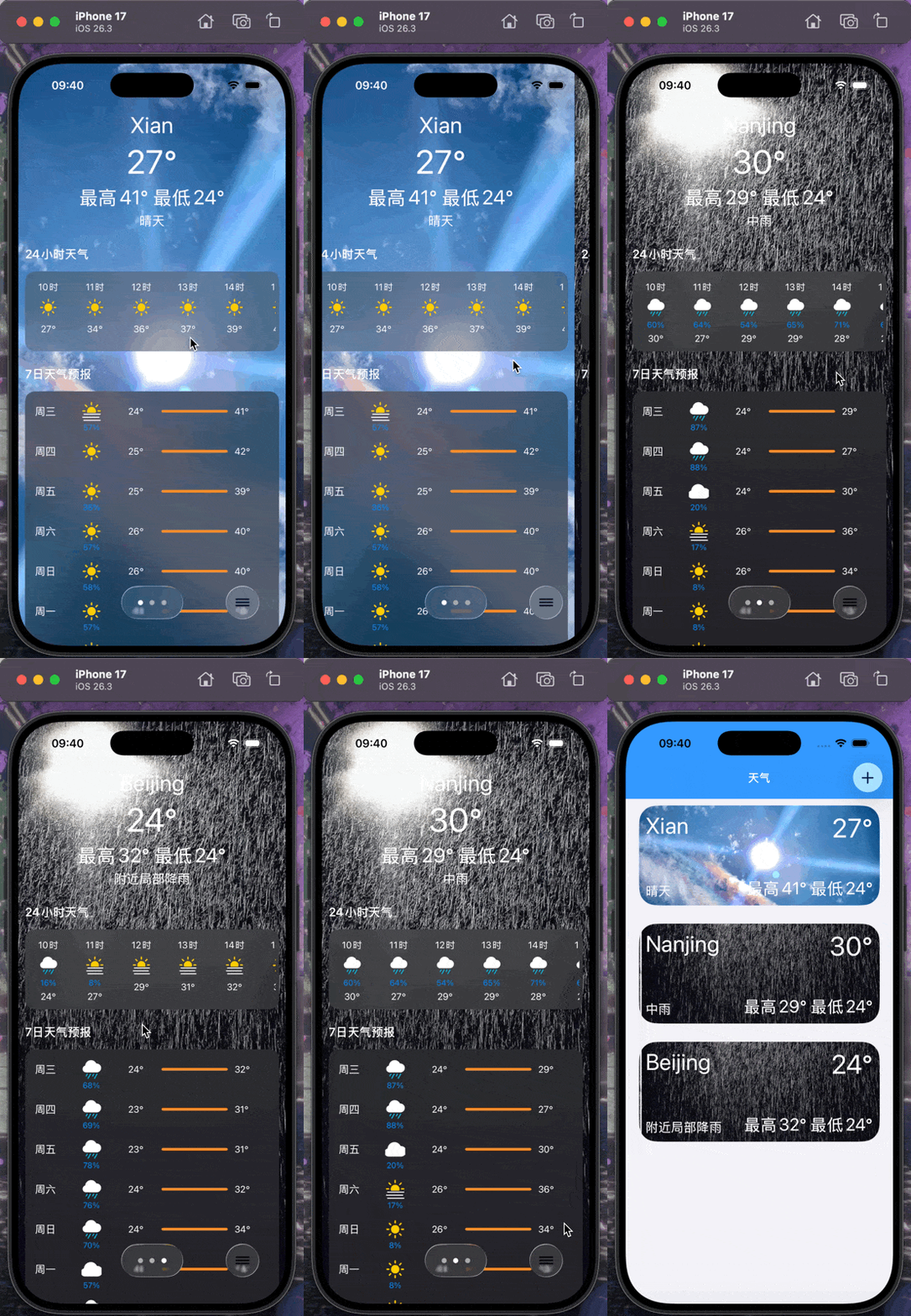
而对于首页点进去的详情页,我用了一个pageViewControll来横向切换城市,并用pageControll来指示当前页面,但这里需要注意的是:
在ios26中,pageViewControll遇到玻璃状态的TabBar或navigation导航栏会出现一片黑色,因此我在这里换为了present推出,但这时返回按钮就需要自己手动写了,返回按钮以及pageControll都要写在pageViewControll上
objc
- (void)viewDidLoad {
    [super viewDidLoad];
    self.delegate = self;
    self.dataSource = self;
    self.view.backgroundColor = [UIColor clearColor];
    UIButton *button = [UIButton buttonWithConfiguration:[UIButtonConfiguration clearGlassButtonConfiguration] primaryAction:nil];
    UIImageSymbolConfiguration *config = [UIImageSymbolConfiguration configurationWithPointSize:16 weight:UIImageSymbolWeightBold];
    UIImage *image = [[UIImage systemImageNamed:@"line.3.horizontal"] imageByApplyingSymbolConfiguration:config];
    [button setImage:image forState:UIControlStateNormal];
    [button addTarget:self action:@selector(close) forControlEvents:UIControlEventTouchUpInside];
    [self.view addSubview:button];
    [button mas_makeConstraints:^(MASConstraintMaker *make) {
        make.bottom.right.equalTo(self.view).offset(-40);
        make.height.width.mas_equalTo(50);
    }];
    UIButton* backgroundButton = [UIButton buttonWithConfiguration:[UIButtonConfiguration clearGlassButtonConfiguration] primaryAction:nil];
    [self.view addSubview: backgroundButton];
    [backgroundButton mas_makeConstraints:^(MASConstraintMaker *make) {
        make.centerX.equalTo(self.view);
        make.top.bottom.equalTo(button);
    }];
    self.pageControll = [[UIPageControl alloc] init];
    self.pageControll.backgroundColor = [UIColor clearColor];
    self.pageControll.numberOfPages = self.controllersArray.count;
    self.pageControll.currentPage = self.currentIndex;
    self.pageControll.userInteractionEnabled = NO;
    self.pageControll.pageIndicatorTintColor = [UIColor lightGrayColor];
    self.pageControll.currentPageIndicatorTintColor = [UIColor whiteColor];
    [backgroundButton addSubview:self.pageControll];
    [self.pageControll mas_makeConstraints:^(MASConstraintMaker *make) {
        make.top.bottom.equalTo(backgroundButton);
        make.left.equalTo(backgroundButton).offset(10);
        make.right.equalTo(backgroundButton).offset(-10);
    }];
    [self setViewControllers:@[self.controllersArray[self.currentIndex]] direction:UIPageViewControllerNavigationDirectionForward animated:NO completion:nil];
}
-(void)close{
    [self dismissViewControllerAnimated:YES completion:nil];
}
-(UIViewController *)pageViewController:(UIPageViewController *)pageViewController viewControllerAfterViewController:(UIViewController *)viewController {
    NSInteger index = [self.controllersArray indexOfObject:viewController];
    index++;
    if (index >= self.controllersArray.count) {
        return nil;
    }
    return self.controllersArray[index];
}
-(UIViewController *)pageViewController:(UIPageViewController *)pageViewController viewControllerBeforeViewController:(UIViewController *)viewController {
    NSInteger index = [self.controllersArray indexOfObject:viewController];
    index--;
    if (index < 0) {
        return nil;
    }
    return self.controllersArray[index];
}
-(void)pageViewController:(UIPageViewController *)pageViewController didFinishAnimating:(BOOL)finished previousViewControllers:(NSArray<UIViewController *> *)previousViewControllers transitionCompleted:(BOOL)completed {
    if (!completed) {
        return;
    }
    UIViewController *currentVC = self.viewControllers.firstObject;
    NSInteger index = [self.controllersArray indexOfObject:currentVC];
    self.currentIndex = index;
    self.pageControll.currentPage = index;
}
需要注意的点:
- 24小时天气需要你先取当前时间,再往后推24小时
- 每个cell后都最好用一层毛玻璃做背景,更有层次感
- 对于tableview,可以设置一个headerinSection小标题,它自动带吸顶效果
- 想实现玻璃质感,可以把pageControll放在玻璃按钮中
- 在首页右滑删除cell时,系统会重新布局cell,所以做好在cell最外层放一个UIView,其他的空间都放入这个UIView中