SimpleIdServer 6.0.4 Docker Compose 实战部署指南
本文基于一次真实的本地部署整理,覆盖从环境准备、容器编排、TLS 证书、域名解析到访问验证与排错的全过程。所有命令行均标注执行环境,可直接复现。
一、部署架构概述
SimpleIdServer 是一套开源的、支持多协议(OpenID Connect / OAuth 2.0 / UMA 2.0 / CIBA / FAPI / WS-Federation / SAML 2.0 / SCIM 2.0 / OpenID4VCI 可验证凭证)的身份与访问管理(IAM)服务,基于 ASP.NET Core 构建。
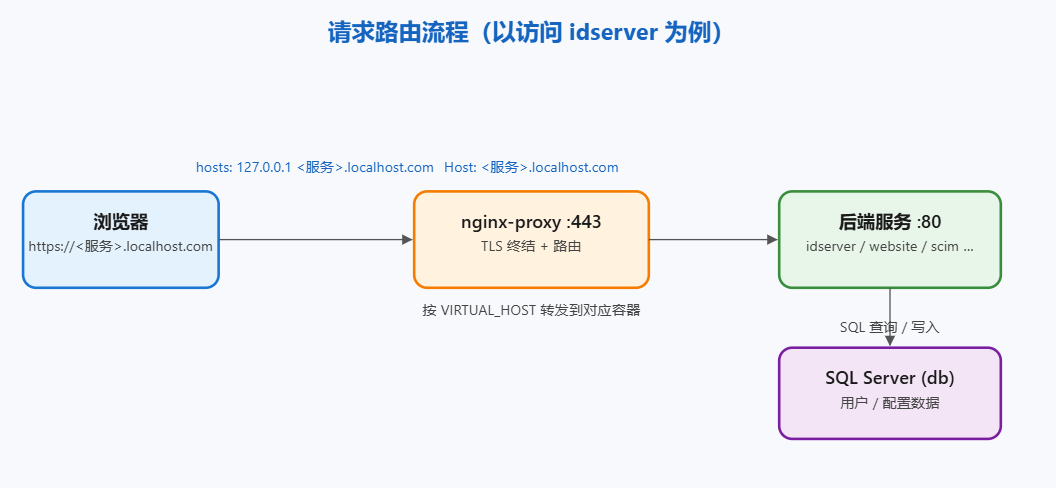
本方案用 Docker Compose 把 7 个容器编排在同一个桥接网络 proxy_net 上,统一由 jwilder/nginx-proxy 做反向代理与 TLS 终结;外部只暴露 443 端口,nginx-proxy 根据每个容器声明的 VIRTUAL_HOST 环境变量把请求转发到对应的后端服务(监听容器内部 :80)。业务数据持久化在 SQL Server 2022 中。
SimpleIdServer Docker Compose 架构图 浏览器经 NGINX 反向代理访问 IdServer、管理网站、SCIM、凭证签发等容器,IdServer 与 SCIM 连接 SQL Server 数据库 浏览器 / 客户端 HTTPS *.localhost.com Docker Compose 内部网络 (proxy_net) NGINX 反向代理 SSL 终结 · 按域名路由 IdServer OIDC / OAuth2 认证中心 IdServerWebsite 管理网站 SCIM 用户 / 组同步接口 SQL Server (db) IdServer / SCIM 数据库 CredentialIssuer 可验证凭证签发 CredIssuerWebsite 凭证签发管理台 OIDC 信任
- 组件职责
| 容器 | 镜像 | 作用 |
|---|---|---|
| nginx-proxy | jwilder/nginx-proxy |
反向代理 + HTTPS 终结,按 VIRTUAL_HOST 路由 |
| db | mcr.microsoft.com/mssql/server:2022-latest |
SQL Server,存储 IdServer / SCIM 数据 |
| idserver | simpleidserver/idserver:6.0.4 |
核心认证服务器(IdP),提供 OIDC/OAuth 等端点 |
| website | simpleidserver/website:6.0.4 |
管理控制台 UI |
| scim | simpleidserver/scim:6.0.4 |
SCIM 2.0 用户供应服务 |
| credentialissuer | simpleidserver/credentialissuer:6.0.4 |
可验证凭证(VC)签发 API |
| credentialissuerwebsite | simpleidserver/credentialissuerwebsite:6.0.4 |
可验证凭证管理 UI |
- 路由机制
nginx-proxy 挂载宿主机 Docker socket(/var/run/docker.sock),由内置的 docker-gen 监听容器启停事件,自动重写 default.conf 并 nginx -s reload。每个后端容器通过环境变量 VIRTUAL_HOST=<服务>.localhost.com 注册自己的域名。
二、环境准备
软硬件要求:
-
操作系统:Windows 10 / 11(本文实测 Windows 11)
-
容器运行时:Docker Desktop(建议 WSL2 后端),需开启 WSL2 集成
-
内存:建议 ≥ 6 GB 可用(SQL Server 容器较吃内存)
-
磁盘:≥ 4 GB 用于拉取镜像
-
前置依赖
| 依赖 | 用途 | 获取方式 |
|---|---|---|
| Docker Desktop | 运行容器 | https://www.docker.com/products/docker-desktop |
| curl | 接口自测(Windows 10+ 自带 curl.exe) |
系统内置 |
| 管理员权限 | 编辑 hosts 文件 |
以管理员运行终端 / 记事本 |
| mkcert(可选) | 生成本地受信任证书 | winget install FiloSottile.mkcert |
执行环境约定 :本文所有命令默认在 Windows + PowerShell 7(或 Windows Terminal) 下执行;
curl.exe显式带.exe以区别于 PowerShell 的curl别名。涉及 Docker 的命令需在sid-docker目录内执行(见下文)。
三、目录结构与配置文件
推荐目录结构(<部署根目录> 即本文的 E:\CodeRepos\Ai4c\demo\simple-idserver):
simple-idserver/
└── sid-docker/
    ├── docker-compose.yaml      # 容器编排
    └── compose/
        ├── proxy.conf           # nginx 代理参数
        └── certificates/
            ├── localhost.com.crt # TLS 证书
└── localhost.com.key # 私钥- 3.1 编排文件
文件:sid-docker/docker-compose.yaml
yaml
services:
  nginx-proxy:
    image: jwilder/nginx-proxy
    container_name: nginx
    ports:
      - '443:443'
    restart: always
    volumes:
      - /var/run/docker.sock:/tmp/docker.sock:ro
      - ./compose/certificates:/etc/nginx/certs:ro
      - ./compose/proxy.conf:/etc/nginx/conf.d/customproxy.conf:ro
    networks:
      proxy_net:
        aliases:
          - idserver.localhost.com
          - scim.localhost.com
          - website.localhost.com
          - credentialissuer.localhost.com
          - credentialissuerwebsite.localhost.com
  db:
    image: mcr.microsoft.com/mssql/server:2022-latest
    volumes:
      - mssqldata:/var/opt/mssql
    environment:
      ACCEPT_EULA: Y
      MSSQL_SA_PASSWORD: "<SA_PASSWORD>"   # 示例值:D54DE7hHpkG9(须满足 SQL Server 复杂度)
    networks:
      proxy_net: null
  scim:
    image: simpleidserver/scim:6.0.4
    environment:
      VIRTUAL_HOST: "scim.localhost.com"
      ASPNETCORE_URLS: "http://*:80"
      ASPNETCORE_FORWARDEDHEADERS_ENABLED: "true"
      StorageConfiguration__Type: "SQLSERVER"
      StorageConfiguration__ConnectionString: "Data Source=db;Initial Catalog=Scim;TrustServerCertificate=True;User=sa;Password=<SA_PASSWORD>;"
    depends_on:
      - db
    networks:
      proxy_net: null
  idserver:
    image: simpleidserver/idserver:6.0.4
    environment:
      VIRTUAL_HOST: "idserver.localhost.com"
      ASPNETCORE_URLS: "http://*:80"
      ASPNETCORE_FORWARDEDHEADERS_ENABLED: "true"
      DistributedCacheConfiguration__Type: "SQLSERVER"
      StorageConfiguration__Type: "SQLSERVER"
      DistributedCacheConfiguration__ConnectionString: "Data Source=db;Initial Catalog=IdServer;TrustServerCertificate=True;User=sa;Password=<SA_PASSWORD>;"
      StorageConfiguration__ConnectionString: "Data Source=db;Initial Catalog=IdServer;TrustServerCertificate=True;User=sa;Password=<SA_PASSWORD>;"
      ScimClientOptions_SCIMEdp: "https://scim.localhost.com"
      Authority: "https://idserver.localhost.com"
      SCIM__SCIMRepresentationsExtractionJobOptions__SCIMEdp: "https://scim.localhost.com"
      AdminUiUrl: "https://website.localhost.com"
    depends_on:
      - db
      - scim
    networks:
      proxy_net: null
  website:
    image: simpleidserver/website:6.0.4
    environment:
      VIRTUAL_HOST: "website.localhost.com"
      ASPNETCORE_URLS: "http://*:80"
      ASPNETCORE_FORWARDEDHEADERS_ENABLED: "true"
      DefaultSecurityOptions__Issuer: "https://idserver.localhost.com"
      DefaultSecurityOptions__IgnoreCertificateError: "true"
      IdServerBaseUrl: "https://idserver.localhost.com"
      ScimBaseUrl: "https://scim.localhost.com"
    depends_on:
      - idserver
      - scim
    networks:
      proxy_net: null
  credentialissuer:
    image: simpleidserver/credentialissuer:6.0.4
    environment:
      VIRTUAL_HOST: "credentialissuer.localhost.com"
      ASPNETCORE_URLS: "http://*:80"
      ASPNETCORE_FORWARDEDHEADERS_ENABLED: "true"
      Authorization__Issuer: "https://idserver.localhost.com/master"
      Authorization__IgnoreCertificateError: "true"
    depends_on:
      - idserver
    networks:
      proxy_net: null
  credentialissuerwebsite:
    image: simpleidserver/credentialissuerwebsite:6.0.4
    environment:
      VIRTUAL_HOST: "credentialissuerwebsite.localhost.com"
      ASPNETCORE_URLS: "http://*:80"
      ASPNETCORE_FORWARDEDHEADERS_ENABLED: "true"
      CredentialIssuerUrl: "https://credentialissuer.localhost.com"
      DefaultSecurityOptions__Issuer: "https://idserver.localhost.com/master"
      DefaultSecurityOptions__IgnoreCertificateError: "true"
    depends_on:
      - idserver
      - credentialissuer
    networks:
      proxy_net: null
networks:
  proxy_net:
    driver: bridge
volumes:
  mssqldata:
将上面的
<SA_PASSWORD>全部替换为你的 SQL Server SA 密码(示例D54DE7hHpkG9,须含大小写字母+数字+特殊字符)。若自建域名非localhost.com,需同步替换所有*.localhost.com及证书文件名。
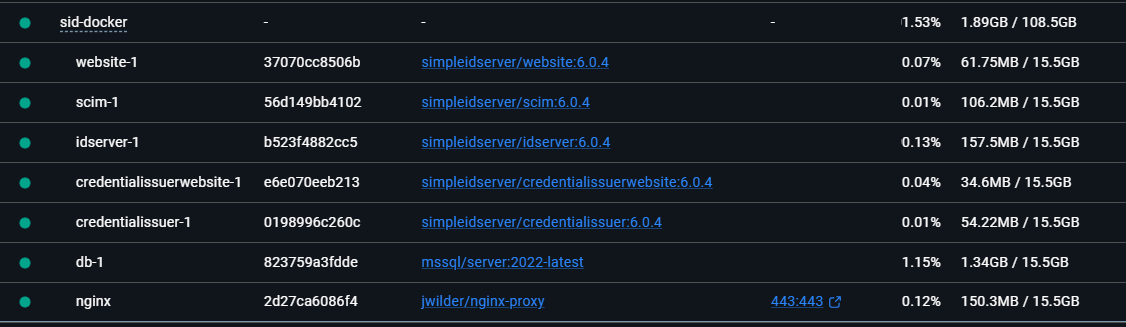
- 执行 docker compose 运行正常显示信息:
- 3.2 代理参数
文件:sid-docker/compose/proxy.conf
nginx
proxy_buffer_size          128k;
proxy_buffers              4 256k;
proxy_busy_buffers_size 256k;- 3.3 TLS 证书
两种方式任选其一,把 localhost.com.crt / localhost.com.key 放到 sid-docker/compose/certificates/:
方式 A:直接下载官方预置证书(最快)
执行环境 :Windows + PowerShell(在
sid-docker/compose/certificates目录下执行)
powershell
curl.exe -L -o localhost.com.crt https://raw.githubusercontent.com/simpleidserver/SimpleIdServer/master/compose/certificates/localhost.com.crt
curl.exe -L -o localhost.com.key https://raw.githubusercontent.com/simpleidserver/SimpleIdServer/master/compose/certificates/localhost.com.key
方式 B:用 mkcert 生成本地受信任证书
执行环境:Windows + PowerShell(mkcert 已安装)
powershell
mkcert -install
mkcert localhost.com "*.localhost.com"
# 将生成的 localhost.com.pem / localhost.com-key.pem 改名为 .crt / .key 后放入 certificates 目录
四、部署步骤
- 步骤 1:创建目录结构
执行环境:Windows + PowerShell
powershell
$root = "E:\CodeRepos\Ai4c\demo\simple-idserver"   # <部署根目录>
New-Item -ItemType Directory -Force -Path "$root\sid-docker\compose\certificates" | Out-Null
Set-Location "$root\sid-docker"- 步骤 2:准备证书
按 3.3 节把证书放入 sid-docker/compose/certificates/。
- 步骤 3:写入编排与代理配置
按 3.1、3.2 节创建 docker-compose.yaml 与 compose/proxy.conf(注意把 <SA_PASSWORD> 替换为真实密码)。
- 步骤 4:配置本机 hosts(关键)
localhost.com 是一个真实存在的公网域名,不会自动解析到本机;且 hosts 文件不支持通配符,必须把每个子域名逐个写死。
执行环境 :Windows(需管理员 权限打开记事本)
记事本 → 打开
C:\Windows\System32\drivers\etc\hosts→ 末尾追加:
text
127.0.0.1 localhost.com
127.0.0.1 idserver.localhost.com
127.0.0.1 scim.localhost.com
127.0.0.1 website.localhost.com
127.0.0.1 credentialissuer.localhost.com
127.0.0.1 credentialissuerwebsite.localhost.com
保存后刷新 DNS:
执行环境:Windows + PowerShell
powershell
ipconfig /flushdns- 步骤 5:启动所有容器
执行环境 :Windows + PowerShell,当前目录为
sid-docker
powershell
docker compose up -d- 步骤 6:查看容器状态与日志
powershell
# 确认 7 个容器均为 running
docker compose ps

# 跟踪某服务日志(例如 idserver)
docker compose logs --tail=50 idserver
五、访问与验证
- 5.1 访问地址
默认管理员账号 :administrator / password
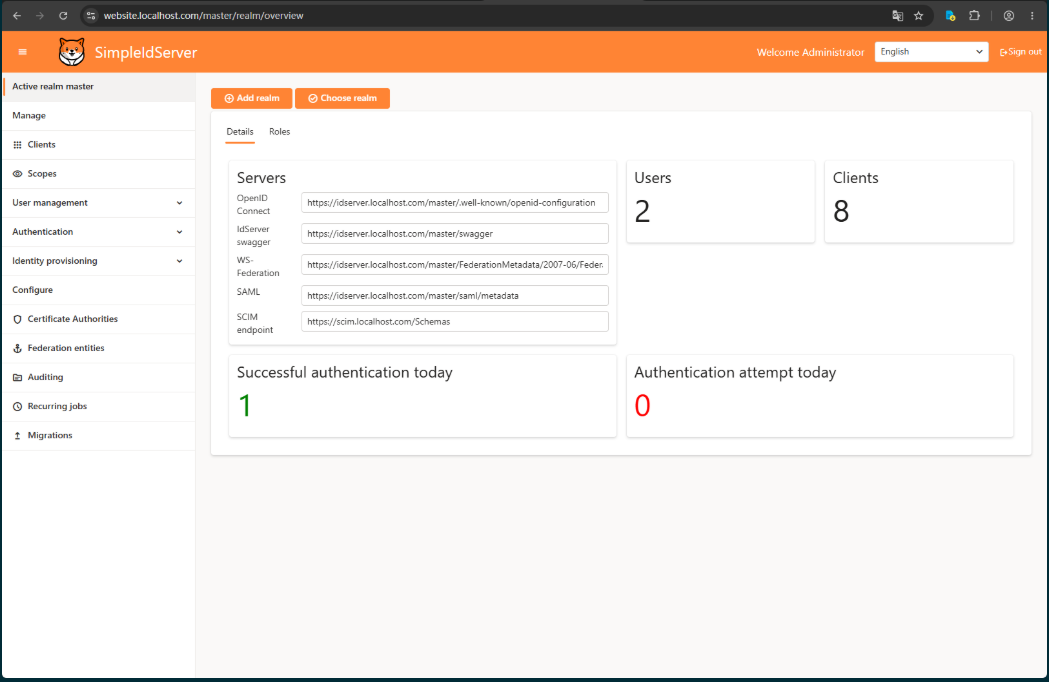
- 5.2 管理控制台(部署成功截图)
领域(Realm)管理:
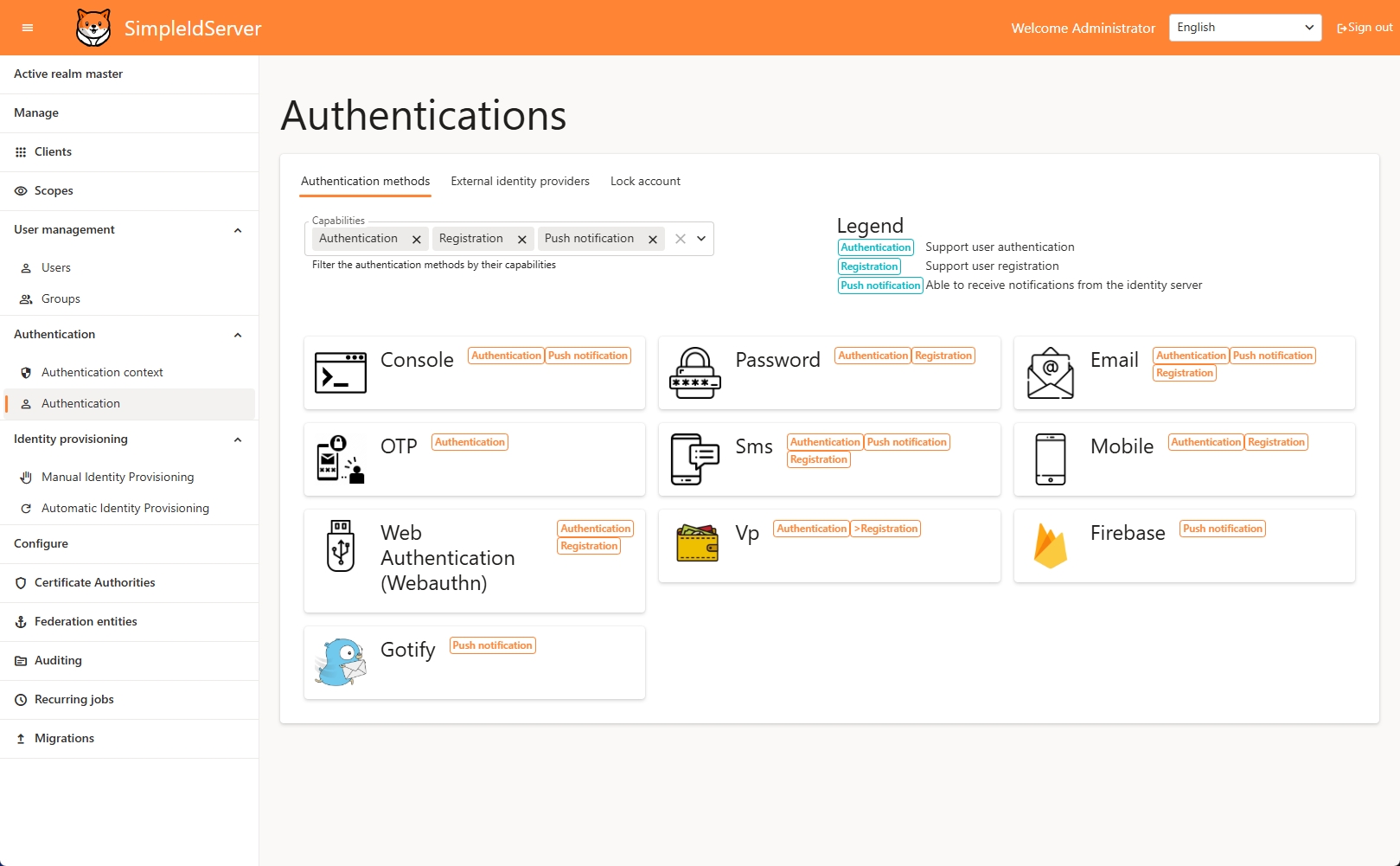
授权模式:
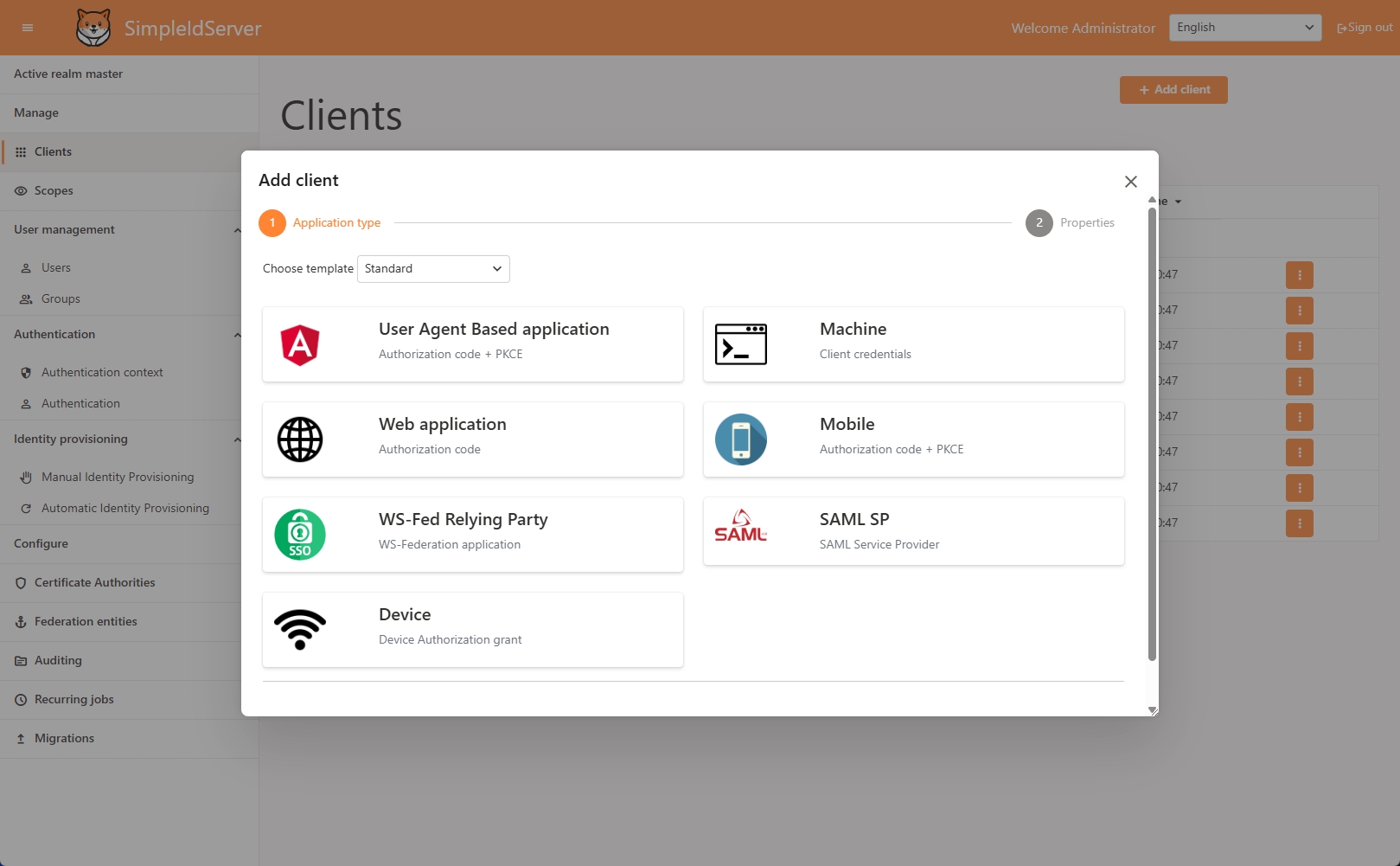
添加客户端:
- 5.3 请求路由流程
- 5.4 验证
OIDC发现文档
执行环境:Windows + PowerShell
powershell
curl.exe -k https://idserver.localhost.com/master/.well-known/openid-configuration返回包含 authorization_endpoint、token_endpoint、jwks_uri 等字段的 JSON,即表示 nginx-proxy 路由 + TLS 终结 + IdServer 全链路打通。
- 5.5 获取
Token(自建测试客户端)
注意:SimpleIdServer 6.0.4 的 Docker 镜像在
masterrealm 仅播种系统客户端(manager、credentialissuer等),不包含postman测试客户端 ,直接用它请求会报unknown client postman。请先到管理控制台Clients页新建一个客户端(如test-client,勾选password与client_credentials授权类型,分配openid/profile作用域),再执行:
powershell
# 密码流
curl.exe -k -X POST https://idserver.localhost.com/master/token `
  -d "grant_type=password" `
  -d "client_id=<客户端ID>" -d "client_secret=<客户端密钥>" `
  -d "username=administrator" -d "password=password" `
  -d "scope=openid profile"

# 客户端凭据流
curl.exe -k -X POST https://idserver.localhost.com/master/token `
  -d "grant_type=client_credentials" `
  -d "client_id=<客户端ID>" -d "client_secret=<客户端密钥>" `
  -d "scope=openid profile"
拿到 access_token 即代表 Token 端点可用。
六、常见问题排查
| 现象 | 原因 | 解决 |
|---|---|---|
curl: (6) Could not resolve host |
hosts 未配置 *.localhost.com |
按步骤 4 追加 hosts 并 ipconfig /flushdns |
docker compose logs 报 no configuration file provided |
当前目录不是 sid-docker |
cd 到 sid-docker 或用 -f sid-docker/docker-compose.yaml |
nginx-proxy 日志大量 worker ... gracefully shutting down |
docker-gen 热重载(正常) |
非错误,无需处理 |
| 访问返回 503 | IdServer 首次建库未完成 | 等待 1~3 分钟,或 docker compose restart idserver website |
Token 报 unknown client postman |
6.0.4 未播种 postman 客户端 | 自建测试客户端(见 5.5) |
启动告警 version is obsolete |
compose 文件写了 version 字段 |
删除首行 version: "3.9"(不影响运行) |
日志出现 POST https://api.honeycomb.io/v1/traces |
镜像默认 OTLP 追踪导出到 Honeycomb | 无害;介意外发可加 OTEL_TRACES_EXPORTER=none 关闭 |
七、占位符说明
| 占位符 | 含义 | 本文示例值 |
|---|---|---|
<部署根目录> |
你本地存放项目的目录 | E:\CodeRepos\Ai4c\demo\simple-idserver |
<SA_PASSWORD> |
SQL Server SA 密码,须满足复杂度 | D54DE7hHpkG9 |
<证书域名> |
TLS 证书对应的域名(含其各级子域) | localhost.com |
<客户端ID> / <客户端密钥> |
在管理控制台自建的测试客户端凭据 | 如 test-client / test-secret |
<本机IP> |
hosts 中指向本机的 IP | 127.0.0.1 |
若改用自有域名,需同步替换:证书文件名、所有
*.localhost.com、VIRTUAL_HOST、Authority、AdminUiUrl、IdServerBaseUrl、ScimBaseUrl以及 hosts 条目。
附录:速查
- 镜像版本 :
6.0.4(idserver / website / scim / credentialissuer / credentialissuerwebsite)、jwilder/nginx-proxy、mcr.microsoft.com/mssql/server:2022-latest - 对外端口 :仅
443(nginx-proxy);后端服务均仅监听容器内部:80 - 常用命令:
powershell
 docker compose ps                 # 查看状态
 docker compose logs -f <服务名>   # 实时日志
 docker compose restart <服务名>   # 重启
 docker compose down               # 停止并移除容器(保留卷)