Debian Apache2 执行 Shell CGI:动态时间页面配置与验证
1. 服务介绍
Apache CGI(Common Gateway Interface)允许 Web 服务器把 HTTP 请求交给外部程序处理,再把程序输出返回给浏览器。本实验使用 Bash Shell 编写 CGI 脚本,动态生成包含当前系统时间的 HTML 页面。
Shell CGI 适合教学演示、简单系统状态页面和内部运维工具;不适合承载高并发业务,也不应直接执行用户提交的命令。生产环境优先使用 PHP、Python、Go 等应用运行时,并限制脚本目录和运行权限。
2. 准备运行环境
• 操作系统:Debian 10/11 或同类 Debian 系统。
• 操作账号:root 或具备 sudo 权限的管理员。
• 软件:Apache2、bash、date。
• CGI 目录:/usr/lib/cgi-bin。
• 测试 URL:http://服务器地址/cgi-bin/time.sh。
确认环境:
bash
cat /etc/os-release
apache2ctl -v
command -v bash date
ss -lntp | grep ':80'
3. 相关知识与注意事项
3.1 CGI 响应格式
CGI 程序必须先输出响应头,再输出空行,最后输出正文:
text
Content-Type: text/html

<html>...</html>
缺少 Content-Type 或响应头后的空行,浏览器可能返回 500 Internal Server Error。
3.2 CGI 配置范围
• ExecCGI:允许目录中的文件作为 CGI 执行。
• AddHandler cgi-script .sh:把 .sh 文件交给 CGI 处理。
• ScriptAlias:把 URL 路径映射到 CGI 目录,并默认启用 CGI 语义。
• Require all granted:允许客户端访问该目录。
推荐只使用独立 CGI 目录和 .cgi 扩展名。若必须执行 .sh,只在专用目录配置,不要对整个网站根目录全局开放 Shell 执行。
3.3 安全注意事项
• CGI 脚本由 Apache 工作进程执行,脚本权限和进程权限决定风险范围。
• 脚本不要拼接或执行未经校验的 URL 参数、Cookie 或请求头。
• 关闭目录索引:使用 Options -Indexes。
• 脚本文件归属 root,权限建议 0755 或更严格;不需要写入权限。
• CGI 访问日志和错误日志必须保留,便于排查脚本退出码和权限问题。
• 修改配置后先运行语法检查,再 reload Apache2。
4. 实验步骤
4.1 安装并启用 CGI 模块
bash
apt update
apt install -y apache2
a2enmod cgid
systemctl enable --now apache2
Debian prefork MPM 通常使用 mod_cgi;event/worker MPM 通常使用 mod_cgid。以 apache2ctl -M 的实际结果为准:
bash
apache2ctl -M | grep -E 'cgi|cgid'4.2 创建 Shell CGI 脚本
bash
install -d -o root -g root -m 0755 /usr/lib/cgi-bin
cat > /usr/lib/cgi-bin/time.sh <<'EOF'
#!/bin/bash
set -eu

printf 'Content-Type: text/html; charset=UTF-8\n\n'
printf '<!doctype html><html><body>\n'
printf '<h1>Current system time is: %s</h1>\n' "$(date '+%Y/%m/%d %r')"
printf '</body></html>\n'
EOF
chown root:root /usr/lib/cgi-bin/time.sh
chmod 0755 /usr/lib/cgi-bin/time.sh
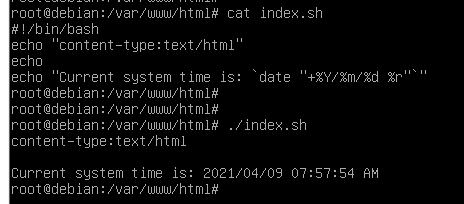
原截图中的脚本使用 Echo 和不规范引号。Shell 命令区分大小写,实际应使用小写 echo 或 printf;本文使用 printf,避免引号和转义混乱。
4.3 配置专用 CGI 目录
Debian 默认 ScriptAlias /cgi-bin/ /usr/lib/cgi-bin/ 通常已经配置。先检查:
bash
grep -R "ScriptAlias.*cgi-bin" /etc/apache2若没有,创建 /etc/apache2/conf-available/local-cgi.conf:
apache
ScriptAlias /cgi-bin/ /usr/lib/cgi-bin/

<Directory "/usr/lib/cgi-bin">
    Options +ExecCGI -Indexes
    AllowOverride None
    Require all granted
    AddHandler cgi-script .cgi .sh
</Directory>
启用配置:
bash
a2enconf local-cgi
apache2ctl configtest
systemctl reload apache2
原实验站点配置启用了 ExecCGI 并把 .sh 注册为 CGI:
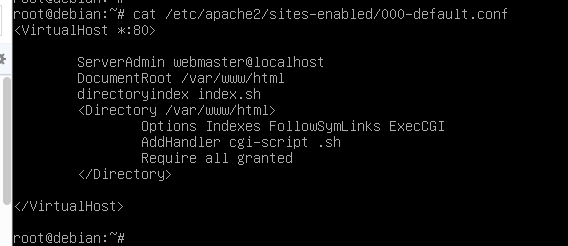
旧配置可能同时启用 Indexes。专用 CGI 目录不需要目录索引,建议改为 -Indexes。
4.4 检查配置并访问页面
bash
apache2ctl configtest
systemctl reload apache2
curl -i http://127.0.0.1/cgi-bin/time.sh
若服务器有域名,使用 Host 头验证对应虚拟主机:
bash
curl -i -H 'Host: www.example.test' http://127.0.0.1/cgi-bin/time.sh浏览器访问:
text
http://服务器地址/cgi-bin/time.sh页面应显示当前系统时间。刷新页面后,时间随服务器当前时间变化。

5. 验证结果
5.1 检查模块、监听和服务状态
bash
apache2ctl -M | grep -E 'cgi|cgid'
apache2ctl configtest
systemctl status apache2 --no-pager
ss -lntp | grep ':80'
5.2 检查 HTTP 响应
bash
curl -sS -D - http://127.0.0.1/cgi-bin/time.sh -o /tmp/time.html
grep -E 'HTTP/|Content-Type' /tmp/time.html
cat /tmp/time.html
正确结果应包含 200 OK、Content-Type: text/html 和当前时间文本。未找到脚本时返回 404;无执行权限或脚本错误时常见返回 403/500。
5.3 查看 CGI 错误日志
bash
tail -n 50 /var/log/apache2/error.log
tail -n 50 /var/log/apache2/access.log
journalctl -u apache2 -n 50 --no-pager
验证成功条件:模块已加载、配置检查为 Syntax OK、脚本返回 200、响应头先于正文输出、日志没有 CGI 执行错误。
6. 常见问题与排错
6.1 返回 403 Forbidden
bash
namei -l /usr/lib/cgi-bin/time.sh
ls -l /usr/lib/cgi-bin/time.sh检查脚本是否有执行权限、父目录是否可遍历、<Directory> 是否包含 ExecCGI 和 Require all granted。
6.2 返回 500 Internal Server Error
bash
bash -n /usr/lib/cgi-bin/time.sh
/usr/lib/cgi-bin/time.sh
tail -n 50 /var/log/apache2/error.log
命令行直接运行时应先看到 Content-Type,再看到 HTML。检查 shebang、换行格式、引号和响应头空行。
6.3 页面下载脚本而不是执行
bash
apache2ctl -M | grep -E 'cgi|cgid'
apache2ctl -t -D DUMP_RUN_CFG
grep -R 'AddHandler\|ScriptAlias\|ExecCGI' /etc/apache2
确认 CGI 模块已启用,URL 命中 CGI 目录,扩展名已注册为 cgi-script。
6.4 回退配置
bash
a2disconf local-cgi
rm -f /usr/lib/cgi-bin/time.sh
apache2ctl configtest
systemctl reload apache2
删除脚本前保留配置和错误日志,便于核对访问记录和故障原因。