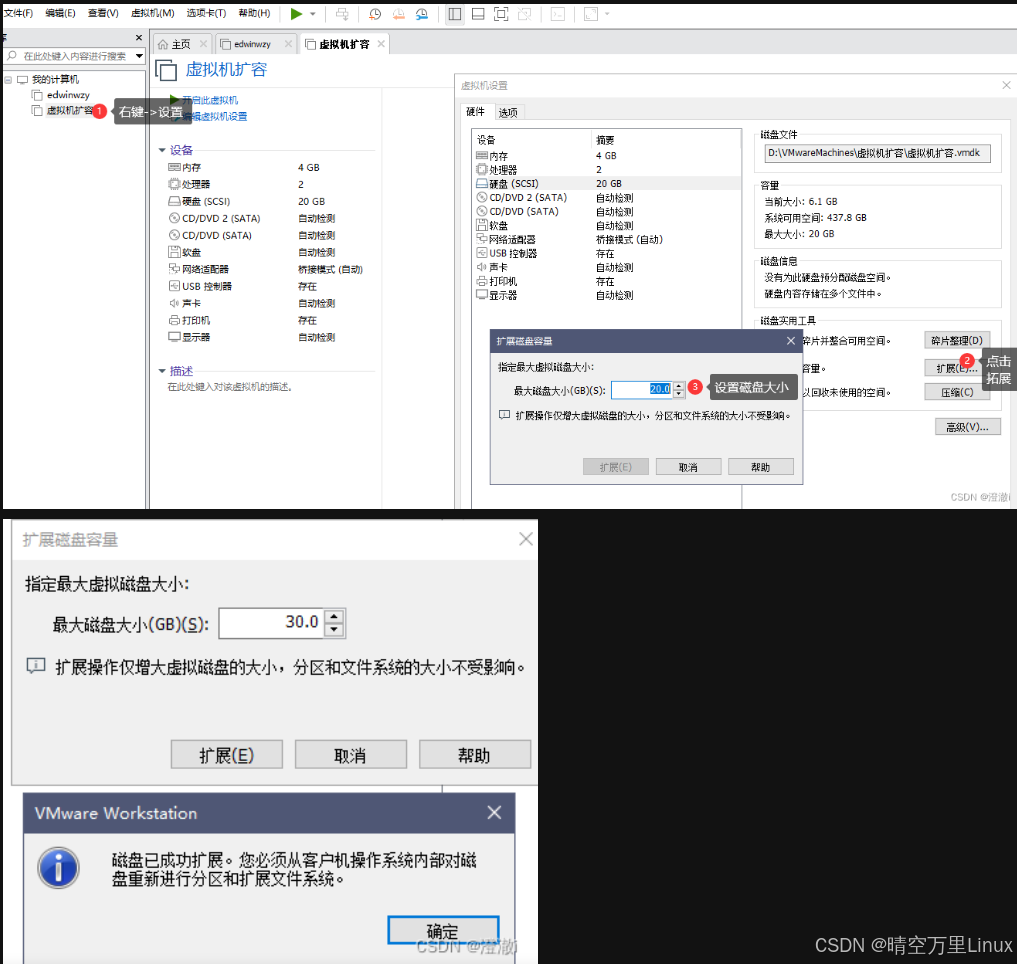
test@ubuntu ~ $ df -h
Filesystem      Size  Used Avail Use% Mounted on
udev            1.9G     0  1.9G   0% /dev
tmpfs           388M  3.1M  385M   1% /run
/dev/sda5        78G   74G  598M 100% /
tmpfs           1.9G     0  1.9G   0% /dev/shm
tmpfs           5.0M     0  5.0M   0% /run/lock
tmpfs           1.9G     0  1.9G   0% /sys/fs/cgroup
/dev/loop0      128K  128K     0 100% /snap/bare/5
/dev/loop2       64M   64M     0 100% /snap/core20/2434
/dev/loop3       74M   74M     0 100% /snap/core22/1722
/dev/loop1       64M   64M     0 100% /snap/core20/2379
/dev/loop10      45M   45M     0 100% /snap/snapd/23258
/dev/loop9       45M   45M     0 100% /snap/snapd/23545
/dev/loop7       13M   13M     0 100% /snap/snap-store/1113
/dev/loop5      506M  506M     0 100% /snap/gnome-42-2204/176
/dev/loop6      350M  350M     0 100% /snap/gnome-3-38-2004/143
/dev/loop4       74M   74M     0 100% /snap/core22/1748
/dev/loop11      92M   92M     0 100% /snap/gtk-common-themes/1535
/dev/loop8      347M  347M     0 100% /snap/gnome-3-38-2004/119
/dev/loop12      13M   13M     0 100% /snap/snap-store/1216
/dev/sda1       511M  4.0K  511M   1% /boot/efi
tmpfs           388M  4.0K  388M   1% /run/user/1000
test@ubuntu ~ $
test@ubuntu ~ $
test@ubuntu ~ $ lsblk
NAME   MAJ:MIN RM   SIZE RO TYPE MOUNTPOINT
loop0    7:0    0     4K  1 loop /snap/bare/5
loop1    7:1    0    64M  1 loop /snap/core20/2379
loop2    7:2    0  63.7M  1 loop /snap/core20/2434
loop3    7:3    0  73.9M  1 loop /snap/core22/1722
loop4    7:4    0  73.9M  1 loop /snap/core22/1748
loop5    7:5    0 505.1M  1 loop /snap/gnome-42-2204/176
loop6    7:6    0 349.7M  1 loop /snap/gnome-3-38-2004/143
loop7    7:7    0  12.9M  1 loop /snap/snap-store/1113
loop8    7:8    0 346.3M  1 loop /snap/gnome-3-38-2004/119
loop9    7:9    0  44.4M  1 loop /snap/snapd/23545
loop10   7:10   0  44.3M  1 loop /snap/snapd/23258
loop11   7:11   0  91.7M  1 loop /snap/gtk-common-themes/1535
loop12   7:12   0  12.2M  1 loop /snap/snap-store/1216
sda      8:0    0   768G  0 disk
├─sda1   8:1    0   512M  0 part /boot/efi
├─sda2   8:2    0     1K  0 part
└─sda5   8:5    0  79.5G  0 part /
sr0     11:0    1  1024M  0 rom
test@ubuntu ~ $
test@ubuntu ~ $ sudo fdisk /dev/sda

Welcome to fdisk (util-linux 2.34).
Changes will remain in memory only, until you decide to write them.
Be careful before using the write command.


Command (m for help): p
Disk /dev/sda: 768 GiB, 824633720832 bytes, 1610612736 sectors
Disk model: VMware Virtual S
Units: sectors of 1 * 512 = 512 bytes
Sector size (logical/physical): 512 bytes / 512 bytes
I/O size (minimum/optimal): 512 bytes / 512 bytes
Disklabel type: dos
Disk identifier: 0x8f1c10f7

Device     Boot   Start       End   Sectors  Size Id Type
/dev/sda1  *       2048   1050623   1048576  512M  b W95 FAT32
/dev/sda2       1052670 167770111 166717442 79.5G  5 Extended
/dev/sda5       1052672 167770111 166717440 79.5G 83 Linux

Command (m for help): d
Partition number (1,2,5, default 5): 5

Partition 5 has been deleted.

Command (m for help): p
Disk /dev/sda: 768 GiB, 824633720832 bytes, 1610612736 sectors
Disk model: VMware Virtual S
Units: sectors of 1 * 512 = 512 bytes
Sector size (logical/physical): 512 bytes / 512 bytes
I/O size (minimum/optimal): 512 bytes / 512 bytes
Disklabel type: dos
Disk identifier: 0x8f1c10f7

Device     Boot   Start       End   Sectors  Size Id Type
/dev/sda1  *       2048   1050623   1048576  512M  b W95 FAT32
/dev/sda2       1052670 167770111 166717442 79.5G  5 Extended

Command (m for help): d
Partition number (1,2, default 2): 2

Partition 2 has been deleted.

Command (m for help): n
Partition type
   p   primary (1 primary, 0 extended, 3 free)
   e   extended (container for logical partitions)
Select (default p): e
Partition number (2-4, default 2): 2
First sector (1050624-1610612735, default 1050624):
Last sector, +/-sectors or +/-size{K,M,G,T,P} (1050624-1610612735, default 1610612735):

Created a new partition 2 of type 'Extended' and of size 767.5 GiB.

Command (m for help): p
Disk /dev/sda: 768 GiB, 824633720832 bytes, 1610612736 sectors
Disk model: VMware Virtual S
Units: sectors of 1 * 512 = 512 bytes
Sector size (logical/physical): 512 bytes / 512 bytes
I/O size (minimum/optimal): 512 bytes / 512 bytes
Disklabel type: dos
Disk identifier: 0x8f1c10f7

Device     Boot   Start        End    Sectors   Size Id Type
/dev/sda1  *       2048    1050623    1048576   512M  b W95 FAT32
/dev/sda2       1050624 1610612735 1609562112 767.5G  5 Extended

Command (m for help): n
All space for primary partitions is in use.
Adding logical partition 5
First sector (1052672-1610612735, default 1052672):
Last sector, +/-sectors or +/-size{K,M,G,T,P} (1052672-1610612735, default 1610612735):

Created a new partition 5 of type 'Linux' and of size 767.5 GiB.
Partition #5 contains a ext4 signature.

Do you want to remove the signature? [Y]es/[N]o: y

The signature will be removed by a write command.

Command (m for help): p
Disk /dev/sda: 768 GiB, 824633720832 bytes, 1610612736 sectors
Disk model: VMware Virtual S
Units: sectors of 1 * 512 = 512 bytes
Sector size (logical/physical): 512 bytes / 512 bytes
I/O size (minimum/optimal): 512 bytes / 512 bytes
Disklabel type: dos
Disk identifier: 0x8f1c10f7

Device     Boot   Start        End    Sectors   Size Id Type
/dev/sda1  *       2048    1050623    1048576   512M  b W95 FAT32
/dev/sda2       1050624 1610612735 1609562112 767.5G  5 Extended
/dev/sda5       1052672 1610612735 1609560064 767.5G 83 Linux

Filesystem/RAID signature on partition 5 will be wiped.

Command (m for help): w
The partition table has been altered.
Failed to add partition 2 to system: Device or resource busy

The kernel still uses the old partitions. The new table will be used at the next reboot.
Syncing disks.

test@ubuntu ~ $
test@ubuntu ~ $
test@ubuntu ~ $
test@ubuntu ~ $ sudo reboot


Last login: Mon Feb 10 18:15:04 2025 from 192.168.188.1
test@ubuntu ~ $
test@ubuntu ~ $
test@ubuntu ~ $
test@ubuntu ~ $
test@ubuntu ~ $
test@ubuntu ~ $
test@ubuntu ~ $ df
Filesystem     1K-blocks     Used Available Use% Mounted on
udev             1937924        0   1937924   0% /dev
tmpfs             396900     3084    393816   1% /run
/dev/sda5       81468856 76680984    603552 100% /
tmpfs            1984500        0   1984500   0% /dev/shm
tmpfs               5120        0      5120   0% /run/lock
tmpfs            1984500        0   1984500   0% /sys/fs/cgroup
/dev/loop0           128      128         0 100% /snap/bare/5
/dev/loop2         75776    75776         0 100% /snap/core22/1748
/dev/loop3         93952    93952         0 100% /snap/gtk-common-themes/1535
/dev/loop4         12544    12544         0 100% /snap/snap-store/1216
/dev/loop1         65536    65536         0 100% /snap/core20/2379
/dev/loop5        354688   354688         0 100% /snap/gnome-3-38-2004/119
/dev/loop6        358144   358144         0 100% /snap/gnome-3-38-2004/143
/dev/loop7         75648    75648         0 100% /snap/core22/1722
/dev/loop11       517248   517248         0 100% /snap/gnome-42-2204/176
/dev/loop9         13312    13312         0 100% /snap/snap-store/1113
/dev/loop10        45440    45440         0 100% /snap/snapd/23258
/dev/loop8         45568    45568         0 100% /snap/snapd/23545
/dev/loop12        65280    65280         0 100% /snap/core20/2434
/dev/sda1         523248        4    523244   1% /boot/efi
tmpfs             396900        4    396896   1% /run/user/1000
test@ubuntu ~ $
test@ubuntu ~/share $ sudo e2fsck -f /dev/sda5
[sudo] password for op:
e2fsck 1.45.5 (07-Jan-2020)
/dev/sda5 is mounted.
e2fsck: Cannot continue, aborting.


test@ubuntu ~/share $ sudo resize2fs /dev/sda5
resize2fs 1.45.5 (07-Jan-2020)
Filesystem at /dev/sda5 is mounted on /; on-line resizing required
old_desc_blocks = 10, new_desc_blocks = 96
The filesystem on /dev/sda5 is now 201195008 (4k) blocks long.

test@ubuntu ~/share $
test@ubuntu ~/share $
test@ubuntu ~/share $ df -h
Filesystem      Size  Used Avail Use% Mounted on
udev            1.9G     0  1.9G   0% /dev
tmpfs           388M  3.1M  385M   1% /run
/dev/sda5       755G   74G  651G  11% /
tmpfs           1.9G     0  1.9G   0% /dev/shm
tmpfs           5.0M     0  5.0M   0% /run/lock
tmpfs           1.9G     0  1.9G   0% /sys/fs/cgroup
/dev/loop0      128K  128K     0 100% /snap/bare/5
/dev/loop2       74M   74M     0 100% /snap/core22/1748
/dev/loop3       92M   92M     0 100% /snap/gtk-common-themes/1535
/dev/loop4       13M   13M     0 100% /snap/snap-store/1216
/dev/loop1       64M   64M     0 100% /snap/core20/2379
/dev/loop5      347M  347M     0 100% /snap/gnome-3-38-2004/119
/dev/loop6      350M  350M     0 100% /snap/gnome-3-38-2004/143
/dev/loop7       74M   74M     0 100% /snap/core22/1722
/dev/loop11     506M  506M     0 100% /snap/gnome-42-2204/176
/dev/loop9       13M   13M     0 100% /snap/snap-store/1113
/dev/loop10      45M   45M     0 100% /snap/snapd/23258
/dev/loop8       45M   45M     0 100% /snap/snapd/23545
/dev/loop12      64M   64M     0 100% /snap/core20/2434
/dev/sda1       511M  4.0K  511M   1% /boot/efi
tmpfs           388M  4.0K  388M   1% /run/user/1000
test@ubuntu ~/share $