概述
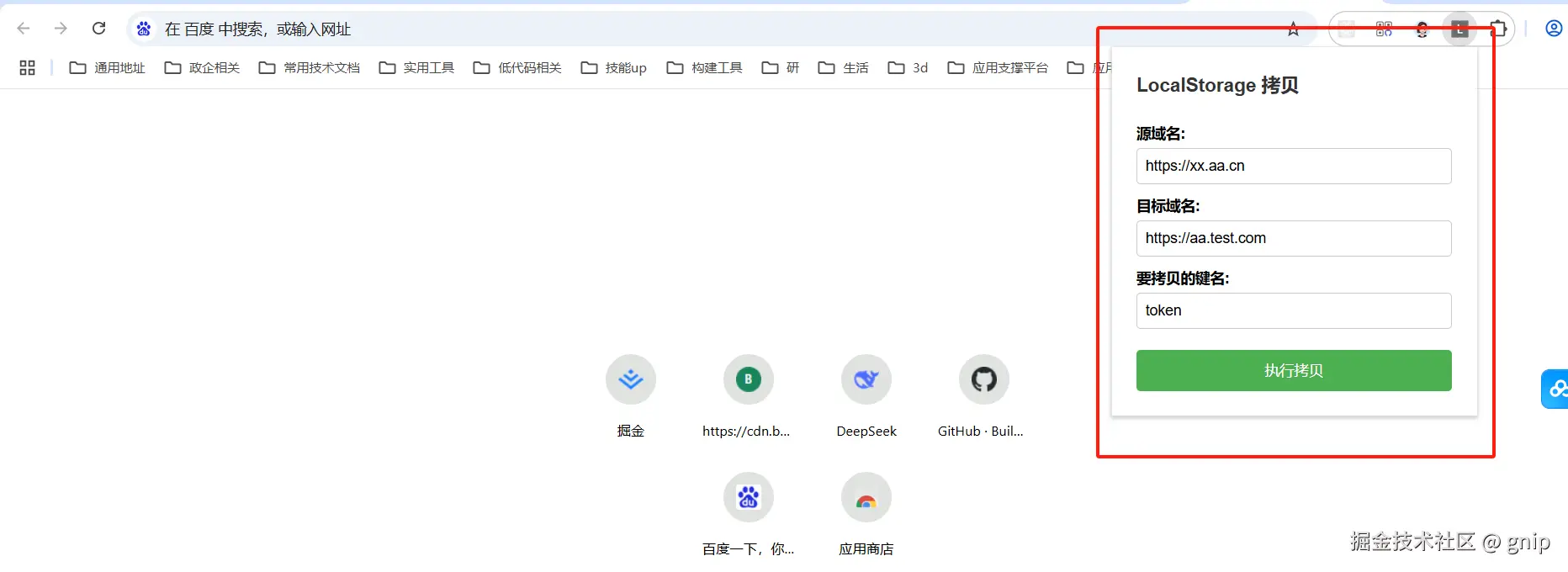
最近项目上本地开发,调用线上某个环境的接口去调试,需要复制对应环境的token,然后存到本地localstorage本地后,才能通过用户鉴权(直白点说就是登录了),由于token过期时间比较短,每天上班本地调试都会遇到token过期的问题,需要重新打开线上链接重新拷贝,比较麻烦,因此自己写了一个小工具---Chrome浏览器插件,可以直接拷贝线上环境本地存储的token到本地。
效果图
原理和流程
Chrome浏览器插件开发基于HTML、CSS和JavaScript技术,通过扩展浏览器功能来增强用户体验。其核心原理和开发流程如下:
核心组件
- manifest.json :定义插件名称、版本、权限等基本信息。
- 背景脚本(background scripts):长期运行的脚本,负责后台任务。
- 内容脚本(content scripts):注入到网页中的脚本,用于增强或修改页面功能。
- 用户界面:包括弹出页面(popup)和选项页(options)。
工作流程
- 创建项目文件夹:包含上述文件结构。
- 安装插件:通过Chrome扩展页面加载解压的扩展程序。
- 功能实现:通过背景脚本和内容脚本交互实现,例如自动下载网页为Markdown文件或注入自定义脚本。
开发工具
可使用 Tampermonkey** 等扩展简化开发流程,支持跨域请求和自动化脚本注入。
文件结构
命名插件名称为copy-localstorage-extension text
bash
copy-localstorage-extension/
|------popup                # 弹出层
   |------ popup.css        # 弹出层样式
   |------popup.html        # 弹出层html结构
   |------popup.js          # 弹出层js逻辑
├── manifest.json       # 核心配置文件
├── icon.png            # 扩展图标(可选)
└── (其他脚本/资源文件)
文件内容如下
popup/popup.css
css
body {
    width: 300px;
    padding: 15px;
    font-family: Arial, sans-serif;
  }

  .container {
    display: flex;
    flex-direction: column;
    gap: 10px;
  }

  h1 {
    font-size: 18px;
    margin: 0 0 15px 0;
    color: #333;
  }

  .form-group {
    display: flex;
    flex-direction: column;
    gap: 5px;
  }

  label {
    font-weight: bold;
    font-size: 14px;
  }

  input {
    padding: 8px;
    border: 1px solid #ccc;
    border-radius: 4px;
    font-size: 14px;
  }

  button {
    padding: 10px;
    background-color: #4CAF50;
    color: white;
    border: none;
    border-radius: 4px;
    cursor: pointer;
    font-size: 14px;
    margin-top: 10px;
  }

  button:hover {
    background-color: #45a049;
  }

  .status {
    margin-top: 15px;
    padding: 10px;
    border-radius: 4px;
    font-size: 14px;
    display: none;
  }

  .status.success {
    display: block;
    background-color: #dff0d8;
    color: #3c763d;
  }

  .status.error {
    display: block;
    background-color: #f2dede;
    color: #a94442;
  }
popup/popup.html
html
<!DOCTYPE html>
<html>
<head>
  <title>LocalStorage 拷贝工具</title>
  <link rel="stylesheet" href="popup.css">
  <meta charset="utf-8"></meta>
</head>
<body>
  <div class="container">
    <h1>LocalStorage 拷贝</h1>

    <div class="form-group">
      <label for="source-domain">源域名:</label>
      <input type="text" id="source-domain" value="https://xx.aa.cn" placeholder="例如: https://example.com">
    </div>

    <div class="form-group">
      <label for="target-domain">目标域名:</label>
      <input type="text" id="target-domain" value="https://aa.test.com" placeholder="例如: https://another-site.com">
    </div>

    <div class="form-group">
      <label for="storage-key">要拷贝的键名:</label>
      <input type="text" id="storage-key"  value="token" placeholder="例如: user_token">
    </div>

    <button id="copy-btn">执行拷贝</button>

    <div id="status" class="status"></div>
  </div>

  <script src="popup.js"></script>
</body>
</html>
popup/popup.js
js
document.getElementById('copy-btn').addEventListener('click', async () => {
    const sourceDomain = document.getElementById('source-domain').value.trim();
    const targetDomain = document.getElementById('target-domain').value.trim();
    const storageKey = document.getElementById('storage-key').value.trim();

    const statusEl = document.getElementById('status');

    if (!sourceDomain || !targetDomain || !storageKey) {
      showStatus('请填写所有字段', 'error');
      return;
    }

    try {
      showStatus('正在处理...', 'info');

      // 发送消息给后台脚本
      const response = await chrome.runtime.sendMessage({
        action: 'copyLocalStorage',
        sourceDomain,
        targetDomain,
        storageKey
      });

      if (response.success) {
        showStatus(`成功拷贝: ${storageKey} = ${response.value}`, 'success');
      } else {
        showStatus(`错误: ${response.message}`, 'error');
      }
    } catch (error) {
      showStatus(`发生错误: ${error.message}`, 'error');
    }
  });

  function showStatus(message, type) {
    const statusEl = document.getElementById('status');
    statusEl.textContent = message;
    statusEl.className = 'status ' + (type || 'info');
  }
background.js
js
chrome.runtime.onMessage.addListener((request, sender, sendResponse) => {
    if (request.action === 'copyLocalStorage') {
      handleCopyLocalStorage(request, sendResponse);
      return true; // 保持消息通道开放以支持异步响应
    }
  });

  async function handleCopyLocalStorage(request, sendResponse) {
    const { sourceDomain, targetDomain, storageKey } = request;

    try {
      // 第一步:从源域名获取数据
      const sourceValue = await getLocalStorageFromDomain(sourceDomain, storageKey);

      if (sourceValue === null) {
        sendResponse({
          success: false,
          message: `源域名 ${sourceDomain} 中未找到键 ${storageKey}`
        });
        return;
      }

      // 第二步:将数据写入目标域名
      const writeSuccess = await setLocalStorageToDomain(targetDomain, storageKey, sourceValue);

      if (writeSuccess) {
        sendResponse({
          success: true,
          value: sourceValue,
          message: `成功将 ${storageKey} 从 ${sourceDomain} 拷贝到 ${targetDomain}`
        });
      } else {
        sendResponse({
          success: false,
          message: `无法写入目标域名 ${targetDomain}`
        });
      }
    } catch (error) {
      sendResponse({
        success: false,
        message: error.message
      });
    }
  }

  function getLocalStorageFromDomain(domain, key) {
    return new Promise((resolve) => {
      chrome.tabs.create({ url: domain, active: false }, (tab) => {
        chrome.scripting.executeScript({
          target: { tabId: tab.id },
          func: (key) => {
            return localStorage.getItem(key);
          },
          args: [key]
        }, (results) => {
          chrome.tabs.remove(tab.id);
          if (results && results[0] && results[0].result !== undefined) {
            resolve(results[0].result);
          } else {
            resolve(null);
          }
        });
      });
    });
  }

  function setLocalStorageToDomain(domain, key, value) {
    return new Promise((resolve) => {
      chrome.tabs.create({ url: domain, active: false }, (tab) => {
        chrome.scripting.executeScript({
          target: { tabId: tab.id },
          func: (key, value) => {
            localStorage.setItem(key, value);
            return true;
          },
          args: [key, value]
        }, (results) => {
          chrome.tabs.remove(tab.id);
          resolve(results && results[0] && results[0].result === true);
        });
      });
    });
  }
manifest.json
json
{
    "manifest_version": 3,
    "name": "LocalStorage 拷贝工具",
    "version": "1.0",
    "description": "跨域名拷贝 LocalStorage 数据",
    "action": {
      "default_popup": "popup/popup.html"
        },
    "permissions": [
      "storage",
      "scripting",
      "activeTab",
      "tabs"
    ],
    "host_permissions": [
      "<all_urls>"
    ],
    "background": {
      "service_worker": "background.js"
    }
  }
注册插件
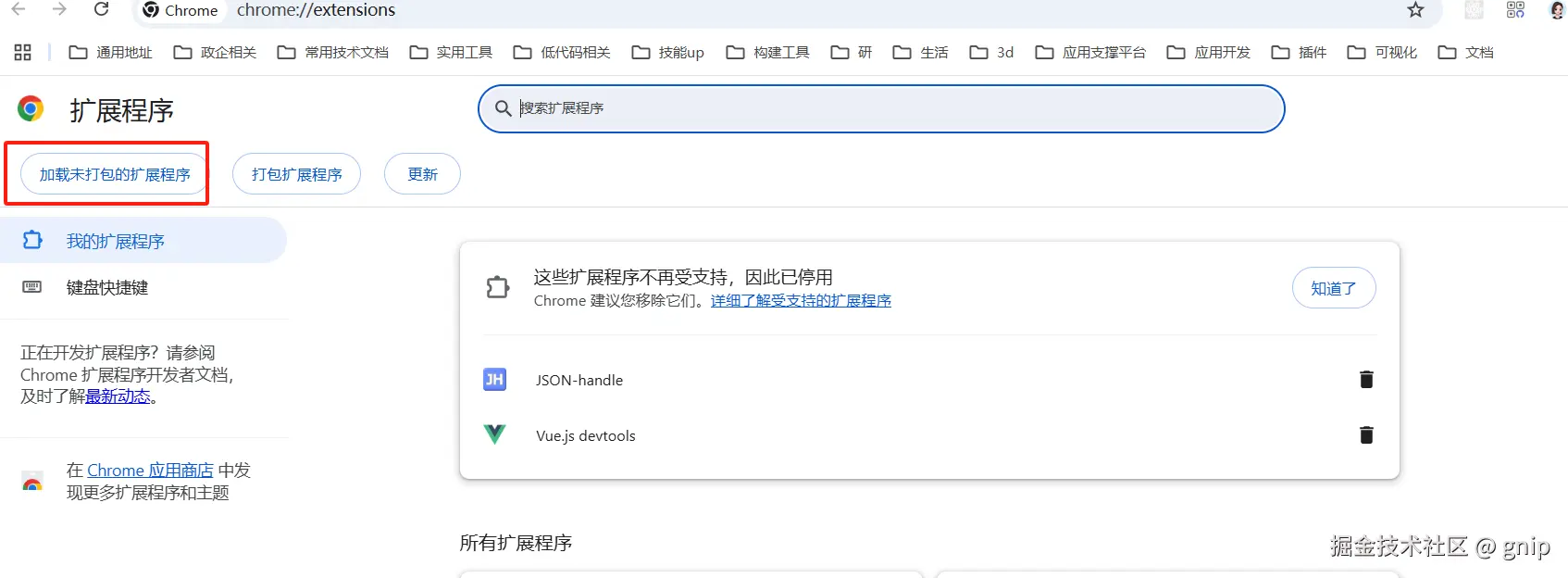
上面插件代码写好后,需要将插件注册到谷歌浏览器的插件中心 到谷歌浏览器扩展中心,点击加载未打包的扩展程序,然后选择上面我们开发插件文件夹就可以使用了。
总结
按照上面的规范,就可以写任意我们想要的插件,本质还是前端html+css+js逻辑,日常工作中,可以鉴于此,写一些小工具插件,提升我们的开发效率