SeekBar
1.使用场景
2.简单使用与事件监听
1.setProgress
2.setOnSeekBarChangeListener
3.注意事项

首先是拖拽一个SeekBar到视图区域中:
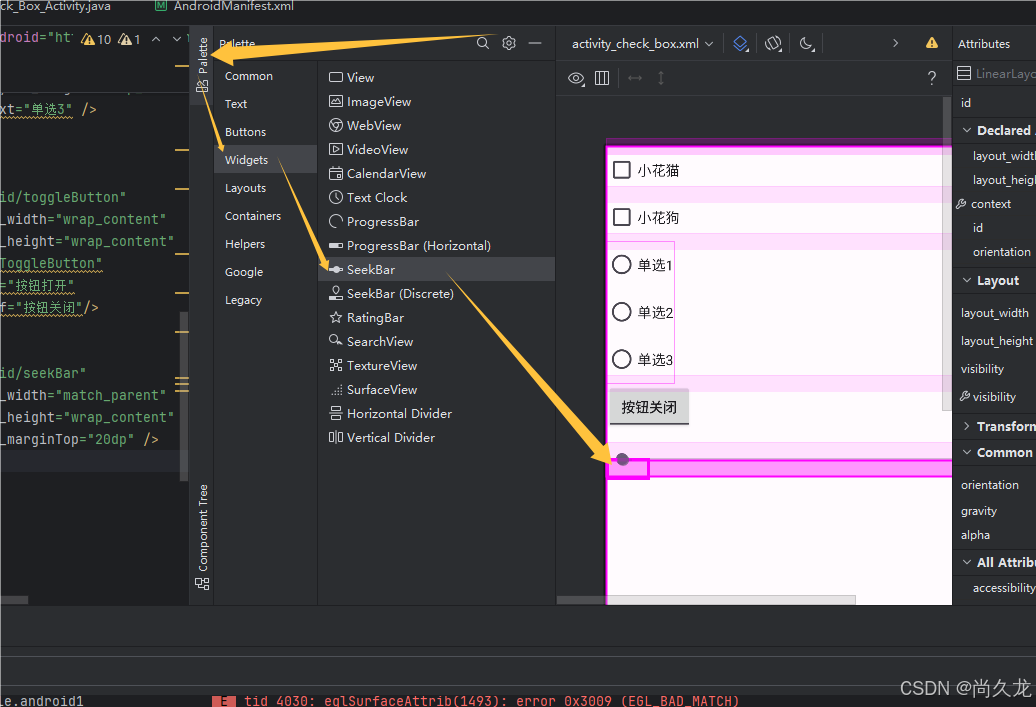
android:max="100"       设置进度条的最大值为100
android:progress="40"   设置进度值为40(也就是圆点的位置到40%处)
看看这次学习的效果吧,用鼠标拖动进度条,日志中就会记录拖动开始,拖动中,拖动结束时的进度值或是做些其他的事情。
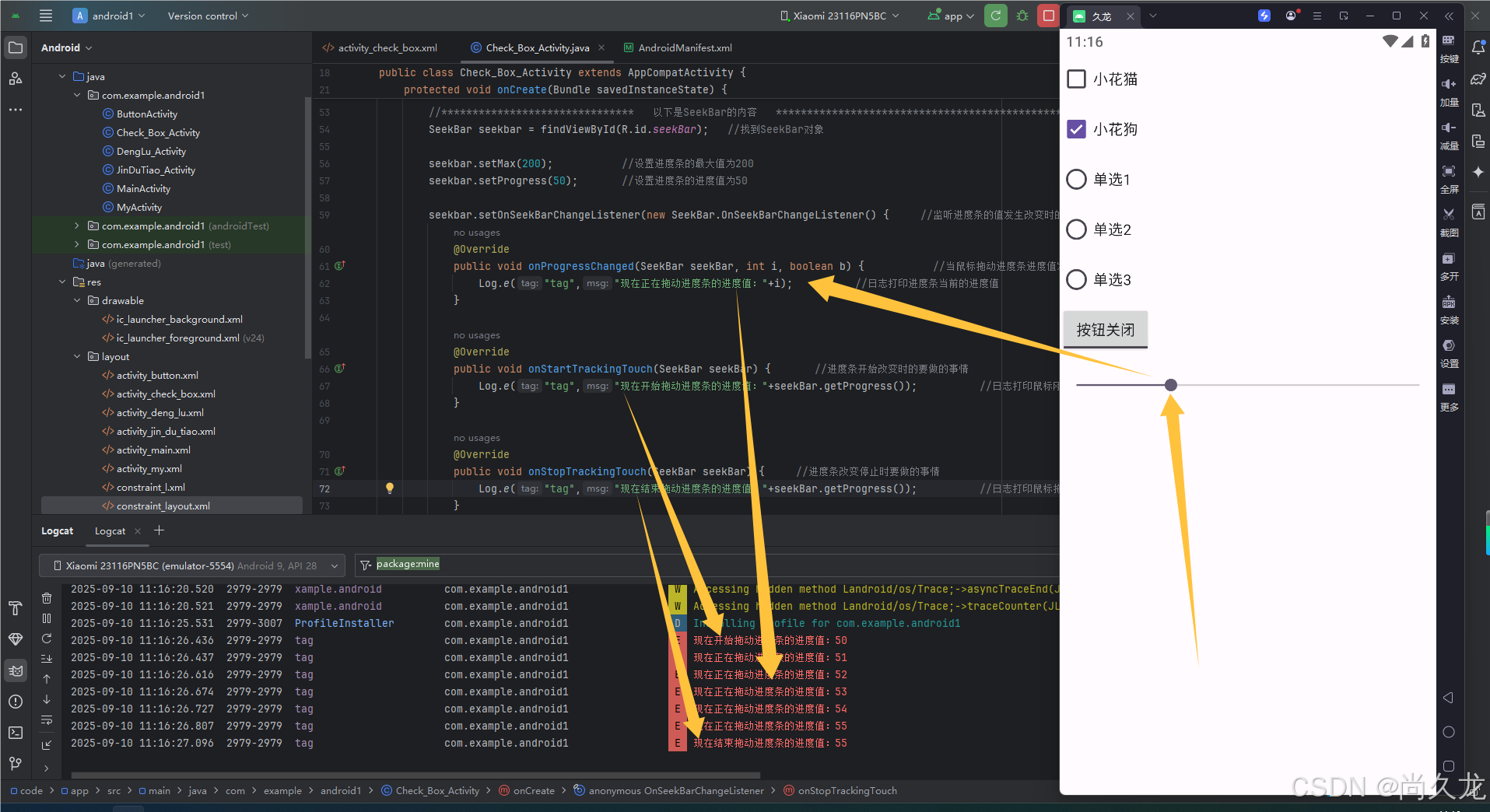
下面来看今天一上午学习的所有的代码吧:
XML
<?xml version="1.0" encoding="utf-8"?>
<LinearLayout xmlns:android="http://schemas.android.com/apk/res/android"
    xmlns:app="http://schemas.android.com/apk/res-auto"
    xmlns:tools="http://schemas.android.com/tools"
    android:id="@+id/main"
    android:layout_width="match_parent"
    android:layout_height="match_parent"
    tools:context=".Check_Box_Activity"
    android:orientation="vertical">


    <CheckBox
        android:id="@+id/checkBox"
        android:layout_width="match_parent"
        android:layout_height="wrap_content"
        android:text="小花猫" />

    <CheckBox
        android:id="@+id/checkBox2"
        android:layout_width="match_parent"
        android:layout_height="wrap_content"
        android:text="小花狗" />

    <RadioGroup
        android:layout_width="wrap_content"
        android:layout_height="wrap_content" >

        <RadioButton
            android:id="@+id/radioButton"
            android:layout_width="match_parent"
            android:layout_height="wrap_content"
            android:text="单选1" />

        <RadioButton
            android:id="@+id/radioButton2"
            android:layout_width="match_parent"
            android:layout_height="wrap_content"
            android:text="单选2" />

        <RadioButton
            android:id="@+id/radioButton3"
            android:layout_width="match_parent"
            android:layout_height="wrap_content"
            android:text="单选3" />
    </RadioGroup>

    <ToggleButton
        android:id="@+id/toggleButton"
        android:layout_width="wrap_content"
        android:layout_height="wrap_content"
        android:text="ToggleButton"
        android:textOn="按钮打开"
        android:textOff="按钮关闭"/>

    <SeekBar
        android:id="@+id/seekBar"
        android:layout_width="match_parent"
        android:layout_height="wrap_content"
        android:layout_marginTop="20dp"
        android:max="100"
        android:progress="40"/>
</LinearLayout>
再来看Activity的代码吧:
java
package com.example.android1;

import android.nfc.Tag;
import android.os.Bundle;
import android.util.Log;
import android.widget.CheckBox;
import android.widget.CompoundButton;
import android.widget.CompoundButton.OnCheckedChangeListener;
import android.widget.SeekBar;

import androidx.activity.EdgeToEdge;
import androidx.annotation.NonNull;
import androidx.appcompat.app.AppCompatActivity;
import androidx.core.graphics.Insets;
import androidx.core.view.ViewCompat;
import androidx.core.view.WindowInsetsCompat;

public class Check_Box_Activity extends AppCompatActivity {

    @Override
    protected void onCreate(Bundle savedInstanceState) {
        super.onCreate(savedInstanceState);
        EdgeToEdge.enable(this);
        setContentView(R.layout.activity_check_box);
        ViewCompat.setOnApplyWindowInsetsListener(findViewById(R.id.main), (v, insets) -> {
            Insets systemBars = insets.getInsets(WindowInsetsCompat.Type.systemBars());
            v.setPadding(systemBars.left, systemBars.top, systemBars.right, systemBars.bottom);
            return insets;
        });
        CheckBox checkbox1 = findViewById(R.id.checkBox);   //获取复选框1的对象
        CheckBox checkbox2 = findViewById(R.id.checkBox2);  //获取复选框2的对象

        checkbox1.setChecked(false);  //复选框1设置为没有选中的状态
        checkbox2.setChecked(true);   //复选框2设置为选中的状态

        checkbox1.setOnCheckedChangeListener(new CompoundButton.OnCheckedChangeListener() {
            @Override
            public void onCheckedChanged(@NonNull CompoundButton compoundButton, boolean b) {
                boolean ischecked1 = checkbox1.isChecked();
                Log.e("tag","复选框1的状态:"+ischecked1);
            }
        });

        checkbox2.setOnCheckedChangeListener(new CompoundButton.OnCheckedChangeListener() {
            @Override
            public void onCheckedChanged(@NonNull CompoundButton compoundButton, boolean b) {
                boolean ischecked2 = checkbox2.isChecked();
                Log.e("tag","复选框2的状态:"+ischecked2);
            }
        });


        //*******************************   以下是SeekBar的内容   ************************************************
        SeekBar seekbar = findViewById(R.id.seekBar);   //找到SeekBar对象

        seekbar.setMax(200);           //设置进度条的最大值为200
        seekbar.setProgress(50);       //设置进度条的进度值为50

        seekbar.setOnSeekBarChangeListener(new SeekBar.OnSeekBarChangeListener() {     //监听进度条的值发生改变时的事件
            @Override
            public void onProgressChanged(SeekBar seekBar, int i, boolean b) {           //当鼠标拖动进度条进度值发生改变时
                Log.e("tag","现在正在拖动进度条的进度值:"+i);          //日志打印进度条当前的进度值
            }

            @Override
            public void onStartTrackingTouch(SeekBar seekBar) {       //进度条开始改变时的要做的事情
                Log.e("tag","现在开始拖动进度条的进度值:"+seekBar.getProgress());          //日志打印鼠标刚刚开始拖动进度条事的进度值
            }

            @Override
            public void onStopTrackingTouch(SeekBar seekBar) {     //进度条改变停止时要做的事情
                Log.e("tag","现在结束拖动进度条的进度值:"+seekBar.getProgress());          //日志打印鼠标拖动进度条结束时的进度值
            }
        });

    }
}