
🔥草莓熊Lotso: 个人主页
❄️个人专栏: 《C++知识分享》 《Linux 入门到实践:零基础也能懂》
✨生活是默默的坚持,毅力是永久的享受!
🎬 博主简介:

文章目录
- 前言:
- [一. Git关键能力:版本回退与撤销修改](#一. Git关键能力:版本回退与撤销修改)
-
- [1.1 版本回退](#1.1 版本回退)
- [1.2 撤销修改](#1.2 撤销修改)
-
- [场景 1:修改仅在工作区,未执行 `git add`](#场景 1:修改仅在工作区,未执行
git add) - [场景 2:修改已执行 `git add` 到暂存区,未 `commit`](#场景 2:修改已执行
git add到暂存区,未commit) - [场景 3:修改已commit到版本库(未推送到远程)](#场景 3:修改已commit到版本库(未推送到远程))
- [场景 1:修改仅在工作区,未执行 `git add`](#场景 1:修改仅在工作区,未执行
- [二. Git 文件删除:彻底删除与误删恢复](#二. Git 文件删除:彻底删除与误删恢复)
-
- [2.1 误删工作区文件,需恢复](#2.1 误删工作区文件,需恢复)
- [2.2 确认删除文件,同步到版本库](#2.2 确认删除文件,同步到版本库)
- 结尾:
前言:
在掌握Git本地仓库的基础操作后,"如何修正错误提交""怎样找回误删文件""版本回退的风险与应对"成为开发者进阶的关键课题。代码开发中,误改配置、提交冗余文件、删除核心代码等情况难以避免,而Git提供的版本回退、撤销修改、文件删除 机制,正是解决这些问题的
"安全网"。本文将聚焦这些进阶操作,拆解其原理、场景与实操细节,帮你在代码出现偏差时,精准、安全地将版本拉回正轨。
一. Git关键能力:版本回退与撤销修改
开发阶段中,难免会出现代码写错,提交误操作等情况,Git提供了完善达到版本回退和撤销机制,可根据修改所处阶段灵活处理。
1.1 版本回退
通过 git reset 命令实现版本回退,核心是通过 commit id 或 HEAD 指针定位目标版本,命令格式为:git reset 【--soft | --mixed | --hard】【HEAD】
关键参数说明:
| 参数 | 作用 | 风险程度 |
|---|---|---|
--mixed |
默认参数,仅暂存区回退到指定版本,工作区内容保持不变 | 低 |
--soft |
仅版本库回退,暂存区和工作区内容均不改变 | 低 |
--hard |
暂存区、工作区、版本库均回退到指定版本 | 高(工作区未提交代码会丢失) |
- HEAD 说明:
- 可直接写成 commit id,表⽰指定退回的版本
- HEAD 表示当前版本
- HEAD^ 上一个版本
- HEAD^^ 上上一个版本
- 以此类推...
- 可以使用 〜数字表示:
- HEAD~0 表示当前版本
- HEAD~1 上一个版本
- HEAD^2 上上一个版本
- 以此类推...
实际使用:
为了便于表述,方便测试回退功能,我们需要先做一下准备工作:更新3个版本的ReadMe,并分别进行3次提交,如下所示:
bash
# 第一次修改提交
[root@VM-4-4-centos gitcode]# echo "hello version1" >> ReadMe
[root@VM-4-4-centos gitcode]# cat ReadMe
hello Lotso
hello version1
[root@VM-4-4-centos gitcode]# git add ReadMe
[root@VM-4-4-centos gitcode]# git commit -m "add version1"
[master 40bc6e6] add version1
 1 file changed, 1 insertion(+)

# 第二次修改提交
[root@VM-4-4-centos gitcode]# echo "hello version2" >> ReadMe
[root@VM-4-4-centos gitcode]# cat ReadMe
hello Lotso
hello version1
hello version2
[root@VM-4-4-centos gitcode]# git add ReadMe
[root@VM-4-4-centos gitcode]# git commit -m "add version2"
[master 1a083cf] add version2
 1 file changed, 1 insertion(+)

# 第三次修改提交
[root@VM-4-4-centos gitcode]# echo "hello version3" >> ReadMe
[root@VM-4-4-centos gitcode]# cat ReadMe
hello Lotso
hello version1
hello version2
hello version3
[root@VM-4-4-centos gitcode]# git add ReadMe
[root@VM-4-4-centos gitcode]# git commit -m "add version3"
[master b592a38] add version3
 1 file changed, 1 insertion(+)

# 查看历史记录
[root@VM-4-4-centos gitcode]# git log --pretty=oneline
b592a387a176cfb00c56cd3cbc1d3faca9ba2cee add version3
1a083cf93e6f21ba0bf5419f32125875aa787255 add version2
40bc6e65bb49713bb9d77e00b62fcd190b461ed7 add version1
...... #之前的一些这里就不放出来了
现在,如果我们提交完 version3 后,发现 version3 编写错误,想退回到 version2 ,重新基于 version2 开始编写。由于我们这里希望的是将工作区的内容也回退到 version2 版本,所以需要用 --hard 参数,示例如下:
bash
[root@VM-4-4-centos gitcode]# git log --pretty=oneline
b592a387a176cfb00c56cd3cbc1d3faca9ba2cee add version3
1a083cf93e6f21ba0bf5419f32125875aa787255 add version2
40bc6e65bb49713bb9d77e00b62fcd190b461ed7 add version1
............
# 指定 version2 的对应版本号,回退到这个版本
[root@VM-4-4-centos gitcode]# git reset --hard 1a083cf93e6f21ba0bf5419f32125875aa787255
HEAD is now at 1a083cf add version2
[root@VM-4-4-centos gitcode]# cat ReadMe
hello Lotso
hello version1
hello version2
我们可以发现,此时 ReadMe 文件的内容,已经回退到 version2 了!,当前,我们再次使用 git log 查看一下提交日志,会发现 HEAD 指向了version2 ,如下所示:
bash
[root@VM-4-4-centos gitcode]# git log --pretty=oneline --decorate
1a083cf93e6f21ba0bf5419f32125875aa787255 (HEAD, master) add version2
40bc6e65bb49713bb9d77e00b62fcd190b461ed7 add version1
............
到这里一般回退功能就演示完毕了,但是如果我后悔了,想再回到 version3 怎么办?我们可以继续使用 git reset 命令,回退到 version3 版本 ,但是我们必须拿到 version3 的 commit id 去指定回退版本。
但是我们看到了 git log 并不能打印出 version3 的 commit id ,运气好的话我们可以从终端上去找找之前的记录,运气不好的话 commit id 就已经被我们搞丢了~~
值得一提的是 Git 还提供了一个 git reflog 命令能补救一下,该命令用来记录本地的每一次指令。
bash
[root@VM-4-4-centos gitcode]# git reflog
1a083cf HEAD@{0}: reset: moving to 1a083cf93e6f21ba0bf5419f32125875aa7
b592a38 HEAD@{1}: commit: add version3
1a083cf HEAD@{2}: commit: add version2
40bc6e6 HEAD@{3}: commit: add version1
eb85e67 HEAD@{4}: commit: delete
54cffd0 HEAD@{5}: commit: add 3 file3
1e3f5b8 HEAD@{6}: commit: commit my first file
fcce812 HEAD@{7}: commit (initial): add first file
(END)
这样,你就可以很方便的找到你的所有的操作记录了,但是 b592a38 这个是啥东西?这个是 version3 的 commit id 的部分。Git 版本回退的时候,也可以使用部分的 commit id 来代表目标版本。示例如下:
bash
# 回退到 version3
[root@VM-4-4-centos gitcode]# git reset --hard b592a38
HEAD is now at b592a38 add version3

# 查看工作区
[root@VM-4-4-centos gitcode]# cat ReadMe
hello Lotso
hello version1
hello version2
hello version3

# 查看 log
[root@VM-4-4-centos gitcode]# git log --pretty=oneline --decorate
b592a387a176cfb00c56cd3cbc1d3faca9ba2cee (HEAD, master) add version3
1a083cf93e6f21ba0bf5419f32125875aa787255 add version2
40bc6e65bb49713bb9d77e00b62fcd190b461ed7 add version1
............
可往往是理想很丰满,现实很骨感。在实际开发中,由于长时间的开发,很可能会导致 commit id 早就找不到了,可突然某一天,我又想回到 version3 ,那该如何操作呢?貌似现在是不可能了~
补充说明 :
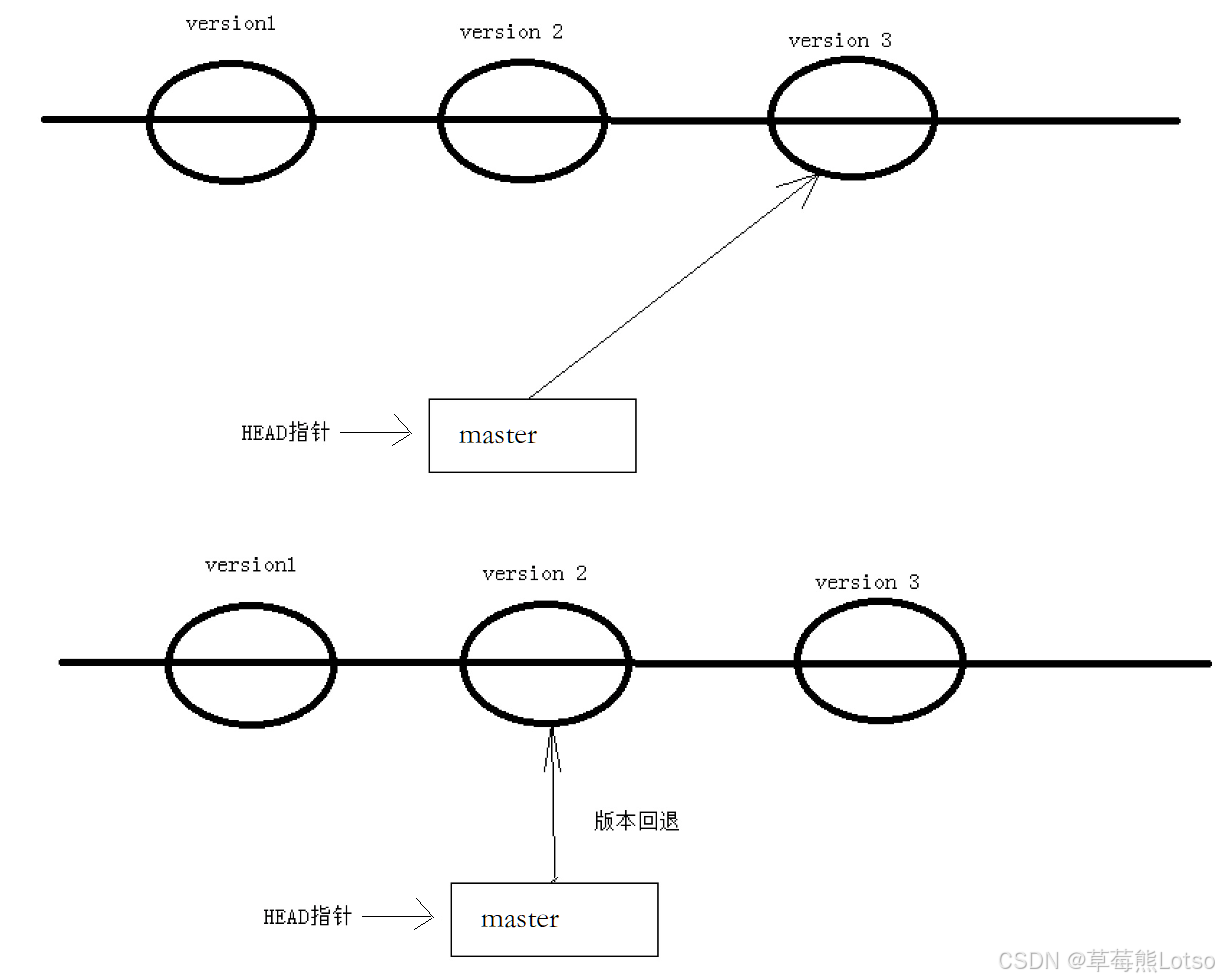
Git 版本的回退速度特别快,因为 Git 在内部有个指向当前分支(此处是master)的HEAD指针,refs/heads/master 文件里保存当前 master 分支的最新的 commit id 。当我们在回退版本的时候。Git 仅仅是给refs/heads/master 中存储一个特定的version ,可以简单理解为如下示意图:
1.2 撤销修改
根据修改所处阶段(工作区 / 暂存区),选择不同的撤销命令:
场景 1:修改仅在工作区,未执行 git add
使用 git checkout -- [file] (这个 - - 很重要,一旦省略会变成别的意思) 丢弃工作区修改,恢复到最近一次git add或git commit时的状态:
友情提示 :千万不要想着用什么 git diff xxx 找到差异去手动删除,那要是改的地方多得删多久啊,这不得累麻了
bash
# 向 ReadMe 新增一行内容
[root@VM-4-4-centos gitcode]# echo "It  is shift" >> ReadMe
[root@VM-4-4-centos gitcode]# cat ReadMe
hello Lotso
hello version1
hello version2
hello version3
It  is shift

# 恢复到上一次 add 或 commit
[root@VM-4-4-centos gitcode]# git checkout -- ReadMe
[root@VM-4-4-centos gitcode]# cat ReadMe
hello Lotso
hello version1
hello version2
hello version3
场景 2:修改已执行 git add 到暂存区,未 commit
add 后还是保存到了暂存区,怎么撤销呢?
bash
# 向 ReadMe 新增一行内容
[root@VM-4-4-centos gitcode]# echo "It is shit" >> ReadMe
[root@VM-4-4-centos gitcode]# cat ReadMe
hello Lotso
hello version1
hello version2
hello version3
It is shit

# add 存入暂存区
[root@VM-4-4-centos gitcode]# git add ReadMe
# git status 查看一下
[root@VM-4-4-centos gitcode]# git status
# On branch master
# Changes to be committed:
#   (use "git reset HEAD <file>..." to unstage)
#
#	modified:   ReadMe
#
那我们该怎么做呢?我们来回忆一下之前学过的 git reset 回退命令。该命令如果使用 --mixed 参数,可以将暂存区的内容回退到指定的版本内容,但工作区文件保持不变,我们再接着用上面场景一的方法解决一下不就好了。
总的来说就是:先将暂存区修改撤销到工作区,再丢弃工作区修改:
bash
# 先将暂存区修改撤销到工作区,--mixed 是默认参数,可以省略
[root@VM-4-4-centos gitcode]# git reset HEAD ReadMe
Unstaged changes after reset:
M	ReadMe
# git status 查看一下
[root@VM-4-4-centos gitcode]# git status
# On branch master
# Changes not staged for commit:
#   (use "git add <file>..." to update what will be committed)
#   (use "git checkout -- <file>..." to discard changes in working directory)
#
#	modified:   ReadMe
#
no changes added to commit (use "git add" and/or "git commit -a")

# 类似于场景一,丢弃工作区的修改
[root@VM-4-4-centos gitcode]# git checkout -- ReadMe
[root@VM-4-4-centos gitcode]# git status
# On branch master
nothing to commit, working directory clean
[root@VM-4-4-centos gitcode]# cat ReadMe
hello Lotso
hello version1
hello version2
hello version3
成功恢复了!!!
场景 3:修改已commit到版本库(未推送到远程)
直接通过 git reset --hard 回退到上一个版本即可。
注意:若已推送(push)到远程仓库,此操作会导致本地与远程版本不一致,需谨慎,这个远程仓库我们在后面会讲的。
bash
# 向 ReadMe 中新增一行内容
[root@VM-4-4-centos gitcode]# echo "I like coding" >> ReadMe
[root@VM-4-4-centos gitcode]# cat ReadMe
hello Lotso
hello version1
hello version2
hello version3
I like coding

# 添加 + 提交
[root@VM-4-4-centos gitcode]# git add ReadMe
[root@VM-4-4-centos gitcode]# git commit -m "test quash"
[master 1a0a253] test quash
 1 file changed, 1 insertion(+)

# 回退到上一个版本
[root@VM-4-4-centos gitcode]# git reset --hard HEAD^
HEAD is now at b592a38 add version3
[root@VM-4-4-centos gitcode]# cat ReadMe
hello Lotso
hello version1
hello version2
hello version3
二. Git 文件删除:彻底删除与误删恢复
在 Git 中,删除文件也是一种 "修改操作",需根据需求选择 "彻底删除" 或 "恢复误删文件":
2.1 误删工作区文件,需恢复
bash
[root@VM-4-4-centos gitcode]# ls
file1  ReadMe
[root@VM-4-4-centos gitcode]# rm file1
rm: remove regular empty file 'file1'? y直接这样删除其实是没用的,反而徒增烦恼,git status 命令会立刻告诉你那些文件被删除了;
bash
[root@VM-4-4-centos gitcode]# git status
# On branch master
# Changes not staged for commit:
#   (use "git add/rm <file>..." to update what will be committed)
#   (use "git checkout -- <file>..." to discard changes in working directory)
#
#	deleted:    file1
#
no changes added to commit (use "git add" and/or "git commit -a")此时,工作区就和版本库不太一样了,要删文件,目前除了要删工作区的文件以外,还要清除版本库的我文件。当然,我们这里如果是误删 ,可以直接使用 git checkout -- file 来进行恢复,之前讲过(删除也是修改)。
bash
[root@VM-4-4-centos gitcode]# ls
ReadMe
[root@VM-4-4-centos gitcode]# git checkout -- file1
[root@VM-4-4-centos gitcode]# ls
file1  ReadMe
2.2 确认删除文件,同步到版本库
这里想要恢复也是可以的哈,上面也讲到过的。
bash
# 从工作区和暂存区同时删除file1
[root@VM-4-4-centos gitcode]# git rm file1
rm 'file1'
[root@VM-4-4-centos gitcode]# git status
# On branch master
# Changes to be committed:
#   (use "git reset HEAD <file>..." to unstage)
#
#	deleted:    file1
#

# 提交删除操作到版本库
[root@VM-4-4-centos gitcode]# git commit -m "deleted file1"
[master c213450] deleted file1
 1 file changed, 0 insertions(+), 0 deletions(-)
 delete mode 100644 file1
[root@VM-4-4-centos gitcode]# git status
# On branch master
nothing to commit, working directory clean
结尾:
html
🍓 我是草莓熊 Lotso!若这篇技术干货帮你打通了学习中的卡点:
👀 【关注】跟我一起深耕技术领域,从基础到进阶,见证每一次成长
❤️ 【点赞】让优质内容被更多人看见,让知识传递更有力量
⭐ 【收藏】把核心知识点、实战技巧存好,需要时直接查、随时用
💬 【评论】分享你的经验或疑问(比如曾踩过的技术坑?),一起交流避坑
🗳️ 【投票】用你的选择助力社区内容方向,告诉大家哪个技术点最该重点拆解
技术之路难免有困惑,但同行的人会让前进更有方向~愿我们都能在自己专注的领域里,一步步靠近心中的技术目标!
结语:版本回退、撤销修改与文件删除,是Git赋予开发者的"纠错能力",也是保障代码稳定性的核心手段。它们的本质是对"版本历史"的灵活掌控------既能通过 git reset 在版本树中穿梭,也能通过 git checkout 和 git rm 在工作区、暂存区精准修正。掌握这些操作,你将不再因"误操作"而焦虑,反而能把Git的版本管理能力转化为开发效率的"加速器"。后续学习分支管理时,这些操作的思路也将助你更从容地处理多分支间的版本冲突与合并,真正实现对代码版本的全方位掌控。
✨把这些内容吃透超牛的!放松下吧✨ ʕ˘ᴥ˘ʔ づきらど
