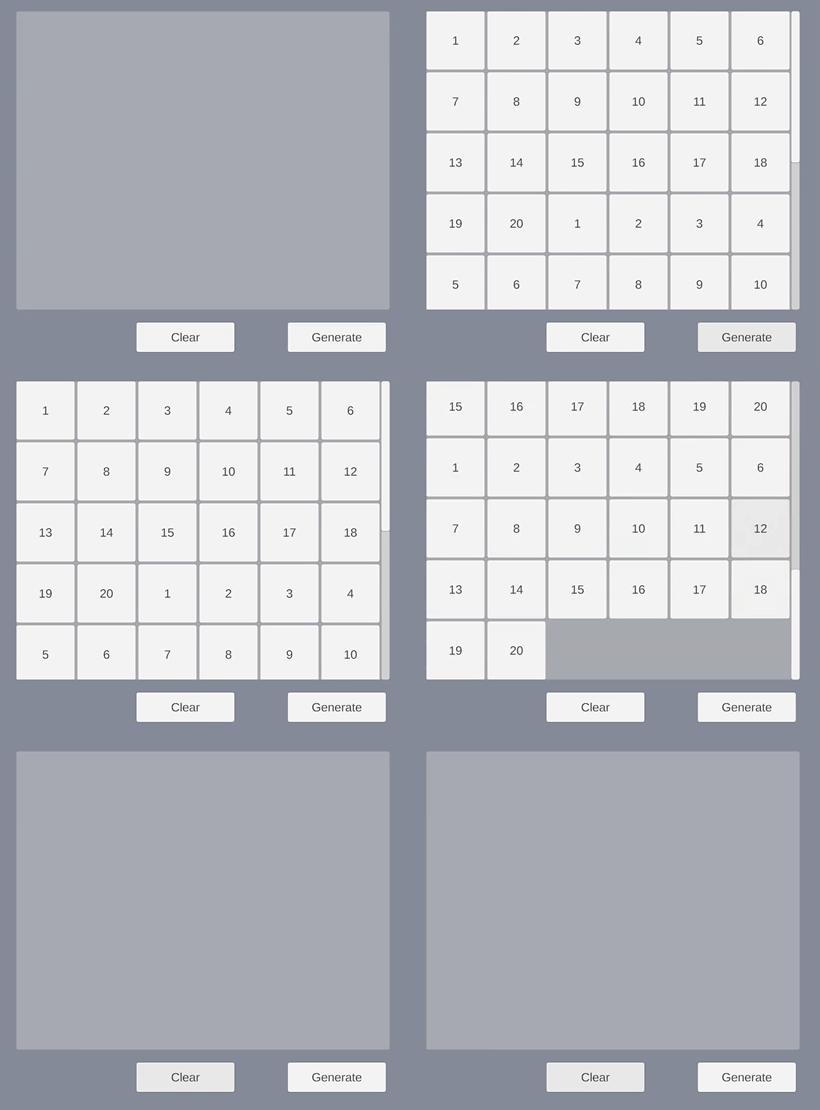
先看最终效果:
一、需求回顾
在场景中,我们先添加一个Scroll View和两个Button。
要求:
- 点
GenerateButton:在Scroll View里生成 20 个按钮,文字是 1~20,可以上下滚动看到所有按钮。 - 点
ClearButton:清空Scroll View内容,必要时滚动条也要跟着内容变化(没有超出就不需要滚动条)。
这个过程的核心,其实就是:让 ScrollRect 的 Content 大小跟着内容数量动态变化,从而实现"跟随内容滚动"。
二、ScrollView 的结构和滚动原理
Unity 的 ScrollView(ScrollRect)典型结构:
ScrollView(带ScrollRect组件)Viewport(带Mask+Image)Content(RectTransform,这里再挂GridLayoutGroup)
滚动的原理:
ScrollRect不直接管"有多少子物体",它只看:Viewport.rect(可视区域大小)Content.rect(内容总高度/宽度)
- 当
Content比Viewport更大时,才有可滚动区域;否则滚动条不会出现 / 不需要滚动。
也就是说:只往 Content 下面加子物体,不保证能滚动;必须同时让 Content 的 RectTransform 尺寸变大。
三、第一步:生成和清空按钮
在 GridLayoutDemo.cs 中,先实现最基本的生成 / 清空逻辑:
1. 序列化字段(右侧)
csharp
[SerializeField] private Button generateButton;
[SerializeField] private Button clearButton;
[SerializeField] private Transform rightPanelContent; // Content
[SerializeField] private Button buttonPrefab;
[SerializeField] private ScrollRect rightPanelScrollRect;
2. 生成 20 个按钮
csharp
private void OnGenerateClicked()
{
    if (rightPanelContent == null || buttonPrefab == null)
        return;

    for (int i = 1; i <= 20; i++)
    {
        Button newButton = Instantiate(buttonPrefab, rightPanelContent);
        newButton.name = $"Button_{i}";

        string label = i.ToString();
        TMP_Text tmpText = newButton.GetComponentInChildren<TMP_Text>();
        if (tmpText != null)
            tmpText.text = label;
        else
        {
            Text uiText = newButton.GetComponentInChildren<Text>();
            if (uiText != null)
                uiText.text = label;
        }
    }

    // 后面再补:UpdateContentSize();
}
3. 清空按钮
csharp
private void OnClearClicked()
{
    if (rightPanelContent == null)
        return;

    for (int i = rightPanelContent.childCount - 1; i >= 0; i--)
    {
        Destroy(rightPanelContent.GetChild(i).gameObject);
    }

    // 后面再补:UpdateContentSize();
}
此时按钮可以生成和删除,但有两个问题:
- 按钮多了之后,不能正常滚动到全部内容。
- 清空后,Content 大小没变,滚动条还在。
根源都是:Content 的高度还在用一个固定值(场景里原来的 300),没有随内容数量变化。
四、关键:动态计算 Content 高度
为了解决滚动问题,我们在脚本中实现了 UpdateContentSize 方法:
根据 GridLayoutGroup 的配置和子物体数量,计算出应该的 Content 高度。
方法签名(最终版):
csharp
// overrideChildCount >= 0 时使用传入值(如清空后传 0),否则使用实际 childCount
private void UpdateContentSize(int overrideChildCount = -1)
实现思路:
-
拿到关键组件:
contentRect:rightPanelContent的RectTransformgrid:挂在 Content 上的GridLayoutGroupviewportRect:Content 的父物体(Viewport)的RectTransform
-
决定"有多少个元素":
- 大部分情况用
contentRect.childCount - 清空时会主动传
0(后面详讲 Destroy 延迟问题)
- 大部分情况用
-
计算列数和行数:
-
列数由 Viewport 宽度决定(避免写死):
csharpfloat width = viewportRect.rect.width; float cellWidth = grid.cellSize.x; float spacingX = grid.spacing.x; int columns = Mathf.Max( 1, Mathf.FloorToInt( (width - grid.padding.left - grid.padding.right + spacingX) / (cellWidth + spacingX) ) ); -
行数:
csharpint rows = childCount == 0 ? 0 : Mathf.CeilToInt(childCount / (float)columns);
-
-
计算高度:
csharpfloat cellHeight = grid.cellSize.y; float spacingY = grid.spacing.y; float height = grid.padding.top + grid.padding.bottom; if (rows > 0) { height += rows * cellHeight + (rows - 1) * spacingY; } -
Content 最终高度 = "计算出的高度" 和 "Viewport 高度" 的较大值:
- 没有内容时也至少等于 Viewport 高度,避免缩成一条线。
csharpfloat minHeight = viewportRect.rect.height; contentRect.SetSizeWithCurrentAnchors( RectTransform.Axis.Vertical, Mathf.Max(height, minHeight) ); -
立即刷新布局:
csharpLayoutRebuilder.ForceRebuildLayoutImmediate(contentRect);
完整方法(核心部分):
csharp
private void UpdateContentSize(int overrideChildCount = -1)
{
if (rightPanelContent == null) return;
RectTransform contentRect = rightPanelContent as RectTransform;
if (contentRect == null) return;
GridLayoutGroup grid = rightPanelContent.GetComponent<GridLayoutGroup>();
if (grid == null) return;
RectTransform viewportRect = contentRect.parent as RectTransform;
if (viewportRect == null) return;
int childCount = overrideChildCount >= 0 ? overrideChildCount : contentRect.childCount;
float width = viewportRect.rect.width;
float cellWidth = grid.cellSize.x;
float spacingX = grid.spacing.x;
int columns = Mathf.Max(
    1,
    Mathf.FloorToInt(
        (width - grid.padding.left - grid.padding.right + spacingX) /
        (cellWidth + spacingX)
    )
);
int rows = childCount == 0 ? 0 : Mathf.CeilToInt(childCount / (float)columns);
float cellHeight = grid.cellSize.y;
float spacingY = grid.spacing.y;
float height = grid.padding.top + grid.padding.bottom;
if (rows > 0)
{
    height += rows * cellHeight + (rows - 1) * spacingY;
}
float minHeight = viewportRect.rect.height;
contentRect.SetSizeWithCurrentAnchors(
    RectTransform.Axis.Vertical,
    Mathf.Max(height, minHeight)
);
LayoutRebuilder.ForceRebuildLayoutImmediate(contentRect);
}五、让滚动条"跟随内容",并回到顶部
当我们在生成 / 清空按钮后调用:
csharp
UpdateContentSize();
if (rightPanelScrollRect != null)
{
    rightPanelScrollRect.verticalNormalizedPosition = 1f; // 回到顶部
}
效果是:
UpdateContentSize让 Content 的高度与内容数量匹配;ScrollRect现在知道"内容比 Viewport 高",于是可以滚动;- 通过
verticalNormalizedPosition = 1f把滚动位置设置到顶部(0f是底部)。
这一步就实现了"随着内容多少自动出现/扩展滚动区域"。
六、"必须点两次 Clear 才生效"的坑:Destroy 是延迟的
实际运行时,我们遇到一个细节问题:
- 第一次点
ClearButton:- 视觉上按钮全没了;
- 但
Content高度并没有立刻变小,滚动条仍在。
- 第二次再点
ClearButton:- 这时 Content 高度才按"0 个元素"计算,滚动条消失。
原因:Unity 的 Destroy 并不会立刻把子物体从层级中移除,它会在当前帧结束 后统一执行。
所以在第一次点击中:
Destroy排队,子物体还被视作"存在";- 紧接着调用
UpdateContentSize(),里面通过contentRect.childCount看到的还是旧值(例如 20); - Content 高度还是按有 20 个元素的情况算,滚动条自然也还在。
解决思路:在清空逻辑中,不依赖 childCount,而是主动告诉 UpdateContentSize:"现在应该按 0 个元素算"。
于是我们做了两个调整:
UpdateContentSize增加overrideChildCount参数(前面已展示);- 在
OnClearClicked中这样调用:
csharp
private void OnClearClicked()
{
    if (rightPanelContent == null)
        return;

    int childCount = rightPanelContent.childCount;
    for (int i = childCount - 1; i >= 0; i--)
    {
        Destroy(rightPanelContent.GetChild(i).gameObject);
    }

    // 清空后更新 Content 尺寸并回到顶部
    // 这里传入 0,因为 Destroy 是延迟执行的
    UpdateContentSize(0);
    if (rightPanelScrollRect != null)
    {
        rightPanelScrollRect.verticalNormalizedPosition = 1f;
    }
}
这样:
- 虽然 GameObject 真正被移除要等到这一帧结束,
- 但布局计算我们不等,直接当作 0 个元素来算;
- Content 高度立刻变成与 Viewport 一样高,滚动条瞬间消失,第一次点击就生效。
七、小结:实现"跟随内容滚动"的关键点
- ScrollRect 是否能滚动,取决于 Content 的 RectTransform 尺寸,而不是子物体数量本身。
- 使用
GridLayoutGroup时,内容高度通常需要手动计算(行数 × cellSize + spacing + padding)。 - 每次内容数量变化(生成/清空)后,调用类似
UpdateContentSize的方法,动态调整 Content 高度。 - 使用
LayoutRebuilder.ForceRebuildLayoutImmediate可以让布局立刻刷新,避免下一帧才生效的视觉延迟。 - 清空内容时注意:
Destroy延迟执行,所以需要用"预期的子物体数"(这里是 0)来计算布局,而不是依赖childCount的即时值。 - 通过
ScrollRect.verticalNormalizedPosition可以在更新后把滚动位置重置到顶部或底部,改善用户体验。
如果之后要扩展到:
- 横向滚动(只算宽度);
- 无限加载 / 分页加载(每次加载更多后更新 Content 尺寸);
也可以沿用同一套"根据布局 + 元素数量动态调整 Content 尺寸"的套路。