一、什么是svg?
svg是一种"用代码描述图形的文件格式",浏览器将这些代码实时渲染成你看到的图形。
注:首先svg不是图片的一种格式,也不依赖像素,所以意味着图形可以无限放大而不失真。即svg是将代码转化成图片形式的一种文件格式。
二、svg的工作流程
svg代码文件 → 浏览器解析 → 渲染引擎绘制 → 屏幕上显示图形
↓ ↓ ↓
(文本) (理解指令) (执行绘图) (视觉结果)
三、创建svg文件
首先既然svg文件是将代码转化成图片形式的一种文件格式,那么就能通过vscode去打开和创建。所以我们以新建text.svg文件为例。

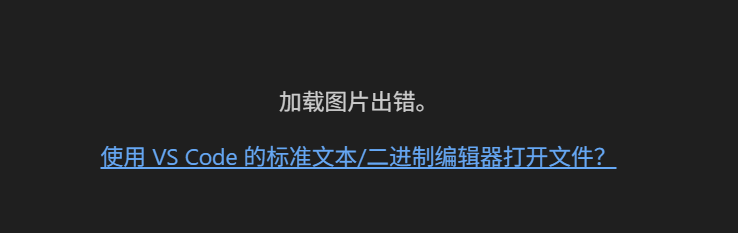
输入代码:
javascript
<svg width="200" height="200" xmlns="http://www.w3.org/2000/svg">
  <circle cx="100" cy="100" r="80" fill="blue" />
</svg>
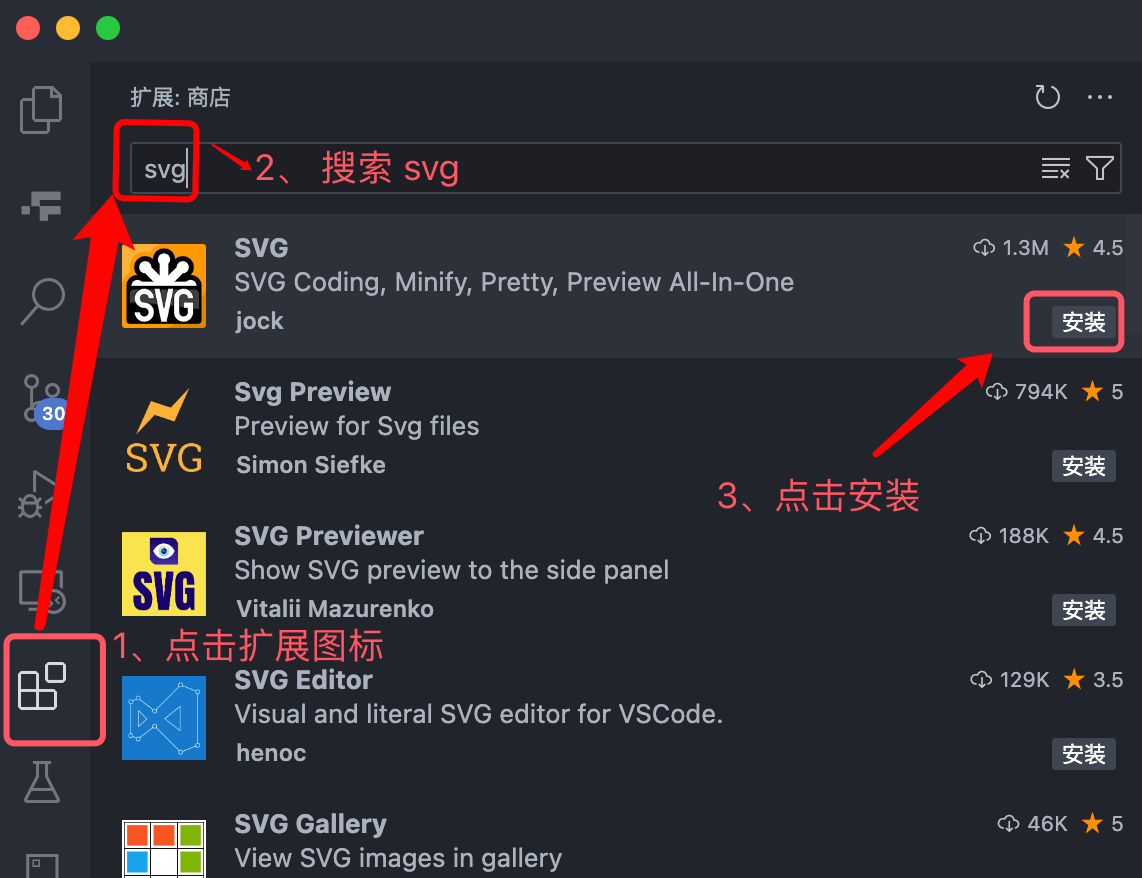
四、安装svg拓展
4.1、点击扩展图片,搜索关键字 svg,安装扩展:
4.2、安装完成后,可以右击 svg 文件,在列表中选择"预览 SVG":

4.3、预览效果:
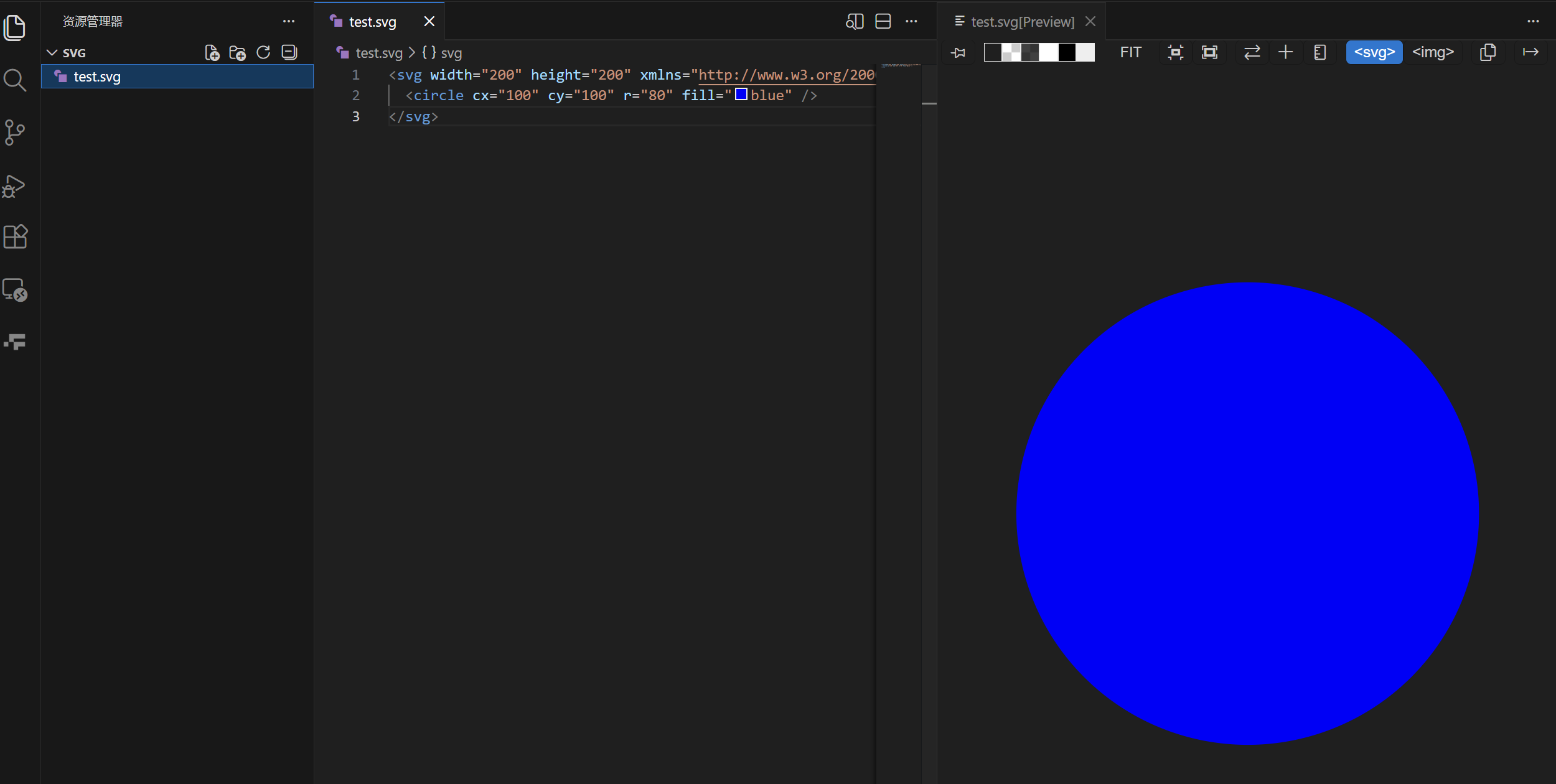
4.4、如何切换到代码视图?
-
在左侧资源管理器,右键点击
test.svg文件 -
选择 **"打开方式"** (Open With)
-
选择 "文本编辑器" 或 "代码编辑器"
五、svg 基本语法
javascript
<svg
  width="200"     <!-- 指定SVG画布的宽度 -->
  height="200"    <!-- 指定SVG画布的高度 -->
  xmlns="http://www.w3.org/2000/svg">   <!-- 指定SVG命名空间 -->
  viewBox="0 0 200 200"   <!-- 坐标系(推荐添加) -->
  <!-- SVG图形内容 -->
</svg>
注 :xmlns="http://www.w3.org/2000/svg",固定语法 ,告诉浏览器:"这是SVG语法 ,别当成HTML解析"。在HTML5中,内联SVG可省略xmlns,但独立.svg文件必须包含。
六、七大基本图形元素
1. 矩形 <rect>
XML
<rect
  x="20"           <!-- 左上角X坐标 -->
  y="20"           <!-- 左上角Y坐标 -->
  width="160"      <!-- 宽度 -->
  height="120"     <!-- 高度 -->
  rx="10"          <!-- 圆角半径 -->
  fill="#3498db"   <!-- 填充色 -->
  stroke="#2980b9" <!-- 边框色 -->
  stroke-width="3"/> <!-- 边框粗细 -->
2. 圆形 <circle>
XML
<circle
  cx="100"         <!-- 圆心X坐标 -->
  cy="100"         <!-- 圆心Y坐标 -->
  r="80"           <!-- 半径 -->
  fill="gold"      <!-- 填充色 -->
  opacity="0.8"/>  <!-- 透明度 -->
3. 椭圆 <ellipse>
XML
<ellipse
  cx="150"         <!-- 中心点X -->
  cy="100"         <!-- 中心点Y -->
  rx="100"         <!-- 水平半径 -->
  ry="50"          <!-- 垂直半径 -->
  fill="#9b59b6"/>
4. 直线<line>
XML
<line
  x1="10"          <!-- 起点X -->
  y1="10"          <!-- 起点Y -->
  x2="190"         <!-- 终点X -->
  y2="190"         <!-- 终点Y -->
  stroke="black"   <!-- 直线必须设置stroke -->
  stroke-width="2"/>
5. 折线 <polyline>(不闭合)
XML
<polyline
  points="10,10 50,50 90,10 130,50" <!-- 坐标点序列 -->
  fill="none"      <!-- 通常不填充 -->
  stroke="#e74c3c"
  stroke-width="3"
  stroke-linecap="round"/> <!-- 端点圆形 -->
6. 多边形 <polygon>(自动闭合)
XML
<polygon
  points="100,10 40,180 190,60 10,60 160,180" <!-- 五角星坐标 -->
  fill="#f1c40f"
  stroke="#f39c12"
  stroke-width="2"/>
7. 路径 <path>(最强大)
XML
<path
  d="M 10,10      <!-- 移动到起点 -->
     L 100,10     <!-- 画直线到 -->
     L 100,100    <!-- 继续画线 -->
     Q 150,150 200,100  <!-- 二次贝塞尔曲线 -->
     Z"           <!-- 闭合路径 -->
  fill="#2ecc71"
  stroke="#27ae60"/>
路径指令速记:
-
M/m:移动画笔 -
L/l:画直线 -
H/h:水平线 -
V/v:垂直线 -
C/c:三次贝塞尔曲线 -
A/a:画圆弧 -
Z/z:闭合路径
七、🎨 样式与美化
颜色填充与边框
XML
<!-- 多种颜色表示方式 -->
<circle fill="red" />                    <!-- 颜色名称 -->
<rect fill="#00ff00" />                  <!-- 十六进制 -->
<ellipse fill="rgb(0, 0, 255)" />       <!-- RGB值 -->
<polygon fill="rgba(255, 0, 0, 0.5)" /> <!-- 带透明度 -->

<!-- 边框样式控制 -->
<rect
  stroke="#333"           <!-- 边框颜色 -->
  stroke-width="4"        <!-- 边框宽度 -->
  stroke-dasharray="5,3"   <!-- 虚线:5像素实线,3像素间隔 -->
  stroke-linecap="round"  <!-- 端点圆角 -->
  stroke-linejoin="round"/> <!-- 转角圆角 -->
渐变填充
XML
<!-- 定义线性渐变 -->
<defs>  <!-- 定义可复用内容 -->
  <linearGradient id="sunset" x1="0%" y1="0%" x2="100%" y2="0%">
    <stop offset="0%" stop-color="#ff9a9e" />
    <stop offset="100%" stop-color="#fad0c4" />
  </linearGradient>
</defs>

<!-- 使用渐变 -->
<rect width="200" height="100" fill="url(#sunset)" />
八、✍️ 文本处理
XML
<text
  x="100"                  <!-- 文本起点X -->
  y="50"                   <!-- 文本起点Y -->
  font-family="Arial, 'Microsoft YaHei', sans-serif"
  font-size="24"
  font-weight="bold"
  fill="#2c3e50"
  text-anchor="middle"     <!-- 水平对齐:start|middle|end -->
  dominant-baseline="middle"> <!-- 垂直对齐 -->
  SVG文本示例
</text>
九、🧩 组织与复用
分组管理
XML
<!-- 分组:批量管理多个元素 -->
<g id="cloud"
   fill="white"
   stroke="#bdc3c7"
   stroke-width="2"
   transform="translate(50, 50) scale(0.8)">
  <ellipse cx="50" cy="30" rx="30" ry="20"/>
  <ellipse cx="80" cy="30" rx="25" ry="15"/>
  <ellipse cx="20" cy="30" rx="25" ry="15"/>
</g>

<!-- 复制使用 -->
<use href="#cloud" x="100" y="0"/>
定义与引用
XML
<defs>  <!-- 定义但不显示 -->
  <circle id="dot" r="5" fill="#e74c3c"/>
</defs>

<!-- 多处引用 -->
<use href="#dot" x="10" y="10"/>
<use href="#dot" x="30" y="30"/>
<use href="#dot" x="50" y="50"/>
十、⚡ 动画与交互
CSS动画
XML
<style>
  .pulse {
    animation: heartbeat 1.5s ease-in-out infinite;
  }
  @keyframes heartbeat {
    0%, 100% { transform: scale(1); }
    50% { transform: scale(1.1); }
  }
</style>

<circle class="pulse" cx="100" cy="100" r="40" fill="#e74c3c"/>
JavaScript交互
javascript
<!-- 直接事件绑定 -->
<rect id="btn"
      width="120" height="40"
      rx="8" fill="#3498db"
      onclick="this.style.fill='#2980b9'"
      onmouseover="this.style.cursor='pointer'"
      onmouseout="this.style.fill='#3498db'"/>

<text x="60" y="25" text-anchor="middle" fill="white">点击我</text>
十一、实战示例:绘制一个笑脸
javascript
<svg width="200" height="200" viewBox="0 0 200 200"
     xmlns="http://www.w3.org/2000/svg">

  <!-- 渐变背景 -->
  <defs>
    <radialGradient id="bgGradient" cx="50%" cy="50%" r="50%">
      <stop offset="0%" stop-color="#ffeaa7"/>
      <stop offset="100%" stop-color="#fab1a0"/>
    </radialGradient>
  </defs>

  <!-- 脸部 -->
  <circle cx="100" cy="100" r="80" fill="url(#bgGradient)"
          stroke="#e17055" stroke-width="3"/>

  <!-- 左眼 -->
  <circle cx="70" cy="80" r="12" fill="#2d3436"/>
  <circle cx="70" cy="80" r="4" fill="white"/>

  <!-- 右眼 -->
  <circle cx="130" cy="80" r="12" fill="#2d3436"/>
  <circle cx="130" cy="80" r="4" fill="white"/>

  <!-- 微笑的嘴巴 -->
  <path d="M 60,120 Q 100,170 140,120"
        fill="none" stroke="#d63031" stroke-width="4"
        stroke-linecap="round"/>

  <!-- 腮红 -->
  <circle cx="60" cy="100" r="15" fill="#ff7675" opacity="0.3"/>
  <circle cx="140" cy="100" r="15" fill="#ff7675" opacity="0.3"/>
</svg>
十二、Vue 文件中使用 SVG
javascript
<template>
  <div class="container">
    <!-- 不需要写 xmlns,Vue 会自动添加 -->
    <svg
      width="200"
      height="200"
      class="smiley"
      @click="handleSmileyClick"
    >
      <circle cx="100" cy="100" r="80" fill="#FFD700"/>
      <circle cx="70" cy="80" r="12" fill="black"/>
      <path d="M 60,120 Q 100,170 140,120" fill="none" stroke="black" stroke-width="4"/>
    </svg>
    <!-- 可以绑定 Vue 的数据和事件 -->
    <svg width="100" height="100">
      <circle :cx="circleX" :cy="50" :r="radius" :fill="circleColor"/>
    </svg>
  </div>
</template>

<script setup>
import { ref } from 'vue'
const circleX = ref(50)
const radius = ref(40)
const circleColor = ref('#3498db')
const handleSmileyClick = () => {
  circleColor.value = '#e74c3c'  // 点击后变色
}
</script>

<style scoped>
.smiley {
  cursor: pointer
  transition: transform 0.3s
}
.smiley:hover {
  transform: scale(1.1)
}
</style>