👨⚕️ 主页: gis分享者
👨⚕️ 感谢各位大佬 点赞👍 收藏⭐ 留言📝 加关注✅!
文章目录
- 一、🍀前言
-
- [1.1 ☘️anime.js 动画库](#1.1 ☘️anime.js 动画库)
-
- [1.1.1 ☘️核心特性](#1.1.1 ☘️核心特性)
- [1.1.2 ☘️安装与引入](#1.1.2 ☘️安装与引入)
- [1.1.3 ☘️使用示例](#1.1.3 ☘️使用示例)
- 二、🍀结合anime.js打造炫酷文字粒子星空秀
-
- [1. ☘️实现思路](#1. ☘️实现思路)
- [2. ☘️代码样例](#2. ☘️代码样例)
一、🍀前言
本文详细介绍如何基于threejs在三维场景中结合anime.js打造炫酷文字粒子星空秀。亲测可用。希望能帮助到您。一起学习,加油!加油!
1.1 ☘️anime.js 动画库
Anime.js 是一个轻量级(核心文件仅约10KB)的 JavaScript 动画库,专注于为网页元素提供高性能、灵活的动画效果。
1.1.1 ☘️核心特性
广泛兼容性
支持 CSS 属性、DOM 属性、SVG 属性及 JavaScript 对象属性的动画,覆盖从简单位移到复杂路径变形(如 SVG 路径动画)的多种场景。
简洁 API
通过 anime() 函数快速创建动画,参数配置直观,适合快速开发。
高级功能
提供时间轴(Timeline)、交错动画(Stagger)、拖拽交互(Draggable)、响应式动画(Scope API)等工具,满足复杂动画需求。
性能优化
优先使用 transform 和 opacity 等不触发重排的属性,确保动画流畅性。
1.1.2 ☘️安装与引入
CDN 引入:在 HTML 文件中直接添加脚本标签:
javascript
<script src="https://cdnjs.cloudflare.com/ajax/libs/animejs/3.2.1/anime.min.js"></script>通过 npm 安装 animejs:
javascript
npm install animejs随后在代码中导入:
javascript
import anime from 'animejs';1.1.3 ☘️使用示例
元素平移与旋转:
javascript
<div class="box" style="width: 100px; height: 100px; background-color: blue;"></div>
<script>
  anime({
    targets: '.box', // 目标元素选择器
    translateX: 250, // X轴平移距离
    translateY: 250, // Y轴平移距离
    rotate: '1turn', // 旋转一周
    duration: 1000, // 动画持续时间(毫秒)
    easing: 'easeInOutQuad' // 缓动函数
  });
</script>
效果:蓝色方块从左上角平滑移动到右下角,同时旋转一周。
颜色渐变与缩放:
javascript
<div class="circle" style="width: 100px; height: 100px; background-color: red; border-radius: 50%; opacity: 0;"></div>
<script>
  anime({
    targets: '.circle',
    opacity: [0, 1], // 透明度从0到1
    scale: [0.5, 1], // 缩放比例从0.5到1
    duration: 1000,
    loop: true, // 循环播放
    direction: 'alternate' // 动画方向交替(正放→倒放→正放...)
  });
</script>
效果:红色圆形淡入并放大至原始大小,循环执行且方向交替。
时间轴(Timeline):编排多个动画按顺序执行。
javascript
const timeline = anime.timeline({ loop: true });
timeline
  .add({ targets: '.box1', scale: 1.5, duration: 500 })
  .add({ targets: '.box2', rotate: '1turn', duration: 500 }, '-200'); // 延迟200ms启动
效果:.box1 放大后,.box2 延迟200ms开始旋转,整体循环播放。
交错动画(Stagger):为一组元素添加延迟效果。
javascript
anime({
  targets: '.items', // 假设有多个.items元素
  translateX: 100,
  delay: anime.stagger(100) // 每个元素间隔100ms启动
});
效果:多个元素依次向右移动,形成序列感。
SVG 路径动画:
javascript
// 假设存在SVG路径元素 <path class="my-path" d="M0,0 L100,0" />
anime.setDashoffset(document.querySelector('.my-path')); // 初始化路径偏移
anime({
  targets: '.my-path',
  strokeDashoffset: [anime.setDashoffset, 0], // 从当前偏移量动画到0
  duration: 1500
});
效果:SVG线条从无到有逐渐绘制完成。
生命周期回调:
javascript
anime({
  targets: '.box',
  translateX: 100,
  begin: () => console.log('动画开始'), // 动画启动时触发
  update: (anim) => console.log(`进度: ${anim.progress}%`), // 动画进行时触发
  complete: () => console.log('动画完成') // 动画结束时触发
});
动画控制:
javascript
const myAnimation = anime({ /* 参数配置 */ });
myAnimation.pause(); // 暂停动画
myAnimation.play(); // 继续播放
myAnimation.reverse(); // 倒放动画
myAnimation.restart(); // 重新开始
二、🍀结合anime.js打造炫酷文字粒子星空秀
1. ☘️实现思路
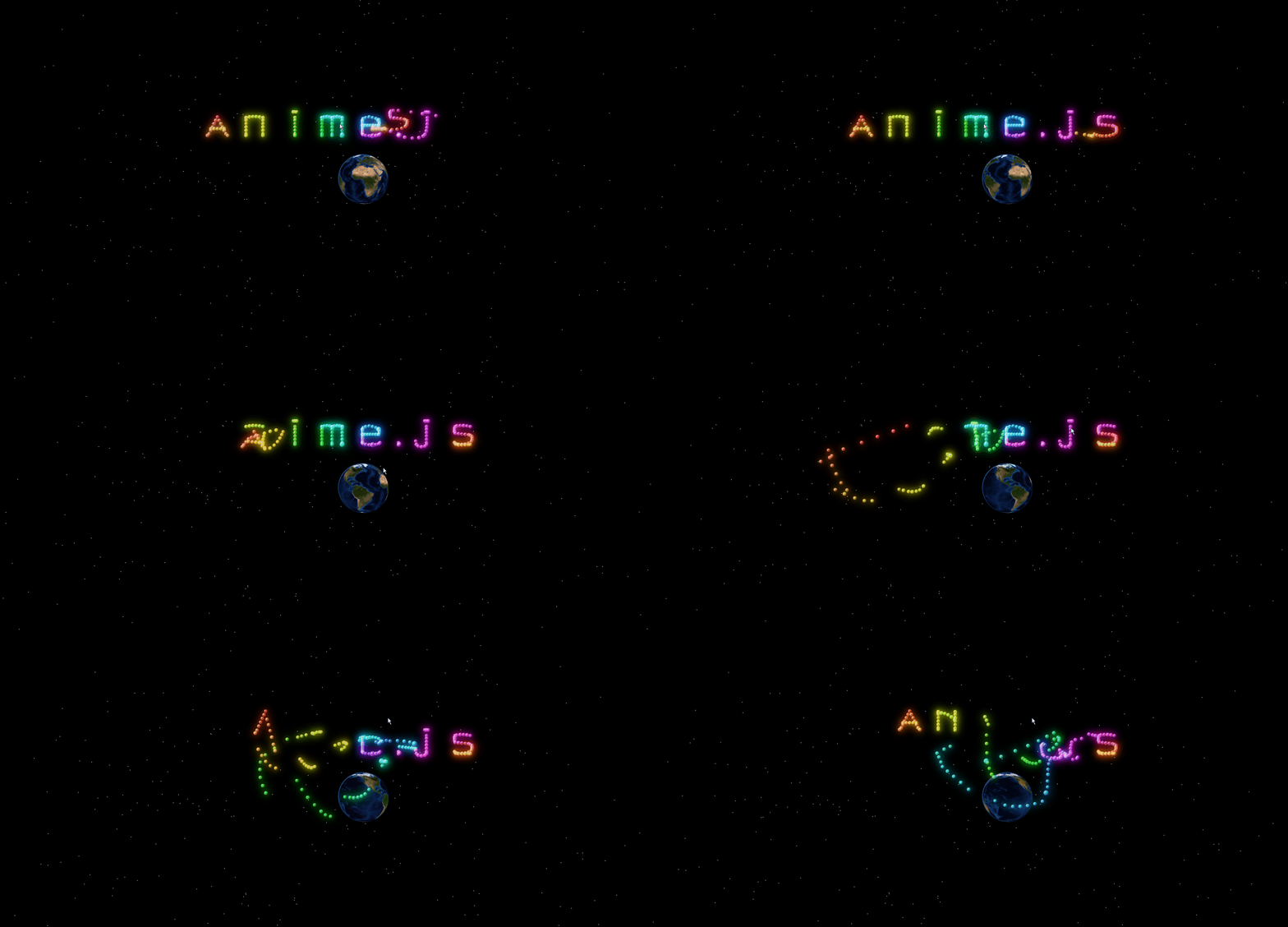
集成了 Three.js(渲染)、anime.js (动画库)打造炫酷文字粒子星空秀。具体代码参考代码样例。可以直接运行。
2. ☘️代码样例
html
<!DOCTYPE html>
<html lang="ja">
<head>
    <meta charset="UTF-8" />
    <meta name="viewport" content="width=device-width, initial-scale=1.0" />
    <title>打造炫酷文字粒子星空秀</title>
    <style>
        :root {
            --red: hsl(4, 70%, 50%);
        }
        * {
            margin: 0;
            padding: 0;
            box-sizing: border-box;
        }
        body {
            position: absolute;
            overflow: hidden;
            width: 100%;
            height: 100%;
            background: #000;
            display: flex;
            justify-content: center;
            align-items: center;
            font-family: "Arial Black", sans-serif;
        }
        .text-container {
            position: relative;
            display: flex;
            justify-content: center;
            align-items: center;
            gap: 15px;
        }
        .letter {
            position: relative;
            width: 100px;
            height: 120px;
        }
        .letter.dot {
            width: 30px;
        }
        .particle {
            position: absolute;
            width: 10px;
            height: 10px;
            border-radius: 50%;
            background: radial-gradient(
                    circle at 35% 35%,
                    rgba(255, 255, 255, 0.7),
                    rgba(255, 120, 180, 0.8) 20%,
                    rgba(255, 80, 120, 0.7) 35%,
                    rgba(200, 40, 80, 0.6) 50%,
                    rgba(150, 20, 60, 0.4) 70%,
                    transparent
            );
            mix-blend-mode: screen;
            will-change: transform;
            opacity: 0.95;
            box-shadow: 0 0 15px rgba(255, 100, 150, 0.6), 0 0 30px rgba(255, 80, 120, 0.4), 0 0 45px rgba(255, 60, 100, 0.2),
            inset -2px -2px 4px rgba(100, 0, 50, 0.3), inset 2px 2px 4px rgba(255, 255, 255, 0.5);
            filter: contrast(1.1) brightness(1);
        }
        .particle::before {
            content: "";
            position: absolute;
            top: 15%;
            left: 15%;
            width: 25%;
            height: 25%;
            background: radial-gradient(circle, rgba(255, 255, 255, 0.6), rgba(255, 255, 255, 0.3) 40%, transparent 70%);
            border-radius: 50%;
            filter: blur(0.3px);
        }
        .particle::after {
            content: "";
            position: absolute;
            bottom: 15%;
            right: 15%;
            width: 15%;
            height: 15%;
            background: radial-gradient(circle, rgba(255, 200, 255, 0.3), rgba(200, 150, 255, 0.15) 50%, transparent 70%);
            border-radius: 50%;
            filter: blur(0.5px);
        }
    </style>
</head>
<body>
<div class="text-container" id="textContainer"></div>
<!-- Three.js 用于3D行星 -->
<script src="https://unpkg.com/three@0.155.0/build/three.min.js"></script>
<!-- 行星背景容器 -->
<canvas id="planetCanvas" style="position: fixed; top: 0; left: 0; z-index: -1; pointer-events: none"></canvas>
<script type="module">
  import { animate, createTimeline, createTimer, stagger, utils } from "https://esm.sh/animejs";
  const textContainer = document.getElementById("textContainer");
  const viewport = { w: window.innerWidth * 0.5, h: window.innerHeight * 0.5 };
  const cursor = { x: 0, y: 0 };
  let allParticles = [];
  let originalPositions = [];
  // 各字符的粒子坐标(改进版)
  const letterPatterns = {
    a: [
      // 顶点
      [50, 35],
      // 左斜线
      [45, 45],
      [40, 55],
      [35, 65],
      [30, 75],
      [25, 85],
      [20, 90],
      // 右斜线
      [55, 45],
      [60, 55],
      [65, 65],
      [70, 75],
      [75, 85],
      [80, 90],
      // 横线
      [30, 70],
      [40, 70],
      [50, 70],
      [60, 70],
      [70, 70],
    ],
    n: [
      // 左竖线
      [20, 37],
      [20, 45],
      [20, 55],
      [20, 65],
      [20, 75],
      [20, 85],
      [20, 90],
      // 右竖线
      [70, 37],
      [70, 45],
      [70, 55],
      [70, 65],
      [70, 75],
      [70, 85],
      [70, 90],
      // 上曲线
      [20, 37],
      [30, 35],
      [40, 34],
      [50, 34],
      [60, 35],
      [70, 37],
    ],
    i: [
      // 上点
      [45, 20],
      [50, 20],
      [55, 20],
      // 竖线
      [50, 37],
      [50, 45],
      [50, 55],
      [50, 65],
      [50, 75],
      [50, 85],
      [50, 90],
    ],
    m: [
      // 左竖线
      [15, 37],
      [15, 45],
      [15, 55],
      [15, 65],
      [15, 75],
      [15, 85],
      [15, 90],
      // 中竖线
      [45, 37],
      [45, 45],
      [45, 55],
      [45, 65],
      [45, 75],
      [45, 85],
      [45, 90],
      // 右竖线
      [75, 37],
      [75, 45],
      [75, 55],
      [75, 65],
      [75, 75],
      [75, 85],
      [75, 90],
      // 左山(连接部分)
      [15, 37],
      [22, 35],
      [30, 34],
      [38, 35],
      [45, 37],
      // 右山(连接部分)
      [45, 37],
      [52, 35],
      [60, 34],
      [68, 35],
      [75, 37],
    ],
    e: [
      // 中央横线(最重要)
      [20, 60],
      [28, 60],
      [36, 60],
      [44, 60],
      [52, 60],
      [60, 60],
      [68, 60],
      // 上部打开的C形
      [68, 45],
      [60, 40],
      [50, 37],
      [40, 35],
      [30, 37],
      [22, 40],
      [20, 45],
      // 右上连接线(e的特征)
      [68, 45],
      [70, 50],
      [70, 55],
      [68, 60],
      // 左竖线(上半部分)
      [20, 45],
      [20, 50],
      [20, 55],
      [20, 60],
      // 左竖线(下半部分)
      [20, 60],
      [20, 65],
      [20, 70],
      [20, 75],
      [20, 80],
      [20, 85],
      // 下部打开的C形(更低)
      [20, 85],
      [22, 88],
      [30, 90],
      [40, 91],
      [50, 91],
      [60, 90],
      [68, 88],
      [72, 85],
    ],
    ".": [
      // 点(小)
      [12, 85],
      [15, 88],
      [12, 91],
    ],
    j: [
      // 上点
      [45, 20],
      [50, 20],
      [55, 20],
      // 竖线
      [50, 37],
      [50, 45],
      [50, 55],
      [50, 65],
      [50, 75],
      [50, 85],
      [50, 90],
      // 下曲线(钩)
      [45, 95],
      [35, 97],
      [25, 95],
      [20, 90],
      [18, 80],
    ],
    s: [
      // 上曲线(右开)- 与下方空白一致
      [65, 37],
      [55, 35],
      [45, 34],
      [35, 34],
      [25, 35],
      [20, 37],
      [18, 42],
      // 左侧竖线(上半部分)
      [18, 47],
      [18, 52],
      // 中央横线(右向)
      [20, 57],
      [30, 58],
      [40, 59],
      [50, 60],
      [60, 61],
      [65, 63],
      // 右侧竖线(下半部分)
      [70, 66],
      [70, 71],
      [70, 76],
      // 下曲线(左开)- 延伸更低
      [68, 81],
      [60, 86],
      [50, 89],
      [40, 90],
      [30, 90],
      [25, 89],
      [20, 87],
      [18, 84],
      // 最底部对齐其他字
      [22, 90],
      [30, 91],
      [40, 91],
      [50, 91],
      [60, 91],
      [65, 90],
    ],
  };
  const text = "anime.js";
  let currentX = 0;
  // 创建字符
  text.split("").forEach((char, charIndex) => {
    const letterEl = document.createElement("div");
    letterEl.classList.add("letter");
    if (char === ".") {
      letterEl.classList.add("dot");
    }
    const pattern = letterPatterns[char];
    if (!pattern) return;
    pattern.forEach((pos, i) => {
      const particle = document.createElement("div");
      particle.classList.add("particle");
      // 彩虹渐变
      const totalIndex = allParticles.length;
      const hue = (totalIndex / 150) * 360; // 按粒子总数分配彩虹
      const saturation = 100;
      const lightness = 50 + Math.random() * 15;
      // 立体彩虹渐变背景
      particle.style.background = `
          radial-gradient(circle at 35% 35%,
            hsla(${hue}, 100%, 90%, 0.7),
            hsla(${hue}, ${saturation}%, 70%, 0.8) 15%,
            hsla(${hue}, ${saturation}%, ${lightness}%, 0.85) 30%,
            hsla(${hue}, ${saturation}%, ${lightness - 10}%, 0.7) 50%,
            hsla(${hue}, ${saturation - 10}%, ${lightness - 20}%, 0.5) 70%,
            hsla(${hue}, ${saturation - 20}%, ${lightness - 30}%, 0.3) 85%,
            transparent
          )
        `;
      // 彩虹可见的阴影和高光
      particle.style.boxShadow = `
          0 0 15px hsla(${hue}, 100%, ${lightness}%, 0.7),
          0 0 25px hsla(${hue}, 100%, ${lightness - 5}%, 0.5),
          0 0 35px hsla(${hue}, 90%, ${lightness - 10}%, 0.3),
          inset -1px -1px 3px hsla(${hue + 180}, 60%, 25%, 0.4),
          inset 2px 2px 4px hsla(${hue}, 70%, 85%, 0.6)
        `;
      particle.style.filter = `contrast(1.1) brightness(1.05) saturate(1.3)`;
      letterEl.appendChild(particle);
      allParticles.push(particle);
      // 保存原始位置
      originalPositions.push({ x: 0, y: 0, letterIndex: charIndex });
      // 设置初始位置
      utils.set(particle, {
        left: pos[0] + "px",
        top: pos[1] + "px",
        translateX: "-50%",
        translateY: "-50%",
        scale: 0.8 + Math.random() * 0.4,
        opacity: 0.8 + Math.random() * 0.2,
        x: 0,
        y: 0,
      });
    });
    textContainer.appendChild(letterEl);
  });
  console.log(`生成 ${allParticles.length} 个 anime.js 粒子`);
  // 脉冲动画
  const pulse = () => {
    animate(allParticles, {
      scale: [1, 1.5, 1],
      opacity: [0.8, 1, 0.8],
      duration: 1000,
      delay: stagger(10),
      ease: "inOutQuad",
    });
  };
  // 主循环 - 按字母顺序排列
  const mainLoop = createTimer({
    frameRate: 15,
    onUpdate: () => {
      animate(allParticles, {
        x: cursor.x,
        y: cursor.y,
        delay: stagger(30, { from: "first" }), // 从第一个字母开始
        duration: 600, // 固定时间移动
        ease: "outQuart", // 平滑移动
        composition: "blend",
      });
    },
  });
  // 自动移动动画
  const autoMove = createTimeline()
    .add(
      cursor,
      {
        x: [-viewport.w * 0.45, viewport.w * 0.45],
        modifier: (x) => x + Math.sin(mainLoop.currentTime * 0.0007) * viewport.w * 0.5,
        duration: 3000,
        ease: "inOutExpo",
        alternate: true,
        loop: true,
        onBegin: pulse,
        onLoop: pulse,
      },
      0
    )
    .add(
      cursor,
      {
        y: [-viewport.h * 0.45, viewport.h * 0.45],
        modifier: (y) => y + Math.cos(mainLoop.currentTime * 0.00012) * viewport.h * 0.5,
        duration: 1000,
        ease: "inOutQuad",
        alternate: true,
        loop: true,
      },
      0
    );
  // 手动操作定时器 - 暂停动画
  const manualMovementTimeout = createTimer({
    duration: 2000,
    onComplete: () => {
      // 在光标位置停止
    },
  });
  // 鼠标跟随
  const followPointer = (e) => {
    const event = e.type === "touchmove" ? e.touches[0] : e;
    cursor.x = event.pageX - window.innerWidth / 2;
    cursor.y = event.pageY - window.innerHeight / 2;
    autoMove.pause();
    manualMovementTimeout.restart();
  };
  document.addEventListener("mousemove", followPointer);
  document.addEventListener("touchmove", followPointer);
  // 初始动画
  animate(allParticles, {
    opacity: [0, 0.9],
    scale: [0, 1],
    translateX: [stagger([-100, 100]), 0],
    translateY: [stagger([-100, 100]), 0],
    duration: 2000,
    delay: stagger(8, { from: "first" }),
    ease: "outElastic(1, 0.6)",
    complete: () => {
      pulse();
    },
  });
  // 持续闪烁动画
  allParticles.forEach((particle, i) => {
    animate(particle, {
      opacity: [0.9, 1, 0.9],
      scale: [1, 1.1, 1],
      duration: 2500 + Math.random() * 2000,
      delay: Math.random() * 2000,
      loop: true,
      ease: "inOutSine",
    });
  });
  // Three.js 初始化行星背景
  const canvas = document.getElementById("planetCanvas");
  const scene = new THREE.Scene();
  const camera = new THREE.PerspectiveCamera(75, window.innerWidth / window.innerHeight, 0.1, 1000);
  const renderer = new THREE.WebGLRenderer({
    canvas: canvas,
    alpha: true,
    antialias: true,
    powerPreference: "high-performance",
  });
  renderer.setSize(window.innerWidth, window.innerHeight);
  renderer.setPixelRatio(Math.min(window.devicePixelRatio, 2));
  renderer.shadowMap.enabled = true;
  renderer.shadowMap.type = THREE.PCFSoftShadowMap;
  renderer.outputEncoding = THREE.sRGBEncoding;
  renderer.toneMapping = THREE.ACESFilmicToneMapping;
  renderer.toneMappingExposure = 1.0;
  // 地球几何体和材质(着色器)
  const earthGeometry = new THREE.SphereGeometry(3, 256, 256);
  // NASA 高分辨率地球纹理加载器
  const textureLoader = new THREE.TextureLoader();
  // 高分辨率地球纹理(8K) - 带备用纹理
  const earthDayTexture = textureLoader.load("https://unpkg.com/three-globe@2.24.3/example/img/earth-blue-marble.jpg", undefined, undefined, () =>
    textureLoader.load("https://eoimages.gsfc.nasa.gov/images/imagerecords/73000/73909/world.topo.bathy.200412.3x5400x2700.jpg")
  );
  const earthNightTexture = textureLoader.load("https://unpkg.com/three-globe@2.24.3/example/img/earth-night.jpg", undefined, undefined, () =>
    textureLoader.load("https://eoimages.gsfc.nasa.gov/images/imagerecords/144000/144898/BlackMarble_2016_3km.jpg")
  );
  const earthCloudsTexture = textureLoader.load("https://unpkg.com/three-globe@2.24.3/example/img/earth-water.png", undefined, undefined, () =>
    textureLoader.load("https://eoimages.gsfc.nasa.gov/images/imagerecords/57000/57747/cloud_combined_2048.jpg")
  );
  const earthBumpTexture = textureLoader.load("https://unpkg.com/three-globe@2.24.3/example/img/earth-topology.png", undefined, undefined, () =>
    textureLoader.load("https://eoimages.gsfc.nasa.gov/images/imagerecords/73000/73934/gebco_08_rev_elev_A2_grey_geo.tif")
  );
  // 设置纹理
  [earthDayTexture, earthNightTexture, earthCloudsTexture, earthBumpTexture].forEach((texture) => {
    texture.wrapS = THREE.RepeatWrapping;
    texture.wrapT = THREE.RepeatWrapping;
    texture.anisotropy = 16; // 高质量过滤
    texture.generateMipmaps = true;
    texture.minFilter = THREE.LinearMipmapLinearFilter;
    texture.magFilter = THREE.LinearFilter;
  });
  // 新建简单稳定地球材质
  const earthMaterial = new THREE.MeshPhongMaterial({
    map: earthDayTexture,
    bumpMap: earthBumpTexture,
    bumpScale: 0.1,
    shininess: 0,
  });
  // 海洋蓝色附加层
  const oceanMaterial = new THREE.ShaderMaterial({
    uniforms: {
      uDayTexture: { value: earthDayTexture },
    },
    vertexShader: `
        varying vec2 vUv;
        void main() {
          vUv = uv;
          gl_Position = projectionMatrix * modelViewMatrix * vec4(position, 1.0);
        }
      `,
    fragmentShader: `
        uniform sampler2D uDayTexture;
        varying vec2 vUv;

        void main() {
          vec3 texColor = texture2D(uDayTexture, vUv).rgb;

          // 海洋判断: 蓝色多,绿红少
          float isOcean = step(0.5, texColor.b) * step(texColor.r, 0.3) * step(texColor.g, 0.4);

          // 海洋部分替换为深蓝
          vec3 oceanColor = vec3(0.1, 0.3, 0.7);
          vec3 finalColor = mix(texColor, oceanColor, isOcean);

          gl_FragColor = vec4(finalColor, 1.0);
        }
      `,
    transparent: false,
  });
  // 月球着色器材质(高分辨率)
  const moonGeometry = new THREE.SphereGeometry(0.8, 128, 128);
  // NASA 月球高分辨率纹理 - 带备用
  const moonTexture = textureLoader.load("https://unpkg.com/three-globe@2.24.3/example/img/moon.jpg", undefined, undefined, () =>
    textureLoader.load("https://svs.gsfc.nasa.gov/vis/a000000/a004700/a004720/lroc_color_poles_1k.jpg")
  );
  const moonBumpTexture = textureLoader.load("https://unpkg.com/three-globe@2.24.3/example/img/moon.jpg", undefined, undefined, () =>
    textureLoader.load("https://svs.gsfc.nasa.gov/vis/a000000/a004700/a004720/lroc_color_poles_1k.jpg")
  );
  [moonTexture, moonBumpTexture].forEach((texture) => {
    texture.wrapS = THREE.RepeatWrapping;
    texture.wrapT = THREE.RepeatWrapping;
    texture.anisotropy = 16;
    texture.generateMipmaps = true;
    texture.minFilter = THREE.LinearMipmapLinearFilter;
    texture.magFilter = THREE.LinearFilter;
  });
  const moonMaterial = new THREE.ShaderMaterial({
    uniforms: {
      time: { value: 0.0 },
      sunDirection: { value: new THREE.Vector3(-1, 0.5, 1).normalize() },
      uMoonTexture: { value: moonTexture },
      uMoonBump: { value: moonBumpTexture },
    },
    vertexShader: `
        varying vec3 vNormal;
        varying vec3 vPosition;
        varying vec2 vUv;
        varying vec3 vViewPosition;

        void main() {
          vNormal = normalize(normalMatrix * normal);
          vPosition = position;
          vUv = uv;

          vec4 mvPosition = modelViewMatrix * vec4(position, 1.0);
          vViewPosition = -mvPosition.xyz;
          gl_Position = projectionMatrix * mvPosition;
        }
      `,
    fragmentShader: `
        uniform float time;
        uniform vec3 sunDirection;
        uniform sampler2D uMoonTexture;
        uniform sampler2D uMoonBump;
        varying vec3 vNormal;
        varying vec3 vPosition;
        varying vec2 vUv;
        varying vec3 vViewPosition;

        void main() {
          vec3 normal = normalize(vNormal);
          vec3 lightDir = normalize(sunDirection);

          // 使用NASA月球纹理
          vec3 moonColor = texture2D(uMoonTexture, vUv).rgb;

          // 凹凸贴图显示月球地形
          float bumpValue = texture2D(uMoonBump, vUv).r;
          vec3 bumpNormal = normal + (bumpValue - 0.5) * 0.3;
          bumpNormal = normalize(bumpNormal);

          // 阳光照明计算
          float lightIntensity = dot(bumpNormal, lightDir);
          float NdotL = max(0.0, lightIntensity);

          // 阴阳分界线
          float terminator = smoothstep(-0.1, 0.1, lightIntensity);

          // 月相
          float phaseAngle = dot(normalize(vPosition), lightDir);
          float phase = smoothstep(-0.4, 0.4, phaseAngle);

          // 月球真实反照率
          float albedo = 0.12; // 月球平均反照率

          // 最终照明
          float ambientLight = 0.02; // 太空环境光
          float diffuseLight = NdotL * albedo;

          // 调整月球颜色
          moonColor *= vec3(1.1, 1.0, 0.9);

          vec3 finalColor = moonColor * (ambientLight + diffuseLight * terminator * phase);

          // 地球反射光
          float earthShine = (1.0 - terminator) * 0.08;
          finalColor += moonColor * earthShine * vec3(0.3, 0.4, 0.6);

          // 伽马校正
          finalColor = pow(finalColor, vec3(1.0/2.2));

          gl_FragColor = vec4(finalColor, 1.0);
        }
      `,
  });
  // 创建地球和月球网格(使用海洋材质)
  const earth = new THREE.Mesh(earthGeometry, oceanMaterial);
  const moon = new THREE.Mesh(moonGeometry, moonMaterial);
  // 地球位置(右下)
  earth.position.set(5, -3, -15);
  // 月球位置(左上)
  moon.position.set(-6, 4, -12);
  // 星空背景
  const starsGeometry = new THREE.BufferGeometry();
  const starsMaterial = new THREE.PointsMaterial({
    color: 0xffffff,
    size: 2,
    sizeAttenuation: false,
    transparent: true,
    opacity: 0.8,
  });
  const starsVertices = [];
  for (let i = 0; i < 2000; i++) {
    const x = (Math.random() - 0.5) * 2000;
    const y = (Math.random() - 0.5) * 2000;
    const z = (Math.random() - 0.5) * 2000;
    starsVertices.push(x, y, z);
  }
  starsGeometry.setAttribute("position", new THREE.Float32BufferAttribute(starsVertices, 3));
  const stars = new THREE.Points(starsGeometry, starsMaterial);
  // 地球大气光(辉光效果)
  const atmosphereGeometry = new THREE.SphereGeometry(3.1, 64, 64);
  const atmosphereMaterial = new THREE.ShaderMaterial({
    uniforms: {
      viewVector: { value: camera.position },
    },
    vertexShader: `
        uniform vec3 viewVector;
        varying float intensity;
        void main() {
          vec3 vNormal = normalize(normalMatrix * normal);
          vec3 vNormel = normalize(normalMatrix * viewVector);
          intensity = pow(0.6 - dot(vNormal, vNormel), 2.0);
          gl_Position = projectionMatrix * modelViewMatrix * vec4(position, 1.0);
        }
      `,
    fragmentShader: `
        varying float intensity;
        void main() {
          vec3 glow = vec3(0.3, 0.6, 1.0) * intensity;
          gl_FragColor = vec4(glow, intensity * 0.8);
        }
      `,
    side: THREE.BackSide,
    blending: THREE.AdditiveBlending,
    transparent: true,
  });
  const earthAtmosphere = new THREE.Mesh(atmosphereGeometry, atmosphereMaterial);
  earthAtmosphere.position.copy(earth.position);
  // 更真实的光照
  const ambientLight = new THREE.AmbientLight(0x404040, 0.1);
  const sunLight = new THREE.DirectionalLight(0xffffff, 1.0);
  sunLight.position.set(-10, 5, 8);
  sunLight.castShadow = true;
  // 添加到场景
  scene.add(earth);
  scene.add(earthAtmosphere);
  scene.add(moon);
  scene.add(stars);
  scene.add(ambientLight);
  scene.add(sunLight);
  // 摄像机位置
  camera.position.z = 10;
  // 动画循环
  let planetTime = 0;
  function animatePlanets() {
    planetTime += 0.01;
    // 地球自转
    earth.rotation.y += 0.01;
    // 月球自转和公转
    moon.rotation.y += 0.02;
    moon.position.x = -6 + Math.cos(planetTime * 0.5) * 2;
    moon.position.y = 4 + Math.sin(planetTime * 0.5) * 1;
    // 更新着色器uniform
    moonMaterial.uniforms.time.value = planetTime;
    // 星空微旋转
    stars.rotation.y += 0.0005;
    stars.rotation.x += 0.0002;
    renderer.render(scene, camera);
    requestAnimationFrame(animatePlanets);
  }
  animatePlanets();
  // 窗口大小变化响应
  window.addEventListener("resize", () => {
    camera.aspect = window.innerWidth / window.innerHeight;
    camera.updateProjectionMatrix();
    renderer.setSize(window.innerWidth, window.innerHeight);
  });
</script>
</body>
</html>
效果如下