1.表格控件
DataGridView(表格控件):
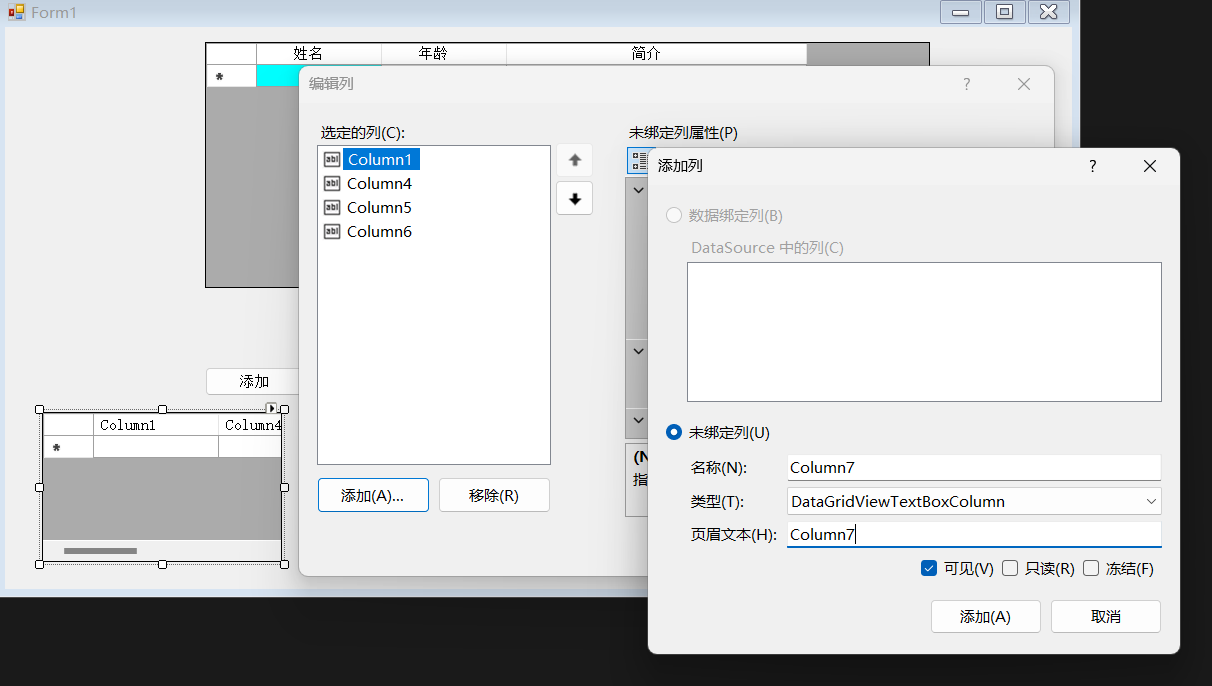
我们可以在Columns中添加表格的列,注意这里的页眉文本为每列中显示出来的名称。
通常在代码中添加表格中的内容。
定义一个学生类:
public class Student
{
public string Name { get; set; }
public int Age { get; set; }
public string Info { get; set; }
}
public List<Student> list = new List<Student>(); ----学生集合对象
public Form1()
{
InitializeComponent();
list.Add(new Student() { Name = "张三1", Age = 10, Info = "委内瑞拉总统被捕" });
list.Add(new Student() { Name = "张三2", Age = 20, Info = "委内瑞拉总统被捕" });
list.Add(new Student() { Name = "张三3", Age = 30, Info = "委内瑞拉总统被捕" });
//AutoGenerateColumns 是否自动生成列,设置为false 需要自己通过界面绑定类的属性(自己设置列的标题、自己设置列显示哪个属性)
//设置为true,表格自动显示列的标题为绑定类的属性
dataGridView1.AutoGenerateColumns = false;
//dataGridView1 表格 可以通过DataSource 属性进行绑定数据源,但是后续添加的新的数据不会立即显示到控件上,需要再次对 dataGridView1.DataSource=null之后 再重新赋值
dataGridView1.DataSource = list;
a.添加数据源的方法
private void button1_Click(object sender, EventArgs e)
{
list.Add(new Student() { Name = "张三4", Age = 40, Info = "委内瑞拉总统被捕" });
dataGridView1.DataSource = null;
dataGridView1.DataSource = list;
}
b.删除数据源的方法
private void button2_Click(object sender, EventArgs e)
{
先判断是否选中行
SelectedRows 选中的行 可以选择多个
if (dataGridView1.SelectedRows.Count==0) -----没选中行
{
MessageBox.Show("请先选中要删除的一行");
return;
}
选中行了 获取选中的一行索引值 或者这一行对象
Student stu = null; -----要删除的一行对象
DataBoundItem 获取选中行绑定对象
as 强制转换成Student对象
stu = dataGridView1.SelectedRows0.DataBoundItem as Student;
MessageBox.Show(stu.Name);
MessageBox.Show是有返回值的,为DialogResult对象(对话结果对象),
DialogResult result = MessageBox.Show("是否要删除改行", "温馨提示", MessageBoxButtons.YesNo, MessageBoxIcon.Warning);
if (result != DialogResult.Yes) -----如果没有选择yes 直接return
{
return;
}
如果选择警告框的Yes键时候 再删除
list.Remove(stu);
刷新界面
dataGridView1.DataSource = null;
dataGridView1.DataSource = list;
删除成功之后 可以再次提示一下
MessageBox.Show("删除成功");
}
c.查询数据源 把满足查询条件的数据源重新绑定给表格
private void button3_Click(object sender, EventArgs e)
{
FindAll()----- 查找满足条件的所有的元素对象, 与输入框文本内容一样的对象
List<Student> currentList = list.FindAll(v => v.Name == textBox1.Text);
if (currentList.Count==0)
{
MessageBox.Show("没找到要找的学生");
return;
}
dataGridView1.DataSource = null;
dataGridView1.DataSource = currentList;
}
d.修改数据源
private void button4_Click(object sender, EventArgs e)
{
if (dataGridView1.SelectedRows.Count == 0)
{
MessageBox.Show("请先选中要修改的一行");
return;
}
获取选中一行的对象
DataGridViewRow cc = dataGridView1.SelectedRows0;
Student stu = cc.DataBoundItem as Student;
stu.Name = "高达";
stu.Age = 20;
stu.Info = "人在搭在";
dataGridView1.DataSource = null;
dataGridView1.DataSource = list;
// 获取单元格的内容
// Cells"Name1" 获取name属性为Name1单元格的内容
// MessageBox.Show(dataGridView1.SelectedRows0.Cells"Name1".Value.ToString());
// DataGridViewRow cc1 = dataGridView1.SelectedRows0;
// MessageBox.Show(cc1.Cells"Name1".Value.ToString());
}
2.定时器
Timer(定时器):用于按指定的时间间隔重复执行某个任务
创建之后不会在窗体上显示,一般通过代码来使用。
this.timer1.Stop();-----关闭定时器
this.timer1.Start();-----开启定时器
this.timer1.Enabled = true; -----设置定时器为激活状态的
this.timer1.Interval = 10;-----触发定时器函数时间间隔 ms为单位
cs
    public partial class Form1 : Form
    {
        public Form1()
        {
            InitializeComponent();
            this.timer1.Interval = 10;//触发定时器函数时间间隔 ms为单位
            label1.Font = new Font(new FontFamily("楷体"), 20);

        }

        Random ran = new Random();//随机数对象
        int count = 0;
        //定时器事件
        private void timer1_Tick(object sender, EventArgs e)
        {
            count++;
            //MessageBox.Show("定时器事件") ;
            //Color.FromArgb(255, 255, 255) 通过三原色取值合成一个颜色
            //三个值分别为红绿蓝 值的范围0-255,哪个值越大,越接近该颜色,255,255,255 白色;0,0,0 黑色,
             int r =  ran.Next(256);
             int g =  ran.Next(256);
             int b =  ran.Next(256);

            label1.BackColor = Color.FromArgb(r, g, b);
            //label1.Left label的左边的距离
            label1.Location = new Point(label1.Left, count);
            if (count>=400)
            {
                count = 0;
            }

        }

        private void startTimer_Click(object sender, EventArgs e)
        {
            this.timer1.Start(); //开启定时器
        }

        private void stopTimer_Click(object sender, EventArgs e)
        {
            this.timer1.Stop();// 关闭定时器
        }
    }
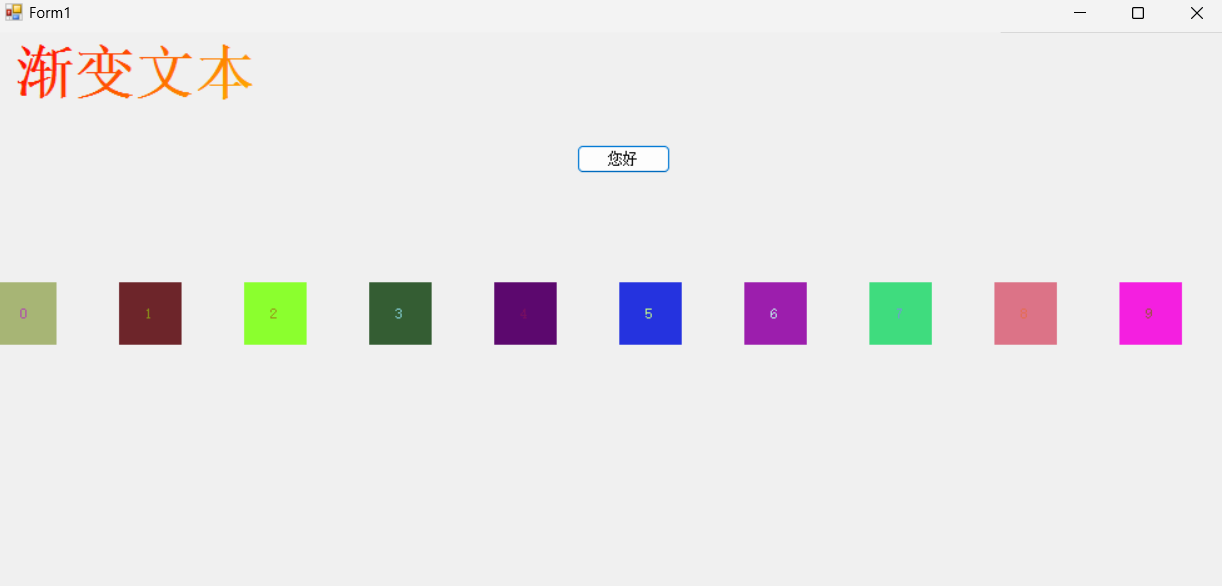
通过代码创建定时器
cs
 public Form1()
 {
     InitializeComponent();

     //创建定时器对象
      timer = new Timer() { Enabled=true,Interval=10};
      timer.Tick += Timer_Tick; //绑定定时器事件
     for (int i = 0; i < 10; i++)
     {
         Label label = new Label()
         {
             Text = i.ToString(),
             Location = new Point(100 * i, 200),
             BackColor = Color.Aqua,
             Size = new Size(50, 50),
             TextAlign = ContentAlignment.MiddleCenter
         };
         this.Controls.Add(label);
     }


 }
 Random rnd = new Random();
 private void Timer_Tick(object sender, EventArgs e)
 {
     //MessageBox.Show(this.Controls.Count + "");
     for (int i = 0;i<this.Controls.Count;i++) //this.Controls.Count。控件的个数
     {
         if (this.Controls[i] is Label) // 判断控件是不是Label,
         {
             this.Controls[i].BackColor = Color.FromArgb(rnd.Next(256), rnd.Next(256), rnd.Next(256));
             this.Controls[i].ForeColor = Color.FromArgb(rnd.Next(256), rnd.Next(256), rnd.Next(256));
         }
     }

 }
 //override 重写OnPaint方法 当绘制窗体的时候触发
 protected override void OnPaint(PaintEventArgs e)
 {
     base.OnPaint(e);// base调用基类的重新绘制方法
     // 自定义绘图逻辑
     Graphics g = e.Graphics;
     Rectangle rect = new Rectangle(10, 10, 300, 50); //窗户一个矩形区域
     Font font = new Font("Arial", 32, FontStyle.Bold);
     LinearGradientBrush brush = new LinearGradientBrush(rect, Color.Red, Color.Yellow, 45f);// 创建一个线性渐变的笔刷
     g.DrawString("渐变文本", font, brush, new PointF(10, 10));

 }