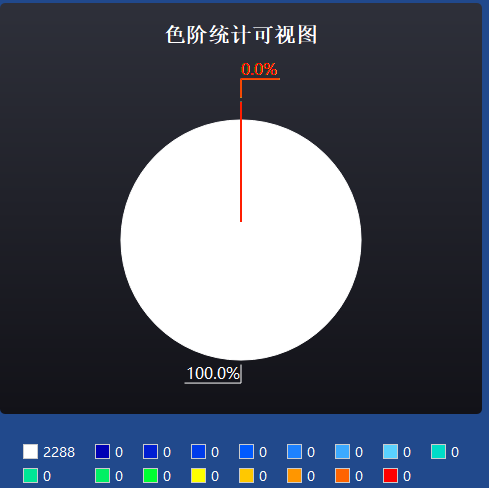
1.使用QCharts绘制库
饼状图创建初始化:
cpp
//饼状图初始化
void initChart()
{
    ChartDialogcom = new QDialog(this);
    ChartDialogcom->setWindowTitle("数据色阶统计图");
    ChartDialogcom->setStyleSheet("background-color: rgb(33, 73, 140);font-family: 'Microsoft YaHei';");
    ChartDialogcom->setFixedSize(500, 500);
    ChartDialogcom->setModal(false);
    // 移除问号按钮
    ChartDialogcom->setWindowFlags(ChartDialogcom->windowFlags() & ~Qt::WindowContextHelpButtonHint);
    //饼状图
    pie_series = new QPieSeries(this);
    // connect(pie_series, SIGNAL(clicked(QPieSlice*)), this, SLOT(onPieSeriesClicked(QPieSlice*)));

    //定义各扇形切片的颜色
    // static QList<QColor> list_pie_color = {
    //     QColor(255, 255, 255),//白色
    //     QColor(0, 0, 180),   // 0.001 → 深蓝
    //     QColor(2, 6, 255),   // 0.2 → 纯蓝
    //     QColor(3, 255, 2),   // 0.4 → 绿色
    //     QColor(254, 255, 2), // 0.6 → 黄色
    //     QColor(254, 151, 4), // 0.8 → 橙色
    //     QColor(255, 70, 2)   // 1.0 → 红色
    // };
    // 预定义的17个热力图颜色(从蓝到红)
    static QList<QColor> list_pie_color = {
        // 蓝色系:7种渐变(从深蓝到淡蓝)
        QColor(255, 255, 255),//白色
        QColor(0, 0, 180),       // 1. 深蓝色
        QColor(0, 30, 210),      // 2. 暗蓝色
        QColor(0, 60, 235),      // 3. 中深蓝
        QColor(0, 90, 255),      // 4. 纯蓝色
        QColor(30, 130, 255),    // 5. 亮蓝色
        QColor(60, 170, 255),    // 6. 天蓝色
        QColor(90, 210, 255),    // 7. 淡天蓝色
        // 绿色系:4种渐变
        QColor(0, 220, 200),     // 8. 蓝绿色
        QColor(0, 230, 150),     // 9. 青绿色
        QColor(0, 240, 100),     // 10. 绿青色
        QColor(0, 255, 50),      // 11. 亮绿色
        // 黄色系:1种
        QColor(255, 255, 0),     // 12. 纯黄色
        // 橙色系:3种渐变
        QColor(255, 200, 0),     // 13. 橙黄色
        QColor(255, 150, 0),     // 14. 橙色
        QColor(255, 100, 0),     // 15. 深橙色
        // 红色系:1种
        QColor(255, 0, 0)        // 16. 纯红色
    };

    //设置数据
    QList<qreal> list_data = {0,0, 0, 0, 0, 0, 0,0, 0, 0, 0, 0, 0, 0, 0, 0,0};

    //扇形
    for (int i = 0; i < list_pie_color.size(); i++) {
        QPieSlice* pie_slice = new QPieSlice(this);
        pie_slice->setLabelVisible(true);
        pie_slice->setValue(list_data[i]);
        pie_slice->setLabel(QString::number(list_data[i]));
        pie_slice->setColor(list_pie_color[i]);
        pie_slice->setLabelColor(list_pie_color[i]);
        pie_slice->setBorderColor(list_pie_color[i]);
        pie_series->append(pie_slice);
        slices.append(pie_slice);//加入饼状图显示

    }
    // 统一设置所有扇形的标签字体
    QFont sliceFont;
    sliceFont.setPointSize(12);
    sliceFont.setFamily("Microsoft YaHei"); // 可选:设置字体
    sliceFont.setBold(false);

    foreach(QPieSlice* slice, slices) {
        slice->setLabelFont(sliceFont);
    }
    //图表视图
    /*QChart**/ chart = new QChart;
    chart->setTitle("色阶统计可视图");
    //设置暗黑主题
    chart->setTheme(QChart::ChartThemeDark);

    //标题字体
    QFont font = qApp->font();
    font.setBold(true);
    font.setPointSize(16);
    chart->setTitleFont(font);

    //加入饼图
    chart->addSeries(pie_series);
    chart->setAnimationOptions(QChart::SeriesAnimations);

    //图例
    // //图例设置(关键:图例会显示QPieSlice的name属性,默认是label)
    // chart->legend()->setAlignment(Qt::AlignBottom);
    // chart->legend()->setBackgroundVisible(false);
    // QFont legendFont = chart->legend()->font();
    // legendFont.setPointSize(9);
    // legendFont.setFamily("Microsoft YaHei");
    // chart->legend()->setFont(legendFont);
    // 隐藏默认图例(关键步骤)
    chart->legend()->hide();
    chart->addSeries(pie_series);
    chart->setAnimationOptions(QtCharts::QChart::SeriesAnimations);

    //加入绘画视图
    /*QChartView* */chartView = new QChartView(this);
    chartView->setRenderHint(QPainter::Antialiasing);
    chartView->setChart(chart);

    // 4. 自定义图例(核心:实现图例显示"序号:数据大小")
    // QWidget *legendWidget = new QWidget();
    // QHBoxLayout *legendLayout = new QHBoxLayout(legendWidget); // 横向布局,也可以用纵向QVBoxLayout
    // legendLayout->setAlignment(Qt::AlignCenter); // 居中对齐
    // legendLayout->setSpacing(20); // 每个图例项之间的间距
    // // 为每个切片创建图例项(颜色块 + 文本)
    // for (int i = 0; i < 17; i++) {
    //     // 容器:存放颜色块和文本
    //     QWidget *itemWidget = new QWidget();
    //     QHBoxLayout *itemLayout = new QHBoxLayout(itemWidget);
    //     itemLayout->setContentsMargins(0, 0, 0, 0);
    //     itemLayout->setSpacing(5); // 颜色块和文本的间距

    //     // 颜色块(显示切片的颜色)
    //     QLabel *colorLabel = new QLabel();
    //     colorLabel->setFixedSize(15, 15); // 颜色块大小
    //     colorLabel->setStyleSheet(QString("background-color: %1; border: 1px solid #ccc;")
    //                                   .arg(list_pie_color[i].name()));

    //     // 图例文本:显示"序号:数据大小"(你想要的内容)
    //     QLabel *textLabel = new QLabel();
    //     textLabel->setText(QString("%1").arg(list_data[i]));
    //     textLabel->setStyleSheet("color: white;"); // 适配暗黑主题,设置白色文本
    //     textLabel->setFont(QFont("Microsoft YaHei", 10)); // 字体和大小
    //     Charttextlabel.append(textLabel);
    //     // 添加到项布局
    //     itemLayout->addWidget(colorLabel);
    //     itemLayout->addWidget(textLabel);

    //     // 添加到图例布局
    //     legendLayout->addWidget(itemWidget);
    // }
    QWidget *legendWidget = new QWidget();
    legendWidget->setSizePolicy(QSizePolicy::Preferred, QSizePolicy::Fixed);
    // 创建网格布局,2列,自动行数
    QGridLayout *legendLayout = new QGridLayout(legendWidget);
    legendLayout->setHorizontalSpacing(20); // 列间距
    legendLayout->setVerticalSpacing(5);    // 行间距

    for (int i = 0; i < 17; i++) {
        // 容器:存放颜色块和文本
        QWidget *itemWidget = new QWidget();
        QHBoxLayout *itemLayout = new QHBoxLayout(itemWidget);
        itemLayout->setContentsMargins(0, 0, 0, 0);
        itemLayout->setSpacing(5); // 颜色块和文本的间距

        // 颜色块(显示切片的颜色)
        QLabel *colorLabel = new QLabel();
        colorLabel->setFixedSize(15, 15); // 颜色块大小
        colorLabel->setStyleSheet(QString("background-color: %1; border: 1px solid #ccc;")
                                      .arg(list_pie_color[i].name()));

        // 图例文本:显示"序号:数据大小"
        QLabel *textLabel = new QLabel();
        textLabel->setText(QString("%1").arg(list_data[i]));
        textLabel->setStyleSheet("color: white;");
        textLabel->setFont(QFont("Microsoft YaHei", 10));
        Charttextlabel.append(textLabel);

        // 添加到项布局
        itemLayout->addWidget(colorLabel);
        itemLayout->addWidget(textLabel);

        // 计算行和列的位置
        int row = i / 9;     // 每2个换一行
        int column = i % 9;  // 0表示第一列,1表示第二列

        // 添加到网格布局
        legendLayout->addWidget(itemWidget, row, column);
    }
    // 5. 整体布局:图表在上,自定义图例在下
    QWidget *centralWidget = new QWidget();
    QVBoxLayout *mainLayout = new QVBoxLayout(centralWidget);
    mainLayout->setContentsMargins(0, 0, 0, 0);
    mainLayout->setSpacing(10); // 图表和图例的间距
    mainLayout->addWidget(chartView);
    // mainLayout->addWidget(legendWidget, 0, Qt::AlignCenter); // 图例居中
    // 创建图例容器包装,确保更好的居中效果
    QWidget *legendContainer = new QWidget();
    QVBoxLayout *containerLayout = new QVBoxLayout(legendContainer);
    containerLayout->setContentsMargins(0, 0, 0, 0);
    containerLayout->addWidget(legendWidget, 0, Qt::AlignCenter);

    // 添加图例容器到主布局
    mainLayout->addWidget(legendContainer);
    // //加入布局
    // QVBoxLayout* layout = new QVBoxLayout;
    // layout->setContentsMargins(0, 0, 0, 0);
    // layout->addWidget(chartView);

    ChartDialogcom->setLayout(mainLayout);

    connect(pie_series, &QPieSeries::hovered, [](QPieSlice *slice, bool state) {
        static QPieSlice* lastHovered = nullptr;
        if (state && slice) {
            if (lastHovered) {
                lastHovered->setExploded(false);
            }
            slice->setExploded(true);
            lastHovered = slice;
        } else if (!state && lastHovered) {
            lastHovered->setExploded(false);
            lastHovered = nullptr;
        }
    });
}
cpp
    //饼状图
    QPieSeries *pie_series;
    void initChart();
    QDialog *ChartDialogcom;
    QChart* chart;
    QChartView* chartView;
    QList<QPieSlice*> slices;
    QList<QLabel*> Charttextlabel;
    QTimer* ChartdataTimer;
使用定时器实时刷新数据更新饼状图:
cpp
void onChartdataTimeout()
{
    QCPColorMap *colorMap = static_cast<QCPColorMap*>(ui->widget->plottable(0));
    if (!colorMap) return;
    // 获取热力图数据
    int nx = colorMap->data()->keySize();
    int ny = colorMap->data()->valueSize();
    // 收集所有数据点
    QVector<double> allData;
    allData.reserve(nx * ny);

    for (int x = 0; x < nx; ++x) {
        for (int y = 0; y < ny; ++y) {
            double value = colorMap->data()->cell(x, y);
            allData.append(value);
        }
    }
    int colorValue=maxcolorevalue/16;//获取颜色最小值到最大值的每份区间
    int NumberIntervals[17]={0};//存储数据区间个数
    int totalNumber=current_x_num*current_y_num;
    for(int i=0;i<totalNumber;i++)
    {
        if(allData.at(i)<1)
        {
            NumberIntervals[0]++;
        }else if(allData.at(i)<colorValue)
        {
            NumberIntervals[1]++;
        }else if(allData.at(i)<2*colorValue)
        {
            NumberIntervals[2]++;
        }else if(allData.at(i)<3*colorValue)
        {
            NumberIntervals[3]++;
        }else if(allData.at(i)<4*colorValue)
        {
            NumberIntervals[4]++;
        }else if(allData.at(i)<5*colorValue)
        {
            NumberIntervals[5]++;
        }else
        {
            NumberIntervals[6]++;
        }

    }

    //更新每个扇形的分布大小
    for (int i = 0; i < 17; i++) {
        slices.at(i)->setLabelVisible(true);
        slices.at(i)->setValue(NumberIntervals[i]);
        // slices.at(i)->setLabel(QString::number(NumberIntervals[i]/totalNumber*100)+"%");
        // 正确计算百分比:先转为浮点数,再计算
        double percentage = (static_cast<double>(NumberIntervals[i]) / totalNumber) * 100.0;

        // 设置标签:同时显示数量和百分比
        QString labelText = QString("%1%")
                                .arg(percentage, 0, 'f', 1);

        slices.at(i)->setLabel(labelText);

        Charttextlabel.at(i)->setText(QString::number(NumberIntervals[i]));
    }


}
实现效果图