目录
[一、UISpy 介绍](#一、UISpy 介绍)
[二、UISpy 主要功能](#二、UISpy 主要功能)
[1. 控件树查看(核心功能)](#1. 控件树查看(核心功能))
[2. 属性查看(控件的"身份证")](#2. 属性查看(控件的"身份证"))
[3. UISpy 的应用场景 - 为Pywinauto脚本找"地址"](#3. UISpy 的应用场景 - 为Pywinauto脚本找"地址")
[三、实际案例 - 分析记事本](#三、实际案例 - 分析记事本)
[1. UISpy 界面](#1. UISpy 界面)
[2. 打印控件信息](#2. 打印控件信息)
[3. 定位控件](#3. 定位控件)
前言
UISpy是一款专业的Windows应用程序界面分析工具,能够透视软件内部控件结构,帮助开发者解决控件定位难题。主要功能包括:1)控件树查看,展示窗口、菜单栏等层级关系;2)属性查看,提供控件类型、名称等关键信息。通过分析记事本案例,展示了如何使用UISpy配合Pywinauto定位"文件"菜单按钮,实现自动化操作。该工具虽然界面简单,但功能强大,是Windows自动化测试开发中的重要辅助工具。
一、UISpy 介绍
UISpy 是专门用来"透视"Windows 应用程序内部结构的工具,就像给软件做X光检查,让隐藏的控件结构一览无余。
UISpy 解决的问题:
想象你要控制一个软件,但:
-
❓ 不知道按钮在程序内部叫什么名字
-
❓ 不清楚菜单的层次结构
-
❓ 找不到输入框的标识符
UISpy 就是你的"界面导航仪",帮你看到别人看不到的细节。
二、UISpy 主要功能
1. 控件树查看(核心功能)
应用程序窗口 (Window)
├── 菜单栏 (MenuBar)
│ ├── 文件(F) (MenuItem)
│ ├── 编辑(E) (MenuItem)
│ └── 帮助(H) (MenuItem)
├── 工具栏 (ToolBar)
│ ├── 新建按钮 (Button)
│ └── 保存按钮 (Button)
└── 编辑区域 (Edit)
└── 文本内容 (Text)
就像查看家谱:知道每个控件是谁的孩子,谁的兄弟姐妹。
2. 属性查看(控件的"身份证")
# Pywinauto 需要这些属性来定位控件:
控件类型:Button, Edit, ListBox, TreeView...
控件名称:Name, AutomationId
控件文本:Text, Caption
控件坐标:BoundingRectangle
控件状态:Enabled, Visible, Focused
3. UISpy 的应用场景 - 为Pywinauto脚本找"地址"
python
# 问题:如何定位"保存"按钮?
# 用UISpy查看后:
button = window.child_window(
    title="保存",      # UISpy显示:Text="保存"
    control_type="Button",  # UISpy显示:ControlType=Button
    auto_id="btnSave"  # UISpy显示:AutomationId=btnSave
)
三、实际案例 - 分析记事本
1. UISpy 界面
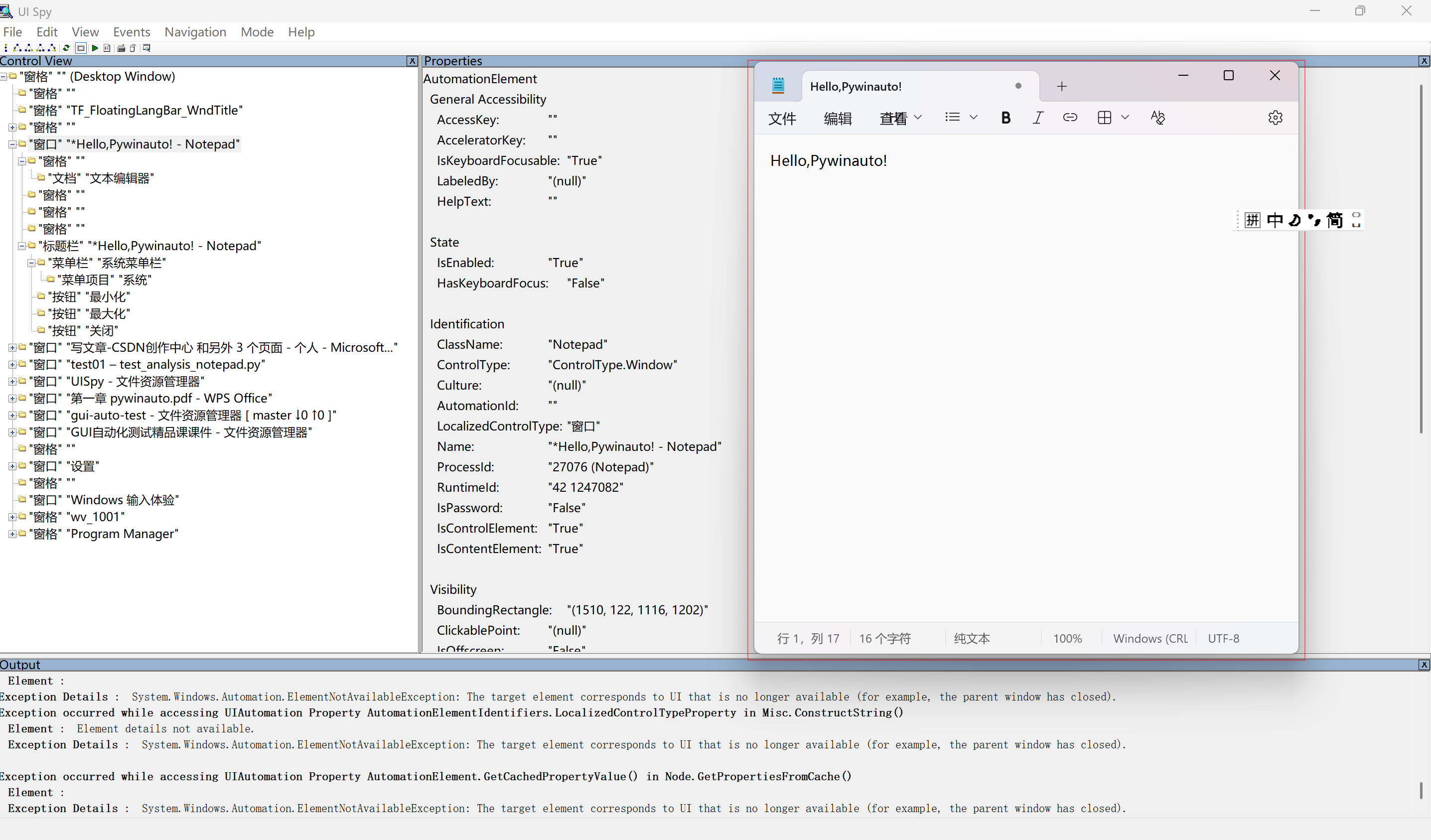
UISpy 界面的左侧部分为应用程序的控件树,右测部分为选中控件的属性,如下图:
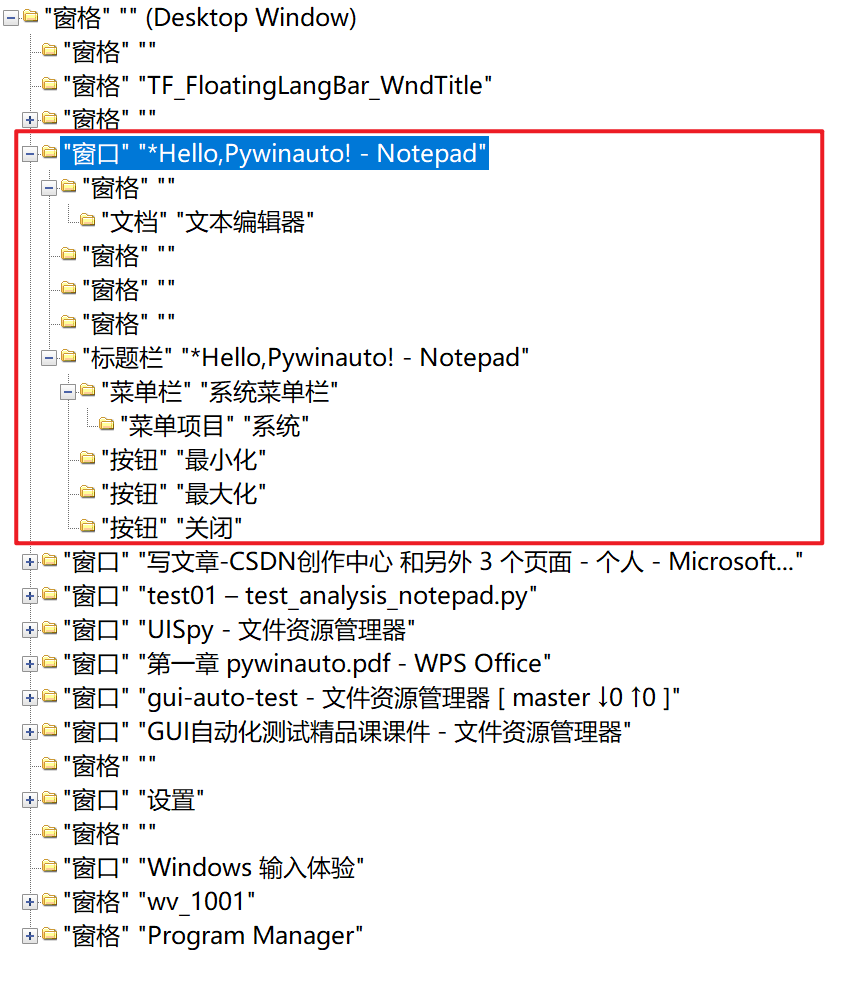
打开记事本,使用 UISpy 查看记事本的控件树,如下:
查看 notepad 窗口对应的属性,如下:
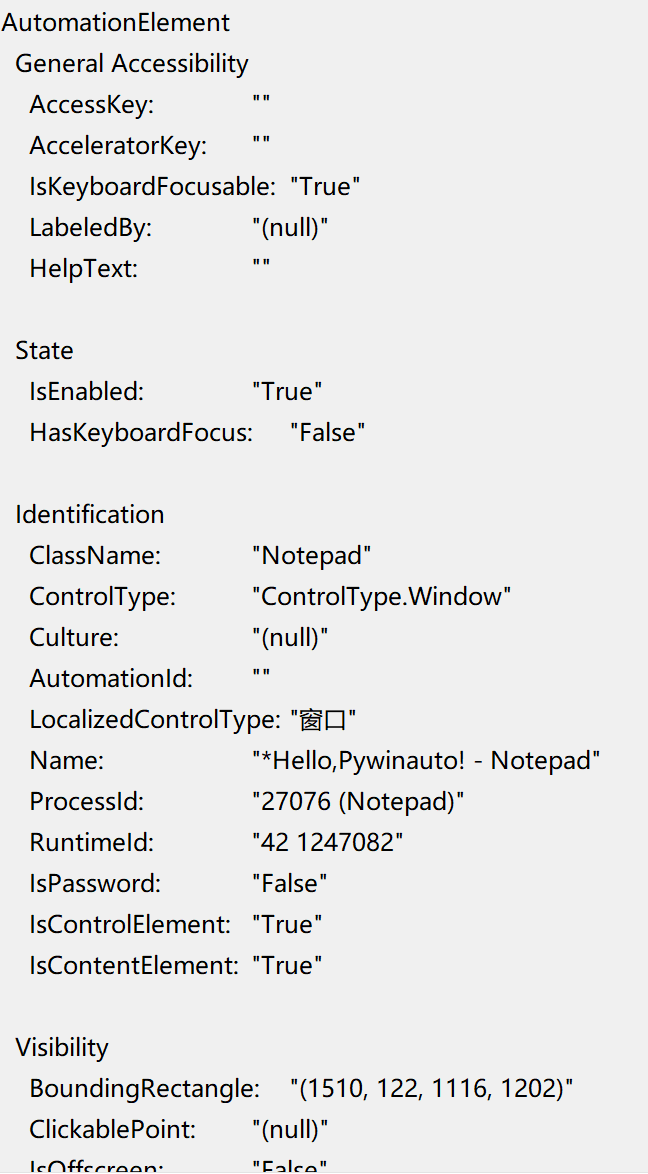
常用的属性有:ClassName,ControlType,AutomationId,Name,ProcessId;
通常使用上述几个属性中的某几个,对 UI 控件进行定位;
如上图属性中 AutomationId 为空,不能使用,如果需要定位窗口,就需要使用其它属性;
属性并不需要全部使用,只要能唯一定位控件即可,比如上述窗口,使用 Name 即可唯一定位,并不需要使用全部的属性;
使用 Name 或者 ClassName 时,可以结合正则表达式进行定位,因为有些应用程序的 Name/ClassName 会随着内容的改变发生变化;
注意:
在实际开发中,使用 UISpy 中的属性定位控件,有不准确的情况,因为 UISpy 中控件的属性可能会显示不准确,为了准确定位控件,还需要将控件的信息全部打印出来,再结合 UISpy 中的属性进行定位;
打印控件信息的方法为:print_control_identifiers()
2. 打印控件信息
借助 pywinauto 连接记事本,并打印控件信息,代码如下:
python
"""
notepad 示例
"""
from pywinauto.application import Application

# 连接应用程序
app = Application(backend='uia').connect(title_re='.*Notepad')

# 获取窗口
notepad = app.window(title_re='.*Notepad')

# 打印树形结构
notepad.print_control_identifiers()

# 操作文件 - 输入文本
notepad.Document.type_keys('Hello, Pywinauto!')

# 关闭应用程序
notepad.close()
打印记事本中的控件信息:
Dialog - '无标题 - Notepad' (L0, T0, R0, B0)
'无标题 - Notepad', 'Dialog', '无标题 - NotepadDialog', 'Dialog0', 'Dialog1'
child_window(title="无标题 - Notepad", control_type="Window")
|
| Pane - '' (L-31988, T-31852, R-30897, B-30874)
| '无标题Pane', 'Pane', '无标题Pane0', '无标题Pane1', 'Pane0', 'Pane1'
| |
| | Document - '' (L-31988, T-31852, R-30897, B-30874)
| | '无标题Document', 'Document'
|
| Pane - '' (L-31908, T-31982, R-31334, B-31918)
| '无标题Pane2', 'Pane2'
| |
| | Pane - '' (L-31908, T-31982, R-31334, B-31918)
| | '无标题Pane3', 'Pane3'
| | |
| | | TabControl - '' (L-31908, T-31982, R-31334, B-31918)
| | | '无标题TabControl', 'TabControl添加新标签页', 'TabControl'
| | | child_window(auto_id="Tabs", control_type="Tab")
| | | |
| | | | ListBox - '' (L-31904, T-31982, R-31408, B-31918)
| | | | 'ListBox', '无标题ListBox'
| | | | child_window(auto_id="TabListView", control_type="List")
| | | | |
| | | | | TabItem - '无标题. 未修改。' (L-31900, T-31982, R-31408, B-31918)
| | | | | 'TabItem', '无标题. 未修改。', '无标题. 未修改。TabItem'
| | | | | child_window(title="无标题. 未修改。", control_type="TabItem")
| | | | | |
| | | | | | Static - '无标题' (L-31874, T-31966, R-31801, B-31935)
| | | | | | 'Static', '无标题Static', '无标题', 'Static0', 'Static1'
| | | | | | child_window(title="无标题", control_type="Text")
| | | | | |
| | | | | | Button - '关闭标签页' (L-31490, T-31974, R-31426, B-31926)
| | | | | | 'Button', '关闭标签页', '关闭标签页Button', 'Button0', 'Button1'
| | | | | | child_window(title="关闭标签页", auto_id="CloseButton", control_type="Button")
| | | |
| | | | Button - '添加新标签页' (L-31402, T-31972, R-31338, B-31924)
| | | | 'Button2', '添加新标签页Button', '添加新标签页'
| | | | child_window(title="添加新标签页", auto_id="AddButton", control_type="Button")
|
| Pane - '' (L-31988, T-31918, R-30897, B-31852)
| '无标题Pane4', 'Pane4'
| |
| | Pane - '' (L-31988, T-31918, R-30897, B-31852)
| | '无标题Pane5', 'Pane5'
| | |
| | | Menu - '' (L-31988, T-31918, R-31652, B-31854)
| | | 'Menu', '无标题Menu', 'Menu0', 'Menu1'
| | | child_window(auto_id="MenuBar", control_type="MenuBar")
| | | |
| | | | MenuItem - '文件' (L-31980, T-31918, R-31884, B-31854)
| | | | '文件', 'MenuItem', '文件MenuItem', 'MenuItem0', 'MenuItem1'
| | | | child_window(title="文件", auto_id="File", control_type="MenuItem")
| | | |
| | | | MenuItem - '编辑' (L-31868, T-31918, R-31772, B-31854)
| | | | '编辑', 'MenuItem2', '编辑MenuItem'
| | | | child_window(title="编辑", auto_id="Edit", control_type="MenuItem")
| | | |
| | | | MenuItem - '查看' (L-31756, T-31918, R-31660, B-31854)
| | | | '查看MenuItem', 'MenuItem3', '查看'
| | | | child_window(title="查看", auto_id="View", control_type="MenuItem")
| | |
| | | Button - '标题' (L-31556, T-31918, R-31444, B-31854)
| | | 'Button3', '标题', '标题Button'
| | | child_window(title="标题", control_type="Button")
| | |
| | | Button - '列表' (L-31444, T-31918, R-31332, B-31854)
| | | 'Button4', '列表', '列表Button'
| | | child_window(title="列表", control_type="Button")
| | |
| | | Button - '加粗(Ctrl+B)' (L-31332, T-31918, R-31268, B-31854)
| | | '加粗(Ctrl+B)', 'Button5', '加粗(Ctrl+B)Button'
| | | child_window(title="加粗(Ctrl+B)", control_type="Button")
| | |
| | | Button - '斜体(Ctrl+I)' (L-31268, T-31918, R-31204, B-31854)
| | | 'Button6', '斜体(Ctrl+I)Button', '斜体(Ctrl+I)'
| | | child_window(title="斜体(Ctrl+I)", control_type="Button")
| | |
| | | Button - '链接(Ctrl+K)' (L-31204, T-31918, R-31140, B-31854)
| | | 'Button7', '链接(Ctrl+K)', '链接(Ctrl+K)Button'
| | | child_window(title="链接(Ctrl+K)", control_type="Button")
| | |
| | | Button - '清除格式设置(Ctrl+空格)' (L0, T0, R0, B0)
| | | '清除格式设置(Ctrl+空格)Button', 'Button8', '清除格式设置(Ctrl+空格)'
| | | child_window(title="清除格式设置(Ctrl+空格)", control_type="Button")
| | |
| | | Button - '表' (L0, T0, R0, B0)
| | | '表', 'Button9', '表Button'
| | | child_window(title="表", control_type="Button")
| | |
| | | Button - '更多选项' (L-31140, T-31918, R-31076, B-31854)
| | | '更多选项', 'Button10', '更多选项Button'
| | | child_window(title="更多选项", auto_id="OverflowButton", control_type="Button")
| | |
| | | Button - '设置' (L-30973, T-31918, R-30913, B-31854)
| | | 'Button11', '设置', '设置Button'
| | | child_window(title="设置", auto_id="SettingsButton", control_type="Button")
| | |
| | | Dialog - '' (L0, T0, R0, B0)
| | | 'Dialog2'
| | | child_window(auto_id="PrivacyTeachingTip", control_type="Window")
| | |
| | | Dialog - '' (L0, T0, R0, B0)
| | | 'Dialog3'
| | | child_window(auto_id="CowriterTeachingTip", control_type="Window")
| | |
| | | Pane - '' (L0, T0, R0, B0)
| | | 'Pane6'
| | | child_window(auto_id="PsDownloadDetailTeachingTip", control_type="Pane")
| | |
| | | Pane - '本地模型必须完成下载才可在注销后使用 AI 功能。' (L0, T0, R0, B0)
| | | '本地模型必须完成下载才可在注销后使用 AI 功能。Pane', '本地模型必须完成下载才可在注销后使用 AI 功能。', 'Pane7'
| | | child_window(title="本地模型必须完成下载才可在注销后使用 AI 功能。", auto_id="PsDownloadLightTeachingTip", control_type="Pane")
|
| Pane - '' (L-31988, T-30874, R-30897, B-30810)
| ' 行 1,列 1Pane', 'Pane8', ' 行 1,列 1Pane0', ' 行 1,列 1Pane1'
| |
| | Pane - '' (L-31988, T-30874, R-30897, B-30810)
| | ' 行 1,列 1Pane2', 'Pane9'
| | |
| | | Static - ' 行 1,列 1' (L-31956, T-30858, R-31829, B-30826)
| | | 'Static2', ' 行 1,列 1', ' 行 1,列 1Static'
| | | child_window(title=" 行 1,列 1", auto_id="ContentTextBlock", control_type="Text")
| | |
| | | Static - '0 个字符' (L-31778, T-30858, R-31686, B-30826)
| | | 'Static3', '0 个字符', '0 个字符Static'
| | | child_window(title="0 个字符", auto_id="ContentTextBlock", control_type="Text")
| | |
| | | Static - '纯文本' (L-31599, T-30874, R-31503, B-30810)
| | | 'Static4', '纯文本', '纯文本Static'
| | | child_window(title="纯文本", auto_id="ContentTextBlock", control_type="Text")
| | |
| | | Static - ' 100%' (L-31395, T-30858, R-31329, B-30826)
| | | 'Static5', ' 100%', ' 100%Static'
| | | child_window(title=" 100%", auto_id="ContentTextBlock", control_type="Text")
| | |
| | | Static - ' Windows (CRLF)' (L-31274, T-30858, R-31118, B-30826)
| | | 'Static6', ' Windows (CRLF)Static', ' Windows (CRLF)'
| | | child_window(title=" Windows (CRLF)", auto_id="ContentTextBlock", control_type="Text")
| | |
| | | Static - ' UTF-8' (L-31084, T-30858, R-31014, B-30826)
| | | ' UTF-8Static', 'Static7', ' UTF-8'
| | | child_window(title=" UTF-8", auto_id="ContentTextBlock", control_type="Text")
|
| TitleBar - '' (L0, T0, R0, B0)
| ' UTF-8TitleBar', 'TitleBar'
| |
| | Menu - '系统' (L-31987, T-31987, R-31943, B-31943)
| | 'Menu2', '系统Menu', '系统', '系统0', '系统1'
| | child_window(title="系统", auto_id="MenuBar", control_type="MenuBar")
| | |
| | | MenuItem - '系统' (L-31987, T-31987, R-31943, B-31943)
| | | 'MenuItem4', '系统MenuItem', '系统2'
| | | child_window(title="系统", control_type="MenuItem")
| |
| | Button - '还原' (L-31977, T-31999, R-31883, B-31961)
| | '还原', 'Button12', '还原Button'
| | child_window(title="还原", control_type="Button")
| |
| | Button - '最大化' (L-31883, T-31999, R-31791, B-31961)
| | 'Button13', '最大化', '最大化Button'
| | child_window(title="最大化", control_type="Button")
| |
| | Button - '关闭' (L-31791, T-31999, R-31697, B-31961)
| | 'Button14', '关闭Button', '关闭'
| | child_window(title="关闭", control_type="Button")
3. 定位控件
比如想要定位控件 "文件",可以在上面的控件信息中查找 "文件" 按钮的属性,对按钮进行定位。使用如下的 pywinauto 脚本:
python
"""
notepad 示例
"""
from pywinauto.application import Application

# 连接应用程序
app = Application(backend='uia').connect(title_re='.*Notepad')

# 获取窗口
notepad = app.window(title_re='.*Notepad')

# 定位"文件"并点击
file_btn = notepad.child_window(
    title="文件",
    auto_id="File",
    control_type="MenuItem"
)
file_btn.click_input()
运行上述程序,效果如下:
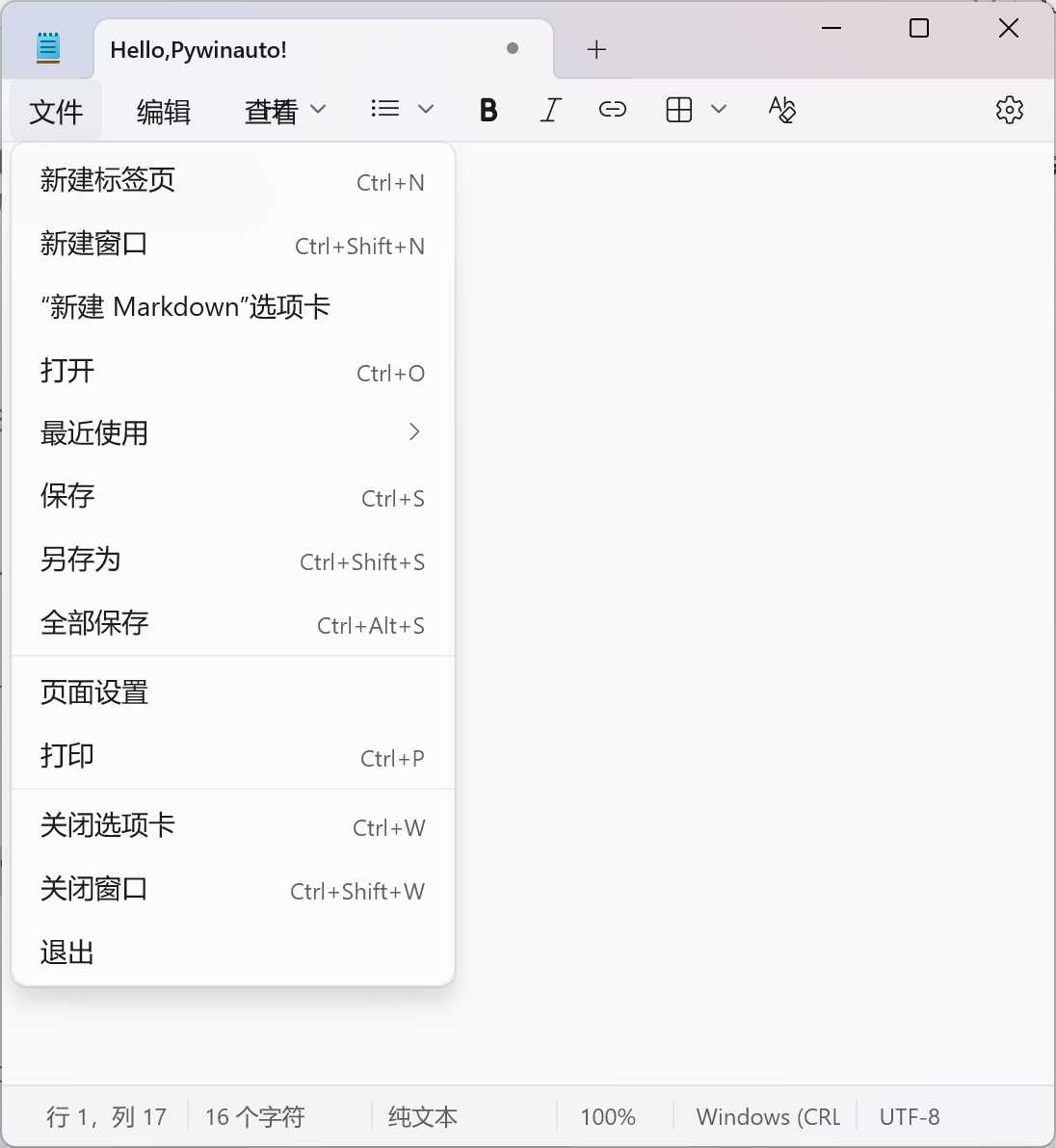
可以看到上述的 "文件" 按钮已经被正确点击,因此定位按钮的操作是正确的。
总结
UISpy 是 Pywinauto 开发者的"第三只眼",虽然界面古老,但功能强大。对于需要深度分析Windows应用程序界面结构的场景,它依然是不可或缺的专业工具。