Flutter 方块迷阵游戏开发全解析:构建可扩展的关卡式益智游戏
在移动应用生态中,益智类游戏因其低门槛、高沉浸感和强逻辑性,始终占据重要地位。Flutter 作为 Google 主导的跨平台 UI
框架,凭借其声明式编程模型、高效的渲染引擎和丰富的交互能力,为开发者提供了构建此类游戏的理想环境。本文将深入剖析一段完整的 Flutter
益智游戏代码------《方块迷阵》,从数据结构设计、状态管理、手势交互到 UI
渲染,逐层拆解其核心实现逻辑,并探讨如何构建一个具备多关卡、可扩展、响应式的益智游戏框架。
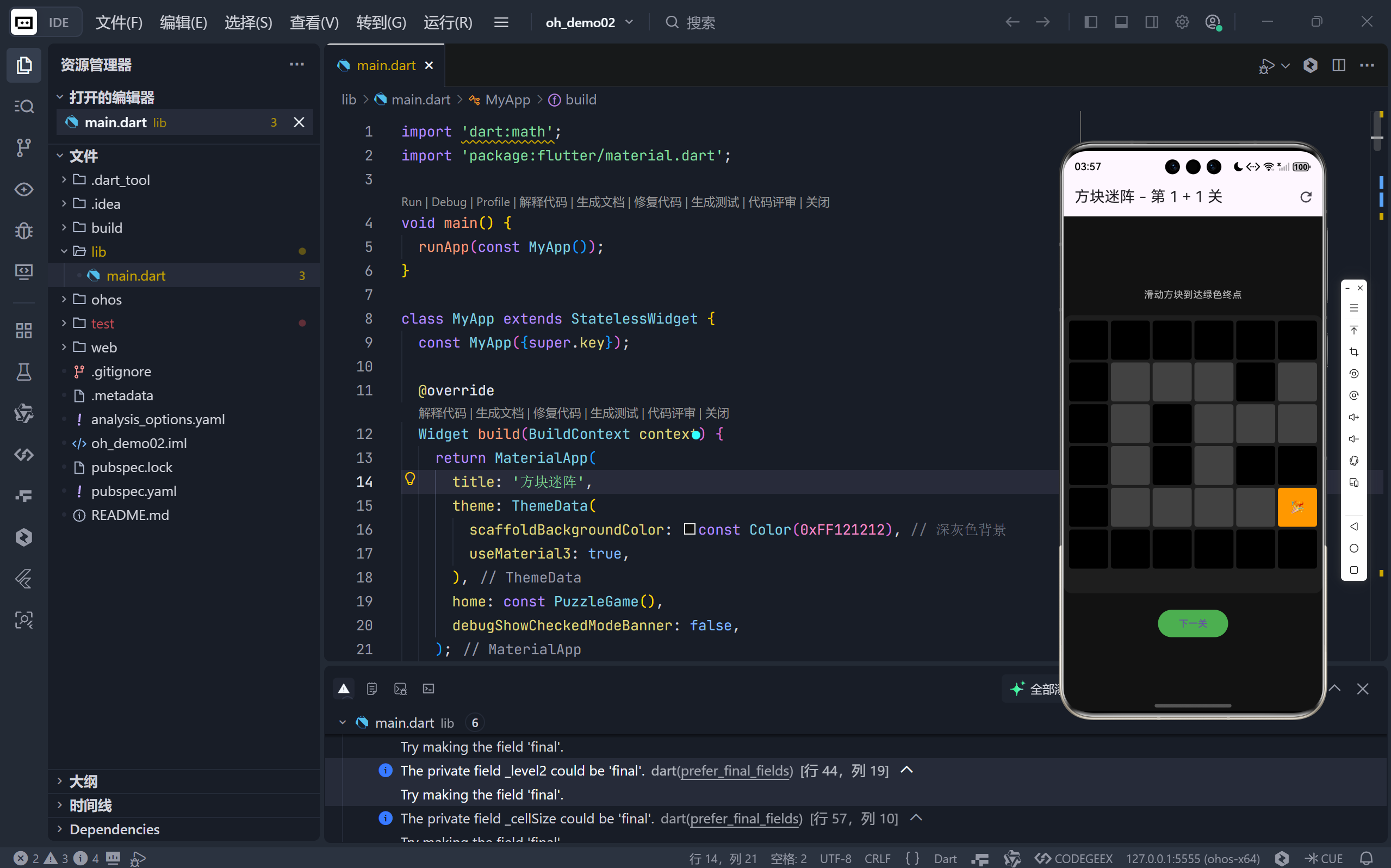
完整效果展示
完整代码展示
dart
import 'dart:math';
import 'package:flutter/material.dart';

void main() {
  runApp(const MyApp());
}

class MyApp extends StatelessWidget {
  const MyApp({super.key});

  @override
  Widget build(BuildContext context) {
    return MaterialApp(
      title: '方块迷阵',
      theme: ThemeData(
        scaffoldBackgroundColor: const Color(0xFF121212), // 深灰色背景
        useMaterial3: true,
      ),
      home: const PuzzleGame(),
      debugShowCheckedModeBanner: false,
    );
  }
}

class PuzzleGame extends StatefulWidget {
  const PuzzleGame({super.key});

  @override
  State<PuzzleGame> createState() => _PuzzleGameState();
}

class _PuzzleGameState extends State<PuzzleGame> {
  // 关卡定义:0=空地, 1=墙, 2=玩家, 3=终点
  // 关卡 1
  List<List<int>> _level1 = [
    [1, 1, 1, 1, 1],
    [1, 0, 0, 0, 1],
    [1, 0, 2, 0, 1],
    [1, 0, 0, 3, 1],
    [1, 1, 1, 1, 1],
  ];

  // 关卡 2 (更复杂)
  List<List<int>> _level2 = [
    [1, 1, 1, 1, 1, 1, 1],
    [1, 0, 0, 0, 1, 0, 1],
    [1, 0, 1, 0, 0, 0, 1],
    [1, 2, 1, 0, 1, 1, 1],
    [1, 0, 0, 0, 0, 3, 1],
    [1, 1, 1, 1, 1, 1, 1],
  ];

  // 当前关卡数据
  late List<List<int>> _currentLevel;
  int _currentLevelIndex = 0;
  int _gridSize = 5; // 网格大小
  double _cellSize = 60.0; // 每个格子的像素大小

  // 玩家位置
  int _playerRow = 0;
  int _playerCol = 0;

  // 结束位置
  int _goalRow = 0;
  int _goalCol = 0;

  // 游戏状态
  bool _isGameOver = false;
  bool _isLevelComplete = false;

  @override
  void initState() {
    super.initState();
    _loadLevel(_currentLevelIndex);
  }

  // 加载指定关卡
  void _loadLevel(int index) {
    setState(() {
      if (index == 0) {
        _currentLevel =
            List<List<int>>.from(_level1.map((row) => List<int>.from(row)));
        _gridSize = 5;
      } else if (index == 1) {
        _currentLevel =
            List<List<int>>.from(_level2.map((row) => List<int>.from(row)));
        _gridSize = 6;
      } else {
        // 如果没有更多关卡,可以循环或显示结束
        _currentLevel = _level1;
        _gridSize = 5;
      }

      // 重置游戏状态
      _isLevelComplete = false;
      _isGameOver = false;

      // 查找玩家和终点位置
      for (int r = 0; r < _gridSize; r++) {
        for (int c = 0; c < _gridSize; c++) {
          if (_currentLevel[r][c] == 2) {
            _playerRow = r;
            _playerCol = c;
          } else if (_currentLevel[r][c] == 3) {
            _goalRow = r;
            _goalCol = c;
          }
        }
      }
    });
  }

  // 移动玩家
  void _movePlayer(int dRow, int dCol) {
    if (_isLevelComplete || _isGameOver) return;

    // 计算新的位置
    int newRow = _playerRow + dRow;
    int newCol = _playerCol + dCol;

    // 检查是否在边界内且不是墙
    if (newRow >= 0 &&
        newRow < _gridSize &&
        newCol >= 0 &&
        newCol < _gridSize &&
        _currentLevel[newRow][newCol] != 1) {
      // 更新地图数据
      _currentLevel[_playerRow][_playerCol] = 0; // 原位置变为空地
      _playerRow = newRow;
      _playerCol = newCol;

      // 检查是否到达终点
      if (_playerRow == _goalRow && _playerCol == _goalCol) {
        _currentLevel[_playerRow][_playerCol] = 4; // 标记为完成状态
        _isLevelComplete = true;
      } else {
        _currentLevel[_playerRow][_playerCol] = 2; // 设置新位置
      }

      setState(() {});
    }
  }

  // 下一关
  void _nextLevel() {
    _currentLevelIndex++;
    if (_currentLevelIndex > 1) {
      // 只有两个关卡示例
      _currentLevelIndex = 0; // 循环
    }
    _loadLevel(_currentLevelIndex);
  }

  @override
  Widget build(BuildContext context) {
    return Scaffold(
      appBar: AppBar(
        title: Text('方块迷阵 - 第 $_currentLevelIndex + 1 关'),
        actions: [
          IconButton(
            icon: const Icon(Icons.refresh),
            onPressed: () => _loadLevel(_currentLevelIndex),
          )
        ],
      ),
      body: Center(
        child: Column(
          mainAxisAlignment: MainAxisAlignment.center,
          children: [
            // 提示文字
            const Text(
              '滑动方块到达绿色终点',
              style: TextStyle(color: Colors.white70),
            ),
            const SizedBox(height: 20),

            // 游戏网格
            GestureDetector(
              onVerticalDragEnd: (details) {
                if (details.primaryVelocity! > 0) {
                  // 向下滑
                  _movePlayer(1, 0);
                } else {
                  // 向上滑
                  _movePlayer(-1, 0);
                }
              },
              onHorizontalDragEnd: (details) {
                if (details.primaryVelocity! > 0) {
                  // 向右滑
                  _movePlayer(0, 1);
                } else {
                  // 向左滑
                  _movePlayer(0, -1);
                }
              },
              child: Container(
                padding: const EdgeInsets.all(8.0),
                decoration: BoxDecoration(
                  color: const Color(0xFF1E1E1E),
                  borderRadius: BorderRadius.circular(12),
                ),
                child: GridView.builder(
                  shrinkWrap: true,
                  physics: const NeverScrollableScrollPhysics(),
                  gridDelegate: SliverGridDelegateWithFixedCrossAxisCount(
                    crossAxisCount: _gridSize,
                    mainAxisSpacing: 4.0,
                    crossAxisSpacing: 4.0,
                  ),
                  itemCount: _gridSize * _gridSize,
                  itemBuilder: (context, index) {
                    int row = index ~/ _gridSize;
                    int col = index % _gridSize;
                    int cellValue = _currentLevel[row][col];

                    Color color = Colors.transparent;
                    String? text = '';

                    switch (cellValue) {
                      case 0: // 空地
                        color = Colors.grey[800]!;
                        text = '';
                        break;
                      case 1: // 墙
                        color = Colors.black;
                        text = '';
                        break;
                      case 2: // 玩家
                        color = Colors.red;
                        text = '😎';
                        break;
                      case 3: // 终点
                        color = Colors.green;
                        text = '';
                        break;
                      case 4: // 完成
                        color = Colors.orange;
                        text = '🎉';
                        break;
                      default:
                        color = Colors.grey[800]!;
                        text = '';
                    }

                    return Container(
                      decoration: BoxDecoration(
                        color: color,
                        borderRadius: BorderRadius.circular(4),
                      ),
                      child: Center(
                        child: Text(
                          text!,
                          style: const TextStyle(fontSize: 18),
                        ),
                      ),
                    );
                  },
                ),
              ),
            ),

            const SizedBox(height: 20),
            if (_isLevelComplete)
              ElevatedButton(
                onPressed: _nextLevel,
                style: ElevatedButton.styleFrom(
                  backgroundColor: Colors.green,
                  padding:
                      const EdgeInsets.symmetric(horizontal: 30, vertical: 10),
                ),
                child: const Text('下一关'),
              )
          ],
        ),
      ),
    );
  }
}
一、项目概览与核心设计理念
《方块迷阵》是一款经典的网格路径解谜游戏。玩家控制一个红色方块("😎"),通过上下左右滑动,在由墙壁(黑色)、空地(深灰)和终点(绿色)组成的迷宫中移动,目标是抵达绿色终点格。游戏包含两个预设关卡,难度逐级提升;到达终点后可进入下一关,形成循环挑战。
该应用虽功能简洁,却完整体现了以下关键开发思想:
- 数据驱动 UI:使用二维整数数组表示关卡地图,UI 完全由数据状态决定。
- 状态隔离:游戏逻辑与 UI 渲染解耦,便于维护与扩展。
- 手势交互抽象 :通过
GestureDetector将滑动手势映射为方向指令。- 组件化关卡管理:支持动态加载不同尺寸与布局的关卡。
- 响应式设计:适配不同屏幕尺寸,保证操作体验一致。
接下来,我们将从入口到细节,系统解析其实现原理。
二、应用入口与主题配置
2.1 主函数与 MaterialApp 初始化
dart
void main() {
  runApp(const MyApp());
}

class MyApp extends StatelessWidget {
  const MyApp({super.key});

  @override
  Widget build(BuildContext context) {
    return MaterialApp(
      title: '方块迷阵',
      theme: ThemeData(
        scaffoldBackgroundColor: const Color(0xFF121212),
        useMaterial3: true,
      ),
      home: const PuzzleGame(),
      debugShowCheckedModeBanner: false,
    );
  }
}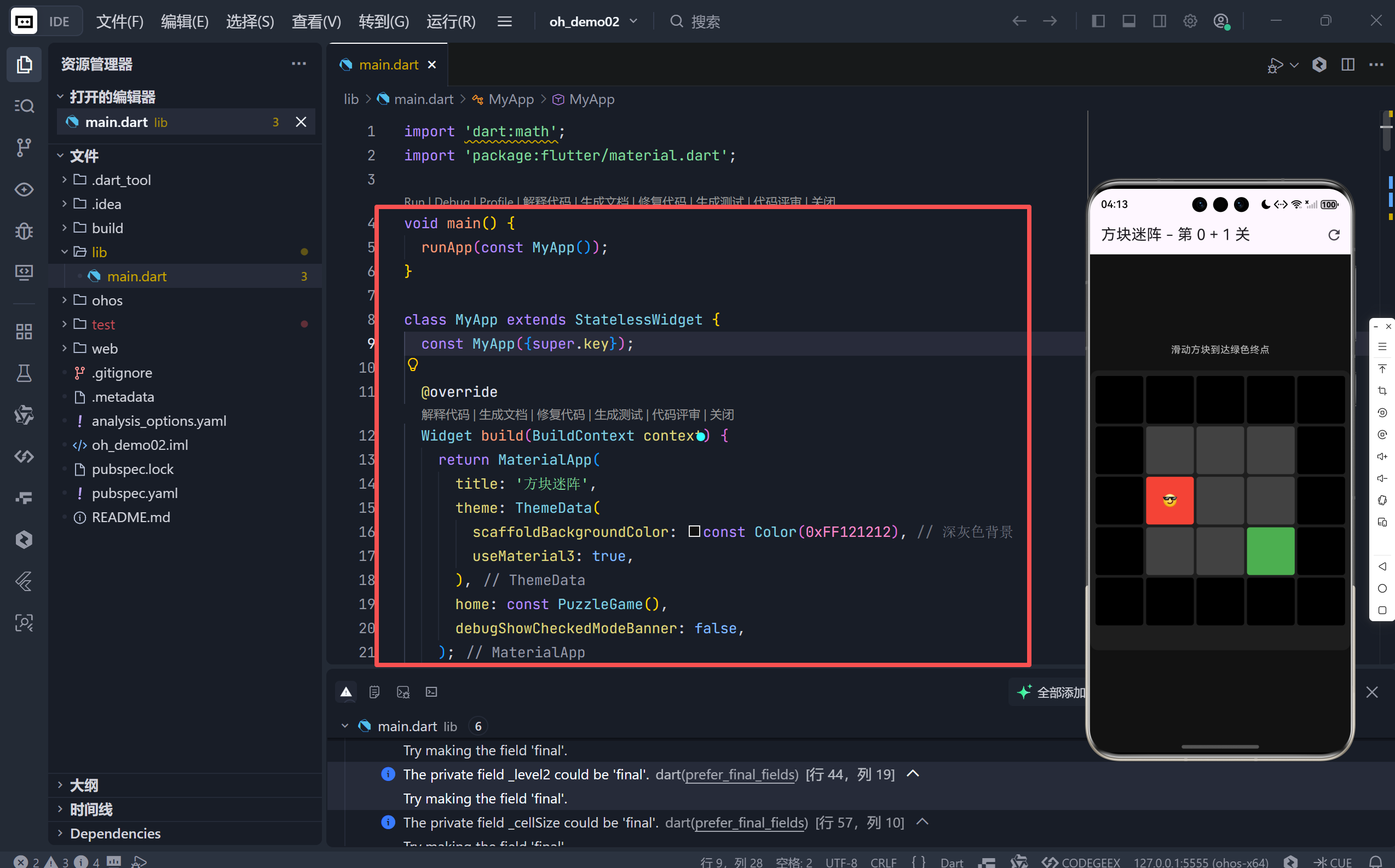
这段代码完成了应用的基础配置:
title:设置应用名称。theme:自定义主题色为深灰色(0xFF121212),营造沉浸式游戏氛围,减少视觉疲劳。useMaterial3: true:启用 Material Design 3 规范,确保 UI 元素符合最新设计语言。home: const PuzzleGame():指定主页面为益智游戏界面。debugShowCheckedModeBanner: false:隐藏调试水印,提升产品感。
深色背景不仅美观,更突出了彩色方块的视觉对比度,这是益智游戏 UI 设计的重要考量。
三、游戏主界面:StatefulWidget 的核心作用
3.1 Stateful 结构必要性
dart
class PuzzleGame extends StatefulWidget {
  const PuzzleGame({super.key});

  @override
  State<PuzzleGame> createState() => _PuzzleGameState();
}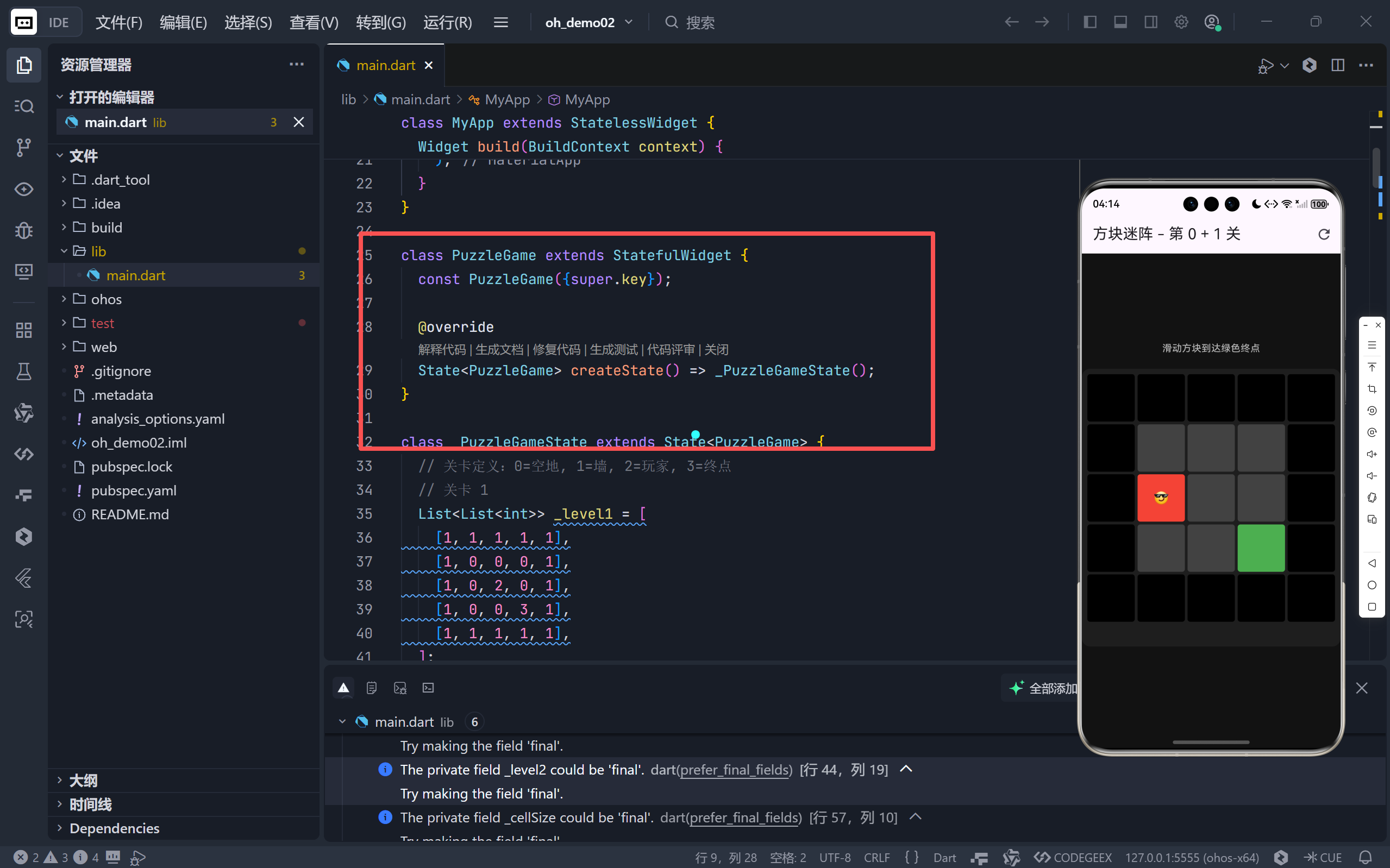
由于游戏需要动态更新玩家位置、检测胜利条件、切换关卡,其状态随用户交互持续变化,因此必须使用 StatefulWidget。PuzzleGame 本身是无状态的壳,真正的逻辑集中在 _PuzzleGameState 中。
四、关卡数据结构与状态管理
4.1 关卡定义:二维数组的巧妙运用
dart
List<List<int>> _level1 = [
  [1, 1, 1, 1, 1],
  [1, 0, 0, 0, 1],
  [1, 0, 2, 0, 1],
  [1, 0, 0, 3, 1],
  [1, 1, 1, 1, 1],
];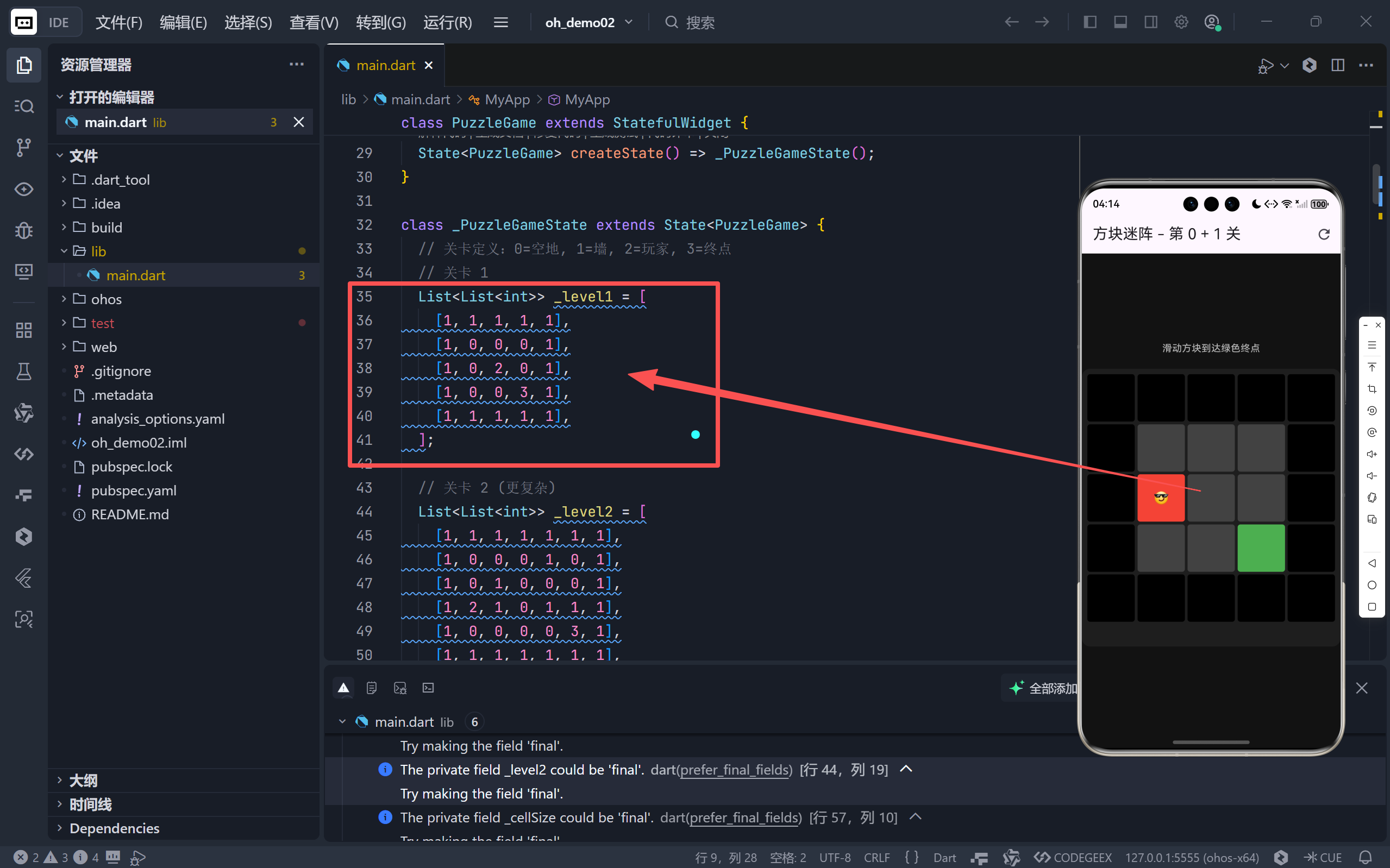
每个关卡被表示为一个 5x5 或 6x6 的二维整数列表,其中:
0:空地(可通行)1:墙(不可通行)2:玩家初始位置3:终点位置
这种设计具有显著优势:
- 内存高效:仅用 1 字节/格存储信息。
- 逻辑清晰:数值语义明确,易于扩展(如加入道具、陷阱等)。
- 序列化友好:可轻松从 JSON 或数据库加载。
4.2 核心状态变量
dart
late List<List<int>> _currentLevel; // 当前关卡数据
int _currentLevelIndex = 0;         // 当前关卡索引
int _gridSize = 5;                  // 网格尺寸
double _cellSize = 60.0;            // 单元格像素大小(未实际使用)

// 玩家与终点位置
int _playerRow = 0, _playerCol = 0;
int _goalRow = 0, _goalCol = 0;

// 游戏状态
bool _isGameOver = false;
bool _isLevelComplete = false;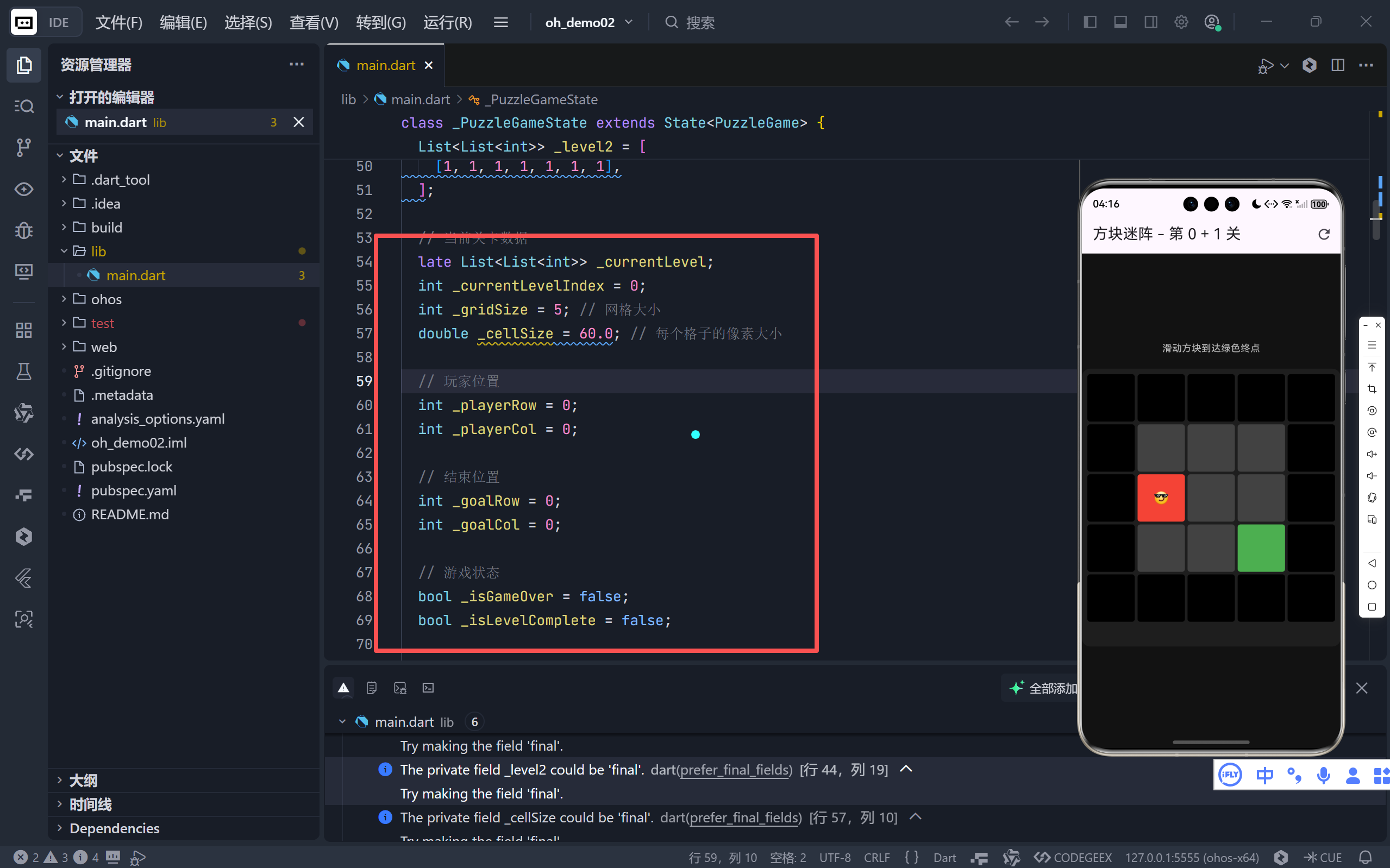
这些变量构成了游戏的完整状态机。值得注意的是,_cellSize 虽被定义,但在 GridView 中并未使用------实际单元格尺寸由 SliverGridDelegateWithFixedCrossAxisCount 自动计算,体现了 Flutter 布局系统的智能性。
五、关卡加载与初始化逻辑
5.1 initState 与 _loadLevel
dart
@override
void initState() {
  super.initState();
  _loadLevel(_currentLevelIndex);
}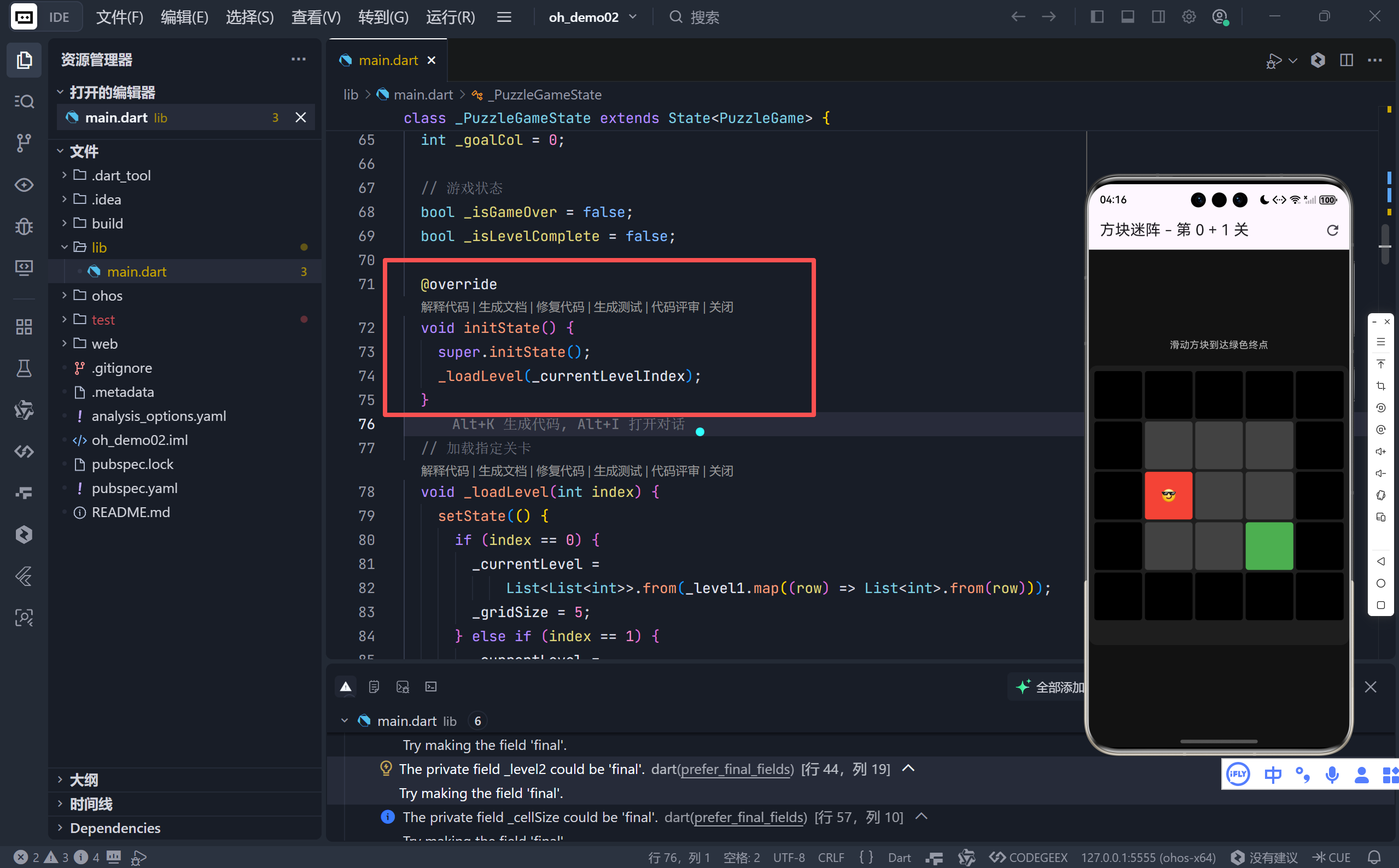
在组件创建时,自动加载第一关。
5.2 _loadLevel 方法详解
dart
void _loadLevel(int index) {
  setState(() {
    if (index == 0) {
      _currentLevel = List<List<int>>.from(_level1.map((row) => List<int>.from(row)));
      _gridSize = 5;
    } else if (index == 1) {
      _currentLevel = ...; // 深拷贝 level2
      _gridSize = 6;
    }

    // 重置状态
    _isLevelComplete = false;
    _isGameOver = false;

    // 查找玩家与终点
    for (int r = 0; r < _gridSize; r++) {
      for (int c = 0; c < _gridSize; c++) {
        if (_currentLevel[r][c] == 2) {
          _playerRow = r; _playerCol = c;
        } else if (_currentLevel[r][c] == 3) {
          _goalRow = r; _goalCol = c;
        }
      }
    }
  });
}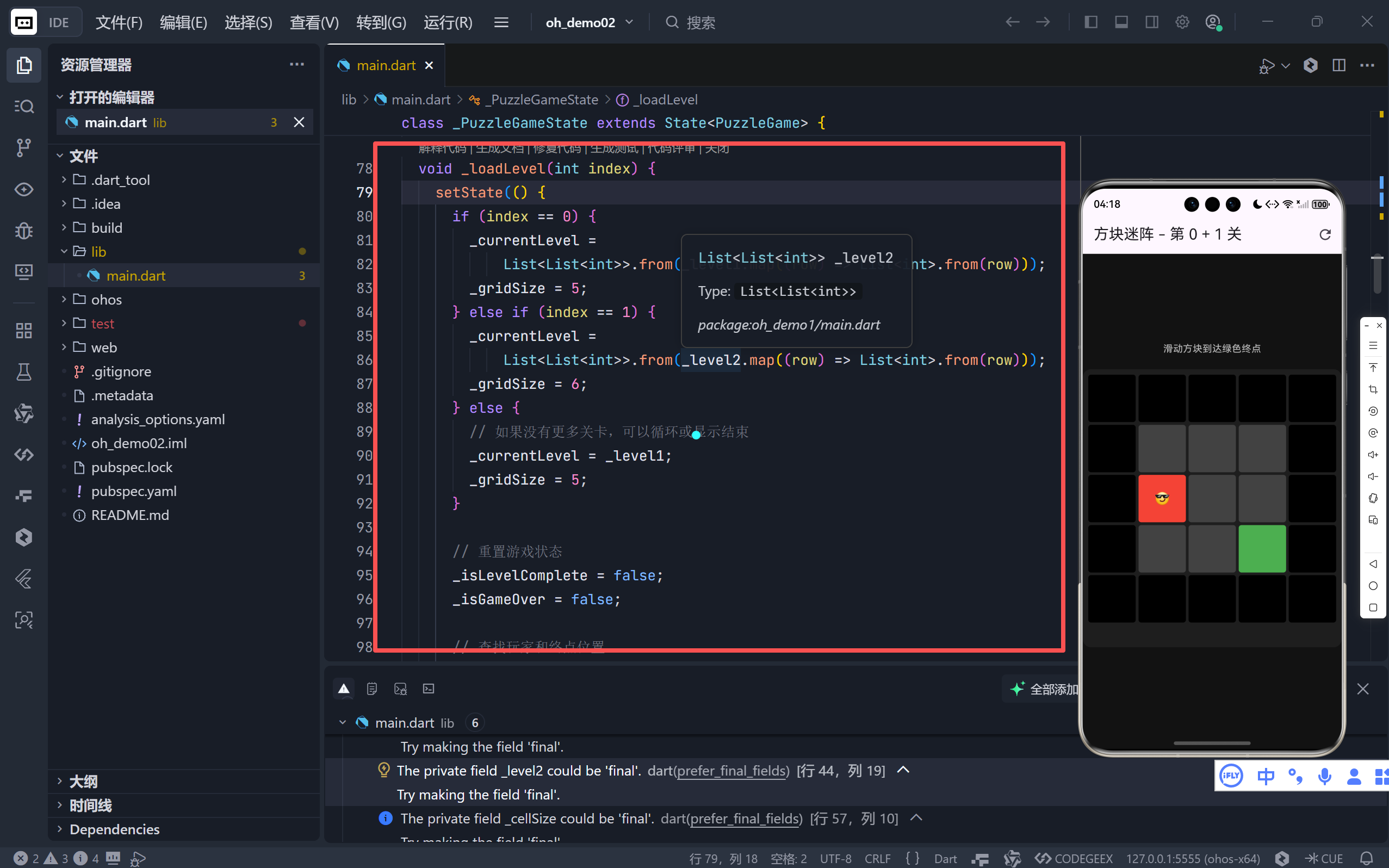
关键点:
- 深拷贝 :使用
List.from(map(...))确保_currentLevel是独立副本,避免修改原始关卡数据。- 动态网格尺寸 :根据关卡自动调整
_gridSize,支持非正方形关卡(尽管示例均为方阵)。- 位置扫描:遍历整个网格,定位玩家与终点。此方法简单可靠,适用于小型关卡。
💡 扩展建议:对于大型关卡,可在关卡定义时直接存储起始坐标,避免运行时扫描。
六、核心游戏逻辑:_movePlayer 方法
这是游戏交互的核心,处理玩家移动与胜利判定。
6.1 边界与碰撞检测
dart
int newRow = _playerRow + dRow;
int newCol = _playerCol + dCol;

if (newRow >= 0 && newRow < _gridSize &&
    newCol >= 0 && newCol < _gridSize &&
    _currentLevel[newRow][newCol] != 1) {
  // 合法移动
}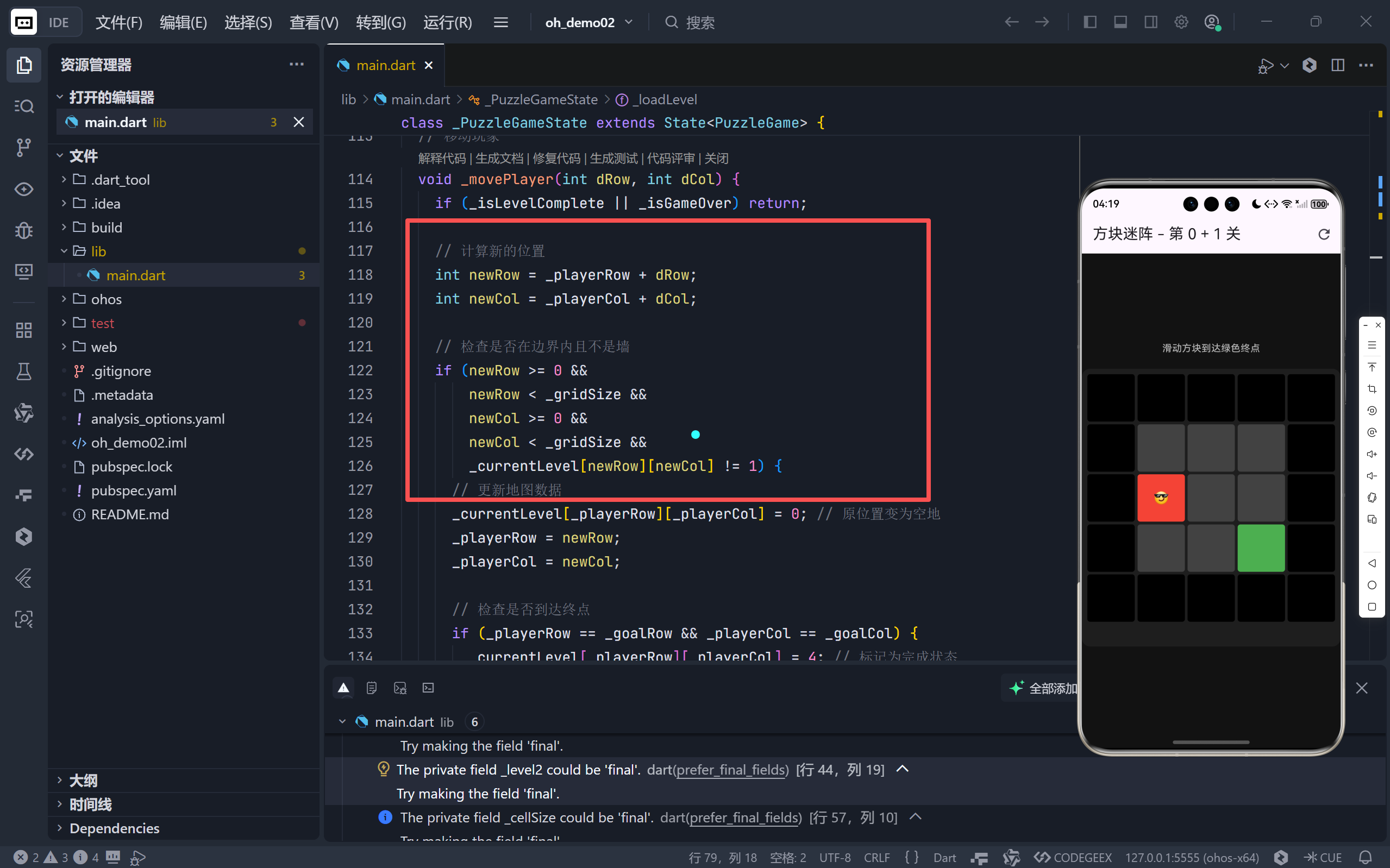
条件检查确保:
- 新位置在网格范围内(防止越界)
- 目标格不是墙(
!= 1)
6.2 地图状态更新
dart
_currentLevel[_playerRow][_playerCol] = 0; // 原位置清空
_playerRow = newRow;
_playerCol = newCol;
先将原玩家位置重置为空地,再更新坐标,保证地图数据一致性。
6.3 胜利判定与状态标记
dart
if (_playerRow == _goalRow && _playerCol == _goalCol) {
  _currentLevel[_playerRow][_playerCol] = 4; // 标记为完成
  _isLevelComplete = true;
} else {
  _currentLevel[_playerRow][_playerCol] = 2; // 设置新玩家位置
}- 使用新值
4表示"已完成",在 UI 中显示为橙色"🎉"。 - 设置
_isLevelComplete = true触发 UI 更新(显示"下一关"按钮)。
⚠️ 潜在问题:若终点被墙包围,玩家无法到达,但当前逻辑未处理"无解"情况。可增加自动求解器或提示机制。
七、用户交互:手势识别与方向映射
7.1 GestureDetector 配置
dart
GestureDetector(
  onVerticalDragEnd: (details) {
    if (details.primaryVelocity! > 0) _movePlayer(1, 0); // 下
    else _movePlayer(-1, 0); // 上
  },
  onHorizontalDragEnd: (details) {
    if (details.primaryVelocity! > 0) _movePlayer(0, 1); // 右
    else _movePlayer(0, -1); // 左
  },
  child: Container(...),
)- 垂直滑动 :
primaryVelocity > 0表示向下滑(速度为正),反之向上。 - 水平滑动 :同理,
>0为向右。 - onDragEnd:在手势结束时触发,避免拖动过程中频繁移动。
✅ 交互优势:相比按钮点击,滑动手势更符合移动端直觉,且不占用额外屏幕空间。
八、UI 渲染:GridView 与数据驱动视图
8.1 网格容器布局
dart
Container(
  padding: const EdgeInsets.all(8.0),
  decoration: BoxDecoration(color: Color(0xFF1E1E1E), borderRadius: 12),
  child: GridView.builder(...)
)
外层容器提供内边距和圆角,增强视觉层次。
8.2 GridView.builder 动态构建
dart
GridView.builder(
  shrinkWrap: true, // 仅占用所需高度
  physics: NeverScrollableScrollPhysics(), // 禁用滚动
  gridDelegate: SliverGridDelegateWithFixedCrossAxisCount(
    crossAxisCount: _gridSize,
    mainAxisSpacing: 4.0,
    crossAxisSpacing: 4.0,
  ),
  itemCount: _gridSize * _gridSize,
  itemBuilder: (context, index) { ... }
)
shrinkWrap: true:使 GridView 高度自适应内容,避免在 Column 中溢出。NeverScrollableScrollPhysics():禁用内置滚动,因整个游戏区已居中。crossAxisCount: _gridSize:动态设置列数,支持不同尺寸关卡。
8.3 单元格渲染逻辑
dart
int row = index ~/ _gridSize;
int col = index % _gridSize;
int cellValue = _currentLevel[row][col];

Color color = Colors.transparent;
String? text = '';

switch (cellValue) {
  case 0: color = Colors.grey[800]!; break;
  case 1: color = Colors.black; break;
  case 2: color = Colors.red; text = '😎'; break;
  case 3: color = Colors.green; break;
  case 4: color = Colors.orange; text = '🎉'; break;
}

return Container(
  decoration: BoxDecoration(color: color, borderRadius: 4),
  child: Center(child: Text(text!, style: TextStyle(fontSize: 18))),
);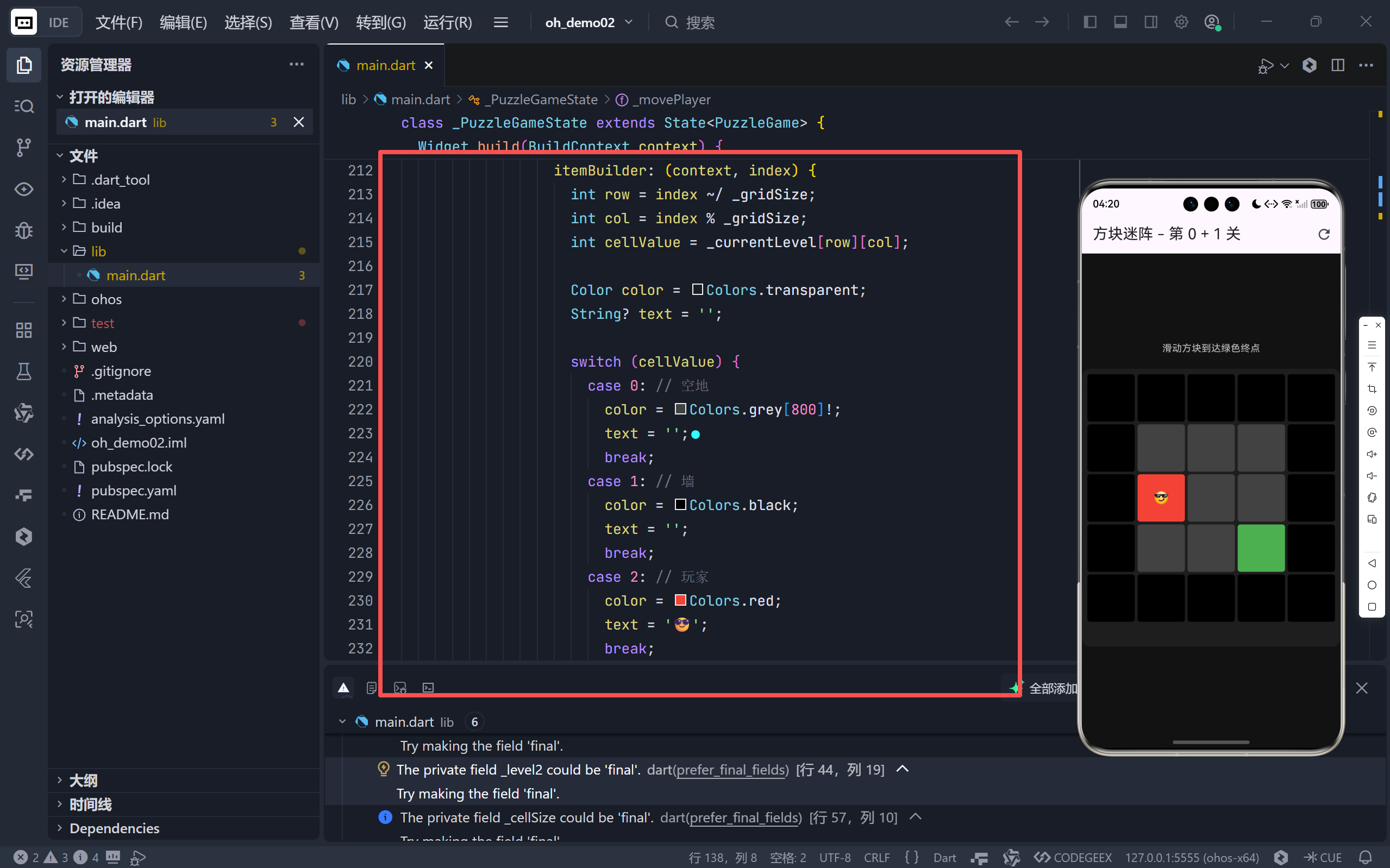
- 索引转坐标 :
index ~/ _gridSize和index % _gridSize是将一维索引映射到二维坐标的经典方法。- 视觉反馈:不同元素使用鲜明颜色+表情符号,直观传达语义。
- 圆角设计 :
borderRadius: 4使方块更柔和,符合现代 UI 趋势。
九、关卡切换与用户体验
9.1 AppBar 动态标题
dart
appBar: AppBar(
  title: Text('方块迷阵 - 第 ${_currentLevelIndex + 1} 关'),
  actions: [IconButton(icon: Icon(Icons.refresh), onPressed: () => _loadLevel(_currentLevelIndex))]
)- 实时显示当前关卡编号。
- 刷新按钮允许玩家重置当前关卡,提升容错率。
9.2 胜利后操作
dart
if (_isLevelComplete)
  ElevatedButton(
    onPressed: _nextLevel,
    style: ElevatedButton.styleFrom(backgroundColor: Colors.green),
    child: const Text('下一关'),
  )
条件渲染"下一关"按钮,绿色强调胜利状态。
9.3 _nextLevel 循环逻辑
dart
void _nextLevel() {
  _currentLevelIndex++;
  if (_currentLevelIndex > 1) _currentLevelIndex = 0; // 循环
  _loadLevel(_currentLevelIndex);
}
当前仅两个关卡,故采用循环模式。实际项目中可连接关卡数据库或 API。
十、潜在优化与进阶方向
尽管本项目功能完整,仍有多个维度可提升:
10.1 关卡管理模块化
将关卡数据移至独立文件或 JSON 配置,支持动态加载。
10.2 动画增强
- 玩家移动添加平滑过渡动画。
- 胜利时播放粒子效果或音效。
10.3 性能优化
对于超大关卡(如 50x50),使用 ListView.builder 的懒加载特性。
10.4 辅助功能
- 添加步数统计、最佳记录。
- 提供"提示"功能(高亮可行路径)。
10.5 多平台适配
利用 Flutter 的跨平台能力,一键发布到 Web、Windows、macOS,甚至鸿蒙 PC。
十一、结语:小网格,大世界
《方块迷阵》以极简的代码,展示了如何用 Flutter 构建一个结构清晰、交互流畅的益智游戏。其核心价值在于:
- 数据即状态:二维数组完美抽象游戏世界。
- 声明式 UI:UI 自动响应状态变化,无需手动操作 DOM。
- 手势抽象:将物理交互映射为逻辑指令,解耦输入与逻辑。
🌐 加入社区
欢迎加入 开源鸿蒙跨平台开发者社区 ,获取最新资源与技术支持:
技术因分享而进步,生态因共建而繁荣 。
------ 晚霞的不甘 · 与您共赴鸿蒙跨平台开发之旅