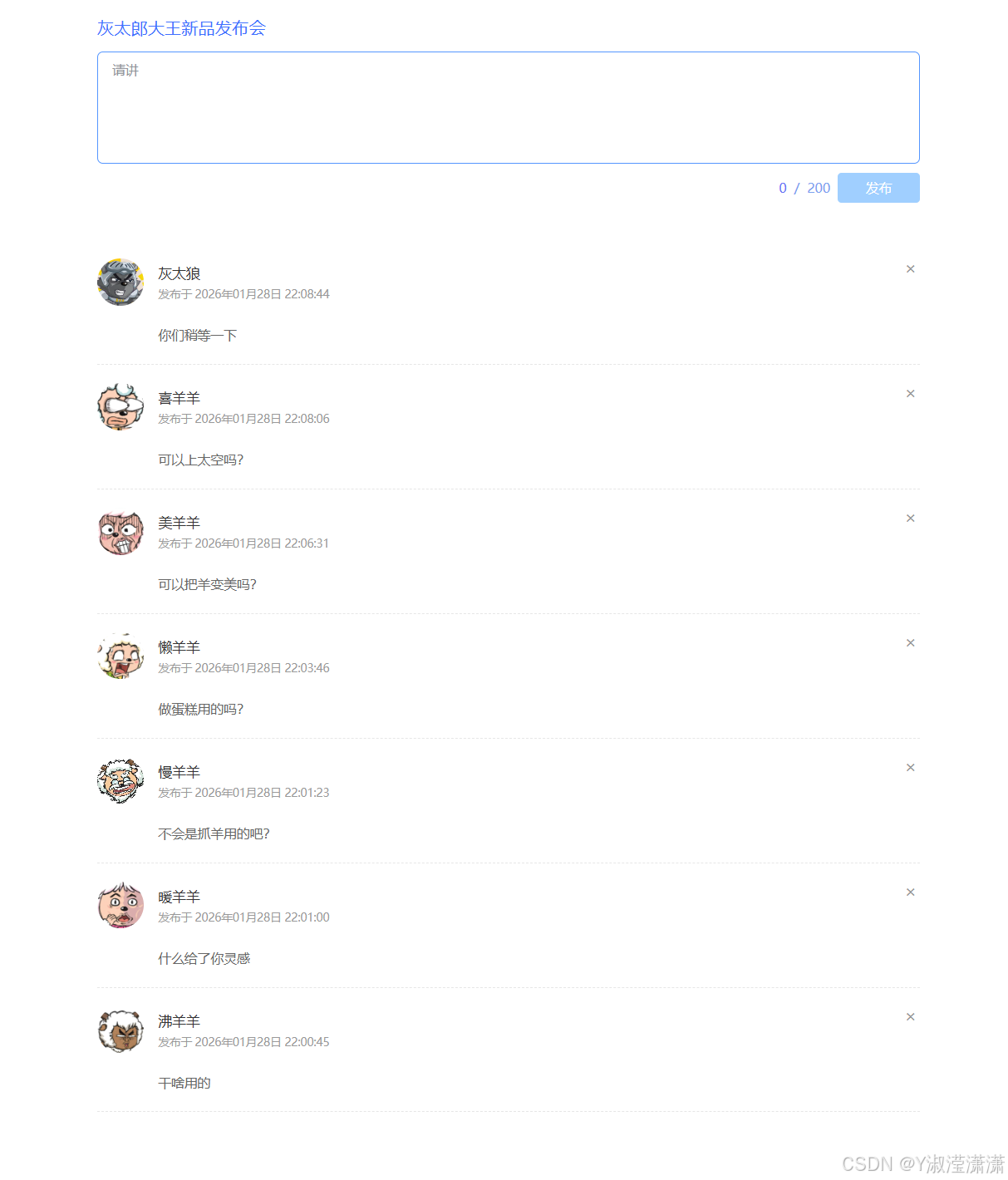
在这里我做的是喜灰为主题的
代码如下
html
<html lang="zh-CN">
<head>
    <meta charset="UTF-8" />
    <meta name="viewport" content="width=device-width, initial-scale=1.0" />
    <title>灰太郎大王新品发布会</title>
    <style>
        * {
            margin: 0;
            padding: 0;
            box-sizing: border-box;
        }
        body {
            background-color: #ffffff00;
            font-family: "Microsoft Yahei", sans-serif;
        }
        ul {
            list-style: none;
        }
        .w {
            width: 900px;
            margin: 20px auto;
            padding: 0 10px;
        }
        /* 顶部标题 */
        .top-title {
            font-size: 18px;
            color: #4171ff;
            margin-bottom: 15px;
            line-height: 1.2;
        }
        /* 输入框区域 */
        .controls {
            width: 100%;
        }
        .controls textarea {
            width: 100%;
            height: 120px;
            resize: none;
            border: 1px solid #5496ff;
            border-radius: 6px;
            outline: none;
            padding: 10px 15px;
            font-size: 14px;
            color: #333;
            margin-bottom: 10px;
            line-height: 1.5;
        }
        .controls textarea::placeholder {
            color: #909399;
        }
        /* 字数和发布按钮 */
        .count-btn-box {
            float: right;
            display: flex;
            align-items: center;
            gap: 8px;
        }
        .count-btn-box span {
            font-size: 14px;
            color: #7ba2ef;
        }
        .count-btn-box .useCount {
            color: #6573f6;
            font-weight: 500;
        }
        .count-btn-box button {
            width: 88px;
            height: 32px;
            border: none;
            outline: none;
            background-color: #0084ff;
            color: #fff;
            font-size: 14px;
            border-radius: 4px;
            cursor: pointer;
            transition: background-color 0.2s;
        }
        .count-btn-box button:hover {
            background-color: #0078e7;
        }
        .count-btn-box button:disabled {
            background-color: #a0cfff;
            cursor: not-allowed;
        }
        /* 内容列表 */
        .contentList {
            margin-top: 40px;
            width: 100%;
        }
        .contentList li {
            padding: 20px 0;
            border-bottom: 1px dashed #e6e6e6;
            position: relative;
        }
        .contentList li .info {
            position: relative;
            min-height: 60px;
        }
        .contentList li .info img {
            width: 50px;
            height: 50px;
            border-radius: 50%;
            object-fit: cover;
        }
        .contentList li .info .username {
            position: absolute;
            top: 5px;
            left: 65px;
            font-size: 15px;
            font-weight: 500;
            color: #333;
        }
        .contentList li .info .send-time {
            position: absolute;
            top: 30px;
            left: 65px;
            font-size: 12px;
            color: #999;
        }
        .contentList li .content {
            margin-left: 65px;
            margin-top: 10px;
            font-size: 14px;
            color: #666;
            line-height: 1.6;
            word-break: break-all;
        }
        .contentList li .the_del {
            position: absolute;
            right: 0;
            top: 20px;
            font-size: 18px;
            color: #999;
            cursor: pointer;
            width: 20px;
            height: 20px;
            line-height: 20px;
            text-align: center;
        }
        .contentList li .the_del:hover {
            color: #f56c6c;
        }
        /* 清除浮动 */
        .clearfix::after {
            content: "";
            display: block;
            clear: both;
        }
    </style>
</head>
<body>
    <div class="w">
        <!-- 顶部标题 -->
        <div class="top-title">灰太郎大王新品发布会</div>

        <!-- 操作的界面 -->
        <div class="controls clearfix">
            <textarea placeholder="请讲" id="area" maxlength="200"></textarea>
            <div class="count-btn-box">
                <span class="useCount" id="useCount">0</span>
                <span>/</span>
                <span>200</span>
                <button id="send" disabled>发布</button>
            </div>
        </div>

        <div class="contentList">
            <ul id="list"></ul>
        </div>
    </div>

    <script>
        let dataArr = [
            { uname: '暖羊羊', imgSrc:'./111/1.jpg'},
            { uname: '沸羊羊', imgSrc: './111/2.jpg' },
            { uname: '美羊羊', imgSrc: './111/3.jpg' },
            { uname: '懒羊羊', imgSrc: './111/4.jpg' },
            { uname: '喜羊羊', imgSrc: './111/5.jpg' },
            { uname: '慢羊羊', imgSrc: './111/6.jpg' },
            { uname: '灰太狼', imgSrc: './111/7.jpg' },
        ];

        // 获取DOM元素
        const area = document.getElementById('area');
        const useCount = document.getElementById('useCount');
        const sendBtn = document.getElementById('send');
        const list = document.getElementById('list');

        // 1. 实时字数统计 + 发布按钮状态控制
        area.addEventListener('input', function () {
            const currentLen = this.value.trim().length;
            useCount.textContent = currentLen;
            // 按钮可用条件:字数>0 且 ≤200
            sendBtn.disabled = currentLen === 0 || currentLen > 200;
        });

        // 2. 发布功能
        sendBtn.addEventListener('click', function () {
            const content = area.value.trim();
            if (!content) return;

            // 随机选一个用户
            const randomIdx = Math.floor(Math.random() * dataArr.length);
            const randomUser = dataArr[randomIdx];

            // 生成当前时间
            const now = new Date();
            const formatTime = (num) => num.toString().padStart(2, '0');
            const year = now.getFullYear();
            const month = formatTime(now.getMonth() + 1);
            const day = formatTime(now.getDate());
            const hour = formatTime(now.getHours());
            const minute = formatTime(now.getMinutes());
            const second = formatTime(now.getSeconds());
            const timeStr = `${year}年${month}月${day}日 ${hour}:${minute}:${second}`;

            // 创建发布项
            const li = document.createElement('li');
            li.innerHTML = `
                <div class="info">
                    <img src="${randomUser.imgSrc}" alt="${randomUser.uname}" />
                    <span class="username">${randomUser.uname}</span>
                    <p class="send-time">发布于 ${timeStr}</p>
                </div>
                <div class="content">${content}</div>
                <span class="the_del">×</span>
            `;

            // 插入到列表顶部
            list.insertBefore(li, list.firstChild);

            // 绑定删除事件
            li.querySelector('.the_del').addEventListener('click', function () {
                li.remove();
            });

            // 清空输入框 + 重置字数 + 禁用按钮
            area.value = '';
            useCount.textContent = '0';
            sendBtn.disabled = true;
        });
    </script>
</body>
</html>
运行结果: