[1. 数据更新方法](#1. 数据更新方法)
[2. 显示控制方法](#2. 显示控制方法)
[3. 宽度动画方法](#3. 宽度动画方法)
[1. 滑块高度计算](#1. 滑块高度计算)
[2. 自动监听机制](#2. 自动监听机制)
[3. 定时隐藏逻辑](#3. 定时隐藏逻辑)
[✅ 必须做的:](#✅ 必须做的:)
[⚠️ 常见问题:](#⚠️ 常见问题:)
[🔧 可自定义参数:](#🔧 可自定义参数:)
此工具的架构看博主另一篇文章:
 https://blog.csdn.net/weixin_72689660/article/details/157552497?spm=1001.2014.3001.5501
一、是什么?
ScrollBarController 是一个为Android原生ScrollView设计的自定义滚动条控制器。它完美替代了系统默认的滚动条,提供了更美观、更交互的滚动体验。
核心特性一览:
-
✅ 自适应滑块比例 - 根据内容长度自动计算滑块大小
-
✅ 双向绑定交互 - 支持拖拽滑块滚动,滚动时滑块同步移动
-
✅ 动态宽度变化 - 触摸时变宽(20px),松开恢复(10px)
-
✅ 智能渐隐效果 - 3秒无操作自动淡出,滚动时重新显示
-
✅ 内容变化监听 - 自动适配动态加载的内容
二、实现效果
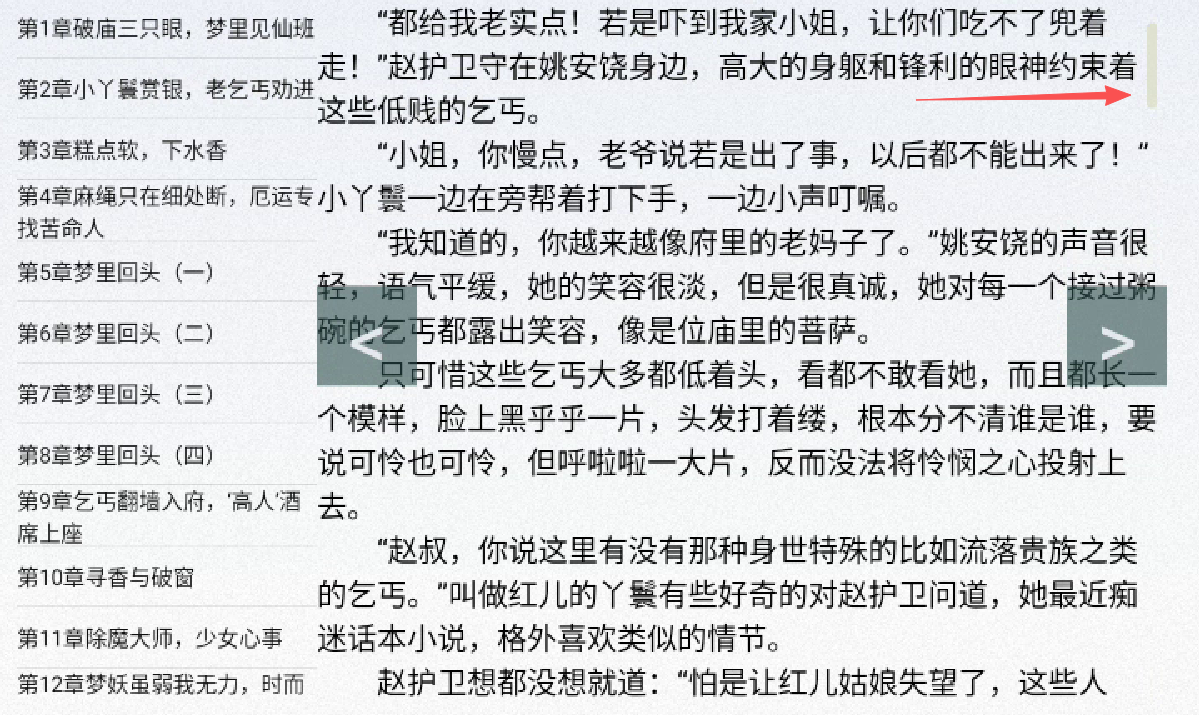
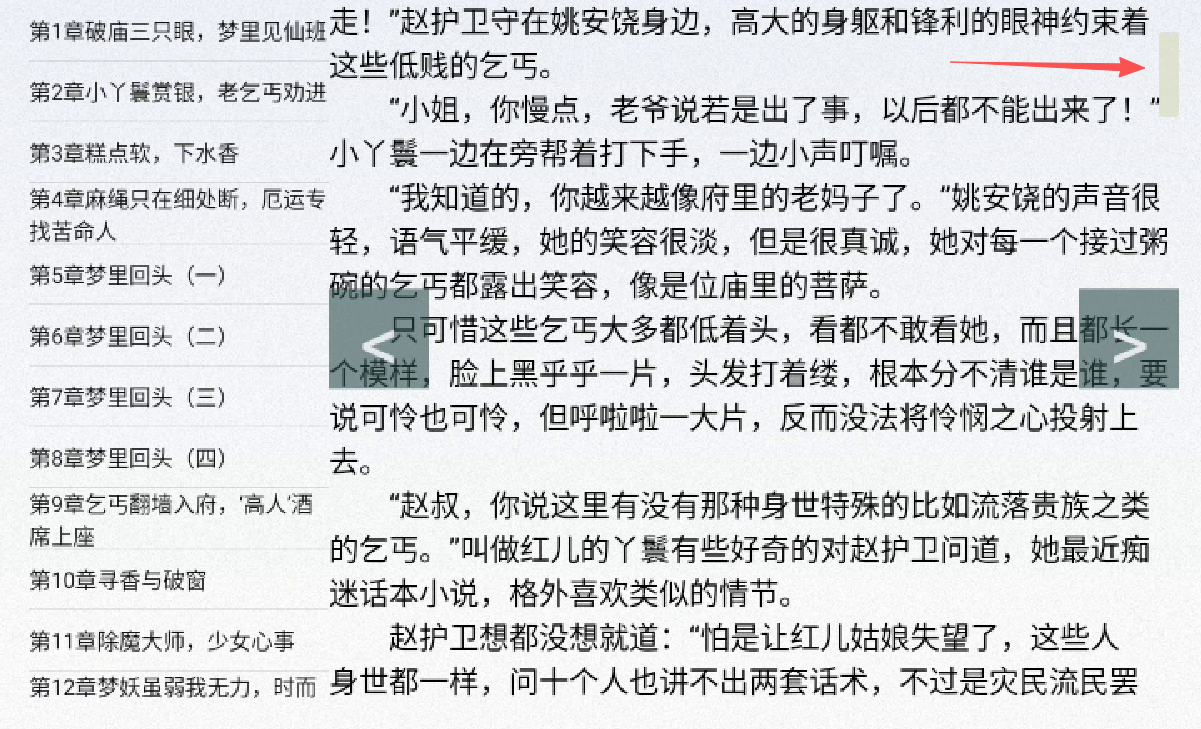
三、如何使用?
真正的配置只有初始化控制器(步骤1)与把ScrollView传入控制器(步骤3),其他的都是教你们怎么写xml。
步骤1:初始化控制器
java
// 在Activity或Fragment中
ScrollView scrollView = findViewById(R.id.scrollView);
ScrollBarController scrollBarController = new ScrollBarController(scrollView);

// 隐藏系统原生滚动条(必须!)
scrollView.setVerticalScrollBarEnabled(false);
步骤2:布局配置
activity_main.xml:
java
<FrameLayout
    android:id="@+id/container"
    android:layout_width="match_parent"
    android:layout_height="match_parent">

    <!-- ScrollView必须放在底层 -->
    <ScrollView
        android:id="@+id/scrollView"
        android:layout_width="match_parent"
        android:layout_height="match_parent">

        <!-- 你的内容,比如TextView或LinearLayout -->
        <TextView
            android:id="@+id/contentTextView"
            android:layout_width="match_parent"
            android:layout_height="wrap_content" />

    </ScrollView>

    <!-- 滚动条通过代码动态添加 -->

</FrameLayout>
scroll_bar.xml(滚动条布局):
java
<!--在 res/layout/ 路径下-->
<?xml version="1.0" encoding="utf-8"?>
<androidx.constraintlayout.widget.ConstraintLayout
xmlns:android="http://schemas.android.com/apk/res/android"
xmlns:app="http://schemas.android.com/apk/res-auto"
android:layout_width="match_parent"
android:layout_height="match_parent">
<!-- 右侧容器:高度填满父容器,宽度20px,贴右边 -->
<FrameLayout
android:id="@+id/scrollBarContainer"
android:layout_width="20px"
android:layout_height="0dp"
app:layout_constraintTop_toTopOf="parent"
app:layout_constraintBottom_toBottomOf="parent"
app:layout_constraintEnd_toEndOf="parent"
android:background="#00000000"> <!--设置背景透明-->
<!-- android:background="#F78D16"> <!– 设置背景颜色 –>-->
<!-- 滑块:默认高度10px,宽度通过代码控制 -->
<View
android:id="@+id/scrollBar"
android:layout_width="10px"
android:layout_height="200px"
android:layout_gravity="start"
android:background="@drawable/view_color" /> <!-- 设置滑块颜色透明度 -->
</FrameLayout>
</androidx.constraintlayout.widget.ConstraintLayout>view_color.xml(滑块背景):
java
<!--在 res/drawable/ 路径下-->
<shape xmlns:android="http://schemas.android.com/apk/res/android"
android:shape="rectangle">
<!-- <!– 渐变背景 –>-->
<solid android:color="#E0E0E0CF" />
<!-- 圆角 -->
<corners android:radius="4dp" />
<!-- <!– 阴影 –>-->
<!-- <stroke-->
<!-- android:width="0.5dp"-->
<!-- android:color="#2635484D" />-->
</shape>步骤3:动态添加滚动条
java
FrameLayout container = findViewById(R.id.container);

// 重要:先移除所有视图,确保正确的层级顺序
container.removeAllViews();

// 先添加ScrollView(底层)
container.addView(scrollView);

// 后添加滚动条容器(上层,确保可点击)
container.addView(scrollBarController.getScrollBar_Container());四、核心方法解析
1. 数据更新方法
java
/**
 * 更新滚动条位置和大小
 * @param ScrollView_Child 内容总高度
 * @param ScrollView_ScrollY 当前滚动位置
 * @param ScrollView_Heitht 可视区域高度
 */
public void upData(int ScrollView_Child, int ScrollView_ScrollY, int ScrollView_Heitht)
2. 显示控制方法
java
// 显示滚动条并重置3秒计时器
// 若未显示,就渐入显示。否则,重置3秒计时(取消旧的延时任务,投递新的)
    public void showAndResetTimer(){
//        Log.i(tag,"isDisplay "+isDisplay);
        if(!isDisplay){
            setBarFadeIn();
            isDisplay = true;
            handler.postDelayed(hideRunnable,SHOW_DURATION);
        } else {
            handler.removeCallbacks(hideRunnable);
            handler.postDelayed(hideRunnable,SHOW_DURATION);
        }
    }

// 淡入显示
// 设置控件视觉上渐入(减小透明度)
    public void setBarFadeIn(){
        ValueAnimator animator = ValueAnimator.ofFloat(0f, 1f); // 从透明到不透明
        animator.setDuration(300); // 300毫秒完成
        animator.addUpdateListener(animation -> {
            scrollBar.setAlpha((Float) animation.getAnimatedValue()); // 实时改透明度
        });
        animator.start();
    }

// 淡出隐藏
// 设置控件视觉上渐出(增大透明度)
    public void setBarFadeOut(){
        ValueAnimator animator = ValueAnimator.ofFloat(1f, 0f); // 从不透明到透明
        animator.setDuration(300); // 300毫秒完成
        animator.addUpdateListener(animation -> {
            scrollBar.setAlpha((Float) animation.getAnimatedValue()); // 实时改透明度
        });
        animator.start();
    }
3. 宽度动画方法
java
    // 触摸时宽度扩展到20px
    setBarWidthExpand(BAR_BIG_WIDTH_PX);

    // 松开时宽度收缩到10px
    setBarWidthShrink(BAR_SMALL_WIDTH_PX);


    // 设置控件宽度缓慢变大
    public void setBarWidthExpand(int targetWidthPx) {
        ViewGroup.LayoutParams params = scrollBar.getLayoutParams();
        int startWidth = params.width;

        ValueAnimator animator = ValueAnimator.ofInt(startWidth, targetWidthPx);
        animator.setDuration(300);
        animator.addUpdateListener(animation -> {
            params.width = (int) animation.getAnimatedValue();
            scrollBar.setLayoutParams(params);
        });
        animator.start();
    }
    // 设置控件宽度缓慢收缩
    public void setBarWidthShrink(int originalWidthPx) {
        ViewGroup.LayoutParams params = scrollBar.getLayoutParams();
        int startWidth = params.width;

        ValueAnimator animator = ValueAnimator.ofInt(startWidth, originalWidthPx);
        animator.setDuration(300);
        animator.addUpdateListener(animation -> {
            params.width = (int) animation.getAnimatedValue();
            scrollBar.setLayoutParams(params);
        });
        animator.start();
    }
五、工作原理
1. 滑块高度计算
java
滑块高度 = (可视区域高度²) / 内容总高度
滑块位置 = (可视区域高度 × 当前滚动距离) / 内容总高度
详见这篇文章(博主参考了他的思路):
Android ScrollView上可拖拽滚动条_android 滚动条-CSDN博客
2. 自动监听机制
-
OnGlobalLayoutListener: 监听内容高度变化
-
OnScrollChangeListener: 监听滚动位置变化
-
双向同步: 拖拽滑块→滚动内容,滚动内容→移动滑块
3. 定时隐藏逻辑
java
// 停止操作3秒后启动淡出动画
handler.postDelayed(hideRunnable, SHOW_DURATION); // SHOW_DURATION = 3000ms
六、注意事项
✅ 必须做的:
-
容器必须是
FrameLayout或支持视图重叠的布局 -
必须先添加
ScrollView,再添加滚动条容器 -
必须禁用系统滚动条:
setVerticalScrollBarEnabled(false)
⚠️ 常见问题:
-
滚动条不显示? 检查布局层级顺序
-
点击无效? 确保滚动条容器在ScrollView上层
-
位置不正确? 检查内容高度计算是否准确
🔧 可自定义参数:
java
// 在ScrollBarController类中修改这些常量:
private static final int SHOW_DURATION = 3000;      // 显示时长(ms)
private static final int BAR_BIG_WIDTH_PX = 20;     // 触摸宽度(px)
private static final int BAR_SMALL_WIDTH_PX = 10;   // 默认宽度(px)
七、完整示例代码
java
package com.lmb.textreader;
import android.animation.ValueAnimator;
import android.os.Handler;
import android.os.Looper;
import android.util.Log;
import android.view.LayoutInflater;
import android.view.MotionEvent;
import android.view.View;
import android.view.ViewGroup;
import android.view.ViewTreeObserver;
import android.widget.ScrollView;
import com.lmb.textreader.MTSet.AppApplication;
public class ScrollBarController {
private static final String tag = "ScrollBarController";
private int scrollView_Child;
private int scrollView_ScrollY;
private int scrollView_Heitht;
private int scrollBar_Height;
private boolean isDisplay = false;
private int lastContentHeight = 0;
private static final int SHOW_DURATION = 3000; // 滚动条显示时间(ms)
private static final int BAR_BIG_WIDTH_PX = 20; // 滚动条触摸后的宽度(px)
private static final int BAR_SMALL_WIDTH_PX = 10; // 滚动条结束触摸后的宽度(px)
private View scrollBar_Container;
private View scrollBar;
private Runnable hideRunnable;
private Handler handler;
private OnScrollValue linstener;
public interface OnScrollValue{
void onValue(int scrollValue);
}
public void setOnScrollValueLinstener(OnScrollValue linstener){
this.linstener = linstener;
}
/**
* ScrollView 自定义滚动条控制器
* <p>
* 为 ScrollView 提供可视化滚动条,支持拖拽滚动、触摸放大、自动渐隐等功能。
* 自动监听内容变化和滚动位置,无需手动更新滑块位置。
*
* <p><b>核心特性:</b>
* <ul>
* <li>自动计算滑块高度比例,随内容自适应</li>
* <li>支持手指拖拽精确滚动,双向绑定</li>
* <li>触摸时滑块宽度放大(20px),松开后恢复(10px)</li>
* <li>停止操作3秒后自动渐隐,滚动时实时显示并重置计时</li>
* <li>自动监听内容高度变化(适配动态加载内容)</li>
* </ul>
*
* <p><b>使用方法:</b>
* <pre>{@code
* // 1. 初始化控制器(自动加载 R.layout.scroll_bar 布局)
* ScrollBarController scrollBarController = new ScrollBarController(scrollView);
*
* // 2. 隐藏系统原生滚动条(必须)
* scrollView.setVerticalScrollBarEnabled(false);
*
* // 3. 将内容添加到 ScrollView(示例)
* scrollView.addView(textView);
*
* // 4. 将 ScrollView 和滚动条叠加到 FrameLayout 中(顺序重要!)
* FrameLayout container = findViewById(R.id.container);
* container.removeAllViews();
* container.addView(scrollView); // 先加底层
* container.addView(scrollBarController.getScrollBar_Container()); // 后加上层
* }</pre>
*
* <p><b>布局要求:</b>
* <pre>
* <FrameLayout
* android:id="@+id/container"
* android:layout_width="match_parent"
* android:layout_height="match_parent">
*
* <!-- ScrollView 放在底层 -->
* <ScrollView
* android:id="@+id/scrollView"
* android:layout_width="match_parent"
* android:layout_height="match_parent" />
*
* <!-- 滚动条通过代码添加在上层 -->
*
* </FrameLayout>
* </pre>
*
* <p><b>R.layout.scroll_bar 参考:</b>
* <pre>
* <?xml version="1.0" encoding="utf-8"?>
* <FrameLayout xmlns:android="http://schemas.android.com/apk/res/android"
* android:layout_width="wrap_content"
* android:layout_height="match_parent"
* android:layout_gravity="end">
*
* <View
* android:id="@+id/scrollBar"
* android:layout_width="10px"
* android:layout_height="100dp"
* android:layout_gravity="end"
* android:background="@drawable/scrollbar_thumb" />
*
* </FrameLayout>
* </pre>
*
* <p><b>注意事项:</b>
* <ul>
* <li>容器必须是 FrameLayout(或 RelativeLayout/ConstraintLayout 等支持重叠的布局)</li>
* <li>必须先添加 ScrollView,再添加滚动条容器,确保滚动条在上层可点击</li>
* <li>务必调用 {@code setVerticalScrollBarEnabled(false)} 隐藏系统滚动条,避免重复显示</li>
* <li>滑块宽度常量:{@link #BAR_BIG_WIDTH_PX}(触摸时20px)、{@link #BAR_SMALL_WIDTH_PX}(默认10px)</li>
* <li>自动隐藏时间:{@link #SHOW_DURATION}(默认3000ms)</li>
* </ul>
*
* @author [施棠海]
* @version 1.0
* @since 2026-01-30
*
* @see android.widget.ScrollView
* @see android.widget.FrameLayout
* @see android.animation.ValueAnimator
*/
public ScrollBarController(ScrollView scrollView) {
scrollBar_Container = LayoutInflater.from(AppApplication.getContext())
.inflate(R.layout.scroll_bar, null);
scrollBar = scrollBar_Container.findViewById(R.id.scrollBar);
ValueAnimator animator = ValueAnimator.ofFloat(1f, 0f); // 从不透明到透明
animator.addUpdateListener(animation -> {
scrollBar.setAlpha((Float) animation.getAnimatedValue()); // 实时改透明度
});
animator.start();
hideRunnable = new Runnable() {
@Override
public void run() {
setBarFadeOut();
isDisplay = false;
}
};
handler = new Handler(Looper.getMainLooper());
setBarTouchListener();
// -------------------------------可外部类用(构造函数可不用传入ScrollView)。若外部类用,这段代码需拷贝到外面去-----------------------------------//
scrollView.getViewTreeObserver().addOnGlobalLayoutListener(new ViewTreeObserver.OnGlobalLayoutListener() {
@Override
public void onGlobalLayout() {
int currentHeight = scrollView.getChildAt(0).getHeight();
if (currentHeight != lastContentHeight) {
lastContentHeight = currentHeight;
upData(currentHeight, scrollView.getScrollY() ,scrollView.getHeight());
}
}
});
scrollView.setOnScrollChangeListener(new View.OnScrollChangeListener() {
@Override
public void onScrollChange(View v, int scrollX, int scrollY, int oldScrollX, int oldScrollY) {
int currentHeight = scrollView.getChildAt(0).getHeight();
upData(currentHeight,scrollY,scrollView.getHeight());
}
});
setOnScrollValueLinstener(new ScrollBarController.OnScrollValue() {
@Override
public void onValue(int scrollValue) {
scrollView.smoothScrollTo(0, scrollValue);
}
});
// -------------------------------可外部类用(构造函数可不用传入ScrollView)。若外部类用,这段代码需拷贝到外面去-----------------------------------//
}
/**
* 传入内容高度 与 可视区高度,从而设置滑块的高度。
* @param ScrollView_Child 内容高度
* @param ScrollView_ScrollY 可视窗口顶部与ScrollView顶部的距离
* @param ScrollView_Heitht 可视区高度
*/
public void upData(int ScrollView_Child,int ScrollView_ScrollY, int ScrollView_Heitht) {
showAndResetTimer();
scrollView_Child = Math.max(ScrollView_Child, ScrollView_Heitht); // 如果内容高度比可视区高度小,直接覆盖内容高度为可视区高度。否则就保持自己的高度。
scrollView_Heitht = ScrollView_Heitht;
scrollView_ScrollY = ScrollView_ScrollY;
int scrollBarY = scrollView_Heitht * scrollView_ScrollY / scrollView_Child;
scrollBar_Height = scrollView_Heitht * scrollView_Heitht / scrollView_Child ;
ViewGroup.LayoutParams params = scrollBar.getLayoutParams();
params.height = scrollBar_Height;
scrollBar.setLayoutParams(params);
scrollBar.setY( (float)scrollBarY );
// Log.i(tag, "scrollView_Child " + scrollView_Child + " scrollView_Heitht " + scrollView_Heitht +" scrollView_ScrollY "+ scrollView_ScrollY
// +" scrollBar_Height " + scrollBar_Height);
}
public void setBarTouchListener(){
scrollBar.setOnTouchListener(new View.OnTouchListener() {
private float barY_Old;
private float deltaY;
private float newY;
@Override
public boolean onTouch(View v, MotionEvent event) {
switch (event.getAction()){
case MotionEvent.ACTION_DOWN:{
barY_Old = event.getRawY();
showAndResetTimer();
handler.removeCallbacks(hideRunnable);
setBarWidthExpand(BAR_BIG_WIDTH_PX);
return true;
}
case MotionEvent.ACTION_MOVE:{
deltaY = event.getRawY()-barY_Old;
barY_Old = event.getRawY();
newY = scrollBar.getY()+deltaY;
// 边界计算
newY = Math.min((int)Math.max(0,newY),(scrollView_Heitht-scrollBar_Height));
linstener.onValue((int)newY*scrollView_Heitht/scrollBar_Height);
scrollBar.setY(newY);
return true;
}
case MotionEvent.ACTION_UP:
case MotionEvent.ACTION_CANCEL:
showAndResetTimer();
setBarWidthShrink(BAR_SMALL_WIDTH_PX);
return true;
}
return false;
}
});
}
/**
* 若未显示,就渐入显示
* 否则,重置3秒计时(取消旧的延时任务,投递新的)
*/
public void showAndResetTimer(){
// Log.i(tag,"isDisplay "+isDisplay);
if(!isDisplay){
setBarFadeIn();
isDisplay = true;
handler.postDelayed(hideRunnable,SHOW_DURATION);
} else {
handler.removeCallbacks(hideRunnable);
handler.postDelayed(hideRunnable,SHOW_DURATION);
}
}
// 设置控件视觉上渐出(增大透明度)
public void setBarFadeOut(){
ValueAnimator animator = ValueAnimator.ofFloat(1f, 0f); // 从不透明到透明
animator.setDuration(300); // 300毫秒完成
animator.addUpdateListener(animation -> {
scrollBar.setAlpha((Float) animation.getAnimatedValue()); // 实时改透明度
});
animator.start();
}
// 设置控件视觉上渐入(减小透明度)
public void setBarFadeIn(){
ValueAnimator animator = ValueAnimator.ofFloat(0f, 1f); // 从透明到不透明
animator.setDuration(300); // 300毫秒完成
animator.addUpdateListener(animation -> {
scrollBar.setAlpha((Float) animation.getAnimatedValue()); // 实时改透明度
});
animator.start();
}
// 设置控件宽度缓慢变大
public void setBarWidthExpand(int targetWidthPx) {
ViewGroup.LayoutParams params = scrollBar.getLayoutParams();
int startWidth = params.width;
ValueAnimator animator = ValueAnimator.ofInt(startWidth, targetWidthPx);
animator.setDuration(300);
animator.addUpdateListener(animation -> {
params.width = (int) animation.getAnimatedValue();
scrollBar.setLayoutParams(params);
});
animator.start();
}
// 设置控件宽度缓慢收缩
public void setBarWidthShrink(int originalWidthPx) {
ViewGroup.LayoutParams params = scrollBar.getLayoutParams();
int startWidth = params.width;
ValueAnimator animator = ValueAnimator.ofInt(startWidth, originalWidthPx);
animator.setDuration(300);
animator.addUpdateListener(animation -> {
params.width = (int) animation.getAnimatedValue();
scrollBar.setLayoutParams(params);
});
animator.start();
}
public View getScrollBar_Container() {
return scrollBar_Container;
}
}八、扩展建议
-
颜色自定义 :修改view_color.xml中的颜色值
-
动画时长调整:修改淡入淡出动画的300ms时长
-
横屏适配:可考虑在横屏时隐藏或调整滚动条位置
-
列表扩展 :类似原理可应用到RecyclerView