Flutter for OpenHarmony 实战:天气预报应用UI设计与主题切换
文章目录
- [Flutter for OpenHarmony 实战:天气预报应用UI设计与主题切换](#Flutter for OpenHarmony 实战:天气预报应用UI设计与主题切换)
-
- 摘要!在这里插入图片描述(https://i-blog.csdnimg.cn/direct/6c16f1687a1c4eafa322adb2926f3c19.png)
- 一、UI设计原则与布局策略
-
- [1.1 天气应用UI设计原则](#1.1 天气应用UI设计原则)
- [1.2 整体布局结构](#1.2 整体布局结构)
- [1.3 布局Widget选择](#1.3 布局Widget选择)
- 二、卡片式组件设计
-
- [2.1 卡片设计规范](#2.1 卡片设计规范)
- [2.2 当前天气卡片](#2.2 当前天气卡片)
- [2.3 天气详情卡片](#2.3 天气详情卡片)
- [2.4 预报卡片列表](#2.4 预报卡片列表)
- 三、主题系统实现
-
- [3.1 Flutter主题系统概述](#3.1 Flutter主题系统概述)
- [3.2 日间/夜间主题切换](#3.2 日间/夜间主题切换)
- [3.3 组件级主题适配](#3.3 组件级主题适配)
- [3.4 渐变色主题适配](#3.4 渐变色主题适配)
- 四、响应式布局适配
-
- [4.1 屏幕尺寸适配](#4.1 屏幕尺寸适配)
- [4.2 使用Expanded实现弹性布局](#4.2 使用Expanded实现弹性布局)
- [4.3 使用AspectRatio保持宽高比](#4.3 使用AspectRatio保持宽高比)
- [4.4 使用Flexible和Expanded](#4.4 使用Flexible和Expanded)
- 五、加载状态与错误提示
-
- [5.1 三种状态设计](#5.1 三种状态设计)
- [5.2 加载状态UI](#5.2 加载状态UI)
- [5.3 错误状态UI](#5.3 错误状态UI)
- [5.4 空状态UI](#5.4 空状态UI)
- 六、动画与交互优化
-
- [6.1 AnimatedSwitcher实现淡入淡出](#6.1 AnimatedSwitcher实现淡入淡出)
- [6.2 按钮点击效果](#6.2 按钮点击效果)
- [6.3 列表项滑动动画](#6.3 列表项滑动动画)
- [6.4 手势交互](#6.4 手势交互)
- 七、完整UI代码解析
-
- [7.1 城市选择器](#7.1 城市选择器)
- [7.2 天气图标映射](#7.2 天气图标映射)
- [7.3 主题切换按钮](#7.3 主题切换按钮)
- [7.4 滚动视图包装](#7.4 滚动视图包装)
- 八、总结
)
摘要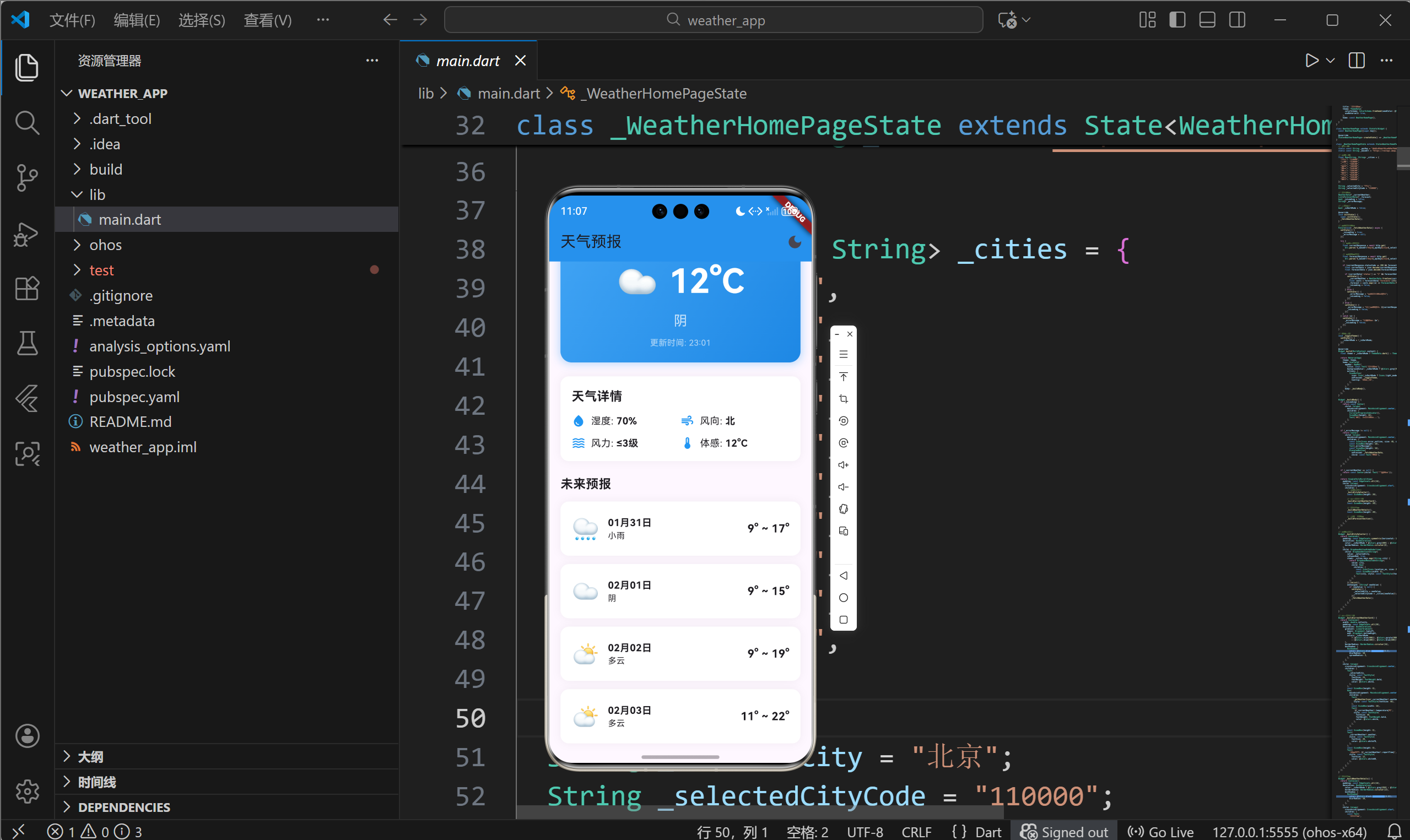
优秀的用户界面是提升应用体验的关键。本文以天气预报应用为例,深入讲解Flutter for OpenHarmony平台上的UI设计技巧,包括卡片式布局、主题切换系统、响应式设计、状态反馈等内容。通过本文学习,读者将掌握Flutter的Widget组合技巧,了解Material Design设计语言在鸿蒙平台上的实现方法。
一、UI设计原则与布局策略
1.1 天气应用UI设计原则
信息层次清晰
- 主要信息(温度、天气)突出显示
- 次要信息(湿度、风力)按重要性排列
- 辅助信息(更新时间)低调呈现
视觉舒适度
- 色彩搭配柔和,避免刺眼
- 留白充足,不拥挤
- 字体大小适中,易读性强
操作便捷性
- 常用功能(切换城市)易于触达
- 状态反馈及时明确
- 错误提示友好清晰
1.2 整体布局结构
天气预报应用采用垂直滚动的单页面布局:
AppBar (固定顶部)
    ↓
SingleChildScrollView (可滚动区域)
    ├── CitySelector (城市选择器)
    ├── CurrentWeatherCard (当前天气卡片)
    ├── WeatherDetails (天气详情网格)
    └── ForecastSection (未来预报列表)
布局优势
- 单页面减少导航复杂性
- 垂直滚动适合信息展示
- 模块化设计便于维护
1.3 布局Widget选择
| Widget | 用途 | 特点 |
|---|---|---|
| Column | 垂直排列子组件 | 主轴为垂直方向 |
| Row | 水平排列子组件 | 主轴为水平方向 |
| Container | 单个子组件容器 | 支持装饰和变换 |
| Expanded | 占据剩余空间 | 按比例分配空间 |
| SingleChildScrollView | 可滚动区域 | 支持单个子组件 |
二、卡片式组件设计
2.1 卡片设计规范
卡片是Material Design的核心组件,特点包括:
视觉特征
- 圆角边界(通常8-16px)
- 投影效果营造层次
- 内边距保证内容不拥挤
- 纯色或渐变背景
功能特征
- 独立的信息单元
- 可点击触发操作
- 支持动画过渡
2.2 当前天气卡片
当前天气卡片是应用的视觉焦点:
dart
Widget _buildCurrentWeatherCard() {
  return Container(
    width: double.infinity,
    padding: const EdgeInsets.all(20),
    decoration: BoxDecoration(
      // 渐变背景
      gradient: LinearGradient(
        begin: Alignment.topLeft,
        end: Alignment.bottomRight,
        colors: _isDarkMode
            ? [Colors.blue[900]!, Colors.purple[900]!]
            : [Colors.blue[400]!, Colors.blue[600]!],
      ),
      // 圆角
      borderRadius: BorderRadius.circular(16),
      // 阴影效果
      boxShadow: [
        BoxShadow(
          color: Colors.blue.withOpacity(0.3),
          blurRadius: 10,
          spreadRadius: 2,
        ),
      ],
    ),
    child: Column(
      crossAxisAlignment: CrossAxisAlignment.center,
      children: [
        // 城市名称
        Text(
          _selectedCity,
          style: const TextStyle(
            fontSize: 24,
            fontWeight: FontWeight.bold,
            color: Colors.white,
          ),
        ),
        const SizedBox(height: 8),

        // 天气图标和温度
        Row(
          mainAxisAlignment: MainAxisAlignment.center,
          children: [
            Text(
              _getWeatherIcon(_currentWeather!.weather),
              style: const TextStyle(fontSize: 48),
            ),
            const SizedBox(width: 16),
            Text(
              '${_currentWeather!.temperature}°C',
              style: const TextStyle(
                fontSize: 48,
                fontWeight: FontWeight.bold,
                color: Colors.white,
              ),
            ),
          ],
        ),
        const SizedBox(height: 8),

        // 天气描述
        Text(
          _currentWeather!.weather,
          style: const TextStyle(
            fontSize: 20,
            color: Colors.white70,
          ),
        ),
        const SizedBox(height: 8),

        // 更新时间
        Text(
          '更新时间: ${_currentWeather!.reportTime}',
          style: const TextStyle(
            fontSize: 12,
            color: Colors.white60,
          ),
        ),
      ],
    ),
  );
}
设计要点分析
- 渐变背景增强视觉吸引力
- 大字号温度突出核心信息
- 天气图标增加趣味性
- 白色文字确保可读性
2.3 天气详情卡片
天气详情采用网格布局展示多维度数据:
dart
Widget _buildWeatherDetails() {
  return Container(
    padding: const EdgeInsets.all(16),
    decoration: BoxDecoration(
      color: _isDarkMode ? Colors.grey[850] : Colors.white,
      borderRadius: BorderRadius.circular(12),
      boxShadow: [
        BoxShadow(
          color: Colors.black.withOpacity(0.05),
          blurRadius: 10,
        ),
      ],
    ),
    child: Column(
      crossAxisAlignment: CrossAxisAlignment.start,
      children: [
        const Text(
          '天气详情',
          style: TextStyle(
            fontSize: 18,
            fontWeight: FontWeight.bold,
          ),
        ),
        const SizedBox(height: 12),

        // 第一行:湿度和风向
        Row(
          children: [
            Expanded(
              child: _buildDetailItem(
                Icons.water_drop,
                '湿度',
                '${_currentWeather!.humidity}%',
              ),
            ),
            Expanded(
              child: _buildDetailItem(
                Icons.air,
                '风向',
                _currentWeather!.windDirection,
              ),
            ),
          ],
        ),
        const SizedBox(height: 12),

        // 第二行:风力和体感
        Row(
          children: [
            Expanded(
              child: _buildDetailItem(
                Icons.waves,
                '风力',
                '${_currentWeather!.windPower}级',
              ),
            ),
            Expanded(
              child: _buildDetailItem(
                Icons.thermostat,
                '体感',
                '${_currentWeather!.temperature}°C',
              ),
            ),
          ],
        ),
      ],
    ),
  );
}

Widget _buildDetailItem(IconData icon, String label, String value) {
  return Row(
    children: [
      Icon(icon, size: 20, color: Colors.blue),
      const SizedBox(width: 8),
      Text(
        '$label: ',
        style: const TextStyle(fontSize: 14),
      ),
      Text(
        value,
        style: const TextStyle(
          fontSize: 14,
          fontWeight: FontWeight.bold,
        ),
      ),
    ],
  );
}
布局技巧
- 使用Row和Expanded实现2x2网格
- 图标增强信息识别度
- Expanded确保等宽分布
- SizedBox控制行间距
2.4 预报卡片列表
dart
Widget _buildForecastSection() {
  return Column(
    crossAxisAlignment: CrossAxisAlignment.start,
    children: [
      const Text(
        '未来预报',
        style: TextStyle(
          fontSize: 18,
          fontWeight: FontWeight.bold,
        ),
      ),
      const SizedBox(height: 12),
      // 使用展开运算符生成卡片列表
      ...(_forecast?.map((data) => _buildForecastCard(data)) ?? []),
    ],
  );
}

Widget _buildForecastCard(ForecastData data) {
  return Container(
    margin: const EdgeInsets.only(bottom: 12),
    padding: const EdgeInsets.all(16),
    decoration: BoxDecoration(
      color: _isDarkMode ? Colors.grey[850] : Colors.white,
      borderRadius: BorderRadius.circular(12),
      boxShadow: [
        BoxShadow(
          color: Colors.black.withOpacity(0.05),
          blurRadius: 10,
        ),
      ],
    ),
    child: Row(
      mainAxisAlignment: MainAxisAlignment.spaceBetween,
      children: [
        // 左侧:图标和日期
        Row(
          children: [
            Text(
              _getWeatherIcon(data.dayWeather),
              style: const TextStyle(fontSize: 32),
            ),
            const SizedBox(width: 12),
            Column(
              crossAxisAlignment: CrossAxisAlignment.start,
              children: [
                Text(
                  data.date,
                  style: const TextStyle(
                    fontSize: 14,
                    fontWeight: FontWeight.bold,
                  ),
                ),
                Text(
                  data.dayWeather,
                  style: const TextStyle(fontSize: 12),
                ),
              ],
            ),
          ],
        ),
        // 右侧:温度范围
        Text(
          '${data.nightTemp}° ~ ${data.dayTemp}°',
          style: const TextStyle(
            fontSize: 16,
            fontWeight: FontWeight.bold,
          ),
        ),
      ],
    ),
  );
}
设计特点
- 每个预报项独立成卡片
- 日期和天气描述垂直排列
- 温度范围右对齐突出显示
- 底部间距分隔各卡片
三、主题系统实现
3.1 Flutter主题系统概述
Flutter使用ThemeData统一定义应用的外观:
dart
MaterialApp(
  theme: ThemeData(
    // 主色调
    primarySwatch: Colors.blue,

    // 卡片主题
    cardTheme: CardTheme(
      elevation: 4,
      shape: RoundedRectangleBorder(
        borderRadius: BorderRadius.circular(12),
      ),
    ),

    // 文本主题
    textTheme: TextTheme(
      titleLarge: TextStyle(fontSize: 24),
    ),
  ),
  home: MyHomePage(),
);
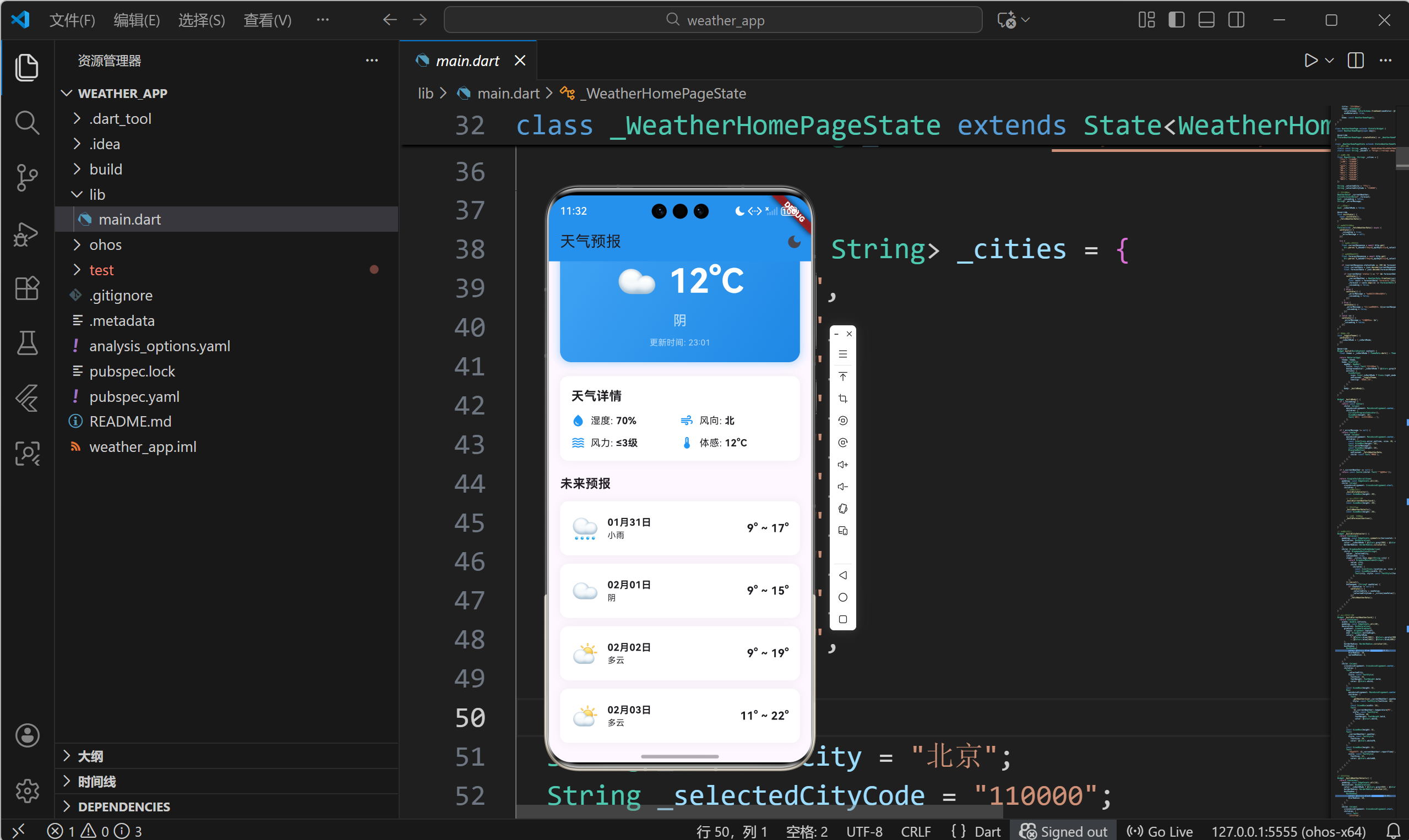
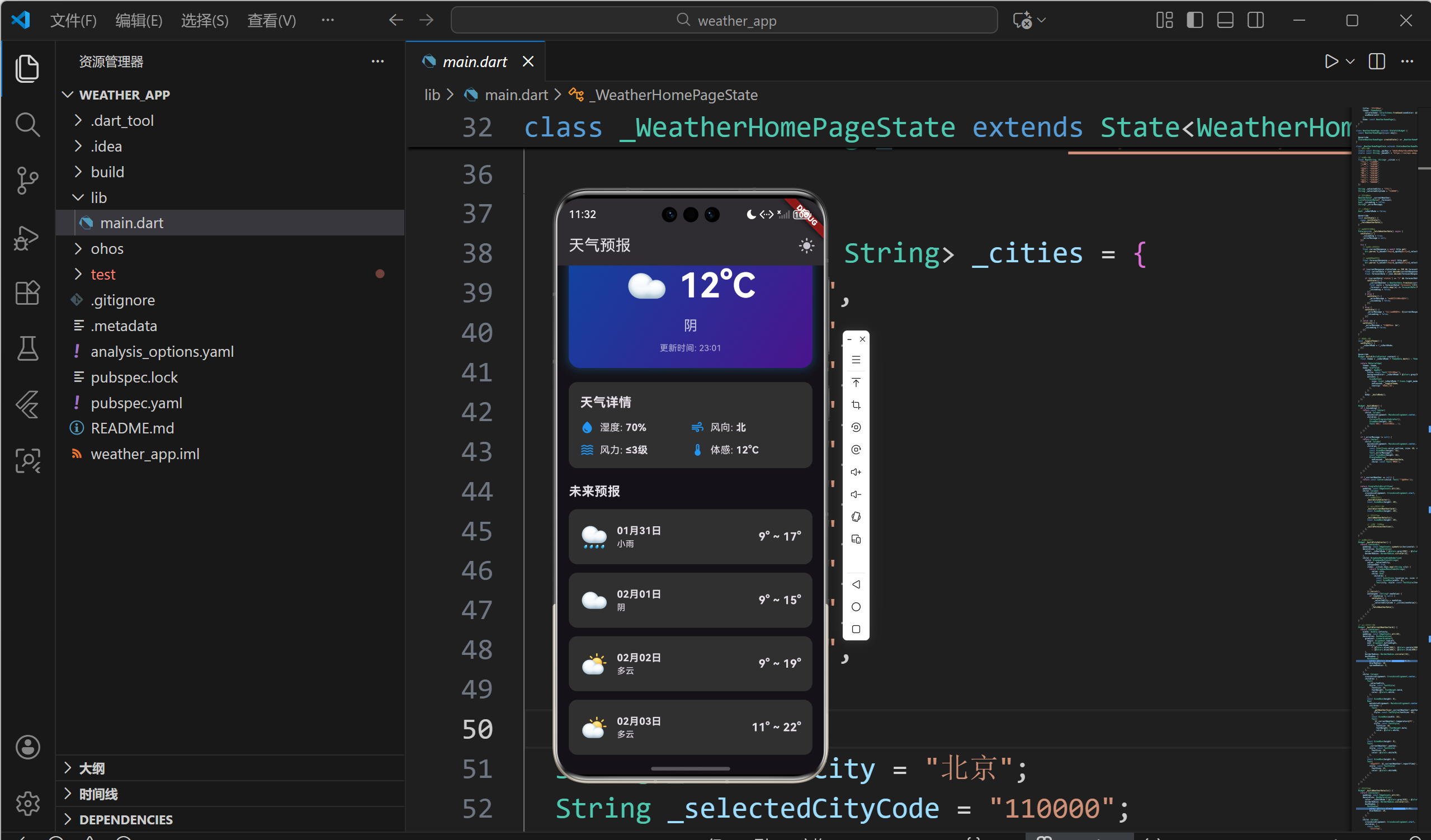
3.2 日间/夜间主题切换
状态管理
dart
class _WeatherHomePageState extends State<WeatherHomePage> {
  bool _isDarkMode = false;

  void _toggleTheme() {
    setState(() {
      _isDarkMode = !_isDarkMode;
    });
  }
}
动态应用主题
dart
@override
Widget build(BuildContext context) {
  // 根据状态创建主题
  final theme = _isDarkMode ? ThemeData.dark() : ThemeData.light();

  return MaterialApp(
    theme: theme,
    home: Scaffold(
      appBar: AppBar(
        backgroundColor: _isDarkMode ? Colors.grey[900] : Colors.blue,
        title: const Text('天气预报'),
        actions: [
          // 主题切换按钮
          IconButton(
            icon: Icon(_isDarkMode ? Icons.light_mode : Icons.dark_mode),
            onPressed: _toggleTheme,
            tooltip: '切换主题',
          ),
        ],
      ),
      body: _buildBody(),
    ),
  );
}
3.3 组件级主题适配
所有UI组件都需要根据主题模式调整颜色:
dart
// 背景色适配
decoration: BoxDecoration(
  color: _isDarkMode ? Colors.grey[850] : Colors.white,
),

// 文字颜色适配
style: TextStyle(
  color: _isDarkMode ? Colors.white70 : Colors.black87,
),

// 图标颜色适配
Icon(
  Icons.location_on,
  color: _isDarkMode ? Colors.blue[300] : Colors.blue[700],
),
3.4 渐变色主题适配
dart
decoration: BoxDecoration(
  gradient: LinearGradient(
    begin: Alignment.topLeft,
    end: Alignment.bottomRight,
    // 根据主题使用不同渐变
    colors: _isDarkMode
        ? [Colors.blue[900]!, Colors.purple[900]!]
        : [Colors.blue[400]!, Colors.blue[600]!],
  ),
),
四、响应式布局适配
4.1 屏幕尺寸适配
使用MediaQuery获取屏幕信息:
dart
Widget build(BuildContext context) {
  // 获取屏幕宽度
  final screenWidth = MediaQuery.of(context).size.width;

  // 根据屏幕宽度调整布局
  final crossAxisCount = screenWidth > 600 ? 2 : 1;

  return GridView.count(
    crossAxisCount: crossAxisCount,
    // ...
  );
}
4.2 使用Expanded实现弹性布局
dart
Row(
  children: [
    // 固定宽度
    Container(
      width: 50,
      child: Icon(Icons.menu),
    ),
    // 占据剩余空间
    Expanded(
      child: Text('标题'),
    ),
    // 固定宽度
    Container(
      width: 50,
      child: Icon(Icons.search),
    ),
  ],
)
4.3 使用AspectRatio保持宽高比
dart
AspectRatio(
  aspectRatio: 16 / 9,
  child: Container(
    // 内容
  ),
)
4.4 使用Flexible和Expanded
dart
Row(
  children: [
    // Flexible按比例分配空间
    Flexible(
      flex: 1,
      child: Container(color: Colors.red),
    ),
    Flexible(
      flex: 2,
      child: Container(color: Colors.blue),
    ),
    // Expanded占据所有剩余空间
    Expanded(
      child: Container(color: Colors.green),
    ),
  ],
)
五、加载状态与错误提示
5.1 三种状态设计
应用需要处理三种主要状态:
dart
enum LoadingState {
  loading,    // 加载中
  success,    // 成功
  error,      // 错误
}
5.2 加载状态UI
dart
if (_isLoading) {
  return const Center(
    child: Column(
      mainAxisAlignment: MainAxisAlignment.center,
      children: [
        CircularProgressIndicator(),
        SizedBox(height: 16),
        Text('正在加载天气数据...'),
      ],
    ),
  );
}
设计要点
- CircularProgressIndicator提供视觉反馈
- 文字说明当前操作
- 垂直居中排列
5.3 错误状态UI
dart
if (_errorMessage != null) {
  return Center(
    child: Column(
      mainAxisAlignment: MainAxisAlignment.center,
      children: [
        // 错误图标
        const Icon(
          Icons.error_outline,
          size: 48,
          color: Colors.red,
        ),
        const SizedBox(height: 16),
        // 错误信息
        Text(_errorMessage!),
        const SizedBox(height: 16),
        // 重试按钮
        ElevatedButton(
          onPressed: _fetchWeatherData,
          child: const Text('重试'),
        ),
      ],
    ),
  );
}
5.4 空状态UI
dart
if (_currentWeather == null) {
  return const Center(
    child: Column(
      mainAxisAlignment: MainAxisAlignment.center,
      children: [
        Icon(
          Icons.cloud_off,
          size: 64,
          color: Colors.grey,
        ),
        SizedBox(height: 16),
        Text(
          '暂无天气数据',
          style: TextStyle(
            fontSize: 16,
            color: Colors.grey,
          ),
        ),
      ],
    ),
  );
}
六、动画与交互优化
6.1 AnimatedSwitcher实现淡入淡出
dart
AnimatedSwitcher(
  duration: const Duration(milliseconds: 300),
  child: _isLoading
      ? const CircularProgressIndicator(key: ValueKey('loading'))
      : const Icon(Icons.check, key: ValueKey('success')),
)
6.2 按钮点击效果
dart
ElevatedButton(
  style: ElevatedButton.styleFrom(
    // 点击时的缩放效果
    animationDuration: const Duration(milliseconds: 100),
  ),
  onPressed: () {},
  child: const Text('刷新'),
)
6.3 列表项滑动动画
dart
ListView.builder(
  itemBuilder: (context, index) {
    return TweenAnimationBuilder(
      duration: Duration(milliseconds: 300 + index * 50),
      tween: Tween(begin: 0.0, end: 1.0),
      builder: (context, double value, child) {
        return Opacity(
          opacity: value,
          child: Transform.translate(
            offset: Offset(0, 50 * (1 - value)),
            child: child,
          ),
        );
      },
      child: _buildForecastCard(_forecast![index]),
    );
  },
)
6.4 手势交互
dart
GestureDetector(
  onTap: () {
    // 点击处理
  },
  onLongPress: () {
    // 长按处理
  },
  child: Container(
    // 内容
  ),
)
七、完整UI代码解析
7.1 城市选择器
dart
Widget _buildCitySelector() {
  return Container(
    padding: const EdgeInsets.symmetric(horizontal: 12),
    decoration: BoxDecoration(
      color: _isDarkMode ? Colors.grey[800] : Colors.grey[200],
      borderRadius: BorderRadius.circular(8),
    ),
    child: DropdownButtonHideUnderline(
      child: DropdownButton<String>(
        value: _selectedCity,
        isExpanded: true,
        dropdownColor: _isDarkMode ? Colors.grey[800] : Colors.white,
        style: TextStyle(
          color: _isDarkMode ? Colors.white : Colors.black,
          fontSize: 16,
        ),
        items: _cities.keys.map((String city) {
          return DropdownMenuItem<String>(
            value: city,
            child: Row(
              children: [
                const Icon(Icons.location_on, size: 20),
                const SizedBox(width: 8),
                Text(city),
              ],
            ),
          );
        }).toList(),
        onChanged: (String? newValue) {
          if (newValue != null) {
            setState(() {
              _selectedCity = newValue;
              _selectedCityCode = _cities[newValue]!;
            });
            _fetchWeatherData();
          }
        },
      ),
    ),
  );
}
7.2 天气图标映射
dart
String _getWeatherIcon(String weather) {
  if (weather.contains('晴')) return '☀️';
  if (weather.contains('多云')) return '⛅';
  if (weather.contains('阴')) return '☁️';
  if (weather.contains('雨')) return '🌧️';
  if (weather.contains('雪')) return '❄️';
  if (weather.contains('雾') || weather.contains('霾')) return '🌫️';
  return '🌤️';
}
7.3 主题切换按钮
dart
AppBar(
  backgroundColor: _isDarkMode ? Colors.grey[900] : Colors.blue,
  title: const Text('天气预报'),
  actions: [
    IconButton(
      icon: Icon(_isDarkMode ? Icons.light_mode : Icons.dark_mode),
      onPressed: _toggleTheme,
      tooltip: '切换主题',
    ),
  ],
)
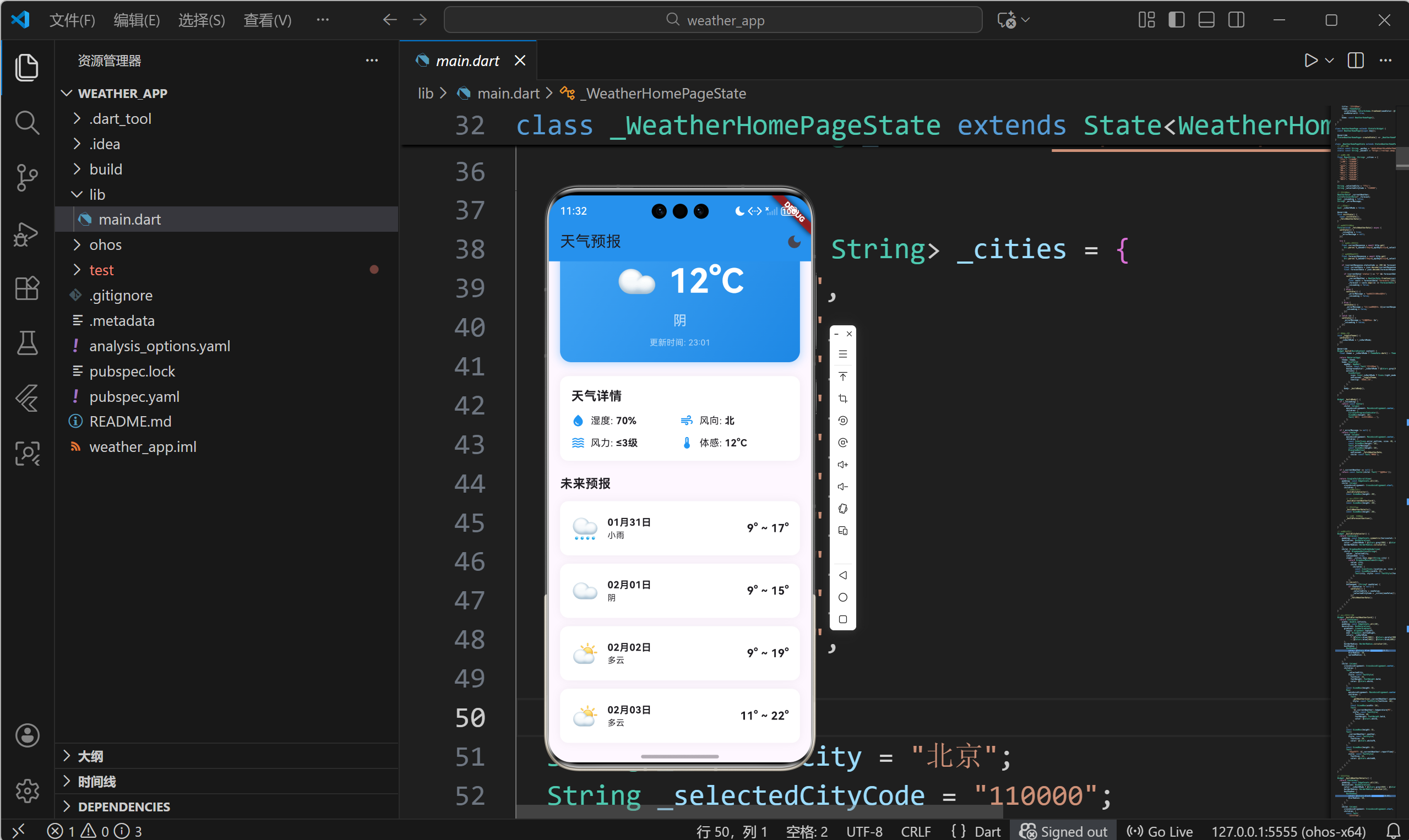
7.4 滚动视图包装
dart
SingleChildScrollView(
  padding: const EdgeInsets.all(16),
  child: Column(
    crossAxisAlignment: CrossAxisAlignment.start,
    children: [
      _buildCitySelector(),
      const SizedBox(height: 20),
      _buildCurrentWeatherCard(),
      const SizedBox(height: 20),
      _buildWeatherDetails(),
      const SizedBox(height: 20),
      _buildForecastSection(),
    ],
  ),
)
八、总结
本文深入讲解了天气预报应用的UI设计与主题切换实现,主要内容包括:
- 卡片式设计:使用Container、BoxDecoration创建美观的卡片组件
- 布局技巧:熟练运用Row、Column、Expanded等Widget
- 主题系统:实现日间/夜间模式切换
- 状态反馈:提供加载、错误、空状态的友好提示
- 响应式设计:适配不同屏幕尺寸
- 交互动画:增强用户体验的细节优化
优秀的UI设计不仅要美观,更要注重用户体验。通过合理的信息层次、清晰的视觉反馈、流畅的交互动画,可以打造出让用户喜爱的应用。Flutter提供了强大的UI工具,开发者可以充分发挥创意,创造出独特而精美的界面。
欢迎加入开源鸿蒙跨平台社区 : 开源鸿蒙跨平台开发者社区