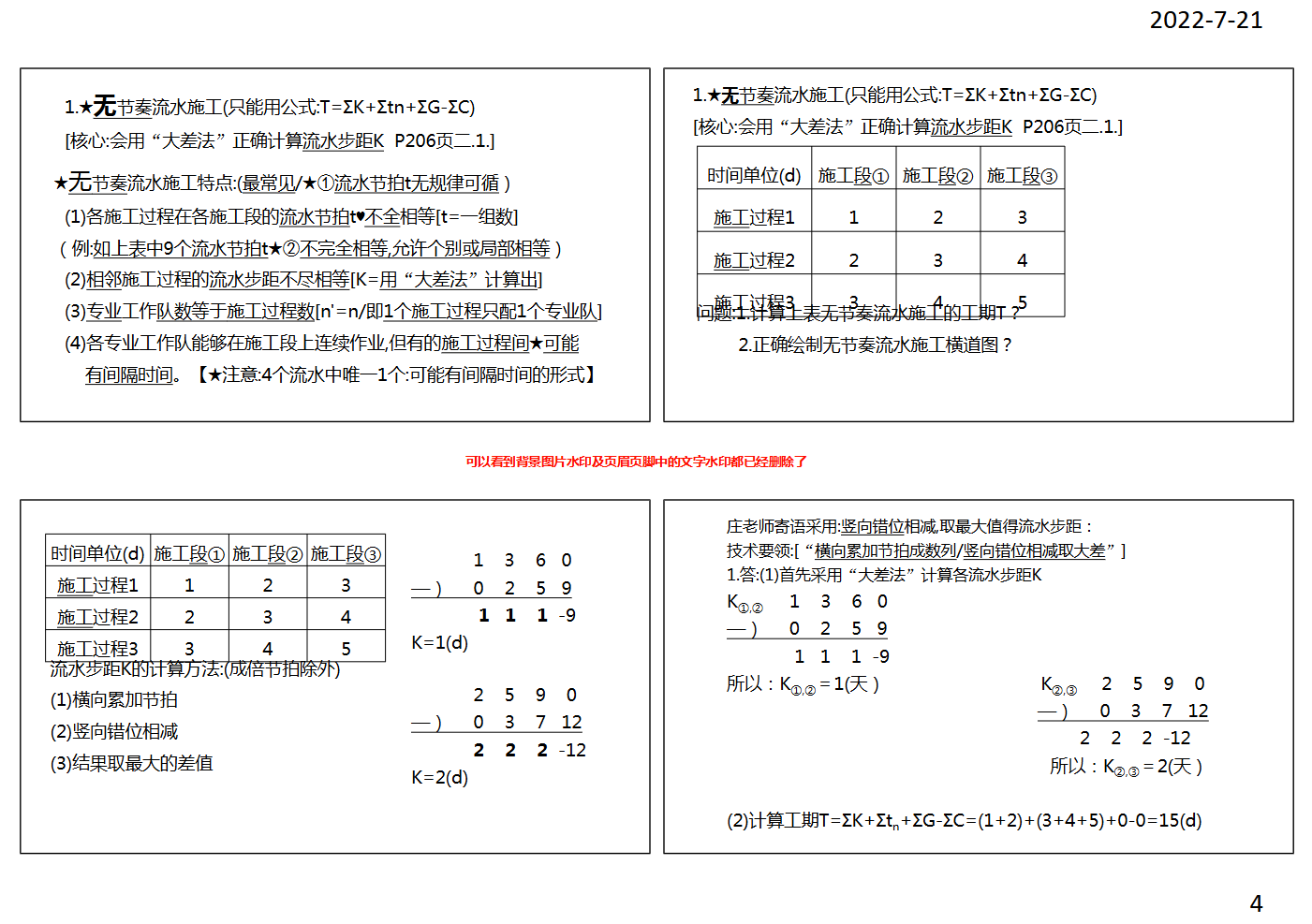
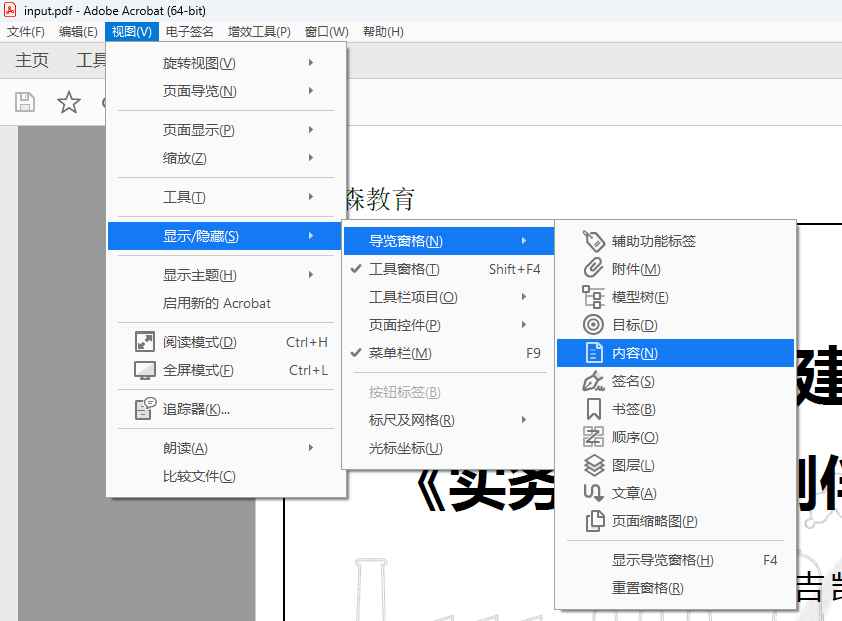
有些网上下载的PDF文档往往被作者添加了水印,有些甚至还加密了。对于加密的PDF文档,用pdf24工具集中的解密工具可以轻松解密,在此不赘述。对于添加的水印,如果知道用于添加水印的PDF编辑软件,那么用原编辑软件也可以轻松批量删除,如果不知道用于添加水印的软件,那就要费一番周折了。通常我们可以用Acrobat Pro打开PDF文件后在导航窗格中显示其内容,从而观察页面结构,如下图:
然后在导航窗格中依次选择各个对象,同时观察页面中的高亮标记,就能找出哪一个对象是水印,如下图:
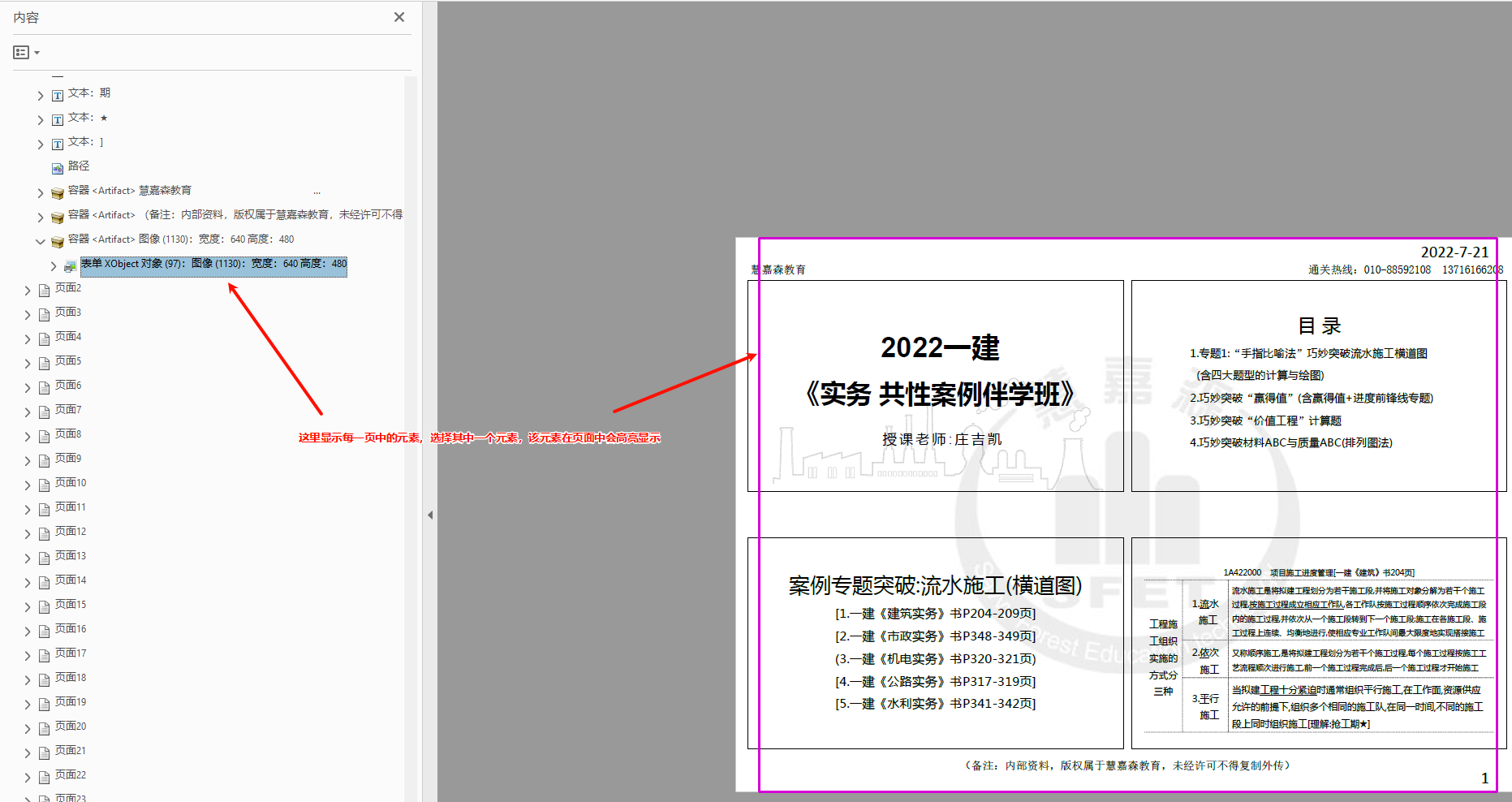
这时候只要将选择的对象删除,即可删除相应的水印。不过,如果页面较多的话,估计没有几个人能够耐着性子一页一页去删除水印。有个Acrobat Pro的插件Enfocus PitStop可以实现批量操作,但又是一个收费软件,而且激活步骤非常复杂。考虑到最常见的水印就是图片水印和文本水印,所以不妨用PyMuPdf库的功能自己手搓一个PDF水印消除程序,如下:
python
import sys
import fitz  # PyMuPDF
import re
from collections import defaultdict


def main():
    if len(sys.argv) > 1:
        pdf_path = sys.argv[1]
    else:
        pdf_path = input("请输入 PDF 文件路径: ").strip()

    try:
        doc = fitz.open(pdf_path)
    except Exception as e:
        print(f"❌ 打开 PDF 失败: {e}")
        return

    print(f"✅ 成功打开 PDF,共 {len(doc)} 页\n")

    while True:
        print("请选择功能:")
        print("1. 自动检测并删除超过75%页面共有的相同尺寸图片")
        print("2. 输入宽度和高度,删除匹配尺寸的图片")
        print("3. 输入正则表达式,删除匹配的文本")
        print("4. 保存修改并退出")

        choice = input("请输入选择 (1-4): ").strip()

        if choice == "1":
            auto_remove_common_images(doc)
        elif choice == "2":
            try:
                w = float(input("请输入宽度 (points): "))
                h = float(input("请输入高度 (points): "))
                remove_images_by_size(doc, w, h)
            except ValueError:
                print("❌ 输入无效,请输入数字")
        elif choice == "3":
            regex_str = input("请输入正则表达式: ").strip()
            remove_text_by_regex(doc, regex_str)
        elif choice == "4":
            output_path = (
                pdf_path.replace(".pdf", "_processed.pdf")
                if pdf_path.lower().endswith(".pdf")
                else pdf_path + "_processed.pdf"
            )
            try:
                doc.save(output_path, garbage=4, deflate=True, clean=True)
                print(f"✅ 已保存处理后的文件: {output_path}")
            except Exception as e:
                print(f"❌ 保存失败: {e}")
            doc.close()
            break
        else:
            print("❌ 无效选择,请重新输入")


def auto_remove_common_images(doc):
    """
    自动检测每页中的图片,在75%以上页面中出现的尺寸相同的图片推定为图片水印并予以删除
    """
    size_to_page_count = defaultdict(int)
    total_pages = len(doc)

    for p in range(total_pages):
        page = doc[p]
        page_sizes = set()
        for img in page.get_images(full=True):
            xref = img[0]
            for rect in page.get_image_rects(xref):
                w = round(rect.width, 1)
                h = round(rect.height, 1)
                page_sizes.add((w, h))
        for sz in page_sizes:
            size_to_page_count[sz] += 1

    threshold = 0.75 * total_pages
    qualifying_sizes = [sz for sz, cnt in size_to_page_count.items() if cnt > threshold]

    if not qualifying_sizes:
        print("✅ 没有找到超过 75% 页面共有的相同尺寸图片")
        return

    print(f"发现以下尺寸在超过 75% 页面出现,将进行删除:")
    for sz in qualifying_sizes:
        print(f"   • {sz[0]} × {sz[1]} points(出现在 {size_to_page_count[sz]} 页)")

    total_removed = 0
    for sz in qualifying_sizes:
        total_removed += remove_images_by_size(doc, sz[0], sz[1], silent=True)
    print(f"✅ 共删除 {total_removed} 个图片实例")


def remove_images_by_size(doc, target_w, target_h, silent=False):
    """
    通过指定图片的精确尺寸/最小尺寸删除图片水印
    """
    target_w = round(target_w, 1)
    target_h = round(target_h, 1)
    removed = 0
    for page in doc:
        to_redact = []
        for img in page.get_images(full=True):
            xref = img[0]
            for rect in page.get_image_rects(xref):
                if (
                    abs(round(rect.width, 1) - target_w) < 0.1
                    and abs(round(rect.height, 1) - target_h)
                    < 0.1  # 删除相同尺寸图片,适用于输入精确图片尺寸
                    # round(rect.width, 1) >= target_w
                    # and round(rect.height, 1) >= target_h  # 删除宽度及高度大不小于指定值的图片,适用于输入图片尺寸的大致值
                ):
                    page.delete_image(xref)  # 将图片数据直接删除
                    removed += 1

    if not silent:
        print(f"✅ 已删除 {removed} 个尺寸为 {target_w}×{target_h} 的图片实例")
    return removed


def remove_text_by_regex(doc, regex_str):
    """
    覆盖文本水印
    """
    try:
        pattern = re.compile(regex_str)
    except re.error as e:
        print(f"❌ 正则表达式语法错误: {e}")
        return

    removed = 0
    for page in doc:
        to_redact = []
        text_dict = page.get_text("dict")
        for block in text_dict.get("blocks", []):
            if block["type"] != 0:  # 只处理文本块(type=0)
                continue
            for line in block.get("lines", []):
                for span in line.get("spans", []):
                    if pattern.search(span.get("text", "")):
                        to_redact.append(
                            fitz.Rect(span["bbox"])
                        )  # pymupdf无法删除文本,采取红action进行"视觉删除 + 内容层移除"
        if to_redact:
            for r in to_redact:
                page.add_redact_annot(
                    r, fill=(1, 1, 1)
                )  # 填充矩形进行视觉删除,如果水印下方有内容,会被白色矩形覆盖
            page.apply_redactions()  # 移除文本
            removed += len(to_redact)
    print(f"✅ 已删除 {removed} 个匹配正则表达式的文本片段")


if __name__ == "__main__":
    main()
当然,上面的程序还很有局限性,例如如果文字水印是半透明的且下层还有内容,消除文字水印后下层内容会被白色矩形覆盖,但对于大多数常见情形,还是可以取得满意的处理效果。以下是示例文件使用上述程序处理的过程及结果:
bash
(venv) PS E:\projects\python\pdftool> & e:/projects/python/pdftool/venv/Scripts/python.exe e:/projects/python/pdftool/pdf_cleaner.py
请输入 PDF 文件路径: input.pdf
✅ 成功打开 PDF,共 32 页

请选择功能:
1. 自动检测并删除超过75%页面共有的相同尺寸图片
2. 输入宽度和高度,删除匹配尺寸的图片
3. 输入正则表达式,删除匹配的文本
4. 保存修改并退出
请输入选择 (1-4): 3
请输入正则表达式: .*慧嘉森教育.*
✅ 已删除 64 个匹配正则表达式的文本片段
请选择功能:
1. 自动检测并删除超过75%页面共有的相同尺寸图片
2. 输入宽度和高度,删除匹配尺寸的图片
3. 输入正则表达式,删除匹配的文本
4. 保存修改并退出
请输入选择 (1-4): 1
发现以下尺寸在超过 75% 页面出现,将进行删除:
   • 793.7 × 595.3 points(出现在 32 页)
✅ 共删除 32 个图片实例
请选择功能:
1. 自动检测并删除超过75%页面共有的相同尺寸图片
2. 输入宽度和高度,删除匹配尺寸的图片
3. 输入正则表达式,删除匹配的文本
4. 保存修改并退出
请输入选择 (1-4): 4
✅ 已保存处理后的文件: input_processed.pdf