MCP(Model Context Protocol,模型上下文协议)是 Anthropic 推出的开放标准协议,为 AI 应用提供了统一的方式来连接外部数据源和工具。你可以把 MCP 理解为 AI 世界的"USB-C 接口"------一个协议,即可让 AI 模型访问文件系统、数据库、搜索引擎等各类外部资源。本教程将带你在 Windows 系统上从概念到实战,全面掌握 MCP。
一、MCP 核心概念
架构总览
MCP 采用客户端-服务端架构,包含三个核心角色:
- Host(宿主):发起连接的 AI 应用,例如 Claude Desktop、Claude CLI、Cursor 等
- Client(客户端):Host 内部的 MCP 客户端,负责与 Server 建立一对一连接
- Server(服务端):轻量级程序,通过 MCP 协议向 Client 暴露特定能力
arduino
┌─────────────────────────────────────────┐
│  Host(Claude Desktop / CLI)            │
│                                         │
│  ┌──────────┐  ┌──────────┐            │
│  │ Client A │  │ Client B │  ...       │
│  └────┬─────┘  └────┬─────┘            │
└───────┼──────────────┼──────────────────┘
        │              │
   ┌────▼─────┐  ┌────▼─────┐
   │ Server A │  │ Server B │
   │(filesystem)│ │(search)  │
   └──────────┘  └──────────┘
通信方式
MCP 支持两种传输方式:
| 传输方式 | 说明 | 适用场景 |
|---|---|---|
| stdio | 通过标准输入/输出通信 | 本地 Server,最常用 |
| SSE | 通过 HTTP Server-Sent Events 通信 | 远程 Server,需网络访问 |
三大原语
MCP Server 可以向 Host 暴露三种能力:
- Tools(工具):模型可以调用的函数,例如"搜索网页"、"读取文件"、"执行 SQL"
- Resources(资源):模型可以读取的数据,类似 REST API 的 GET 端点
- Prompts(提示模板):预定义的交互模板,帮助用户快速完成特定任务
其中 Tools 是目前最常用的原语,大多数 MCP Server 都以 Tool 的形式提供能力。
二、环境准备
基础环境
确保你的 Windows 系统已安装以下工具:
- Node.js 18+ 和 npm:用于运行基于 Node.js 的 MCP Server
- Python 3.10+ 和 uv(可选):用于运行基于 Python 的 MCP Server
- Claude Desktop 或 Claude CLI:作为 MCP 的 Host
安装 Node.js
如果尚未安装,前往 nodejs.org 下载最新 LTS 版本。验证安装:
powershell
node --version
npm --version
安装 Python 和 uv(可选)
部分 MCP Server 使用 Python 编写,需要通过 uvx 运行:
powershell
# 安装 uv(Python 包管理工具)
powershell -ExecutionPolicy ByPass -c "irm https://astral.sh/uv/install.ps1 | iex"
安装完成后重新打开 PowerShell 验证:
powershell
uv --version
uvx --version
安装 Claude CLI
如果尚未安装 Claude CLI:
powershell
npm install -g @anthropic-ai/claude-code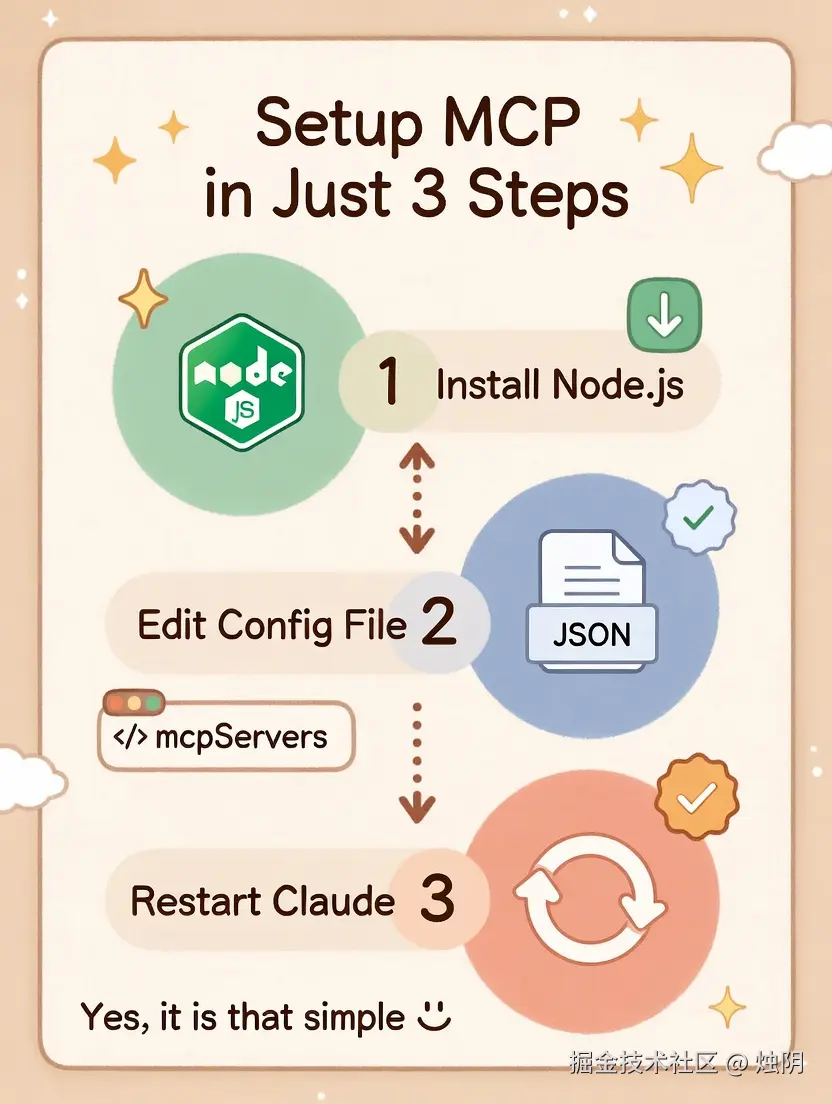
三、在 Claude CLI 中配置 MCP
Claude CLI 提供了命令行和配置文件两种方式来管理 MCP Server。
方式一:使用 claude mcp add 命令
powershell
# 添加 filesystem server
claude mcp add filesystem -s user -- npx -y @modelcontextprotocol/server-filesystem C:\Users\你的用户名\Documents
参数说明:
| 参数 | 说明 |
|---|---|
filesystem |
Server 名称(自定义,用于标识) |
-s user |
作用域:user(全局)或 project(当前项目) |
-- |
分隔符,之后的内容为 Server 启动命令 |
常用管理命令
powershell
# 查看已配置的 MCP Server
claude mcp list

# 查看某个 Server 的详细信息
claude mcp get filesystem

# 移除某个 Server
claude mcp remove filesystem
方式二:手动编辑配置文件
Claude CLI 的 MCP 配置存储在 settings.json 中:
- 全局配置 :
C:\Users\你的用户名\.claude\settings.json - 项目配置 :
项目根目录\.claude\settings.json
手动添加 MCP Server 示例:
json
{
  "mcpServers": {
    "filesystem": {
      "command": "npx",
      "args": [
        "-y",
        "@modelcontextprotocol/server-filesystem",
        "C:\\Users\\你的用户名\\Documents"
      ]
    }
  }
}
在 CLI 中验证
启动 Claude CLI 后,使用 /mcp 命令查看当前连接的 MCP Server 状态:
bash
/mcp输出中可以看到每个 Server 的名称、状态和提供的工具数量。
四、实战演示
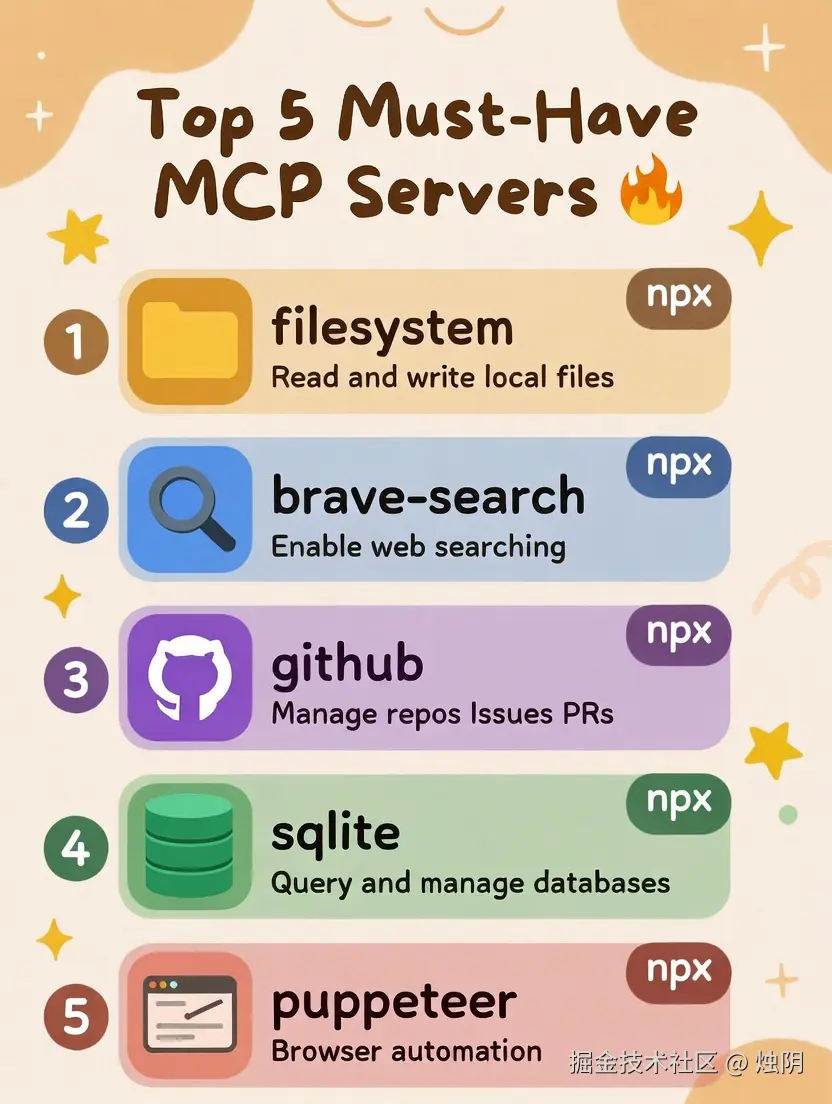
场景一:用 Filesystem MCP 管理项目文件
配置好 Filesystem Server 后,你可以直接让 Claude 操作项目文件:
shell
> 读取 C:\Users\我\projects\myapp\package.json,列出所有依赖的版本

> 在 C:\Users\我\Documents\notes 目录下创建一个 todo.md,内容是本周的工作计划

> 找出 src 目录下所有包含 "TODO" 注释的文件
场景二:用 Brave Search MCP 联网搜索
配置好 Brave Search Server 后,Claude 具备了实时联网能力:
markdown
> 搜索 2026 年最新的 React 状态管理方案对比

> 搜索 Windows 11 最新的 PowerShell 更新内容
场景三:用 GitHub MCP 管理仓库
配置好 GitHub Server 后,可以直接通过对话管理仓库:
shell
> 列出我的 GitHub 仓库中所有 open 状态的 issue

> 为 myapp 仓库创建一个新的 issue,标题是"优化首页加载速度"

> 查看 myapp 仓库最近的 5 个 pull request
场景四:多个 MCP Server 协同工作
MCP 的强大之处在于多个 Server 可以协同工作:
arduino
> 搜索最新的 Tailwind CSS v4 变更内容,然后帮我更新项目中的 tailwind.config.ts 文件这条指令中,Claude 会先调用 Brave Search 搜索信息,再调用 Filesystem 读取并修改文件。
五、开发自定义 MCP Server(入门)
如果现有的 MCP Server 不能满足需求,你可以用 TypeScript SDK 快速开发自己的 Server。
初始化项目
powershell
mkdir my-mcp-server
cd my-mcp-server
npm init -y
npm install @modelcontextprotocol/sdk zod
npm install -D typescript @types/node
npx tsc --init
编写 Server 代码
创建 src/index.ts:
typescript
import { McpServer } from '@modelcontextprotocol/sdk/server/mcp.js';
import { StdioServerTransport } from '@modelcontextprotocol/sdk/server/stdio.js';
import { z } from 'zod';

// 创建 MCP Server 实例
const server = new McpServer({
    name: 'my-weather-server',
    version: '1.0.0',
});

// 注册一个 Tool:查询天气
server.tool(
    'get-weather',
    '获取指定城市的天气信息',
    {
        city: z.string().trim().min(1, '城市名称不能为空').describe('城市名称,例如:北京'),
    },
    async ({ city }) => {
        // 使用心知天气 API 获取实时天气
        const SENIVERSE_API_KEY = 'YOUR_API_KEY_HERE';

        const weatherResp = await fetch(
            `https://api.seniverse.com/v3/weather/now.json?key=${encodeURIComponent(SENIVERSE_API_KEY)}&location=${encodeURIComponent(city)}&language=zh-Hans&unit=c`,
        );
        if (!weatherResp.ok) {
            throw new Error(`心知天气查询失败: HTTP ${weatherResp.status}`);
        }

        const weatherJson = (await weatherResp.json()) as {
            results?: Array<{
                location?: { name?: string };
                now?: { text?: string; temperature?: string; humidity?: string };
            }>;
        };

        const result = weatherJson.results?.[0];
        const now = result?.now;
        if (!result || !now) {
            throw new Error(`未找到城市或天气数据: ${city}`);
        }

        const weatherData = {
            city: result.location?.name ?? city,
            temperature: now.temperature !== undefined ? `${now.temperature}°C` : 'N/A',
            condition: now.text ?? 'N/A',
            humidity: now.humidity !== undefined ? `${now.humidity}%` : 'N/A',
        };

        return {
            content: [
                {
                    type: 'text' as const,
                    text: JSON.stringify(weatherData, null, 2),
                },
            ],
        };
    },
);

// 启动 Server(使用 stdio 传输)
async function main(): Promise<void> {
    const transport = new StdioServerTransport();
    await server.connect(transport);
    console.error('Weather MCP Server is running');
}

main().catch(console.error);
编译与测试
修改 tsconfig.json,确保以下配置:
json
{
  "compilerOptions": {
    "target": "ES2022",
    "module": "Node16",
    "moduleResolution": "Node16",
    "outDir": "./dist",
    "rootDir": "./src",
    "strict": true,
    "esModuleInterop": true
  },
  "include": ["src/**/*"]
}
编译项目:
powershell
npx tsc接入 Claude CLI
powershell
claude mcp add my-weather -s user -- node C:\Users\你的用户名\my-mcp-server\dist\index.js重启 Claude Desktop 或 Claude CLI 后,就可以使用了:
markdown
> 查询北京的天气Claude 会调用你的 get-weather 工具并返回结果。
六、常见问题与排错
Q: Server 启动报错 npx 不是内部或外部命令?
Node.js 未正确安装或 PATH 未配置。在 PowerShell 中验证:
powershell
where.exe npx
# 应输出 npx 的完整路径
如果无输出,重新安装 Node.js 并确保勾选"Add to PATH"选项。
Q: Server 启动报错 uvx 不是内部或外部命令?
需要安装 uv 工具。参考"环境准备"章节中的安装步骤。
Q: 配置了 env 中的 API Key 但仍然报认证失败?
- 检查 Key 是否正确,有无多余空格
- 确保 Key 没有过期
- 修改配置后必须重启 Claude CLI
Q: Claude CLI 中 /mcp 显示 Server 状态为 disconnected?
尝试以下步骤:
powershell
# 查看 Server 详细信息
claude mcp get <server-name>

# 移除并重新添加
claude mcp remove <server-name>
claude mcp add <server-name> -s user -- <command> <args>
七、总结与资源链接
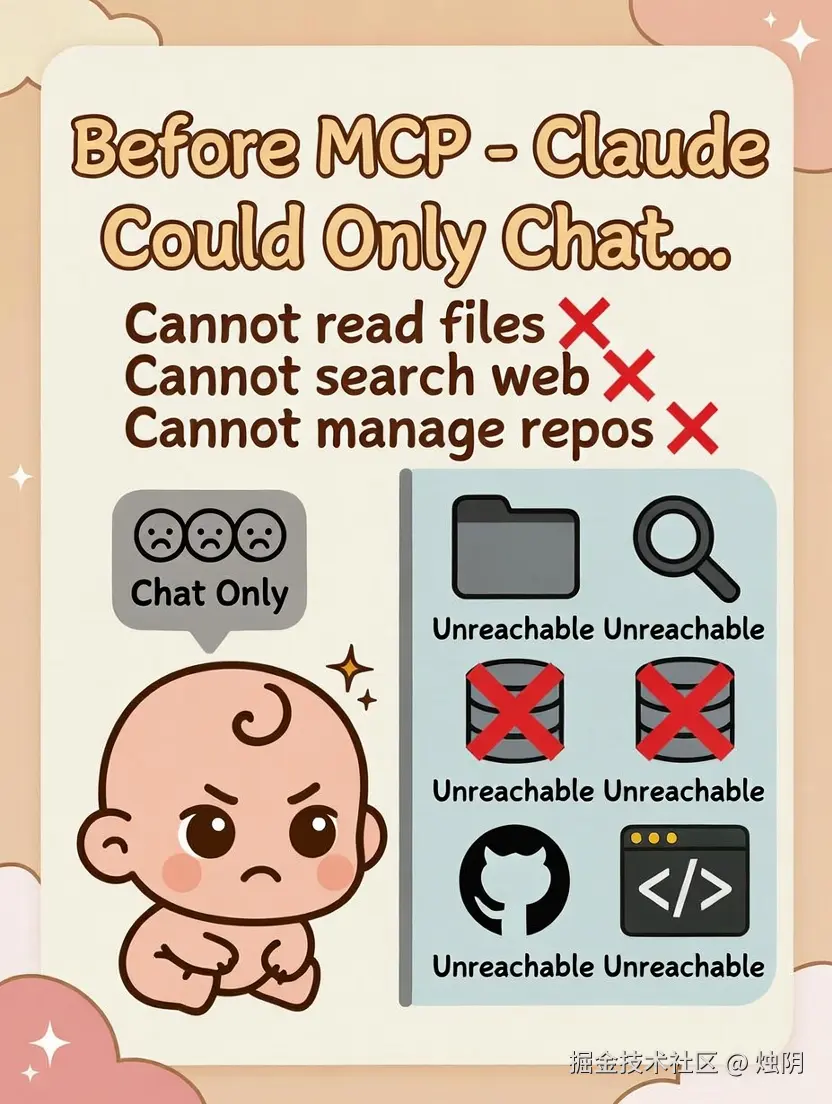
MCP 为 AI 应用提供了标准化的外部集成方式,让 Claude 从一个"只能对话"的模型变成了能够操作文件、搜索网络、管理代码仓库的全能助手。通过本教程,你已经掌握了:
- MCP 的核心架构和概念
- 在 Claude Desktop 和 Claude CLI 中配置 MCP Server 的方法
- 常用 MCP Server 的配置与使用
- 开发自定义 MCP Server 的基础流程
推荐资源:
- 官方文档:modelcontextprotocol.io
- MCP 规范:spec.modelcontextprotocol.io
- TypeScript SDK:github.com/modelcontex...
- Python SDK:github.com/modelcontex...
- 社区 Server 集合:github.com/modelcontex...
- Awesome MCP Servers:github.com/punkpeye/aw...
如果你喜欢本教程,记得点赞+收藏!关注我获取更多Cluade相关技巧