在安卓自动化领域(如任务执行、数据采集、批量操作)中,一个关键能力是:
👉 让脚本"看懂屏幕内容"
而实现这一能力的核心技术就是:
👉 OCR 文字识别 + API 接口调用
本篇文章将带你从 0 到 1 实现:
-
EasyClick 调用 OCR 接口完整流程
-
屏幕截图 → 上传 → 识别 → 获取文字
-
可直接参考的代码示例
-
常见问题与优化方案
一、什么是 OCR?在 EasyClick 中有什么用?
OCR(Optical Character Recognition)可以将图片中的文字提取出来。
在 EasyClick 中的典型应用:
-
自动识别 APP 界面文字
-
自动判断按钮状态(如"领取""完成")
-
自动化执行任务流程
-
数据采集(电商/内容平台)
👉 新手建议先看基础:《文字识别通用OCR接口调用与功能说明》
二、实现原理(核心流程)
EasyClick 调用 OCR API 的标准流程:
👉 5步搞定:
1️⃣ 截图当前屏幕
2️⃣ 保存为图片文件
3️⃣ 调用 OCR API 上传图片
4️⃣ 获取 JSON 返回结果
5️⃣ 提取文字并执行逻辑
三、OCR API 接口说明
接口支持:
-
通用文字识别
-
多语言识别
-
自动纠偏
-
高精度识别
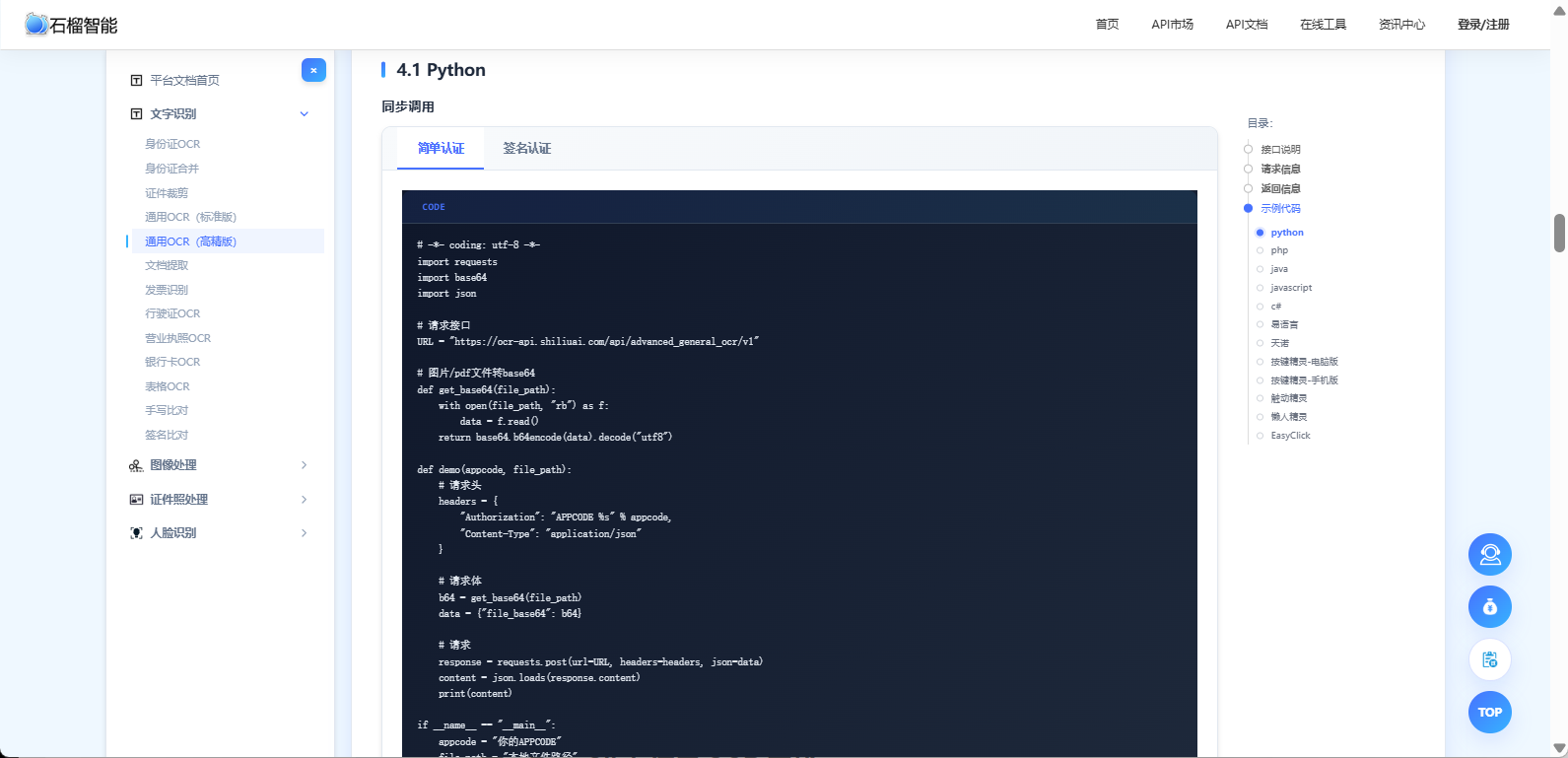
👉 支持免费在线体验,API文档清晰,附带多种语言的接口示例:https://market.shiliuai.com/general-ocr
👉 API 文档
四、EasyClick 调用 OCR 实战
1️⃣ 截图保存
// 截图保存到本地
captureScreen("/sdcard/ocr.png");
2️⃣ 调用 OCR API
// ===========================
// API文档:https://market.shiliuai.com/doc/advanced-general-ocr
// ===========================

function main()
    local request = image.requestScreenCapture(10000, 0)
    if not request then
        request = image.requestScreenCapture(10000, 0)
    end
    local appCode = "你的 APPCODE"
    local img = image.captureFullScreenEx()
    local res = ocr_easy(appCode, img)
    logd(res.success)
end

function ocr_easy(appCode, img)
    local url = "https://ocr-api.shiliuai.com/api/advanced_general_ocr/v1"
    local imgBase64 = image.toBase64Format(img, "jpg", 100)
    image.recycle(img)
    local body = JSON.stringify({ file_base64 = imgBase64 })
    local params = {
        url = url,
        method = "POST",
        headers = {
            ["Authorization"] = "APPCODE " .. appCode,
            ["Content-Type"] = "application/json"
        },
        requestBody = body
    }
    local res = http.request(params)
    return JSON.parse(res.body)
end
3️⃣ 输出返回结果
log(result);4️⃣ 解析识别文字
var data = JSON.parse(result);

if (data.code === 200) {
    var text = data.data.text;
    log("识别内容:" + text);
}
五、完整示例(可直接参考)
// ===========================
// EasyClick OCR 自动识别示例
// API文档:https://market.shiliuai.com/doc/advanced-general-ocr
// ===========================

function main()
    local request = image.requestScreenCapture(10000, 0)
    if not request then
        request = image.requestScreenCapture(10000, 0)
    end
    local appCode = "你的 APPCODE"
    local img = image.captureFullScreenEx()
    local res = ocr_easy(appCode, img)
    logd(res.success)
end

function ocr_easy(appCode, img)
    local url = "https://ocr-api.shiliuai.com/api/advanced_general_ocr/v1"
    local imgBase64 = image.toBase64Format(img, "jpg", 100)
    image.recycle(img)
    local body = JSON.stringify({ file_base64 = imgBase64 })
    local params = {
        url = url,
        method = "POST",
        headers = {
            ["Authorization"] = "APPCODE " .. appCode,
            ["Content-Type"] = "application/json"
        },
        requestBody = body
    }
    local res = http.request(params)
    return JSON.parse(res.body)
end
六、常见问题(避坑指南)
❌ 1. 识别不准?
原因:
-
截图模糊
-
图片分辨率低
-
文字过小
👉 优化方案:
参考:《图片变清晰 API 实战》
❌ 2. 接口返回失败?
检查:
-
API地址是否正确
-
图片是否成功上传
-
参数格式是否正确
❌ 3. 无法解析 JSON?
👉 确保:
-
返回格式正确
-
使用标准 JSON.parse
七、进阶玩法(非常关键)
🚀 玩法1:OCR + 去水印
👉 自动处理图片后再识别
参考:《图片去水印 API 实战》
🚀 玩法2:OCR + 高清化
👉 提高识别准确率
参考:《图片变清晰 API》
🚀 玩法3:自动化执行系统
👉 实现:
-
自动识别文字
-
自动点击操作
-
自动流程执行
八、总结
通过本文你已经掌握:
✅ EasyClick 调用 OCR API 完整流程
✅ 安卓自动化识别文字实现方法
✅ 可直接参考的代码示例
📚 延伸阅读
🎯 最后总结
👉 在安卓自动化领域,OCR 是实现"智能脚本"的核心能力。
👉 建议直接体验接口石榴智能文字识别API:支持免费测试,接入简单,几分钟即可跑通。