5.Nginx服务WEB模块
 ### 5.1 连接状态`http_stub_statu_module`状态页
展示用户和Nginx链接数量信息
状态页显示的是整个服务器的状态, 而非虚拟主机的状态
5.1.1 查询是否安装
bash
[root@Nginx ~]# nginx -V 2>&1 | grep -o "stub_status"
stub_status
5.1.2 启动状态模块
bash
# 此时,浏览器访问 http://172.25.254.44/nginx_status
# 会发现,此时为 "404" --> 未启用此模块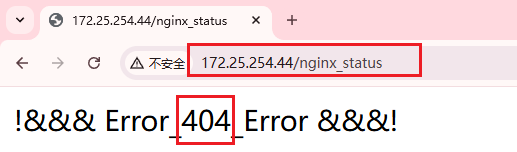
5.1.2.1 允许所有用户查看
bash
[root@Nginx ~]# cat /etc/nginx/conf.d/Page_Home.conf
server {
        listen  80;
        server_name     172.25.254.44;

        location / {
                root    /Page_Home;
                index   index.html;
        }

        location /nginx_status {
                stub_status;	# 开启模块
                allow all;		# 允许所有人查看
        }
}
[root@Nginx ~]# systemctl restart nginx
bash
# 浏览器访问:http://172.25.254.44/nginx_status

Active connections: 2 			# 当前活动连接数
server accepts handled requests	# 服务器接受处理请求
 2 2 1
Reading: 0 Writing: 1 Waiting: 1

# 2	总连接数
# 2	成功的连接数
# 1	总共处理的请求数

# Reading	读取客户端Header的信息数  请求头
# Writing	返回客户端的Header的信息数 响应头
# Waiting	等待的请求数	开启了Keepalived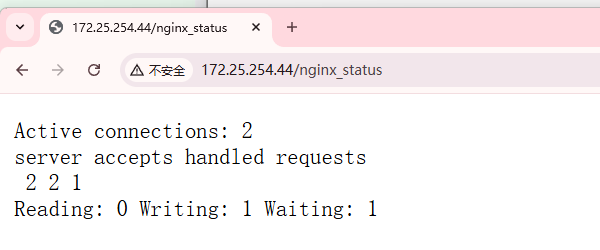
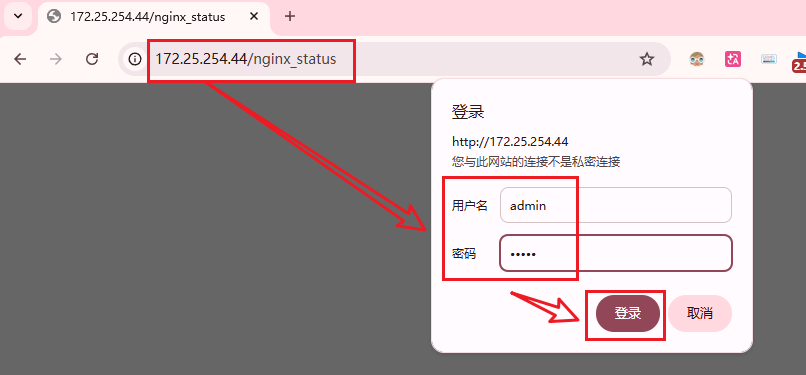
5.1.2.2 仅允许特定用户查看
bash
[root@Nginx ~]# yum install -y httpd-tools

[root@Nginx ~]# htpasswd -cm /Page_Home/.htpasswd admin
New password: admin
Re-type new password: admin

[root@Nginx ~]# ll /Page_Home/.htpasswd
-rw-r--r-- 1 root root 44 Apr 11 20:58 /Page_Home/.htpasswd
[root@Nginx ~]# cat /Page_Home/.htpasswd
admin:$apr1$nzWFN1jL$EevWAyfGm0HfJtAH5O6GE1


# -c 参数表示创建(Create)一个新的密码文件。
# -m 参数表示使用 MD5 加密算法对密码进行加密。
# 请注意:-c 是创建命令,如果以后要添加第二个用户,需要去掉 -c 参数,否则会覆盖掉已有的 admin 用户
bash
[root@Nginx ~]# cat /etc/nginx/conf.d/Page_Home.conf
server {
        listen  80;
        server_name     172.25.254.44;

        error_page 404 /404.html;

        location / {
                root    /Page_Home;
                index   index.html;
        }

        location = /404.html {
                root    /Page_Home;
                index   /404.html;
        }

        location /nginx_status {
                stub_status;	# 开启状态监控
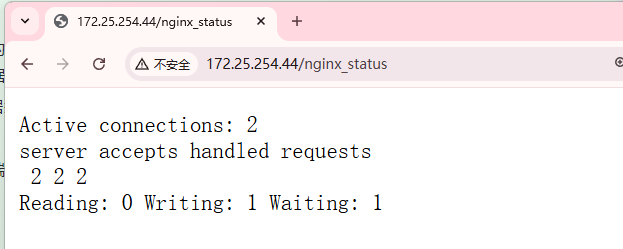
                auth_basic "auth login";	# HTTP基础验证人整体式
                auth_basic_user_file    /Page_Home/.htpasswd; # 认证文件路径
               # allow xxxx 	只能跟 单个IP/网段/all
        }
}
5.2 随机主页random_index_module微更新
将主页设置成随机页面,是一种微调更新机制
5.2.1 模拟场景
准备相关页面
bash
[root@Nginx ~]# mkdir /app
[root@Nginx ~]# touch /app/{blue,green,red,.yellow}.html

[root@Nginx ~]# cat /app/.yellow.html
<html>
<head>
<title>Yellow Color</title>
</head>
<body style="background-color:yellow">
<h1>Yellow Color</h1>
</body>
</html>
[root@Nginx ~]# cat /app/green.html
<html>
<head>
<title>Green color</title>
</head>
<body style="background-color:green">
<h1>Green color</h1>
</body>
</html>
[root@Nginx ~]# cat /app/red.html
<html>
<head>
<title>red color</title>
</head>
<body style="background-color:red">
<h1>Red Color</h1>
</body>
</html>
[root@Nginx ~]# cat /app/blue.html
<html>
<head>
<title>Blue Color</title>
</head>
<body style="background-color:blue">
<h1>Blue Color</h1>
</body>
</html>
启动随机主页
bash
[root@Nginx ~]# cat /etc/nginx/conf.d/Page_Home.conf
server {
        listen  80;
        server_name     172.25.254.44;

        location / {
                root    /app;
                random_index on;
        }

}
# 浏览器访问 http://172.25.254.44 并不断刷新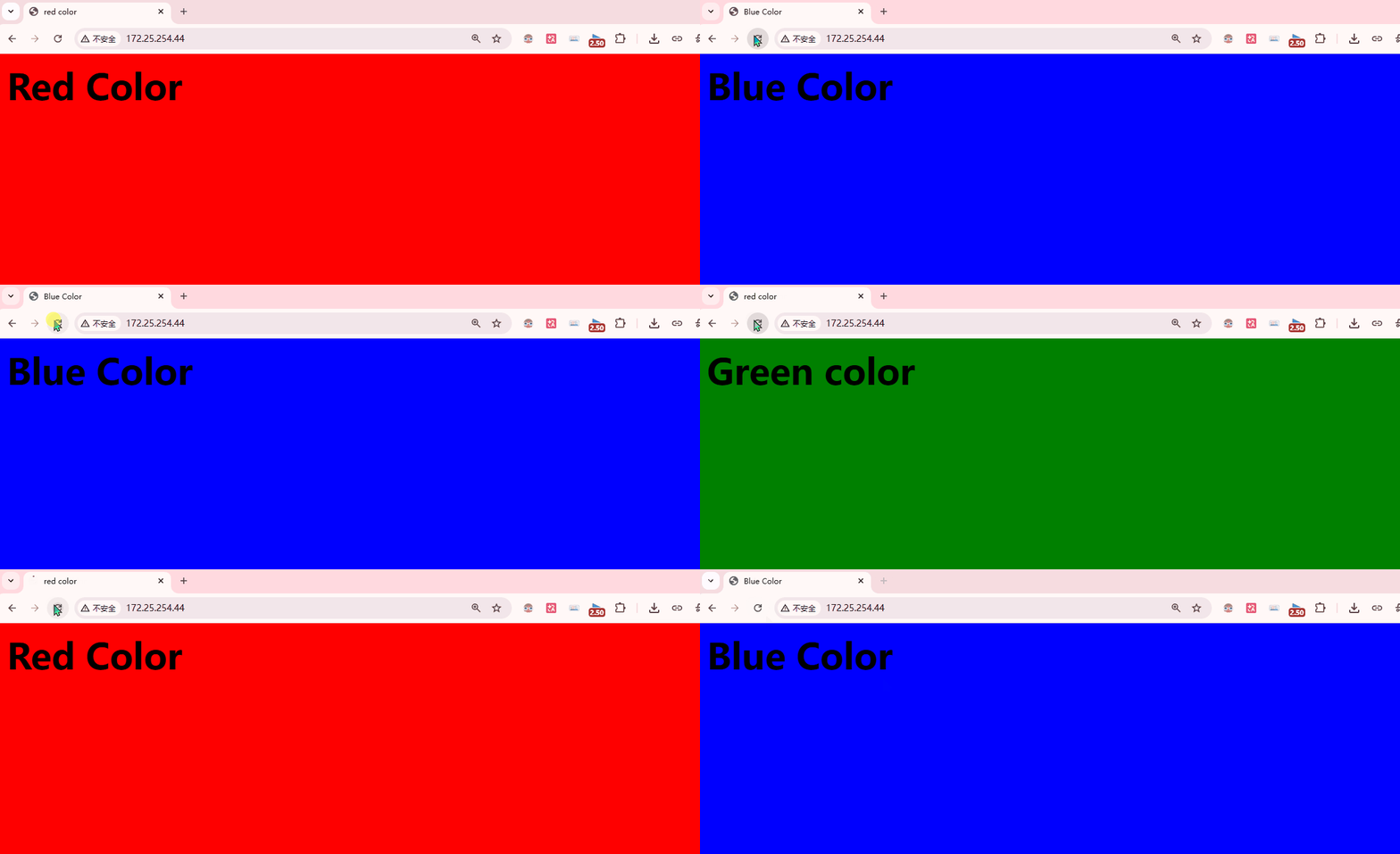
bash
# 此时打开隐藏文件.yellow.html
[root@Nginx ~]# cp /app/.yellow.html /app/yellow.html
[root@Nginx ~]# systemctl restart nginx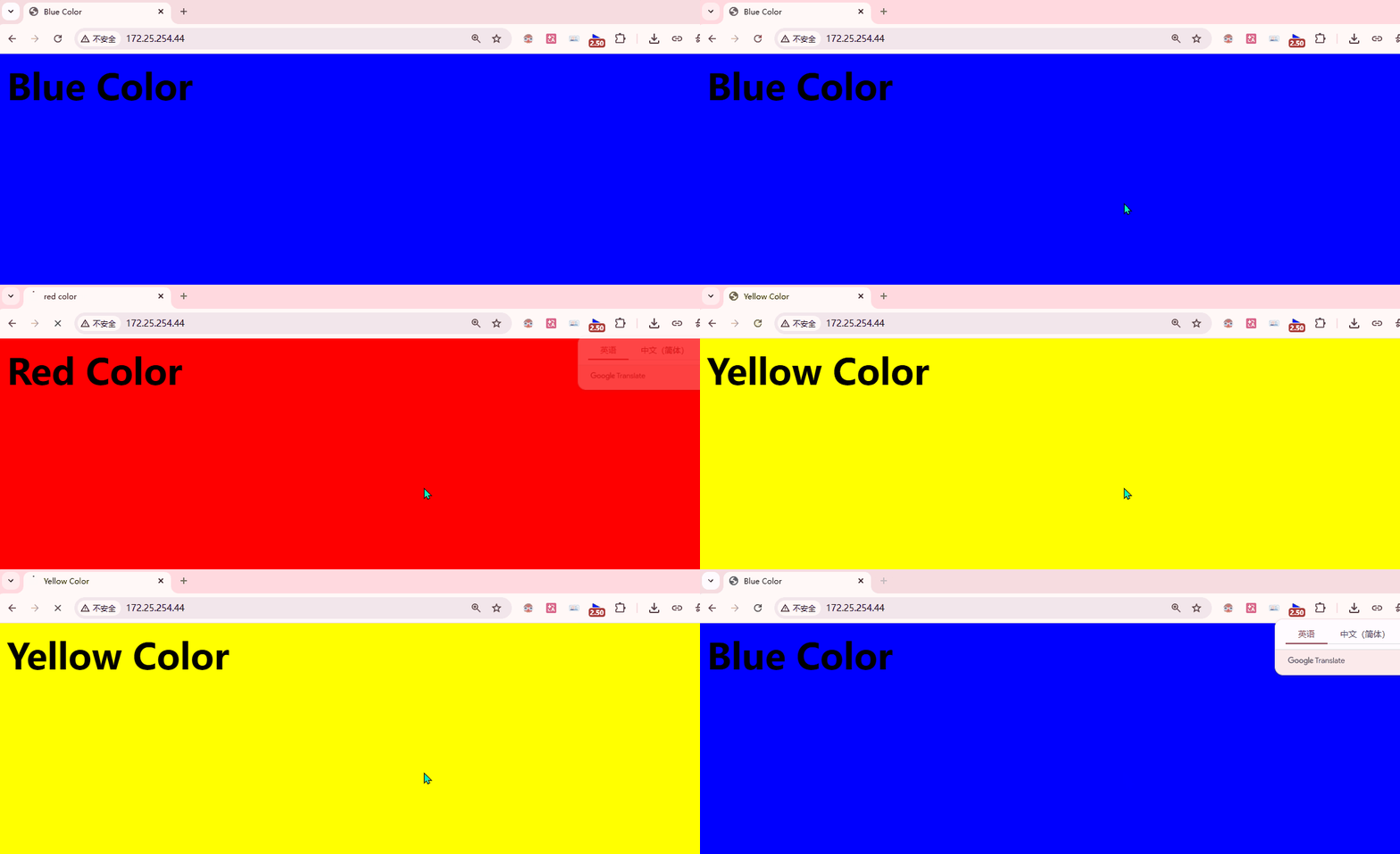
5.3 替换模块sub_module网页内容临时替换
只能替换响应体,不能替换响应头
bash
[root@Nginx ~]# vim /Page_Home/index.html
The First Rich!
The First Rich!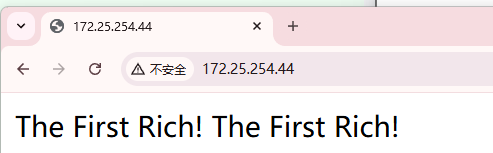
开启替换模块(Once)
bash
[root@Nginx ~]# vim /etc/nginx/conf.d/Page_Home.conf
server {
        listen  80;
        server_name    172.25.254.44;

        sub_filter 'First' 'Second';
        sub_filter_once on;

        location / {
                root    /Page_Home;
                index   index.html;
        }
}

# 浏览器访问 http://172.25.254.44
# 为什么只有第一个First变成了Second?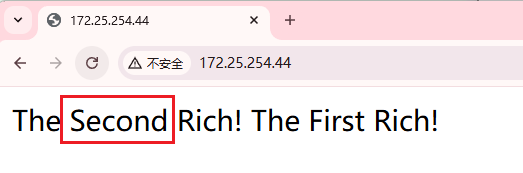
bash
[root@Nginx ~]# vim /etc/nginx/conf.d/Page_Home.conf
server {
        listen  80;
        server_name    172.25.254.44;

        sub_filter 'First' 'Second';
        sub_filter_once off;		# 关闭Once

        location / {
                root    /Page_Home;
                index   index.html;
        }
}

# 清除缓存(或打开无痕模式)浏览器访问 http://172.25.254.44 观察内容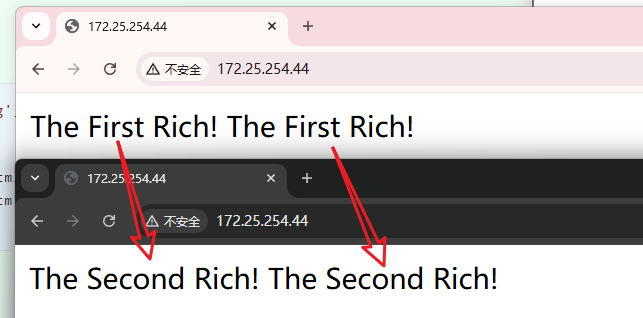
bash
# 此时发现已经变了,但是查看index.html文件会发现,源文件并没有改动

[root@Nginx ~]# curl http://172.25.254.44/
The Second Rich!
The Second Rich!

[root@Nginx ~]# cat /Page_Home/index.html
The First Rich!
The First Rich!
5.4 文件读取ngx_http_core_module
bash
[root@Nginx ~]# grep -nA1 'sendfile' /etc/nginx/nginx.conf
24:    sendfile        on; # 启用高效文件传输
25-    #tcp_nopush     on;

# 以下都为默认
tcp_nopush off;	# TCP推送优化,优化网络包大小,减少碎片
tcp_nodelay on; # 仅在Keepalived中生效,禁用Nagle算法,确保小数据包(如实时 HTTP 请求/响应)不被延迟发送,降低延迟。对于交互性强的应用很重要。启用sendfile(默认开启)
- 文件数据直接从内核缓存发送到网络,绕过用户空间
- 大幅提升静态文件传输性能(减少 CPU 拷贝)
bash
http {
...省略...
    sendfile        on;
    tcp_nopush     on;
...省略...
}
5.5 文件压缩ngx_http_gzip_module
启动该模块,使文件传输前进行压缩,提升传输效率。
准备实验材料,观察状态
bash
# 上传大体积图片
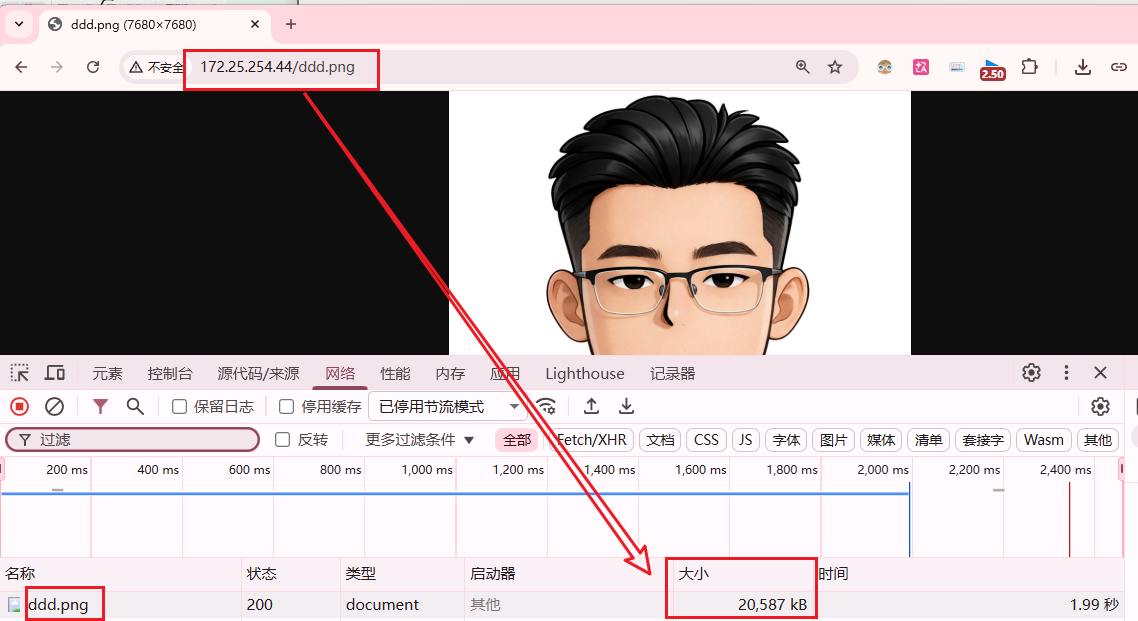
[root@Nginx Page_Home]# ll ddd.png
-rw-r--r-- 1 root root 20586559 Apr 12 15:10 ddd.png

# 制作大体积文本文件
[root@Nginx Page_Home]# vim cccc.txt
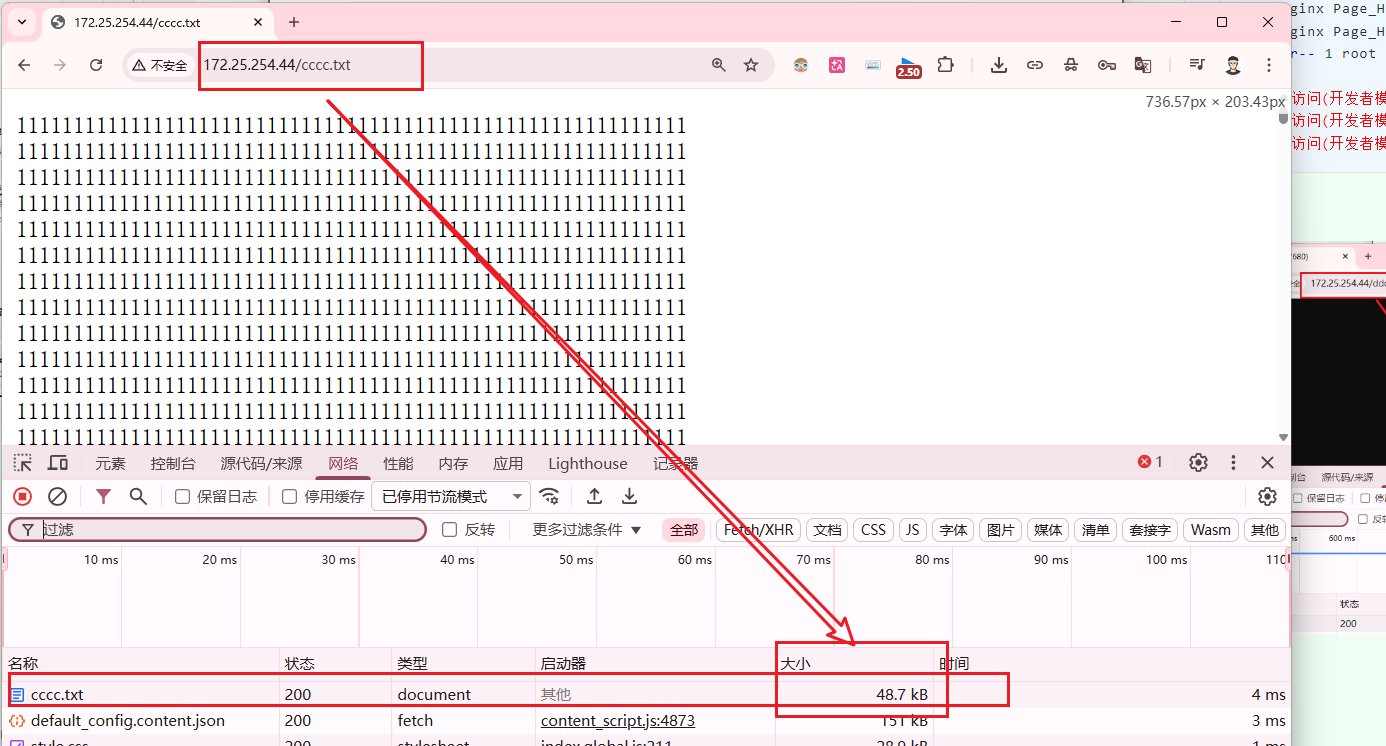
[root@Nginx Page_Home]# ll cccc.txt
-rw-r--r-- 1 root root 48480 Apr 12 15:15 cccc.txt

# 浏览器访问(开发者模式F12查看传输大小):http://172.25.254.44/ddd.png
# 浏览器访问(开发者模式F12查看传输大小):http://172.25.254.44/cccc.txt
图片
文本文件
开启文件压缩模块
bash
    gzip  on;
    gzip_http_version 1.1;
    gzip_comp_level 2;
    gzip_static on;
    gzip_types text/plain application/javascript application/x-javascript text/css application/xml text/javascript application/x-httpd-php image/jpeg image/gif image/png;
bash
[root@Nginx Page_Home]# vim /etc/nginx/nginx.conf
http {
...省略...
    gzip  on;	# 开启 Gzip 压缩功能(动态压缩)
    gzip_http_version 1.1;	# 设置启用压缩的最低 HTTP 协议版本,(1.1可避免兼容问题)
    gzip_comp_level 2;	# 压缩级别,范围 1~9。2 表示一个折中值。数字越大压缩率越高(文件越小),但越消耗 CPU。级别 1 最快但压缩率低,级别 9 最慢但压缩率最高。生产环境常用 2~5。
    gzip_static on;	# 开启静态预压缩支持。当存在同名的 .gz 文件(如 style.css.gz)时,Nginx 会直接发送预压缩好的文件,而不需要实时压缩。这能节省 CPU 资源,适合静态资源较多的网站。
    gzip_types text/plain application/javascript application/x-javascript text/css application/xml text/javascript application/x-httpd-php image/jpeg image/gif image/png;	# 指定哪些 MIME 类型的响应需要进行压缩。图片本身已经是压缩格式,再次压缩效果很小,反而浪费 CPU。一般不推荐对 jpeg/png/gif 开启 gzip。建议只保留文本类 MIME 类型。
...省略...
}

# 再次测试
# 浏览器访问(开发者模式F12查看传输大小):http://172.25.254.44/ddd.png
# 浏览器访问(开发者模式F12查看传输大小):http://172.25.254.44/cccc.txt


# 解决疑问:
	1.压缩包和图片类对象本身已经自带压缩功能,所以看起来跟没压缩效果是一样的
	2.本文压缩的效果好,48.7K->0.9K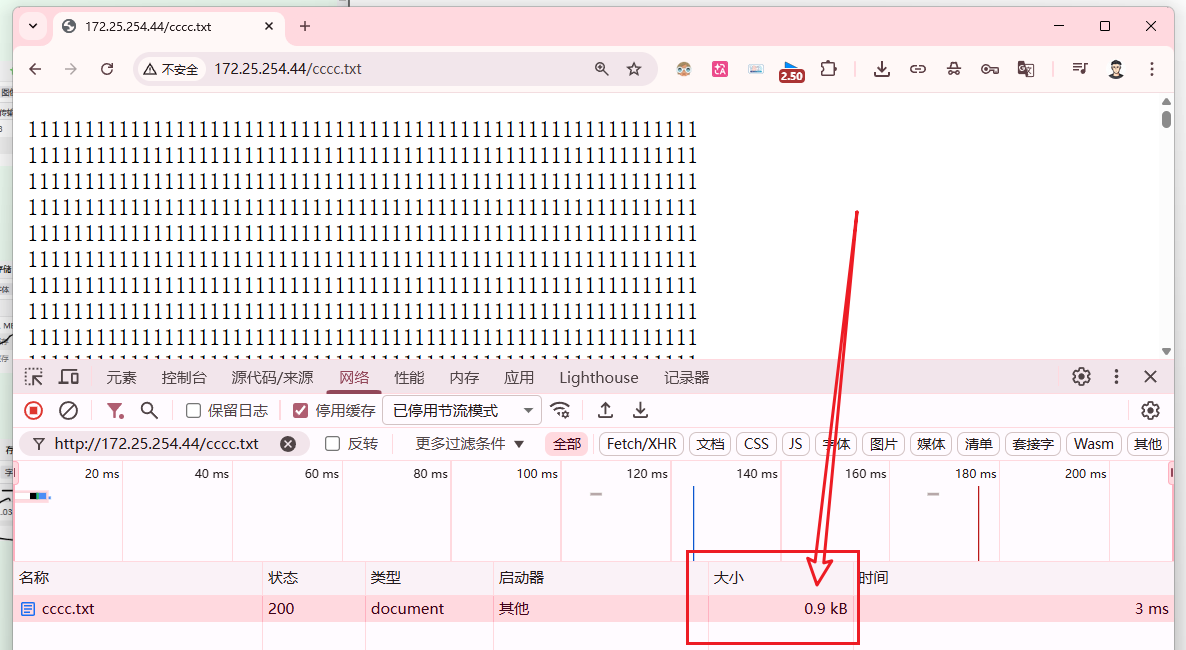
5.6 页面缓存ngx_http_headers_module
**expires控制浏览器缓存,无缓存的话,每次访问服务器,均是全文传输。**开启缓存可以加速浏览网站。
bash
expires		# 默认关闭off
add_header
add_trailer

epoch	# 强制不缓存
max		# 指定`Expires`的值为10年
-1		# 指定`Expires`的值为当前服务器的-1s,即缓存立即过期,效果同epoch
固定值	  # 比如:30d 1h 10s ......
off		# 关闭默认缓存设置
可以设置在 http(全局,所有Nginx服务器),serve(单一站点/),location(特定路径)
因此,可以采用分级缓存策略
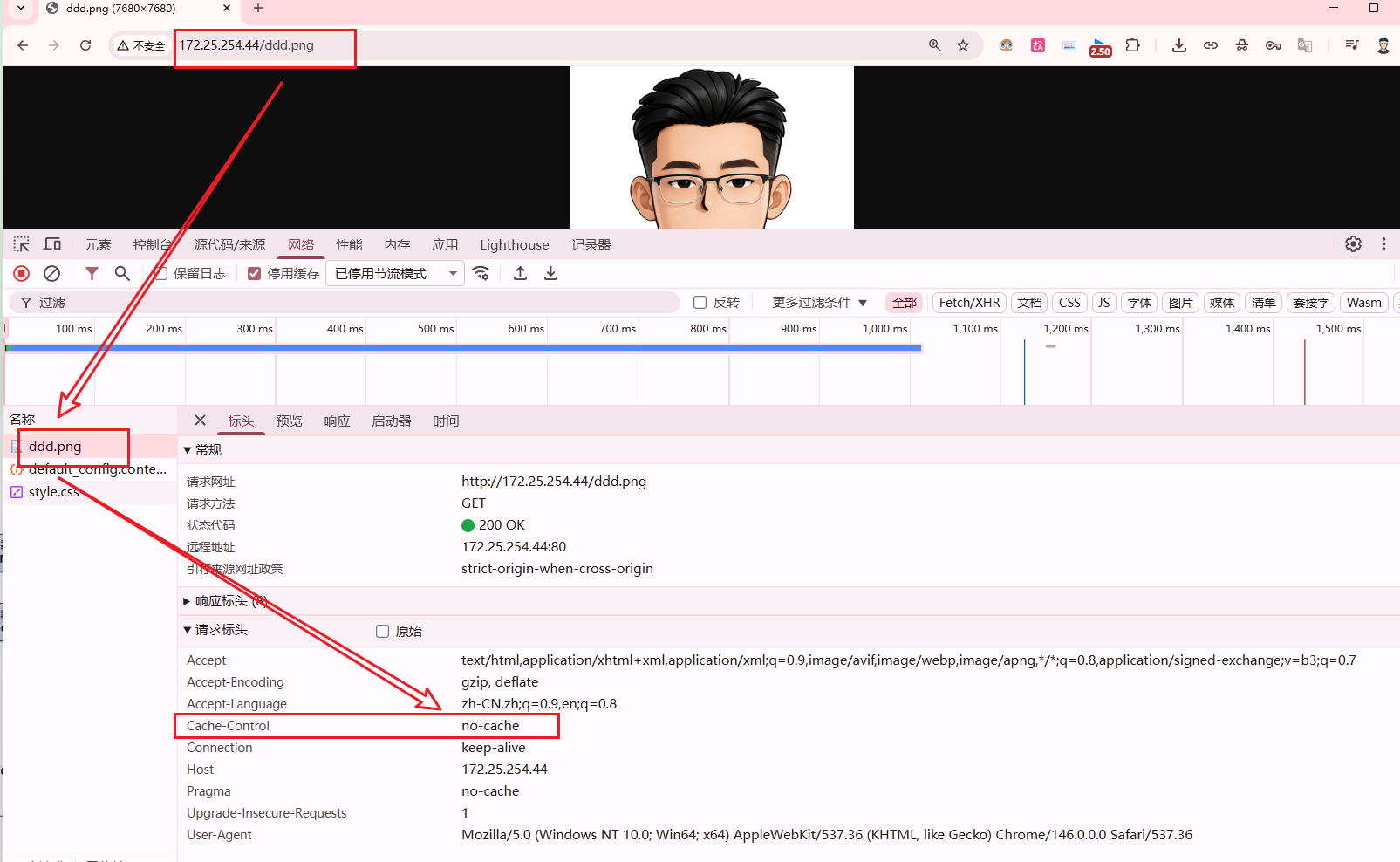
5.6.1 浏览器(默认)开启缓存
bash
# 浏览器进行第一次访问(开发者模式F12查看传输大小):
http://172.25.254.44/ddd.png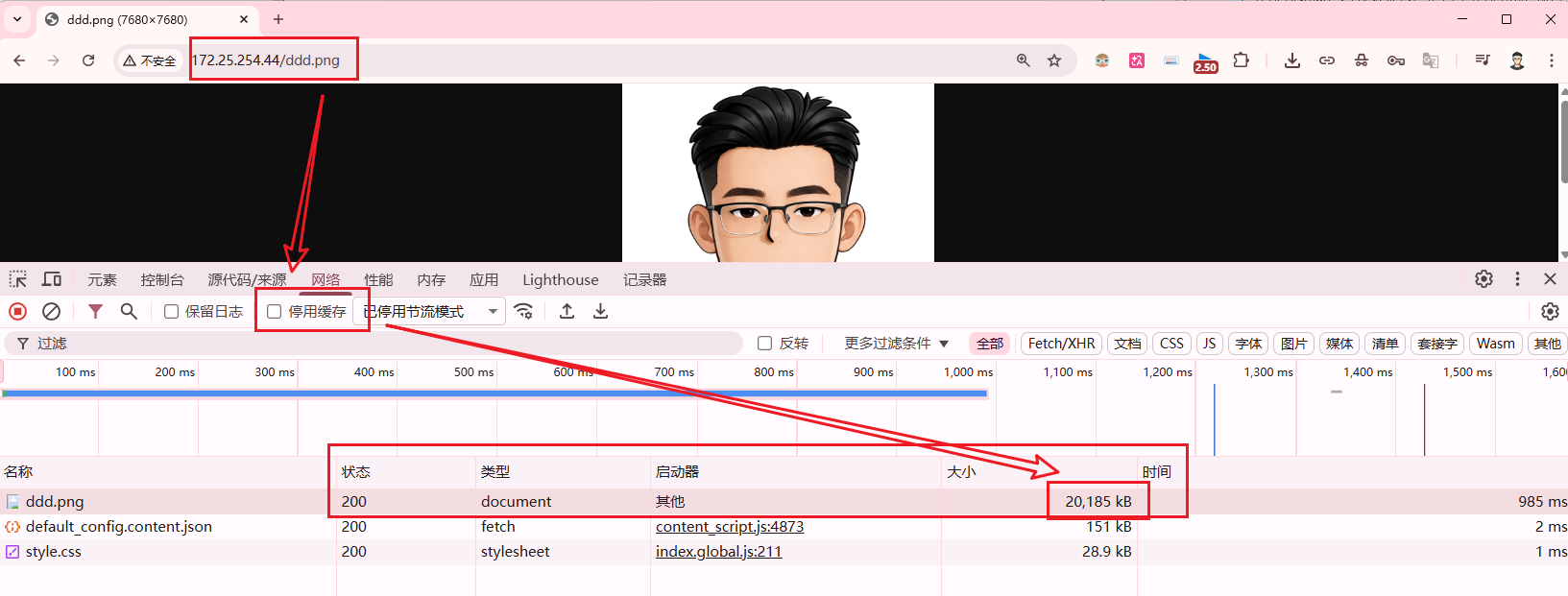
bash
# 点击刷新,再次访问:
状态码:	200->304	# 304-重定向至缓存
传输大小: 20185KB->0.2KB # 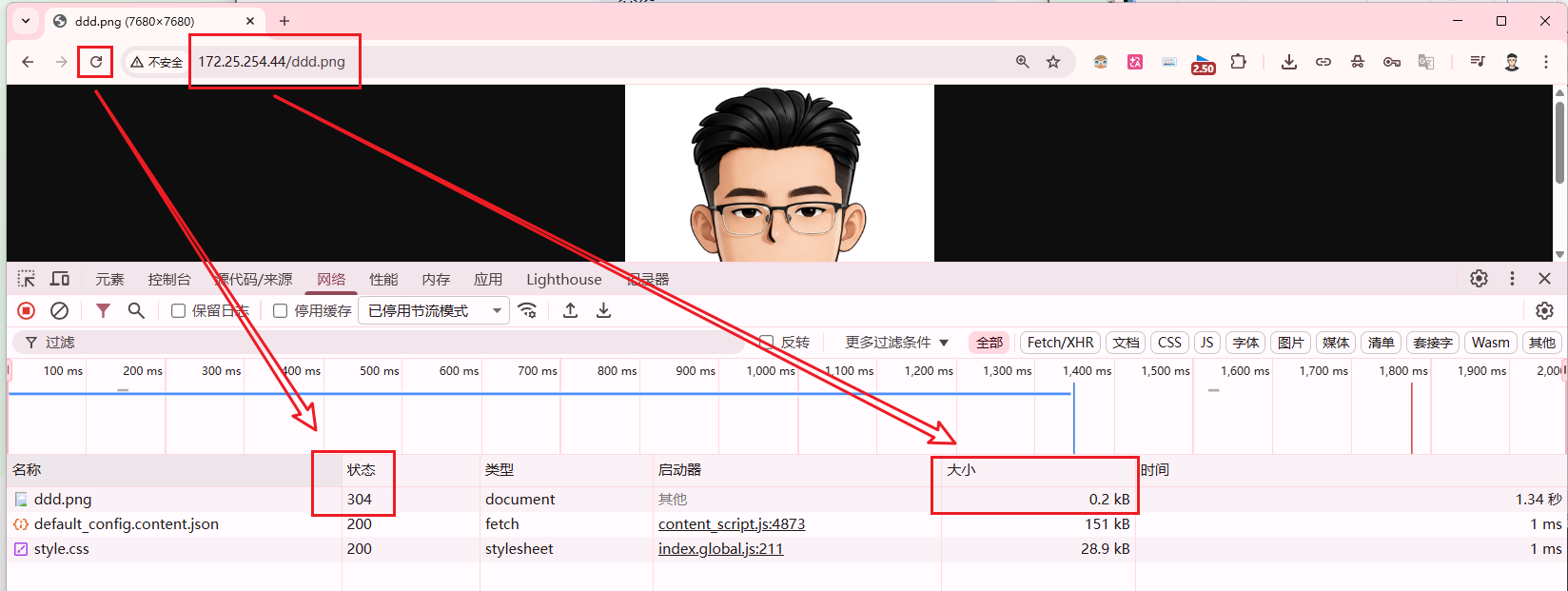
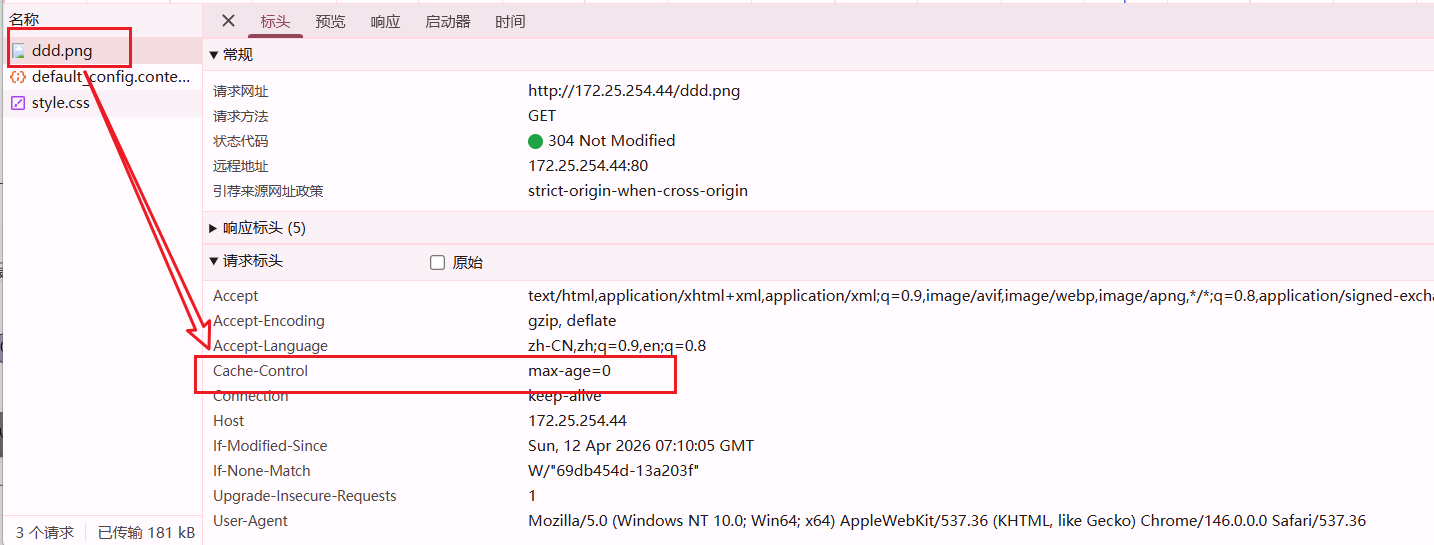
5.6.2 浏览器手动关闭缓存
也可以使用无痕浏览,那个一直关闭缓存功能。
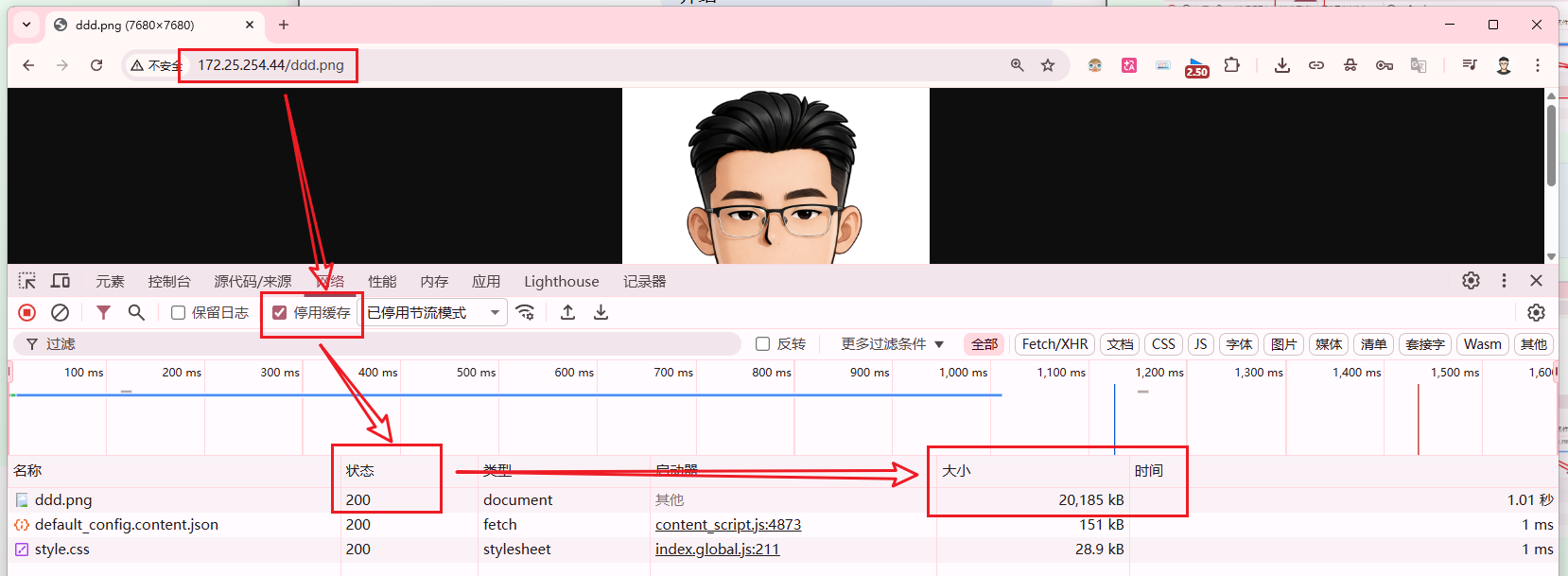
bash
# 关闭之后,就进行正常传输,不使用缓存5.6.3 手动开启Nginx服务器缓存(默认关闭)
如果浏览器禁用缓存,此功能将不起作用。
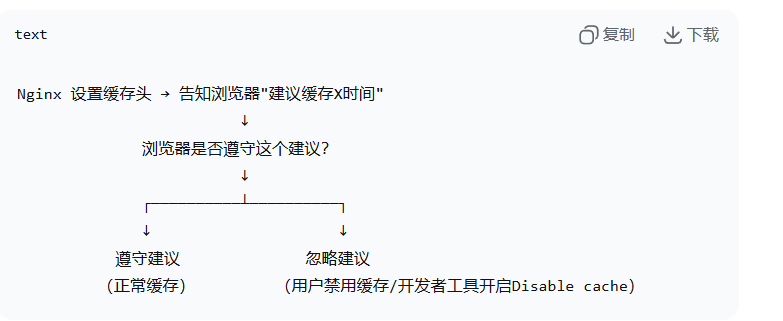
bash
# 第1次访问:http://172.25.254.44/dlam.jpg --> 81.4kb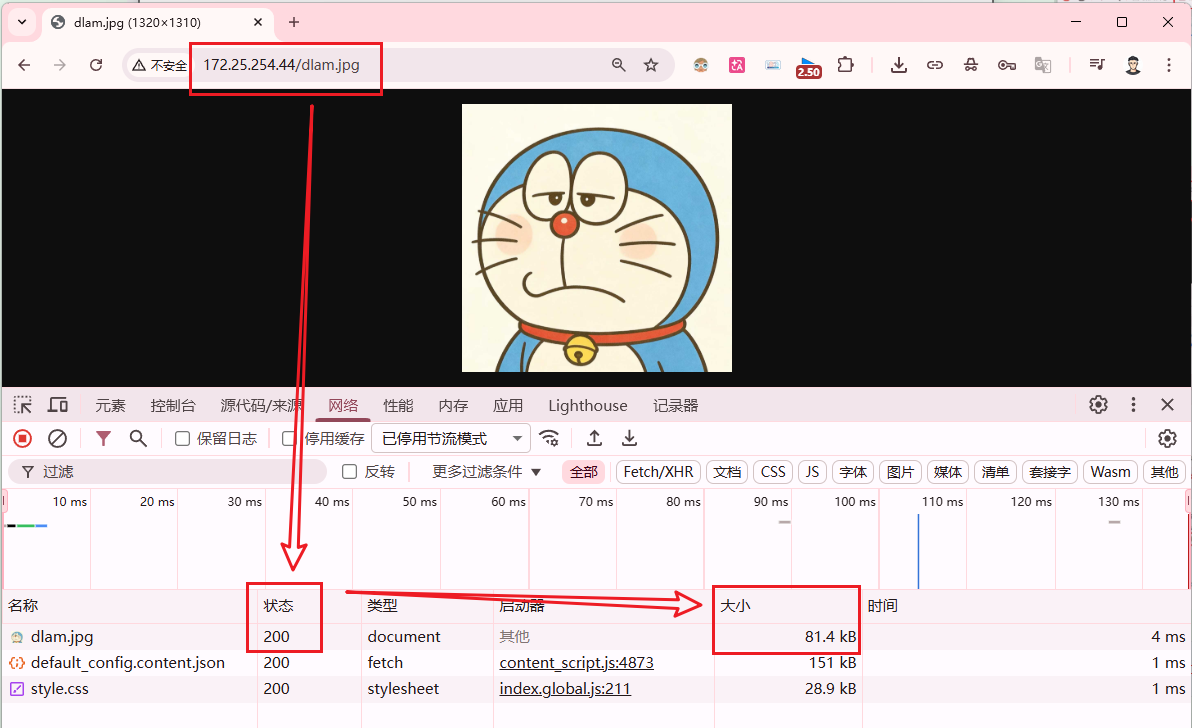
bash
# 第2次访问:http://172.25.254.44/dlam.jpg --> 0.3kb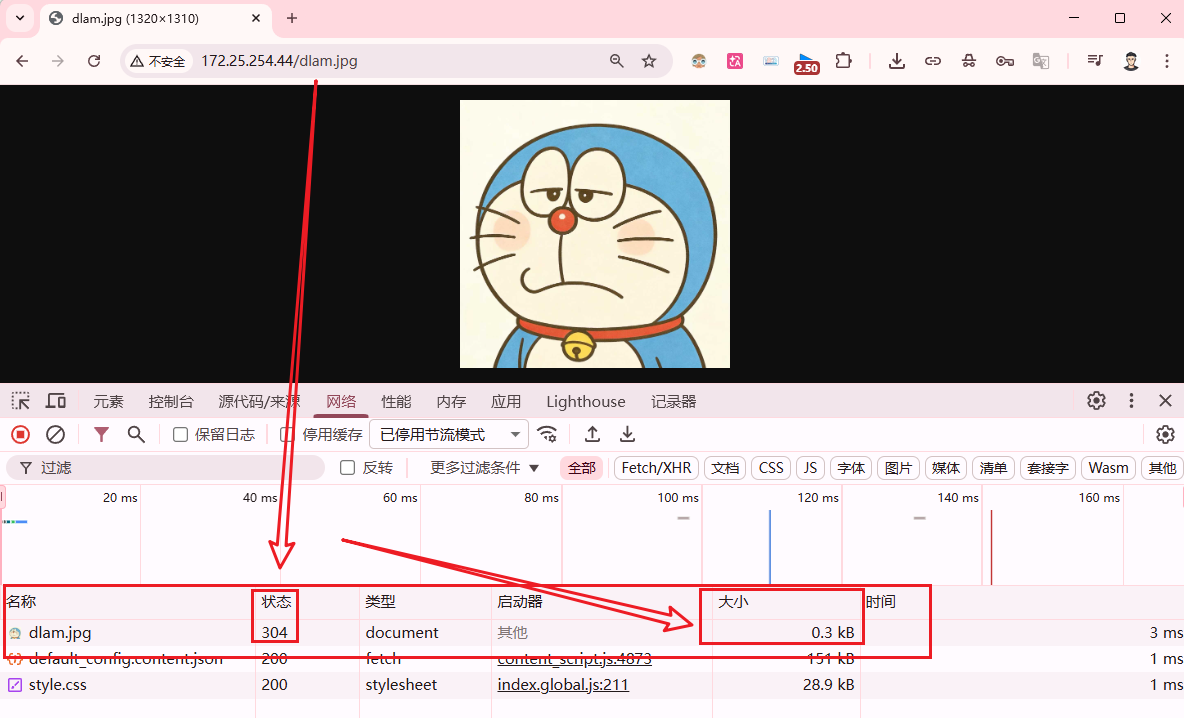
5.7 防盗链ngx_http_referer_module
bash
log_format  main  '$remote_addr - $remote_user [$time_local] "$request"'
                  '$status $body_bytes_sent "$http_referer"'
                   '"$http_user_agent" "$http_x_forwarded_for"';

# 日志格式中的http_referer是记录,访问点引用的URL。
# 也就是超链接的上一级地址。通过这段地址,可以发现一种网络行为------盗链。非法盗链会影响站点的正常访问。通过http_referer模块可以控制这一点。防止非法盗链现象。
用于通过检查 HTTP 请求头中的 Referer 字段来防止资源(如图片、视频、文件)被其他网站盗用链接。
bash
# 核心指令

valid_referers
	none			# 请求没有 Referer 头
	blocked			# 有 Referer 但被防火墙或代理删除(不以 http:// 或 https:// 开头)
	server_names	# 后续列举的域名作为合法来源
	string			# 具体的域名或匹配模式(支持 * 通配符,也可用正则 ~)

invalid_referer
	0	合法Referer
	1	非法Referer
5.7.1 盗链现象展示
5.7.1.1 自创网站,查看效果
bash
[root@Nginx a]# vim /etc/nginx/conf.d/a.conf
server {
		access_log  /var/log/nginx/a.access.log  main;
        listen  80;
        server_name     www.a.org;

        location / {
                root    /a;
                index   index.html;
        }
}


[root@Nginx ~]# mkdir /{a,b}
[root@Nginx ~]# cd /a
[root@Nginx a]# ll Haaland.png
-rw-r--r-- 1 root root 543777 Apr 12 17:25 Haaland.png

[root@Nginx a]# vim index.html
<img src='Haaland.png' />

[root@Nginx a]# systemctl restart nginx

# 物理机上边写本地hosts文件(这里将b的也顺便一写)
"C:\Windows\System32\drivers\etc\hosts"
172.25.254.44 www.a.org www.b.org

# 浏览器访问 http://www.a.org/ 出现以下内容图片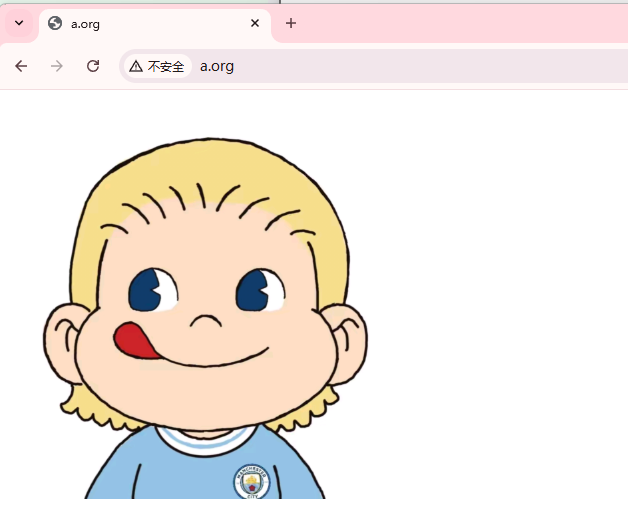
bash
[root@Nginx a]# vim /etc/nginx/conf.d/b.conf
server {
		access_log  /var/log/nginx/b.access.log  main;
        listen  80;
        server_name     www.b.org;

        location / {
                root    /b;
                index   index.html;
        }
}


[root@Nginx b]# vim index.html
<img src='http://www.a.org/Haaland.png'/>

[root@Nginx b]# systemctl restart nginx

# 浏览器访问:172.25.254.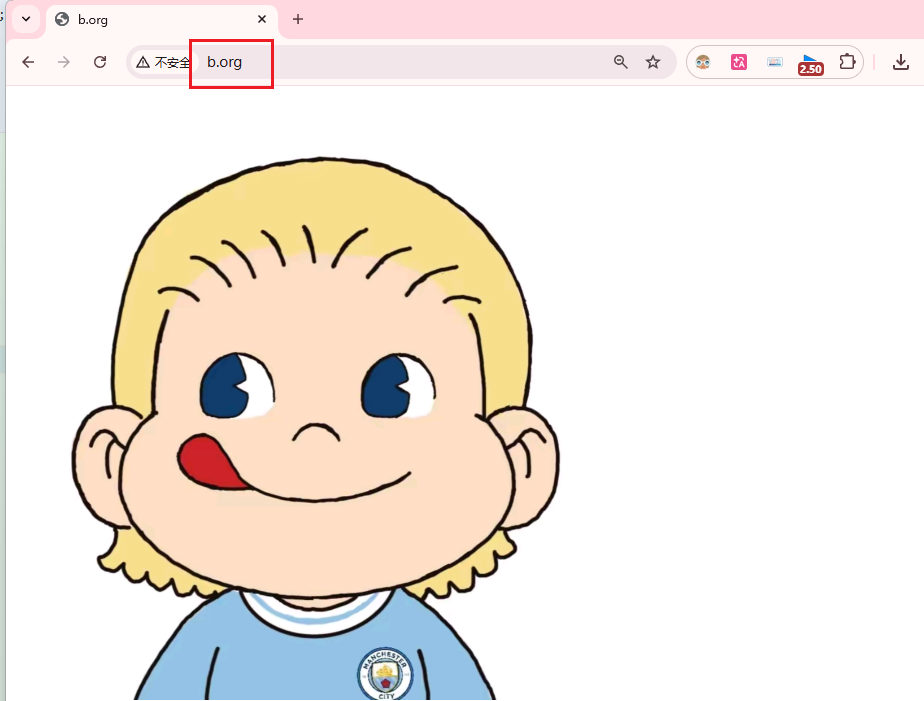
bash
# 在日志中可以清晰的看见 http://www.b.org 盗链了

[root@Nginx ~]# tail -f /var/log/nginx/a.access.log

172.25.254.1 - - [12/Apr/2026:17:52:09 +0800] "GET / HTTP/1.1" 200 57 "-" "Mozilla/5.0 (Windows NT 10.0; Win64; x64) AppleWebKit/537.36 (KHTML, like Gecko) Chrome/146.0.0.0 Safari/537.36" "-"

172.25.254.1 - - [12/Apr/2026:17:57:55 +0800] "GET /Haaland.png HTTP/1.1" 200 537947 "http://www.b.org/" "Mozilla/5.0 (Windows NT 10.0; Win64; x64) AppleWebKit/537.36 (KHTML, like Gecko) Chrome/146.0.0.0 Safari/537.36 Edg/146.0.0.0" "-"
5.7.1.2 盗链百度,查看效果
bash
[root@Nginx ~]# vim /Page_Home/index.html
<!DOCTYPE html>
<html>
<head>
    <meta charset="UTF-8">
    <title>测试页面</title>
</head>
<body>
    <a href='https://www.baidu.com/'>百度是我写的,不信你点点看!</a>
</body>
</html>

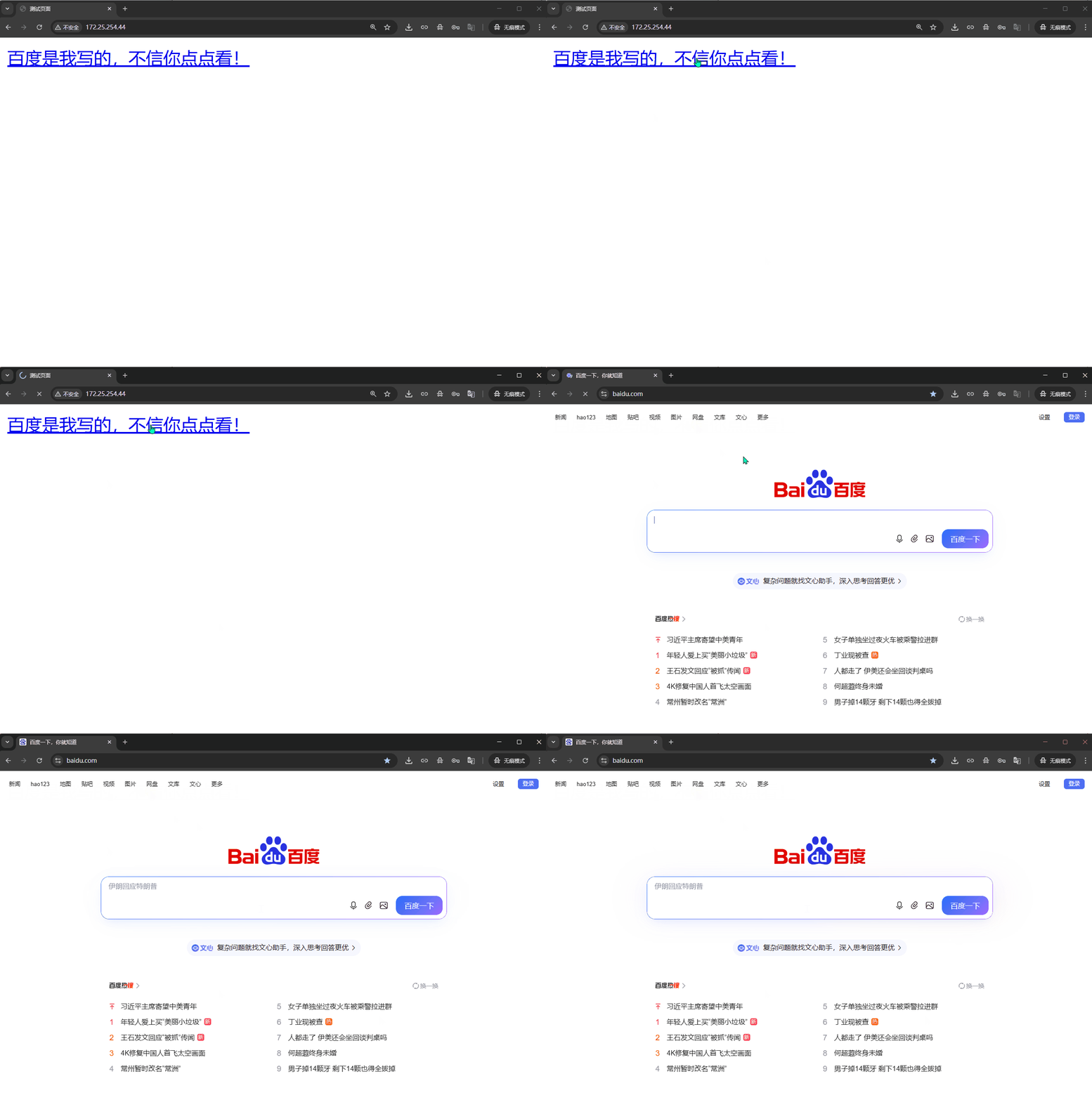
# 浏览器访问:http://172.25.254.44 并点击测试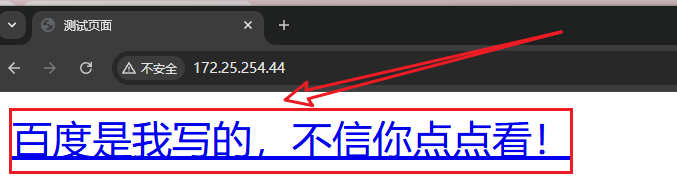
5.7.2 手动开启防盗链
bash
[root@Nginx ~]# vim /etc/nginx/conf.d/a.conf
[root@Nginx ~]# cat /etc/nginx/conf.d/a.conf
server {
        access_log  /var/log/nginx/a.access.log  main;
        listen  80;
        server_name     www.a.org;

        location / {
                root    /a;
                index   index.html;

                valid_referers  none *.a.org;
                if ($invalid_referer) {
                        return 403;
                }
        }
}
[root@Nginx ~]# systemctl restart nginx

# 浏览器再次访问 http://www.b.org
# 以下为实现的效果,成功!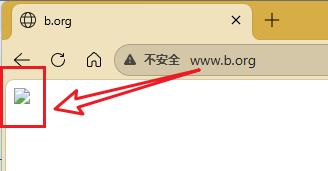
bash# 这里补充一下我的新的index.html页面(直接生成即可) <!DOCTYPE html> <html lang="zh-CN"> <head> <meta charset="UTF-8"> <meta name="viewport" content="width=device-width, initial-scale=1.0"> <title>欢迎页</title> <style> :root { --bg: #0b0f19; --card-bg: #111625; --text-primary: #f8fafc; --text-secondary: #8b95a8; --accent: #3b82f6; --accent-hover: #2563eb; --border: #1e293b; --success: #10b981; } * { margin: 0; padding: 0; box-sizing: border-box; } body { font-family: -apple-system, BlinkMacSystemFont, "Segoe UI", Roboto, "Noto Sans SC", sans-serif; background-color: var(--bg); color: var(--text-primary); min-height: 100vh; display: flex; justify-content: center; align-items: center; position: relative; overflow: hidden; } /* 细线网格背景 */ body::before { content: ""; position: absolute; inset: 0; background-image: radial-gradient(circle at 1px 1px, #1e293b 1px, transparent 0); background-size: 28px 28px; opacity: 0.35; z-index: 0; } .container { position: relative; z-index: 1; background: var(--card-bg); border: 1px solid var(--border); border-radius: 10px; padding: 2.2rem 1.8rem; max-width: 440px; width: 90%; box-shadow: 0 8px 24px rgba(0,0,0,0.45); animation: slideIn 0.5s cubic-bezier(0.16, 1, 0.3, 1); } @keyframes slideIn { from { opacity: 0; transform: translateY(12px); } to { opacity: 1; transform: translateY(0); } } .tag { display: inline-block; font-family: "SF Mono", Monaco, "Cascadia Code", "Roboto Mono", Consolas, monospace; font-size: 0.8rem; background: rgba(59, 130, 246, 0.12); color: #60a5fa; padding: 0.2rem 0.5rem; border-radius: 4px; margin-bottom: 1rem; border: 1px solid rgba(59, 130, 246, 0.25); letter-spacing: 0.03em; } h1 { font-size: 1.75rem; font-weight: 600; margin-bottom: 0.4rem; letter-spacing: -0.01em; } p { color: var(--text-secondary); line-height: 1.6; margin-bottom: 1.6rem; font-size: 0.95rem; } .btn { display: inline-flex; align-items: center; gap: 0.4rem; padding: 0.75rem 1.6rem; background: var(--accent); color: #fff; text-decoration: none; border-radius: 6px; font-weight: 500; font-size: 0.9rem; transition: all 0.18s ease; border: none; cursor: pointer; } .btn:hover { background: var(--accent-hover); transform: translateY(-1px); box-shadow: 0 4px 10px rgba(59, 130, 246, 0.3); } .btn:active { transform: translateY(0); } .status { margin-top: 1.4rem; font-size: 0.78rem; color: var(--text-secondary); display: flex; align-items: center; gap: 0.45rem; font-family: "SF Mono", Monaco, "Cascadia Code", "Roboto Mono", Consolas, monospace; } .status::before { content: ""; width: 7px; height: 7px; background: var(--success); border-radius: 50%; box-shadow: 0 0 6px var(--success); } </style> </head> <body> <div class="container"> <div class="tag">devops-engineer</div> <h1>欢迎, Kaser</h1> <p>基础设施已就绪。服务状态正常,部署通道开放。<br>请根据需要进入控制台或执行初始化检查。</p> <a href="#" class="btn">进入控制台 →</a> <div class="status">system: online</div> </div> </body> </html>