然后杀掉已经存在进程
killall wpa_supplicant
vi /etc/wpa_supplicant.conf
重新启动 wpa_supplicant 连接热点
wpa_supplicant -iwlan0 -Dnl80211 -c /etc/wpa_supplicant.conf -B
获取IP地址
udhcpc -i wlan0
cat /sys/kernel/debug/pinctrl/pinctrl-rockchip-pinctrl/pinmux-pins
cat /sys/kernel/debug/gpio
用户名/密码:root/root
DTS来自,kernel-pi-v1.0.tar.gz(226.7MB)
https://vanxoak.yuque.com/wb353n/hd-rk3576-pi/mg1yh7k1hgmmgtew
开发资料下载
https://vanxoak.yuque.com/wb353n/hd-rk3576-pi/amue52kesw19pqpg#NoWhJ
与PC互传文件【使用WinSCP即可!】
在此介绍一下MobaXterm SFTP传输的一种简单方法:
https://vanxoak.yuque.com/wb353n/hd-rk3576-pi/zw4xqc5ixduxhm13#v5uOq
音频测试
1.音频硬件分布
2.音频控件
3.耳机播音测试
root@hd-rk3576:~# aplay kiss8.wav
Playing WAVE 'kiss8.wav' : Signed 16 bit Little Endian, Rate 44100 Hz, Stereo
root@hd-rk3576:~# apt update
root@hd-rk3576:~# apt install mpg123
root@hd-rk3576:~# mpg123 wenbie.mp3
root@hd-rk3576:~# apt install sox libsox-fmt-all
root@hd-rk3576:~# play wenbie.mp3
root@hd-rk3576:~# iperf3 -s
C:\iperf3.21>iperf3 -c 192.168.1.182 -i 1 -t 1800
Y:\git_RK3576_Linux6.1\kernel-6.1\arch\arm64\configs\rockchip_linux_defconfig
将万象奥科官方给的内核压缩包的kernel-pi-v1.0.tar.gz中的DTS析取WIFI/BT的代码块之后
Y:\rk3576-kernel\kernel-pi-v1.0\arch\arm64\boot\dts\rockchip72min\rk3576-pi-lp4x-wifibt.dtsi
合并在:
Y:\git_RK3576_Linux6.1\kernel-6.1\arch\arm64\boot\dts\rockchip\rk3576-evb.dtsi
Y:\git_RK3576_Linux6.1\kernel-6.1\arch\arm64\boot\dts\rockchip\rk3576-evb1.dtsi
20260420给万象奥科的开发板HD-RK3576-PI适配瑞芯微原厂的Buildroot时适配AP6256并实测网速109Mbits/sec
2026/4/20 19:34
1、联网步骤:
https://doc.rpdzkj.cn/#/zh_cn/瑞芯� %BE%AE%E7%B3%BB%E5%88%97/rk3588-rk3588s/7.%E6%8E%A5%E5%8F%A3%E4%BD%BF%E7%94%A8?id=wifi
Buildroot
Buildroot 上使用 wpa_supplicant 进行连接
配置用户名与密码,创建 /tmp/wpa_supplicant.conf 文件,增加如下内容,并修改热点名称和密码
ctrl_interface=DIR=/var/run/wpa_supplicant
network={
ssid="rpdzkj-soft1"
key_mgmt=WPA-PSK
psk="aaaaaaaa"
}
复制Error已复制
然后杀掉已经存在进程
killall wpa_supplicant
复制Error已复制
重新启动 wpa_supplicant 连接热点
wpa_supplicant -iwlan0 -Dnl80211 -c /tmp/wpa_supplicant.conf -B
复制Error已复制
获取IP地址
udhcpc -i wlan0
复制Error已复制
连接成功
ifconfig wlan0
复制Error已复制
也可以运行脚本来进行测试
/rp_test/wifi/test_wifi_sta.sh
然后杀掉已经存在进程
killall wpa_supplicant
重新启动 wpa_supplicant 连接热点
wpa_supplicant -iwlan0 -Dnl80211 -c /etc/wpa_supplicant.conf -B
获取IP地址
udhcpc -i wlan0
连接成功
ifconfig wlan0
复制Error已复制
也可以运行脚本来进行测试
/rp_test/wifi/test_wifi_sta.sh
2、开发板iperf -s
root@rk3576-buildroot:~#
root@rk3576-buildroot:~#
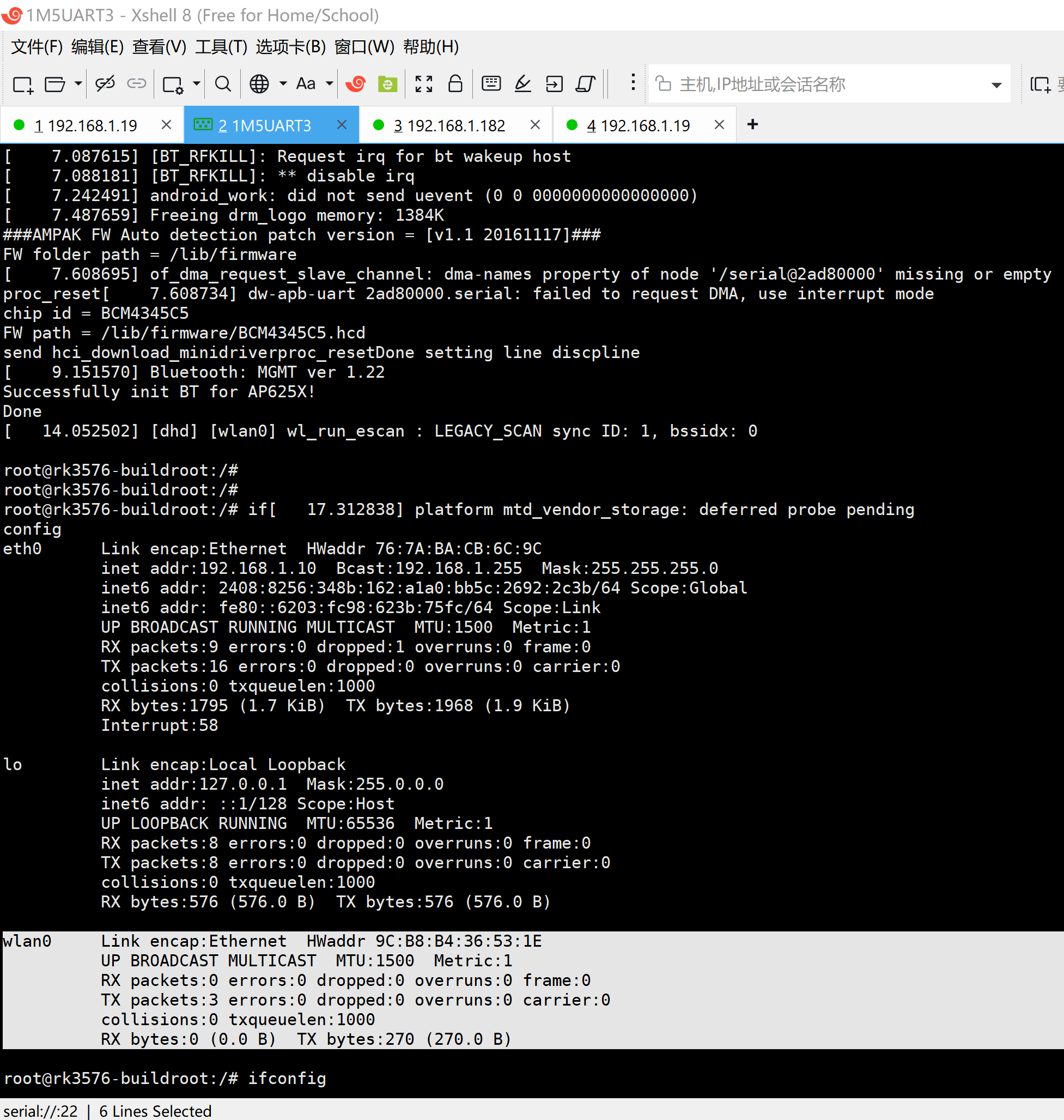
root@rk3576-buildroot:~# ifconfig
eth0 Link encap:Ethernet HWaddr 76:7A:BA:CB:6C:9C
UP BROADCAST MULTICAST MTU:1500 Metric:1
RX packets:125 errors:0 dropped:42 overruns:0 frame:0
TX packets:78 errors:0 dropped:0 overruns:0 carrier:0
collisions:0 txqueuelen:1000
RX bytes:12516 (12.2 KiB) TX bytes:6988 (6.8 KiB)
Interrupt:58
lo Link encap:Local Loopback
inet addr:127.0.0.1 Mask:255.0.0.0
inet6 addr: ::1/128 Scope:Host
UP LOOPBACK RUNNING MTU:65536 Metric:1
RX packets:8 errors:0 dropped:0 overruns:0 frame:0
TX packets:8 errors:0 dropped:0 overruns:0 carrier:0
collisions:0 txqueuelen:1000
RX bytes:576 (576.0 B) TX bytes:576 (576.0 B)
wlan0 Link encap:Ethernet HWaddr 9C:B8:B4:36:53:1E
inet addr:192.168.1.182 Bcast:192.168.1.255 Mask:255.255.255.0
inet6 addr: fe80::1d78:efe:b960:39c/64 Scope:Link
inet6 addr: 2408:8256:348b:162:664f:8975:f5b5:62c6/64 Scope:Global
UP BROADCAST RUNNING MULTICAST MTU:1500 Metric:1
RX packets:97 errors:0 dropped:0 overruns:0 frame:0
TX packets:123 errors:0 dropped:0 overruns:0 carrier:0
collisions:0 txqueuelen:1000
RX bytes:14660 (14.3 KiB) TX bytes:16022 (15.6 KiB)
root@rk3576-buildroot:~#
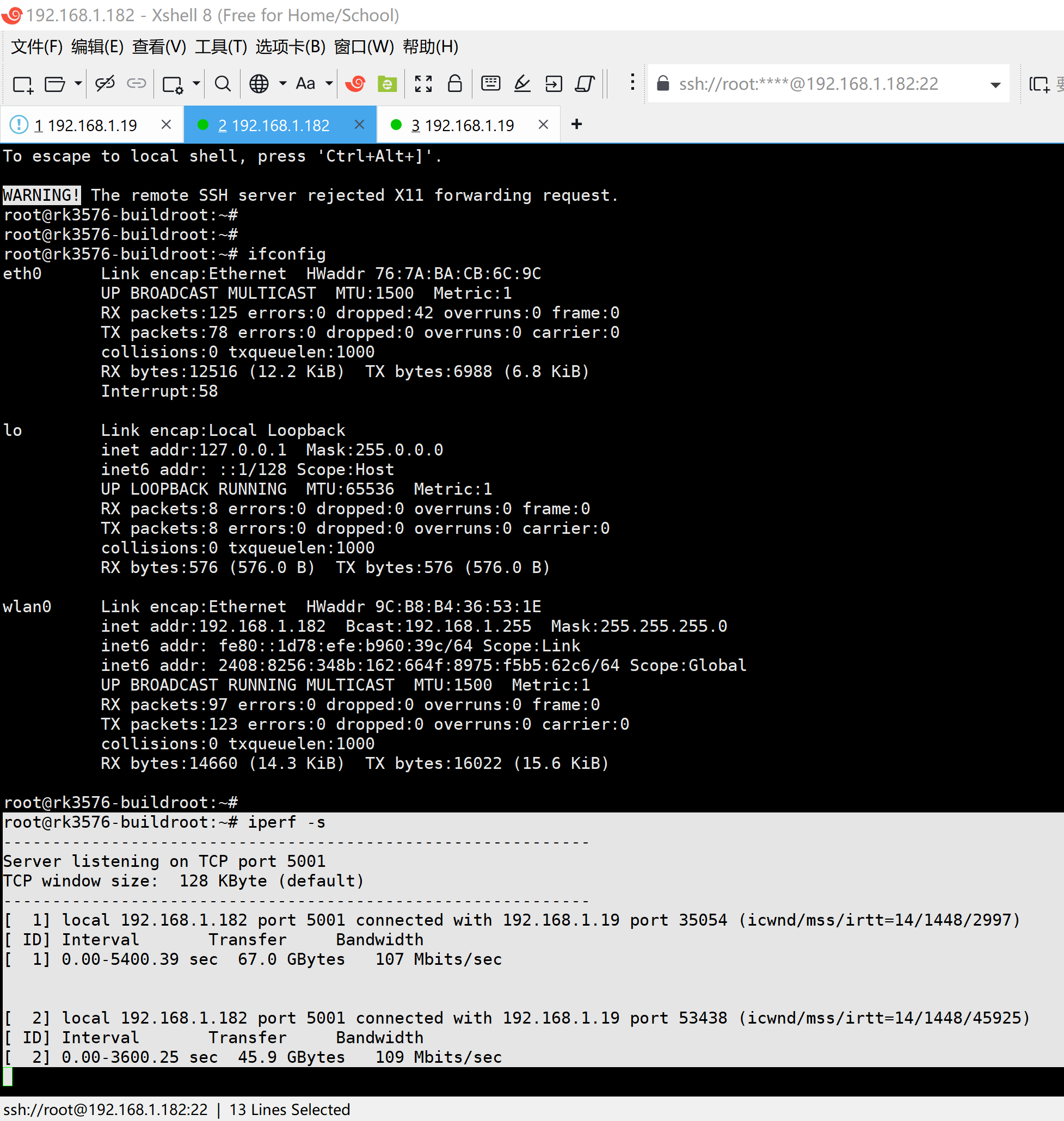
root@rk3576-buildroot:~# iperf -s
Server listening on TCP port 5001
TCP window size: 128 KByte (default)
1 local 192.168.1.182 port 5001 connected with 192.168.1.19 port 35054 (icwnd/mss/irtt=14/1448/2997)
ID Interval Transfer Bandwidth
1 0.00-5400.39 sec 67.0 GBytes 107 Mbits/sec
2 local 192.168.1.182 port 5001 connected with 192.168.1.19 port 53438 (icwnd/mss/irtt=14/1448/45925)
ID Interval Transfer Bandwidth
2 0.00-3600.25 sec 45.9 GBytes 109 Mbits/sec
^Croot@rk3576-buildroot:~#
root@rk3576-buildroot:~#
3、ubuntu22.04上跑iperf2
rootroot@rootroot-HP-245-14-inch-G10-Notebook-PC:~$
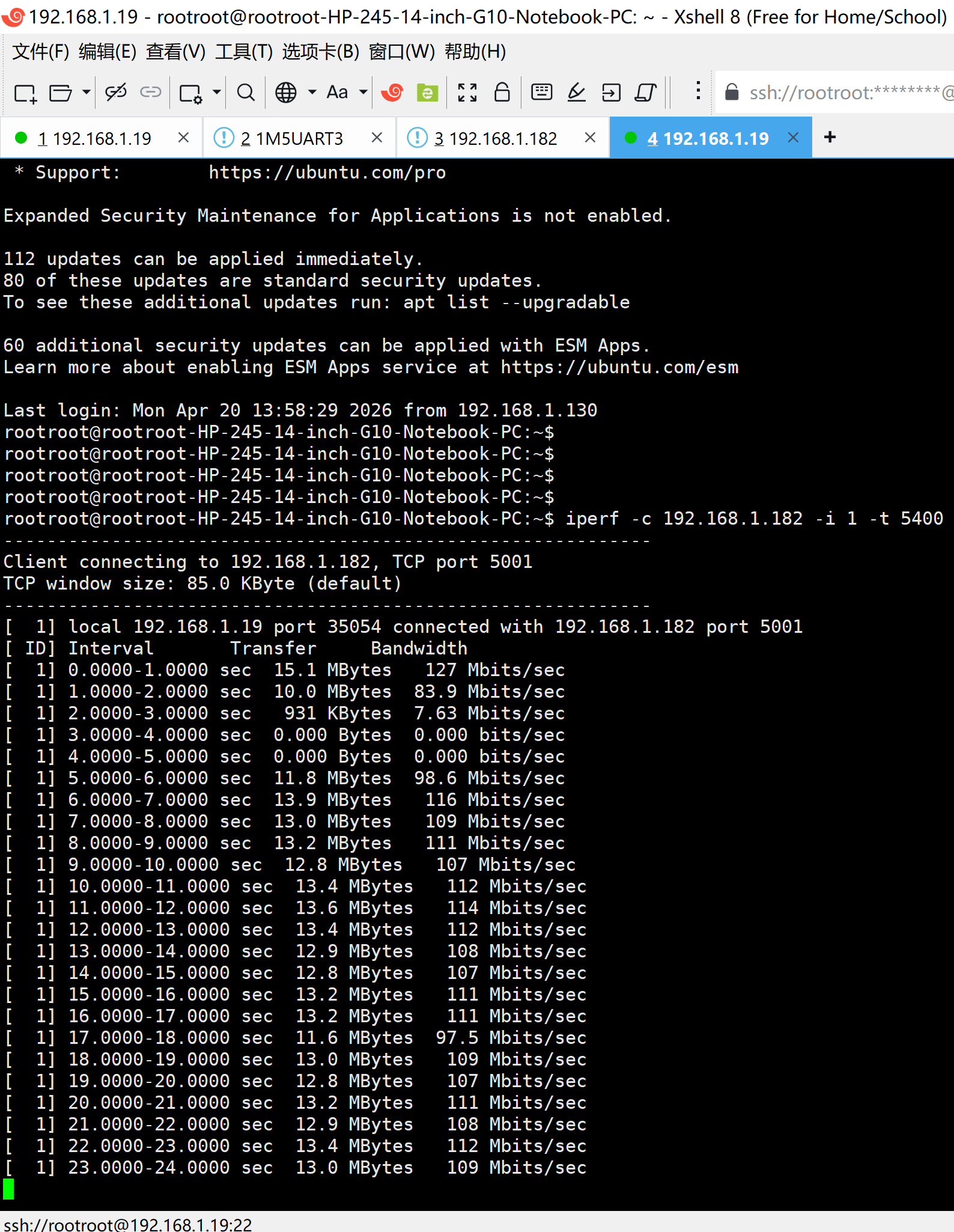
rootroot@rootroot-HP-245-14-inch-G10-Notebook-PC:~ rootroot@rootroot-HP-245-14-inch-G10-Notebook-PC:\~ iperf -c 192.168.1.182 -i 1 -t 5400
Client connecting to 192.168.1.182, TCP port 5001
TCP window size: 85.0 KByte (default)
1 local 192.168.1.19 port 35054 connected with 192.168.1.182 port 5001
ID Interval Transfer Bandwidth
1 0.0000-1.0000 sec 15.1 MBytes 127 Mbits/sec
1 1.0000-2.0000 sec 10.0 MBytes 83.9 Mbits/sec
1 2.0000-3.0000 sec 931 KBytes 7.63 Mbits/sec
1 3.0000-4.0000 sec 0.000 Bytes 0.000 bits/sec
1 4.0000-5.0000 sec 0.000 Bytes 0.000 bits/sec
1 5.0000-6.0000 sec 11.8 MBytes 98.6 Mbits/sec
1 6.0000-7.0000 sec 13.9 MBytes 116 Mbits/sec
1 7.0000-8.0000 sec 13.0 MBytes 109 Mbits/sec
1 8.0000-9.0000 sec 13.2 MBytes 111 Mbits/sec
1 9.0000-10.0000 sec 12.8 MBytes 107 Mbits/sec
1 10.0000-11.0000 sec 13.4 MBytes 112 Mbits/sec
1 5390.0000-5391.0000 sec 13.1 MBytes 110 Mbits/sec
1 5391.0000-5392.0000 sec 13.4 MBytes 112 Mbits/sec
1 5392.0000-5393.0000 sec 11.9 MBytes 99.6 Mbits/sec
1 5393.0000-5394.0000 sec 13.1 MBytes 110 Mbits/sec
1 5394.0000-5395.0000 sec 13.5 MBytes 113 Mbits/sec
1 5395.0000-5396.0000 sec 13.1 MBytes 110 Mbits/sec
1 5396.0000-5397.0000 sec 13.1 MBytes 110 Mbits/sec
1 5397.0000-5398.0000 sec 13.0 MBytes 109 Mbits/sec
1 5398.0000-5399.0000 sec 13.4 MBytes 112 Mbits/sec
1 5399.0000-5400.0000 sec 13.2 MBytes 111 Mbits/sec
1 5400.0000-5400.2563 sec 128 KBytes 4.09 Mbits/sec
1 0.0000-5400.2563 sec 67.0 GBytes 107 Mbits/sec
rootroot@rootroot-HP-245-14-inch-G10-Notebook-PC:~$
rootroot@rootroot-HP-245-14-inch-G10-Notebook-PC:~ rootroot@rootroot-HP-245-14-inch-G10-Notebook-PC:\~ iperf -c 192.168.1.182 -i 1 -t 3600
Client connecting to 192.168.1.182, TCP port 5001
TCP window size: 85.0 KByte (default)
1 local 192.168.1.19 port 53438 connected with 192.168.1.182 port 5001
ID Interval Transfer Bandwidth
1 0.0000-1.0000 sec 16.5 MBytes 138 Mbits/sec
1 1.0000-2.0000 sec 13.4 MBytes 112 Mbits/sec
1 2.0000-3.0000 sec 13.1 MBytes 110 Mbits/sec
1 3.0000-4.0000 sec 13.0 MBytes 109 Mbits/sec
1 4.0000-5.0000 sec 13.4 MBytes 112 Mbits/sec
1 5.0000-6.0000 sec 11.6 MBytes 97.5 Mbits/sec
1 6.0000-7.0000 sec 13.1 MBytes 110 Mbits/sec
1 7.0000-8.0000 sec 12.9 MBytes 108 Mbits/sec
1 8.0000-9.0000 sec 14.0 MBytes 117 Mbits/sec
1 9.0000-10.0000 sec 12.8 MBytes 107 Mbits/sec
1 10.0000-11.0000 sec 13.1 MBytes 110 Mbits/sec
1 3590.0000-3591.0000 sec 13.1 MBytes 110 Mbits/sec
1 3591.0000-3592.0000 sec 13.0 MBytes 109 Mbits/sec
1 3592.0000-3593.0000 sec 14.0 MBytes 117 Mbits/sec
1 3593.0000-3594.0000 sec 13.1 MBytes 110 Mbits/sec
1 3594.0000-3595.0000 sec 11.5 MBytes 96.5 Mbits/sec
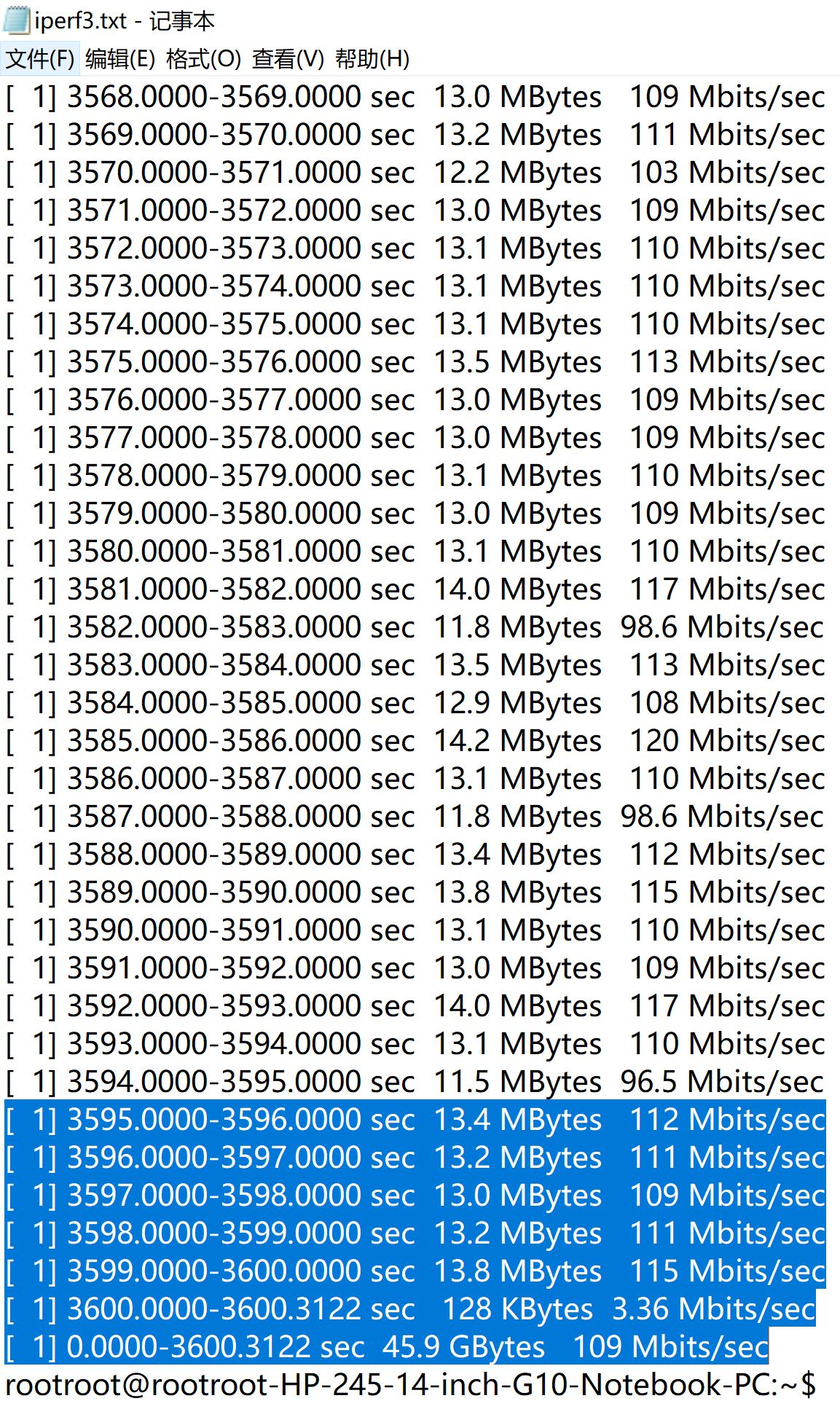
1 3595.0000-3596.0000 sec 13.4 MBytes 112 Mbits/sec
1 3596.0000-3597.0000 sec 13.2 MBytes 111 Mbits/sec
1 3597.0000-3598.0000 sec 13.0 MBytes 109 Mbits/sec
1 3598.0000-3599.0000 sec 13.2 MBytes 111 Mbits/sec
1 3599.0000-3600.0000 sec 13.8 MBytes 115 Mbits/sec
1 3600.0000-3600.3122 sec 128 KBytes 3.36 Mbits/sec
1 0.0000-3600.3122 sec 45.9 GBytes 109 Mbits/sec
rootroot@rootroot-HP-245-14-inch-G10-Notebook-PC:~$
参考资料:
https://blog.csdn.net/wb4916/article/details/154427752?spm=1011.2415.3001.5331
20251105让AIO-3576Q38开发板跑Rockchip的原厂Android14适配AP6256的WIFI【使用天启的DTS】
https://blog.csdn.net/wb4916/article/details/157510653?spm=1011.2415.3001.5331
20260129让天启AIO-3576Q38开发板跑原厂的Buildroot测试AP6256的WIFI部分【使用天启Firefly的DTS】实测网速127Mbits/sec