UI学习3
UIScrollView
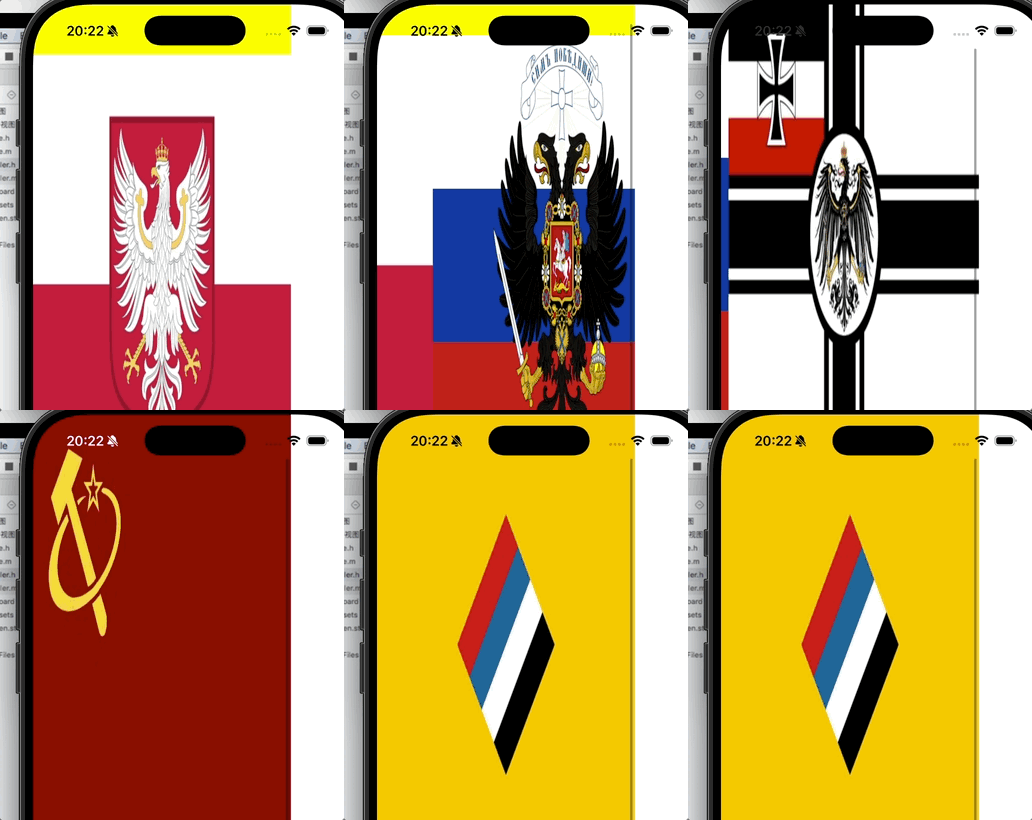
我们可以使用UIScroll来创造可以滚动的视图,可以让我们把几张图片合起来
objectivec
- (void)viewDidLoad {
    [super viewDidLoad];
    // Do any additional setup after loading the view.

    // 创建一个滚动视图,用于水平展示多张图片
    UIScrollView* sv = [[UIScrollView alloc] init];

    // 设置滚动视图的位置和大小(x=0, y=0, 宽=320, 高=570)
    sv.frame = CGRectMake(0, 0, 320, 570);

    // 开启分页效果,滑动时会自动对齐到每一页的边界
    sv.pagingEnabled = YES;

    // 允许用户滚动(默认为YES,可省略)
    sv.scrollEnabled = YES;

    // 设置内容区域的大小:宽度为 320 * 5(5张图片),高度为 570
    // 这样滚动视图就知道需要滚动多长的距离
    sv.contentSize = CGSizeMake(320 * 5, 570);

    // 开启弹性效果,拖拽到边界时会反弹
    sv.bounces = YES;

    // 始终允许水平方向弹性(即使内容宽度小于滚动视图宽度)
    sv.alwaysBounceHorizontal = YES;

    // 始终允许垂直方向弹性(这里内容高度等于滚动视图高度,垂直方向不会滚动,但设置也无妨)
    sv.alwaysBounceVertical = YES;

    // 显示垂直滚动条(当内容高度超过滚动视图高度时才显示,这里不会显示)
    sv.showsVerticalScrollIndicator = YES;

    // 显示水平滚动条
    sv.showsHorizontalScrollIndicator = YES;

    // 设置滚动视图的背景颜色为黄色,便于调试
    sv.backgroundColor = [UIColor yellowColor];

    // 循环添加5张图片
    for (int i = 0; i < 5; i++) {
        // 根据索引生成图片名称,例如 1.jpg, 2.jpg, ... 5.jpg
        NSString* strName = [NSString stringWithFormat:@"%d.jpg", i + 1];
        // 从项目资源中加载图片
        UIImage* image = [UIImage imageNamed:strName];
        // 创建图片视图,并直接使用图片初始化
        UIImageView* iView = [[UIImageView alloc] initWithImage:image];
        // 每个宽度为320,正好是滚动视图的宽度,实现分页
        iView.frame = CGRectMake(320 * i, 0, 320, 570);
        // 将图片视图添加到滚动视图中
        [sv addSubview:iView];
    }

    // 将滚动视图添加到当前控制器的根视图上,显示出来
    [self.view addSubview:sv];
}contentSize:决定滚动范围
pagingEnabled:开启分页(类似轮播图)
bounces:是否有回弹效果
contentOffset:当前滚动位置
#import <UIKit/UIKit.h>

@interface ViewController : UIViewController <UIScrollViewDelegate>
{
    UIScrollView* scrollView;
}

@end
objectivec
//
//  ViewController.m
//  UIScrollView高级
//
//  Created by 王子鸣 on 2026/4/13.
//

#import "ViewController.h"

@interface ViewController ()
@end

@implementation ViewController

- (void)viewDidLoad {
    [super viewDidLoad];

    // 1. 创建滚动视图对象
    scrollView = [[UIScrollView alloc] init];
    // 设置滚动视图的位置和大小 (x=10, y=50, width=300, height=400)
    scrollView.frame = CGRectMake(10, 50, 300, 400);
    // 关闭弹性效果(滚动到边界时不会反弹)
    scrollView.bounces = NO;
    // 允许用户交互(默认为YES,可省略)
    scrollView.userInteractionEnabled = YES;
    // 设置内容区域大小:宽度400,高度2000(5张图片 * 400)
    scrollView.contentSize = CGSizeMake(400, 400 * 5);

    // 2. 循环添加5张图片作为子视图
    for (int i = 0; i < 5; i++) {
        // 生成图片名称,例如 1.jpg, 2.jpg ... 5.jpg
        NSString* strName = [NSString stringWithFormat:@"%d.jpg", i + 1];
        // 从资源包加载图片
        UIImage* image = [UIImage imageNamed:strName];
        // 创建图片视图
        UIImageView* iView = [[UIImageView alloc] init];
        iView.image = image;
        // 设置图片视图的位置:x=0, y=400*i, 宽=300, 高=400
        // 这样图片会垂直排列,每个占满滚动视图的宽度和高度,便于分页滚动
        iView.frame = CGRectMake(0, 400 * i, 300, 400);
        [scrollView addSubview:iView];
    }

    // 将滚动视图添加到当前控制器的根视图
    [self.view addSubview:scrollView];

    // 开启分页效果,滑动停止时自动对齐到图片边界(每页高度400)
    scrollView.pagingEnabled = YES;
    // 初始滚动偏移量为 (0,0),显示第一张图片
    scrollView.contentOffset = CGPointMake(0, 0);
    // 设置代理为当前控制器,以便接收滚动事件
    scrollView.delegate = self;
}

#pragma mark - UIScrollViewDelegate 代理方法

// 当滚动视图滚动时(任何偏移变化)都会调用
-(void) scrollViewDidScroll:(UIScrollView *)scrollView {
    // 打印当前垂直滚动偏移量
    NSLog(@"y = %f", scrollView.contentOffset.y);
}

// 当用户结束拖拽(手指离开屏幕)时调用
// decelerate 表示松手后是否还会继续减速滚动
-(void) scrollViewDidEndDragging:(UIScrollView *)scrollView willDecelerate:(BOOL)decelerate {
    NSLog(@"Did End Drag");
}

// 当用户开始拖拽滚动视图时调用
-(void) scrollViewWillBeginDragging:(UIScrollView *)scrollView {
    NSLog(@"WillBeginDrag");
}

// 当滚动视图即将开始减速(惯性滚动)时调用
-(void) scrollViewWillBeginDecelerating:(UIScrollView *)scrollView {
    NSLog(@"Will Begin Deceleratg");  // 注意:原代码有拼写错误(Deceleratg),但不影响执行
}

// 当滚动视图完全停止(减速结束)时调用
-(void) scrollViewDidEndDecelerating:(UIScrollView *)scrollView {
    NSLog(@"视图停止移动");
}

#pragma mark - 触摸事件

// 重写触摸开始方法,当用户点击屏幕时触发
-(void) touchesBegan:(NSSet<UITouch *> *)touches withEvent:(UIEvent *)event {
    // 将滚动视图的可见区域滚动到顶部(CGRectMake(0,0,300,400) 表示第一个图片的区域)
    // animated:YES 表示带动画效果
    [scrollView scrollRectToVisible:CGRectMake(0, 0, 300, 400) animated:YES];
}

@end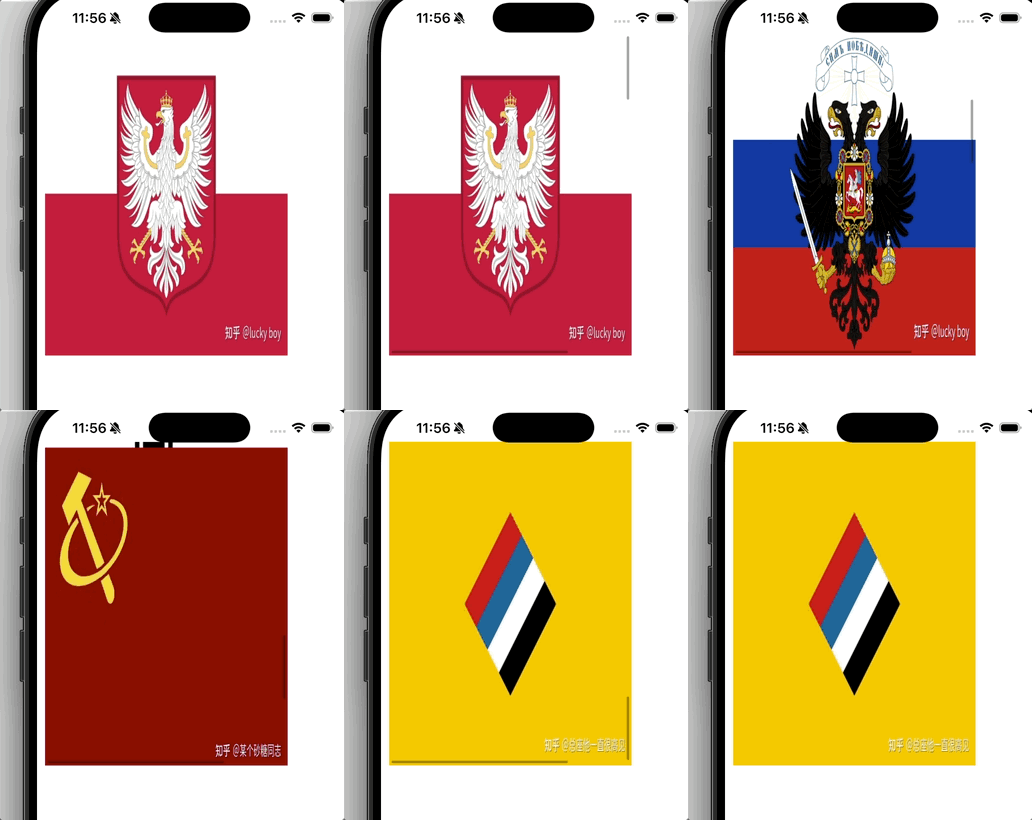
手动布局子视图
UIView 的 layoutSubviews 方法会在视图大小改变时自动调用,适合用来动态调整子视图的位置和大小。下面的例子演示了如何让四个橙色小方块始终位于父视图的四个角,并在变化时带有动画。
objectivec
//
//  SuperView.h
//  手动布局子视图
//
//  Created by 王子鸣 on 2026/4/14.
//

#import <UIKit/UIKit.h>

NS_ASSUME_NONNULL_BEGIN

@interface SuperView : UIView
{
    UIView* view1;
    UIView* view2;
    UIView* view3;
    UIView* view4;
    UIView* view5;
}

-(void) creatSubViews;
@end

NS_ASSUME_NONNULL_END
objectivec
//
//  SuperView.m
//  手动布局子视图
//
//  Created by 王子鸣 on 2026/4/14.
//

#import "SuperView.h"

@implementation SuperView

// 重写 drawRect: 方法(通常用于自定义绘制),这里不需要,故注释掉
/*
- (void)drawRect:(CGRect)rect {
    // Drawing code
}
*/

// 创建四个子视图(橙色小方块)并添加到当前视图
-(void) creatSubViews {
    // 创建四个 UIView 实例,并设置初始位置和大小(40x40)
    view1 = [[UIView alloc] init];
    view1.frame = CGRectMake(0, 0, 40, 40);          // 左上角

    view2 = [[UIView alloc] init];
    view2.frame = CGRectMake(self.bounds.size.width - 40, 0, 40, 40); // 右上角

    view3 = [[UIView alloc] init];
    view3.frame = CGRectMake(self.bounds.size.width - 40, self.bounds.size.height - 40, 40, 40); // 右下角

    view4 = [[UIView alloc] init];
    view4.frame = CGRectMake(0, self.bounds.size.height - 40, 40, 40); // 左下角

    // 设置所有子视图的背景色为橙色
    view1.backgroundColor = [UIColor orangeColor];
    view2.backgroundColor = [UIColor orangeColor];
    view3.backgroundColor = [UIColor orangeColor];
    view4.backgroundColor = [UIColor orangeColor];

    // 将子视图添加到当前视图
    [self addSubview:view1];
    [self addSubview:view2];
    [self addSubview:view3];
    [self addSubview:view4];
}

// 重写 layoutSubviews 方法,当视图的 bounds 发生变化时自动调用
// 这里用于重新调整四个子视图的位置,使它们始终位于父视图的四个角,并带有动画效果
-(void) layoutSubviews {
    // 开始动画块(旧式动画 API)
    [UIView beginAnimations:nil context:nil];
    [UIView setAnimationDuration:1];   // 设置动画持续时间为 1 秒

    // 重新设置子视图的 frame,使其紧贴父视图的四个角
    view1.frame = CGRectMake(0, 0, 40, 40);                                        // 左上角
    view2.frame = CGRectMake(self.bounds.size.width - 40, 0, 40, 40);              // 右上角
    view3.frame = CGRectMake(self.bounds.size.width - 40, self.bounds.size.height - 40, 40, 40); // 右下角
    view4.frame = CGRectMake(0, self.bounds.size.height - 40, 40, 40);              // 左下角

    // 提交动画,开始执行
    [UIView commitAnimations];
}

@end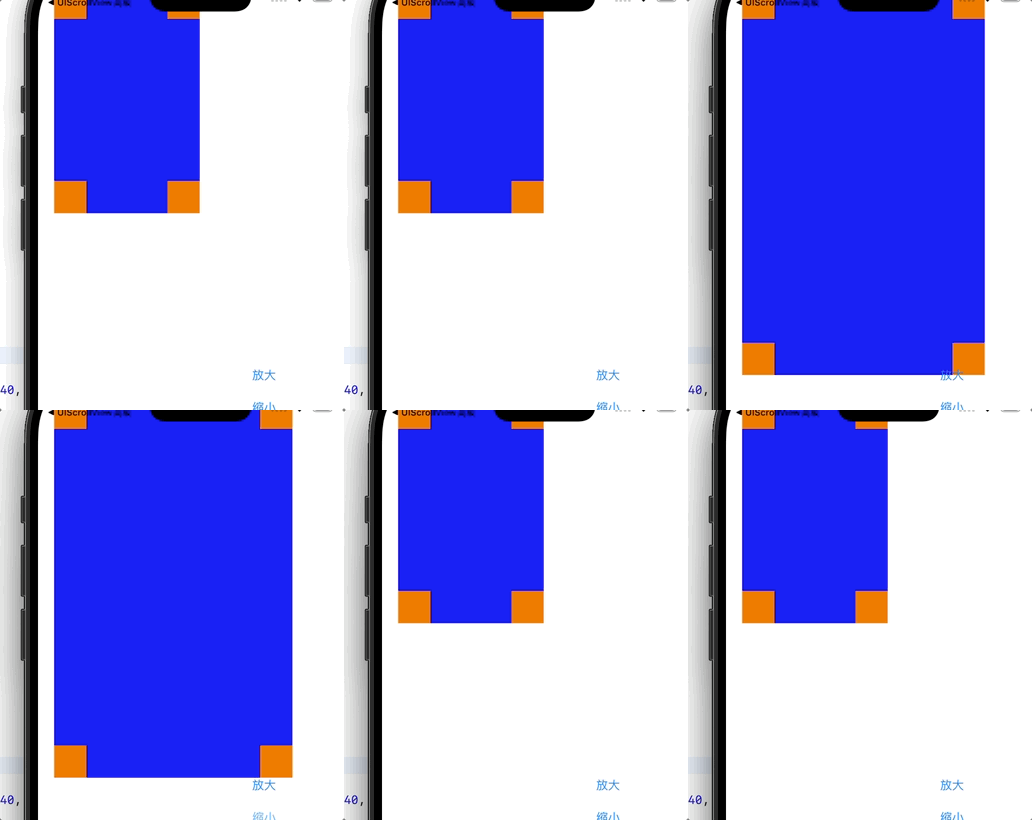
导航控制器
- 基础
objectivec
//SceneDelegate.m
- (void)scene:(UIScene *)scene willConnectToSession:(UISceneSession *)session options:(UISceneConnectionOptions *)connectionOptions {
    // 将传入的 UIScene 对象强制转换为 UIWindowScene,因为我们需要用它来创建窗口
    UIWindowScene* windowScene = (UIWindowScene*)scene;

    // 使用 UIWindowScene 初始化一个 UIWindow 对象,这是应用程序的窗口容器
    self.window = [[UIWindow alloc] initWithWindowScene:windowScene];

    // 创建自定义的根视图控制器 VCRoot(假设已定义)
    VCRoot* root = [[VCRoot alloc] init];

    // 将 VCRoot 包装在一个 UINavigationController 中,这样就有了导航栏和栈式导航功能
    UINavigationController* nav = [[UINavigationController alloc] initWithRootViewController:root];

    // 将导航控制器设置为窗口的根视图控制器
    self.window.rootViewController = nav;

    // 使窗口成为应用的主窗口并显示在屏幕上
    [self.window makeKeyAndVisible];
}
objectivec
// VCRoot.m
- (void)viewDidLoad {
    // 必须先调用父类的 viewDidLoad,以执行父类的初始化
    [super viewDidLoad];

    // 设置当前视图的背景颜色为黄色
    self.view.backgroundColor = [UIColor yellowColor];

    // 设置导航栏的标题
    self.title = @"根视图";

    // 另一种设置导航栏标题的方式(与 self.title 效果相同,通常只用其一即可)
    self.navigationItem.title = @"Title";

    // 创建一个导航栏左侧按钮,标题为"左侧",样式为 Done(蓝色加粗文字)
    // target 指定按钮点击时调用的对象为 self(当前控制器)
    // action 指定点击时执行的方法为 pressLeft
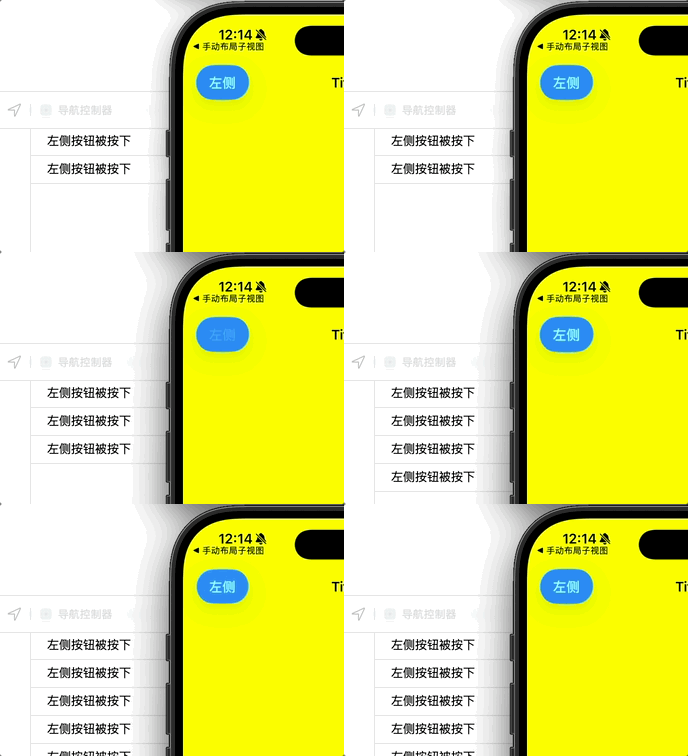
    UIBarButtonItem* leftBtn = [[UIBarButtonItem alloc] initWithTitle:@"左侧" style:UIBarButtonItemStyleDone target:self action:@selector(pressLeft)];
    // 将创建好的按钮设置到导航栏的左侧位置
    self.navigationItem.leftBarButtonItem = leftBtn;
}

// 左侧按钮的点击事件处理方法
-(void) pressLeft {
    NSLog(@"左侧按钮被按下");
}
2.切换
objectivec
//SceneDelegate.m
- (void)scene:(UIScene *)scene willConnectToSession:(UISceneSession *)session options:(UISceneConnectionOptions *)connectionOptions {
    // 设置窗口的 frame 为整个屏幕的大小
    self.window.frame = [UIScreen mainScreen].bounds;

    // 创建自定义的根视图控制器 VCRoot
    VCRoot* root = [[VCRoot alloc] init];

    // 将根视图控制器嵌入到导航控制器中(获得导航栏和栈式导航功能)
    UINavigationController* nav = [[UINavigationController alloc] initWithRootViewController:root];

    // 将导航控制器设置为窗口的根视图控制器
    self.window.rootViewController = nav;

    // 使窗口成为应用的主窗口并显示在屏幕上
    [self.window makeKeyAndVisible];
}
objectivec
#import "VCRoot.h"
#import "VCSecond.h"

@interface VCRoot ()

@end

@implementation VCRoot

- (void)viewDidLoad {
    [super viewDidLoad];

    // 设置当前视图的背景颜色为黄色
    self.view.backgroundColor = [UIColor yellowColor];

    // 设置导航栏的标题(显示在顶部中央)
    self.title = @"根视图";

    // 创建导航栏外观对象,用于自定义导航栏样式
    UINavigationBarAppearance* appearance = [[UINavigationBarAppearance alloc] init];
    // 加载背景图片(图片需添加到项目中,命名为 1.jpg)
    UIImage* bgImage = [UIImage imageNamed:@"1.jpg"];
    appearance.backgroundImage = bgImage;                 // 设置导航栏背景图片
    // 将自定义外观应用到导航栏的标准状态和滚动边缘状态
    self.navigationController.navigationBar.standardAppearance = appearance;
    self.navigationController.navigationBar.scrollEdgeAppearance = appearance;

    // 另一种设置导航栏标题的方式(与 self.title 类似,通常只用一个即可)
    self.navigationItem.title = @"title";

    // 创建左侧按钮(文字按钮)
    UIBarButtonItem* leftButton = [[UIBarButtonItem alloc] initWithTitle:@"左侧"
                                                                   style:UIBarButtonItemStyleDone
                                                                  target:self
                                                                  action:@selector(pressleft)];
    self.navigationItem.leftBarButtonItem = leftButton;   // 设置到导航栏左侧

    // 创建右侧按钮(文字按钮)
    UIBarButtonItem* rightButton = [[UIBarButtonItem alloc] initWithTitle:@"进入下一级"
                                                                    style:UIBarButtonItemStyleDone
                                                                   target:self
                                                                   action:@selector(pressright)];
    self.navigationItem.rightBarButtonItem = rightButton; // 先设置一个单独的右侧按钮(后面会被覆盖)

    // 创建一个全屏的 UIImageView,作为视图的背景(最底层)
    UIImageView* imageView = [[UIImageView alloc] init];
    imageView.frame = [[UIScreen mainScreen] bounds];    // 全屏尺寸
    imageView.alpha = 1;                                 // 不透明
    imageView.image = [UIImage imageNamed:@"2.jpg"];
    [self.view insertSubview:imageView atIndex:0];       // 插入到最底层(索引0)

    // 创建一个自定义视图(UILabel)用于导航栏按钮
    UILabel* lael = [[UILabel alloc] init];
    lael.frame = CGRectMake(10, 10, 50, 40);             // 设置标签位置和大小
    lael.text = @"test";                                 // 标签文字
    lael.textAlignment = NSTextAlignmentCenter;          // 文字居中
    lael.textColor = [UIColor blueColor];                // 文字蓝色
    // 使用自定义视图创建 UIBarButtonItem
    UIBarButtonItem* item3 = [[UIBarButtonItem alloc] initWithCustomView:lael];

    // 设置右侧按钮组(包含之前的 rightButton 和刚创建的 item3)
    NSArray* arrayOfButton = [NSArray arrayWithObjects:rightButton, item3, nil];
    self.navigationItem.rightBarButtonItems = arrayOfButton;   // 会覆盖之前单独设置的 rightBarButtonItem

    // 确保导航栏显示(这两行作用相同,保留一行即可)
    self.navigationController.navigationBar.hidden = NO;
    self.navigationController.navigationBarHidden = NO;
}

// 左侧按钮点击事件
-(void) pressleft {
    NSLog(@"leftButton is pressed");
}

// 右侧按钮点击事件(进入下一级页面)
-(void) pressright {
    // 创建第二个视图控制器
    VCSecond* vc2 = [[VCSecond alloc] init];
    // 通过导航控制器压入新视图控制器,实现页面跳转
    [self.navigationController pushViewController:vc2 animated:YES];
}

@end
objectivec
#import "VCSecond.h"
#import "VCThird.h"

@interface VCSecond ()

@end

@implementation VCSecond

- (void)viewDidLoad {
    [super viewDidLoad];

    // 创建一个全屏的 UIImageView 作为背景
    UIImageView* imageView = [[UIImageView alloc] init];
    imageView.image = [UIImage imageNamed:@"3.jpg"];          // 加载图片 3.jpg(需添加到项目)
    imageView.frame = [[UIScreen mainScreen] bounds];         // 设置 frame 为屏幕大小
    [self.view insertSubview:imageView atIndex:0];            // 插入到视图最底层(索引0)

    // 设置导航栏为半透明效果(默认为 YES,此处可省略)
    self.navigationController.navigationBar.translucent = YES;
    // 设置导航栏的样式为默认(黑色文字,浅色背景)
    self.navigationController.navigationBar.barStyle = UIBarStyleDefault;

    // 设置当前视图控制器的标题(显示在导航栏中央)
    self.title = @"视图二";

    // 创建右侧按钮,点击后跳转到下一个视图
    self.navigationItem.rightBarButtonItem = [[UIBarButtonItem alloc] initWithTitle:@"下一个视图"
                                                                              style:UIBarButtonItemStylePlain
                                                                             target:self
                                                                             action:@selector(pressright)];
    // 创建左侧按钮,点击后返回上一个视图
    self.navigationItem.leftBarButtonItem = [[UIBarButtonItem alloc] initWithTitle:@"上一个视图"
                                                                             style:UIBarButtonItemStylePlain
                                                                            target:self
                                                                            action:@selector(pressleft)];
}

// 右侧按钮点击事件:压入 VCThird 控制器,实现页面跳转
-(void) pressright {
    VCThird* vc3 = [[VCThird alloc] init];                     // 创建第三个视图控制器
    [self.navigationController pushViewController:vc3 animated:YES]; // 导航控制器推入新页面
}

// 左侧按钮点击事件:弹出当前控制器,返回上一级
-(void) pressleft {
    [self.navigationController popViewControllerAnimated:YES]; // 从导航栈中移除当前控制器
}
@end
objectivec
//
//  VCThird.m
//  导航控制器切换
//
//  Created by 王子鸣 on 2026/4/16.
//

#import "VCThird.h"
#import "VCRoot.h"
#import "VCSecond.h"

@interface VCThird ()

@end

@implementation VCThird

- (void)viewDidLoad {
    [super viewDidLoad];
    // Do any additional setup after loading the view.

    // 创建一个 UIImageView 用于显示背景图片
    UIImageView* imageView = [UIImageView new];
    // 设置 frame 为整个屏幕的大小
    imageView.frame = [[UIScreen mainScreen] bounds];
    // 加载图片 4.jpg(需添加到项目中)
    imageView.image = [UIImage imageNamed:@"4.jpg"];
    // 将图片视图插入到当前视图的最底层(索引0),作为背景
    [self.view insertSubview:imageView atIndex:0];

    // 设置导航栏的标题为"视图三"
    self.navigationItem.title = @"视图三";

    // 创建左侧按钮,标题为"上一级页面",点击时调用 pressleft 方法
    self.navigationItem.leftBarButtonItem = [[UIBarButtonItem alloc] initWithTitle:@"上一级页面"
                                                                             style:UIBarButtonItemStylePlain
                                                                            target:self
                                                                            action:@selector(pressleft)];
    // 创建右侧按钮,标题为"下一级页面",点击时调用 pressright 方法
    self.navigationItem.rightBarButtonItem = [[UIBarButtonItem alloc] initWithTitle:@"下一级页面"
                                                                              style:UIBarButtonItemStylePlain
                                                                             target:self
                                                                             action:@selector(pressright)];
}

// 左侧按钮点击事件:返回上一级视图控制器(从导航栈中弹出当前控制器)
-(void) pressleft {
    [self.navigationController popViewControllerAnimated:YES];
}

// 右侧按钮点击事件:返回到根视图控制器(弹出栈中所有控制器,直到根)
-(void) pressright {
    [self.navigationController popToRootViewControllerAnimated:YES];
}

@end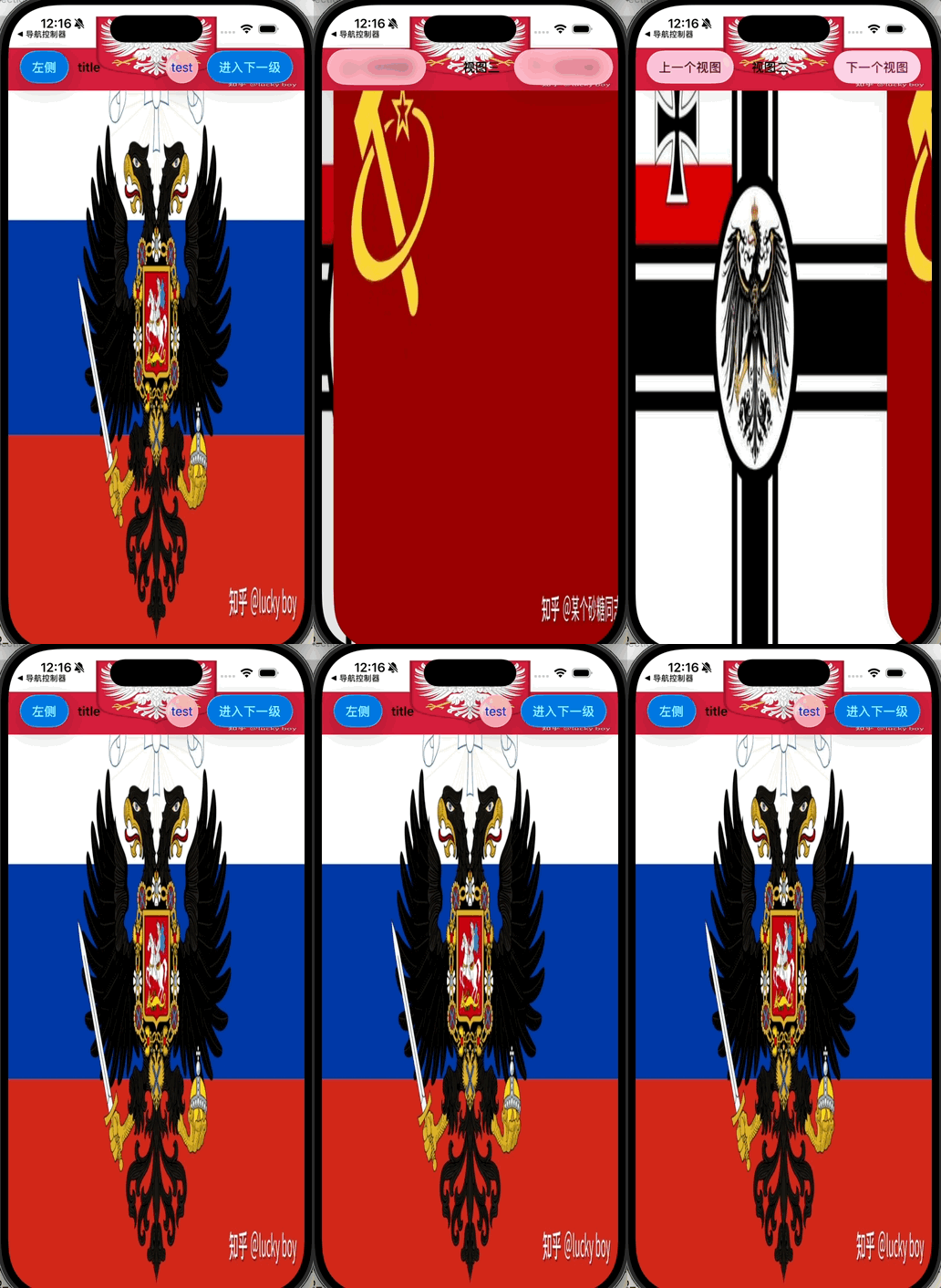
分栏控制器
objectivec
//  SceneDelegate.m
//  分栏控制器
//
//  Created by 王子鸣 on 2026/4/16.
//

#import "SceneDelegate.h"
// 导入所有视图控制器头文件
#import "VCFirst.h"
#import "VCSecond.h"
#import "VCThird.h"
#import "VCFourth.h"
#import "VCFifth.h"
#import "VCSixth.h"

@interface SceneDelegate ()<UITabBarControllerDelegate>

@end

@implementation SceneDelegate

- (void)scene:(UIScene *)scene willConnectToSession:(UISceneSession *)session options:(UISceneConnectionOptions *)connectionOptions {
    // 1. 创建六个视图控制器,分别设置背景颜色和标题
    VCFirst* vc01 = [VCFirst new];
    vc01.view.backgroundColor = [UIColor brownColor];
    vc01.title = @"视图1";

    VCSecond* vc02 = [VCSecond new];
    vc02.view.backgroundColor = [UIColor orangeColor];
    vc02.title = @"视图2";

    VCThird* vc03 = [VCThird new];
    vc03.view.backgroundColor = [UIColor yellowColor];
    vc03.title = @"视图3";

    VCFourth* vc04 = [VCFourth new];
    vc04.view.backgroundColor = [UIColor greenColor];
    vc04.title = @"视图4";

    VCFifth* vc05 = [VCFifth new];
    vc05.view.backgroundColor = [UIColor grayColor];
    vc05.title = @"视图5";

    VCSixth* vc06 = [VCSixth new];
    vc06.view.backgroundColor = [UIColor purpleColor];
    vc06.title = @"视图6";

    // 2. 创建标签栏控制器(UITabBarController)
    UITabBarController* tbc = [UITabBarController new];
    // 将六个视图控制器放入数组,作为标签栏的子控制器
    NSArray* arrvc = [NSArray arrayWithObjects:vc01, vc02, vc03, vc04, vc05, vc06, nil];
    tbc.viewControllers = arrvc;

    // 3. 将标签栏控制器设置为窗口的根视图控制器
    self.window.rootViewController = tbc;

    // 4. 默认选中第三个标签(索引从0开始,即视图3)
    tbc.selectedIndex = 2;
    // 判断当前选中的控制器是否为 vc03,若是则打印日志
    if (tbc.selectedViewController == vc03) {
        NSLog(@"选中的是下标为2的视图控制器");
    }

    // 5. 自定义标签栏外观
    tbc.tabBar.translucent = NO;                // 关闭半透明效果
    tbc.tabBar.backgroundColor = [UIColor redColor]; // 设置标签栏背景色为红色

    // 6. 设置代理,以便接收标签栏的事件(编辑、选中切换等)
    tbc.delegate = self;
}

#pragma mark - UITabBarControllerDelegate 代理方法

// 用户开始编辑标签栏(长按某个标签进入编辑模式)时调用
-(void) tabBarController:(UITabBarController *)tabBarController willBeginCustomizingViewControllers:(NSArray<__kindof UIViewController *> *)viewControllers{
    NSLog(@"编辑前");
}

// 用户即将结束编辑(如松开长按或点击"完成")时调用
-(void) tabBarController:(UITabBarController *)tabBarController willEndCustomizingViewControllers:(NSArray<__kindof UIViewController *> *)viewControllers changed:(BOOL)changed {
    NSLog(@"即将结束前");
}

// 用户已经结束编辑,标签栏顺序已更新时调用
-(void) tabBarController:(UITabBarController *)tabBarController didEndCustomizingViewControllers:(NSArray<__kindof UIViewController *> *)viewControllers changed:(BOOL)changed {
    NSLog(@"%@", viewControllers);          // 打印编辑后的视图控制器数组
    if (changed == YES) {
        NSLog(@"顺序发生改变");               // 如果顺序有变化,输出提示
    }
    NSLog(@"已经结束编辑");
}

// 当用户点击切换标签(选中某个视图控制器)时调用
-(void) tabBarController:(UITabBarController *)tabBarController didSelectViewController:(UIViewController *)viewController {
    NSLog(@"选中控制器对象");
}

#pragma mark - 其他场景生命周期方法(通常无需修改,保留默认实现)

- (void)sceneDidDisconnect:(UIScene *)scene {
    // 场景断开连接时调用(例如被系统释放)
}

- (void)sceneDidBecomeActive:(UIScene *)scene {
    // 场景变为活跃状态(从后台切换到前台)时调用
}

- (void)sceneWillResignActive:(UIScene *)scene {
    // 场景即将失去活跃状态(例如被电话打断)时调用
}

- (void)sceneWillEnterForeground:(UIScene *)scene {
    // 场景即将进入前台(从后台唤醒)时调用
}

- (void)sceneDidEnterBackground:(UIScene *)scene {
    // 场景已经进入后台(按Home键)时调用
}

@end
objectivec
// VCFirst.m
- (void)viewDidLoad {
    [super viewDidLoad];
    // 创建一个系统预定义样式的标签栏项,使用"通讯录"图标(UITabBarSystemItemContacts)
    UITabBarItem* tabbarItem = [[UITabBarItem alloc] initWithTabBarSystemItem:UITabBarSystemItemContacts tag:101];
    // 将当前视图控制器的标签栏项设置为这个新创建的项
    self.tabBarItem = tabbarItem;
}
// VCSecond.m
- (void)viewDidLoad {
    [super viewDidLoad];
    // 创建一个自定义标题的标签栏项,标题为"发现",不设置图片(image 参数为 nil)
    // tag 设置为 101(可与第一个视图区分,但实际 tag 值通常不同,这里保持原样)
    UITabBarItem* tabbarItem = [[UITabBarItem alloc] initWithTitle:@"发现" image:nil tag:101];
    tabbarItem.badgeValue = @"22";
    // 将当前视图控制器的标签栏项设置为这个新创建的项
    self.tabBarItem = tabbarItem;
}
//后面四个文件不用修改(3,4,5,6)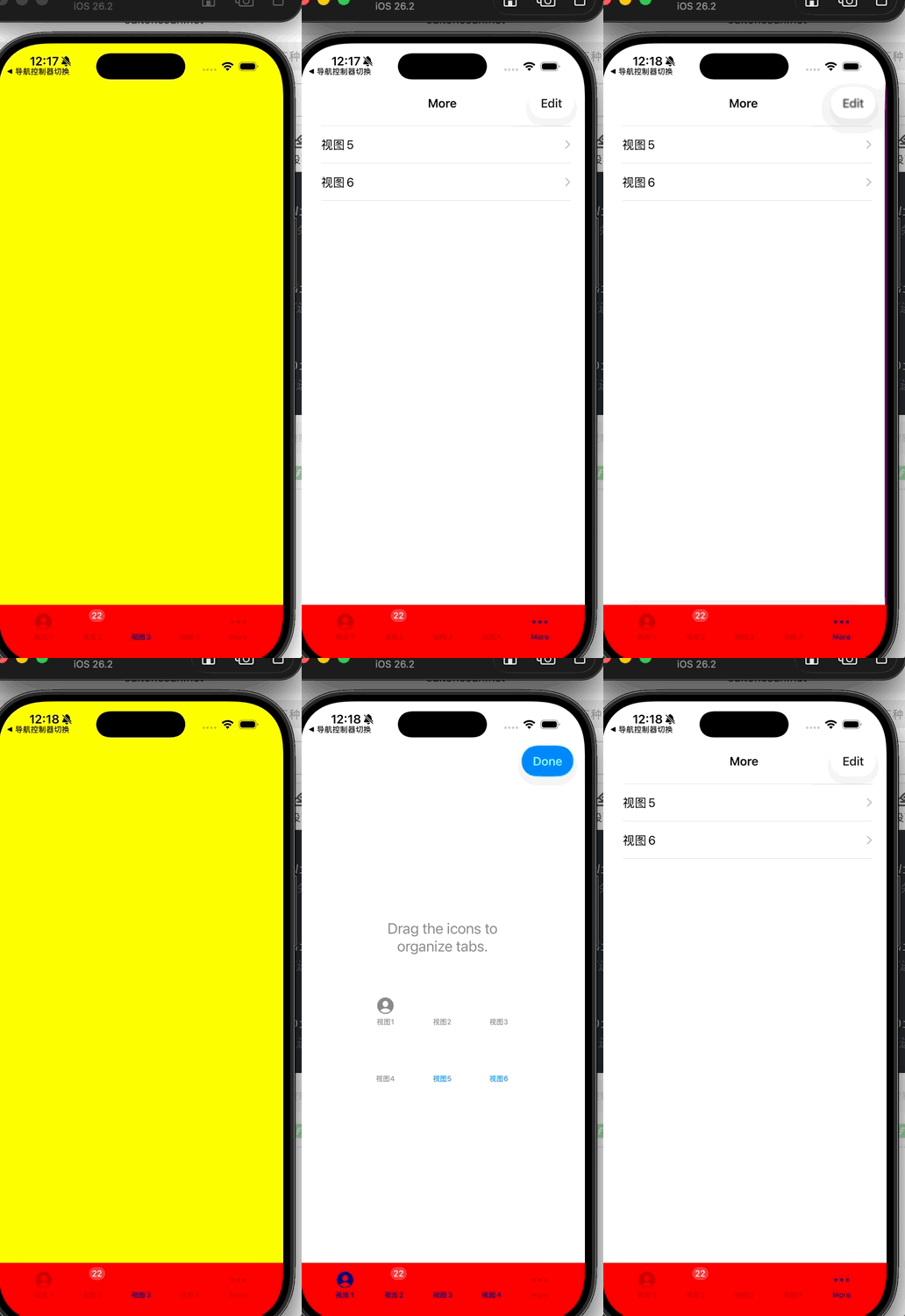
frame和bounds
frame
作用:描述视图在父视图坐标系中的位置和大小。
属性 :CGRect 类型,包含 origin(相对于父视图左上角的偏移)和 size(视图的宽高)。
可修改性 :可以修改 frame 来改变视图在父视图中的位置和大小。
坐标系:父视图的坐标系(以父视图的左上角为原点 (0,0))。
bounds
作用 :描述视图在自身坐标系中的位置和大小。(解释自身坐标)
属性 :CGRect 类型,但 origin 通常为 (0,0)(除非子视图的坐标偏移或滚动)。
可修改性 :修改 bounds 会改变视图自身的坐标系统,影响子视图的布局以及视图自身的显示内容。
坐标系:以视图自身的左上角为原点 (0,0)。
| 场景 | 推荐使用 |
|---|---|
| 改变视图在父视图中的位置或大小 | 修改 frame |
| 移动子视图(如滚动视图的内容) | 修改 bounds.origin |
| 缩放视图内容(如捏合手势) | 修改 bounds.size |
| 获取视图的实际显示区域(不考虑父视图) | 读取 bounds |
| 获取视图相对于父视图的矩形 | 读取 frame |
在iOS中,frame主要用于视图布局bounds用于动画缩放,改变 bounds.size 时,视图会以 center 为中心向四周均匀缩放,符合常见缩放效果,如果直接用 frame 做缩放,视图会围绕左上角 (frame.origin) 缩放,另外,修改 bounds 不会影响视图的 center,因此可以方便地和位置动画组合。
总结
这次的学习主要是多个界面,多个视图的处理,学习这部分内容是对之前单个处理的整合