手写一个「迷你 Cursor」:从零构建 AI 编程助手(LangChain + Tool Calling 实战)
你也能造的 Agent ------ 让大模型学会读写文件、执行命令,自动完成一个 TodoList 项目
前言:为什么你要读这篇文章?
最近 AI Agent 火得一塌糊涂:千问点奶茶、OpenClaw 养虾、Manus 开源复刻......它们背后有一个共同的模式:给大模型装上「手」和「记忆」,它就能自动干活。
作为前端/全栈开发者,你肯定用过 Cursor、Copilot 这类 AI 编程助手。你有没有想过:它们是怎么做到的?我能不能自己写一个精简版?
这篇文章就带你从零开始,手写一个 mini Cursor。它能够:
- 📖 读取文件内容
- ✍️ 写入/修改代码文件
- 🖥️ 执行终端命令(如
pnpm create vite) - 📁 列出目录结构
最终,你只需要给它一句指令:
"创建一个功能丰富的 React TodoList 应用,用 pnpm,带 localStorage 和动画"
它就会自动生成项目、写代码、装依赖、启动 dev server ------ 全程无需人工介入。
全文约 8000 字,分为 10 个章节 ,从 Agent 基础概念到完整代码实现,再到踩坑经验,手把手教学。代码即文章,复制即可跑通。
🔗 完整代码已放在文末,环境变量仅需一个 API Key(支持国内 Qwen / DeepSeek / OpenAI 兼容接口)
第一章:AI Agent 是什么?为什么需要 Tool?
1.1 普通大模型的局限
你平时用 ChatGPT / DeepSeek 聊天,它会写代码,但:
- ❌ 它不能帮你实际创建文件 ------ 只能给你代码块,让你自己复制保存
- ❌ 它不能运行命令 ------ 无法
pnpm install或npm run dev - ❌ 它记不住你上周聊过什么 ------ 每次都是新会话
- ❌ 它不知道你公司内部文档 ------ 只能靠公开知识
1.2 Agent = LLM + 扩展能力
Agent(智能体) 就是在 LLM 的基础上,给它添加:
- Memory:记住对话历史、任务进度
- Tool:调用外部能力(读文件、写文件、执行命令、查天气、调 API......)
- RAG:检索私有知识库
一个简单的公式:
ini
AI Agent = LLM + Memory + Tool + RAG我们的 mini Cursor 主要聚焦 Tool 部分,让大模型具备操作本地文件系统 和执行系统命令的能力。
1.3 为什么用 LangChain?
LangChain 是目前最流行的 AI Agent 开发框架,它封装了:
- 统一的 Tool 接口
- 自动的 Tool Calling 流程(模型决定调用哪个工具、传什么参数)
- 消息记忆管理(我们例子中简化了,但可以扩展)
本文使用 LangChain.js (Node.js 版本),配合 @langchain/openai 适配器,支持 OpenAI 兼容接口(包括 Qwen、DeepSeek、智谱等)。
第二章:准备工作 ------ 环境与依赖
2.1 初始化项目
bash
mkdir mini-cursor
cd mini-cursor
pnpm init
2.2 安装依赖
bash
pnpm add @langchain/openai @langchain/core zod dotenv chalk
pnpm add -D @types/node@langchain/openai:调用兼容 OpenAI 接口的模型zod:定义 Tool 的参数 schemadotenv:读取.env环境变量chalk:让控制台输出带颜色
2.3 配置环境变量
创建 .env 文件:
env
# 以 Qwen(阿里通义千问)为例,也可以用 DeepSeek、OpenAI
OPENAI_API_KEY=your-api-key
OPENAI_BASE_URL=https://dashscope.aliyuncs.com/compatible-mode/v1
MODEL_NAME=qwen-coder-turbo
提示:
qwen-coder-turbo代码能力很强且便宜,如果你没有 API Key,可以用 DeepSeek(deepseek-chat)或 OpenAI GPT-4o。
2.4 项目结构
bash
mini-cursor/
├── .env
├── all_tools.mjs      # 定义所有工具(读/写/执行/列目录)
├── main.mjs           # Agent 主循环 + 启动
└── package.json
第三章:实现四个核心 Tool(LangChain 风格)
LangChain 中的 Tool 需要三要素:
- 执行函数:异步函数,接收参数,返回结果字符串
- name:工具名称,模型会据此调用
- schema:使用 Zod 定义参数结构,模型自动填充
我们创建 all_tools.mjs,依次实现。
3.1 读取文件工具
javascript
import { tool } from '@langchain/core/tools';
import fs from 'node:fs/promises';
import { z } from 'zod';

export const readFileTool = tool(
  async ({ filePath }) => {
    try {
      const content = await fs.readFile(filePath, 'utf-8');
      console.log(`[工具调用] read_file("${filePath}") 成功读取 ${content.length} 字节`);
      return `文件内容:\n${content}`;
    } catch (error) {
      return `错误:${error.message}`;
    }
  },
  {
    name: 'read_file',
    description: '读取指定路径的文件内容',
    schema: z.object({
      filePath: z.string().describe('文件路径'),
    }),
  }
);
3.2 写入文件工具(自动创建目录)
javascript
import path from 'node:path';

export const writeFileTool = tool(
  async ({ filePath, content }) => {
    try {
      const dir = path.dirname(filePath);
      await fs.mkdir(dir, { recursive: true });  // 递归创建父目录
      await fs.writeFile(filePath, content, 'utf-8');
      console.log(`[工具调用] write_file("${filePath}") 成功写入 ${content.length} 字节`);
      return `文件写入成功: ${filePath}`;
    } catch (error) {
      return `写入文件失败:${error.message}`;
    }
  },
  {
    name: 'write_file',
    description: '向指定路径写入文件内容,自动创建目录',
    schema: z.object({
      filePath: z.string().describe('文件路径'),
      content: z.string().describe('要写入的文件内容'),
    }),
  }
);
3.3 执行命令工具(支持工作目录)
这是最关键的 Tool ------ 让模型能够运行 pnpm install、npm run dev 等。
javascript
import { spawn } from 'node:child_process';

export const executeCommandTool = tool(
  async ({ command, workingDirectory }) => {
    const cwd = workingDirectory || process.cwd();
    console.log(`[工具调用] execute_command("${command}") 在目录 ${cwd} 执行`);

    return new Promise((resolve, reject) => {
      const child = spawn(command, [], {
        cwd,
        shell: true,        // 使用系统 shell,支持管道、&& 等
        stdio: 'inherit',   // 实时显示命令输出
      });

      let errorMsg = '';
      child.on('error', (error) => { errorMsg = error.message; });
      child.on('close', (code) => {
        if (code === 0) {
          const cwdInfo = workingDirectory
            ? `\n\n重要提示:命令在目录"${workingDirectory}"中执行成功。如果需要在这个项目目录中继续执行命令,请使用 workingDirectory "${workingDirectory}" 参数,不要使用 cd 命令。`
            : '';
          resolve(`命令执行成功: ${command} ${cwdInfo}`);
        } else {
          reject(new Error(errorMsg || `命令退出码 ${code}`));
        }
      });
    });
  },
  {
    name: 'execute_command',
    description: '执行系统命令,支持指定工作目录,实时显示输出',
    schema: z.object({
      command: z.string().describe('要执行的命令'),
      workingDirectory: z.string().optional().describe('指定工作目录,默认当前工作目录'),
    }),
  }
);
⚠️ 踩坑提醒 :很多初学者让模型用
cd folder && pnpm install,但模型经常搞错路径。我们通过workingDirectory参数来切换目录,并在 Prompt 中强制要求不要使用 cd。
3.4 列出目录工具
javascript
export const listDirectoryTool = tool(
  async ({ directoryPath }) => {
    try {
      const files = await fs.readdir(directoryPath);
      console.log(`[工具调用] list_directory("${directoryPath}") 成功列出 ${files.length} 个文件`);
      return `目录内容:\n${files.map(f => `- ${f}`).join('\n')}`;
    } catch (error) {
      return `列出目录失败:${error.message}`;
    }
  },
  {
    name: 'list_directory',
    description: '列出指定目录下的所有文件和文件夹',
    schema: z.object({
      directoryPath: z.string().describe('目录路径'),
    }),
  }
);
3.5 统一导出
javascript
export {
  readFileTool,
  writeFileTool,
  executeCommandTool,
  listDirectoryTool,
};
第四章:Agent 核心循环 ------ 让模型自主决策
创建 main.mjs,这是整个 mini Cursor 的大脑。
4.1 初始化模型并绑定工具
javascript
import 'dotenv/config';
import { ChatOpenAI } from '@langchain/openai';
import { HumanMessage, SystemMessage, ToolMessage } from '@langchain/core/messages';
import {
  readFileTool,
  writeFileTool,
  executeCommandTool,
  listDirectoryTool,
} from './all_tools.mjs';
import chalk from 'chalk';

const model = new ChatOpenAI({
  modelName: process.env.MODEL_NAME,
  apiKey: process.env.OPENAI_API_KEY,
  temperature: 0,
  configuration: {
    baseURL: process.env.OPENAI_BASE_URL,
  },
});

const tools = [readFileTool, writeFileTool, executeCommandTool, listDirectoryTool];
const modelWithTools = model.bindTools(tools);
4.2 System Prompt ------ 给模型定规矩
好的 System Prompt 能大幅提升成功率。我们重点强调 execute_command 的正确用法:
javascript
const systemPrompt = new SystemMessage(`
你是一个项目管理助手,使用工具完成任务。
当前工作目录: ${process.cwd()}

工具:
1. read_file: 读取文件
2. write_file: 写入文件
3. execute_command: 执行命令 (支持workingDirectory 参数)
4. list_directory: 列出目录

重要规则 - execute_command:
- workingDirectory 参数会自动切换到指定目录
- 当使用workingDirectory 参数时,不要在command中使用cd 命令
- 错误示例: { command: "cd react-todo-app && pnpm install", workingDirectory: "react-todo-app" }
  这是错误的!因为 workingDirectory 已经在 react-todo-app 目录了,再 cd react-todo-app 会找不到目录
- 正确示例: { command: "pnpm install", workingDirectory: "react-todo-app" }

回复要简洁,只说做了什么
`);
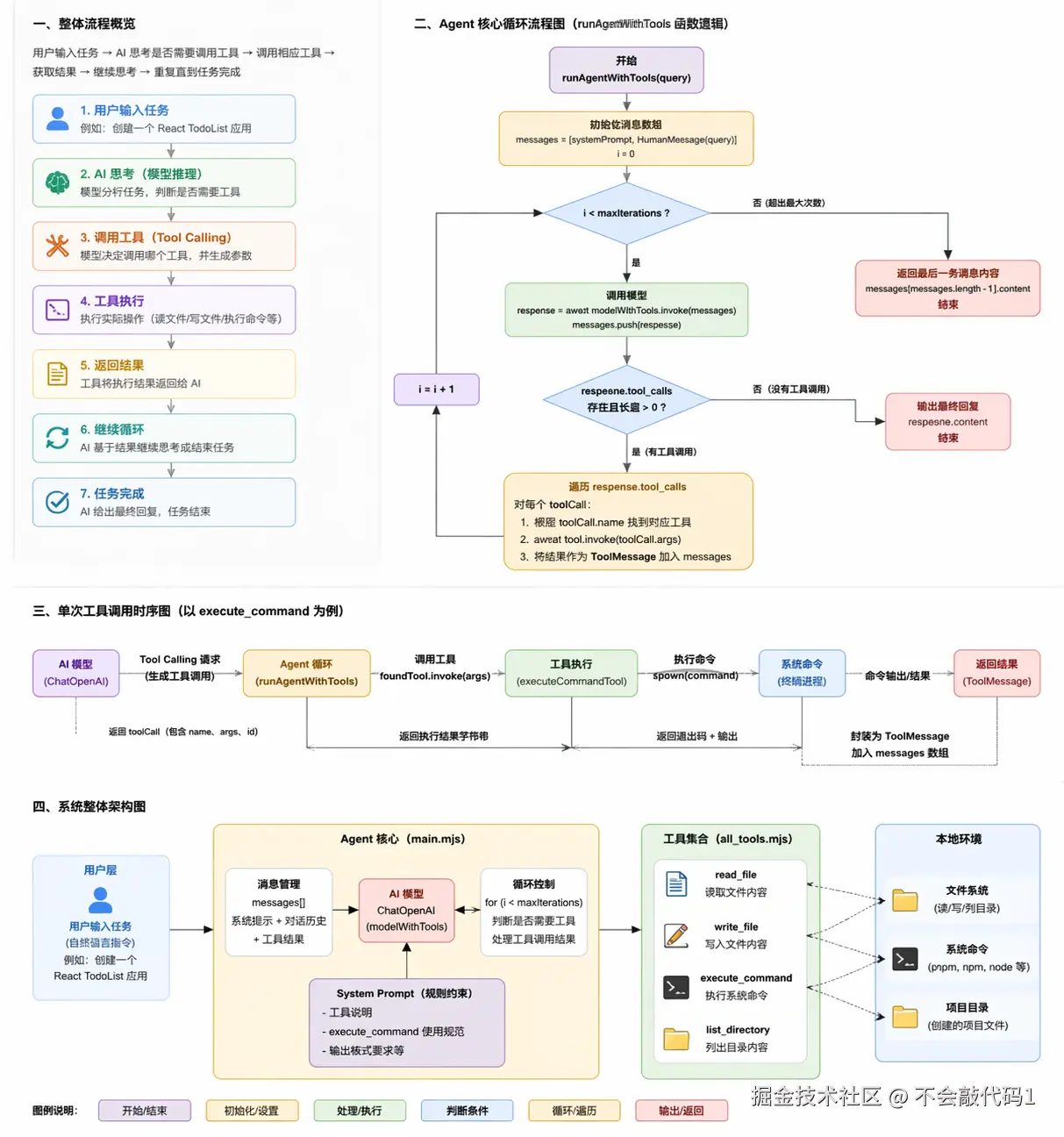
4.3 Agent 循环 ------ 模型 ↔ 工具 的往返
Agent 的核心是一个 for 循环,每次:
- 调用模型(带上历史消息)
- 如果模型返回
tool_calls,则执行对应的工具,把结果作为ToolMessage追加到对话中 - 如果模型没有
tool_calls,说明任务完成,输出最终回复
javascript
async function runAgentWithTools(query, maxIterations = 30) {
  const messages = [systemPrompt, new HumanMessage(query)];

  for (let i = 0; i < maxIterations; i++) {
    console.log(chalk.bgGreen('⏳ 正在等待 AI 思考...'));
    const response = await modelWithTools.invoke(messages);
    messages.push(response);

    // 没有工具调用 → 结束
    if (!response.tool_calls || response.tool_calls.length === 0) {
      console.log(`\n AI 最终回复:\n ${response.content}\n`);
      return response.content;
    }

    // 执行每一个工具调用
    for (const toolCall of response.tool_calls) {
      const foundTool = tools.find(t => t.name === toolCall.name);
      if (foundTool) {
        const toolResult = await foundTool.invoke(toolCall.args);
        messages.push(new ToolMessage({
          content: toolResult,
          tool_call_id: toolCall.id,
        }));
      }
    }
  }

  return messages[messages.length - 1].content;
}
🔄 这个循环就是 ReAct 模式(Reason + Act)的简单实现:模型思考 → 选择工具 → 观察结果 → 继续思考,直到任务完成。
第五章:实战案例 ------ 让 AI 从零创建一个 React TodoList
现在我们给 Agent 一个复杂的任务:创建完整的 React TodoList 应用,带样式、动画、localStorage。
javascript
const case1 = `
创建一个功能丰富的 React TodoList 应用:

1. 创建项目:echo -e "n\\n\\n" | pnpm create vite react-todo-app --template react-ts
2. 修改 src/App.tsx,实现完整功能的 TodoList:
   - 添加、删除、编辑、标记完成
   - 分类筛选(全部/进行中/已完成)
   - 统计信息显示
   - localStorage 数据持久化
3. 添加复杂样式:
   - 渐变背景(蓝到紫)
   - 卡片阴影、圆角
   - 悬停效果
4. 添加动画:
   - 添加/删除时的过渡动画
   - 使用 CSS transitions
5. 列出目录确认

注意:使用 pnpm,功能要完整,样式要美观,要有动画效果

之后在 react-todo-app 项目中:
1. 使用 pnpm install 安装依赖
2. 使用 pnpm run dev 启动服务器
`;

try {
  await runAgentWithTools(case1);
} catch (error) {
  console.error(`\n错误: ${error.message}\n`);
}
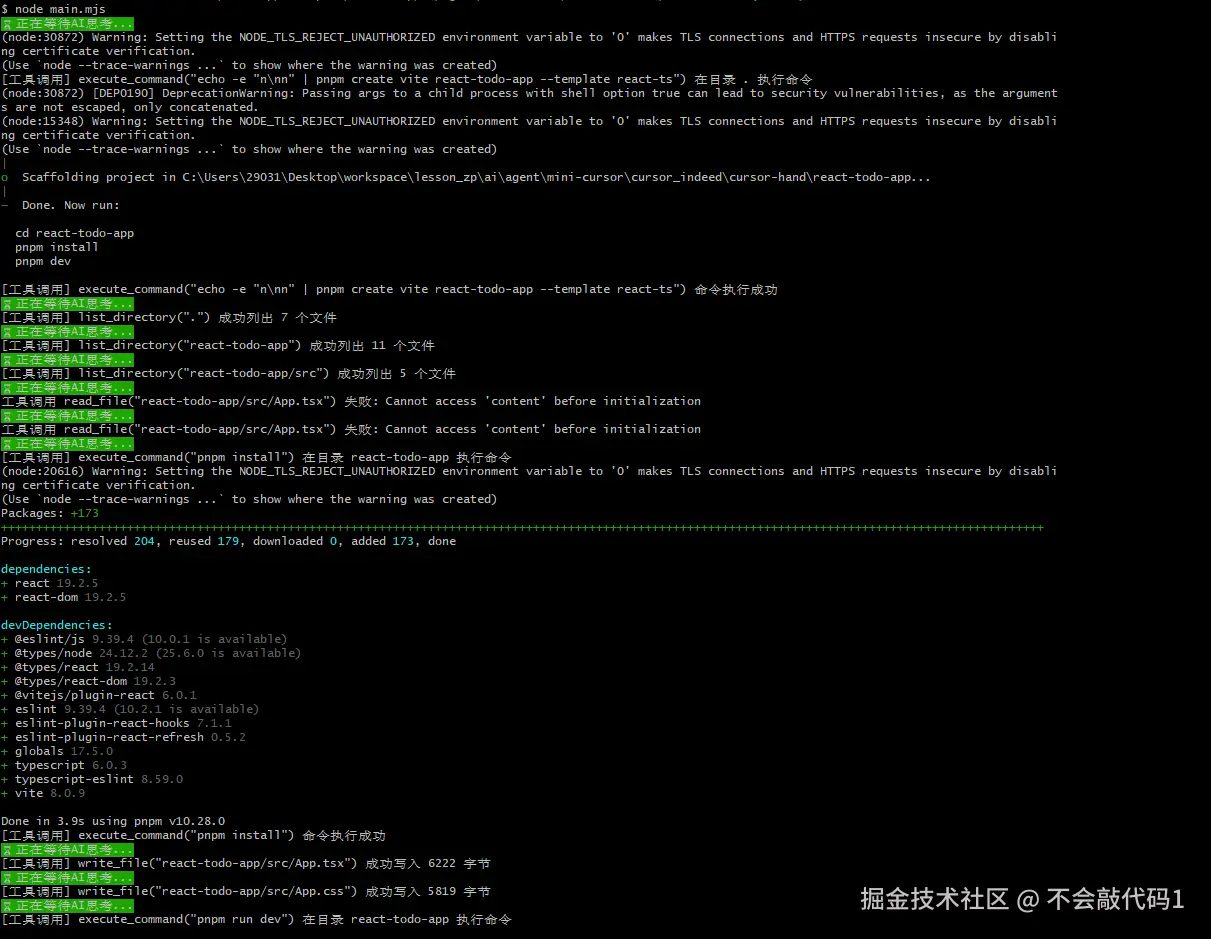
5.1 Agent 执行过程(日志模拟)
- AI 思考 :需要先创建项目 → 调用
execute_command,参数command: "echo -e 'n\nn' | pnpm create vite react-todo-app --template react-ts" - 工具返回:命令执行成功,项目文件夹已生成
- AI 思考 :需要列出目录确认 → 调用
list_directory,参数directoryPath: "./react-todo-app" - 工具返回 :显示
src/,index.html,package.json等 - AI 思考 :需要修改
App.tsx→ 调用write_file,写入完整的 TodoList 组件代码(带 hooks、localStorage、CSS) - 工具返回:写入成功
- AI 思考 :需要安装依赖 → 调用
execute_command,参数command: "pnpm install", workingDirectory: "react-todo-app" - 工具返回:安装完成
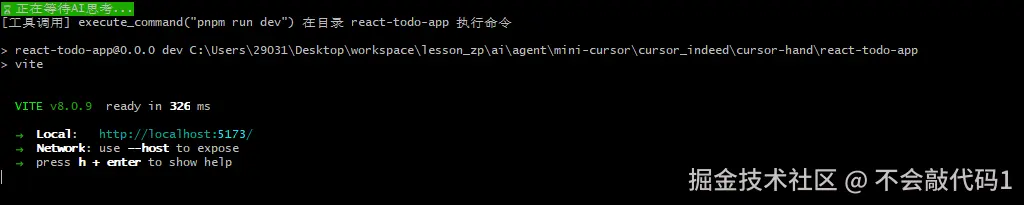
- AI 思考 :需要启动开发服务器 → 调用
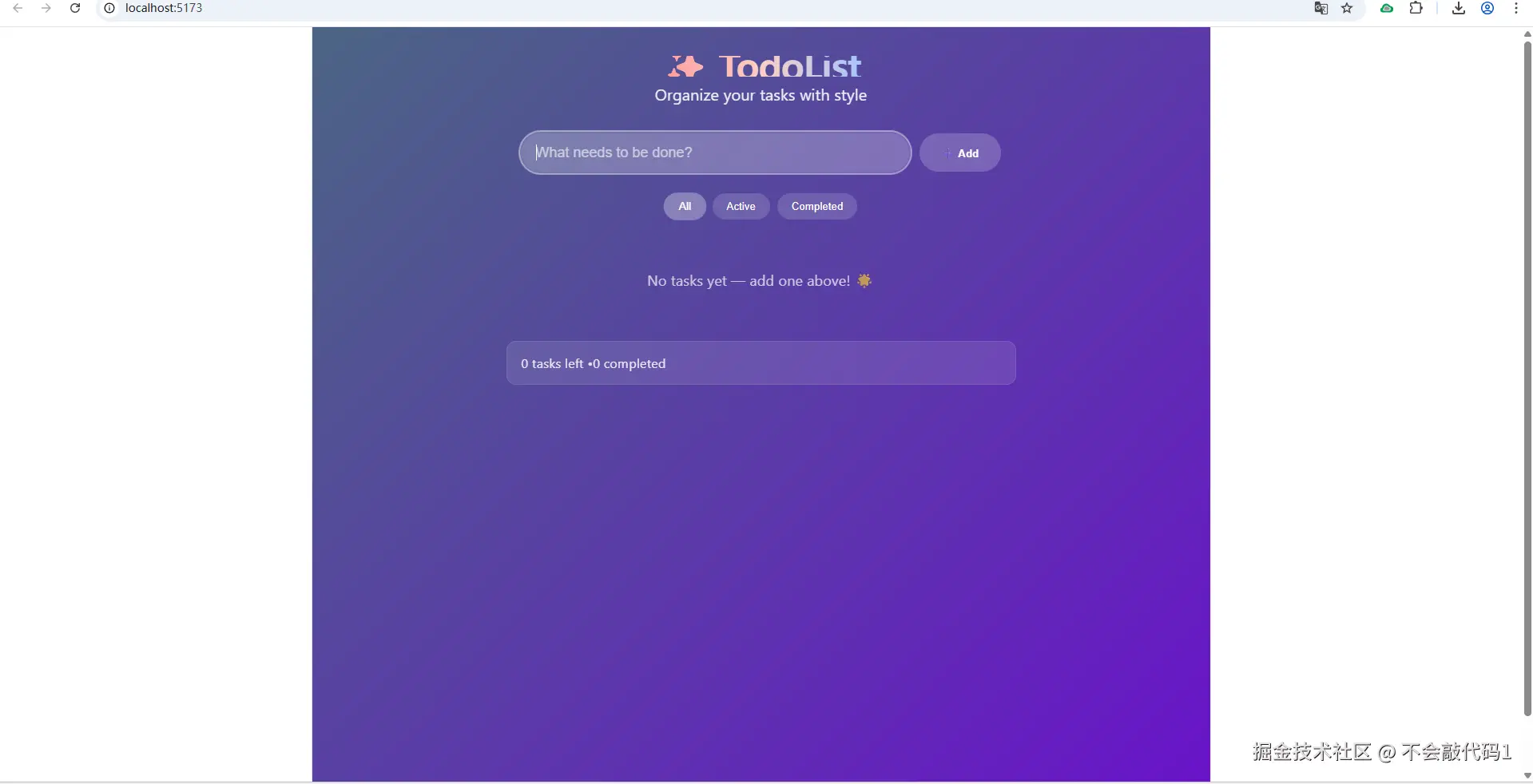
execute_command,参数command: "pnpm run dev", workingDirectory: "react-todo-app" - AI 最终回复 :项目已启动,访问 http://localhost:5173
✨ 全程无需你写一行代码,AI 自己完成了项目创建、代码编写、依赖安装、服务启动。
运行结果
⚠️ 第六章:踩坑与最佳实践
6.1 命令执行的工作目录问题
模型天然喜欢用 cd folder && command 这种写法,但 spawn 配合 shell: true 时,cd 可能不生效或导致路径混乱。
解决方案 :单独提供 workingDirectory 参数,并在 Prompt 中反复强调。
6.2 大模型的"幻觉"导致错误参数
有时模型会传一个不存在的文件路径,或者忘记传必填参数。
解决方案:在 Tool 内部做充分的错误处理和友好报错,把错误信息返回给模型,让它自我修正。
6.3 无限循环风险
如果模型反复调用同一个工具且每次都失败,可能陷入无限循环。
解决方案 :设置 maxIterations(如 30 次),超时后自动结束。
6.4 模型的选择
- Qwen-Coder-Turbo:代码能力强,便宜,推荐国内用户
- DeepSeek-Chat:免费额度多,逻辑不错
- GPT-4o:最强但贵,适合复杂任务
6.5 Tool 返回值要包含足够的信息
模型无法看到控制台输出(stdio: 'inherit' 只给人看),所以工具返回值里要总结关键信息,例如"安装成功,安装了 234 个包"。
第七章:扩展思路 ------ 从 mini Cursor 到完整 Agent
我们的 mini Cursor 只有 4 个 Tool,但你可以轻松扩展:
7.1 添加更多 Tool
search_web:调用搜索引擎,让模型能查资料run_python:执行 Python 脚本fetch_url:下载远程文件git_commit:自动提交代码
7.2 增加 Memory(记忆)
使用 LangChain 的 BufferMemory 或 ConversationSummaryMemory,让 Agent 记住多轮对话中的用户偏好。
7.3 增加 RAG(私有知识)
把公司内部文档向量化存入 Chroma/Pinecone,模型可以查询后回答。
7.4 多 Agent 协作
一个 Agent 负责写代码,另一个负责测试,再一个负责部署 ------ 模仿 Manus 的架构。
第八章:完整代码与运行方式
8.1 克隆或创建文件
将上面的 all_tools.mjs 和 main.mjs 复制到项目中。
8.2 安装依赖
bash
pnpm install8.3 配置 .env
env
OPENAI_API_KEY=your-key
OPENAI_BASE_URL=https://api.openai.com/v1   # 或其他兼容端点
MODEL_NAME=gpt-4o
8.4 运行
bash
node main.mjs你会看到彩色日志输出,Agent 开始工作。
第九章:总结与思考
通过这篇文章,你学会了:
- AI Agent 的核心思想:LLM + Tool + Memory + RAG
- 如何使用 LangChain 定义 Tool(读/写/执行/列表)
- 如何实现 ReAct 循环(模型自主决策调用工具)
- 实战案例:让 AI 自动完成一个完整的前端项目
- 踩坑经验:命令执行的工作目录、防止无限循环等
你现在已经具备手写一个 Cursor 类产品的能力了!
未来的 AI 编程助手不再是科幻 ------ 它就在你的代码里。
💬 第十章:交流与进阶
- 如果你在运行过程中遇到问题,欢迎在评论区留言。
- 想深入学习 Agent 框架,推荐阅读 LangChain 官方文档 LangChain JS
- 下一篇预告:《给 mini Cursor 加上多轮记忆和 RAG ------ 打造你的专属 AI 编程助手》
如果这篇文章对你有帮助,请点赞、收藏、转发,让更多人一起造轮子!
附录
AI代理工作流程图
main.mjs 代码
javascript
import 'dotenv/config';
import { ChatOpenAI } from '@langchain/openai';
import {
    HumanMessage,
    SystemMessage,
    ToolMessage
} from '@langchain/core/messages';
import {
    readFileTool,
    writeFileTool,
    executeCommanTool,
    listDirectoryTool
} from './all_tools.mjs'
import chalk from 'chalk'; // 彩色输出

const model = new ChatOpenAI({
    modelName: process.env.MODEL_NAME, // 比qwen-coder-turbo 更强大
    apiKey: process.env.OPENAI_API_KEY,
    temperature: 0,
    configuration: {
        baseURL: process.env.OPENAI_BASE_URL
    }
});

const tools = [
    readFileTool,
    writeFileTool,
    executeCommanTool,
    listDirectoryTool
]
// modelWithTools
const modelWithTools = model.bindTools(tools);
// web 4.0 AI earn money
async function runAgentWithTools(query, maxIterations = 30) {
    // 检测任务完成情况
    // 不用tool
    // 在用tool llm还在自动进行中
    const messages = [
        new SystemMessage(`
        你是一个项目管理助手,使用工具完成任务。
        当前工作目录: ${process.cwd()}

        工具:
        1. read_file: 读取文件
        2. write_file: 写入文件
        3. execute_command: 执行命令 (支持workingDirectory 参数)
        4. list_directory: 列出目录

        重要规则 - execute_command:
        - workingDirectory 参数会自动切换到指定目录
        - 当使用workingDirectory 参数时,不要在command中使用cd 命令
        - 错误示例: { command: "cd react-todo-app && pnpm install", workingDirectory: "react-todo-app" }
        这是错误的!因为 workingDirectory 已经在 react-todo-app 目录了,再 cd react-todo-app 会找不到目录
        - 正确示例: { command: "pnpm install", workingDirectory: "react-todo-app" }
        这样就对了!workingDirectory 已经切换到 react-todo-app,直接执行命令即可

        回复要简洁,只说做了什么

        `),
        new HumanMessage(query),
    ];
    // 循环是agent的核心 llm 思考,规划, 调整 不断迭代 直到任务完成。 更加智能化
    for (let i = 0; i < maxIterations; i++) {
        console.log(chalk.bgGreen('⏳正在等待AI思考...'));
        const response = await modelWithTools.invoke(messages);
        messages.push(response);
        // console.log(response);
        if (!response.tool_calls || response.tool_calls.length === 0) {
            console.log(`\n AI 最终回复:\n ${response.content}\n`);
            return response.content;
        }

        for (const toolCall of response.tool_calls) {
            const foundTool = tools.find(t => t.name === toolCall.name);
            if (foundTool) {
                const toolResult = await foundTool.invoke(toolCall.args);
                messages.push(new ToolMessage({
                    content: toolResult,
                    tool_call_id: toolCall.id
                }))
            }
        }

    }

    return messages[messages.length - 1].content;

}

const case1 = `
创建一个功能丰富的 React TodoList 应用:

1. 创建项目:echo -e "n\nn" | pnpm create vite react-todo-app --template react-ts
2. 修改 src/App.tsx,实现完整功能的 TodoList:
 - 添加、删除、编辑、标记完成
 - 分类筛选(全部/进行中/已完成)
 - 统计信息显示
 - localStorage 数据持久化
3. 添加复杂样式:
 - 渐变背景(蓝到紫)
 - 卡片阴影、圆角
 - 悬停效果
4. 添加动画:
 - 添加/删除时的过渡动画
 - 使用 CSS transitions
5. 列出目录确认

注意:使用 pnpm,功能要完整,样式要美观,要有动画效果

之后在 react-todo-app 项目中:
1. 使用 pnpm install 安装依赖
2. 使用 pnpm run dev 启动服务器
`
try {
    await runAgentWithTools(case1);
} catch(error) {
    console.error(`\n错误: ${error.message}\n`);
}
all_tools.mjs 代码
javascript
// langchain tool 工具
import { tool } from '@langchain/core/tools';
import fs from 'node:fs/promises';
import path from 'node:path';
import {
    spawn
} from 'node:child_process';
import { z } from 'zod';

// 读取文件工具
const readFileTool = tool(
    async ({ filePath }) =>  {
        try {
        console.log(`[工具调用] read_file("${filePath}") 成功读取 ${content.length} 字节`)
        const content = await fs.readFile(filePath, 'utf-8');
        return `文件内容:\n${content}`;
        } catch (error) {
            console.log(`工具调用 read_file("${filePath}") 失败: ${error.message}`);
            return `错误:${error.message}`;
        }
    },
    {
        name: 'read_file',
        description: '读取制定路径的文件内容',
        schema: z.object({
            filePath: z.string().describe('文件路径')
        })
    }
)

// 写入文件工具
const writeFileTool = tool(
    async ({ filePath, content }) => {
        try {
            // /a/b/c.txt /a/b/ 目录
            const dir = path.dirname(filePath);
            // make directory 创建目录, recursive: true 递归创建
            await fs.mkdir(dir, { recursive: true });
            await fs.writeFile(filePath, content, 'utf-8');
            console.log(`[工具调用] write_file("${filePath}") 成功写入 ${content.length} 字节`)
            return `文件写入成功: ${filePath}`;
        } catch(error) {
            console.log(`[工具调用] write_file("${filePath}") 失败: ${error.message}`);
            return `写入文件失败:${error.message}`;
        }
    },
    {
        name: 'write_file',
        description: '向指定路径写入文件内容,自动创建目录',
        schema: z.object({
            filePath: z.string().describe('文件路径'),
            content: z.string().describe('要写入的文件内容')
        })
    }
)

// 执行命令工具

const executeCommanTool = tool(
    async ({ command, workingDirectory }) => {
        const cwd = workingDirectory || process.cwd(); // 默认当前工作目录
        console.log(`[工具调用] execute_command("${command}") 在目录 ${cwd} 执行命令`);
        return new Promise((resolve, reject) => {
            const [cmd, ...args] = command.split(' ');
            const child = spawn(cmd, args, {
                cwd,
                stdio: 'inherit',
                shell: true
            })
            let errorMsg = '';
            child.on('error', (error) => {
                errorMsg = error.message;
            })
            child.on('close', (code) => {
                if (code === 0) {
                    // 成功退出
                    console.log(`[工具调用] execute_command("${command}") 命令执行成功`);
                    const cwdInfo = workingDirectory?
                    `
                    \n\n重要提示:命令在目录"${workingDirectory}"中执行成功。
                    如果需要在这个项目目录中继续执行命令,请使用 workingDirectory
                    "${workingDirectory}" 参数, 不要使用cd 命令
                    `:``
                    resolve(`命令执行成功: ${command} ${cwdInfo}`);
                } else {
                    if (errorMsg) {
                        console.error(`错误:${errorMsg}`);
                    }
                    process.exit(code || 1);
                }
            })
        })
    },
    {
        name: 'execute_command',
        description: '执行系统命令,支持指定工作目录,实时显示输出',
        schema: z.object({
            command: z.string().describe('要执行的命令'),
            workingDirectory: z.string().optional().describe('指定工作目录,默认当前工作目录')
        })
    }
)

// 列出目录工具
const listDirectoryTool = tool(
    async ({ directoryPath }) => {
        try {
            // 读取目录内容
            const files = await fs.readdir(directoryPath);
            console.log(`[工具调用] list_directory("${directoryPath}") 成功列出 ${files.length} 个文件`);
            return `目录内容:\n ${files.map(f => `- ${f}`).join('\n')}`

        } catch(error) {
            console.log(`[工具调用] list_directory("${directoryPath}") 失败: ${error.message}`);
            return `列出目录失败:${error.message}`
        }
    },
    {
        name: 'list_directory',
        description: '列出指定目录下的所有文件和文件夹',
        schema: z.object({
            directoryPath: z.string().describe('目录路径')
        })
    }
)

export {
    readFileTool,
    writeFileTool,
    executeCommanTool,
    listDirectoryTool
}