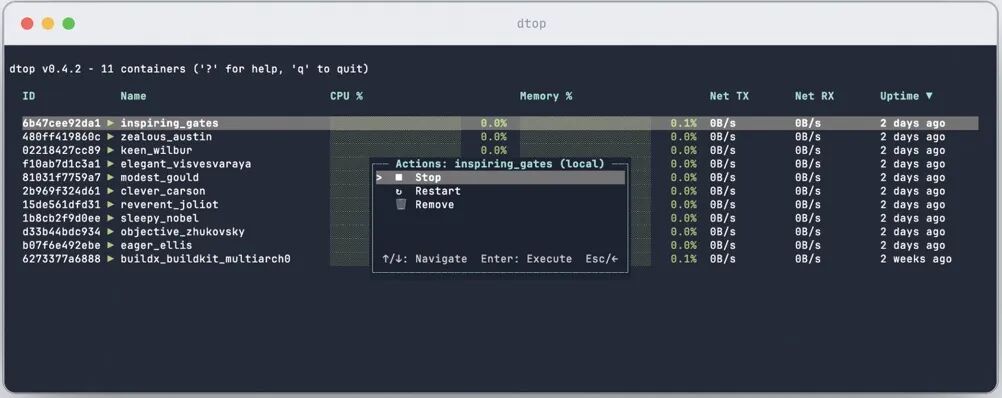
一款用于监控跨多台主机 Docker 容器的实时终端用户界面。可直接在终端跟踪 CPU、内存和网络指标。 速度极快,资源占用极低。
介绍
它支持 ssh、tcp 和本地连接,并与 Dozzle 集成用于容器日志。
优点:
-
💻 实时监控 ------容器状态和指标的实时更新;
-
⚡ 轻量化------用 Rust 极其快速且轻便;
-
🌍 多主机支持 - 监控跨多主机的容器;
-
🔍 Dozzle - 支持通过键盘快捷键打开 Dozzle 链接;
-
📝 日志流------ 实时查看容器日志;
安装和更新
linux或macos下安装:
go
brew install dtopdocker image 安装运行:
go
docker run -v /var/run/docker.sock:/var/run/docker.sock -it ghcr.io/amir20/dtop脚本安装:
go
curl --proto '=https' --tlsv1.2 -LsSf https://github.com/amir20/dtop/releases/latest/download/dtop-installer.sh | shrust管理器cargo方式安装:
go
cargo install dtop更新:
go
dtop update使用帮助
默认情况下,dtop 会通过 /var/run/docker.sock 连接到本地的 Docker 守护进程。DOCKER_HOST 也支持连接其他主机。
go
> dtop --help
A terminal-based Docker container monitoring tool with real-time CPU and memory metrics

Usage: dtop [OPTIONS] [COMMAND]

Commands:
  update  Update dtop to the latest version
  help    Print this message or the help of the given subcommand(s)

Options:
  -H, --host <HOST>
          Docker host(s) to connect to. Can be specified multiple times.

          Examples:
            --host local                    (Connect to local Docker daemon)
            --host ssh://user@host          (Connect via SSH)
            --host ssh://user@host:2222     (Connect via SSH with custom port)
            --host tcp://host:2375          (Connect via TCP to remote Docker daemon)
            --host tls://host:2376          (Connect via TLS)
            --host local --host ssh://user@server1 --host tls://server2:2376  (Multiple hosts)

          For TLS connections, set DOCKER_CERT_PATH to a directory containing:
            key.pem, cert.pem, and ca.pem

          If not specified, will use config file or default to "local"

  -i, --icons <ICONS>
          Icon style to use for the UI

          Options:
            unicode  - Standard Unicode icons (default, works everywhere)
            nerd     - Nerd Font icons (requires Nerd Font installed)

  -f, --filter <FILTER>
          Filter containers (can be specified multiple times)

          Examples:
            --filter status=running
            --filter name=nginx
            --filter label=com.example.version=1.0
            --filter ancestor=ubuntu:24.04

          Multiple filters of the same type use OR logic:
            --filter status=running --filter status=paused

          Different filter types use AND logic:
            --filter status=running --filter name=nginx

          Available filters:
            id, name, label, status, ancestor, before, since,
            volume, network, publish, expose, health, exited

          Note: Some filters only work with container listing, not events.
          Warnings will be shown if a filter is incompatible with events.

  -a, --all
          Show all containers (default shows only running containers)

          By default, dtop only shows running containers.
          Use this flag to show all containers including stopped, exited, and paused containers.

          Note: This flag can only enable showing all containers, not disable it.
          If your config file has 'all: true', you'll need to edit the config file
          or press 'a' in the UI to toggle back to showing only running containers.

          This is equivalent to pressing 'a' in the UI to toggle show all.

  -s, --sort <SORT>
          Default sort field for container list

          Options:
            uptime  - Sort by container uptime/creation time (default, newest first)
            name    - Sort by container name (alphabetically)
            cpu     - Sort by CPU usage (highest first)
            memory  - Sort by memory usage (highest first)

          You can also use short forms: u, n, c, m

          The sort direction can be toggled in the UI by pressing the same key again.

  -h, --help
          Print help (see a summary with '-h')

  -V, --version
          Print version
配置文件:
go
1 ./config.yaml 或 ./config.yml
2. ./.dtop.yaml 或 ./.dtop.yml
3. ~/.config/dtop/config.yaml 或 ~/.config/dtop/config.yml
4. ~/.dtop.yaml 或 ~/.dtop.yml
示例配置:
go
# Monitor production servers with filters and Dozzle integration
hosts:
  - host: ssh://user@prod-server1
    dozzle: https://dozzle.prod-server1.com/
    filter:
      - status=running
      - label=environment=production

  - host: ssh://user@prod-server2
    dozzle: https://dozzle.prod-server2.com/
    filter:
      - status=running
      - label=environment=production

# Use Nerd Font icons for better visuals
icons: nerd
或监控特定的应用:
go
# Development environment - only show healthy web services
hosts:
  - host: local
    filter:
      - label=app=web
      - status=running
      - health=healthy
本地连接:
go
dtop --host local
# or simply
dtop
tcp方式远程连接docker:
go
dtop --host tcp://host2:2375ssh连接docker:
go
dtop --host ssh://user@host
# With custom port
dtop --host ssh://user@host:2222
tls加密方式连接远程docker(需要通过 DOCKER_CERT_PATH 环境变量配置证书。)
go
export DOCKER_CERT_PATH=/path/to/certs  # Directory containing key.pem, cert.pem, and ca.pem
dtop --host tls://host2:2376
同时连接多个主机:
go
dtop --host local --host tcp://host2:2375 --host ssh://user@host演示视频: