Expense-tracker 记账应用开发教程
项目介绍
项目背景
记账应用是一个帮助用户记录日常收入和支出的个人财务管理工具。在现代生活中,管理个人财务变得越来越重要。一个好的记账应用可以帮助用户了解自己的消费习惯,控制支出,实现财务目标。
财务管理是一项重要的生活技能,它影响着我们的生活质量、未来规划和财务安全。如果没有适当的跟踪,很容易失去对资金流向的了解,导致超支和财务压力。本应用提供了一个简单而有效的解决方案,用于跟踪每一笔交易。
应用场景
-
日常记账:实时记录每一笔收入和支出交易。无论是一杯咖啡、一顿餐厅用餐还是一笔工资存款,每笔交易都可以记录详细信息,包括金额、分类、描述和日期。
-
预算管理:通过提供清晰的收支概览,帮助用户控制支出。用户可以设定月度预算并跟踪进度。
-
财务分析:了解消费模式,找出可以减少支出的领域。通过将交易分类,用户可以看到哪些类别消耗了最多的资源。
-
目标追踪:设定储蓄目标并追踪进度。应用可以帮助用户可视化他们的财务决策如何影响长期目标。
功能特性
- 交易记录:记录每笔交易的金额、分类、描述和日期。
- 分类管理:支持多种消费分类(餐饮、交通、购物等)。
- 余额统计:实时显示总收入、总支出和当前余额。
- 交易列表:按时间顺序显示所有交易记录。
- 删除功能:允许用户删除错误的交易记录。
- 收支切换:轻松切换记录收入和支出。
最终效果
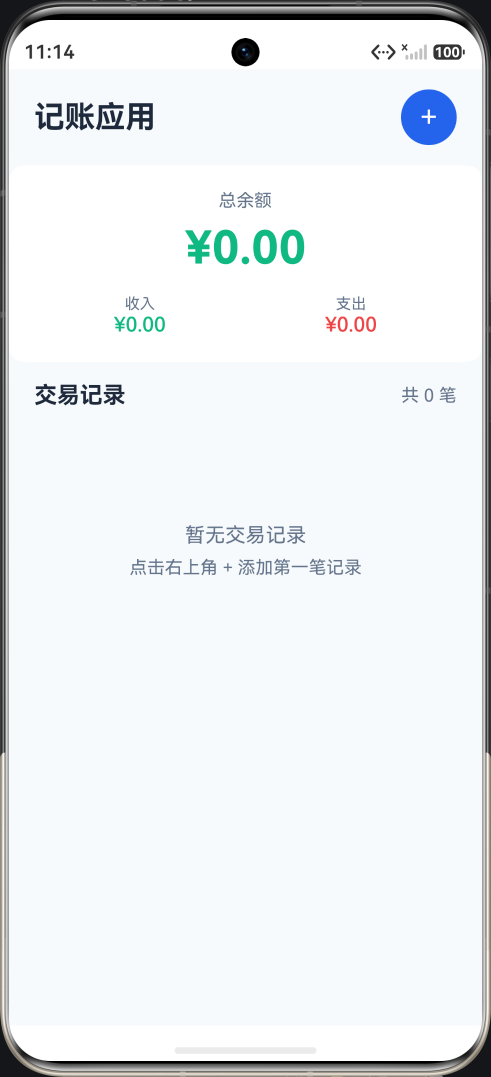
应用采用清新的绿色主题,象征着财务增长和财富。主界面包含:
- 顶部导航栏,显示应用标题和添加按钮
- 余额统计卡片,显示总收入、总支出和净余额
- 交易列表,显示所有已记录的交易,包含分类图标
技术栈
- 开发框架:HarmonyOS NEXT (API 20+)
- 编程语言:ArkTS
- UI框架:ArkUI 声明式 UI
- 核心组件:Column, Row, List, Button, TextInput, Toggle
知识点讲解
1. @State 状态管理
@State 是 ArkUI 中最常用的装饰器,用于声明组件的内部状态。当状态变量的值发生变化时,框架会自动重新渲染使用该状态的 UI 部分。
typescript
@Component
struct ExpenseTracker {
  // 声明状态变量
  @State balance: number = 0
  @State totalIncome: number = 0
  @State totalExpense: number = 0
  @State showAddForm: boolean = false
  @State transactions: Transaction[] = []

  build() {
    Column() {
      // 在 UI 中使用状态变量
      Text(`余额: ¥${this.balance}`)
        .fontSize(24)
        .fontWeight(FontWeight.Bold)

      // 修改状态会触发 UI 更新
      Button('显示表单')
        .onClick(() => {
          this.showAddForm = true  // 状态变化,UI 自动更新
        })
    }
  }
}
@State 的关键点:
@State变量只能在声明它的组件内使用- 修改
@State变量会触发组件重新渲染 - 建议将相关的状态放在一起管理
- 状态变化应该是不可变操作,特别是对于复杂对象
2. 接口定义 (interface)
接口用于定义数据结构,确保类型安全,提高代码可维护性。
typescript
// 定义交易记录的数据结构
interface Transaction {
  id: number           // 唯一标识
  amount: number       // 交易金额
  category: string     // 分类名称
  description: string  // 交易描述
  date: string         // 交易日期
  type: 'income' | 'expense'  // 交易类型
}

// 使用接口创建数据
const newTransaction: Transaction = {
  id: Date.now(),
  amount: 100,
  category: '餐饮',
  description: '午餐',
  date: '2024-01-20',
  type: 'expense'
}
接口的优势:
- 类型检查:编译时检查数据结构的正确性
- 代码提示:IDE 可以提供属性和方法的自动补全
- 文档作用:清晰地定义数据的结构
3. List 列表组件
List 组件用于显示可滚动的列表,是 ArkUI 中最常用的组件之一。
typescript
List() {
  // 使用 ForEach 循环渲染列表项
  ForEach(this.transactions, (transaction: Transaction) => {
    ListItem() {
      Row() {
        // 分类图标
        Column() {
          Text(transaction.category.charAt(0))
            .fontSize(20)
            .fontColor('#ffffff')
        }
        .width(44)
        .height(44)
        .borderRadius(22)
        .backgroundColor(transaction.type === 'income' ? '#10b981' : '#ef4444')
        .justifyContent(FlexAlign.Center)

        // 交易信息
        Column() {
          Text(transaction.description || transaction.category)
            .fontSize(16)
            .fontColor('#1e293b')

          Text(`${transaction.category} · ${transaction.date}`)
            .fontSize(12)
            .fontColor('#64748b')
            .margin({ top: 4 })
        }
        .width('60%')
        .padding({ left: 12 })

        // 金额
        Column() {
          Text(`${transaction.type === 'income' ? '+' : '-'}¥${transaction.amount.toFixed(2)}`)
            .fontSize(16)
            .fontWeight(FontWeight.Medium)
            .fontColor(transaction.type === 'income' ? '#10b981' : '#ef4444')
        }
        .width('20%')
        .alignItems(HorizontalAlign.End)
      }
      .width('100%')
      .padding(16)
      .backgroundColor('#ffffff')
      .borderRadius(8)
      .margin({ bottom: 8 })
    }
  })
}
.width('100%')
.layoutWeight(1)  // 占据剩余空间
List 常用属性:
.width()/.height():设置宽高.layoutWeight(1):占据父容器的剩余空间.divider():设置列表项之间的分割线.scrollBar():设置滚动条显示方式
4. 数组操作方法
JavaScript/TypeScript 提供了丰富的数组操作方法,在记账应用中广泛使用。
typescript
// filter: 过滤数组元素
const incomeTransactions = this.transactions.filter(t => t.type === 'income')

// reduce: 累加计算
const totalIncome = this.transactions
  .filter(t => t.type === 'income')
  .reduce((sum, t) => sum + t.amount, 0)

// unshift: 在数组开头添加元素
this.transactions.unshift(newTransaction)

// findIndex: 查找元素索引
const index = this.transactions.findIndex(t => t.id === id)

// splice: 删除指定位置的元素
this.transactions.splice(index, 1)

// map: 映射数组元素
const categories = this.transactions.map(t => t.category)

// find: 查找第一个匹配的元素
const transaction = this.transactions.find(t => t.id === id)

// some: 检查是否有任何元素匹配
const hasIncome = this.transactions.some(t => t.type === 'income')

// every: 检查是否所有元素匹配
const allExpenses = this.transactions.every(t => t.type === 'expense')
5. 条件渲染
使用 if/else 或三元运算符根据条件显示不同的 UI。
typescript
// if/else 方式
if (this.transactions.length === 0) {
  Column() {
    Text('暂无交易记录')
      .fontSize(16)
      .fontColor('#64748b')
    Text('点击右上角 + 添加第一笔记录')
      .fontSize(14)
      .fontColor('#94a3b8')
  }
  .width('100%')
  .height(200)
  .justifyContent(FlexAlign.Center)
} else {
  List() {
    ForEach(this.transactions, (transaction: Transaction) => {
      ListItem() {
        // 列表项内容
      }
    })
  }
}

// 三元运算符方式
Text(transaction.type === 'income' ? '+' : '-')
  .fontSize(16)
  .fontColor(transaction.type === 'income' ? '#10b981' : '#ef4444')
6. 事件处理
使用 onClick、onChange 等方法处理用户交互。
typescript
// 点击事件
Button('添加')
  .onClick(() => {
    this.addTransaction()
  })

// 输入变化事件
TextInput({ placeholder: '请输入金额', text: this.newAmount })
  .onChange((value: string) => {
    this.newAmount = value
  })
7. 样式设置
使用链式调用设置组件的各种样式属性。
typescript
Text('记账应用')
  .fontSize(24)                    // 字体大小
  .fontWeight(FontWeight.Bold)     // 字体粗细
  .fontColor('#1e293b')            // 字体颜色
  .margin({ top: 16 })             // 外边距
  .padding({ left: 20 })           // 内边距
  .width('100%')                   // 宽度
  .textAlign(TextAlign.Center)     // 文本对齐
8. 布局组件
ArkUI 提供了多种布局组件,用于构建复杂的界面。
typescript
// Column: 垂直布局
Column() {
  Text('第一行')
  Text('第二行')
  Text('第三行')
}
.width('100%')
.height('100%')
.justifyContent(FlexAlign.Center)  // 垂直居中
.alignItems(HorizontalAlign.Center) // 水平居中

// Row: 水平布局
Row() {
  Text('左侧')
  Blank()  // 占据剩余空间
  Text('右侧')
}
.width('100%')
.justifyContent(FlexAlign.SpaceBetween) // 两端对齐
9. 组件生命周期
typescript
@Component
struct MyComponent {
  // 组件即将出现时调用
  aboutToAppear() {
    console.log('组件即将出现')
    // 适合进行初始化操作
  }

  // 组件即将消失时调用
  aboutToDisappear() {
    console.log('组件即将消失')
    // 适合进行清理操作
  }

  build() {
    // 构建 UI
  }
}
10. 字符串模板
使用模板字符串进行格式化输出。
typescript
// 基本模板
const message = `当前余额: ¥${this.balance.toFixed(2)}`

// 格式化数字
const amount = `¥${transaction.amount.toFixed(2)}`

// 组合字符串
const displayText = `${transaction.type === 'income' ? '收入' : '支出'}: ¥${transaction.amount}`
完整代码解析
页面结构设计
┌─────────────────────────────────┐
│         顶部导航栏              │
│    [记账应用]          [+]      │
├─────────────────────────────────┤
│      余额统计卡片              │
│  ┌───────────────────────────┐  │
│  │    总余额: ¥1,234.56      │  │
│  │                           │  │
│  │  收入: ¥5,000             │  │
│  │  支出: ¥3,765             │  │
│  └───────────────────────────┘  │
├─────────────────────────────────┤
│    交易记录标题                │
│    [交易记录]        [共 5 笔]  │
├─────────────────────────────────┤
│      交易记录列表              │
│  ┌───────────────────────────┐  │
│  │ 🍽 午餐          -¥25.00  │  │
│  │    餐饮 · 2024-01-20      │  │
│  └───────────────────────────┘  │
│  ┌───────────────────────────┐  │
│  │ 💰 工资        +¥5,000.00│  │
│  │    收入 · 2024-01-15      │  │
│  └───────────────────────────┘  │
│         ...                     │
└─────────────────────────────────┘
核心方法实现
1. 添加交易记录
typescript
private addTransaction() {
  // 验证输入
  if (this.newAmount === '' || isNaN(Number(this.newAmount))) {
    return
  }

  const amount = Number(this.newAmount)

  // 创建交易记录对象
  const transaction: Transaction = {
    id: Date.now(),  // 使用时间戳作为唯一ID
    amount: amount,
    category: this.newCategory,
    description: this.newDescription,
    date: new Date().toLocaleDateString(),
    type: this.newType
  }

  // 添加到列表开头
  this.transactions.unshift(transaction)

  // 更新余额统计
  this.updateBalance()

  // 清空表单
  this.clearForm()

  // 关闭表单
  this.showAddForm = false
}
2. 更新余额统计
typescript
private updateBalance() {
  // 计算总收入
  this.totalIncome = this.transactions
    .filter(t => t.type === 'income')
    .reduce((sum, t) => sum + t.amount, 0)

  // 计算总支出
  this.totalExpense = this.transactions
    .filter(t => t.type === 'expense')
    .reduce((sum, t) => sum + t.amount, 0)

  // 计算余额
  this.balance = this.totalIncome - this.totalExpense
}
3. 删除交易记录
typescript
private deleteTransaction(id: number) {
  // 过滤掉指定ID的记录
  this.transactions = this.transactions.filter(t => t.id !== id)

  // 更新余额统计
  this.updateBalance()
}
4. 格式化金额
typescript
private formatAmount(amount: number): string {
  // 保留两位小数
  return amount.toFixed(2)
}
常见问题与解决方案
问题1:添加记录后列表不更新
现象:点击添加按钮后,列表没有显示新记录。
原因:直接修改数组元素不会触发 UI 更新。
解决方案:
typescript
// 错误方式:直接修改数组
this.transactions[0].amount = 100  // 不会触发更新

// 正确方式:创建新数组
this.transactions = [...this.transactions]
// 或者使用 unshift/push 等方法
this.transactions.unshift(newTransaction)
问题2:金额输入验证
现象:输入非数字字符时程序出错。
解决方案:
typescript
private addTransaction() {
  // 验证输入是否为有效数字
  if (this.newAmount === '' || isNaN(Number(this.newAmount))) {
    // 显示错误提示
    return
  }

  const amount = Number(this.newAmount)

  // 验证金额是否为正数
  if (amount <= 0) {
    return
  }

  // 继续添加记录...
}
问题3:日期格式不一致
现象:不同设备显示的日期格式不同。
解决方案:
typescript
// 使用固定的日期格式
private formatDate(date: Date): string {
  const year = date.getFullYear()
  const month = (date.getMonth() + 1).toString().padStart(2, '0')
  const day = date.getDate().toString().padStart(2, '0')
  return `${year}-${month}-${day}`
}
问题4:列表滚动性能
现象:记录很多时,列表滚动卡顿。
解决方案:
typescript
// 使用 LazyForEach 替代 ForEach
List() {
  LazyForEach(this.dataSource, (transaction: Transaction) => {
    ListItem() {
      // 列表项内容
    }
  }, (transaction: Transaction) => transaction.id.toString())
}
扩展学习
可添加功能
-
数据持久化
- 使用
Preferences存储用户设置 - 使用
RDB(关系型数据库)存储交易记录
- 使用
-
图表统计
- 使用 Canvas 绘制饼图显示消费分类
- 使用折线图显示收支趋势
-
多币种支持
- 支持人民币、美元、欧元等多种货币
- 实时汇率转换
-
预算管理
- 设置每月预算
- 超支提醒
-
导出功能
- 导出为 CSV 文件
- 生成月度报告
优化建议
-
性能优化
- 使用
LazyForEach处理长列表 - 避免在
build方法中进行复杂计算 - 使用
@Watch监听状态变化
- 使用
-
用户体验
- 添加加载动画
- 提供操作反馈(震动、声音)
- 支持手势操作(左滑删除)
-
代码质量
- 提取公共组件
- 使用常量管理颜色和尺寸
- 编写单元测试
总结
通过本教程,您学会了:
- @State 状态管理:如何声明和使用状态变量
- 接口定义:如何使用 interface 定义数据结构
- List 组件:如何创建可滚动的列表
- 数组操作:如何使用 filter、reduce 等方法处理数据
- 条件渲染:如何根据条件显示不同的 UI
- 事件处理:如何处理用户交互
- 样式设置:如何设置组件的样式
这些知识点是 HarmonyOS NEXT 开发的基础,掌握它们后,您可以轻松构建更复杂的应用。