效果预览
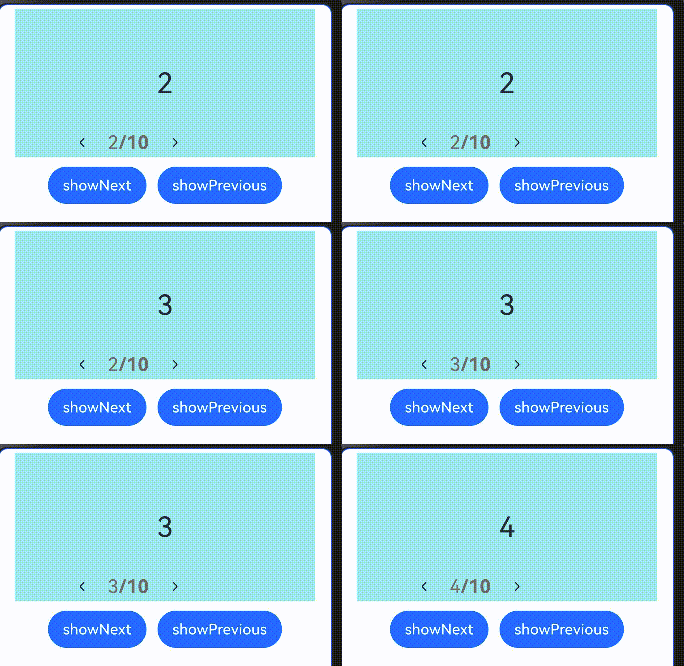
swiper官网例子
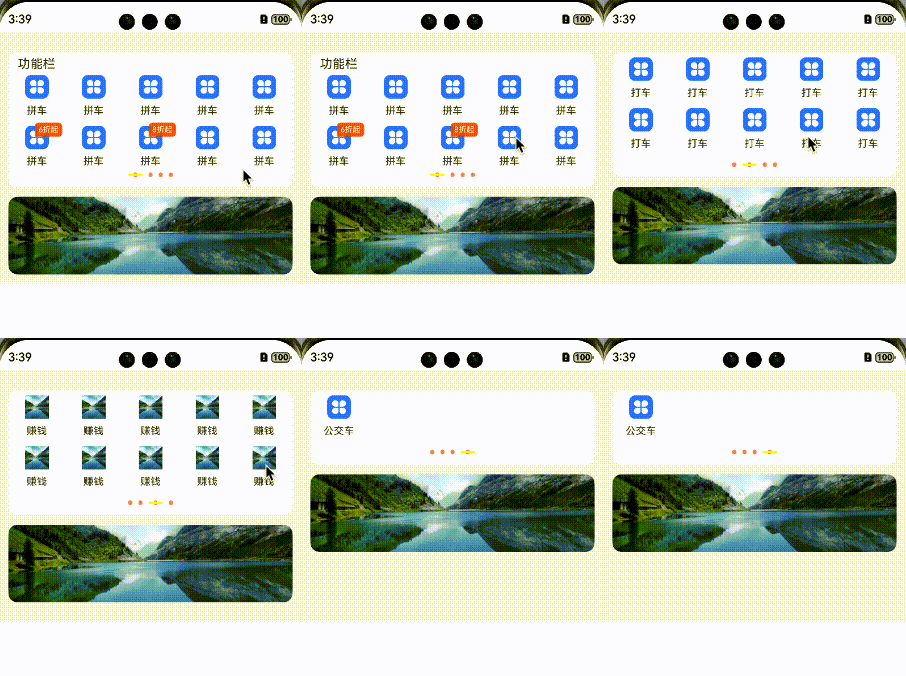
Swiper 高度可变化
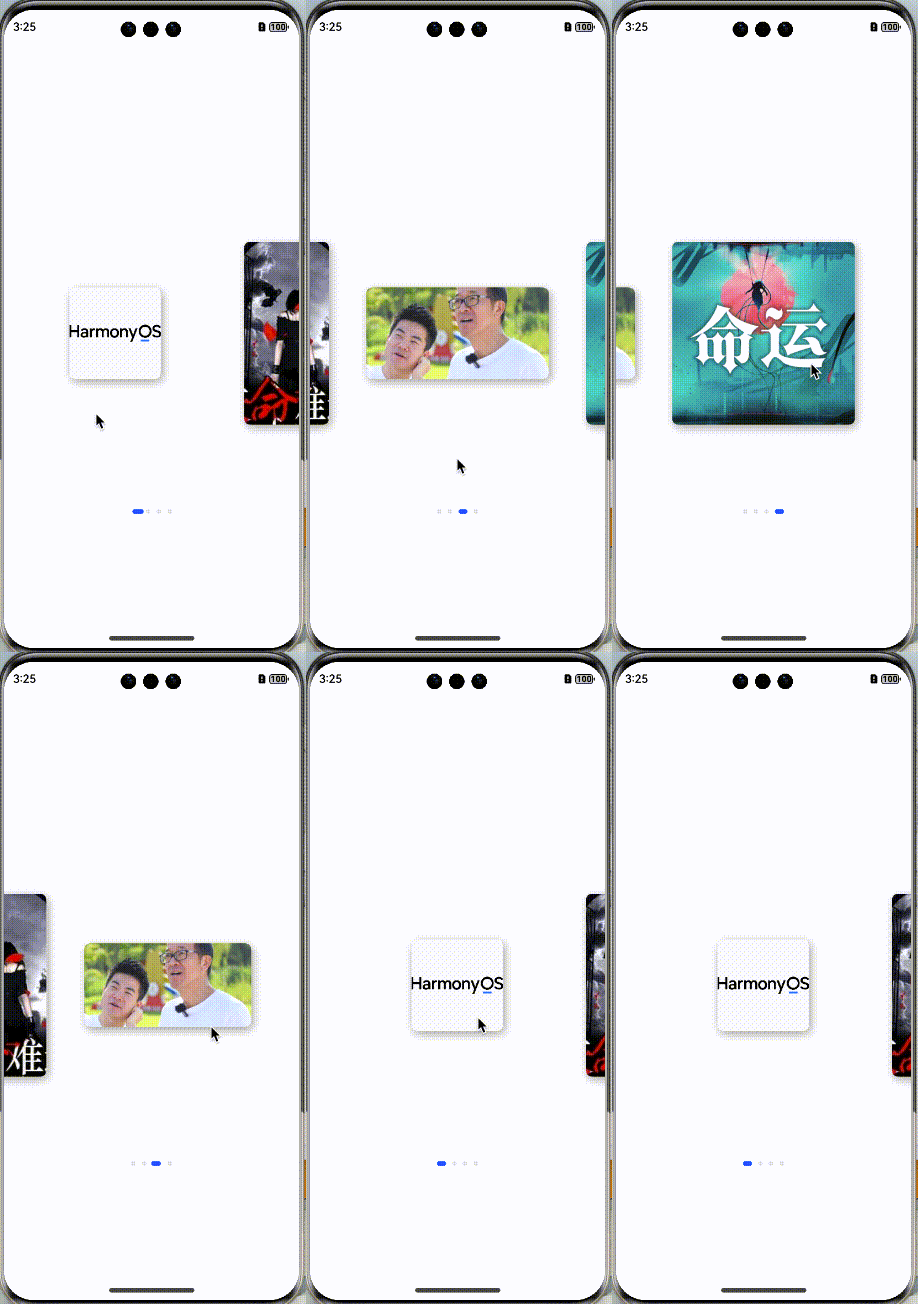
两边等长露出,跟随手指滑动
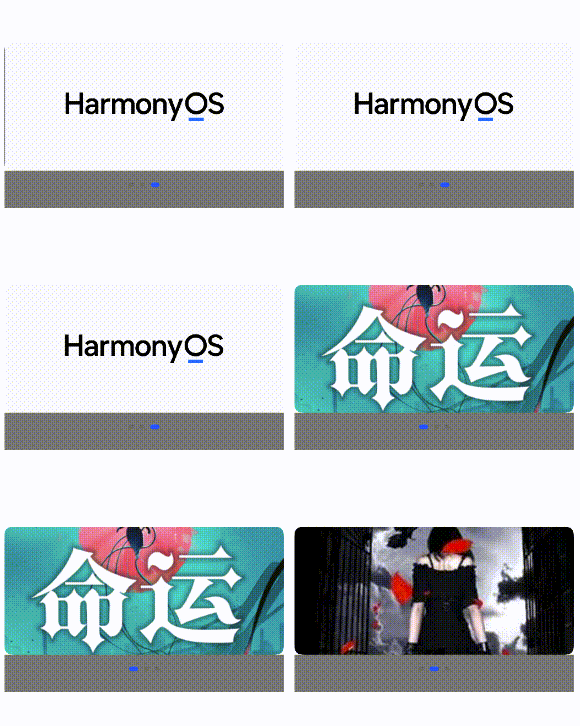
Swiper 指示器导航点位于 Swiper 下方
卡片楼层层叠一

一、官网 例子
参考代码:
typescript
// xxx.ets
class MyDataSource implements IDataSource {
  private list: number[] = []

  constructor(list: number[]) {
    this.list = list
  }

  totalCount(): number {
    return this.list.length
  }

  getData(index: number): number {
    return this.list[index]
  }

  registerDataChangeListener(listener: DataChangeListener): void {
  }

  unregisterDataChangeListener() {
  }
}

@Entry
@Component
struct SwiperExample {
  private swiperController: SwiperController = new SwiperController()
  private data: MyDataSource = new MyDataSource([])

  aboutToAppear(): void {
    let list: number[] = []
    for (let i = 1; i <= 10; i++) {
      list.push(i);
    }
    this.data = new MyDataSource(list)
  }

  build() {
    Column({ space: 5 }) {
      Swiper(this.swiperController) {
        LazyForEach(this.data, (item: string) => {
          Text(item.toString())
            .width('90%')
            .height(160)
            .backgroundColor(0xAFEEEE)
            .textAlign(TextAlign.Center)
            .fontSize(30)
        }, (item: string) => item)
      }
      .cachedCount(2)
      .index(1)
      .autoPlay(true)
      .interval(4000)
      .indicator(Indicator.digit() // 设置数字导航点样式
        .right("43%")
        .top(200)
        .fontColor(Color.Gray)
        .selectedFontColor(Color.Gray)
        .digitFont({ size: 20, weight: FontWeight.Bold })
        .selectedDigitFont({ size: 20, weight: FontWeight.Normal }))
      .loop(true)
      .duration(1000)
      .itemSpace(0)
      .displayArrow(true, false)

      Row({ space: 12 }) {
        Button('showNext')
          .onClick(() => {
            this.swiperController.showNext()
          })
        Button('showPrevious')
          .onClick(() => {
            this.swiperController.showPrevious()
          })
      }.margin(5)
    }.width('100%')
    .margin({ top: 5 })
  }
}
二、Swiper 高度可变化
主要逻辑代码:
typescript
// TODO: 知识点: Swiper组件绑定onGestureSwipe事件,在页面跟手滑动过程中,逐帧触发该回调
      // 性能知识点: onGestureSwipe属于频繁回调,不建议在onGestureSwipe做耗时和冗余操作
      .onGestureSwipe((index:number,extraInfo:SwiperAnimationEvent)=>{
        animateTo({
          duration: Constants.DURATION_SWIPER,
          curve: Curve.EaseOut,
          playMode: PlayMode.Normal,
          onFinish: () => {
            // logger.info('play end');
          }
        }, () => { // 通过左右滑动的距离来计算对应的上下位置的变化
          if (index === 0 && extraInfo.currentOffset < 0) {
            this.swiperDistance = extraInfo.currentOffset / Constants.SCROLL_WIDTH * Constants.SMALL_FONT_SIZE;
          } else if (index === 1 && extraInfo.currentOffset > 0) {
            this.swiperDistance = extraInfo.currentOffset / Constants.SCROLL_WIDTH * Constants.SMALL_FONT_SIZE - Constants.SMALL_FONT_SIZE;
          } else if (index === 2 && extraInfo.currentOffset < 0) {
            this.swiperDistance = extraInfo.currentOffset / Constants.SCROLL_WIDTH * Constants.GRID_SINGLE_HEIGHT - Constants.SMALL_FONT_SIZE;
          } else if (index === 3 && extraInfo.currentOffset > 0) {
            this.swiperDistance = extraInfo.currentOffset / Constants.SCROLL_WIDTH * Constants.GRID_SINGLE_HEIGHT - Constants.SMALL_FONT_SIZE - Constants.GRID_SINGLE_HEIGHT;
          }
        })
      })
      .onAnimationStart((_: number, targetIndex: number)=>{
        animateTo({
          duration: Constants.DURATION_DOWN_PAGE,
          curve: Curve.EaseOut,
          playMode: PlayMode.Normal,
          onFinish: () => {
            // logger.info('play end');
          }
        }, () => {
          if (targetIndex === 0) {
            this.swiperDistance = 0;
          } else if (targetIndex === 1 || targetIndex === 2) {
            this.swiperDistance = -Constants.SMALL_FONT_SIZE;
          } else {
            this.swiperDistance = -Constants.SMALL_FONT_SIZE - Constants.GRID_SINGLE_HEIGHT;
          }
        })
      })
      .indicator(new DotIndicator()
        // .selectedItemWidth($r('app.float.swipersmoothvariation_select_item_width'))
        .selectedItemWidth('18fp')
        // .selectedItemHeight($r('app.float.swipersmoothvariation_select_item_height'))
        .selectedItemHeight('3vp')
        // .itemWidth($r('app.float.swipersmoothvariation_default_item_width'))
        .itemWidth('5vp')
        // .itemHeight($r('app.float.swipersmoothvariation_default_item_height'))
        .itemHeight('-3vp')
        // .selectedColor($r('app.color.swipersmoothvariation_swiper_selected_color'))
        .selectedColor(Color.Yellow)
        // .color($r('app.color.swipersmoothvariation_swiper_unselected_color')))
        .color('#FFFF8662')
      )
逻辑结构相对复杂,请查看下面 demo 开源地址
三、Swiper 指示器导航点位于 Swiper 下方
主要是分离内容区域和空白区域给指示器留白蛤
typescript
  Column() {
      Swiper(this.swiperController){
        // TODO 高性能知识点:此处为了演示场景,列表数量只有3个,使用ForEach,列表数量较多的场景,推荐使用LazyForEach+组件复用+缓存列表项实现
        ForEach(this.swiperData,(item:Resource)=>{
          Column(){
            // TODO 知识点:将swiper区域分割成内容区和空白区
            Image(item)
              .width('100%')
              .height('22%')
              .borderRadius(10)

            Column()
              .width('100%')
              .height(50)
              .backgroundColor(Color.Gray)
          }
        })
      }
      .width('95%')
      .loop(true)
      .autoPlay(true)
      // TODO 知识点:通过indicator属性,将导航点放置到空白区域,实现指示器导航点位于swiper下方的效果
      .indicator(new DotIndicator().bottom(15))
    }
    .height('100%')
    .width('100%')
    .justifyContent(FlexAlign.Center)
四、Swiper组件实现容器视图居中完全展示,两边等长露出,跟随手指滑动
逻辑简约描述:
难点在于偏移的计算
要特别注意宽度和高度值设置,保持统一单位。
在实际的开发过程中,因为单位的马虎导致即使代码是一样的,也出现过多次错位等问题
建议先完整参考代码写一遍之后再按实际需求进行偏移算法修改
比较烧脑,准备两罐红牛缓解疲劳蛤!
偏移计算:
typescript
/**
   * 计算卡片偏移量,并维护偏移量列表。
   * @param targetIndex { number } swiper target card's index.
   */
  calculateOffset(target: number) {
    let left = target - 1;
    let right = target + 1;

    // 计算上一张卡片的偏移值
    if (this.isIndexValid(left)) {
      this.cardsOffset[left] = this.getMaxOffset(left);
    }
    // 计算当前卡片的偏移值
    if (this.isIndexValid(target)) {
      this.cardsOffset[target] = this.getMaxOffset(target) / 2;
    }
    // 下一张片的偏移值
    if (this.isIndexValid(right)) {
      this.cardsOffset[right] = 0;
    }
  }
滑动触发偏移计算:
typescript
.onChange((index) => {
        // logger.info(TAG, `Target index: ${index}`);
        this.calculateOffset(index);
      })
      .onGestureSwipe((index, event) => {
        const currentOffset = event.currentOffset;
        // 获取当前卡片(居中)的原始偏移量
        const maxOffset = this.getMaxOffset(index) / 2;
        // 实时维护卡片的偏移量列表,做到跟手效果
        if (currentOffset < 0) {
          // 向左偏移
          /*
           * 此处计算原理为:按照比例设置卡片的偏移量。
           * 当前卡片居中,向左滑动后将在左边,此时卡片偏移量即为 maxOffset * 2(因为向右对齐)。
           * 所以手指能够滑动的最大距离(this.displayWidth)所带来的偏移量即为 maxOffset。
           * 易得公式:卡片实时偏移量 = (手指滑动长度 / 屏幕宽度) * 卡片最大可偏移量 + 当前偏移量。
           * 之后的计算原理相同,将不再赘述。
           */
          this.cardsOffset[index] = (-currentOffset / this.displayWidth) * maxOffset + maxOffset;
          if (this.isIndexValid(index + 1)) {
            // 下一个卡片的偏移量
            const maxOffset = this.getMaxOffset(index + 1) / 2;
            this.cardsOffset[index + 1] = (-currentOffset / this.displayWidth) * maxOffset;
          }
          if (this.isIndexValid(index - 1)) {
            // 上一个卡片的偏移量
            const maxOffset = this.getMaxOffset(index - 1) / 2;
            this.cardsOffset[index - 1] = (currentOffset / this.displayWidth) * maxOffset + 2 * maxOffset;
          }
        } else if (currentOffset > 0) {
          // 向右滑动
          this.cardsOffset[index] = maxOffset - (currentOffset / this.displayWidth) * maxOffset;
          if (this.isIndexValid(index + 1)) {
            const maxOffset = this.getMaxOffset(index + 1) / 2;
            this.cardsOffset[index + 1] = (currentOffset / this.displayWidth) * maxOffset;
          }
          if (this.isIndexValid(index - 1)) {
            const maxOffset = this.getMaxOffset(index - 1) / 2;
            this.cardsOffset[index - 1] = 2 * maxOffset - (currentOffset / this.displayWidth) * maxOffset;
          }
        }
      })
      .onAnimationStart((index, targetIndex) => {
        this.calculateOffset(targetIndex);
      })
五、收尾两侧都有等长偏移的露出
六、卡片叠加楼层效果一:初步实现楼层效果,交互流程度和丝滑待改善
typescript
  build() {
    Column() {
      Stack() {
        ForEach(this.data, (item: Resource, index) => {
          Stack({ alignContent: Alignment.Start }){
            Image(item)
              .width('80%')
              .height('100%')
              .alignSelf(ItemAlign.Center)
          }
          .width('100%')
          .offset({ x: this.calculateOffset(index), y: 0 })
          .zIndex(index !== this.currentIndex && this.getImgOffset(index) === 0 ? 0 : 2 - Math.abs(this.getImgOffset(index)))
          .height(index === this.currentIndex ? 202 : ((index === this.currentIndex - 1 || index === this.currentIndex + 1) ? 192 : 182))
          .translate({ x: this.translateList[index] })
          .gesture(
            PanGesture({ direction: PanDirection.Horizontal})
              .onActionStart((event: GestureEvent) => {
                if (event.offsetX < 0) {
                  if(this.currentIndex === index && this.currentIndex != this.data.length -1){
                    this.setAnim(true)
                  }
                }
                else {
                  if (this.currentIndex === index && this.currentIndex != 0) {
                    this.setAnim(false)
                  }
                }
              })
          )
          .onClick(() => {

          })

        })
      }
      .height('50%')
      .width('100%')
      .alignContent(Alignment.Center)
      .clip(true) //裁剪超出 banner 左侧的层叠部分
      .backgroundColor(Color.Gray)
      .padding({
        left: 10,
        right: 10,
        top: 16,
        bottom: 16
      })
    }
    .height('100%')
    .width('100%')

    .justifyContent(FlexAlign.Start)
  }

  /**
   * 计算偏移量
   * @param index:索引值
   * @returns
   */
  calculateOffset(index: number): number {
    const offsetIndex: number = this.getImgOffset(index);
    const tempOffset: number = Math.abs(offsetIndex);
    let offsetX: number = 0;
    if (tempOffset === 1) {
      // 根据图片层级系数来决定左右偏移量
      offsetX = - 8 * offsetIndex;
    }
    if (tempOffset === 2) {
      // 根据图片层级系数来决定左右偏移量
      offsetX = -this.offsetXValue * offsetIndex;
    }
    return offsetX;
  }

  /**
   * 获取图片系数
   * @param index:索引值
   * @returns
   */
  getImgOffset(index: number): number {
    const coefficient: number = this.currentIndex - index; // 计算图片左右位置
    const tempCoefficient: number = Math.abs(coefficient);
    if (tempCoefficient <= this.halfCount) {
      return coefficient;
    }
    const dataLength: number = this.data.length;
    let tempOffset: number = dataLength - tempCoefficient; // 判断图片位于左右层级位置
    if (tempOffset <= this.halfCount) { //如果在左侧
      if (coefficient > 0) {
        return -tempOffset;
      }
      return tempOffset;
    }
    return 0;
  }


  /**
   * 设置动画
   * @param duration:动画持续时间
   *
   */
  setAnim(isLeft:boolean){
    let dataLength: number = this.data.length;
    let tempIndex: number = 0
    animateTo({ duration: 1000}, () => {
      if (isLeft) {
        this.translateList[this.currentIndex] = -350
        tempIndex = this.currentIndex + 1
        this.currentIndex = tempIndex % dataLength
      } else {
        tempIndex = this.currentIndex - 1 + dataLength
        this.currentIndex = tempIndex % dataLength
        this.translateList[this.currentIndex] = 0
      }
    })
  }
~~~~~~~~~~~持续更新中