背景
正常业务已经支持 读三代卡了,前端调用医保封装好的服务就可以了,但是长护要读卡,就需要去访问万达,他们又搞了一套读卡的动态库,为了能够掉万达的接口,就需要去想办法调用它们提供的动态库方法,里面实现了一个加密串的规则,需要拿到那个加密串。
思路
选择实现语言
作为搞Java的,遇到这种就没什么办法,给的DLL是32位的,读需要换32位JVM,系统加载的方式也不太方便,要写CPP,有一些组件,但是32位JVM搞起来又怕不适配,即使解决了这些问题,又要考虑写一个简单的图形化界面,又不能用JAVAFX,还有一大堆问题要解决,所以用JAVA这套东西还是算了。
既然是DLL 那就搞CPP吧,CPP写起来也很麻烦,这时候就想起了C# 语法与JAVA简直没啥差别,很快就能上手。
首先大学学的C#到现在基本等于没学,直接创建一个C#项目搞起,行动才能解决困难。
这里需要了解一些C# 框架的区别 .net framework 和 .net core
都是微软的,一个只能windos 一个能跨平台,一个不维护了,一个在拥抱未来。
想着读卡服务 也没有必要跨平台了,就用.net framework 写一个demo 读dll(一会写一下怎么读的),读起来还有一点麻烦的 需要考虑dll的依赖,当前要读的dll需要依赖三代卡的一系列dll,把那些dll一起扔到debug路径就行了。还是很快十分钟就读出来了。
接下来需要解决写图形化页面的问题,这里可用WinForm 新的也可以用 WPF啥的
整体的思路就是 创建一个图形化程序,然后起一个http服务并支持WebSocket服务
用户打开图形化程序之后,就可以访问这个服务,该服务会调用万达的DLL 调用它提供的方法,这个DLL 又会去找三代卡读卡的DLL 然后掉读卡器,返回结果,之后万达的DLL加密,服务端拿到结果返回前端,前端在请求后台接口就可以了。
最后思来想去,还是拥抱跨平台,容器化,从.net framework 换成了 .net core。
行动
首先先创建了一个.net framework的项目 试验了一下读DLL的代码
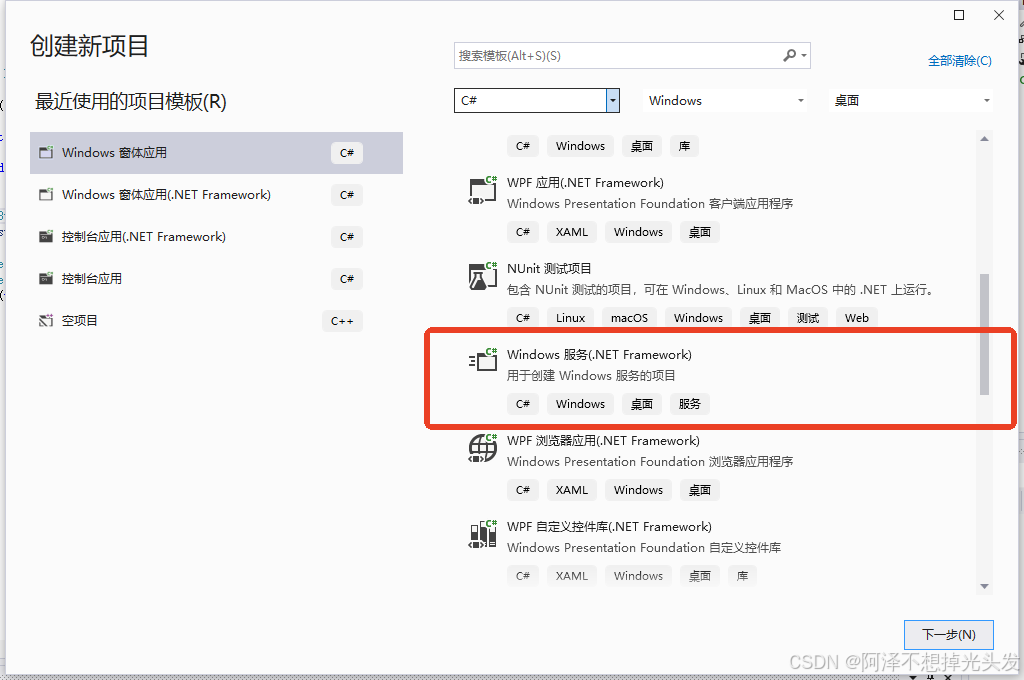
这会创建一个控制台程序
在program.cs 也就是主启动类 类似 java的main方法里面直接写代码
cs
using System;
using System.Text;
using System.Runtime.InteropServices;

namespace ReadDll
{

    internal class Program
    {
        [DllImport("ReadCardForCh.dll", CharSet = CharSet.Ansi, CallingConvention = CallingConvention.StdCall)]
        public static extern int ReadCardForCh(string x, StringBuilder pRcv);
        static void Main(string[] args)
        {
            String input = "SBK";
            StringBuilder pRcv = new StringBuilder();
            int result = ReadCardForCh(input, pRcv);

            Console.WriteLine("Result:"+result);
            Console.WriteLine("Returned:" + pRcv.ToString());
            while (true)
            {

            }

        }
    }
}
运行
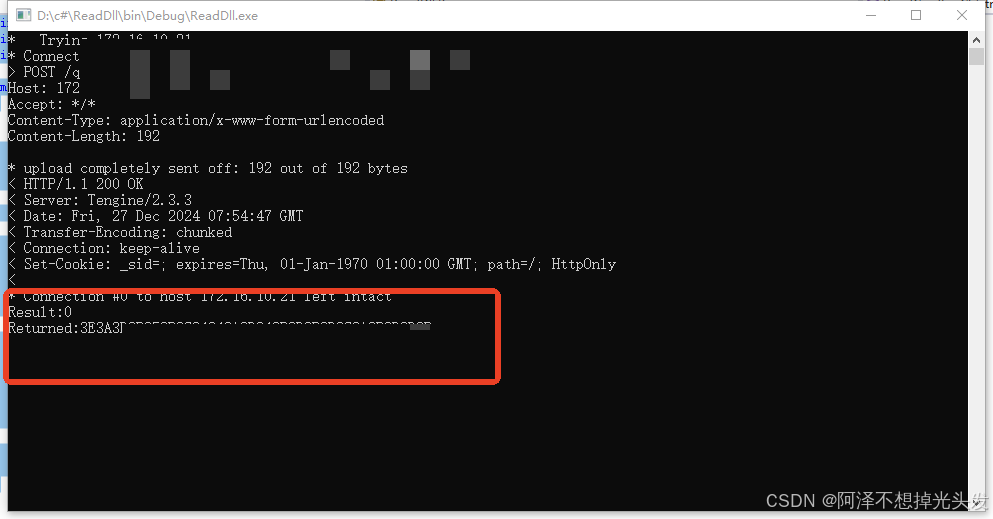
可以看到返回结果了,这里需要注意的是,加载dll的路径,需要把你要加载的Dll依赖的库也就是Dll一并放在生成的exe路径中去,类似下面这样。
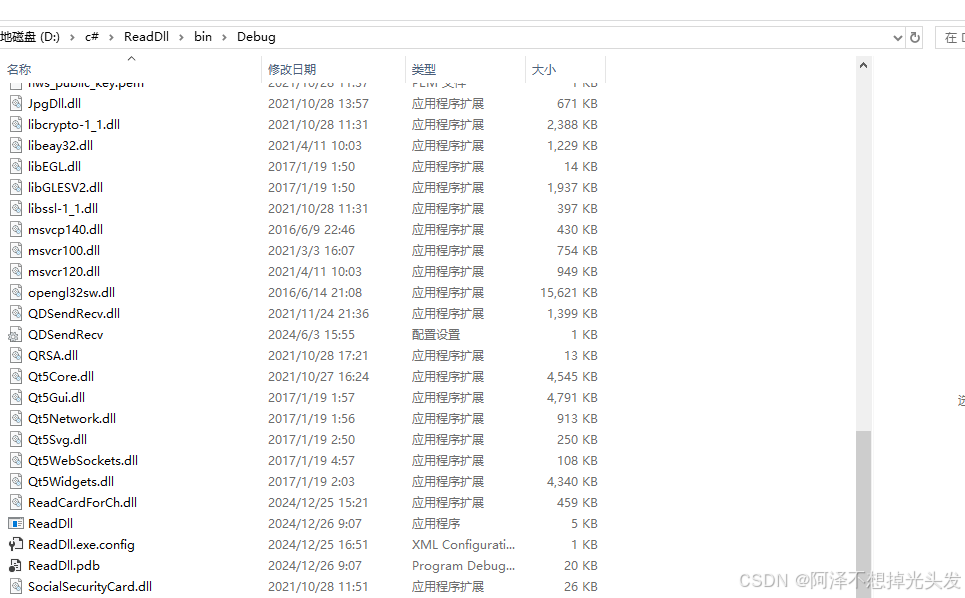
直接运行 ReadDLL 这个exe也可以。
加入图形化页面
创建.net core 的图形化项目
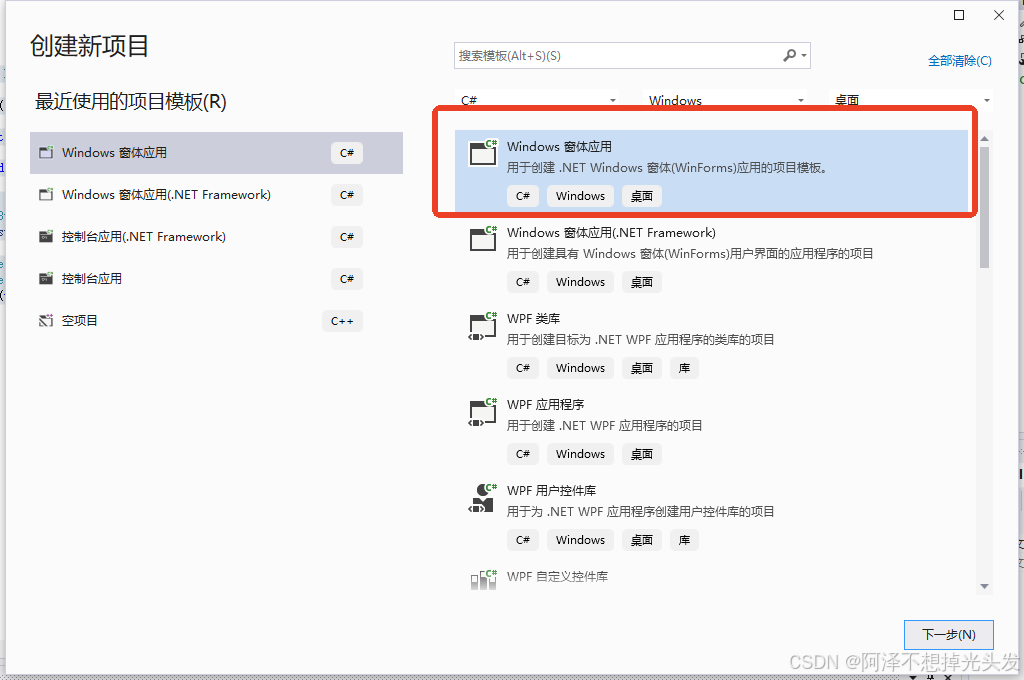
它会生成下面的解决方案结构
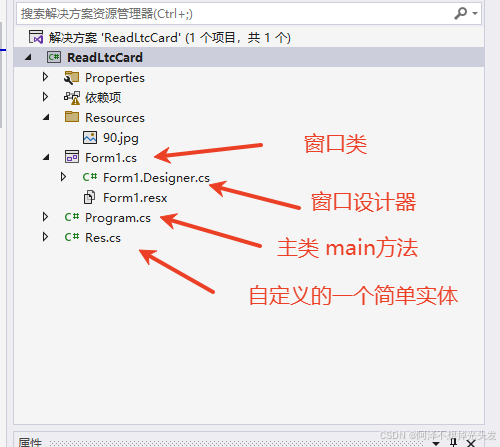
双击Form1.cs 会进入设计器
设计器结构左侧 工具箱 右侧 设计界面
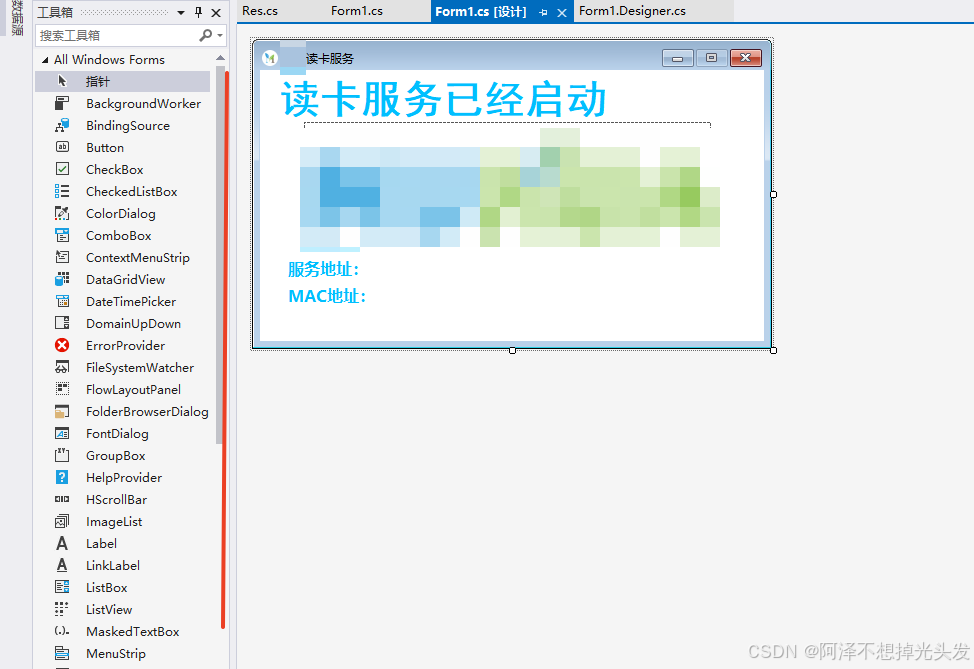
在左侧拖拽 会生成对应的代码到 FormDesigner.cs里面去,一般不需要修改,都是自动生成,我们只需要在Form1.cs 里面写一写代码就可以了。
整个页面包含几个部分,没有很复杂。
三个label 用来展示文本 和获取到的本地ip信息 mac 地址信息
一个PictureBox 用来展示背景图
一个notifyIcon 生成右下角通知栏图标
点击设计器上面的一个组件,就会在右下角展示属性编辑窗口,可以修改组件的属性,完成一些行为,一会会举一些简单的例子。
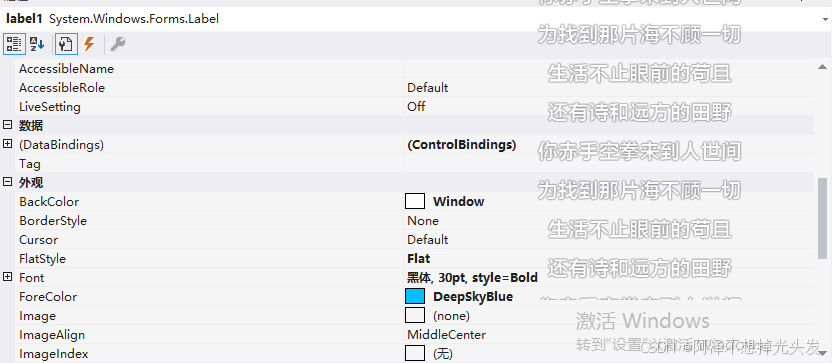
进入 Form1.cs 看代码
创建一个成员变量,加载Dll。
cs
        [DllImport("ReadCardForCh.dll", CharSet = CharSet.Ansi, CallingConvention = CallingConvention.StdCall)]
        public static extern int ReadCardForCh(string x, StringBuilder pRcv);
在构造器里面有一个初始化方法,不用动,我们在其他位置写代码就行。
cs
        public Form1()
        {
            InitializeComponent();

            this.FormClosing += new FormClosingEventHandler(Form1_FormClosing);

        }
        // 重写一下FormClosing  方法 做到 关闭X 不关闭程序 并最小化 好家伙制作流氓程序了开始
        private void Form1_FormClosing(object sender, FormClosingEventArgs e)
        {
            // 检查关闭的原因是否是用户点击了关闭按钮
            if (e.CloseReason == CloseReason.UserClosing)
            {
                // 取消关闭操作
                e.Cancel = true;

                // 将窗体最小化
                this.WindowState = FormWindowState.Minimized;
            }
        }
创建项目会生成一个 窗口加载方法,我们可以用这个方法去初始化我们的一些行为
cs
        private void Form1_Load(object sender, EventArgs e)
        {

            // 初始化底部小图标右键菜单 右键弹出退出
            initRightNotifyMenuStrip();

            // 初始化鼠标左键双击 最大化窗口
            initNotifyIconMouseClick();

            // 初始化本地的一些ip信息
            initAddressInfo();

            // 异步创建一个Http服务 并支持WebSocket
            _webSocketTask = Task.Run(() => StartWebSocketServer());


        }


        private void initRightNotifyMenuStrip()
        {

            ContextMenuStrip contextMenu = new ContextMenuStrip();
            contextMenu.Items.Add("退出", null, (sender, e) =>
            {
                Application.Exit();
            });
            // 设置右键菜单
            notifyIcon1.ContextMenuStrip = contextMenu;

        }


        private void initNotifyIconMouseClick()
        {

            notifyIcon1.MouseClick += (sender, e) =>
            {
                notifyIcon1_MouseDoubleClick(sender, e);
            };

        }

        private void notifyIcon1_MouseDoubleClick(object sender, MouseEventArgs e)
        {
            if(e.Button == MouseButtons.Left){
                this.WindowState = FormWindowState.Normal;
            }
        }


        private void initAddressInfo()
        {
            NetworkInterface[] networkInterfaces = NetworkInterface.GetAllNetworkInterfaces();

            foreach (var item in networkInterfaces)
            {
                IPInterfaceProperties iPInterfaceProperties = item.GetIPProperties();

                PhysicalAddress physicalAddress = item.GetPhysicalAddress();

                string mac = string.Join(":", physicalAddress.GetAddressBytes().Select(b => b.ToString("X2")));
                if (item.OperationalStatus == OperationalStatus.Up)
                {
                    foreach (UnicastIPAddressInformation ip in iPInterfaceProperties.UnicastAddresses)
                    {

                        // 只获取 IPv4 地址
                        if (ip.Address.AddressFamily == System.Net.Sockets.AddressFamily.InterNetwork)
                        {
                            if (ip.Address.ToString() != "127.0.0.1")
                            {
                                label2.Text = label2.Text + " ws://" + ip.Address.ToString() + ":5000/ws";
                                label3.Text = label3.Text + " " + mac;
                            }

                        }
                    }

                }
            }

        }
http服务实现
cs
        private async Task StartWebSocketServer()
        {
            _webHost = Host.CreateDefaultBuilder()
               .ConfigureWebHostDefaults(webBuilder =>
               {
                   webBuilder.UseKestrel()
                       .Configure(app =>
                       {
                           app.UseRouting();
                           app.UseWebSockets();
                           app.Use(async (context, next) =>
                           {
                               if (context.Request.Path == "/ws")
                               {
                                   if (context.WebSockets.IsWebSocketRequest)
                                   {
                                       var webSocket = await context.WebSockets.AcceptWebSocketAsync();
                                       notifyIcon1.ShowBalloonTip(3);
                                       await HandleWebSocketConnection(webSocket);
                                   }
                                   else
                                   {
                                       context.Response.StatusCode = 400;
                                   }
                               }
                               else
                               {
                                   await next();
                               }
                           });
                       })
                       .UseUrls("http://localhost:5000");  // 设置 Web 服务器监听的端口
               })
               .Build();

            // 启动 WebSocket 服务器
            await _webHost.StartAsync();
        }

        private async Task HandleWebSocketConnection(System.Net.WebSockets.WebSocket webSocket)
        {
            byte[] buffer = new byte[1024 * 4];
            try
            {
                while (webSocket.State == System.Net.WebSockets.WebSocketState.Open)
                {
                    var result = await webSocket.ReceiveAsync(new ArraySegment<byte>(buffer), CancellationToken.None);

                    if (result.MessageType == System.Net.WebSockets.WebSocketMessageType.Text)
                    {
                        var message = Encoding.UTF8.GetString(buffer, 0, result.Count);
                        Console.WriteLine($"Received message: {message}");

                        this.Invoke(new Action<string>(AddLabelToUI), new object[] { message });

                        StringBuilder pRcv = new StringBuilder();
                        int code = ReadCardForCh(message, pRcv);

                        res resInfo = new res();
                        resInfo.code = code;
                        resInfo.message = pRcv.ToString();
                        // 发送响应消息
                        var responseMessage = Encoding.UTF8.GetBytes(JsonSerializer.Serialize(resInfo));
                        // var responseMessage = Encoding.UTF8.GetBytes("Echo: " + message);
                        await webSocket.SendAsync(new ArraySegment<byte>(responseMessage), System.Net.WebSockets.WebSocketMessageType.Text, true, CancellationToken.None);
                    }
                    else if (result.MessageType == System.Net.WebSockets.WebSocketMessageType.Close)
                    {
                        // 关闭连接
                        await webSocket.CloseAsync(System.Net.WebSockets.WebSocketCloseStatus.NormalClosure, "Closing", CancellationToken.None);
                    }
                }
            }
            catch (Exception ex)
            {
                Console.WriteLine("WebSocket error: " + ex.Message);
            }
        }

        private void AddLabelToUI(string message)
        {
            // 将 Label 添加到窗体的 Controls 集合中
            this.label4.Text = "本次发送消息:"+message;
        }
上面需要注意的是 可能需要引入 .net asp 库 用来写web项目的组件。
我是这么引入的,对 visual studio 2022 暂时不太熟悉
直接编辑
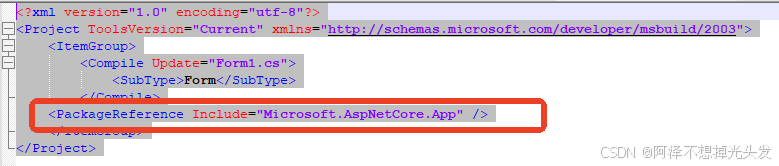

完整的类
cs
using Microsoft.AspNetCore.Builder;
using Microsoft.AspNetCore.Hosting;
using Microsoft.Extensions.Hosting;
using System.Net.NetworkInformation;
using System.Runtime.InteropServices;
using System.Text;
using System.Text.Json;


namespace ReadLtcCard
{
    public partial class Form1 : Form

    {
        [DllImport("ReadCardForCh.dll", CharSet = CharSet.Ansi, CallingConvention = CallingConvention.StdCall)]
        public static extern int ReadCardForCh(string x, StringBuilder pRcv);

        private IHost _webHost;
        private Task _webSocketTask;

        public Form1()
        {
            InitializeComponent();
            this.FormClosing += new FormClosingEventHandler(Form1_FormClosing);

        }

        private void Form1_Load(object sender, EventArgs e)
        {

            initRightNotifyMenuStrip();

            initNotifyIconMouseClick();

            initAddressInfo();

            _webSocketTask = Task.Run(() => StartWebSocketServer());


        }

        private async Task StartWebSocketServer()
        {
            _webHost = Host.CreateDefaultBuilder()
               .ConfigureWebHostDefaults(webBuilder =>
               {
                   webBuilder.UseKestrel()
                       .Configure(app =>
                       {
                           app.UseRouting();
                           app.UseWebSockets();
                           app.Use(async (context, next) =>
                           {
                               if (context.Request.Path == "/ws")
                               {
                                   if (context.WebSockets.IsWebSocketRequest)
                                   {
                                       var webSocket = await context.WebSockets.AcceptWebSocketAsync();
                                       notifyIcon1.ShowBalloonTip(3);
                                       await HandleWebSocketConnection(webSocket);
                                   }
                                   else
                                   {
                                       context.Response.StatusCode = 400;
                                   }
                               }
                               else
                               {
                                   await next();
                               }
                           });
                       })
                       .UseUrls("http://localhost:5000");  // 设置 Web 服务器监听的端口
               })
               .Build();

            // 启动 WebSocket 服务器
            await _webHost.StartAsync();
        }

        private async Task HandleWebSocketConnection(System.Net.WebSockets.WebSocket webSocket)
        {
            byte[] buffer = new byte[1024 * 4];
            try
            {
                while (webSocket.State == System.Net.WebSockets.WebSocketState.Open)
                {
                    var result = await webSocket.ReceiveAsync(new ArraySegment<byte>(buffer), CancellationToken.None);

                    if (result.MessageType == System.Net.WebSockets.WebSocketMessageType.Text)
                    {
                        var message = Encoding.UTF8.GetString(buffer, 0, result.Count);
                        Console.WriteLine($"Received message: {message}");

                        this.Invoke(new Action<string>(AddLabelToUI), new object[] { message });

                        StringBuilder pRcv = new StringBuilder();
                        int code = ReadCardForCh(message, pRcv);

                        res resInfo = new res();
                        resInfo.code = code;
                        resInfo.message = pRcv.ToString();
                        // 发送响应消息
                        var responseMessage = Encoding.UTF8.GetBytes(JsonSerializer.Serialize(resInfo));
                        // var responseMessage = Encoding.UTF8.GetBytes("Echo: " + message);
                        await webSocket.SendAsync(new ArraySegment<byte>(responseMessage), System.Net.WebSockets.WebSocketMessageType.Text, true, CancellationToken.None);
                    }
                    else if (result.MessageType == System.Net.WebSockets.WebSocketMessageType.Close)
                    {
                        // 关闭连接
                        await webSocket.CloseAsync(System.Net.WebSockets.WebSocketCloseStatus.NormalClosure, "Closing", CancellationToken.None);
                    }
                }
            }
            catch (Exception ex)
            {
                Console.WriteLine("WebSocket error: " + ex.Message);
            }
        }

        private void AddLabelToUI(string message)
        {
            // 将 Label 添加到窗体的 Controls 集合中
            this.label4.Text = "本次发送消息:"+message;
        }


        private void initAddressInfo()
        {
            NetworkInterface[] networkInterfaces = NetworkInterface.GetAllNetworkInterfaces();

            foreach (var item in networkInterfaces)
            {
                IPInterfaceProperties iPInterfaceProperties = item.GetIPProperties();

                PhysicalAddress physicalAddress = item.GetPhysicalAddress();

                string mac = string.Join(":", physicalAddress.GetAddressBytes().Select(b => b.ToString("X2")));
                if (item.OperationalStatus == OperationalStatus.Up)
                {
                    foreach (UnicastIPAddressInformation ip in iPInterfaceProperties.UnicastAddresses)
                    {

                        // 只获取 IPv4 地址
                        if (ip.Address.AddressFamily == System.Net.Sockets.AddressFamily.InterNetwork)
                        {
                            if (ip.Address.ToString() != "127.0.0.1")
                            {
                                label2.Text = label2.Text + " ws://" + ip.Address.ToString() + ":5000/ws";
                                label3.Text = label3.Text + " " + mac;
                            }

                        }
                    }

                }
            }

        }

        private void initRightNotifyMenuStrip()
        {

            ContextMenuStrip contextMenu = new ContextMenuStrip();
            contextMenu.Items.Add("退出", null, (sender, e) =>
            {
                Application.Exit();
            });
            // 设置右键菜单
            notifyIcon1.ContextMenuStrip = contextMenu;

        }

        private void initNotifyIconMouseClick()
        {

            notifyIcon1.MouseClick += (sender, e) =>
            {
                notifyIcon1_MouseDoubleClick(sender, e);
            };

        }

        private void notifyIcon1_MouseDoubleClick(object sender, MouseEventArgs e)
        {
            if(e.Button == MouseButtons.Left){
                this.WindowState = FormWindowState.Normal;
            }
        }

        private void Form1_FormClosing(object sender, FormClosingEventArgs e)
        {
            // 检查关闭的原因是否是用户点击了关闭按钮
            if (e.CloseReason == CloseReason.UserClosing)
            {
                // 取消关闭操作
                e.Cancel = true;

                // 将窗体最小化
                this.WindowState = FormWindowState.Minimized;
            }
        }


    }
}
设计器代码 不用看 直接操作设计器就能生成 里面的逻辑也比较简单,就是创建组件,设置属性,添加到窗口控制容器里面去,就会展示到页面上。
cs
namespace ReadLtcCard
{
    partial class muhuaForm
    {
        /// <summary>
        ///  Required designer variable.
        /// </summary>
        private System.ComponentModel.IContainer components = null;

        /// <summary>
        ///  Clean up any resources being used.
        /// </summary>
        /// <param name="disposing">true if managed resources should be disposed; otherwise, false.</param>
        protected override void Dispose(bool disposing)
        {
            if (disposing && (components != null))
            {
                components.Dispose();
            }
            base.Dispose(disposing);
        }

        #region Windows Form Designer generated code

        /// <summary>
        ///  Required method for Designer support - do not modify
        ///  the contents of this method with the code editor.
        /// </summary>
        private void InitializeComponent()
        {
            components = new System.ComponentModel.Container();
            System.ComponentModel.ComponentResourceManager resources = new System.ComponentModel.ComponentResourceManager(typeof(muhuaForm));
            notifyIcon1 = new NotifyIcon(components);
            label1 = new Label();
            label2 = new Label();
            label3 = new Label();
            pictureBox1 = new PictureBox();
            label4 = new Label();
            ((System.ComponentModel.ISupportInitialize)pictureBox1).BeginInit();
            SuspendLayout();
            //
            // notifyIcon1
            //
            notifyIcon1.BalloonTipIcon = ToolTipIcon.Info;
            notifyIcon1.BalloonTipText = "服务启动成功";
            notifyIcon1.BalloonTipTitle = "状态";
            notifyIcon1.Icon = (Icon)resources.GetObject("notifyIcon1.Icon");
            notifyIcon1.Text = "读卡服务";
            notifyIcon1.Visible = true;
            //
            // label1
            //
            label1.AutoSize = true;
            label1.BackColor = SystemColors.Window;
            label1.FlatStyle = FlatStyle.Flat;
            label1.Font = new Font("黑体", 30F, FontStyle.Bold);
            label1.ForeColor = Color.DeepSkyBlue;
            label1.Location = new Point(12, 9);
            label1.Name = "label1";
            label1.Size = new Size(345, 40);
            label1.TabIndex = 0;
            label1.Text = "读卡服务已经启动";
            //
            // label2
            //
            label2.AutoSize = true;
            label2.BackColor = SystemColors.Window;
            label2.Font = new Font("Microsoft YaHei UI", 12F, FontStyle.Bold);
            label2.ForeColor = Color.DeepSkyBlue;
            label2.Location = new Point(24, 188);
            label2.Name = "label2";
            label2.Size = new Size(90, 22);
            label2.TabIndex = 1;
            label2.Text = "服务地址:";
            //
            // label3
            //
            label3.AutoSize = true;
            label3.BackColor = SystemColors.Window;
            label3.Font = new Font("Microsoft YaHei UI", 12F, FontStyle.Bold);
            label3.ForeColor = Color.DeepSkyBlue;
            label3.Location = new Point(24, 215);
            label3.Name = "label3";
            label3.Size = new Size(97, 22);
            label3.TabIndex = 2;
            label3.Text = "MAC地址:";
            //
            // pictureBox1
            //
            pictureBox1.BackColor = Color.White;
            pictureBox1.Image = (Image)resources.GetObject("pictureBox1.Image");
            pictureBox1.Location = new Point(44, 52);
            pictureBox1.Name = "pictureBox1";
            pictureBox1.Size = new Size(407, 130);
            pictureBox1.SizeMode = PictureBoxSizeMode.Zoom;
            pictureBox1.TabIndex = 3;
            pictureBox1.TabStop = false;
            //
            // label4
            //
            label4.AutoSize = true;
            label4.Location = new Point(24, 237);
            label4.Name = "label4";
            label4.Size = new Size(0, 17);
            label4.TabIndex = 4;
            //
            // muhuaForm
            //
            AutoScaleDimensions = new SizeF(7F, 17F);
            AutoScaleMode = AutoScaleMode.Font;
            BackColor = Color.White;
            ClientSize = new Size(504, 271);
            Controls.Add(label4);
            Controls.Add(pictureBox1);
            Controls.Add(label3);
            Controls.Add(label2);
            Controls.Add(label1);
            FormBorderStyle = FormBorderStyle.FixedSingle;
            Icon = (Icon)resources.GetObject("$this.Icon");
            Location = new Point(500, 500);
            MaximizeBox = false;
            Name = "muhuaForm";
            StartPosition = FormStartPosition.CenterScreen;
            Text = "读卡服务";
            Load += Form1_Load;
            ((System.ComponentModel.ISupportInitialize)pictureBox1).EndInit();
            ResumeLayout(false);
            PerformLayout();
        }

        #endregion

        private NotifyIcon notifyIcon1;
        private Label label1;
        private Label label2;
        private Label label3;
        private PictureBox pictureBox1;
        private Label label4;
    }
}
cs
namespace ReadLtcCard
{
    public class res
    {
        public int code { get; set; }

        public string message { get; set; }
    }
}
前端测试demo
html
<!DOCTYPE html>
<html lang="zh">
<head>
    <meta charset="UTF-8">
    <meta name="viewport" content="width=device-width, initial-scale=1.0">
    <title>WebSocket 测试</title>
    <style>
        body {
            font-family: Arial, sans-serif;
            text-align: center;
            padding-top: 50px;
        }
        #status {
            font-size: 18px;
            margin-bottom: 20px;
        }
        #message {
            width: 80%;
            height: 100px;
            margin-bottom: 20px;
            font-size: 16px;
        }
        button {
            padding: 10px 20px;
            font-size: 16px;
            cursor: pointer;
        }
    </style>
</head>
<body>
    <div id="status">正在连接 WebSocket...</div>
    <textarea id="message" placeholder="请输入消息" rows="4" cols="50"></textarea><br>
    <button id="sendBtn" disabled>发送消息</button>
    <button id="closeBtn" disabled>关闭连接</button>

    <script>
        // WebSocket 地址
        const wsUrl = "ws://localhost:5000/ws";
        let socket = null;

        // 获取页面元素
        const statusElement = document.getElementById('status');
        const sendBtn = document.getElementById('sendBtn');
        const closeBtn = document.getElementById('closeBtn');
        const messageInput = document.getElementById('message');

        // 创建 WebSocket 连接
        function createWebSocket() {
            socket = new WebSocket(wsUrl);

            socket.onopen = () => {
                statusElement.textContent = "WebSocket 已连接!";
                sendBtn.disabled = false;
                closeBtn.disabled = false;
            };

            socket.onmessage = (event) => {
                const message = event.data;
                console.log('收到消息:', message);
                alert('收到消息: ' + message); // 显示收到的消息
            };

            socket.onerror = (error) => {
                statusElement.textContent = "WebSocket 发生错误!";
                console.error("WebSocket 错误:", error);
            };

            socket.onclose = () => {
                statusElement.textContent = "WebSocket 连接已关闭!";
                sendBtn.disabled = true;
                closeBtn.disabled = true;
            };
        }

        // 发送消息
        sendBtn.addEventListener('click', () => {
            const message = messageInput.value;
            if (message) {
                socket.send(message);
                console.log('发送消息:', message);
                messageInput.value = ''; // 清空输入框
            }
        });

        // 关闭连接
        closeBtn.addEventListener('click', () => {
            if (socket) {
                socket.close();
            }
        });

        // 页面加载时自动尝试连接
        createWebSocket();
    </script>
</body>
</html>
实现效果

点击关闭和最小化都会最小化 不会关闭程序
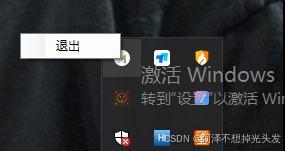
右键展示退出功能
左键点击恢复正常大小
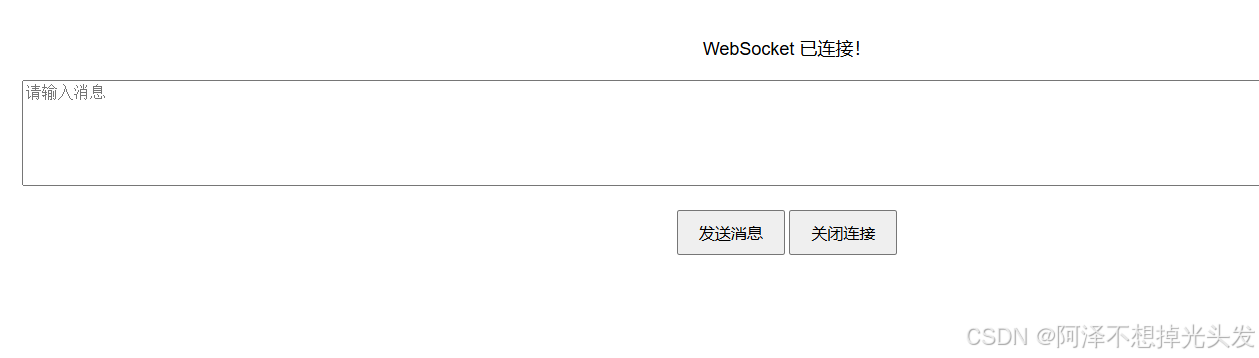

服务连接会提示气泡
点击发送消息,会调用上面的加载的动态库方法,然后去掉读卡器,此时已经插上读卡器和设备卡或者身份证了
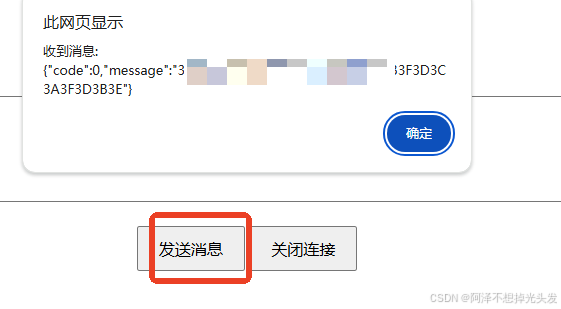
发送任意消息读社保卡,SBK 读社保卡 SFZ 读身份证 需要读卡器支持
打包
这里选择使用 innp setup 开源 方便,可选择生成脚本。
iss文件
Delphi
; Script generated by the Inno Setup Script Wizard.
; SEE THE DOCUMENTATION FOR DETAILS ON CREATING INNO SETUP SCRIPT FILES!

#define MyAppName "读卡服务"
#define MyAppVersion "1.5"
#define MyAppPublisher "1"
#define MyAppURL "https://www.1.com/"
#define MyAppExeName "ReadLtcCard.exe"
#define MyAppAssocName "ReadLtcCard"
#define MyAppAssocExt ".exe"
#define MyAppAssocKey StringChange(MyAppAssocName, " ", "") + MyAppAssocExt

[Setup]
; NOTE: The value of AppId uniquely identifies this application. Do not use the same AppId value in installers for other applications.
; (To generate a new GUID, click Tools | Generate GUID inside the IDE.)
AppId={{435B626D-BBCB-4955-8AE4-6EEC86BD2981}
AppName={#MyAppName}
AppVersion={#MyAppVersion}
;AppVerName={#MyAppName} {#MyAppVersion}
AppPublisher={#MyAppPublisher}
AppPublisherURL={#MyAppURL}
AppSupportURL={#MyAppURL}
AppUpdatesURL={#MyAppURL}
DefaultDirName={pf}\mhReadServer
ChangesAssociations=yes
DisableProgramGroupPage=yes
; Uncomment the following line to run in non administrative install mode (install for current user only.)
;PrivilegesRequired=lowest
OutputDir=C:\Users\Administrator\Desktop
OutputBaseFilename=读卡服务安装包
SetupIconFile=C:\Users\Administrator\Desktop\1231.ico
Compression=lzma
SolidCompression=yes
WizardStyle=modern

[Languages]
Name: "english"; MessagesFile: "compiler:Default.isl"

[Tasks]
Name: "desktopicon"; Description: "{cm:CreateDesktopIcon}"; GroupDescription: "{cm:AdditionalIcons}"; Flags: unchecked

[Files]
Source: "D:\c#project\ReadLtcCard\bin\x86\Debug\net8.0-windows\{#MyAppExeName}"; DestDir: "{app}"; Flags: ignoreversion
Source: "D:\c#project\ReadLtcCard\bin\x86\Debug\net8.0-windows\*"; DestDir: "{app}"; Flags: ignoreversion recursesubdirs createallsubdirs
; NOTE: Don't use "Flags: ignoreversion" on any shared system files
Source: "D:\c#project\ReadLtcCard\bin\x86\Debug\net8.0-windows\aspnetcore-runtime-8.0.11-win-x86.exe"; DestDir: "{tmp}"; Flags: deleteafterinstall
Source: "D:\c#project\ReadLtcCard\bin\x86\Debug\net8.0-windows\windowsdesktop-runtime-8.0.11-win-x86.exe"; DestDir: "{tmp}"; Flags: deleteafterinstall

[Registry]
Root: HKA; Subkey: "Software\Classes\{#MyAppAssocExt}\OpenWithProgids"; ValueType: string; ValueName: "{#MyAppAssocKey}"; ValueData: ""; Flags: uninsdeletevalue
Root: HKA; Subkey: "Software\Classes\{#MyAppAssocKey}"; ValueType: string; ValueName: ""; ValueData: "{#MyAppAssocName}"; Flags: uninsdeletekey
Root: HKA; Subkey: "Software\Classes\{#MyAppAssocKey}\DefaultIcon"; ValueType: string; ValueName: ""; ValueData: "{app}\{#MyAppExeName},0"
Root: HKA; Subkey: "Software\Classes\{#MyAppAssocKey}\shell\open\command"; ValueType: string; ValueName: ""; ValueData: """{app}\{#MyAppExeName}"" ""%1"""
Root: HKA; Subkey: "Software\Classes\Applications\{#MyAppExeName}\SupportedTypes"; ValueType: string; ValueName: ".myp"; ValueData: ""

[Icons]
Name: "{commonstartup}\{#MyAppName}"; Filename: "{app}\{#MyAppExeName}";
Name: "{autoprograms}\{#MyAppName}"; Filename: "{app}\{#MyAppExeName}"
Name: "{autodesktop}\{#MyAppName}"; Filename: "{app}\{#MyAppExeName}"; Tasks: desktopicon

[Run]

Filename: "{tmp}\aspnetcore-runtime-8.0.11-win-x86.exe"; Parameters: "/quiet /norestart"; StatusMsg: "正在安装 ASP.NET Core 运行时..."; Flags: waituntilterminated runascurrentuser
Filename: "{tmp}\windowsdesktop-runtime-8.0.11-win-x86.exe"; Parameters: "/quiet /norestart"; StatusMsg: "正在安装 Windows Desktop 运行时..."; Flags: waituntilterminated runascurrentuser
Filename: "{app}\{#MyAppExeName}"; Description: "{cm:LaunchProgram,{#StringChange(MyAppName, '&', '&&')}}"; Flags: nowait postinstall skipifsilent
这里注意 需要同步安装 asp 和 .net core的环境 提前放在debug的路径里面去。然后在file中指定文件,其实不指定也行上面已经写了*了
然后在run中添加安装最后要安装依赖包的设置,这样在按照之后就会自动安装了。
用 inno setup 打开iss 粘贴上面的脚本 修改路径信息和资源信息,大概就可以用了(可以自己生成)
然后点击运行就会生成一个安装包
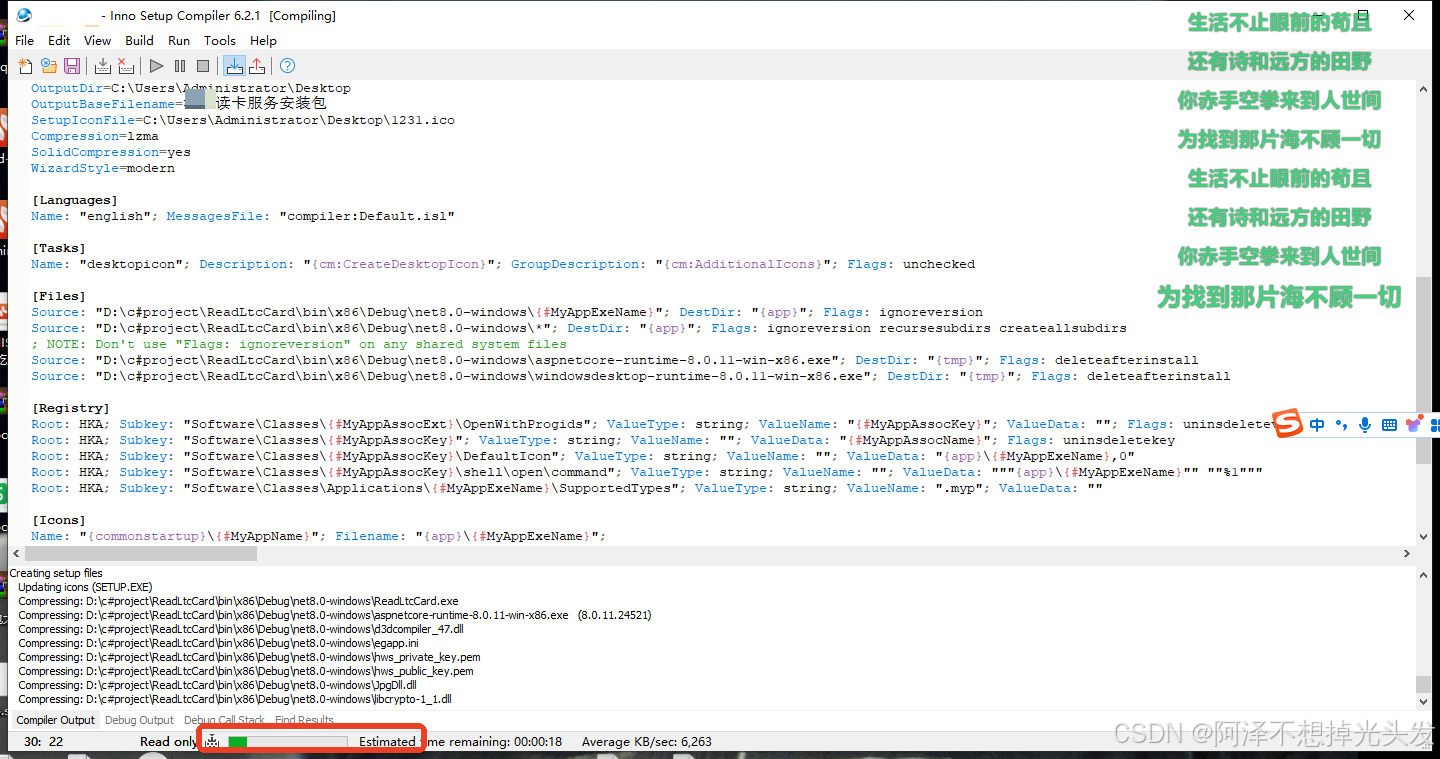
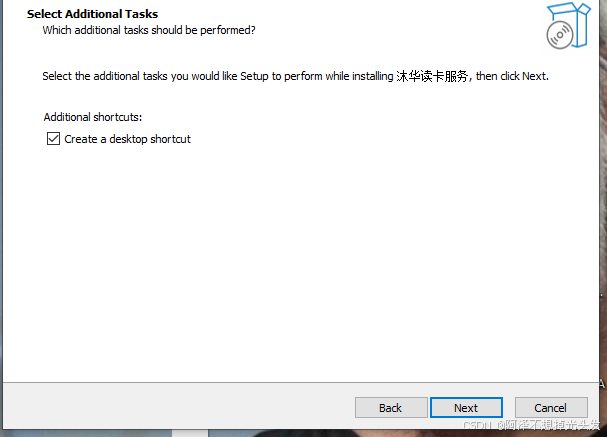
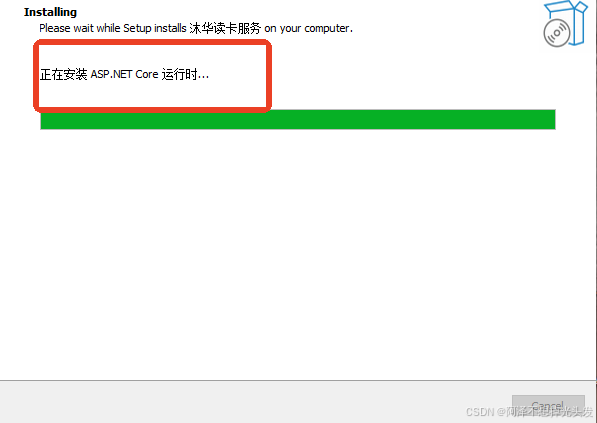
注意安装完成 会自动开机启动
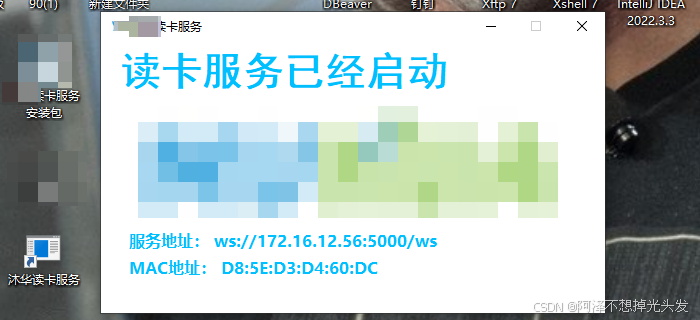
至此一个简单的读卡服务壳已经制作好了
总结
简单的桌面端应用开发不是很难,用过Javafx 之类的框架思想都是共通的Java语法与c# 大部分相似,所以只需要熟悉一下就好了,没必要深究这个,想学就需要花大量时间研究.net core。我的想法是工作驱动,需要就去学就好了。
编写思路就是 给窗体 添加组件 设置属性 设置事件处理方法,图形化开发,现在基本都是事件驱动式开发处理交互了。
难点 语法的不适应,IDE的不适感。这些都可克服。
把自己的思想从语言抽离出来,把它理解成为编程,思想是共用的,Java代码别白学不太难理解。
需要提升的地方。写没有像写WEB一样的完整客户端开发思路,效果是可以实现的,但是写的很烂,终究原因是 思路捋清了,也只是完成了一部分,细节怎么实现就需要对语言的熟练度了。
好了这次分享就到这里吧。