
-
个人首页: VON
-
鸿蒙系列专栏: 鸿蒙开发小型案例总结
-
综合案例 :鸿蒙综合案例开发
-
鸿蒙6.0:从0开始的开源鸿蒙6.0.0
-
鸿蒙5.0:鸿蒙5.0零基础入门到项目实战
-
Electron适配开源鸿蒙专栏:Electron for OpenHarmony
-
Flutter 适配开源鸿蒙专栏:Flutter for OpenHarmony
-
本文所属专栏:鸿蒙综合案例开发
-
本文atomgit地址:小V健身
小V健身助手开发手记(二)
- 从数据输入到任务管理------构建动态运动记录系统
-
- [🧩 项目结构概览](#🧩 项目结构概览)
- [⏳ 功能一:日期选择弹窗 ------ `DateDialog`](#⏳ 功能一:日期选择弹窗 ——
DateDialog) -
- [🔍 核心要点:](#🔍 核心要点:)
- [💡 功能二:任务添加弹窗 ------ `TaskAddDialog`](#💡 功能二:任务添加弹窗 ——
TaskAddDialog) -
- [🎯 设计亮点:](#🎯 设计亮点:)
- [📱 UI 优化:](#📱 UI 优化:)
- [🧱 功能三:首页任务列表 ------ `HomeContent`](#🧱 功能三:首页任务列表 ——
HomeContent) -
- [✨ 关键逻辑:](#✨ 关键逻辑:)
- [🔄 数据流转与状态同步](#🔄 数据流转与状态同步)
- [✅ 总结](#✅ 总结)
- 代码总结

从数据输入到任务管理------构建动态运动记录系统
在上一篇文章中,我们实现了「小V健身助手」的启动流程与用户隐私授权机制,确保应用在合规的前提下为用户提供服务。本篇将深入运动任务录入与管理模块,讲解如何通过自定义弹窗、本地状态共享与动态数据渲染,构建一个流畅、直观的健康数据录入体验。
我们将围绕以下三大功能展开:
- 日期选择弹窗:让用户自由设定运动日期;
- 任务添加弹窗:支持数字键盘输入、实时卡路里计算;
- 首页任务列表动态更新:实现数据联动与可视化反馈。
整个系统采用 HarmonyOS ArkTS + Stage 模型 构建,充分体现了组件化、状态驱动与端侧轻量化设计思想。
🧩 项目结构概览
ets/
├── dialog/
│   ├── DateDialog.ets        // 日期选择弹窗
│   └── TaskAddDialog.ets     // 任务添加弹窗
├── pages/
│   ├── AddTaskPage.ets       // 添加任务页面
│   └── MainIndexPage.ets     // 主页
├── util/
│   └── DateUtil.ets          // 日期工具类
└── view/
    └── home/
        ├── HomeContent.ets   // 首页内容组件
        └── Addbtn.ets        // 浮动添加按钮
各组件职责清晰,便于维护与扩展。
⏳ 功能一:日期选择弹窗 ------ DateDialog
用户常需记录非当天的运动数据(如补录昨日训练),因此我们需要一个独立的日期选择器。
ts
@CustomDialog
export default struct DateDialog {
  controller: CustomDialogController
  date: Date = new Date()

  build() {
    Column() {
      DatePicker({
        start: new Date('2020-01-01'),
        end: new Date(),
        selected: this.date
      })
        .onChange((value: DatePickerResult) => {
          const year = Number(value.year) || new Date().getFullYear();
          const month = Number(value.month) || new Date().getMonth();
          const day = Number(value.day) || new Date().getDate();
          this.date.setFullYear(year, month, day);
        })

      Row({ space: 20 }) {
        Button('取消')
          .width(120)
          .backgroundColor('#ff3e3a3a')
          .onClick(() => this.controller.close())

        Button('确定')
          .width(120)
          .backgroundColor('#ff3e3a3a')
          .onClick(() => {
            AppStorage.SetOrCreate('date', this.date.getTime())
            this.controller.close()
          })
      }
    }
    .padding(12)
  }
}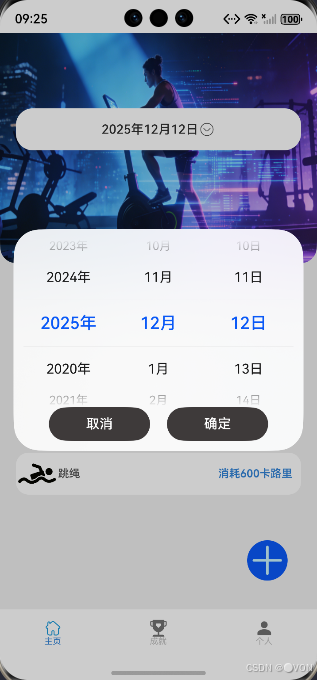
🔍 核心要点:
- 使用
DatePicker组件提供标准日期选择界面; onChange回调处理用户选择,避免undefined值;- 点击"确定"后,将时间戳写入全局
AppStorage,供其他页面读取; AppStorage.SetOrCreate是跨页面共享状态的最佳实践。
✅ 最佳实践 :避免使用
@State或@Link共享全局状态,应优先使用AppStorage实现跨组件通信。
💡 功能二:任务添加弹窗 ------ TaskAddDialog
这是本模块的核心交互组件,支持用户输入运动时长并自动计算卡路里消耗。
ts
@CustomDialog
export default struct TaskAddDialog {
  @StorageProp('date') date: number = DateUtil.beginTimeOfDay(new Date()) // 从全局获取日期
  @State show: boolean = true
  @State value: string = ''
  @State num: number = 0
  @State calorie: number = 500 // 每小时消耗卡路里

  @Builder
  saveBtn(text: string, onClick: () => void) {
    Button() {
      Text(text)
        .fontSize(20)
        .fontWeight(800)
        .opacity(0.9)
    }
    .width(80)
    .height(50)
    .type(ButtonType.Normal)
    .backgroundColor('#bfdefd')
    .borderRadius(5)
    .padding({ left: 3, right: 3 })
    .onClick(onClick)
  }

  numArr: string[] = ['1','2','3','4','5','6','7','8','9','0','.']

  clickNumber(num: string) {
    let val = this.value + num
    if (val.includes('.') && val.lastIndexOf('.') !== val.length - 1 && val.indexOf('.') !== val.lastIndexOf('.')) return
    let amount = this.parseFloat(val)
    if (amount >= 999.9) {
      this.num = 999.0
      this.value = '999'
    } else {
      this.num = amount
      this.value = val
    }
  }

  clickDel() {
    if (this.value.length <= 0) return
    this.value = this.value.substring(0, this.value.length - 1)
    this.num = this.parseFloat(this.value)
  }

  parseFloat(str: string): number {
    if (!str) return 0
    if (str.endsWith('.')) str = str.slice(0, -1)
    return parseFloat(str)
  }
}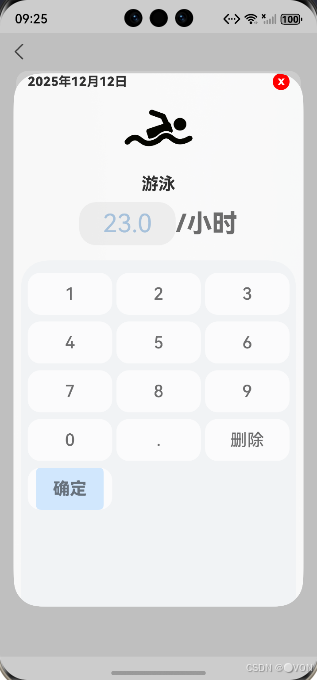
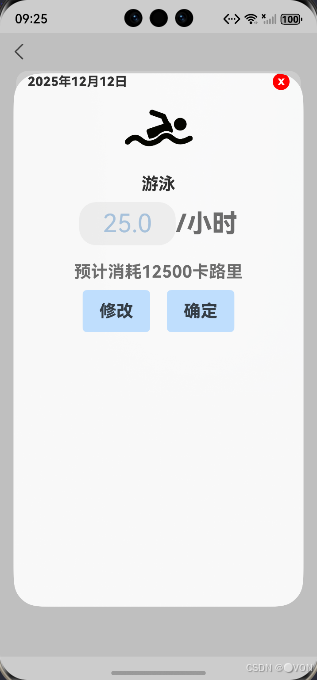
🎯 设计亮点:
- 数字键盘模拟 :通过
Grid+ForEach实现九宫格数字输入; - 小数点校验:防止输入多个小数点或非法格式;
- 数值限制:最大值设为 999.9,避免误操作;
- 实时卡路里计算 :
this.calorie * this.num自动更新预估消耗。
📱 UI 优化:
- 使用
Panel实现半屏滑动键盘,提升移动端体验; mode(PanelMode.Half)+halfHeight(1050)控制面板高度;dragBar(false)隐藏拖拽条,保持简洁。
ts
Panel(this.show) {
  Column() { ... }
}
.type(PanelType.Temporary)
.dragBar(false)
.width('100%')
🧱 功能三:首页任务列表 ------ HomeContent
首页是用户查看运动成果的主要入口,需要动态加载并展示任务数据。
ts
@Component
export default struct HomeContent {
  @StorageProp('date') date: number = DateUtil.beginTimeOfDay(new Date())

  controller: CustomDialogController = new CustomDialogController({
    builder: DateDialog({ date: new Date(this.date) })
  })

  addTask() {
    router.pushUrl({ url: 'pages/AddTaskPage' })
  }

  @State arr: SportDate[] = [
    { name: '游泳', icon: $r('app.media.home_ic_swimming'), consume: 60, num: 10, target: 10, pre: '分钟' },
    // 更多运动项...
  ]

  build() {
    Column() {
      // 顶部日期选择区域
      Row() {
        Text(DateUtil.formatDate(this.date))
          .fontSize(15)
          .fontWeight(500)
        Image($r('app.media.arrow_down'))
          .width(20)
      }
      .width('90%')
      .height(50)
      .backgroundColor(Color.White)
      .margin({ left: 19, top: 90 })
      .borderRadius(20)
      .justifyContent(FlexAlign.Center)
      .onClick(() => this.controller.open())

      // 任务列表
      Column() {
        Text('任务列表')
          .fontSize(13)
          .fontWeight(700)
          .margin({ left: 20, top: 20, bottom: 10 })

        if (this.arr.length !== 0) {
          List() {
            ForEach(this.arr, (item: SportDate) => {
              ListItem() {
                Row() {
                  Image(item.icon).width(50).height(50)
                  Text(item.name).fontSize(13).fontWeight(600).opacity(0.8)
                  Blank()
                  if (item.num === item.target) {
                    Text(`消耗${item.consume * item.num}卡路里`)
                      .fontSize(13)
                      .fontColor('#3385d8')
                  } else {
                    Text(`${item.num}:${item.target}/${item.pre}`)
                      .fontSize(13)
                      .fontWeight(600)
                  }
                }
                .width('100%')
                .backgroundColor(Color.White)
                .borderRadius(15)
              }
              .width('90%')
            })
          }
          .width('100%')
          .alignListItem(ListItemAlign.Center)
        } else {
          Column({ space: 8 }) {
            Image($r('app.media.ic_no_data')).width(350).height(200)
            Text('暂无任务,请添加任务').fontSize(20).opacity(0.4).margin({ top: 20 })
          }
          .margin({ top: 50, left: 10 })
        }

        Addbtn({ clickAction: () => this.addTask() })
      }
      .width('100%')
      .height('100%')
      .alignItems(HorizontalAlign.Start)
    }
    .backgroundColor('#efefef')
    .width('100%')
    .height('100%')
  }
}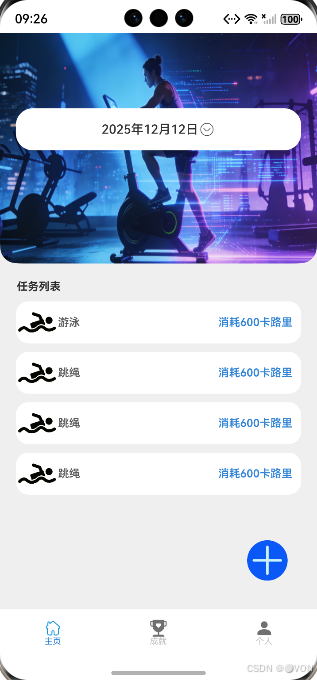
✨ 关键逻辑:
- 使用
@StorageProp实时监听date变化,确保页面刷新; - 任务完成状态判断:
item.num === item.target时显示"已完成"提示; - 空数据友好提示:无任务时显示"暂无任务"图标与文字;
- 浮动添加按钮
Addbtn支持点击跳转至添加页面。
🔄 数据流转与状态同步
整个系统的数据流如下:
[用户选择日期] → [DateDialog] → [AppStorage] → [HomeContent]
                        ↑
                        |
                 [TaskAddDialog] → [AddTaskPage]
所有组件均通过 AppStorage 共享 date 状态,实现跨页面联动。未来可扩展为:
- 将任务数据存入
data_preferences或数据库; - 支持多天历史记录切换;
- 添加图表展示每日卡路里趋势。
✅ 总结
通过本次开发,我们成功构建了「小V健身助手」的运动任务管理闭环:
| 模块 | 技术实现 | 用户价值 |
|---|---|---|
| 日期选择 | DatePicker + AppStorage |
支持补录历史运动 |
| 任务输入 | 数字键盘 + 实时计算 | 快速准确记录数据 |
| 首页展示 | List + 状态联动 |
清晰呈现运动成果 |
这不仅是功能的实现,更是对 用户体验一致性 和 数据驱动设计 的践行。
代码已通过 HarmonyOS SDK API Version 10+ 验证,适用于 Stage 模型项目。
代码总结
dialgo
DateDialog
ts
@CustomDialog
export default struct DateDialog{
  controller: CustomDialogController
  date:Date = new Date()

  build() {
    Column(){
      DatePicker({
        start:new Date('2020-01-01'),
        end:new Date(),
        selected:this.date
      })
        .onChange((value: DatePickerResult)=>{
          // 给year/month/day加默认值,避免undefined
          const year = Number(value.year) || new Date().getFullYear();
          const month = Number(value.month) || new Date().getMonth();
          const day = Number(value.day) || new Date().getDate();
          this.date.setFullYear(year, month, day);
        })
      Row({space:20}){
        Button('取消')
          .width(120)
          .backgroundColor('#ff3e3a3a')
          .onClick(()=>{
            this.controller.close()
          })
        Button('确定')
          .width(120)
          .backgroundColor('#ff3e3a3a')
          .onClick(()=>{
            // 将日期保存到全局
            AppStorage.SetOrCreate('date',this.date.getTime())
            this.controller.close()// 关闭弹窗
          })

      }
    }
    .padding(12)
  }

}
TaskAddDialog
ts
import DateUtil from "../util/DateUtil"

@Extend(GridItem)
function btnStyle(){
  .backgroundColor(Color.White)
  .borderRadius(15)
  .opacity(0.7)
  .height(50)
}


interface SaveBtnFace {}

@CustomDialog
export default struct TaskAddDialog  {

  // 获取到日期毫秒值
  @StorageProp('date') date:number = DateUtil.beginTimeOfDay(new Date())// 从全局获取日期

  @State show:boolean = true
  @State value : string = ''
  @State num : number = 0
  @State calorie : number = 500;

  // 复用确认按钮
  @Builder
  saveBtn(text:string,onClick:()=> SaveBtnFace){
    Button(){
      Text(text)
        .fontSize(20)
        .fontWeight(800)
        .opacity(0.9)
    }
    .width(80)
    .height(50)
    .type(ButtonType.Normal)
    .backgroundColor('#bfdefd')
    .borderRadius(5)
    .padding({left:3,right:3})
    .onClick(onClick)
  }

  // 键盘数字
  numArr:string[] = ['1','2','3','4','5','6','7','8','9','0','.']

  controller : CustomDialogController

  // 数字点击事件逻辑
  clickNumber(num:string){
    let val = this.value + num
    // 检查小数点
    let firstIndex = val.indexOf('.')
    let lastIndex = val.lastIndexOf('.')
    if(firstIndex !== lastIndex || (lastIndex!=-1 && lastIndex < val.length - 2)){// 校验逻辑
      return
    }

    let amount = this.parseFloat(val)

    if(amount >= 999.9){// 限制最大数
      this.num = 999.0
      this.value = '999'
    }else{
      this.num = amount
      this.value = val
    }
  }

  // 删除事件
  clickDel(){
    if(this.value.length <= 0){
      this.value = ''
      this.num = 0
      return
    }
    this.value = this.value.substring(0,this.value.length-1)
    this.num = this.parseFloat(this.value)
  }

  // 字符串转小数
  parseFloat(str:string){
    if(!str){
      return 0
    }
    if(str.endsWith('.')){
      str = str.substring(0,str.length-1)
    }
    return parseFloat(str)
  }


  build() {
    Column(){
      // 弹窗头部
      Row(){
        Text(DateUtil.formatDate(this.date))
          .fontSize(15)
          .fontWeight(800)
        Blank(10)
        Button(){
          Text('x')
            .fontSize(15)
            .fontColor(Color.White)
            .fontWeight(800)
        }
        .width(20)
        .height(20)
        .backgroundColor(Color.Red)
        .padding({bottom:5})
        .onClick(()=>{
          this.controller.close()
        })
      }
      .width('95%')
      .justifyContent(FlexAlign.End)

      // 中间部分
      Column({space:10}){
        Image($r('app.media.home_ic_swimming'))
          .width(90)
          .height(90)
        Text('游泳')
          .fontSize(20)
          .fontWeight(700)
        Row(){
          TextInput({text:this.num.toFixed(1)})
            .width('35%')
            .fontSize(30)
            .fontColor('#a6c1db')
            .caretColor(Color.Transparent)
            .textAlign(TextAlign.Center)
            .copyOption(CopyOptions.None)
          Text('/小时')
            .fontSize(30)
            .opacity(0.7)
            .fontWeight(800)
        }
        // 小键盘
        Panel(this.show){
          Column(){
            Grid(){
              ForEach(this.numArr,(item:string)=>{
                GridItem(){
                  Text(item)
                    .fontSize(20)
                    .fontWeight(500)
                }
                .btnStyle()
                .onClick(()=>{
                  this.clickNumber(item)
                })

              })
              // 删除按钮
              GridItem(){
                Text('删除')
                  .fontSize(20)
                  .fontWeight(500)
              }
              .btnStyle()
              .onClick(()=>{
                this.clickDel()
              })
              // 确定按钮
              GridItem(){
                this.saveBtn('确定',() => this.show = false)
              }
              // 从1开始到3结束,也就是占一整行
              .columnStart(1)
              .columnEnd(3)
              .btnStyle()

            }
            .columnsTemplate('1fr 1fr 1fr')
            .columnsGap(5)
            .rowsGap(8)
            .width('95%')
            .padding({top:15})
          }
        }
        .mode(PanelMode.Half)
        .halfHeight(1050)
        .type(PanelType.Temporary)
        .dragBar(false)
        .width('100%')
        Row(){
          Text('预计消耗' + this.calorie * this.num + '卡路里')
            .fontSize(20)
            .fontWeight(700)
            .opacity(0.7)
        }
        Row({space:20}){
          this.saveBtn('修改',() => this.show = true)
          Button(){
            Text('确定')
              .fontSize(20)
              .fontWeight(800)
              .opacity(0.9)
          }
          .width(80)
          .height(50)
          .type(ButtonType.Normal)
          .backgroundColor('#bfdefd')
          .borderRadius(5)
          .padding({left:3,right:3})
          .onClick(()=>{
            this.controller.close()
          })
        }
      }
    }
    .width('95%')
    .height('95%')
    .alignItems(HorizontalAlign.Center)
  }
}
UserPrivacyDialog
ts
@CustomDialog
export default struct UserPrivacyDialog{
  controller: CustomDialogController = new CustomDialogController({
    builder:''
  })
  cancel:Function = () =>{}  // 不同意
  confirm:Function = () =>{} // 同意
  build() {
    Column({space:10}){
      Text('欢迎使用小V健身')
      Button('同意')
        .fontColor(Color.White)
        .backgroundColor('#ff06ae27')
        .width(150)
        .onClick(()=>{
          this.confirm()
          this.controller.close()
        })
      Button('不同意')
        .fontColor(Color.Gray)
        .backgroundColor('#c8fcd0')
        .width(150)
        .onClick(()=>{
          this.cancel()
          this.controller.close()
        })
    }
    .width('80%')
    .height('75%')
  }
}
pages
AddTaskPage
ts
import { router } from '@kit.ArkUI'
import TaskAddDialog from '../dialog/TaskAddDialog'

interface AddSportDate{
  name:String,
  icon:ResourceStr,
  consume:number,
  pre:String
}
@Entry
@Component
struct AddTaskPage{

  controller : CustomDialogController = new CustomDialogController({
    builder:TaskAddDialog()
  })

  @State arr:AddSportDate[]=[
    {
      name:'游泳',
      icon:$r('app.media.home_ic_swimming'),
      consume:60,
      pre:'分钟',
    },
    {
      name:'游泳',
      icon:$r('app.media.home_ic_swimming'),
      consume:60,
      pre:'分钟',
    },
    {
      name:'游泳',
      icon:$r('app.media.home_ic_swimming'),
      consume:60,
      pre:'分钟',
    },
    {
      name:'游泳',
      icon:$r('app.media.home_ic_swimming'),
      consume:60,
      pre:'分钟',
    },
  ]

  build(){
    Column(){
      Row(){
        Image($r('app.media.ic_back'))
          .width(25)
      }
      .margin({top:10,left:10,bottom:10})
      .onClick(()=>{
        router.back()
      })
      List({space:10}){
        ForEach(this.arr,(item:AddSportDate) => {
          ListItem(){
            Row(){
              Image(item.icon)
                .width(60)
                .height(60)
                .margin({right:15})
              Column(){
                Text(item.name+'')
                  .fontSize(15)
                  .fontWeight(500)
                Text(item.consume + '卡路里/' + item.pre)
                  .fontSize(10)
                  .fontWeight(600)
                  .opacity(0.7)
              }
              .alignItems(HorizontalAlign.Start)
              Blank()
              Button(){
                Image($r('app.media.ic_list_add'))
                  .width(20)
              }
              .onClick(()=>{
                this.controller.open()
              })
            }
            .width('100%')
            .justifyContent(FlexAlign.SpaceBetween)
          }
          .width('90%')
          .backgroundColor(Color.White)
          .padding(5)
          .borderRadius(15)

        })
      }
      .width('100%')
      .alignListItem(ListItemAlign.Center)

    }
    .width('100%')
    .height('100%')
    .backgroundColor('#efefef')
    .alignItems(HorizontalAlign.Start)
  }
}
Index
ts
import UserPrivacyDialog from '../dialog/UserPrivacyDialog'
import { common } from '@kit.AbilityKit'
import data_preferences from '@ohos.data.preferences'
import { router } from '@kit.ArkUI'

// 定义常量存储首选项中的键
const H_STORE:string = 'V_health'
const IS_PRIVACY:string = 'isPrivacy'

@Entry
@Component
struct Index {
  // 生命周期
  contest: common.UIAbilityContext = getContext(this) as common.UIAbilityContext;
  dialogController: CustomDialogController = new CustomDialogController({
    builder:UserPrivacyDialog({
      cancel:()=>{this.exitAPP()},
      confirm:()=>{this.onConfirm()}
    })
  })

  // 点击同意后的逻辑
  onConfirm(){
    // 定义首选项
    let preferences = data_preferences.getPreferences(this.contest,H_STORE)
    // 异步处理首选项中的数据
    preferences.then((res)=>{
      res.put(IS_PRIVACY,true).then(()=>{
        res.flush();
        // 记录日志
        console.log('Index','isPrivacy记录成功');
        this.jumpToMain()
      }).catch((err:Error)=>{
        console.log('Index','isPrivacy记录失败,原因'+err);
      })
    })
  }
  // 点击不同意时的逻辑
  exitAPP(){
    this.contest.terminateSelf()
  }

  // 页面加载开始执行逻辑
  aboutToAppear(): void {
    let preferences = data_preferences.getPreferences(this.contest,H_STORE)
    preferences.then((res)=>{
      res.get(IS_PRIVACY,false).then((isPrivate)=>{
        // 判断传入的参数
        if(isPrivate==true){
          // 点击同意跳转到首页
          this.jumpToMain()
        }
        else{
          this.dialogController.open()
        }
      })
    })
  }

  // 页面结束时的执行逻辑
  aboutToDisappear(): void {
    clearTimeout()
  }

  // 跳转到首页
  jumpToMain(){
    setTimeout(()=>{
      router.replaceUrl({url:'pages/MainIndexPage'})
    },2000)
  }

  build() {
    Column(){

    }
    .width('100%')
    .height('100%')
    .backgroundImage($r('app.media.backgroundBegin'))
    .backgroundImageSize({width:'100%',height:'100%'})
  }
}
MainIndexPage
ts
import HomeContent from '../view/home/HomeContent'

@Entry
@Component
struct MainIndexPage {
  @State selectIndex:number = 0

  @Builder TabBarBuilder(index:number,selIcon:ResourceStr,normalIcon:ResourceStr,text:ResourceStr){
    Column(){
      Image(this.selectIndex === index ? selIcon : normalIcon)
        .width(20)
      Text(text)
        .fontSize(10)
        .fontColor(this.selectIndex === index ? '#3385d8' : '#c4c4c4')
    }
  }
  build() {
    Column(){
      Tabs({
        barPosition:BarPosition.End,
        index:this.selectIndex
      }){
        // 主页
        TabContent(){
          HomeContent()
        }
          .tabBar(this.TabBarBuilder(
            0,
            $r('app.media.tabs_home_sel'),
            $r('app.media.tabs_home_normal'),
            '主页'
          ))
        // 成就页
        TabContent()
          .tabBar(this.TabBarBuilder(
            1,
            $r('app.media.tabs_achieve_sel'),
            $r('app.media.tabs_achieve_normal'),
            '成就'
          ))
        // 个人页
        TabContent()
          .tabBar(this.TabBarBuilder(
            2,
            $r('app.media.tabs_per_sel'),
            $r('app.media.tabs_per_normal'),
            '个人'
          ))
      }
      .onChange((num:number)=>{
        this.selectIndex = num
      })
    }
  }
}
util
DateUtil
ts
class DateUtil {
  formatDate(num:number){
    let date = new Date(num)
    let year = date.getFullYear()
    let month = date.getMonth() + 1
    let day = date.getDate()
    let m = month < 10 ? '0' + month : month
    let d = day < 10 ? '0' + day : day
    return `${year}年${m}月${d}日`
  }

  beginTimeOfDay(date:Date){
    let d = new Date(date.getFullYear(),date.getMonth(),date.getDate())
    return d.getTime()
  }
}

let dateUtil = new DateUtil()

export default dateUtil as DateUtil
view/home
Addbtn
ts
@Component
export default struct Addbtn{
  clickAction: Function = () => {}
  build() {
    Button({type:ButtonType.Circle,stateEffect:false}){
      Image($r('app.media.ic_add'))
        .borderRadius('50%')
        .width('100%')
        .height('100%')
        .fillColor('#c9f2fd')
    }
    .zIndex(2)
    .position({x:'78%',y:'48%'})
    .width(48)
    .height(48)
    .onClick(()=>{this.clickAction()})
  }
}
HomeContent
ts
import DateDialog from "../../dialog/DateDialog"
import DateUtil from "../../util/DateUtil"
import Addbtn from "./Addbtn"
import { router } from "@kit.ArkUI"

// 首页运动数据类型接口
interface SportDate{
  name:String,
  icon:ResourceStr,
  consume:number,
  num:number,
  target:number,
  pre:String
}

@Component
export default struct HomeContent {


  // 获取到日期毫秒值
  @StorageProp('date') date:number = DateUtil.beginTimeOfDay(new Date())// 从全局获取日期

  controller: CustomDialogController = new CustomDialogController({
    builder:DateDialog({date:new Date(this.date)})
  })

  addTask(){
    router.pushUrl({url:'pages/AddTaskPage'})
    console.log('跳转到添加任务页面')
  }

  // 运动数据
  @State arr: SportDate[] = [
    {
      name:'游泳',
      icon:$r('app.media.home_ic_swimming'),
      consume:60,
      num:10,
      target:10,
      pre:'分钟',
    },
    {
      name:'跳绳',
      icon:$r('app.media.home_ic_swimming'),
      consume:60,
      num:10,
      target:10,
      pre:'分钟',
    },
    {
      name:'跳绳',
      icon:$r('app.media.home_ic_swimming'),
      consume:60,
      num:10,
      target:10,
      pre:'分钟',
    },
    {
      name:'跳绳',
      icon:$r('app.media.home_ic_swimming'),
      consume:60,
      num:10,
      target:10,
      pre:'分钟',
    },
  ]
  build() {
    Column(){
      // 上半部分
      Column(){
        Row(){
          Text(DateUtil.formatDate(this.date))
            .fontSize(15)
            .fontWeight(500)
          Image($r('app.media.arrow_down'))
            .width(20)
        }
        .width('90%')
        .height(50)
        .backgroundColor(Color.White)
        .margin({left:19,top:90})
        .borderRadius(20)
        .justifyContent(FlexAlign.Center)
        .onClick(()=>{
          this.controller.open()
        })
      }
      .backgroundImage($r('app.media.home_bg'))
      .backgroundImageSize({width:'100%',height:'100%'})
      .width('100%')
      .height('40%')
      .alignItems(HorizontalAlign.Start)
      .borderRadius({bottomLeft:20,bottomRight:20})

      // 下半部分
      Column(){
        Text('任务列表')
          .fontSize(13)
          .fontWeight(700)
          .margin({left:20,top:20,bottom:10})
        if(this.arr.length!==0){
          Column(){
            List({space:10}){
              ForEach(this.arr,(item:SportDate)=>{
                ListItem(){
                  Row(){
                    Image(item.icon)
                      .width(50)
                      .height(50)
                    Text(item.name+'')
                      .fontSize(13)
                      .fontWeight(600)
                      .opacity(0.8)
                    Blank()
                    if(item.num === item.target){// 任务已经完成
                      Text('消耗' + item.consume * item.num + '卡路里')
                        .fontSize(13)
                        .fontWeight(600)
                        .margin({right:10})
                        .fontColor('#3385d8')
                    }else{// 任务还没有完成
                      Text(item.num + ':' + item.target + '/' + item.pre)
                        .fontSize(13)
                        .fontWeight(600)
                        .margin({right:10})
                    }
                  }
                  .width('100%')
                  .backgroundColor(Color.White)
                  .borderRadius(15)
                }
                .width('90%')
              })
            }
            .width('100%')
            .alignListItem(ListItemAlign.Center)
          }
          .width('100%')
        }else{// 如果没有数据
          Column({space:8}){
            Image($r('app.media.ic_no_data'))
              .width(350)
              .height(200)
            Text('暂无任务,请添加任务')
              .fontSize(20)
              .opacity(0.4)
              .margin({top:20})
          }
          .margin({top:50,left:10})
        }
        Addbtn({clickAction:()=>{this.addTask()}})
      }
      .width('100%')
      .height('100%')
      .alignItems(HorizontalAlign.Start)
    }
    .backgroundColor('#efefef')
    .width('100%')
    .height('100%')
  }
}