文章目录
目的
我的小电脑撑不住了,太卡了,所以找一个轻量的 ide
Zed 编辑器简介
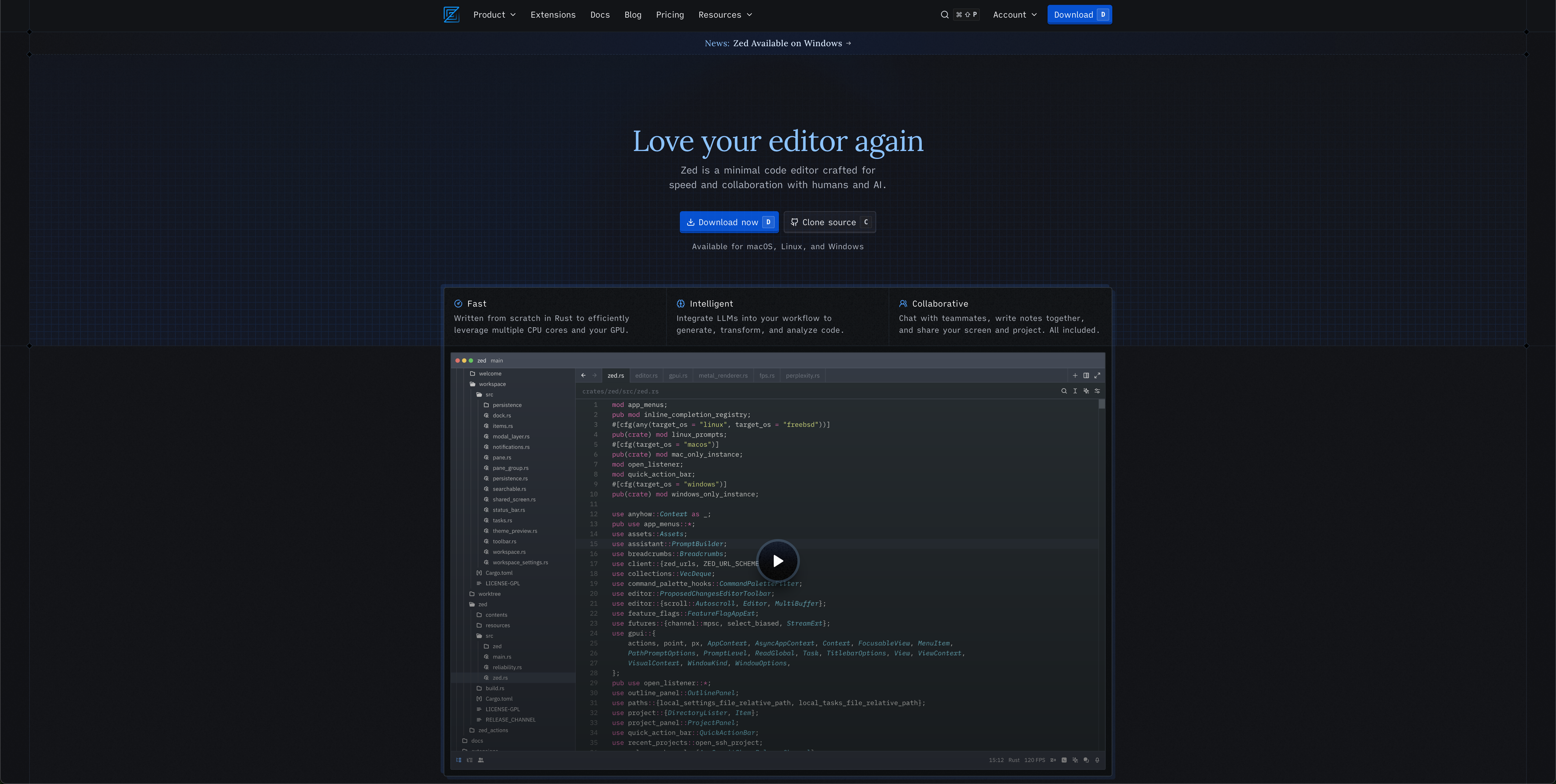
这个是官网 https://zed.dev/
常见问题
首次进入 Zed 的全局配置
javascript
{
  "terminal": {
    "cursor_shape": "bar",
    "blinking": "on",
    "option_as_meta": true
  },
  "tabs": {
    "close_position": "left"
  },
  "sticky_scroll": {
    "enabled": true
  },
  "use_system_window_tabs": true,
  "max_tabs": 5,
  "use_system_path_prompts": true,
  "buffer_font_family": "Input",
  "show_whitespaces": "boundary",
  "show_edit_predictions": true,
  "ensure_final_newline_on_save": true,
  "base_keymap": "Cursor",
  "theme": {
    "mode": "system",
    "light": "One Light",
    "dark": "One Dark"
  },
  "format_on_save": "off"
}
保存文件时 eslint 修复
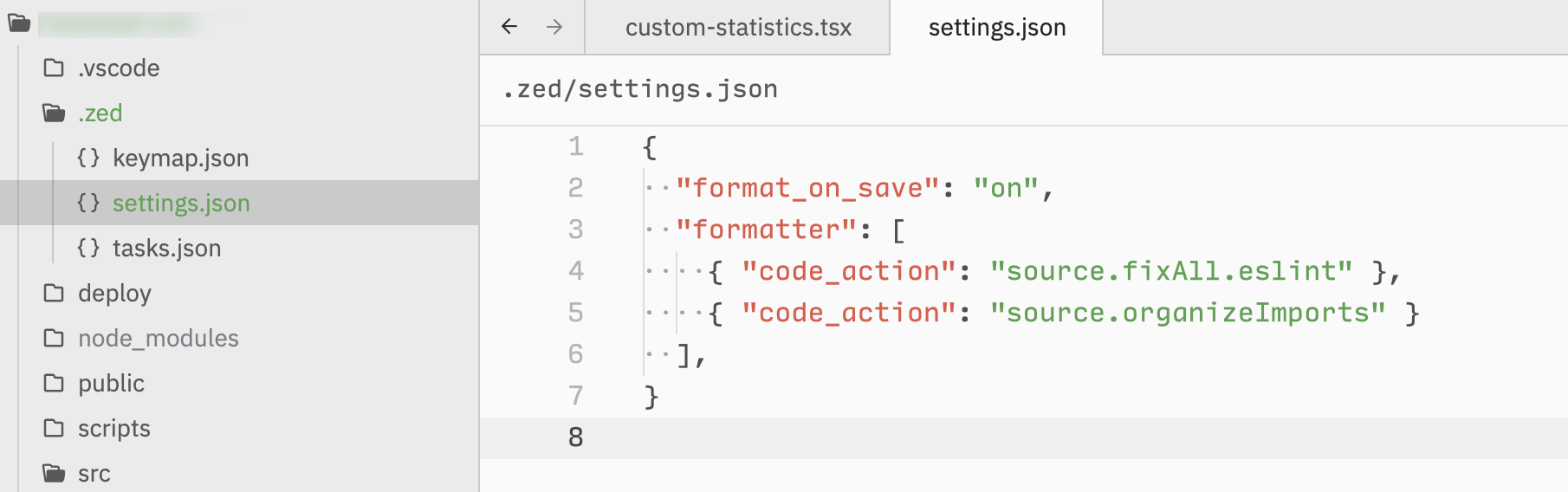
在你的项目下新建 .zed 文件夹,然后创建 settings.json 文件
javascript
{
  "format_on_save": "on",
  "formatter": [
    { "code_action": "source.fixAll.eslint" },
    { "code_action": "source.organizeImports" }
  ],
}
类似这个样式, 具体配置可以看官网 https://zed.dev/docs/configuring-zed#formatter
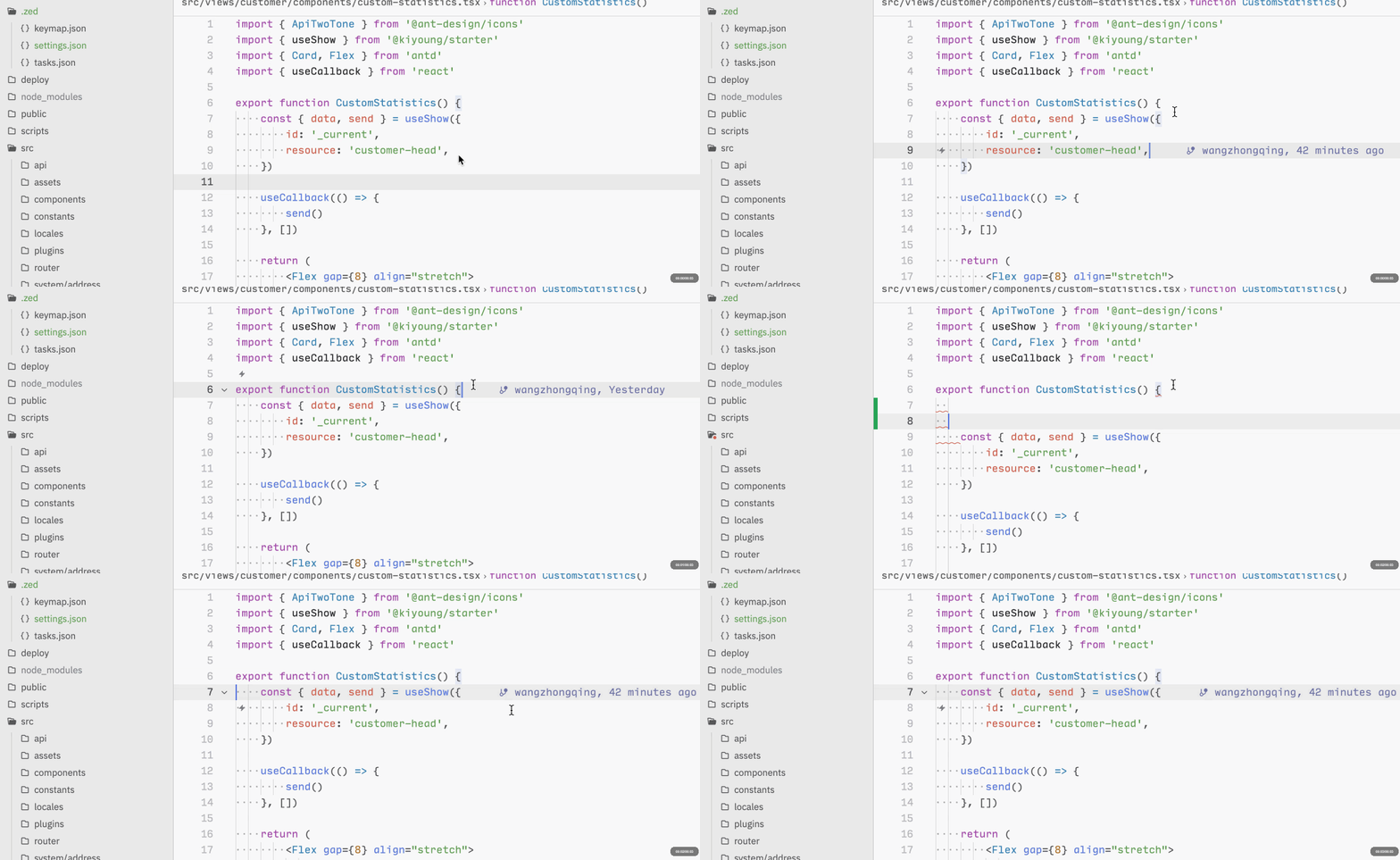
效果演示
面板靠右侧
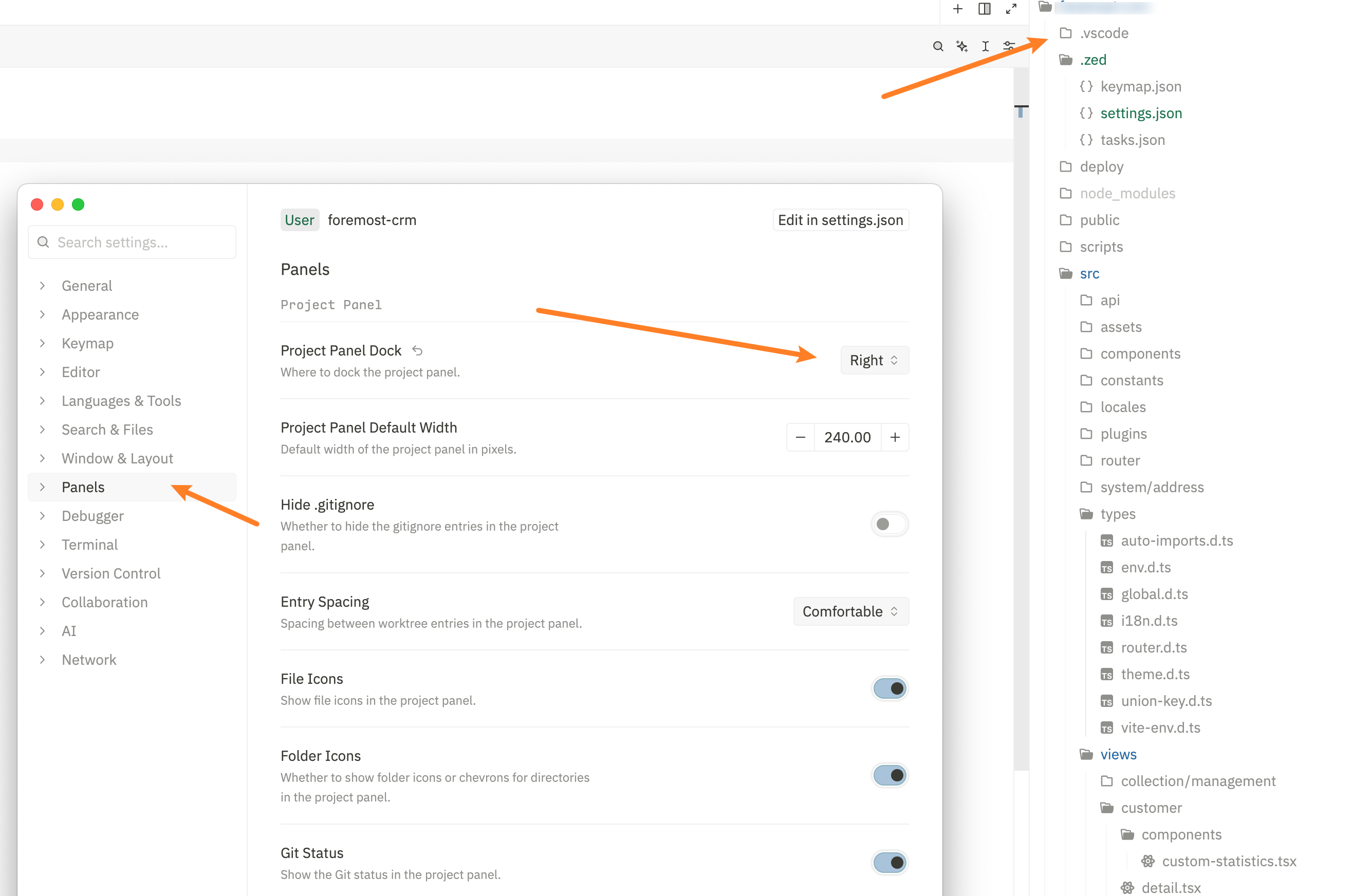
最终的 setting.json
json
// ~/.config/zed/settings.json
{
  "project_panel": {
    "dock": "right"
  },
  "icon_theme": "Zed (Default)",
  "terminal": {
    "cursor_shape": "bar",
    "blinking": "on",
    "option_as_meta": true
  },
  "tabs": {
    "close_position": "left"
  },
  "sticky_scroll": {
    "enabled": true
  },
  "use_system_window_tabs": true,
  "max_tabs": 5,
  "use_system_path_prompts": true,
  "buffer_font_family": "Input",
  "show_whitespaces": "boundary",
  "show_edit_predictions": true,
  "ensure_final_newline_on_save": true,
  "base_keymap": "Cursor",
  "theme": {
    "mode": "system",
    "light": "Vitesse Refined Light",
    "dark": "Vitesse Refined Dark Soft"
  },
  "format_on_save": "off"
}
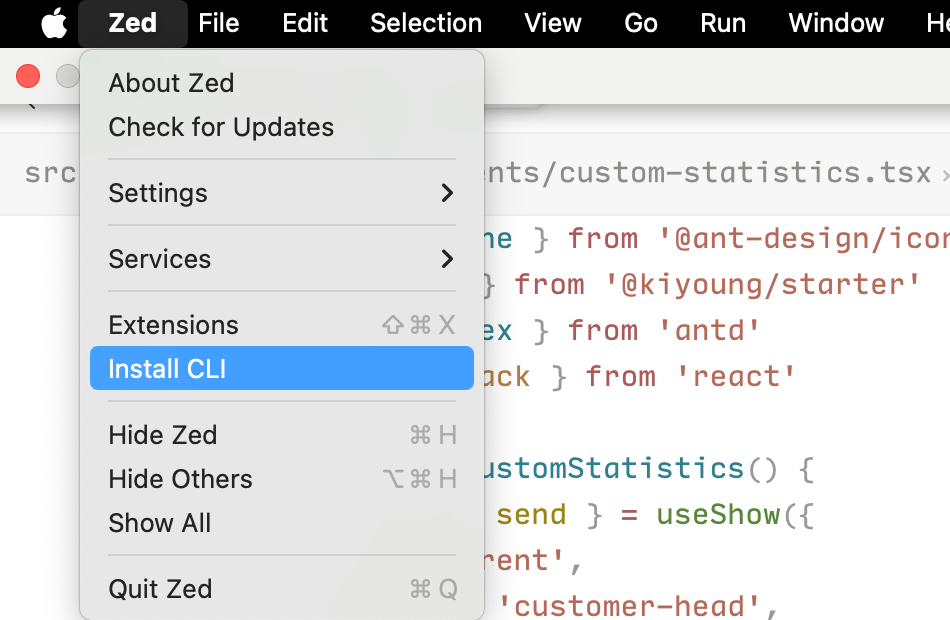
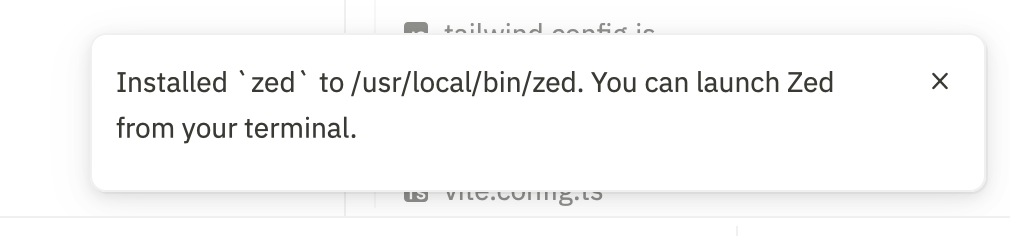
终端添加 zed
添加代码片段
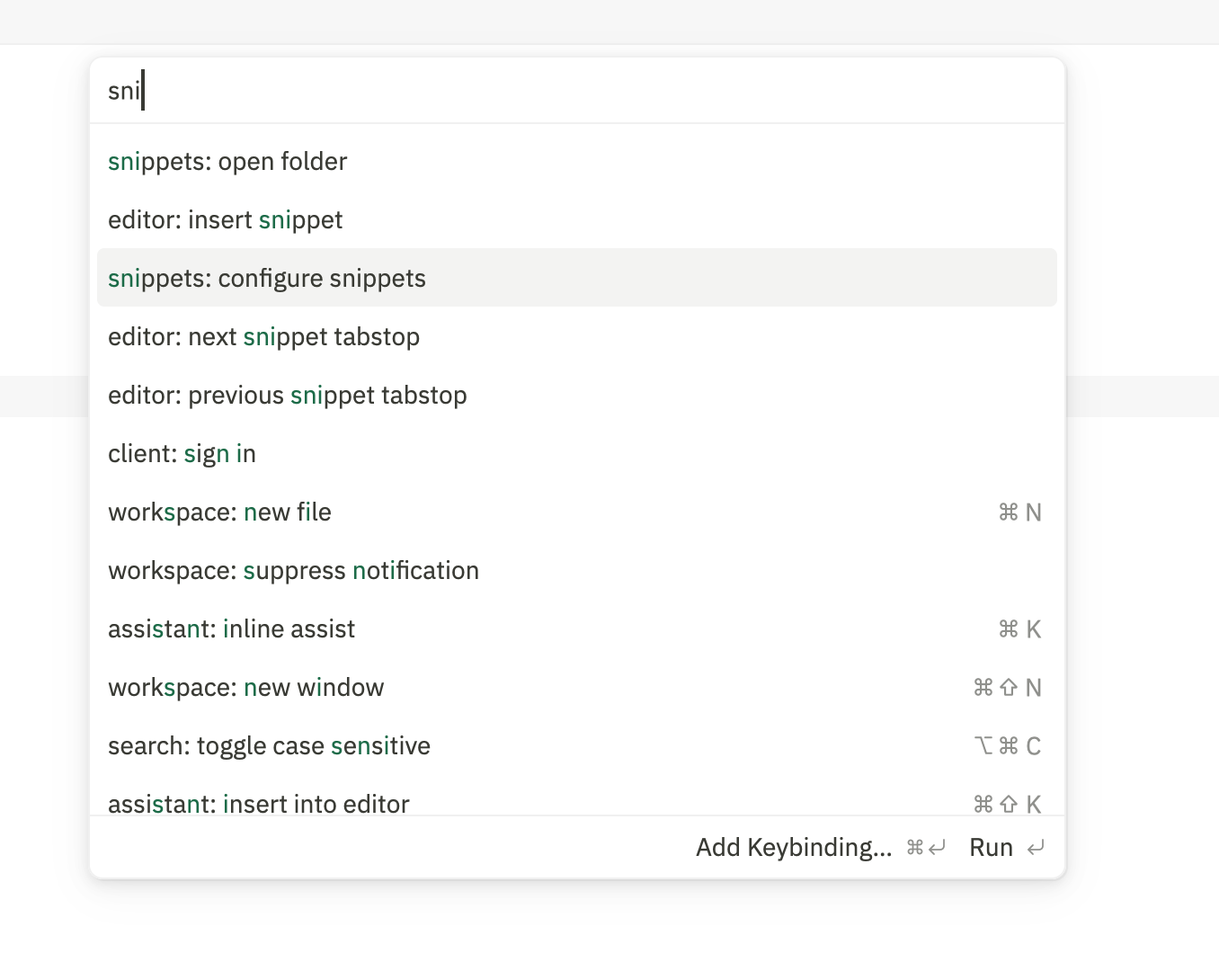
然后选择语言
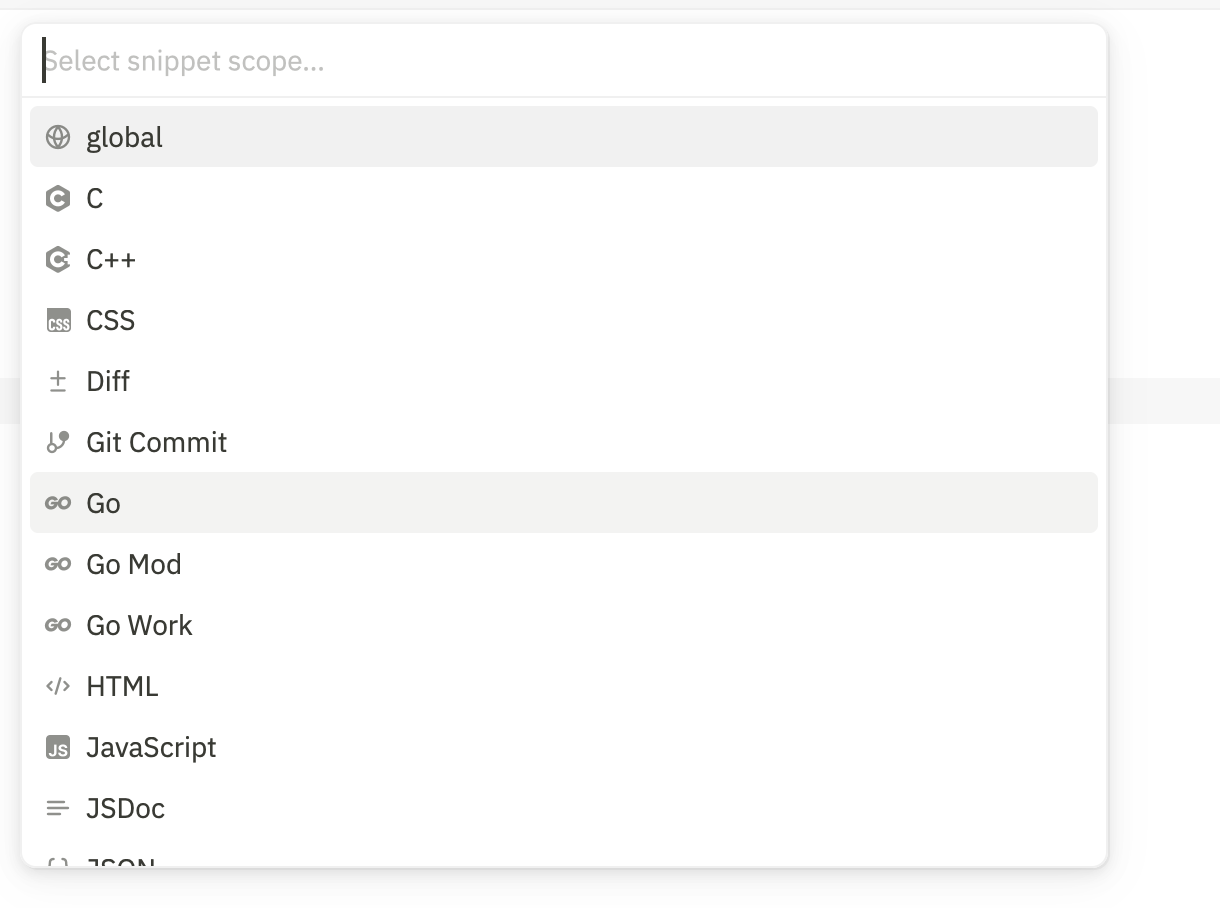
我这里是 react ,所以选择 tsx
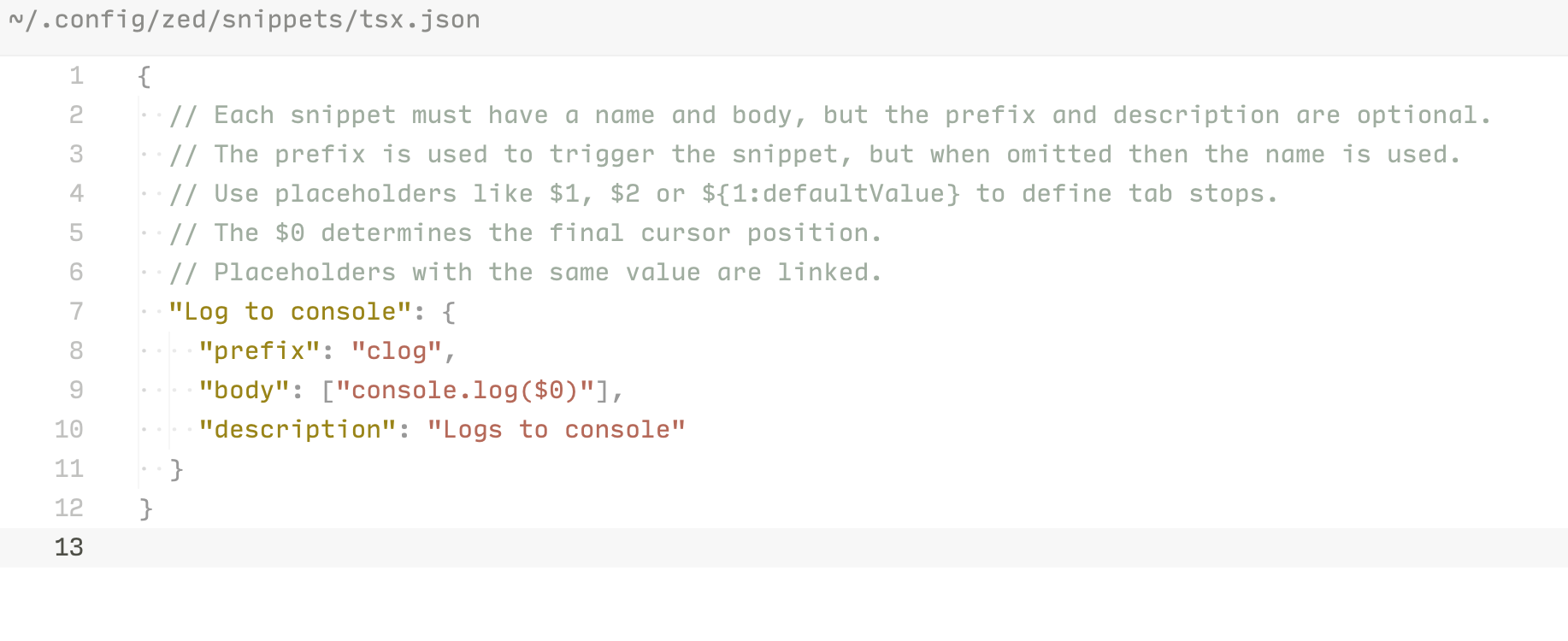
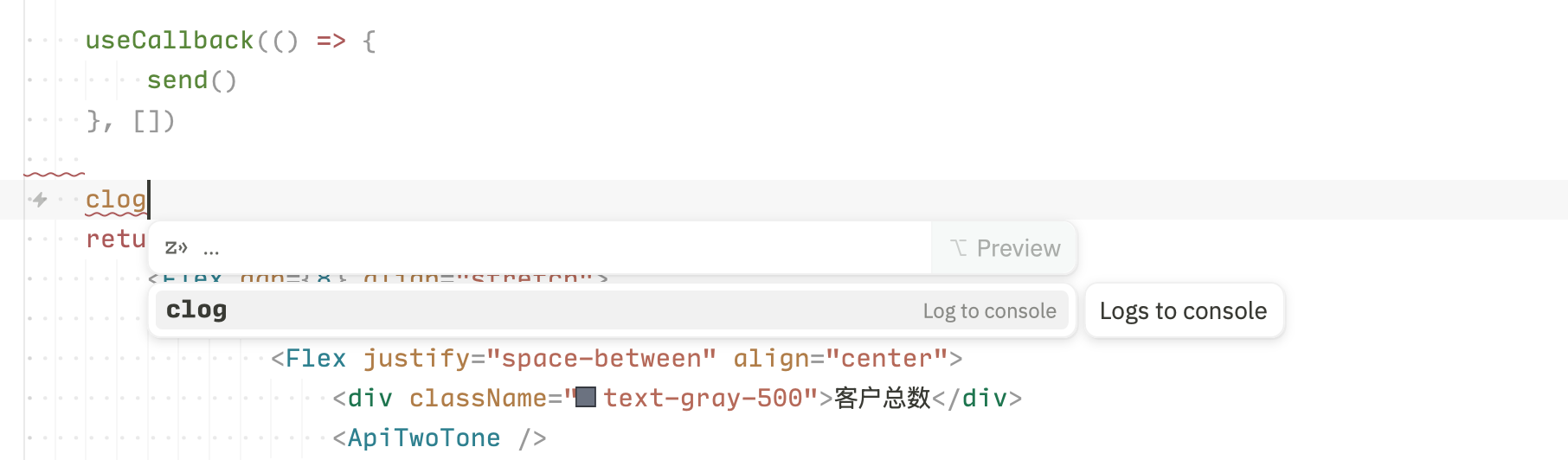
然后打印就有了