前言
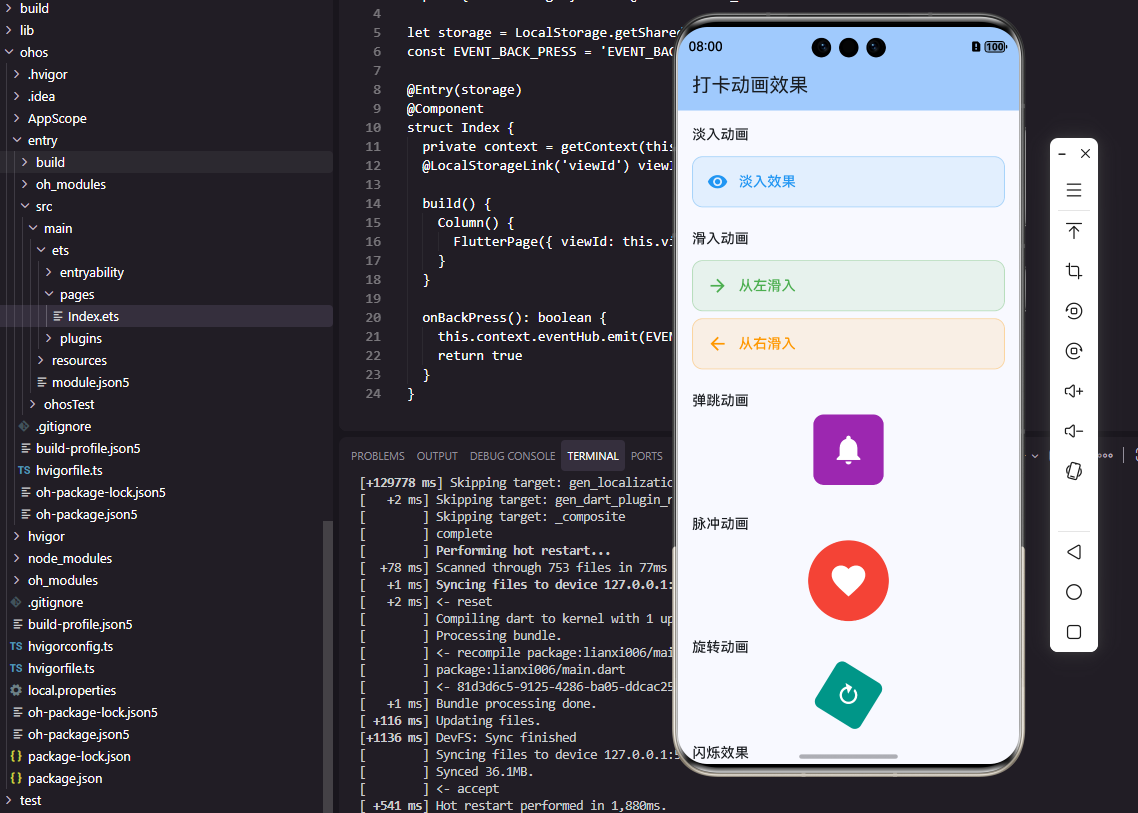
动画效果是提升应用体验的重要手段。在打卡工具类应用中,恰当的动画可以增强操作反馈、引导用户注意力、传达情感和成就感。本文将详细介绍如何在Flutter和OpenHarmony平台上实现各种实用的动画效果组件。
动画设计需要考虑流畅性、适度性和目的性。过多或过长的动画会影响操作效率,而恰到好处的动画能够让应用更加生动有趣。我们将实现打卡成功动画、数字变化动画、列表动画等常用效果。
Flutter动画效果实现
首先实现打卡成功的庆祝动画:
dart
class CheckInCelebration extends StatefulWidget {
  final VoidCallback? onComplete;

  const CheckInCelebration({Key? key, this.onComplete}) : super(key: key);

  @override
  State<CheckInCelebration> createState() => _CheckInCelebrationState();
}

class _CheckInCelebrationState extends State<CheckInCelebration>
    with TickerProviderStateMixin {
  late AnimationController _scaleController;
  late AnimationController _particleController;
  late Animation<double> _scaleAnimation;

  @override
  void initState() {
    super.initState();
    _scaleController = AnimationController(
      duration: const Duration(milliseconds: 600),
      vsync: this,
    );
    _particleController = AnimationController(
      duration: const Duration(milliseconds: 1000),
      vsync: this,
    );

    _scaleAnimation = TweenSequence<double>([
      TweenSequenceItem(tween: Tween(begin: 0.0, end: 1.3), weight: 50),
      TweenSequenceItem(tween: Tween(begin: 1.3, end: 1.0), weight: 50),
    ]).animate(CurvedAnimation(parent: _scaleController, curve: Curves.easeOut));

    _scaleController.forward();
    _particleController.forward().then((_) => widget.onComplete?.call());
  }

  @override
  Widget build(BuildContext context) {
    return Stack(
      alignment: Alignment.center,
      children: [
        // 粒子效果
        ...List.generate(12, (index) => _buildParticle(index)),
        // 中心图标
        ScaleTransition(
          scale: _scaleAnimation,
          child: Container(
            width: 80,
            height: 80,
            decoration: const BoxDecoration(
              color: Colors.green,
              shape: BoxShape.circle,
            ),
            child: const Icon(Icons.check, color: Colors.white, size: 48),
          ),
        ),
      ],
    );
  }

  Widget _buildParticle(int index) {
    final angle = index * (360 / 12) * (pi / 180);
    return AnimatedBuilder(
      animation: _particleController,
      builder: (context, child) {
        final distance = 60 * _particleController.value;
        final opacity = 1 - _particleController.value;
        return Transform.translate(
          offset: Offset(cos(angle) * distance, sin(angle) * distance),
          child: Opacity(
            opacity: opacity,
            child: Container(
              width: 8,
              height: 8,
              decoration: BoxDecoration(
                color: Colors.orange,
                shape: BoxShape.circle,
              ),
            ),
          ),
        );
      },
    );
  }

  @override
  void dispose() {
    _scaleController.dispose();
    _particleController.dispose();
    super.dispose();
  }
}
打卡成功动画包含中心图标的弹性缩放和周围的粒子扩散效果。TweenSequence实现先放大后回弹的效果,12个粒子从中心向外扩散并逐渐消失。这种庆祝动画能够有效增强用户的成就感。
实现数字滚动动画:
dart
class AnimatedNumber extends StatefulWidget {
  final int value;
  final TextStyle? style;
  final Duration duration;

  const AnimatedNumber({
    Key? key,
    required this.value,
    this.style,
    this.duration = const Duration(milliseconds: 500),
  }) : super(key: key);

  @override
  State<AnimatedNumber> createState() => _AnimatedNumberState();
}

class _AnimatedNumberState extends State<AnimatedNumber>
    with SingleTickerProviderStateMixin {
  late AnimationController _controller;
  late Animation<int> _animation;
  int _previousValue = 0;

  @override
  void initState() {
    super.initState();
    _controller = AnimationController(duration: widget.duration, vsync: this);
    _updateAnimation();
    _controller.forward();
  }

  @override
  void didUpdateWidget(AnimatedNumber oldWidget) {
    super.didUpdateWidget(oldWidget);
    if (oldWidget.value != widget.value) {
      _previousValue = oldWidget.value;
      _updateAnimation();
      _controller.forward(from: 0);
    }
  }

  void _updateAnimation() {
    _animation = IntTween(begin: _previousValue, end: widget.value).animate(
      CurvedAnimation(parent: _controller, curve: Curves.easeOut),
    );
  }

  @override
  Widget build(BuildContext context) {
    return AnimatedBuilder(
      animation: _animation,
      builder: (context, child) {
        return Text(
          '${_animation.value}',
          style: widget.style ?? const TextStyle(fontSize: 24, fontWeight: FontWeight.bold),
        );
      },
    );
  }

  @override
  void dispose() {
    _controller.dispose();
    super.dispose();
  }
}
数字滚动动画在数值变化时平滑过渡。IntTween在整数之间进行插值,didUpdateWidget检测数值变化并重新启动动画。这种效果常用于统计数字的展示,让数据变化更加生动。
OpenHarmony动画效果实现
在鸿蒙系统中实现打卡成功动画:
typescript
@Component
struct CheckInCelebration {
  @State scale: number = 0
  @State particleDistance: number = 0
  @State particleOpacity: number = 1
  private onComplete: () => void = () => {}

  aboutToAppear() {
    // 中心图标动画
    animateTo({
      duration: 300,
      curve: Curve.EaseOut
    }, () => {
      this.scale = 1.3
    })

    setTimeout(() => {
      animateTo({
        duration: 300,
        curve: Curve.EaseOut
      }, () => {
        this.scale = 1
      })
    }, 300)

    // 粒子动画
    animateTo({
      duration: 1000,
      curve: Curve.EaseOut,
      onFinish: () => this.onComplete()
    }, () => {
      this.particleDistance = 60
      this.particleOpacity = 0
    })
  }

  build() {
    Stack() {
      // 粒子
      ForEach(Array.from({ length: 12 }), (_, index: number) => {
        this.Particle(index)
      })

      // 中心图标
      Column() {
        Image($r('app.media.check'))
          .width(48)
          .height(48)
          .fillColor(Color.White)
      }
      .width(80)
      .height(80)
      .borderRadius(40)
      .backgroundColor('#4CAF50')
      .justifyContent(FlexAlign.Center)
      .scale({ x: this.scale, y: this.scale })
    }
  }

  @Builder
  Particle(index: number) {
    Column()
      .width(8)
      .height(8)
      .borderRadius(4)
      .backgroundColor('#FF9800')
      .opacity(this.particleOpacity)
      .translate({
        x: Math.cos(index * 30 * Math.PI / 180) * this.particleDistance,
        y: Math.sin(index * 30 * Math.PI / 180) * this.particleDistance
      })
  }
}
鸿蒙的庆祝动画使用animateTo实现多个属性的同时动画。setTimeout控制动画的时序,先放大后回弹。粒子通过translate属性实现位移,opacity实现淡出效果。
实现列表项入场动画:
typescript
@Component
struct AnimatedListItem {
  @Prop index: number = 0
  @State offsetY: number = 50
  @State opacity: number = 0
  @BuilderParam content: () => void

  aboutToAppear() {
    setTimeout(() => {
      animateTo({
        duration: 300,
        curve: Curve.EaseOut
      }, () => {
        this.offsetY = 0
        this.opacity = 1
      })
    }, this.index * 50)  // 延迟入场
  }

  build() {
    Column() {
      this.content()
    }
    .offset({ y: this.offsetY })
    .opacity(this.opacity)
  }
}
列表项入场动画让列表加载更加生动。每个列表项根据索引延迟入场,形成依次出现的效果。从下方滑入配合淡入,视觉效果流畅自然。
页面转场动画
Flutter中实现自定义页面转场:
dart
class SlidePageRoute<T> extends PageRouteBuilder<T> {
  final Widget page;

  SlidePageRoute({required this.page})
      : super(
          pageBuilder: (context, animation, secondaryAnimation) => page,
          transitionsBuilder: (context, animation, secondaryAnimation, child) {
            const begin = Offset(1.0, 0.0);
            const end = Offset.zero;
            const curve = Curves.easeInOut;

            var tween = Tween(begin: begin, end: end).chain(CurveTween(curve: curve));
            var offsetAnimation = animation.drive(tween);

            return SlideTransition(
              position: offsetAnimation,
              child: child,
            );
          },
          transitionDuration: const Duration(milliseconds: 300),
        );
}

// 使用
Navigator.push(context, SlidePageRoute(page: DetailPage()));
自定义页面转场让页面切换更加流畅。SlideTransition实现从右侧滑入的效果,CurveTween添加缓动曲线。这种转场动画比默认的更加现代和流畅。
按钮点击动画
实现按钮点击的缩放反馈:
dart
class AnimatedButton extends StatefulWidget {
  final Widget child;
  final VoidCallback onPressed;

  const AnimatedButton({
    Key? key,
    required this.child,
    required this.onPressed,
  }) : super(key: key);

  @override
  State<AnimatedButton> createState() => _AnimatedButtonState();
}

class _AnimatedButtonState extends State<AnimatedButton>
    with SingleTickerProviderStateMixin {
  late AnimationController _controller;
  late Animation<double> _scaleAnimation;

  @override
  void initState() {
    super.initState();
    _controller = AnimationController(
      duration: const Duration(milliseconds: 100),
      vsync: this,
    );
    _scaleAnimation = Tween<double>(begin: 1.0, end: 0.95).animate(_controller);
  }

  @override
  Widget build(BuildContext context) {
    return GestureDetector(
      onTapDown: (_) => _controller.forward(),
      onTapUp: (_) {
        _controller.reverse();
        widget.onPressed();
      },
      onTapCancel: () => _controller.reverse(),
      child: ScaleTransition(
        scale: _scaleAnimation,
        child: widget.child,
      ),
    );
  }

  @override
  void dispose() {
    _controller.dispose();
    super.dispose();
  }
}
按钮点击动画在按下时轻微缩小,松开时恢复。这种微妙的反馈让用户确认操作已被接收,提升了交互的确定性。100毫秒的动画时长足够快速又能被感知。
呼吸灯效果
实现提醒的呼吸灯动画:
dart
class BreathingLight extends StatefulWidget {
  final Color color;
  final double size;

  const BreathingLight({
    Key? key,
    this.color = Colors.red,
    this.size = 12,
  }) : super(key: key);

  @override
  State<BreathingLight> createState() => _BreathingLightState();
}

class _BreathingLightState extends State<BreathingLight>
    with SingleTickerProviderStateMixin {
  late AnimationController _controller;

  @override
  void initState() {
    super.initState();
    _controller = AnimationController(
      duration: const Duration(milliseconds: 1500),
      vsync: this,
    )..repeat(reverse: true);
  }

  @override
  Widget build(BuildContext context) {
    return AnimatedBuilder(
      animation: _controller,
      builder: (context, child) {
        return Container(
          width: widget.size,
          height: widget.size,
          decoration: BoxDecoration(
            shape: BoxShape.circle,
            color: widget.color,
            boxShadow: [
              BoxShadow(
                color: widget.color.withOpacity(0.5 * _controller.value),
                blurRadius: 10 * _controller.value,
                spreadRadius: 2 * _controller.value,
              ),
            ],
          ),
        );
      },
    );
  }

  @override
  void dispose() {
    _controller.dispose();
    super.dispose();
  }
}
呼吸灯效果通过阴影的扩散和收缩模拟呼吸节奏。repeat(reverse: true)让动画来回播放,形成持续的呼吸效果。这种动画常用于提醒用户注意某个元素。
总结
本文详细介绍了在Flutter和OpenHarmony平台上实现动画效果组件的完整方案。打卡成功动画增强成就感,数字滚动让数据变化生动,列表入场动画提升加载体验,按钮点击动画确认操作反馈。两个平台都提供了强大的动画API,通过合理的动画设计,可以显著提升应用的用户体验。
欢迎加入开源鸿蒙跨平台社区:https://openharmonycrossplatform.csdn.net