天眼查数据爬取入门指南
Python作为最流行的爬虫开发语言之一,结合AI工具能显著降低学习门槛。以下以天眼查为例,介绍网页信息爬取的核心方法。
1.安装chromedriver
ChromeDriver 下载地址:
https://developer.chrome.google.cn/docs/chromedriver/downloads?hl=zh-cn
版本选择指南:
- 请选择与您当前 Chrome 浏览器版本相匹配的 ChromeDriver 版本
查看 Chrome 版本方法:
- 打开 Chrome 浏览器
- 点击右上角"设置"(三个点图标)
- 选择"关于 Chrome"即可查看当前版本
注意事项:
- 若您的 Chrome 版本为 115 或更高,请选择"Chrome 115 及更高版
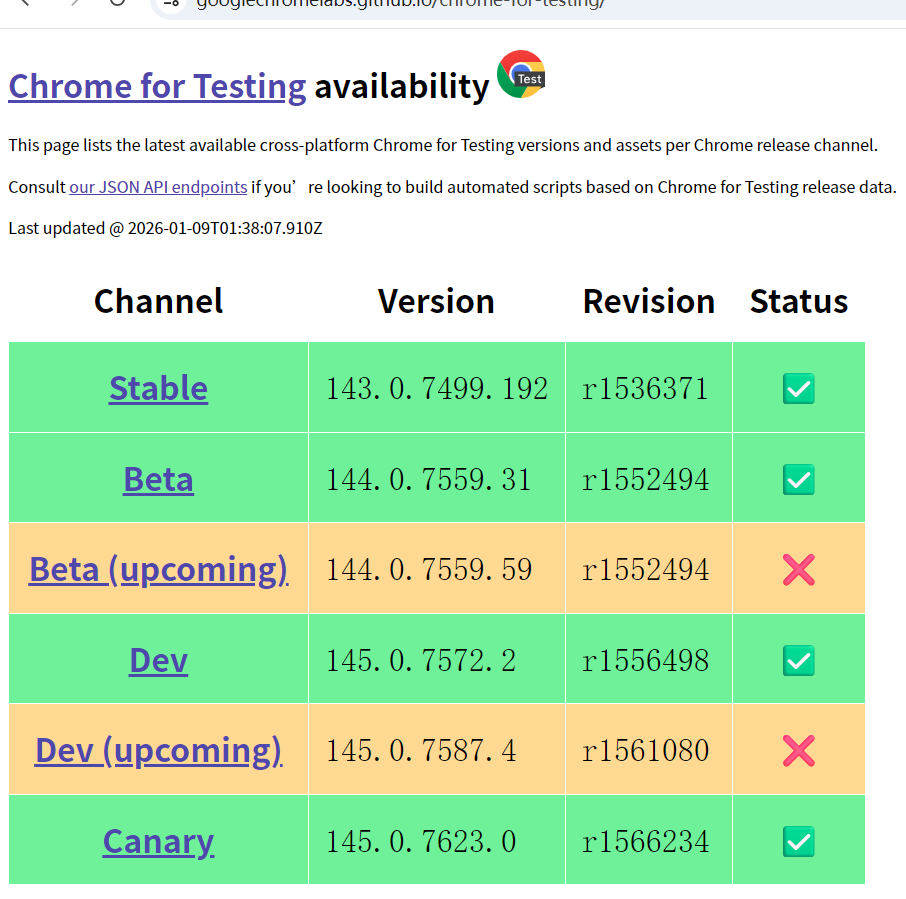
推荐选择Stable稳定版本,根据操作系统选择适配版本,本文以win64版本为例。
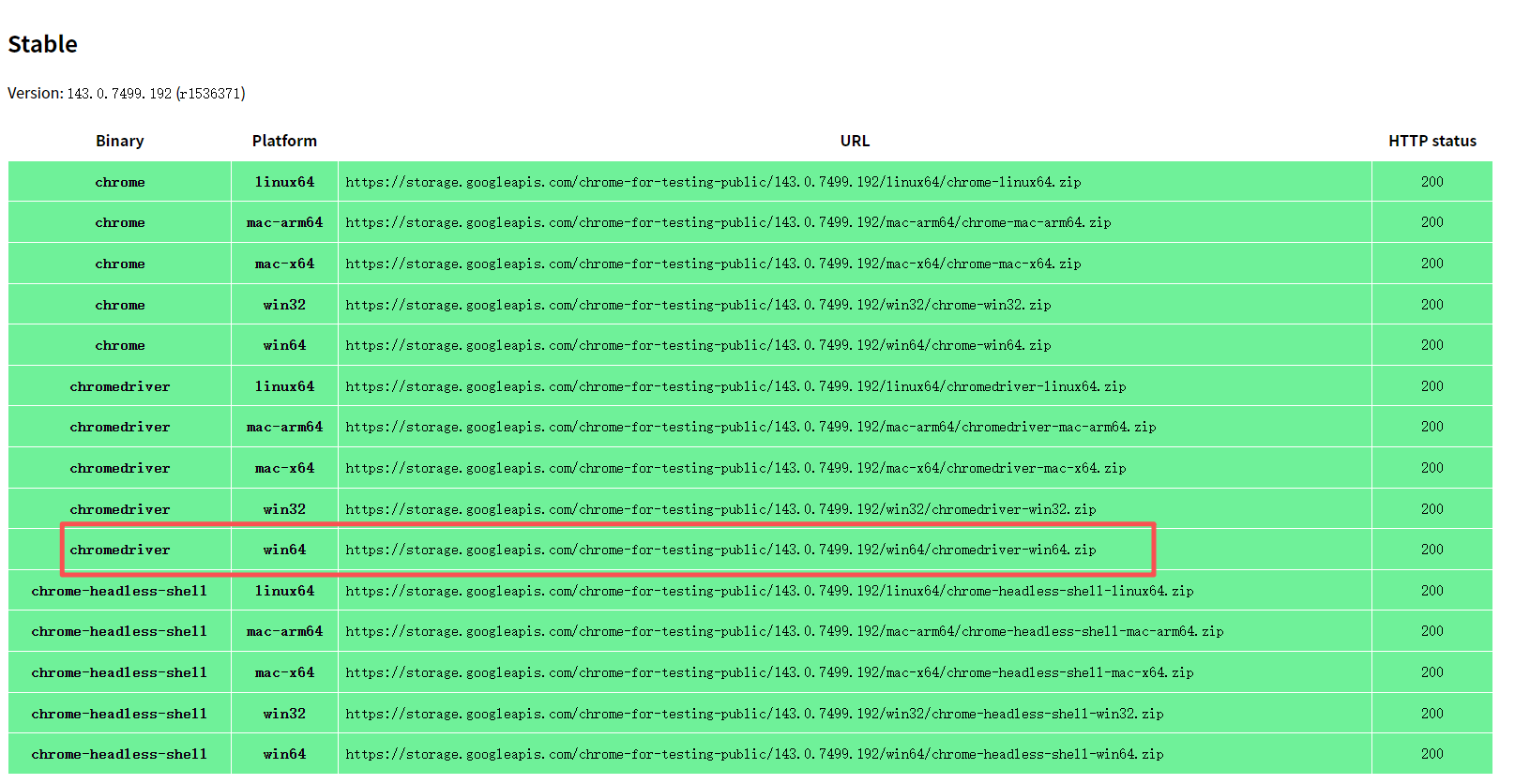
点击链接,在浏览器中打开即可下载
2.配置采集
本文以天眼查数据采集为例,演示如何利用Selenium通过关键词搜索或筛选条件配置来获取企业数量统计信息。
安装所需要的库
(1)WebDriver,参考1.安装chromedriver安装
(2)Python 库
python
import time
import os
import pandas as pd
from selenium import webdriver
from selenium.webdriver.chrome.service import Service
from selenium.webdriver.common.by import By
from selenium.webdriver.support.ui import WebDriverWait
from selenium.webdriver.support import expected_conditions as EC
from bs4 import BeautifulSoup
from selenium.webdriver.common.keys import Keys
配置webdriver
python
service = Service('你的驱动路劲/chromedriver.exe')  # 修改为你的路径
options = webdriver.ChromeOptions()
options.add_argument('--disable-gpu')
options.add_argument('--no-sandbox')
options.add_argument('--disable-blink-features=AutomationControlled')
driver = webdriver.Chrome(service=service, options=options)
关键词搜索
python
search_keywords = ["科技","数字"]
all_company_info = []
# sessionNo =1767863604.26713448


for keyword in search_keywords:
    print(f"正在搜索 {keyword} 相关的公司...")
    wait = WebDriverWait(driver, 10)
    driver.get(f"https://www.tianyancha.com/search?key={keyword}")
driver.get网址参数配置
优化后的内容:
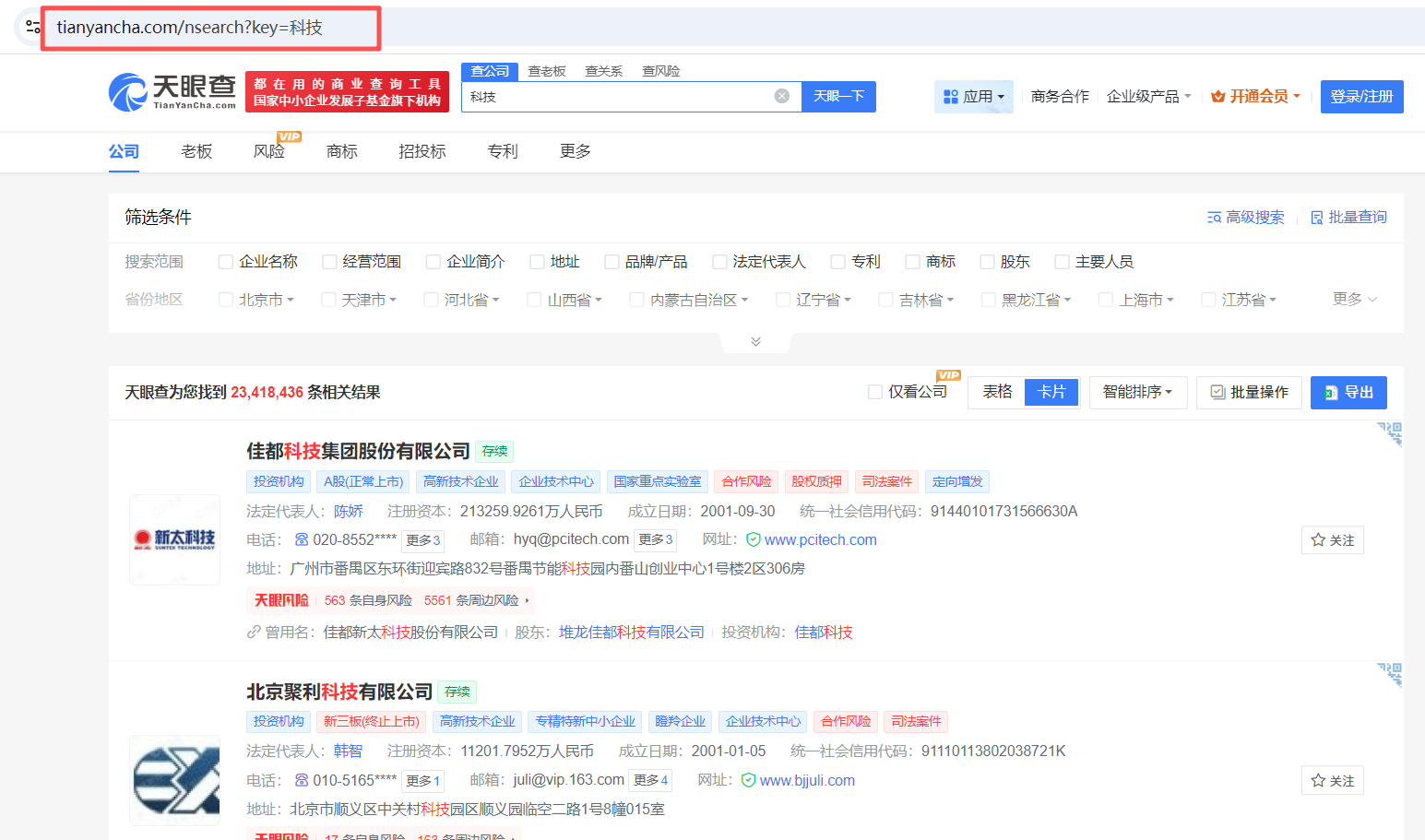
配置搜索词并循环采集搜索词信息,以及driver.get网址参数配置方法:
- 访问天眼查官网:https://www.tianyancha.com
- 获取网址参数的方法:
- 输入关键词并执行搜索
- 观察网址中的key参数即为接收关键词的参数
- 示例网址格式:https://www.tianyancha.com/search?key={keyword}
注意事项:
- 天眼查必须包含key参数
- 若无关键词限制,可将search_keywords设为空列表:search_keywords = \[\]
获取网页信息
代码如下
python
WebDriverWait(driver, 60).until(
    EC.presence_of_element_located((By.CLASS_NAME, "index_alink__zcia5"))
)
time.sleep(3)  # 等待页面加载
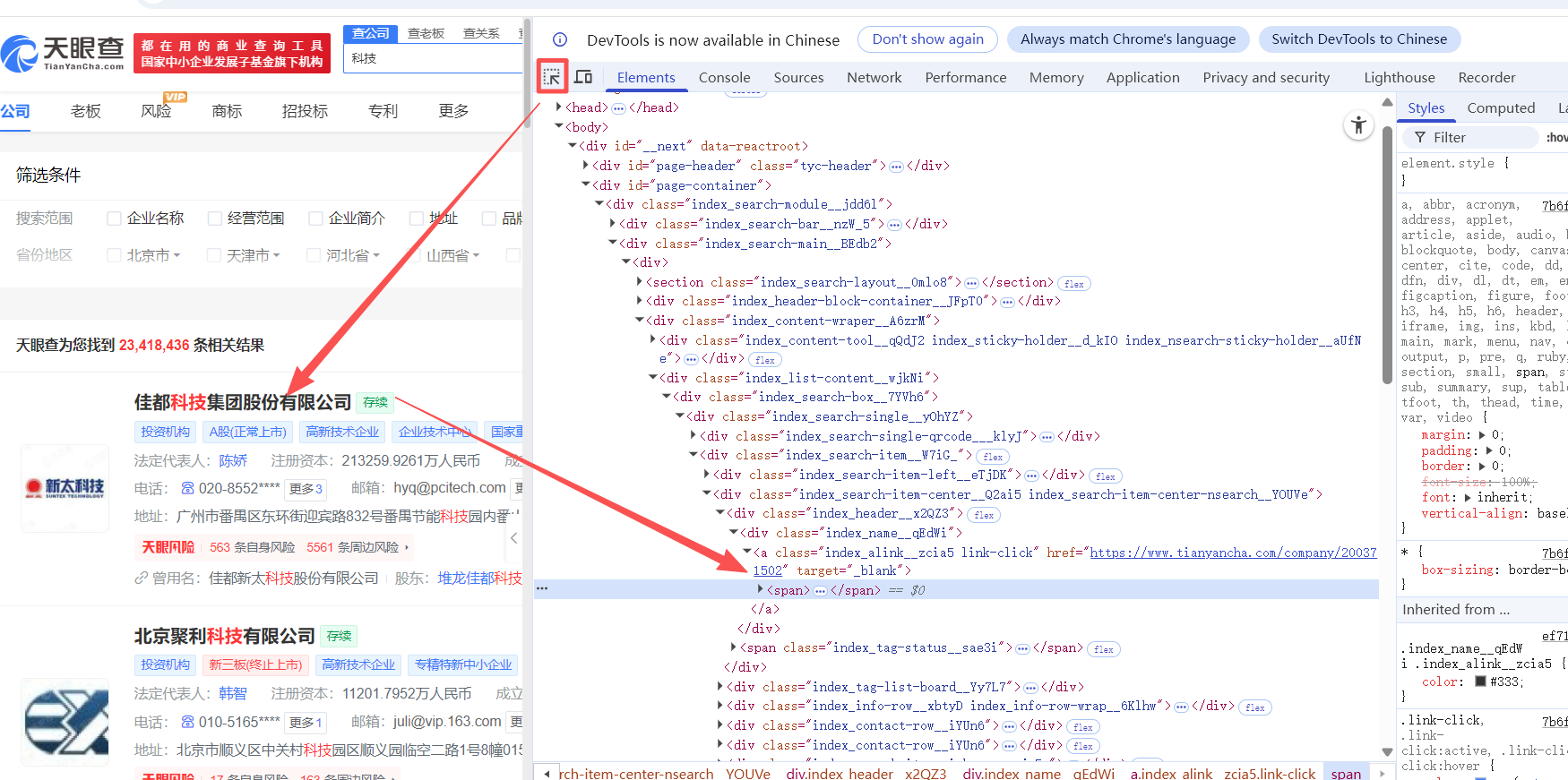
使用 Selenium WebDriver 获取特定 class 名(index_alink__zcia5)的元素示例 - 以获取搜索结果中的企业链接为例:
- 在搜索"科技"后显示的页面上右键点击,选择"检查"选项,打开页面代码窗口
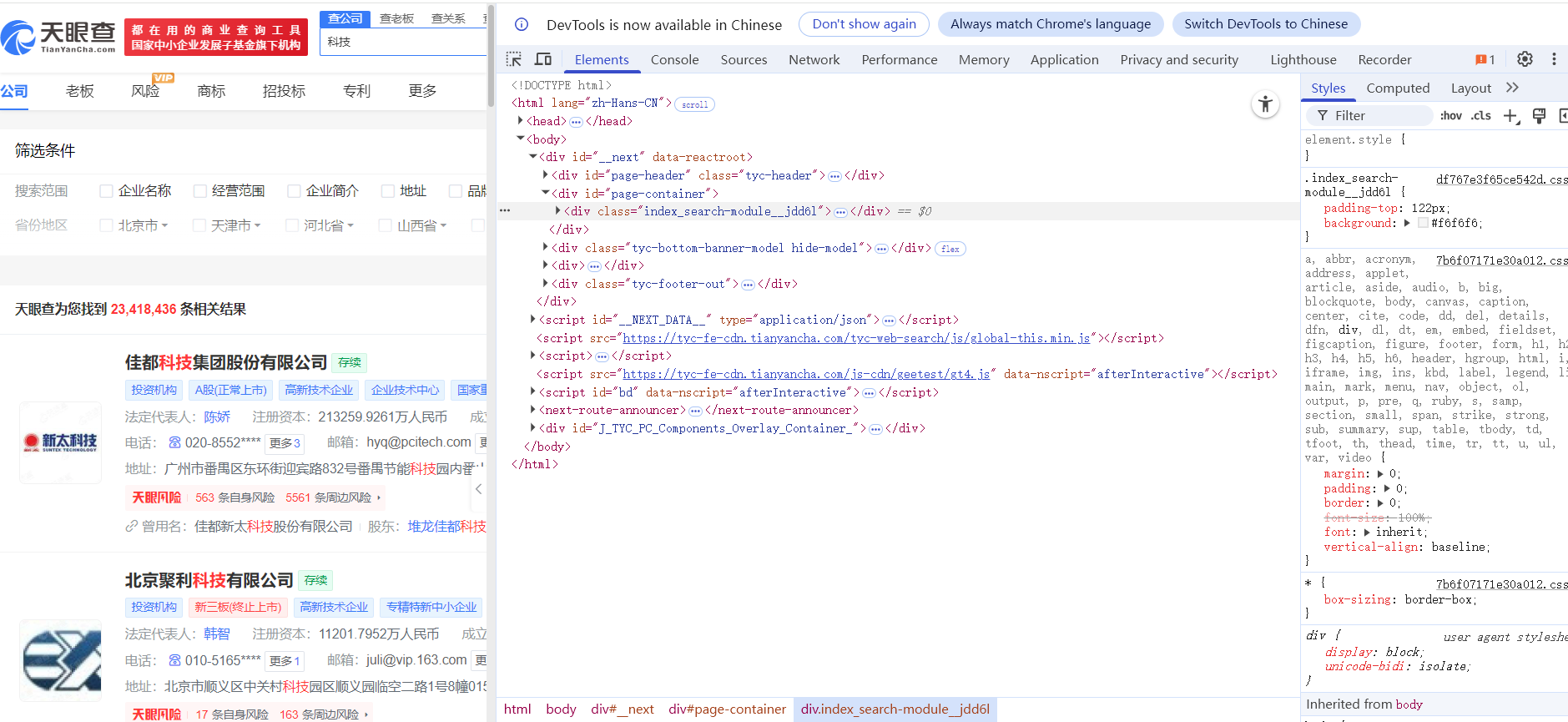
(2)点击顶部搜索箭头按钮,将光标移至目标信息处,代码变灰区域即为对应代码位置。注意查看后方带有链接的class名称,这就是我们需要获取的公司详情页链接的CLASS_NAME。
获取所有公司详情网页链接列表
获取所有企业详情页的URL链接,保存为列表形式,便于后续通过循环遍历逐一访问并采集企业详细信息。
python
while True:
    html = driver.page_source
    soup = BeautifulSoup(html, 'html.parser')
    links = soup.find_all('a', class_='index_alink__zcia5 link-click', href=True)
打开练级进入页面采集详情
python
for link in links:
    company_info = {}
    detail_url = link['href']
    driver.get(detail_url)
配置请求头
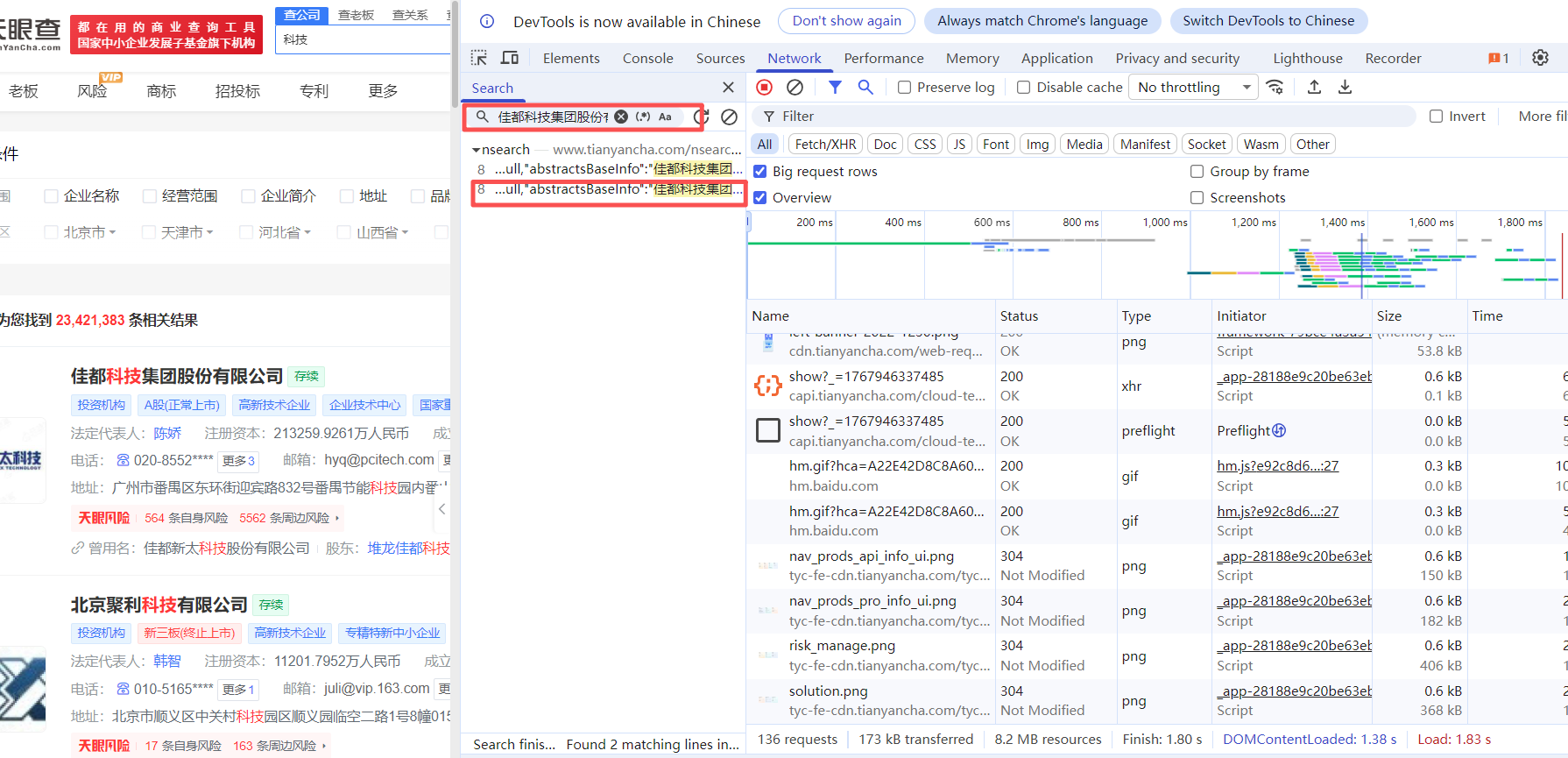
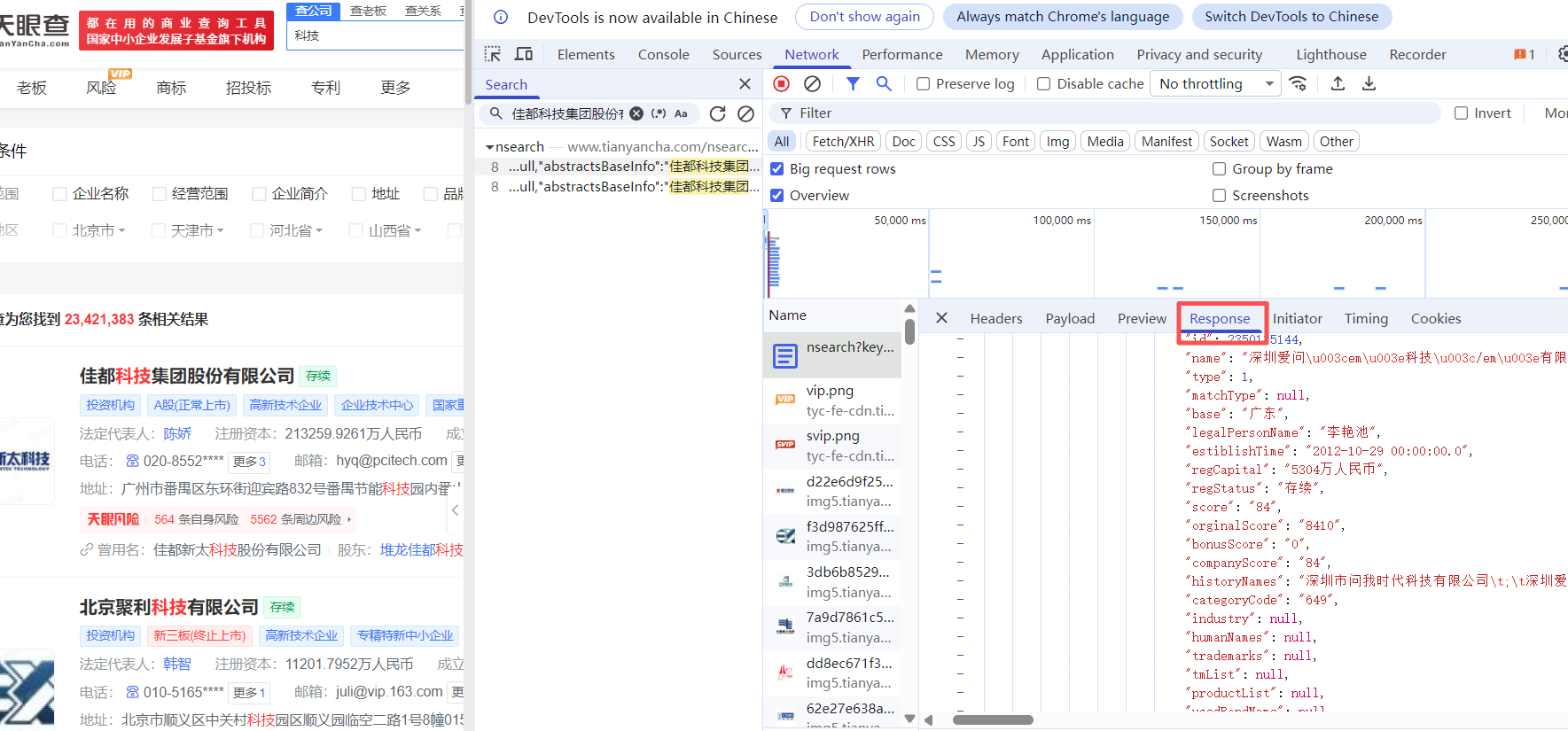
(1)在网页上右键点击"检查",切换到"Network"标签页,在代码查询器中输入页面内容进行搜索,然后点击查询按钮即可找到对应的内容代码。
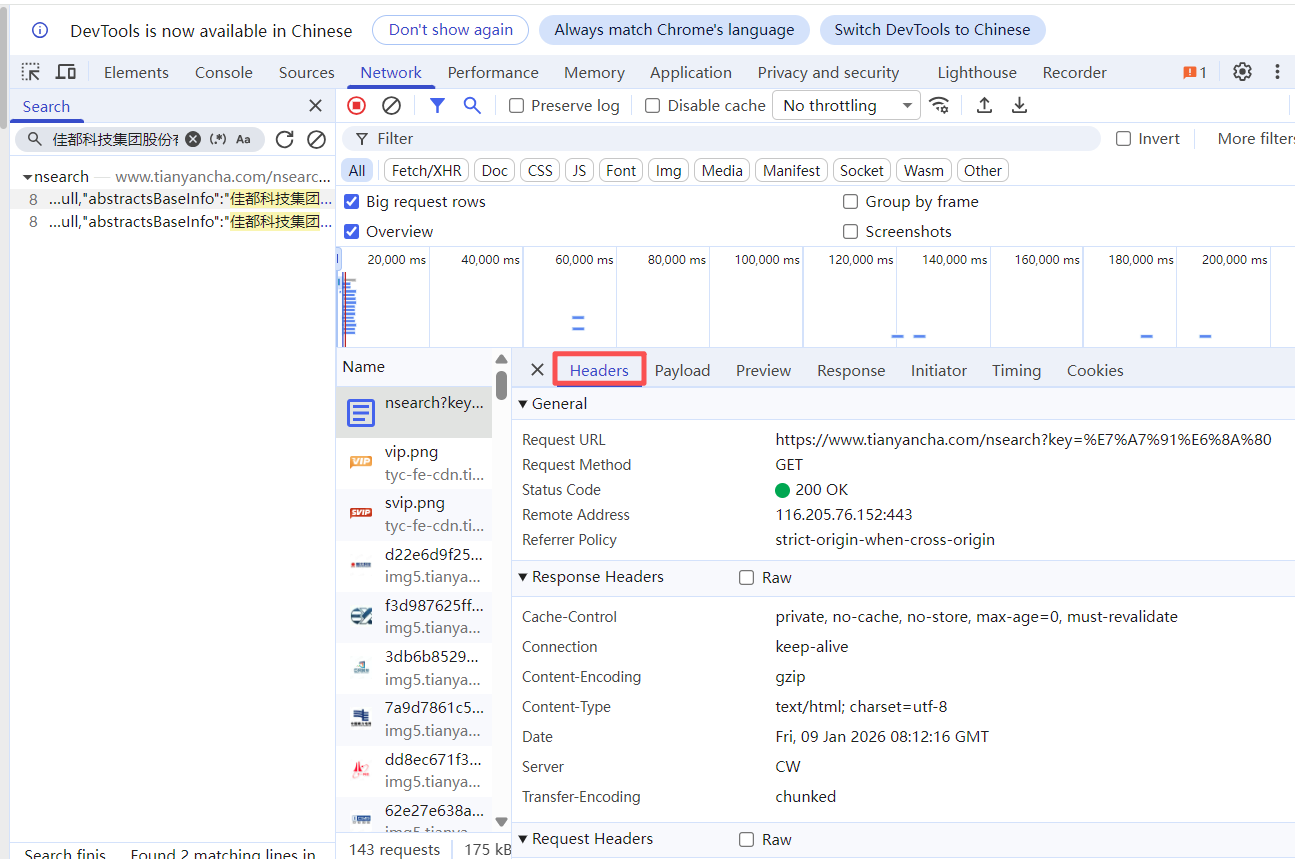
(2)点击查询结果可定位到代码文件,查看请求头配置、响应返回等具体实现。
请求头
response
借助AI编写爬取网页和解析数据
掌握上述网页信息查找步骤后,您可以将定位到的内容交由AI辅助完成爬虫代码编写,具体操作流程如下:
selenium模拟浏览器操作
通过模拟城市筛选功能查询企业数量时,请按照以下步骤操作:
- 定位城市筛选控件对应的网页代码class名称
- 将获取的网页代码片段和具体操作需求提供给AI
- AI会根据需求自动生成模拟操作的代码
- 根据实际应用场景选择最合适的代码方案
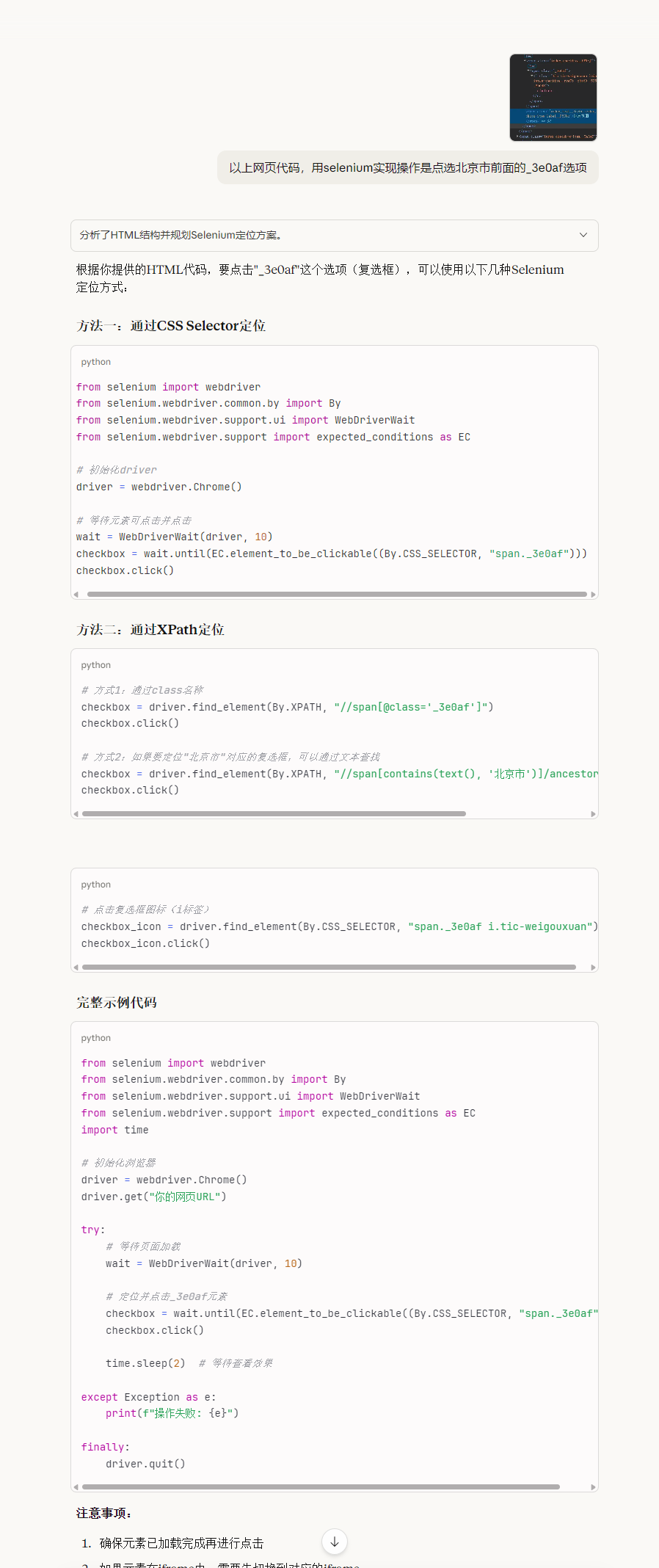
模拟操作浏览器,选择城市查询
python
  # 移除所有遮罩
    driver.execute_script("""
        document.querySelectorAll('.index_filter-mask-top__aVngX').forEach(e => e.remove());
    """)

    # 找到并点击
    checkboxes = driver.find_elements(By.XPATH, "//span[@class='_3e0af']")
    for cb in checkboxes:
        parent = cb.find_element(By.XPATH, "../..")
        if "天津市" in parent.text:
            driver.execute_script("arguments[0].click();", cb)
            print("点击成功!")
            clicked = True
            break

    if not clicked:
        print("✗ 未找到'天津市'复选框")
    else:
        # 3. 等待页面更新(重要!)
        print("等待页面更新...")
AI获取网页数据信息
优化后的表达:
定义浏览器模拟查询参数后,获取页面源代码
python
 page_source = driver.page_source
 print(page_source)
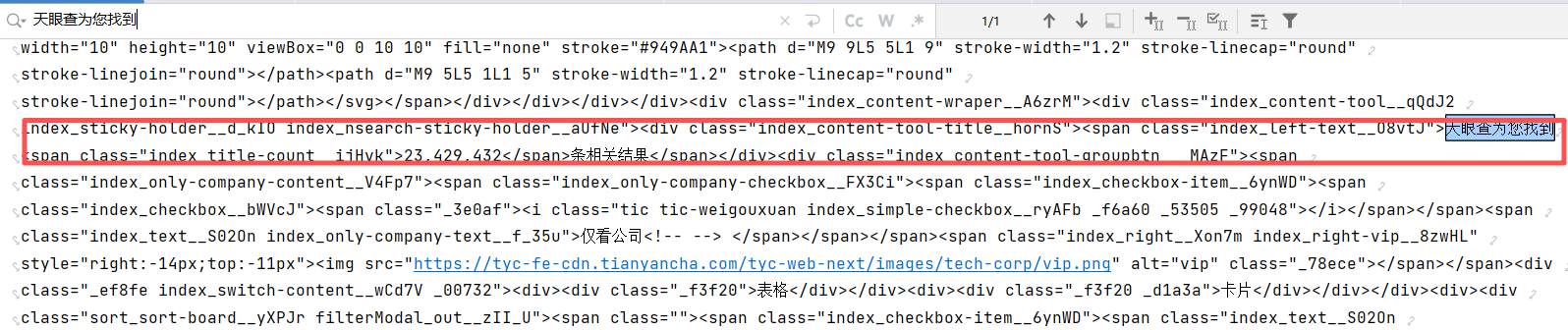
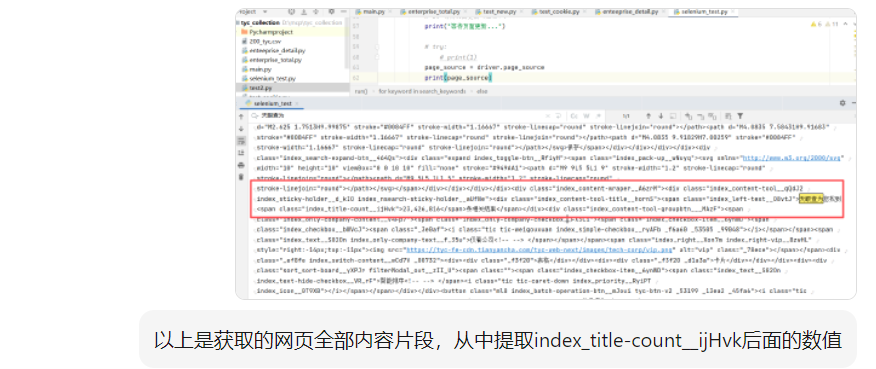
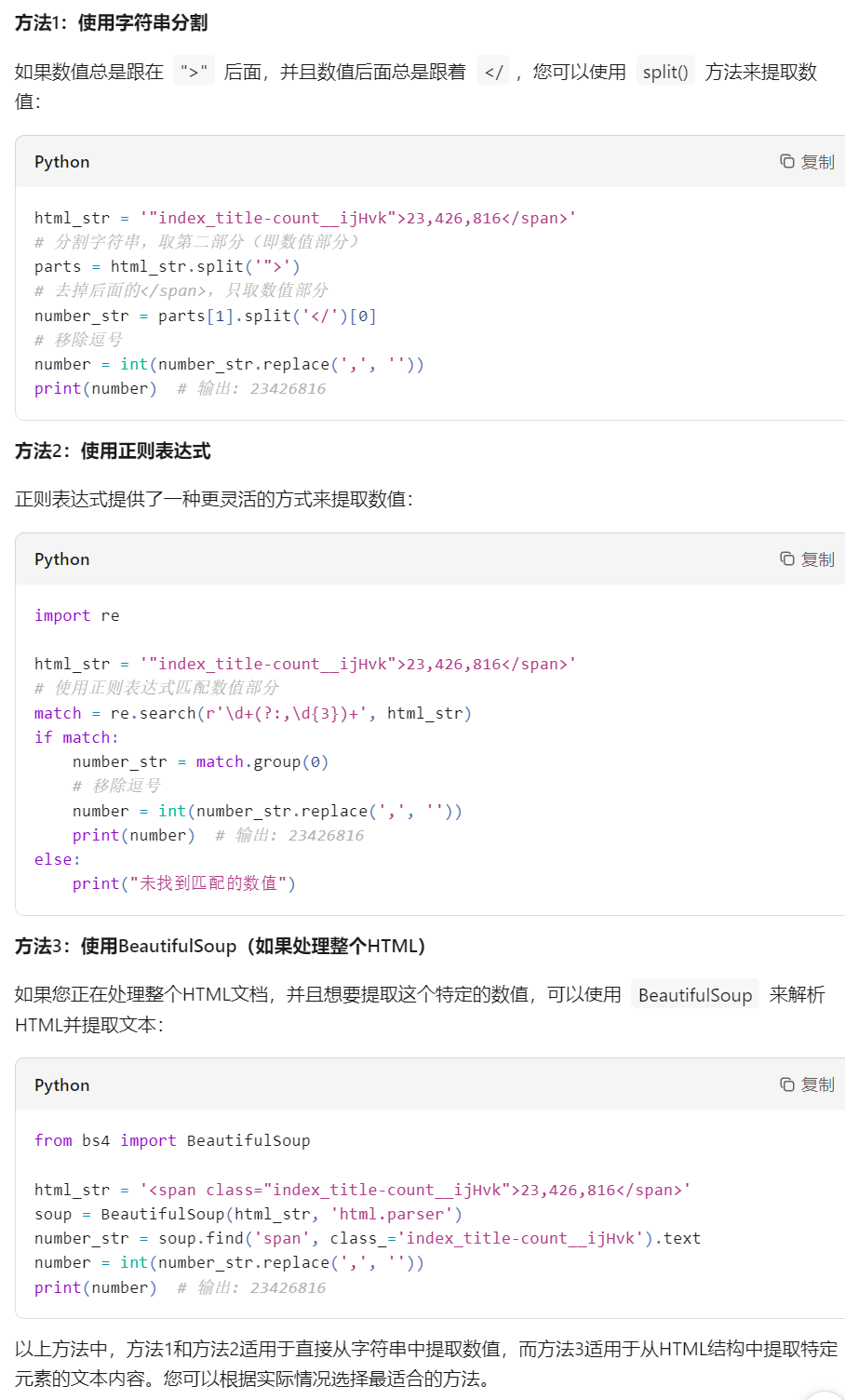
通过代码获取网页源码后,搜索"天眼查为您找到"关键词定位相关代码片段,将该片段和具体需求提交给AI,由其生成数据提取代码。例如要获取区域企业数量,AI会根据提供的代码片段编写相应的提取程序。
输入代码片段和需求,AI将自动生成提取代码
完整天眼查爬虫代码
python
import time
import os
import pandas as pd
from selenium import webdriver
from selenium.webdriver.chrome.service import Service
from selenium.webdriver.common.by import By
from selenium.webdriver.support.ui import WebDriverWait
from selenium.webdriver.support import expected_conditions as EC
from bs4 import BeautifulSoup
from selenium.webdriver.common.keys import Keys
from selenium.common.exceptions import TimeoutException
import re


def run():
    service = Service('D:/chromedriver.exe')  # 修改为你的路径
    options = webdriver.ChromeOptions()
    options.add_argument('--disable-gpu')
    options.add_argument('--no-sandbox')
    options.add_argument('--disable-blink-features=AutomationControlled')
    driver = webdriver.Chrome(service=service, options=options)


    search_keywords = ["科技"]


    for keyword in search_keywords:
        print(f"正在搜索 {keyword} 相关的公司...")
        # 初始化 clicked 变量
        clicked = False
        wait = WebDriverWait(driver, 10)

        driver.get(f"https://www.tianyancha.com/search?key={keyword}")
        time.sleep(30)


        # 模拟操作浏览器,选择城市查询
        # 移除所有遮罩
        driver.execute_script("""
            document.querySelectorAll('.index_filter-mask-top__aVngX').forEach(e => e.remove());
        """)

        # 找到并点击
        checkboxes = driver.find_elements(By.XPATH, "//span[@class='_3e0af']")
        for cb in checkboxes:
            parent = cb.find_element(By.XPATH, "../..")
            if "天津市" in parent.text:
                driver.execute_script("arguments[0].click();", cb)
                print("点击成功!")
                clicked = True
                break

        if not clicked:
            print("✗ 未找到'天津市'复选框")
        else:
            # 3. 等待页面更新(重要!)
            print("等待页面更新...")

            # try:
                # print(1)
            page_source = driver.page_source
            print(page_source)
            if "index_title-count" in page_source:
                print("✓ 源码中包含 'index_title-count'")
                # 提取附近代码片段

                match = re.search(r'index_title-count[^>]*>[^<]+</span>', page_source)
                if match:
                    html_str =  match.group(0)
                    print("附近代码:", match.group(0))

                    # 提取区域企业汇总数
                    number_str = html_str.split('">')[1].split('</')[0]
                    print(number_str)
            else:
                print("✗ 源码中未找到 'index_title-count'")

    driver.quit()


if __name__ == "__main__":
    run()