用户在浏览游戏时,应用会自动记录浏览历史。这个功能不需要用户手动操作,只要点击进入游戏详情页,就会自动添加到历史记录中。浏览历史是一个很实用的功能,用户可以快速回到之前看过的游戏,而不需要重新搜索。
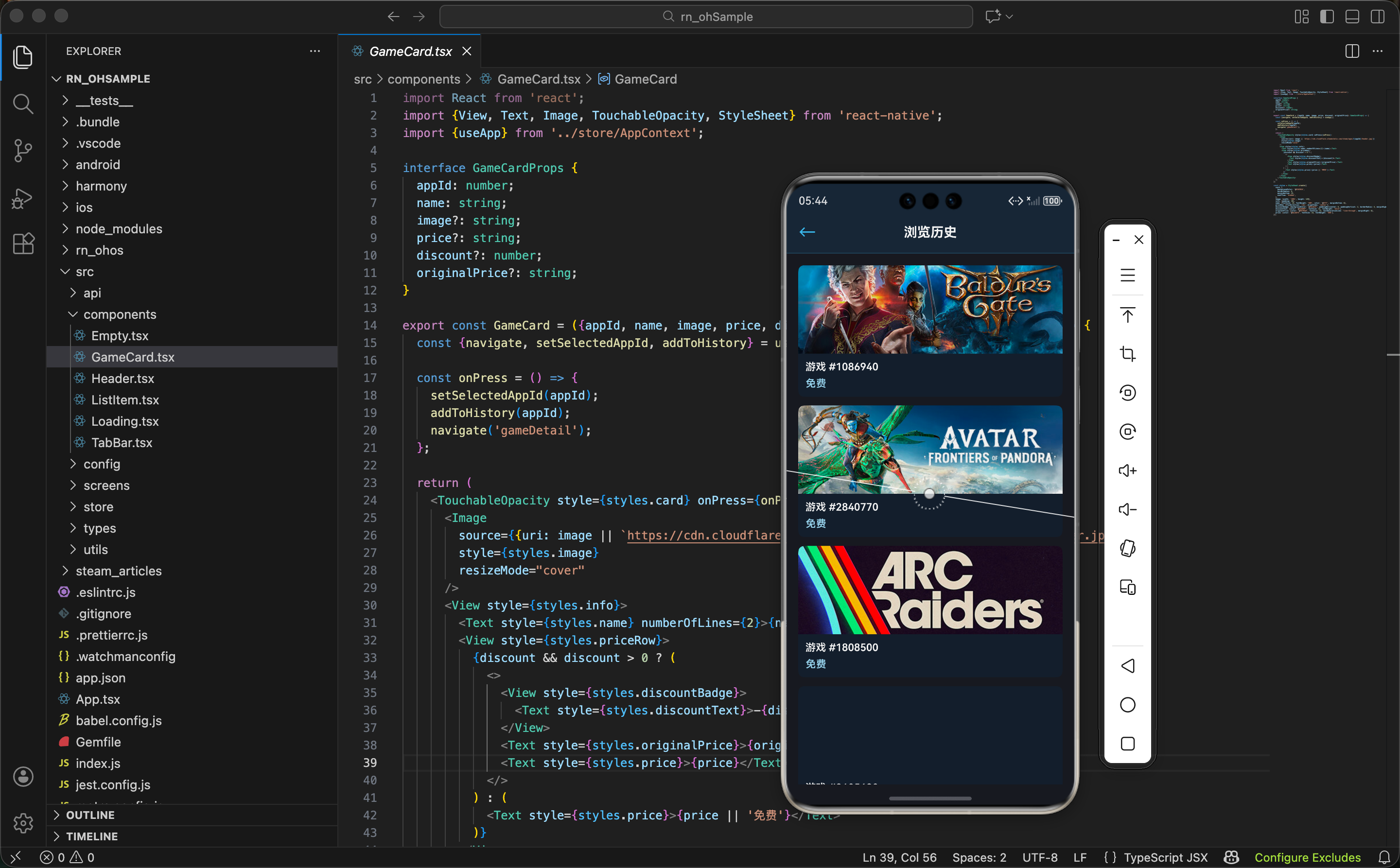
历史记录的数据结构设计
在设计历史记录功能时,需要考虑几个关键问题。首先是数据存储的策略。
存什么数据? 只存游戏的 AppId,不存完整的游戏信息。这样可以减少内存占用,而且游戏信息可能会变化(比如价格),每次显示时重新获取更准确。
存多少条? 限制为 50 条。太少了用户可能找不到之前看过的游戏,太多了会占用太多内存和存储空间。50 条是一个比较平衡的数字。
怎么排序? 最近浏览的放在最前面。这样用户打开历史页面,第一眼看到的就是刚才看过的游戏。
重复怎么办? 如果用户多次浏览同一个游戏,只保留最新的一条记录,并把它移到最前面。这样可以避免历史列表中出现重复的游戏。
基于这些考虑,在 AppContext 中实现了 addToHistory 函数。先看函数的定义:
tsx
const addToHistory = (appId: number) => {
  setState(prev => ({
    ...prev,
    history: [appId, ...prev.history.filter(id => id !== appId)].slice(0, 50),
  }));
};
这一行代码看起来简洁,但实际上做了三件事:
- 新记录放最前 -
[appId, ...]把新的 ID 放到数组最前面 - 去重处理 -
prev.history.filter(id => id !== appId)从原数组中移除相同的 ID,避免重复 - 限制数量 -
.slice(0, 50)只保留前 50 条,超出的自动丢弃
设计巧妙之处 - 这个函数用一行代码实现了新增、去重、限制三个功能。如果用户重复浏览同一个游戏,这个游戏会自动移到最前面,而不是添加一条新记录。
页面实现
浏览历史页面需要根据存储的 AppId 列表获取游戏详情,然后展示给用户。
状态定义
首先从全局状态中获取必要的数据和方法:
tsx
export const HistoryScreen = () => {
  const {history, navigate, setSelectedAppId, addToHistory} = useApp();
  const [games, setGames] = useState<any[]>([]);
  const [loading, setLoading] = useState(true);
这里有两个关键的状态:
history- 从全局状态获取的 AppId 数组,存储了用户浏览过的游戏 IDgames- 本地状态,根据这些 ID 获取到的游戏详情
为什么要分开存?
history只是 ID 列表,我们需要调用 API 获取完整的游戏信息(名称、价格、封面等)才能展示。所以需要单独的games状态来存储完整的游戏数据。
加载游戏详情
页面加载时,需要根据历史记录中的 AppId 获取游戏详情。先看数据加载的逻辑:
tsx
useEffect(() => {
  const loadHistoryGames = async () => {
    if (history.length === 0) {
      setGames([]);
      setLoading(false);
      return;
    }
首先检查历史记录是否为空,如果为空就直接返回,不需要发起 API 请求。
然后用 Promise.all() 并行获取所有游戏的详情:
tsx
    setLoading(true);
    try {
      const gameDetails = await Promise.all(
        history.map(appId => getAppDetails(appId))
      );
这里用 Promise.all() 同时发起多个 API 请求,比逐个请求快得多。
接下来提取和处理返回的数据:
tsx
      const gamesData = gameDetails
        .map((detail, index) => {
          const appId = history[index];
          const data = detail?.[appId]?.data;
          return data ? {id: appId, ...data} : null;
        })
        .filter(game => game !== null);

setGames(gamesData);- 数据提取 - 从 API 响应中提取游戏数据
- 添加 ID - 将 appId 添加到游戏对象中
- 过滤空值 - 移除获取失败的游戏
最后处理错误和完成状态:
tsx
    } catch (error) {
      console.error('Error loading history games:', error);
    } finally {
      setLoading(false);
    }
  };

  loadHistoryGames();
}, [history.length]);
依赖数组的选择 - 这里用的是
[history.length]而不是[history]。为什么?因为history是一个数组,React 比较数组时用的是引用比较。每次调用addToHistory都会创建一个新数组,即使内容完全一样,引用也不同,就会触发useEffect重新执行。用history.length就不会有这个问题,只有当历史记录的数量真正变化时,才会重新加载数据。
游戏卡片组件
历史页面的游戏卡片需要显示游戏信息和浏览顺序。先看卡片的基本结构:
tsx
const HistoryGameCard = ({game, index}: {game: any, index: number}) => (
  <TouchableOpacity
    style={styles.gameCard}
    onPress={() => {
      setSelectedAppId(game.id);
      addToHistory(game.id);
      navigate('gameDetail');
    }}
  >
点击卡片时会调用 addToHistory(game.id),这会把这个游戏移到历史记录的最前面。所以用户从历史页面进入详情页再返回,这个游戏就会变成第 1 个。
然后是游戏的基本信息展示:
tsx
    <Image
      source={{uri: game.header_image}}
      style={styles.gameImage}
      resizeMode="cover"
    />
    <View style={styles.gameInfo}>
      <Text style={styles.gameName} numberOfLines={2}>{game.name}</Text>
      <Text style={styles.gamePrice}>
        {game.price_overview?.final_price
          ? `¥${(game.price_overview.final_price / 100).toFixed(2)}`
          : '免费'}
      </Text>
    </View>
卡片左侧显示游戏封面和基本信息,包括名称和价格。
最后是序号标记:
tsx
    <View style={styles.indexBadge}>
      <Text style={styles.indexText}>{index + 1}</Text>
    </View>
  </TouchableOpacity>
);
序号的作用 - 卡片右侧有个序号标记,显示 1、2、3... 表示浏览顺序。1 是最近浏览的,数字越大表示浏览时间越早。这个小细节可以帮助用户快速定位最近看过的游戏。
清空历史功能
有时候用户想清空所有历史记录,比如不想让别人看到自己浏览过什么游戏。在 Header 右侧添加一个清空按钮。
首先实现清空历史的函数:
tsx
const clearHistory = () => {
  Alert.alert(
    '清空浏览历史',
    '确定要清空所有浏览历史吗?',
    [
      {text: '取消', style: 'cancel'},
      {
        text: '确定',
        style: 'destructive',
        onPress: () => setGames([]),
      },
    ]
  );
};
这里用 Alert.alert 弹出确认对话框,避免用户误触。关键点:
- 确认对话框 - 在执行危险操作前要求用户确认
style: 'destructive'- 会让"确定"按钮显示为红色,提醒用户这是一个危险操作- 取消选项 - 用户可以点击"取消"来中止操作
然后在 Header 中使用这个函数:
tsx
<Header
  title="浏览历史"
  showBack
  rightIcon="🗑️"
  rightAction={games.length > 0 ? clearHistory : undefined}
/>
条件显示 - 只有当有历史记录时才显示清空按钮(
games.length > 0)。如果历史为空,清空按钮就没有意义,所以不显示。
空状态处理
当历史记录为空时,需要显示一个友好的提示。先看空状态的结构:
tsx
{games.length === 0 ? (
  <View style={styles.emptyContainer}>
    <Text style={styles.emptyIcon}>🕐</Text>
    <Text style={styles.emptyText}>还没有浏览记录</Text>
    <Text style={styles.emptySubtext}>浏览游戏后会自动记录在这里</Text>
空状态包含几个元素:
- 时钟图标 - 用 🕐 表示历史记录
- 主提示 - 告诉用户"还没有浏览记录"
- 副提示 - 说明历史记录是自动的,不需要手动添加
然后提供一个操作按钮:
tsx
    <TouchableOpacity
      style={styles.browseBtn}
      onPress={() => navigate('home')}
    >
      <Text style={styles.browseBtnText}>去浏览游戏</Text>
    </TouchableOpacity>
  </View>
) : (
  <FlatList ... />
)}
用户引导 - 空状态不只是告诉用户"没有数据",还要告诉用户怎么产生数据。这里用"浏览游戏后会自动记录在这里"说明历史记录是自动的,并提供"去浏览游戏"按钮让用户快速跳转到首页。
列表的渲染
当有历史记录时,用 FlatList 来渲染列表。先看基本的列表配置:
tsx
<FlatList
  data={games}
  keyExtractor={(item) => item.id.toString()}
  renderItem={({item, index}) => <HistoryGameCard game={item} index={index} />}
这里的关键配置:
data- 传入游戏数组,FlatList 会遍历这个数组keyExtractor- 用游戏 ID 作为 key,确保列表项的唯一性renderItem- 用HistoryGameCard组件渲染每个游戏,并传入 index 用于显示序号
然后添加列表头部来显示历史记录数量:
tsx
  ListHeaderComponent={
    <View style={styles.listHeader}>
      <Text style={styles.listHeaderText}>最近浏览 {games.length} 个游戏</Text>
    </View>
  }
/>
信息展示 - 列表头部显示历史记录数量,让用户一眼就知道自己浏览过多少个游戏。这个数字会随着用户浏览新游戏而增加(最多 50 个)。
页面的整体结构
浏览历史页面的整体布局分为三层:
tsx
if (loading) {
  return (
    <View style={styles.container}>
      <Header title="浏览历史" showBack />
      <Loading />
      <TabBar />
    </View>
  );
}

return (
  <View style={styles.container}>
    <Header
      title="浏览历史"
      showBack
      rightIcon="🗑️"
      rightAction={games.length > 0 ? clearHistory : undefined}
    />
    {/* 空状态或列表 */}
    <TabBar />
  </View>
);
页面结构很清晰:
- Header - 顶部导航栏,显示"浏览历史"标题,并开启返回按钮。当有历史记录时,右侧显示清空按钮
- 内容区 - 根据 loading 状态显示 Loading 组件或游戏列表
- TabBar - 底部导航栏,方便用户切换到其他页面
加载状态 - 当
loading为 true 时,显示 Loading 组件。这样用户知道数据正在加载,而不是页面卡住了。
样式设计
浏览历史页面的样式采用 Steam 的深色主题。先看容器和空状态的样式:
tsx
const styles = StyleSheet.create({
  container: {flex: 1, backgroundColor: '#171a21'},
  emptyContainer: {flex: 1, justifyContent: 'center', alignItems: 'center', padding: 20},
  emptyIcon: {fontSize: 48, marginBottom: 16},
  emptyText: {fontSize: 18, color: '#acdbf5', marginBottom: 8},
  emptySubtext: {fontSize: 14, color: '#8f98a0', marginBottom: 24},
配色说明 -
#171a21是 Steam 最深的背景色,#acdbf5是浅蓝色用于主要文字,#8f98a0是灰色用于次要文字。
然后是按钮和列表头部的样式:
tsx
  browseBtn: {paddingHorizontal: 24, paddingVertical: 12, backgroundColor: '#66c0f4', borderRadius: 8},
  browseBtnText: {fontSize: 14, color: '#171a21', fontWeight: '600'},
  listHeader: {padding: 12, backgroundColor: '#1b2838', borderBottomWidth: 1, borderBottomColor: '#2a475e'},
listHeaderText: {fontSize: 14, color: '#8f98a0'},- 按钮 - 用 Steam 的标志蓝
#66c0f4,圆角 8,内边距 12 - 列表头 - 背景色
#1b2838,底部加分割线#2a475e
最后是游戏卡片和序号标记的样式:
tsx
  gameCard: {flexDirection: 'row', alignItems: 'center', padding: 12, borderBottomWidth: 1, borderBottomColor: '#2a475e', backgroundColor: '#1b2838'},
  gameImage: {width: 80, height: 45, borderRadius: 4, marginRight: 12},
  gameInfo: {flex: 1},
  gameName: {fontSize: 14, fontWeight: '600', color: '#acdbf5', marginBottom: 4},
  gamePrice: {fontSize: 12, color: '#66c0f4'},
  indexBadge: {width: 24, height: 24, borderRadius: 12, backgroundColor: '#2a475e', justifyContent: 'center', alignItems: 'center', marginLeft: 8},
  indexText: {fontSize: 12, color: '#8f98a0', fontWeight: '600'},
});卡片采用水平布局(flexDirection: 'row'),左侧是游戏封面和信息,右侧是序号标记。序号标记是一个圆形徽章,背景色 #2a475e,直径 24。
历史记录的持久化
目前历史记录存储在内存中,应用关闭后会丢失。如果要实现持久化,可以使用 AsyncStorage。首先导入 AsyncStorage:
tsx
import AsyncStorage from '@react-native-async-storage/async-storage';然后实现保存历史的函数:
tsx
const saveHistory = async (history: number[]) => {
  try {
    await AsyncStorage.setItem('history', JSON.stringify(history));
  } catch (error) {
    console.error('Error saving history:', error);
  }
};
这个函数的作用:
- 序列化 - 用
JSON.stringify()将数组转换成字符串 - 存储 - 用
AsyncStorage.setItem()将字符串存储到本地 - 错误处理 - 用 try-catch 捕获可能的错误
接下来实现加载历史的函数:
tsx
const loadHistory = async () => {
  try {
    const data = await AsyncStorage.getItem('history');
    return data ? JSON.parse(data) : [];
  } catch (error) {
    console.error('Error loading history:', error);
    return [];
  }
};
这个函数的逻辑:
- 读取数据 - 用
AsyncStorage.getItem()从本地读取数据 - 反序列化 - 用
JSON.parse()将字符串转换回数组 - 兜底处理 - 如果没有数据或出错,返回空数组
集成方式 - 在 AppContext 中,每当
history变化时,调用saveHistory()保存数据。应用启动时,调用loadHistory()恢复数据。这样用户的浏览历史就能在应用关闭后保留。
实现浏览历史的完整流程
从用户的角度看,浏览历史功能的完整流程是这样的:
- 自动记录 - 用户点击游戏卡片进入详情页时,自动调用
addToHistory(appId) - 状态更新 - 全局状态中的
history数组被更新,新游戏被添加到最前面 - 自动刷新 - 历史页面的
useEffect监听到history.length变化,自动重新加载数据 - 显示更新 - 新浏览的游戏出现在历史列表的最前面
关键设计 - 通过
useEffect的依赖数组[history.length],实现了历史状态和页面显示的自动同步。用户不需要手动刷新页面,一切都是自动的。
小结
浏览历史功能的核心是 addToHistory 函数的设计。一行代码实现了:新记录放最前、去重、限制数量三个功能。页面实现相对简单,主要是根据 ID 列表获取游戏详情并展示。
- 数据结构 - 只存储游戏 ID,减少内存占用
- 自动记录 - 用户浏览游戏时自动添加到历史
- 智能排序 - 最近浏览的游戏放在最前面
- 去重处理 - 重复浏览同一个游戏时自动去重
- 清空功能 - 用户可以一键清空所有历史记录
- 持久化 - 可以用 AsyncStorage 实现数据持久化
欢迎加入开源鸿蒙跨平台社区:https://openharmonycrossplatform.csdn.net