qt使用笔记六之 Qt Creator、Qt Widgets、Qt Quick 详细解析
-
一句话核心区别
-
Qt Creator = 开发工具(你用的软件)
-
Qt Widgets = 传统桌面UI方案(Windows/Mac/Linux风格)
-
Qt Quick = 现代动态UI方案(移动/触摸屏风格)
详细对比表格
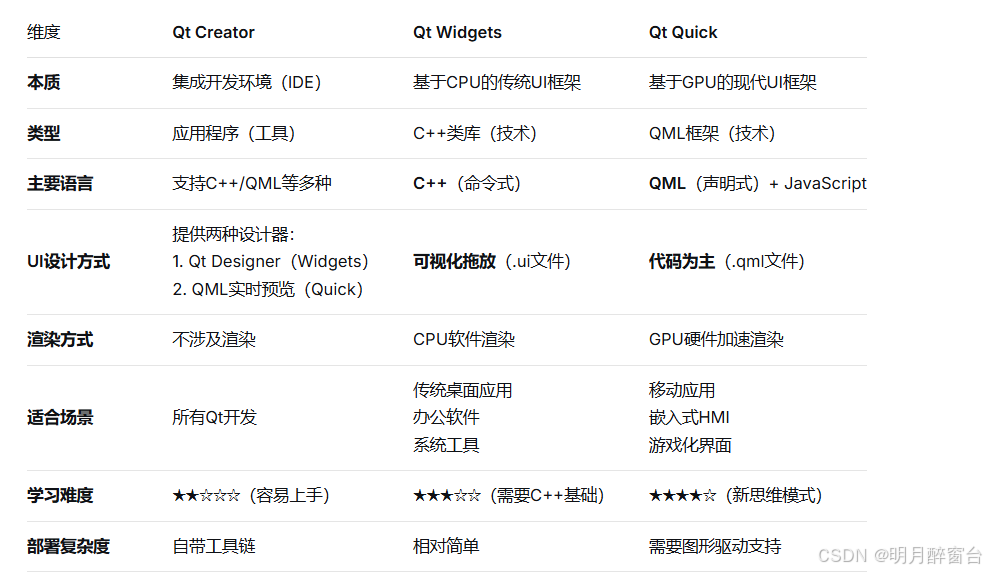
深入分析三者关系
- 开发流程示意图:
bash
┌─────────────────────────────────────────────────────────┐
│                   你作为开发者                             │
└───────────────────────┬─────────────────────────────────┘
                        │ 使用
                        ▼
              ┌──────────────────┐
              │  Qt Creator IDE   │ ← 唯一的开发工具
              └──────────────────┘
                        │ 支持两种UI技术
            ┌───────────┴───────────┐
            ▼                       ▼
┌─────────────────────┐   ┌─────────────────────┐
│    Qt Widgets技术    │   │    Qt Quick技术      │
│(传统C++桌面UI方案) │   │(现代QML动态UI方案)  │
└─────────────────────┘   └─────────────────────┘
            │                       │
            ▼                       ▼
    ┌───────────────┐       ┌───────────────┐
    │ 原生风格应用   │       │ 炫酷动态应用   │
    │ (如WPS、QQ)   │       │ (如汽车仪表盘) │
    └───────────────┘       └───────────────┘
Qt Creator:统一的开发平台
bash
// Qt Creator 对两种技术的支持:

// 1. 对Qt Widgets的支持:
// - 提供Qt Designer(.ui文件可视化编辑)
// - C++代码智能提示
// - 信号槽编辑模式

// 2. 对Qt Quick的支持:
// - QML语法高亮和自动完成
// - 实时预览窗口
// - QML调试器
// - 资源文件管理

// 3. 通用功能:
// - 项目管理(.pro或CMake)
// - 版本控制集成
// - 跨平台编译
// - 应用程序部署
Qt Widgets 详细解析
- 特点和优势
cpp
// 典型的Qt Widgets代码
#include <QApplication>
#include <QWidget>
#include <QPushButton>
#include <QVBoxLayout>

int main(int argc, char *argv[]) {
    QApplication app(argc, argv);

    QWidget window;
    window.setWindowTitle("Qt Widgets示例");

    QVBoxLayout *layout = new QVBoxLayout(&window);

    QPushButton *button = new QPushButton("点击我");
    QLabel *label = new QLabel("状态:未点击");

    // 信号槽连接
    QObject::connect(button, &QPushButton::clicked, [label](){
        label->setText("状态:已点击!");
    });

    layout->addWidget(button);
    layout->addWidget(label);

    window.show();
    return app.exec();
}-
适用场景
-
企业级桌面软件
-
系统工具和实用程序
-
数据密集型应用(表格、图表)
-
需要原生外观的应用
-
-
限制
-
动画效果有限
-
触摸屏支持一般
-
移动端支持较弱
-
界面相对"传统"
-
Qt Quick 详细解析
- 特点和优势
cpp
// 典型的Qt Quick代码(main.qml)
import QtQuick 2.15
import QtQuick.Controls 2.15
import QtQuick.Window 2.15

Window {
    width: 800
    height: 600
    visible: true
    title: "Qt Quick现代应用"

    // 渐变背景
    Rectangle {
        anchors.fill: parent
        gradient: Gradient {
            GradientStop { position: 0.0; color: "#4facfe" }
            GradientStop { position: 1.0; color: "#00f2fe" }
        }
    }

    // 现代化卡片
    Rectangle {
        id: card
        width: 300
        height: 200
        anchors.centerIn: parent
        radius: 20
        color: "#ffffff"
        opacity: 0.95

        // 阴影效果
        layer.enabled: true
        layer.effect: DropShadow {
            radius: 15
            samples: 31
            color: "#40000000"
        }

        // 平滑动画
        Behavior on scale {
            NumberAnimation { duration: 200 }
        }

        Column {
            anchors.centerIn: parent
            spacing: 20

            Text {
                text: "欢迎使用Qt Quick"
                font.pixelSize: 24
                color: "#333333"
            }

            Button {
                text: "体验动画"
                onClicked: {
                    card.scale = card.scale === 1 ? 1.1 : 1
                    rotationAnimation.start()
                }
            }
        }

        RotationAnimation on rotation {
            id: rotationAnimation
            from: 0
            to: 360
            duration: 1000
        }
    }
}- 适用场景
-
移动应用程序(iOS/Android)
-
车载信息系统
-
工业HMI界面
-
智能家居控制面板
-
教育/游戏化应用
-
架构对比
- Qt Widgets架构
bash
#text
应用层
    ├── Qt Widgets模块 (QPushButton, QLabel等)
    ├── 布局管理器 (QVBoxLayout, QHBoxLayout等)
    ├── 事件系统 (信号槽机制)
    └── 绘图系统 (QPainter)
        └── CPU软件渲染
└── 操作系统原生API- Qt Quick架构
bash
#text
应用层
    ├── QML引擎 (解释执行QML)
    ├── Qt Quick模块 (Rectangle, Text等)
    ├── JavaScript引擎
    ├── 场景图 (Scene Graph)
    └── GPU硬件渲染
        ├── OpenGL / Vulkan / Direct3D
└── 显示硬件- 决策流程图
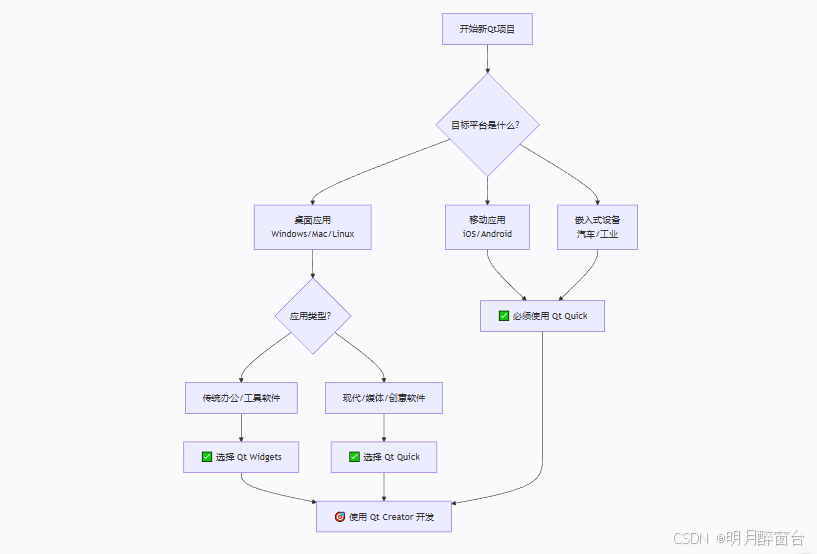
实际项目代码对比
- 同一个功能:登录界面
- Qt Widgets版本
cpp
// LoginDialog.h
class LoginDialog : public QDialog {
    Q_OBJECT
public:
    explicit LoginDialog(QWidget *parent = nullptr);

private slots:
    void onLoginClicked();

private:
    QLineEdit *usernameEdit;
    QLineEdit *passwordEdit;
    QPushButton *loginButton;
};

// LoginDialog.cpp
LoginDialog::LoginDialog(QWidget *parent)
    : QDialog(parent) {
    setWindowTitle("登录");

    QVBoxLayout *layout = new QVBoxLayout(this);

    usernameEdit = new QLineEdit();
    usernameEdit->setPlaceholderText("用户名");

    passwordEdit = new QLineEdit();
    passwordEdit->setPlaceholderText("密码");
    passwordEdit->setEchoMode(QLineEdit::Password);

    loginButton = new QPushButton("登录");

    layout->addWidget(usernameEdit);
    layout->addWidget(passwordEdit);
    layout->addWidget(loginButton);

    connect(loginButton, &QPushButton::clicked,
            this, &LoginDialog::onLoginClicked);
}- Qt Quick版本
cpp
// LoginPage.qml
import QtQuick 2.15
import QtQuick.Controls 2.15

Page {
    background: Rectangle {
        gradient: Gradient {
            GradientStop { position: 0; color: "#667eea" }
            GradientStop { position: 1; color: "#764ba2" }
        }
    }

    Column {
        anchors.centerIn: parent
        width: Math.min(parent.width * 0.8, 400)
        spacing: 20

        Rectangle {
            width: parent.width
            height: 60
            radius: 10
            color: "#ffffff"

            TextField {
                id: usernameField
                anchors.fill: parent
                anchors.margins: 5
                placeholderText: "用户名"
                font.pixelSize: 18
            }
        }

        Rectangle {
            width: parent.width
            height: 60
            radius: 10
            color: "#ffffff"

            TextField {
                id: passwordField
                anchors.fill: parent
                anchors.margins: 5
                placeholderText: "密码"
                echoMode: TextInput.Password
                font.pixelSize: 18
            }
        }

        Button {
            width: parent.width
            height: 50
            text: "登录"
            font.pixelSize: 18
            background: Rectangle {
                radius: 10
                color: parent.pressed ? "#4c51bf" : "#5a67d8"
            }

            onClicked: {
                // 登录逻辑
                if(usernameField.text && passwordField.text) {
                    loginAnimation.start()
                }
            }
        }
    }

    ParallelAnimation {
        id: loginAnimation
        NumberAnimation {
            target: loginButton
            property: "opacity"
            from: 1.0
            to: 0.5
            duration: 500
        }
        RotationAnimation {
            target: loginButton
            from: 0
            to: 360
            duration: 1000
        }
    }
}
书籍和资源推荐
bash
通用资源:
1. 官方文档:https://doc.qt.io/
2. Qt Creator内置示例
3. Qt官方论坛

Qt Widgets专项:
- 《C++ GUI Programming with Qt 4》
- 《Qt5开发及实例》

Qt Quick专项:
- 《Qt5 Cadaques》中文版
- 《Qt Quick核心编程》