摘要 :本文系统讲解OpenCV库的核心操作,包括图像的读取、写入、显示,以及图像的基本几何变换如裁剪、缩放、旋转等。文章通过大量综合性代码示例,深入演示各种图像变换的原理与实现方法,并介绍如何使用GPT-5.4辅助编写高效的图像处理代码。由于国内无法访问OpenAI官网,因此使用国内镜像站可以注册使用GPT-5.4最新模型。注册入口:AIGCBAR镜像站。如果涉及到调用API,则有API独立站。请广大读者遵守法律法规,切勿翻墙访问境外网站,使用国内合法镜像站即可满足学习需求。
3.1 OpenCV概述与架构
3.1.1 OpenCV简介
OpenCV(Open Source Computer Vision Library)是一个开源的跨平台计算机视觉库,由Intel公司于1999年发起,现在由非营利组织OpenCV.org维护。OpenCV提供了数百种计算机视觉和机器学习算法,涵盖图像处理、视频分析、物体检测、人脸识别、深度学习等多个领域。经过二十多年的发展,OpenCV已经成为计算机视觉领域应用最广泛的库之一,被众多科技公司和研究机构采用。
OpenCV的核心模块采用C++编写,提供了Python、Java、MATLAB等多种语言的接口。Python接口通过cv2模块提供,该模块使用NumPy数组作为图像数据的基本表示,与Python科学计算生态系统无缝集成。OpenCV的设计理念是高效、易用、可扩展,它不仅提供了丰富的算法实现,还针对不同平台进行了优化,支持多核处理和GPU加速。
OpenCV的架构采用模块化设计,主要包含以下核心模块。core模块提供了基本的数据结构和数学函数;imgproc模块提供了图像处理算法;imgcodecs模块提供了图像文件的读写功能;highgui模块提供了图像显示和用户交互功能;videoio模块提供了视频读写功能;calib3d模块提供了相机标定和三维重建功能;features2d模块提供了特征检测和描述功能;objdetect模块提供了物体检测功能;dnn模块提供了深度学习推理功能。
3.1.2 OpenCV版本与Python 3.13兼容性
截至2024年,OpenCV的最新稳定版本是4.9.0,该版本完全支持Python 3.13。OpenCV 4.x系列相比3.x系列进行了大量改进,包括更完善的DNN模块、改进的图算法、更好的Python绑定等。在Python 3.13环境下使用OpenCV时,需要注意以下几点:首先,确保安装的是opencv-python包而非旧版的cv2包;其次,OpenCV的某些功能依赖于NumPy,需要确保NumPy版本兼容;第三,Python 3.13的某些新特性可能与OpenCV的C扩展存在兼容性问题,遇到问题时可以查阅官方文档或社区解决方案。
以下表格列出了OpenCV的主要模块及其功能。
| 模块名称 | 功能描述 | 主要类/函数 |
|---|---|---|
| core | 核心数据结构 | Mat, Scalar, Size, Point |
| imgproc | 图像处理 | cvtColor, filter2D, threshold |
| imgcodecs | 图像读写 | imread, imwrite |
| highgui | 用户界面 | imshow, waitKey, namedWindow |
| videoio | 视频读写 | VideoCapture, VideoWriter |
| calib3d | 相机标定 | findChessboardCorners, solvePnP |
| features2d | 特征检测 | SIFT, ORB, BFMatcher |
| objdetect | 物体检测 | CascadeClassifier, HOGDescriptor |
| dnn | 深度学习 | readNet, forward, blobFromImage |
3.2 图像读取与写入
3.2.1 图像文件格式支持
OpenCV支持多种图像文件格式的读取和写入,包括但不限于JPEG、PNG、BMP、TIFF、WebP等。不同的格式有不同的特点和适用场景。JPEG格式采用有损压缩,适合存储照片类图像,文件体积小但会有一定的质量损失。PNG格式采用无损压缩,支持透明通道,适合存储需要保持精确像素值的图像。BMP格式是无压缩的位图格式,文件体积大但读写速度快。TIFF格式支持多种压缩方式和多页图像,常用于专业图像处理和印刷行业。
在读取图像时,OpenCV提供了多种读取模式选项。IMREAD_COLOR模式将图像读取为3通道BGR彩色图像,这是默认模式;IMREAD_GRAYSCALE模式将图像读取为单通道灰度图像;IMREAD_UNCHANGED模式保留图像的原始格式,包括透明通道;IMREAD_REDUCED系列模式可以在读取时对图像进行降采样,减少内存占用。
以下代码展示了OpenCV图像读写的各种操作。
python
"""
OpenCV图像读写操作详解
演示各种图像格式的读取和写入方法
兼容Python 3.13
"""

import cv2
import numpy as np
import os
import glob
from typing import Optional, Tuple, List


class ImageIO:
    """
    图像输入输出操作类
    提供图像读取、写入、格式转换等功能
    """

    # 支持的图像格式
    SUPPORTED_FORMATS = {
        'read': ['.jpg', '.jpeg', '.png', '.bmp', '.tiff', '.tif',
                 '.webp', '.pbm', '.pgm', '.ppm', '.sr', '.ras'],
        'write': ['.jpg', '.jpeg', '.png', '.bmp', '.tiff', '.tif', '.webp']
    }

    def __init__(self, base_path: str = "."):
        """
        初始化图像IO操作器

        参数:
            base_path: 基础路径,用于相对路径解析
        """
        self.base_path = base_path

    def _get_full_path(self, file_path: str) -> str:
        """获取完整文件路径"""
        if os.path.isabs(file_path):
            return file_path
        return os.path.join(self.base_path, file_path)

    def read_image(self,
                   file_path: str,
                   mode: int = cv2.IMREAD_COLOR) -> Optional[np.ndarray]:
        """
        读取图像文件

        参数:
            file_path: 图像文件路径
            mode: 读取模式
                  cv2.IMREAD_COLOR: 彩色图像(默认)
                  cv2.IMREAD_GRAYSCALE: 灰度图像
                  cv2.IMREAD_UNCHANGED: 包含透明通道

        返回:
            图像数组,读取失败返回None
        """
        full_path = self._get_full_path(file_path)

        if not os.path.exists(full_path):
            print(f"文件不存在: {full_path}")
            return None

        image = cv2.imread(full_path, mode)

        if image is None:
            print(f"无法读取图像: {full_path}")
            return None

        return image

    def write_image(self,
                    image: np.ndarray,
                    file_path: str,
                    params: Optional[List[int]] = None) -> bool:
        """
        写入图像文件

        参数:
            image: 图像数组
            file_path: 输出文件路径
            params: 编码参数列表

        返回:
            是否写入成功
        """
        full_path = self._get_full_path(file_path)

    def write_image(self,
                    image: np.ndarray,
                    file_path: str,
                    params: Optional[List[int]] = None) -> bool:
        """
        写入图像文件

        参数:
            image: 图像数组
            file_path: 输出文件路径
            params: 编码参数列表

        返回:
            是否写入成功
        """
        full_path = self._get_full_path(file_path)

        # 确保输出目录存在
        output_dir = os.path.dirname(full_path)
        if output_dir and not os.path.isabs(file_path):
            full_path = os.path.abspath(file_path)
            output_dir = os.path.dirname(full_path)
        if output_dir:
            os.makedirs(output_dir, exist_ok=True)

        # 使用相对路径写入,避免与OpenCV的路径处理冲突
        if os.path.dirname(full_path):
            # 如果有目录部分,使用os.path.basename写入到当前目录
            write_path = os.path.basename(full_path)
        else:
            write_path = full_path

        if params:
            success = cv2.imwrite(write_path, image, params)
        else:
            success = cv2.imwrite(write_path, image)

        # 验证文件是否写入成功
        if not success or not os.path.exists(write_path):
            # 尝试直接使用完整路径
            success = cv2.imwrite(full_path, image, params) if params else cv2.imwrite(full_path, image)

        if not success or not os.path.exists(full_path if os.path.exists(full_path) else write_path):
            print(f"写入图像失败: {full_path}")
            return False

        return True

    def read_with_metadata(self, file_path: str) -> dict:
        """
        读取图像及其元数据

        参数:
            file_path: 图像文件路径

        返回:
            包含图像和元数据的字典
        """
        full_path = self._get_full_path(file_path)

        if not os.path.exists(full_path):
            return {'success': False, 'error': '文件不存在'}

        # 读取图像
        image = cv2.imread(full_path, cv2.IMREAD_UNCHANGED)

        if image is None:
            return {'success': False, 'error': '无法读取图像'}

        # 获取文件信息
        file_stat = os.stat(full_path)

        result = {
            'success': True,
            'image': image,
            'metadata': {
                'file_name': os.path.basename(full_path),
                'file_size': file_stat.st_size,
                'width': image.shape[1],
                'height': image.shape[0],
                'channels': image.shape[2] if len(image.shape) == 3 else 1,
                'dtype': str(image.dtype),
                'format': os.path.splitext(full_path)[1].lower()
            }
        }

        return result

    def read_image_sequence(self,
                            directory: str,
                            pattern: str = "*.jpg",
                            mode: int = cv2.IMREAD_COLOR,
                            sort: bool = True) -> List[np.ndarray]:
        """
        读取图像序列

        参数:
            directory: 图像目录
            pattern: 文件匹配模式
            mode: 读取模式
            sort: 是否按文件名排序

        返回:
            图像列表
        """
        dir_path = os.path.join(self.base_path, directory)

        if not os.path.exists(dir_path):
            print(f"目录不存在: {dir_path}")
            return []

        # 获取匹配的文件
        files = glob.glob(os.path.join(dir_path, pattern.replace('*', '*')))

        if sort:
            files = sorted(files)

        images = []
        for file_path in files:
            image = cv2.imread(file_path, mode)
            if image is not None:
                images.append(image)

        return images

    def save_with_quality(self,
                          image: np.ndarray,
                          file_path: str,
                          quality: int = 95) -> bool:
        """
        以指定质量保存JPEG图像

        参数:
            image: 图像数组
            file_path: 输出路径
            quality: JPEG质量(1-100)

        返回:
            是否保存成功
        """
        params = [cv2.IMWRITE_JPEG_QUALITY, quality]
        return self.write_image(image, file_path, params)

    def save_png_compression(self,
                             image: np.ndarray,
                             file_path: str,
                             compression: int = 3) -> bool:
        """
        以指定压缩级别保存PNG图像

        参数:
            image: 图像数组
            file_path: 输出路径
            compression: PNG压缩级别(0-9)

        返回:
            是否保存成功
        """
        params = [cv2.IMWRITE_PNG_COMPRESSION, compression]
        return self.write_image(image, file_path, params)

    def convert_format(self,
                       input_path: str,
                       output_path: str,
                       output_params: Optional[List[int]] = None) -> bool:
        """
        转换图像格式

        参数:
            input_path: 输入文件路径
            output_path: 输出文件路径
            output_params: 输出参数

        返回:
            是否转换成功
        """
        image = self.read_image(input_path, cv2.IMREAD_UNCHANGED)

        if image is None:
            return False

        return self.write_image(image, output_path, output_params)

    def batch_convert(self,
                      input_dir: str,
                      output_dir: str,
                      output_format: str = '.png',
                      input_pattern: str = '*.jpg') -> dict:
        """
        批量转换图像格式

        参数:
            input_dir: 输入目录
            output_dir: 输出目录
            output_format: 输出格式(如'.png')
            input_pattern: 输入文件匹配模式

        返回:
            转换结果统计
        """
        input_path = os.path.join(self.base_path, input_dir)
        output_path = os.path.join(self.base_path, output_dir)

        if not os.path.exists(input_path):
            return {'success': False, 'error': '输入目录不存在'}

        os.makedirs(output_path, exist_ok=True)

        files = glob.glob(os.path.join(input_path, input_pattern))

        results = {
            'total': len(files),
            'success': 0,
            'failed': 0,
            'failed_files': []
        }

        for file_path in files:
            file_name = os.path.basename(file_path)
            stem, _ = os.path.splitext(file_name)
            output_file = os.path.join(output_path, stem + output_format)

            if self.convert_format(file_path, output_file):
                results['success'] += 1
            else:
                results['failed'] += 1
                results['failed_files'].append(file_name)

        return results

    def create_test_image(self,
                          width: int = 640,
                          height: int = 480,
                          pattern: str = 'gradient') -> np.ndarray:
        """
        创建测试图像

        参数:
            width: 图像宽度
            height: 图像高度
            pattern: 图案类型
                     'gradient': 渐变
                     'checkerboard': 棋盘格
                     'circles': 圆形
                     'noise': 随机噪声

        返回:
            测试图像
        """
        if pattern == 'gradient':
            # 水平渐变
            gradient = np.linspace(0, 255, width, dtype=np.uint8)
            image = np.tile(gradient, (height, 1))
            image = cv2.cvtColor(image, cv2.COLOR_GRAY2BGR)

        elif pattern == 'checkerboard':
            # 棋盘格
            block_size = 50
            image = np.zeros((height, width, 3), dtype=np.uint8)
            for y in range(0, height, block_size * 2):
                for x in range(0, width, block_size * 2):
                    image[y:y+block_size, x:x+block_size] = [255, 255, 255]
                    image[y+block_size:y+block_size*2,
                          x+block_size:x+block_size*2] = [255, 255, 255]

        elif pattern == 'circles':
            # 彩色圆形
            image = np.zeros((height, width, 3), dtype=np.uint8)
            colors = [(255, 0, 0), (0, 255, 0), (0, 0, 255),
                     (255, 255, 0), (255, 0, 255), (0, 255, 255)]
            for i, color in enumerate(colors):
                cx = (i % 3) * width // 3 + width // 6
                cy = (i // 3) * height // 2 + height // 4
                cv2.circle(image, (cx, cy), min(width, height) // 8, color, -1)

        elif pattern == 'noise':
            # 随机噪声
            image = np.random.randint(0, 256, (height, width, 3), dtype=np.uint8)

        else:
            image = np.zeros((height, width, 3), dtype=np.uint8)

        return image


def demonstrate_image_io():
    """
    演示图像读写操作
    """
    # 使用当前工作目录
    test_dir = ""

    # 初始化IO操作器
    io = ImageIO(test_dir)

    # 创建并保存测试图像
    print("创建测试图像...")
    test_image = io.create_test_image(640, 480, 'circles')
    test_filename = "test_image.jpg"
    success = io.write_image(test_image, test_filename)
    if success:
        full_path = os.path.abspath(test_filename)
        print(f"测试图像已保存: {full_path}")
    else:
        print(f"测试图像保存失败")

    # 读取图像
    print("\n读取图像...")
    loaded_image = io.read_image(test_filename)
    if loaded_image is not None:
        print(f"图像形状: {loaded_image.shape}")
        print(f"数据类型: {loaded_image.dtype}")
    else:
        print("读取图像失败")

    # 测试不同质量保存
    print("\n测试不同JPEG质量...")
    for quality in [10, 50, 95]:
        output_name = f"quality_{quality}.jpg"
        io.save_with_quality(test_image, output_name, quality)
        full_path = os.path.abspath(output_name)
        if os.path.exists(full_path):
            file_size = os.stat(full_path).st_size
            print(f"质量{quality}: 文件大小 {file_size / 1024:.1f} KB")
        else:
            print(f"质量{quality}: 文件保存失败")

    # 测试PNG压缩
    print("\n测试PNG压缩级别...")
    for compression in [0, 3, 9]:
        output_name = f"compression_{compression}.png"
        io.save_png_compression(test_image, output_name, compression)
        full_path = os.path.abspath(output_name)
        if os.path.exists(full_path):
            file_size = os.stat(full_path).st_size
            print(f"压缩级别{compression}: 文件大小 {file_size / 1024:.1f} KB")
        else:
            print(f"压缩级别{compression}: 文件保存失败")

    # 读取带元数据
    print("\n读取图像元数据...")
    result = io.read_with_metadata(test_filename)
    if result['success']:
        print(f"文件名: {result['metadata']['file_name']}")
        print(f"尺寸: {result['metadata']['width']}x{result['metadata']['height']}")
        print(f"通道数: {result['metadata']['channels']}")

    return test_image


if __name__ == "__main__":
    test_img = demonstrate_image_io()
    print("\n图像读写演示完成")
3.2.2 图像显示与交互
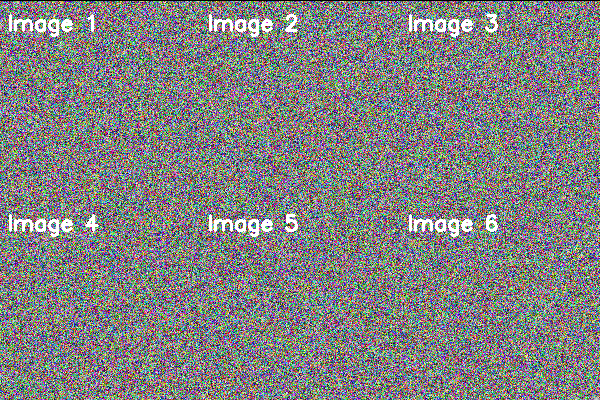
OpenCV提供了简单的图像显示功能,通过imshow函数可以在窗口中显示图像。虽然OpenCV的GUI功能相对简单,但对于图像处理过程中的可视化调试已经足够使用。以下代码展示了图像显示和基本的用户交互功能。
python
"""
OpenCV图像显示与交互
演示图像窗口操作和用户交互功能
兼容Python 3.13
"""

import cv2
import numpy as np
from typing import Callable, Optional, Tuple, List
from dataclasses import dataclass


@dataclass
class MouseEvent:
    """鼠标事件数据类"""
    event_type: str
    x: int
    y: int
    flags: int
    button: Optional[int] = None


class ImageDisplay:
    """
    图像显示与交互类
    提供图像窗口管理和用户交互功能
    """

    def __init__(self, window_name: str = "Image Window"):
        """
        初始化图像显示器

        参数:
            window_name: 窗口名称
        """
        self.window_name = window_name
        self.current_image = None
        self.mouse_callback = None
        self.mouse_events: List[MouseEvent] = []

    def create_window(self,
                      flags: int = cv2.WINDOW_AUTOSIZE) -> None:
        """
        创建显示窗口

        参数:
            flags: 窗口标志
                   cv2.WINDOW_AUTOSIZE: 自动调整大小
                   cv2.WINDOW_NORMAL: 可调整大小
                   cv2.WINDOW_FULLSCREEN: 全屏
        """
        cv2.namedWindow(self.window_name, flags)

    def show_image(self,
                   image: np.ndarray,
                   delay: int = 1) -> int:
        """
        显示图像

        参数:
            image: 要显示的图像
            delay: 显示延迟(毫秒),0表示等待按键

        返回:
            按键值(ASCII码)
        """
        self.current_image = image.copy()
        cv2.imshow(self.window_name, image)
        return cv2.waitKey(delay)

    def show_images_grid(self,
                         images: List[np.ndarray],
                         titles: Optional[List[str]] = None,
                         grid_size: Optional[Tuple[int, int]] = None) -> None:
        """
        以网格形式显示多张图像

        参数:
            images: 图像列表
            titles: 标题列表
            grid_size: 网格大小 (rows, cols)
        """
        n = len(images)

        if grid_size is None:
            cols = int(np.ceil(np.sqrt(n)))
            rows = int(np.ceil(n / cols))
        else:
            rows, cols = grid_size

        # 获取单个图像尺寸
        h, w = images[0].shape[:2]

        # 确定输出图像的通道数
        if len(images[0].shape) == 3:
            channels = images[0].shape[2]
            canvas = np.zeros((h * rows, w * cols, channels),
                             dtype=images[0].dtype)
        else:
            canvas = np.zeros((h * rows, w * cols), dtype=images[0].dtype)

        # 填充图像
        for idx, img in enumerate(images):
            row = idx // cols
            col = idx % cols
            y_start = row * h
            x_start = col * w

            # 处理灰度图和彩色图
            if len(canvas.shape) == 3 and len(img.shape) == 2:
                img = cv2.cvtColor(img, cv2.COLOR_GRAY2BGR)
            elif len(canvas.shape) == 2 and len(img.shape) == 3:
                img = cv2.cvtColor(img, cv2.COLOR_BGR2GRAY)

            canvas[y_start:y_start+h, x_start:x_start+w] = img

            # 添加标题
            if titles and idx < len(titles):
                cv2.putText(canvas, titles[idx], (x_start + 10, y_start + 30),
                           cv2.FONT_HERSHEY_SIMPLEX, 0.7, (255, 255, 255), 2)

        self.show_image(canvas)

    def set_mouse_callback(self,
                          callback: Callable[[int, int, int, int], None]) -> None:
        """
        设置鼠标回调函数

        参数:
            callback: 回调函数,参数为(event, x, y, flags)
        """
        self.mouse_callback = callback
        cv2.setMouseCallback(self.window_name, self._internal_mouse_callback)

    def _internal_mouse_callback(self,
                                 event: int,
                                 x: int,
                                 y: int,
                                 flags: int,
                                 param) -> None:
        """内部鼠标回调处理"""
        event_names = {
            cv2.EVENT_LBUTTONDOWN: 'left_down',
            cv2.EVENT_LBUTTONUP: 'left_up',
            cv2.EVENT_RBUTTONDOWN: 'right_down',
            cv2.EVENT_RBUTTONUP: 'right_up',
            cv2.EVENT_MBUTTONDOWN: 'middle_down',
            cv2.EVENT_MBUTTONUP: 'middle_up',
            cv2.EVENT_MOUSEMOVE: 'move',
            cv2.EVENT_LBUTTONDBLCLK: 'left_double',
            cv2.EVENT_RBUTTONDBLCLK: 'right_double',
            cv2.EVENT_MBUTTONDBLCLK: 'middle_double',
            cv2.EVENT_MOUSEWHEEL: 'wheel'
        }

        mouse_event = MouseEvent(
            event_type=event_names.get(event, 'unknown'),
            x=x,
            y=y,
            flags=flags
        )
        self.mouse_events.append(mouse_event)

        if self.mouse_callback:
            self.mouse_callback(event, x, y, flags)

    def get_pixel_value(self, x: int, y: int) -> Optional[np.ndarray]:
        """
        获取指定位置的像素值

        参数:
            x: x坐标
            y: y坐标

        返回:
            像素值
        """
        if self.current_image is None:
            return None

        if 0 <= y < self.current_image.shape[0] and \
           0 <= x < self.current_image.shape[1]:
            return self.current_image[y, x]
        return None

    def close(self) -> None:
        """关闭窗口"""
        cv2.destroyWindow(self.window_name)

    @staticmethod
    def close_all() -> None:
        """关闭所有窗口"""
        cv2.destroyAllWindows()


def demonstrate_display_features():
    """
    演示图像显示功能
    """
    # 创建测试图像
    image = np.zeros((480, 640, 3), dtype=np.uint8)

    # 绘制一些图形
    cv2.rectangle(image, (50, 50), (200, 200), (0, 255, 0), -1)
    cv2.circle(image, (400, 150), 80, (0, 0, 255), -1)
    cv2.putText(image, "OpenCV Display Demo", (150, 400),
                cv2.FONT_HERSHEY_SIMPLEX, 1, (255, 255, 255), 2)

    # 创建显示器
    display = ImageDisplay("Demo Window")

    # 显示图像
    print("显示图像,按任意键继续...")
    display.show_image(image, 0)

    # 显示多张图像
    images = [
        np.random.randint(0, 256, (200, 200, 3), dtype=np.uint8)
        for _ in range(6)
    ]
    titles = [f"Image {i+1}" for i in range(6)]

    print("显示图像网格,按任意键继续...")
    display.show_images_grid(images, titles)
    cv2.waitKey(0)

    display.close_all()
    print("显示演示完成")


if __name__ == "__main__":
    demonstrate_display_features()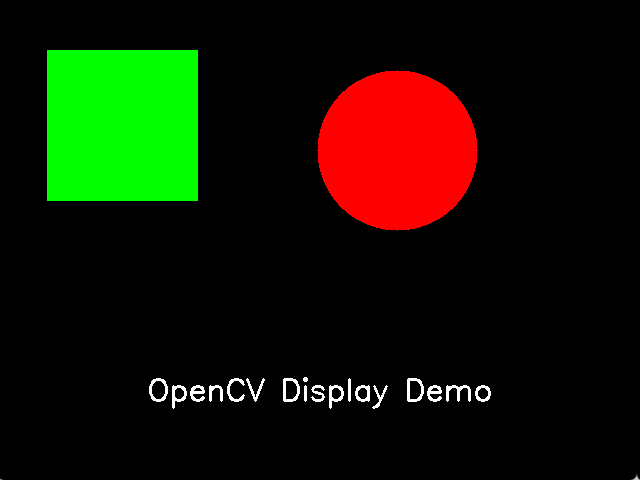
3.3 图像裁剪与ROI操作
3.3.1 基本裁剪操作
图像裁剪是图像处理中最基本的操作之一,它可以从原始图像中提取感兴趣的区域(Region of Interest, ROI)。在OpenCV中,图像裁剪通过NumPy数组的切片操作实现,非常高效和灵活。裁剪操作不涉及像素值的计算,只是创建原始图像的一个视图或副本,因此执行速度很快。
ROI操作在图像处理中有广泛的应用。例如,在目标检测任务中,可以先检测目标位置,然后提取目标区域进行进一步分析;在图像拼接任务中,需要提取图像的重叠区域进行配准;在医学图像分析中,常常需要提取特定的器官或病变区域进行诊断。
以下代码展示了各种图像裁剪和ROI操作技术。
python
"""
图像裁剪与ROI操作详解
演示各种图像区域提取和操作技术
兼容Python 3.13
"""

import cv2
import numpy as np
from typing import Tuple, List, Optional, Union
from dataclasses import dataclass
from numpy.typing import NDArray


@dataclass
class Rectangle:
    """矩形区域数据类"""
    x: int
    y: int
    width: int
    height: int

    @property
    def top_left(self) -> Tuple[int, int]:
        return (self.x, self.y)

    @property
    def bottom_right(self) -> Tuple[int, int]:
        return (self.x + self.width, self.y + self.height)

    @property
    def center(self) -> Tuple[int, int]:
        return (self.x + self.width // 2, self.y + self.height // 2)

    @property
    def area(self) -> int:
        return self.width * self.height

    def contains(self, x: int, y: int) -> bool:
        """检查点是否在矩形内"""
        return (self.x <= x < self.x + self.width and
                self.y <= y < self.y + self.height)

    def to_slice(self) -> Tuple[slice, slice]:
        """转换为NumPy切片"""
        return (slice(self.y, self.y + self.height),
                slice(self.x, self.x + self.width))


class ImageCropper:
    """
    图像裁剪操作类
    提供各种图像区域提取方法
    """

    def __init__(self, image: NDArray):
        """
        初始化裁剪器

        参数:
            image: 输入图像
        """
        self.image = image.copy()
        self.height, self.width = image.shape[:2]

    def crop_rectangle(self, rect: Rectangle) -> NDArray:
        """
        裁剪矩形区域

        参数:
            rect: 矩形区域

        返回:
            裁剪后的图像
        """
        y_slice, x_slice = rect.to_slice()
        return self.image[y_slice, x_slice].copy()

    def crop_by_coordinates(self,
                            x: int, y: int,
                            width: int, height: int) -> NDArray:
        """
        通过坐标裁剪

        参数:
            x: 左上角x坐标
            y: 左上角y坐标
            width: 宽度
            height: 高度

        返回:
            裁剪后的图像
        """
        return self.image[y:y+height, x:x+width].copy()

    def crop_center(self, width: int, height: int) -> NDArray:
        """
        裁剪中心区域

        参数:
            width: 裁剪宽度
            height: 裁剪高度

        返回:
            中心区域图像
        """
        x = (self.width - width) // 2
        y = (self.height - height) // 2
        return self.crop_by_coordinates(x, y, width, height)

    def crop_by_mask(self, mask: NDArray) -> NDArray:
        """
        通过掩码裁剪(提取掩码区域的最小外接矩形)

        参数:
            mask: 二值掩码

        返回:
            裁剪后的图像
        """
        # 找到掩码的边界
        coords = np.where(mask > 0)
        if len(coords[0]) == 0:
            return np.array([])

        y_min, y_max = coords[0].min(), coords[0].max()
        x_min, x_max = coords[1].min(), coords[1].max()

        return self.image[y_min:y_max+1, x_min:x_max+1].copy()

    def crop_by_contour(self,
                        contour: NDArray,
                        padding: int = 0) -> NDArray:
        """
        通过轮廓裁剪

        参数:
            contour: 轮廓点集
            padding: 边距

        返回:
            裁剪后的图像
        """
        x, y, w, h = cv2.boundingRect(contour)

        # 添加边距
        x = max(0, x - padding)
        y = max(0, y - padding)
        w = min(self.width - x, w + 2 * padding)
        h = min(self.height - y, h + 2 * padding)

        return self.crop_by_coordinates(x, y, w, h)

    def crop_quadrants(self) -> Tuple[NDArray, NDArray, NDArray, NDArray]:
        """
        将图像裁剪为四个象限

        返回:
            (左上, 右上, 左下, 右下)四个象限
        """
        mid_x = self.width // 2
        mid_y = self.height // 2

        top_left = self.image[:mid_y, :mid_x].copy()
        top_right = self.image[:mid_y, mid_x:].copy()
        bottom_left = self.image[mid_y:, :mid_x].copy()
        bottom_right = self.image[mid_y:, mid_x:].copy()

        return top_left, top_right, bottom_left, bottom_right

    def crop_grid(self,
                  rows: int,
                  cols: int) -> List[List[NDArray]]:
        """
        将图像裁剪为网格

        参数:
            rows: 行数
            cols: 列数

        返回:
            二维图像块列表
        """
        cell_height = self.height // rows
        cell_width = self.width // cols

        grid = []
        for i in range(rows):
            row = []
            for j in range(cols):
                y = i * cell_height
                x = j * cell_width
                cell = self.image[y:y+cell_height, x:x+cell_width].copy()
                row.append(cell)
            grid.append(row)

        return grid

    def crop_sliding_window(self,
                            window_size: Tuple[int, int],
                            stride: Tuple[int, int]) -> List[NDArray]:
        """
        滑动窗口裁剪

        参数:
            window_size: 窗口大小 (height, width)
            stride: 步长 (vertical, horizontal)

        返回:
            窗口图像列表
        """
        win_h, win_w = window_size
        stride_y, stride_x = stride

        windows = []

        for y in range(0, self.height - win_h + 1, stride_y):
            for x in range(0, self.width - win_w + 1, stride_x):
                window = self.image[y:y+win_h, x:x+win_w].copy()
                windows.append(window)

        return windows

    def smart_crop(self,
                   target_ratio: float = 1.0,
                   mode: str = 'center') -> NDArray:
        """
        智能裁剪到目标宽高比

        参数:
            target_ratio: 目标宽高比 (width/height)
            mode: 裁剪模式
                  'center': 中心裁剪
                  'top': 顶部裁剪
                  'bottom': 底部裁剪
                  'left': 左侧裁剪
                  'right': 右侧裁剪

        返回:
            裁剪后的图像
        """
        current_ratio = self.width / self.height

        if abs(current_ratio - target_ratio) < 0.01:
            return self.image.copy()

        if current_ratio > target_ratio:
            # 当前图像更宽,需要裁剪宽度
            new_width = int(self.height * target_ratio)

            if mode == 'center':
                x = (self.width - new_width) // 2
            elif mode == 'left':
                x = 0
            elif mode == 'right':
                x = self.width - new_width
            else:
                x = (self.width - new_width) // 2

            return self.image[:, x:x+new_width].copy()

        else:
            # 当前图像更高,需要裁剪高度
            new_height = int(self.width / target_ratio)

            if mode == 'center':
                y = (self.height - new_height) // 2
            elif mode == 'top':
                y = 0
            elif mode == 'bottom':
                y = self.height - new_height
            else:
                y = (self.height - new_height) // 2

            return self.image[y:y+new_height, :].copy()

    def auto_crop_borders(self,
                          threshold: int = 10,
                          border_color: Optional[int] = None) -> NDArray:
        """
        自动裁剪边框

        参数:
            threshold: 边框检测阈值
            border_color: 边框颜色(自动检测如果为None)

        返回:
            裁剪后的图像
        """
        if len(self.image.shape) == 3:
            gray = cv2.cvtColor(self.image, cv2.COLOR_BGR2GRAY)
        else:
            gray = self.image

        if border_color is None:
            # 自动检测边框颜色
            border_color = gray[0, 0]

        # 找到非边框区域
        mask = gray != border_color

        # 处理阈值
        if threshold > 0:
            mask = np.abs(gray.astype(np.int32) - border_color) > threshold

        coords = np.where(mask)

        if len(coords[0]) == 0:
            return self.image.copy()

        y_min, y_max = coords[0].min(), coords[0].max()
        x_min, x_max = coords[1].min(), coords[1].max()

        return self.image[y_min:y_max+1, x_min:x_max+1].copy()


def demonstrate_cropping():
    """
    演示图像裁剪操作
    """
    # 创建测试图像
    image = np.zeros((480, 640, 3), dtype=np.uint8)

    # 绘制网格和标记
    for i in range(0, 640, 80):
        cv2.line(image, (i, 0), (i, 480), (100, 100, 100), 1)
    for i in range(0, 480, 60):
        cv2.line(image, (0, i), (640, i), (100, 100, 100), 1)

    # 添加文字标记
    cv2.putText(image, "Test Image 640x480", (200, 240),
                cv2.FONT_HERSHEY_SIMPLEX, 1, (255, 255, 255), 2)

    cropper = ImageCropper(image)

    # 演示各种裁剪
    print("原始图像尺寸:", image.shape)

    # 矩形裁剪
    rect = Rectangle(x=100, y=100, width=200, height=150)
    cropped = cropper.crop_rectangle(rect)
    print(f"矩形裁剪: {cropped.shape}")

    # 中心裁剪
    center = cropper.crop_center(300, 200)
    print(f"中心裁剪: {center.shape}")

    # 四象限裁剪
    quadrants = cropper.crop_quadrants()
    print(f"四象限裁剪: {[q.shape for q in quadrants]}")

    # 网格裁剪
    grid = cropper.crop_grid(2, 3)
    print(f"网格裁剪: {len(grid)}行 x {len(grid[0])}列")

    # 滑动窗口
    windows = cropper.crop_sliding_window((100, 100), (50, 50))
    print(f"滑动窗口: {len(windows)}个窗口")

    # 智能裁剪
    smart = cropper.smart_crop(1.0, 'center')  # 1:1比例
    print(f"智能裁剪到1:1: {smart.shape}")

    return {
        'original': image,
        'rectangle': cropped,
        'center': center,
        'quadrants': quadrants,
        'smart': smart
    }


if __name__ == "__main__":
    results = demonstrate_cropping()
    print("\n图像裁剪演示完成")
3.4 图像缩放与插值算法
3.4.1 缩放原理
图像缩放是改变图像尺寸的操作,它涉及像素的增加或减少。当放大图像时,需要在原始像素之间插入新的像素;当缩小图像时,需要将多个原始像素合并为一个像素。插值算法决定了如何计算这些新像素的值,不同的插值算法有不同的特点和适用场景。
OpenCV提供了多种插值算法,最常用的包括最近邻插值、双线性插值、双三次插值和Lanczos插值。最近邻插值(INTER_NEAREST)是最简单的插值方法,它直接使用最近的原始像素值作为新像素值,计算速度快但容易产生锯齿。双线性插值(INTER_LINEAR)使用周围4个像素的加权平均值,效果比最近邻好,是默认的缩放方法。双三次插值(INTER_CUBIC)使用周围16个像素进行三次多项式插值,效果更好但计算量更大。Lanczos插值(INTER_LANCZOS4)使用8x8邻域进行插值,效果最好但计算量最大。
以下表格总结了各种插值算法的特点。
| 插值方法 | 速度 | 质量 | 适用场景 |
|---|---|---|---|
| INTER_NEAREST | 最快 | 最低 | 像素艺术、索引图像 |
| INTER_LINEAR | 快 | 中等 | 一般缩放(默认) |
| INTER_CUBIC | 中等 | 较高 | 高质量放大 |
| INTER_LANCZOS4 | 慢 | 最高 | 专业图像处理 |
| INTER_AREA | 中等 | 高 | 图像缩小 |
3.4.2 缩放实现
以下代码展示了各种图像缩放技术的实现。
python
"""
图像缩放与插值算法详解
演示各种缩放方法和插值算法的应用
兼容Python 3.13
"""

import cv2
import numpy as np
import time
from typing import Tuple, Optional, List, Dict
from dataclasses import dataclass
from numpy.typing import NDArray


@dataclass
class ResizeResult:
    """缩放结果数据类"""
    image: NDArray
    method: str
    scale_factor: float
    execution_time: float
    original_size: Tuple[int, int]
    new_size: Tuple[int, int]


class ImageResizer:
    """
    图像缩放操作类
    提供各种缩放方法和插值算法
    """

    # 插值方法映射
    INTERPOLATION_METHODS = {
        'nearest': cv2.INTER_NEAREST,
        'linear': cv2.INTER_LINEAR,
        'cubic': cv2.INTER_CUBIC,
        'lanczos': cv2.INTER_LANCZOS4,
        'area': cv2.INTER_AREA
    }

    def __init__(self, image: NDArray):
        """
        初始化缩放器

        参数:
            image: 输入图像
        """
        self.image = image.copy()
        self.height, self.width = image.shape[:2]

    def resize_by_scale(self,
                        scale: float,
                        interpolation: str = 'linear') -> ResizeResult:
        """
        按比例缩放

        参数:
            scale: 缩放比例
            interpolation: 插值方法

        返回:
            缩放结果
        """
        new_width = int(self.width * scale)
        new_height = int(self.height * scale)

        return self.resize_to_size((new_width, new_height), interpolation)

    def resize_to_size(self,
                       target_size: Tuple[int, int],
                       interpolation: str = 'linear') -> ResizeResult:
        """
        缩放到指定尺寸

        参数:
            target_size: 目标尺寸 (width, height)
            interpolation: 插值方法

        返回:
            缩放结果
        """
        method = self.INTERPOLATION_METHODS.get(interpolation, cv2.INTER_LINEAR)

        start_time = time.time()
        resized = cv2.resize(self.image, target_size, interpolation=method)
        execution_time = time.time() - start_time

        return ResizeResult(
            image=resized,
            method=interpolation,
            scale_factor=target_size[0] / self.width,
            execution_time=execution_time,
            original_size=(self.width, self.height),
            new_size=target_size
        )

    def resize_keep_aspect_ratio(self,
                                  target_size: Tuple[int, int],
                                  interpolation: str = 'linear',
                                  padding: bool = True,
                                  pad_color: Tuple[int, int, int] = (0, 0, 0)) -> NDArray:
        """
        保持宽高比缩放

        参数:
            target_size: 目标最大尺寸 (width, height)
            interpolation: 插值方法
            padding: 是否填充到目标尺寸
            pad_color: 填充颜色

        返回:
            缩放后的图像
        """
        target_w, target_h = target_size

        # 计算缩放比例
        scale = min(target_w / self.width, target_h / self.height)

        new_width = int(self.width * scale)
        new_height = int(self.height * scale)

        method = self.INTERPOLATION_METHODS.get(interpolation, cv2.INTER_LINEAR)
        resized = cv2.resize(self.image, (new_width, new_height), interpolation=method)

        if not padding:
            return resized

        # 创建填充画布
        if len(self.image.shape) == 3:
            canvas = np.full((target_h, target_w, self.image.shape[2]),
                            pad_color, dtype=np.uint8)
        else:
            canvas = np.full((target_h, target_w), pad_color[0], dtype=np.uint8)

        # 计算居中位置
        x_offset = (target_w - new_width) // 2
        y_offset = (target_h - new_height) // 2

        canvas[y_offset:y_offset+new_height,
               x_offset:x_offset+new_width] = resized

        return canvas

    def resize_by_height(self,
                         target_height: int,
                         interpolation: str = 'linear') -> NDArray:
        """
        按高度缩放(保持宽高比)

        参数:
            target_height: 目标高度
            interpolation: 插值方法

        返回:
            缩放后的图像
        """
        scale = target_height / self.height
        target_width = int(self.width * scale)

        result = self.resize_to_size((target_width, target_height), interpolation)
        return result.image

    def resize_by_width(self,
                        target_width: int,
                        interpolation: str = 'linear') -> NDArray:
        """
        按宽度缩放(保持宽高比)

        参数:
            target_width: 目标宽度
            interpolation: 插值方法

        返回:
            缩放后的图像
        """
        scale = target_width / self.width
        target_height = int(self.height * scale)

        result = self.resize_to_size((target_width, target_height), interpolation)
        return result.image

    def resize_pyramid(self,
                       levels: int,
                       downscale: bool = True) -> List[NDArray]:
        """
        图像金字塔缩放

        参数:
            levels: 金字塔层数
            downscale: 是否下采样(False为上采样)

        返回:
            各层图像列表
        """
        pyramid = [self.image.copy()]
        current = self.image.copy()

        for _ in range(levels - 1):
            if downscale:
                current = cv2.pyrDown(current)
            else:
                current = cv2.pyrUp(current)
            pyramid.append(current.copy())

        return pyramid

    def compare_interpolations(self,
                               target_size: Tuple[int, int]) -> Dict[str, ResizeResult]:
        """
        比较不同插值方法

        参数:
            target_size: 目标尺寸

        返回:
            各插值方法的结果字典
        """
        results = {}

        for method_name in self.INTERPOLATION_METHODS.keys():
            results[method_name] = self.resize_to_size(target_size, method_name)

        return results

    def resize_for_display(self,
                           max_size: Tuple[int, int] = (1920, 1080)) -> NDArray:
        """
        缩放到适合显示的尺寸

        参数:
            max_size: 最大显示尺寸

        返回:
            缩放后的图像
        """
        if self.width <= max_size[0] and self.height <= max_size[1]:
            return self.image.copy()

        return self.resize_keep_aspect_ratio(max_size, 'area', padding=False)

    def create_thumbnail(self,
                         size: int = 128,
                         crop_to_square: bool = True) -> NDArray:
        """
        创建缩略图

        参数:
            size: 缩略图尺寸
            crop_to_square: 是否裁剪为正方形

        返回:
            缩略图
        """
        if crop_to_square:
            # 裁剪为正方形
            min_dim = min(self.width, self.height)
            x = (self.width - min_dim) // 2
            y = (self.height - min_dim) // 2
            cropped = self.image[y:y+min_dim, x:x+min_dim]

            return cv2.resize(cropped, (size, size), interpolation=cv2.INTER_AREA)
        else:
            # 保持宽高比
            scale = size / max(self.width, self.height)
            new_w = int(self.width * scale)
            new_h = int(self.height * scale)

            return cv2.resize(self.image, (new_w, new_h), interpolation=cv2.INTER_AREA)


def demonstrate_resizing():
    """
    演示图像缩放操作
    """
    # 创建测试图像(带有细节以便观察插值效果)
    image = np.zeros((400, 600, 3), dtype=np.uint8)

    # 绘制测试图案
    cv2.rectangle(image, (50, 50), (150, 150), (255, 255, 255), -1)
    cv2.circle(image, (300, 200), 80, (0, 255, 0), -1)
    cv2.line(image, (400, 50), (550, 350), (0, 0, 255), 3)

    # 添加文字
    cv2.putText(image, "Resize Test", (200, 300),
                cv2.FONT_HERSHEY_SIMPLEX, 1.5, (255, 255, 255), 2)

    resizer = ImageResizer(image)

    print("原始图像尺寸:", image.shape)

    # 按比例缩放
    result = resizer.resize_by_scale(0.5)
    print(f"缩小50%: {result.new_size}, 耗时: {result.execution_time*1000:.2f}ms")

    # 放大
    result = resizer.resize_by_scale(2.0, 'cubic')
    print(f"放大200%: {result.new_size}, 耗时: {result.execution_time*1000:.2f}ms")

    # 保持宽高比缩放
    aspect = resizer.resize_keep_aspect_ratio((300, 300))
    print(f"保持宽高比: {aspect.shape}")

    # 比较插值方法
    comparisons = resizer.compare_interpolations((1200, 800))
    print("\n插值方法比较(放大2倍):")
    for method, result in comparisons.items():
        print(f"  {method}: {result.execution_time*1000:.2f}ms")

    # 创建缩略图
    thumbnail = resizer.create_thumbnail(128)
    print(f"\n缩略图: {thumbnail.shape}")

    # 图像金字塔
    pyramid = resizer.resize_pyramid(4)
    print(f"\n图像金字塔: {[p.shape for p in pyramid]}")

    return {
        'original': image,
        'scaled_down': resizer.resize_by_scale(0.5).image,
        'scaled_up': resizer.resize_by_scale(2.0, 'cubic').image,
        'aspect_ratio': aspect,
        'thumbnail': thumbnail
    }


if __name__ == "__main__":
    results = demonstrate_resizing()
    print("\n图像缩放演示完成")
3.5 图像旋转与翻转
3.5.1 旋转原理
图像旋转是将图像绕某一点旋转一定角度的变换操作。在数学上,旋转可以用旋转矩阵来表示。对于绕原点旋转θ角度的变换,旋转矩阵为:
[cos(θ)  -sin(θ)]
[sin(θ)   cos(θ)]
在实际应用中,通常需要绕图像中心旋转,这需要先将图像中心平移到原点,进行旋转,然后再平移回去。OpenCV提供了getRotationMatrix2D函数来生成这种组合变换矩阵,然后使用warpAffine函数应用变换。
图像旋转时需要考虑输出图像的尺寸。如果保持原始尺寸,旋转后的图像可能会被裁剪;如果扩大尺寸以容纳完整图像,则会出现空白区域。OpenCV的warpAffine函数可以通过borderMode参数指定如何处理这些空白区域。
3.5.2 旋转与翻转实现
以下代码展示了各种图像旋转和翻转操作的实现。
python
"""
图像旋转与翻转操作详解
演示各种旋转、翻转和仿射变换技术
兼容Python 3.13
"""

import cv2
import numpy as np
import math
from typing import Tuple, Optional, List
from numpy.typing import NDArray


class ImageRotator:
    """
    图像旋转操作类
    提供各种旋转和翻转功能
    """

    def __init__(self, image: NDArray):
        """
        初始化旋转器

        参数:
            image: 输入图像
        """
        self.image = image.copy()
        self.height, self.width = image.shape[:2]
        self.center = (self.width // 2, self.height // 2)

    def rotate(self,
               angle: float,
               center: Optional[Tuple[int, int]] = None,
               scale: float = 1.0,
               border_mode: int = cv2.BORDER_CONSTANT,
               border_value: int = 0) -> NDArray:
        """
        旋转图像

        参数:
            angle: 旋转角度(度),正值为逆时针
            center: 旋转中心,默认为图像中心
            scale: 缩放比例
            border_mode: 边界模式
            border_value: 边界填充值

        返回:
            旋转后的图像
        """
        if center is None:
            center = self.center

        # 生成旋转矩阵
        rotation_matrix = cv2.getRotationMatrix2D(center, angle, scale)

        # 应用仿射变换
        rotated = cv2.warpAffine(
            self.image,
            rotation_matrix,
            (self.width, self.height),
            flags=cv2.INTER_LINEAR,
            borderMode=border_mode,
            borderValue=border_value
        )

        return rotated

    def rotate_without_crop(self,
                            angle: float,
                            border_value: int = 0) -> NDArray:
        """
        旋转图像并保留完整内容(不裁剪)

        参数:
            angle: 旋转角度(度)
            border_value: 边界填充值

        返回:
            旋转后的图像
        """
        # 计算旋转后的图像尺寸
        angle_rad = math.radians(angle)
        cos_val = abs(math.cos(angle_rad))
        sin_val = abs(math.sin(angle_rad))

        new_width = int(self.width * cos_val + self.height * sin_val)
        new_height = int(self.width * sin_val + self.height * cos_val)

        # 调整旋转矩阵以考虑新尺寸
        rotation_matrix = cv2.getRotationMatrix2D(self.center, angle, 1.0)

        # 调整平移量
        rotation_matrix[0, 2] += (new_width - self.width) / 2
        rotation_matrix[1, 2] += (new_height - self.height) / 2

        # 应用变换
        rotated = cv2.warpAffine(
            self.image,
            rotation_matrix,
            (new_width, new_height),
            flags=cv2.INTER_LINEAR,
            borderMode=cv2.BORDER_CONSTANT,
            borderValue=border_value
        )

        return rotated

    def rotate_90(self, clockwise: bool = True) -> NDArray:
        """
        旋转90度

        参数:
            clockwise: 是否顺时针旋转

        返回:
            旋转后的图像
        """
        if clockwise:
            return cv2.rotate(self.image, cv2.ROTATE_90_CLOCKWISE)
        else:
            return cv2.rotate(self.image, cv2.ROTATE_90_COUNTERCLOCKWISE)

    def rotate_180(self) -> NDArray:
        """
        旋转180度

        返回:
            旋转后的图像
        """
        return cv2.rotate(self.image, cv2.ROTATE_180)

    def flip_horizontal(self) -> NDArray:
        """
        水平翻转(左右镜像)

        返回:
            翻转后的图像
        """
        return cv2.flip(self.image, 1)

    def flip_vertical(self) -> NDArray:
        """
        垂直翻转(上下镜像)

        返回:
            翻转后的图像
        """
        return cv2.flip(self.image, 0)

    def flip_both(self) -> NDArray:
        """
        同时水平和垂直翻转(等同于旋转180度)

        返回:
            翻转后的图像
        """
        return cv2.flip(self.image, -1)

    def create_rotated_views(self,
                             num_views: int = 8,
                             angle_range: Tuple[float, float] = (0, 360)) -> List[NDArray]:
        """
        创建多个旋转视图

        参数:
            num_views: 视图数量
            angle_range: 角度范围 (start, end)

        返回:
            旋转图像列表
        """
        start_angle, end_angle = angle_range
        angles = np.linspace(start_angle, end_angle, num_views, endpoint=False)

        views = []
        for angle in angles:
            views.append(self.rotate(angle))

        return views

    def deskew(self,
               angle_threshold: float = 1.0) -> Tuple[NDArray, float]:
        """
        自动校正图像倾斜

        参数:
            angle_threshold: 角度阈值,小于此值不校正

        返回:
            (校正后的图像, 检测到的倾斜角度)
        """
        # 转换为灰度图
        if len(self.image.shape) == 3:
            gray = cv2.cvtColor(self.image, cv2.COLOR_BGR2GRAY)
        else:
            gray = self.image.copy()

        # 二值化
        _, binary = cv2.threshold(gray, 0, 255,
                                   cv2.THRESH_BINARY_INV + cv2.THRESH_OTSU)

        # 使用最小外接矩形检测倾斜
        coords = np.column_stack(np.where(binary > 0))

        if len(coords) < 10:
            return self.image.copy(), 0.0

        # 计算最小外接矩形
        rect = cv2.minAreaRect(coords)
        angle = rect[-1]

        # 调整角度
        if angle < -45:
            angle = -(90 + angle)
        else:
            angle = -angle

        # 如果角度太小,不进行校正
        if abs(angle) < angle_threshold:
            return self.image.copy(), angle

        # 旋转校正
        corrected = self.rotate(angle)

        return corrected, angle


def demonstrate_rotation():
    """
    演示图像旋转操作
    """
    # 创建测试图像
    image = np.zeros((400, 600, 3), dtype=np.uint8)

    # 绘制非对称图案以便观察旋转效果
    cv2.rectangle(image, (50, 50), (200, 150), (0, 0, 255), -1)
    cv2.circle(image, (450, 200), 80, (0, 255, 0), -1)
    cv2.putText(image, "ROTATION", (200, 350),
                cv2.FONT_HERSHEY_SIMPLEX, 1.5, (255, 255, 255), 2)

    rotator = ImageRotator(image)

    print("原始图像尺寸:", image.shape)

    # 基本旋转
    rotated_45 = rotator.rotate(45)
    print(f"旋转45度: {rotated_45.shape}")

    # 不裁剪旋转
    rotated_full = rotator.rotate_without_crop(30)
    print(f"不裁剪旋转30度: {rotated_full.shape}")

    # 90度旋转
    rotated_90 = rotator.rotate_90()
    print(f"旋转90度: {rotated_90.shape}")

    # 翻转
    flipped_h = rotator.flip_horizontal()
    flipped_v = rotator.flip_vertical()
    print(f"水平翻转: {flipped_h.shape}")
    print(f"垂直翻转: {flipped_v.shape}")

    # 创建多角度视图
    views = rotator.create_rotated_views(4)
    print(f"多角度视图: {[v.shape for v in views]}")

    # 倾斜校正
    skewed = rotator.rotate(5)
    deskewer = ImageRotator(skewed)
    corrected, angle = deskewer.deskew()
    print(f"检测到倾斜角度: {angle:.2f}度")

    return {
        'original': image,
        'rotated_45': rotated_45,
        'rotated_full': rotated_full,
        'flipped_h': flipped_h,
        'flipped_v': flipped_v,
        'corrected': corrected
    }


if __name__ == "__main__":
    results = demonstrate_rotation()
    print("\n图像旋转演示完成")
3.6 本章小结
本章详细介绍了OpenCV的核心操作,包括图像的读取、写入、显示,以及图像的基本几何变换如裁剪、缩放、旋转和翻转。这些操作是图像处理的基础,几乎所有的图像处理任务都会用到这些基本操作。
在图像读写方面,OpenCV支持多种图像格式,可以根据需要选择合适的格式和压缩参数。在图像显示方面,OpenCV提供了简单的GUI功能,可以用于调试和可视化。在图像变换方面,理解各种插值算法的特点和适用场景,可以帮助选择最合适的方法。
下一章将介绍NumPy数组操作与图像矩阵运算,深入讲解如何利用NumPy的强大功能进行高效的图像处理。
GPT-5.4辅助编程提示词:
text
我需要实现一个图像预处理流水线,请帮我编写完整的Python代码:

需求描述:
1. 读取指定目录下的所有图像文件
2. 对每张图像进行以下处理:
   - 自动检测并裁剪黑边
   - 缩放到统一尺寸(保持宽高比,不足部分用黑色填充)
   - 根据参数选择是否进行数据增强(随机旋转±15度、随机水平翻转)
3. 将处理后的图像保存到输出目录
4. 生成处理报告(包含原始尺寸、处理后尺寸、处理时间等信息)

技术要求:
- 使用OpenCV进行图像处理
- 支持多进程并行处理
- 兼容Python 3.13
- 提供命令行接口
- 完善的错误处理和日志记录