从Qt 5.5开始,Qt WebKit模块被废弃,取而代之的是Qt WebEngine模块。Qt WebEngine模块提供了一个Web浏览器引擎,可以很容易地将万维网(World Wide Web)中的内容嵌入到Qt应用程序中。因为Qt WebEngine模块是基于Google Chromium项目的,而Chromium现在并不支持使用MinGW进行构建,在Windows平台上需要使用VS 2017以上版本进行构建。所以,要想在Windows平台使用Qt WebEngine模块,需要安装MSVC版本的Qt。
21.1 Qt WebEngine架构
21.1.1 Qt WebEngine
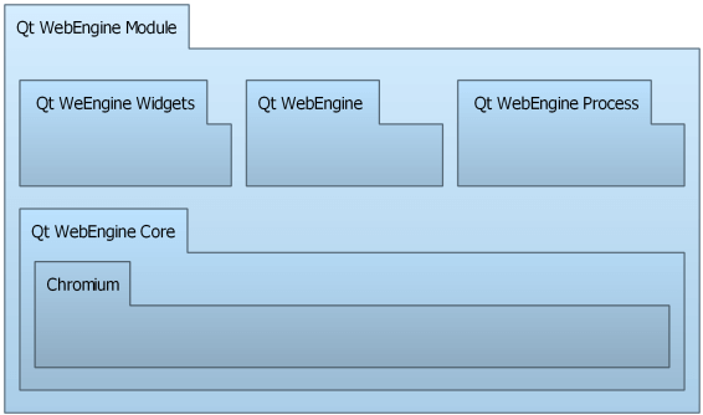
Qt WebEngine中的功能被划分到了3个不同的模块:
1)Qt WebEngine Widgets模块用来创建基于C++ Widgets部件的Web程序;
2)Qt WebEngine模块用来创建基于Qt Quick的Web程序;
3)Qt WebEngine Core模块用来与Chromium交互。
21.1.2 Qt WebEngine Widgets模块
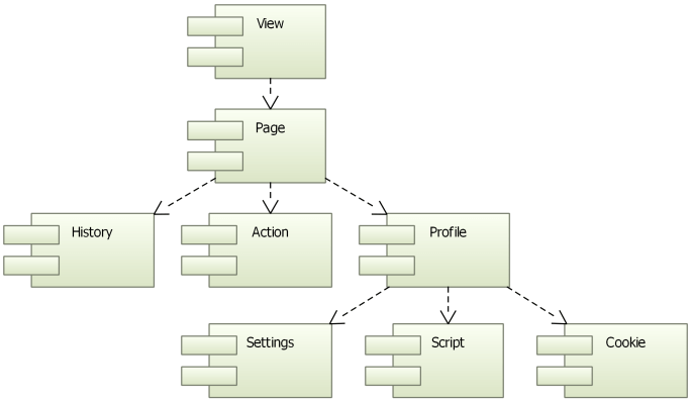
- 视图View(QWebEngineView)是模块中的主要窗体类组件,可以用在各种应用中加载Web内容。
- 页面Page(QWebEnginePage)包含在View中,它包含了Web页面的主框架,主要负责Web内容、浏览历史History(QWebEngineHistory)和菜单动作Action。View与Page十分相似,它们提供了一组相同的函数。
- 配置Profile(QWebEngineProfile)用于区分不同的Page,属于同一个Web引擎配置的所有网页都会共享设置Settings、脚本Script和Cookies。
21.2 基于Qt WebEngine Widgets的网页浏览器
下面是一个简单的网页浏览器的例子,包含了如下功能:
- 最基本的网页显示
- 导航菜单
- 显示网站图标
- 提供历史记录
- 字符串查找
21.2.1 显示一个网页
- 初始化
cpp
view = new QWebEngineView(this);
view->load(QUrl("https://www.qter.org/"));
setCentralWidget(view);
resize(1024, 680);

// 关联信号和槽
connect(view, &QWebEngineView::loadProgress, this, &MainWindow::setProgress);
connect(view, &QWebEngineView::titleChanged, this, &MainWindow::adjustTitle);
connect(view, &QWebEngineView::loadFinished, this, &MainWindow::finishLoading);

locationEdit = new QLineEdit(this);
locationEdit->setText("https://www.qter.org/");
connect(locationEdit, &QLineEdit::returnPressed, this, &MainWindow::changeLocation);- 在行编辑器中改变站点地址后按下回车键执行的槽:
cpp
void MainWindow::changeLocation()
{
    QUrl url = QUrl(locationEdit->text());
    view->load(url);
    view->setFocus();
}- 更新加载进度槽的实现:
cpp
void MainWindow::setProgress(int p)
{
    progress = p;
    adjustTitle();
}- 调整标题槽:
cpp
void MainWindow::adjustTitle()
{
    if ( progress <= 0 || progress >= 100) {
        setWindowTitle(view->title());
    } else {
        setWindowTitle(QString("%1 (%2%)").arg(view->title()).arg(progress));
    }
}- 完成加载后的处理槽的实现:
cpp
void MainWindow::finishLoading(bool finished)
{
    if (finished) {
        progress = 100;
        setWindowTitle(view->title());
    } else {
        setWindowTitle("web page loading error!");
    }
}
21.2.2 网站图标
- 每一个网站都有一个Logo图标,即所谓的FavIcons,它一般显示在网站标题的前面。可以使用QWebEngineView的iconUrl()函数返回该图标的url,然后使用网络访问接口类来获取图标文件。
cpp
connect(view, &QWebEngineView::iconUrlChanged, this, &MainWindow::handleIconUrlChanged);
manager = new QNetworkAccessManager(this);- 每当加载的网站图标发生变化时,QWebEngineView都会发射iconUrlChanged()信号,这里关联该信号来获取新的图标的url:
cpp
void MainWindow::handleIconUrlChanged(const QUrl &url)
{
    QNetworkRequest iconRequest(url);
    QNetworkReply *iconReply = manager->get(iconRequest);
    iconReply->setParent(this);
    connect(iconReply, &QNetworkReply::finished, this, &MainWindow::handleIconLoaded);
}- 当从信号获取图标的url以后,通过QNetworkAccessManager调用get()函数来获取图标文件,当获取结束后,调用handleIconLoaded()槽来对文件进行处理:
cpp
void MainWindow::handleIconLoaded()
{
    QIcon icon;
    QNetworkReply *iconReply = qobject_cast<QNetworkReply*>(sender());
    if (iconReply && iconReply->error() == QNetworkReply::NoError) {
        QByteArray data = iconReply->readAll();
        QPixmap pixmap;
        pixmap.loadFromData(data);
        icon.addPixmap(pixmap);
        iconReply->deleteLater();
    } else {
        icon = QIcon(QStringLiteral("../mywebengine/defaulticon.png"));
    }
    setWindowIcon(icon);
}
21.2.3 实现网页缩放
cpp
QAction *zoomIn = new QAction(tr("放大"));
zoomIn->setShortcut(QKeySequence(Qt::CTRL | Qt::Key_Plus));
connect(zoomIn, &QAction::triggered, this, [=]() {
    view->setZoomFactor(view->zoomFactor() + 0.1);
    ui->statusbar->showMessage(tr("缩放%1%").arg(view->zoomFactor()*100));
});
QAction *zoomOut = new QAction(tr("缩小"));
... ...
QAction *resetZoom = new QAction(tr("重置"));
... ...
ui->mainToolBar->addAction(zoomIn);
ui->mainToolBar->addAction(zoomOut);
ui->mainToolBar->addAction(resetZoom);
21.2.4 显示历史记录
一般浏览器都支持显示浏览过的网页的历史记录,在Qt WebEngine Widgets模块中,QWebEngineHistory类用来表示QWebEnginePage的浏览历史。
- 构造函数中添加代码:
cpp
ui->mainToolBar->addAction(tr("历史"), this, SLOT(showHistory()));
historyList = new QListWidget;
historyList->setWindowTitle(tr("历史记录"));
historyList->setMinimumWidth(300);
connect(historyList, &QListWidget::clicked, this, &MainWindow::gotoHistory); - 显示历史记录窗口的槽的定义:
cpp
void MainWindow::showHistory()
{
    historyList->clear();
    const auto list = view->history()->items();
    for (const QWebEngineHistoryItem &item : list) {
        QListWidgetItem *history = new QListWidgetItem(item.title());
        historyList->addItem(history);
    }
    historyList->show();
}- 单击历史记录项目的槽的实现:
cpp
void MainWindow::gotoHistory(const QModelIndex &index)
{
    QWebEngineHistoryItem item = view->history()->itemAt(index.row());
    view->history()->goToItem(item);
}
21.2.5 查找功能
-
QWebEngineView中还提供了findText()函数来实现网页中字符串的查找和高亮显示,默认是向前查找而且不区分大小写,可以通过设置第2个参数QWebEnginePage::FindFlags修改为向后查找(QWebEnginePage::FindBackward)或者区分大小写(QWebEnginePage::FindCaseSensitively)。
-
构造函数后面添加如下代码:
cpp
findEdit = new QLineEdit(this);
findEdit->setMaximumWidth(150);
ui->mainToolBar->addWidget(findEdit);
ui->mainToolBar->addAction(tr("查找"), [this]() {
    view->findText(findEdit->text());
});
21.2.6 多窗口显示
- 有些网页中的链接需要打开一个新窗口显示,要实现这个功能需要子类化QWebEngineView,然后重新实现其中的createWindow()函数,并在其中创建一个新的窗口。
- 在项目中添加新的C++类,类名为WebView,基类设置为QWebEngineView。
- webview.h内容如下:
cpp
#ifndef WEBVIEW_H
#define WEBVIEW_H

#include <QWebEngineView>
class MainWindow;
class WebView : public QWebEngineView
{
    Q_OBJECT
public:
    WebView(QWidget *parent = nullptr);
protected:
    QWebEngineView *createWindow(QWebEnginePage::WebWindowType type) override;
private:
    MainWindow *mainWindow;
};
#endif // WEBVIEW_H- webview.cpp文件内容如下:
cpp
#include "webview.h"
#include "mainwindow.h"

WebView::WebView(QWidget *parent)
    : QWebEngineView(parent)
{
}

QWebEngineView *WebView::createWindow(QWebEnginePage::WebWindowType type)
{
    mainWindow = new MainWindow(this);
    mainWindow->show();
    return mainWindow->createView();
}-
到mainwindow.h文件中将以前的QWebEngineView类的前置声明: class QWebEngineView;
修改为WebView的前置声明:class WebView;
-
然后在public中添加createView()函数的声明:WebView *createView();
-
将对象声明:QWebEngineView *view; 修改为:WebView *view;
-
到mainwindow.cpp文件中先添加头文件包含#include "webview.h",然后将构造函数中创建view对象的代码:
view = new QWebEngineView(this); 修改为:view = new WebView(this);
-
下面添加createView()函数的定义:
cpp
WebView *MainWindow::createView()
{
    return view;
}