前言
- 最近 VLA(Vision-Language-Action,视觉-语言-动作)具身智能 火得不行,从谷歌的
RT-2、OpenVLA到π0,大模型开始直接输出机器人动作,而这一切的物理载体,正是机械臂 - 所以接下来这个系列,我们将逐步上手最近大火的 VLA 具身智能机械臂 ,计划从 机械臂基础 →
MoveIt2+Gazebo仿真 →Pinocchio刚体动力学 → VLA 入门一路推进 - 往期内容:
- 第一期我们花了两篇文章,把机械臂的建模(结构、运动学、动力学) 和规划与控制(轨迹规划、PID、计算力矩、阻抗控制) 完整过了一遍
- 本期开始动手------我们把第一期的理论搬进
MoveIt2:先安装、跑通官方的 RViz 快速入门 demo,再逐行拆解demo.launch.py背后启动了哪些东西,深入move_group核心架构和MoveGroupInterface,最后亲手写第一个MoveIt2C++ 节点
文章目录
-
- 前言
- [1 MOVEIT2](#1 MOVEIT2)
-
-
- [1-1 介绍](#1-1 介绍)
- [1-2 安装](#1-2 安装)
- [1-3 教程安装](#1-3 教程安装)
-
- [2 MoveIt 2 快速入门](#2 MoveIt 2 快速入门)
-
-
- [2-1 第一个Demo](#2-1 第一个Demo)
- [2-2 Motion Planning 面板](#2-2 Motion Planning 面板)
- [2-3 Context](#2-3 Context)
- [2-4 Planning](#2-4 Planning)
- [2-5 Joints](#2-5 Joints)
- [2-6 Scene Objects](#2-6 Scene Objects)
- [2-7 Stored Scenes](#2-7 Stored Scenes)
- [2-8 Stored States](#2-8 Stored States)
- [2-9 Status](#2-9 Status)
- [2-10 Manipulation](#2-10 Manipulation)
-
- [3 MoveIt 2 核心架构](#3 MoveIt 2 核心架构)
-
-
- [3-1 整体](#3-1 整体)
- [3-2 核心部分](#3-2 核心部分)
- [3-3 机器人模型 URDF / SRDF](#3-3 机器人模型 URDF / SRDF)
- [3-4 trajectory_execution](#3-4 trajectory_execution)
- [3-5 planning_scene_monitor](#3-5 planning_scene_monitor)
- [3-6 planning_pipelines](#3-6 planning_pipelines)
- [3-7 move_group(核心)](#3-7 move_group(核心))
- [3-8 TF和robot_state_publisher](#3-8 TF和robot_state_publisher)
- [3-9 ros2_control](#3-9 ros2_control)
- [3-10 spawner 加载控制器](#3-10 spawner 加载控制器)
- [3-11 demo 的流程](#3-11 demo 的流程)
-
- [4 MoveGroup](#4 MoveGroup)
-
-
- [4-1 介绍](#4-1 介绍)
- [4-2 核心模块](#4-2 核心模块)
- [4-3 RobotModel](#4-3 RobotModel)
- [4-4 Planning Scene](#4-4 Planning Scene)
-
- [4-4-1 介绍](#4-4-1 介绍)
- [4-4-2 **ACM**(Allowed Collision Matrix,允许碰撞矩阵)](#4-4-2 ACM(Allowed Collision Matrix,允许碰撞矩阵))
- [4-5 Kinematics](#4-5 Kinematics)
- [4-6 Planning Pipeline](#4-6 Planning Pipeline)
-
- [4-6-1 路径规划模块](#4-6-1 路径规划模块)
- [4-6-2 轨迹规划模块](#4-6-2 轨迹规划模块)
- [4-7 Trajectory Execution](#4-7 Trajectory Execution)
- [4-8 完整的流程](#4-8 完整的流程)
-
- [5 MoveGroupInterface](#5 MoveGroupInterface)
-
-
- [5-1 介绍](#5-1 介绍)
- [5-2 常用API](#5-2 常用API)
- [5-3 move_group.setPoseTarget(pose)](#5-3 move_group.setPoseTarget(pose))
- [5-4 move_group.plan(plan)](#5-4 move_group.plan(plan))
- [5-5 move_group.execute(plan)](#5-5 move_group.execute(plan))
-
- [6 第一个MoveGroupInterface C++ 节点](#6 第一个MoveGroupInterface C++ 节点)
-
-
- [6-1 介绍](#6-1 介绍)
- [6-2 功能包创建](#6-2 功能包创建)
- [6-3 核心代码](#6-3 核心代码)
-
- 总结
1 MOVEIT2

1-1 介绍
MoveIt是 ROS 生态里最主流的机械臂运动规划框架 ,官方定位是面向移动操作(mobile manipulation)的软件框架,把运动规划、操作、3D 感知、运动学、碰撞检测、控制 这些机械臂开发的"基础设施"全部集成在一起- 我们第一期手写的那些东西------正逆运动学、碰撞检测、运动规划、轨迹生成------在
MoveIt2里全都有现成的、高性能的实现
- 我们第一期手写的那些东西------正逆运动学、碰撞检测、运动规划、轨迹生成------在
- 整个框架的核心是一个叫
move_group的节点,官方概念文档原话:"This node serves as an integrator: pulling all the individual components together to provide a set of ROS actions and services for users to use"------它把各个组件"集成"起来,对外提供一套统一的 ROS 接口 - 我们访问这套接口有两条路(官方原话):
- C++ 接口 :用
MoveGroupInterface,官方教程里最常用的方式 - GUI 接口 :用 RViz 的
MotionPlanning插件,也就是马上要玩的 2-1 节
- C++ 接口 :用
- 本期我们要做的,就是把这个"集成器"一层层拆开看明白
说人话:
MoveIt2就是机械臂界的"全家桶"------第一期我们手写的 IK、碰撞、规划,官方都写好了,还打包成一个叫move_group的"中央调度器"。你只要告诉它"我要去哪",它自己会算 IK、查碰撞、调规划器、发轨迹
1-2 安装
- 安装很简单,直接用 apt 装 Humble 对应的 MoveIt 全家桶:
bash
sudo apt update
sudo apt install ros-humble-moveit
sudo apt install ros-humble-moveit-task-constructor-core
sudo apt install ros-humble-moveit-ros-perception
sudo apt install ros-humble-moveit-servo
sudo apt install ros-humble-rviz-visual-tools
sudo apt install ros-humble-moveit-visual-tools- 几个包各自管什么:
ros-humble-moveit:MoveIt 主包,核心的规划、运动学、控制框架都在里面ros-humble-moveit-task-constructor-core:任务级规划(Pick & Place这类多步骤任务)ros-humble-moveit-ros-perception:3D 感知(点云/深度图 → 占用地图,2-6 节 Scene Objects 会用上)ros-humble-moveit-servo:伺服控制,做实时拖拽/遥控(对应第一期的拖动示教)ros-humble-rviz-visual-tools和ros-humble-moveit-visual-tools:RViz 可视化工具,给 RViz 画箭头、文字、轨迹用
1-3 教程安装
- 这里我们使用官方的教程 demo------
moveit2_tutorials来学习- 它里面带了 Panda(弗兰卡)机械臂 的完整描述(URDF/SRDF)和一堆可以直接跑的 demo,包括我们 2-1 节的快速入门
- 也就是说:你不需要自己的机器人模型,用官方自带的 Panda 就能把整个流程跑起来
- 下载并编译:
bash
source /opt/ros/humble/setup.bash
mkdir -p ~/moveit2_ws/src
cd ~/moveit2_ws/src
git clone -b humble https://github.com/moveit/moveit2_tutorials
cd ~/moveit2_ws
colcon build
2 MoveIt 2 快速入门
2-1 第一个Demo
- 编译完,source 一下工作空间,直接 launch 官方的快速入门 demo:
bash
cd ~/moveit2_ws
source ./install/setup.bash
ros2 launch moveit2_tutorials demo.launch.py-
等几秒,RViz 会弹出来,里面是 Panda 机械臂 +
MotionPlanning插件面板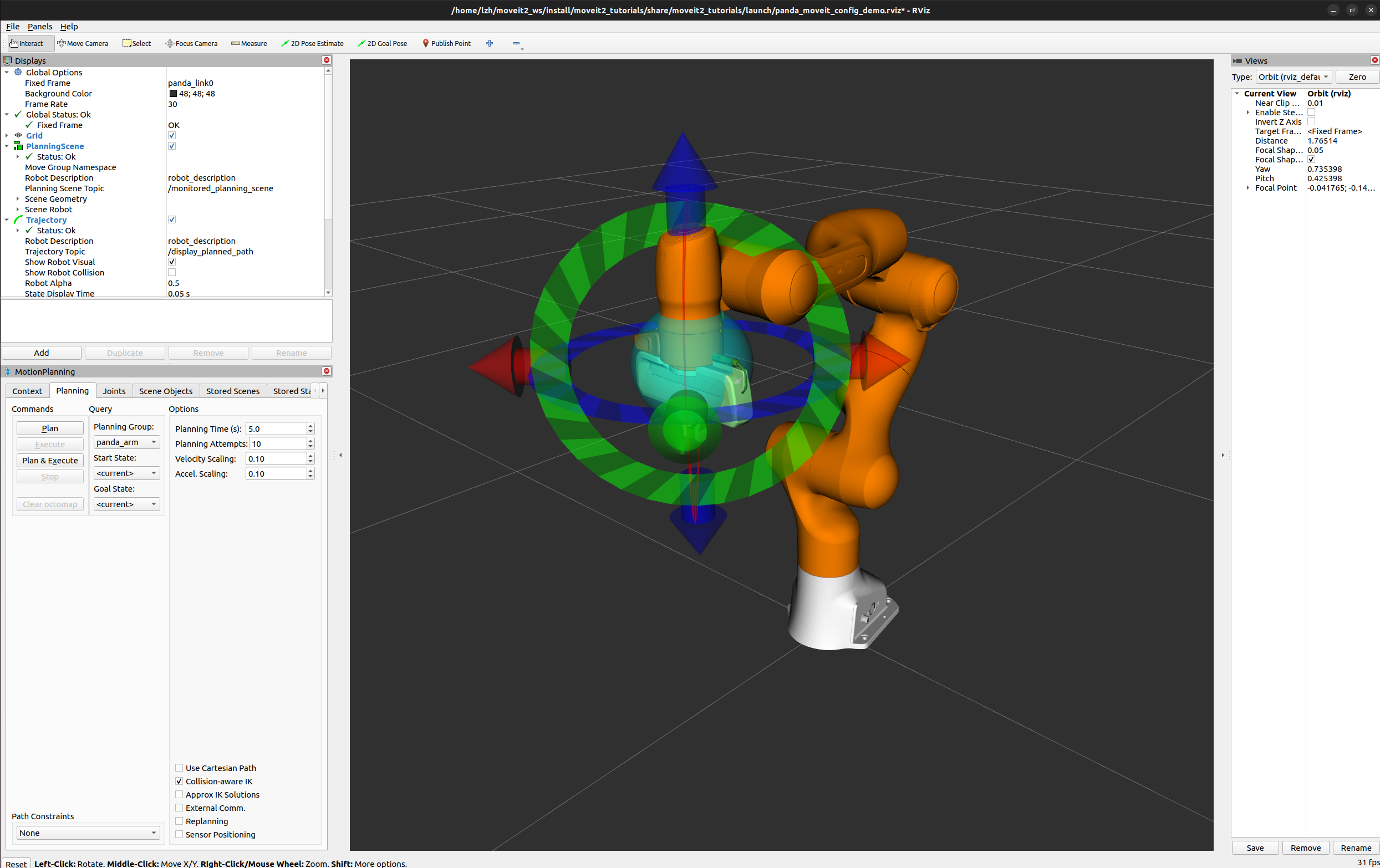
-
第一次玩建议先把插件面板下面的几个 tab 挨个点一遍,感受一下每个面板是干嘛的(下面 2-2 到 2-10 一节一个)
2-2 Motion Planning 面板
- RViz 加载后,官方 demo 用的是预配置好的
panda_moveit_config_demo.rviz,下面这些字段已经填好、开箱即用;如果你用官方的空配置panda_moveit_config_demo_empty.rviz启动,才需要按官方 Quickstart 教程手动配置这几个关键字段:- Fixed Frame 固定坐标系:设为
/panda_link0(机器人的基座坐标系) - Robot Description :
robot_description - Planning Scene Topic :
/monitored_planning_scene------move_group维护的规划场景话题(3-5 节讲) - Trajectory Topic :
/display_planned_path------规划出来的路径可视化话题 - Planning Group :
panda_arm------对哪个关节组做规划(对应 SRDF 里的 group,3-3 节讲)
- Fixed Frame 固定坐标系:设为
- 面板下方有几个 tab:
Context、Planning、Joints、Scene Objects、Stored Scenes、Stored States、Status、Manipulation,下面 2-3 到 2-10 一节一个 - 官方还提到,RViz 里可以叠加显示四样东西,都能用复选框开关:
- Scene Robot:规划场景里的机器人(当前实际状态)
- Planned Path:规划出来的路径
- Query Start State:规划的起始状态(绿色)
- Query Goal State:规划的目标状态(橙色)
2-3 Context
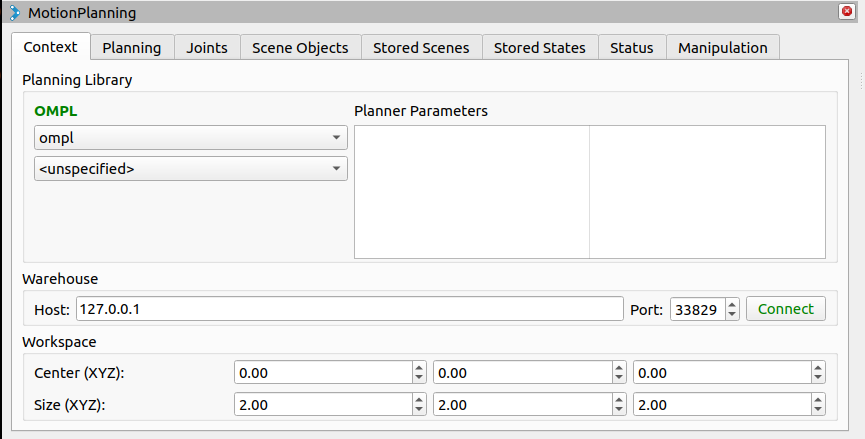
Context面板展示当前 MoveIt 的上下文:当前用的规划组、规划管线、默认规划器等信息- 我们可以在下拉框里切换规划组
panda_arm(手臂)/hand(夹爪)/panda_arm_hand(整臂) - 这里还会显示当前使用的 planning pipeline(3-6 节讲)------demo 里默认是
ompl
2-4 Planning
-
Planning面板是核心操作面板:在这里设置起点 和终点 ,点Plan规划、点Execute执行、点Plan & Execute一步到位 -
官方教程的标准玩法:
- 先打开 RViz 顶部工具栏的 Interact 交互工具
- 用鼠标拖拽橙色的目标位姿标记,把它放到想去的位姿(绿色标记是起点)
- 点
Plan,RViz 会画出一条规划好的路径和 Trail 轨迹
-
勾上 Use Cartesian Path ,机械臂会尝试让末端在笛卡尔空间走直线------对应第一期的笛卡尔规划
- 默认的速度/加速度缩放是
0.1(最大值的 10%),可以在面板里改,也可以在joint_limits.yaml里改默认值
- 默认的速度/加速度缩放是
-
官方提醒:demo 里点 Execute 只是仿真 (
demo.launch是模拟机器人),不会动真机 -
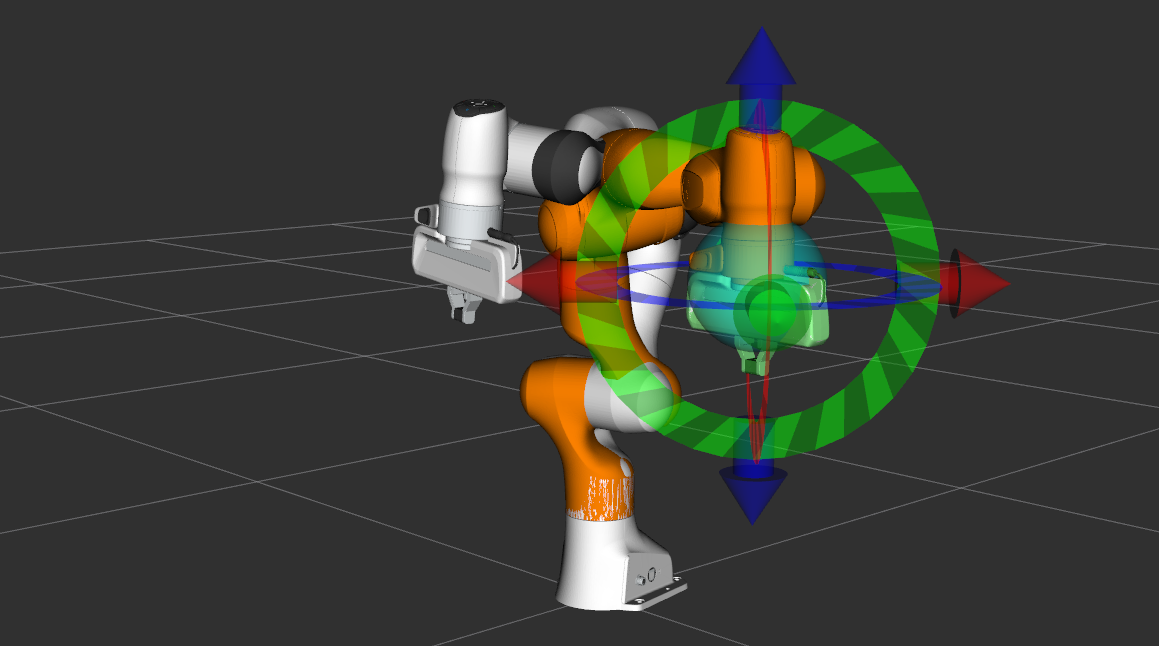
我们直接玩一下,拖动机器人末端,点击
Plan和Execute: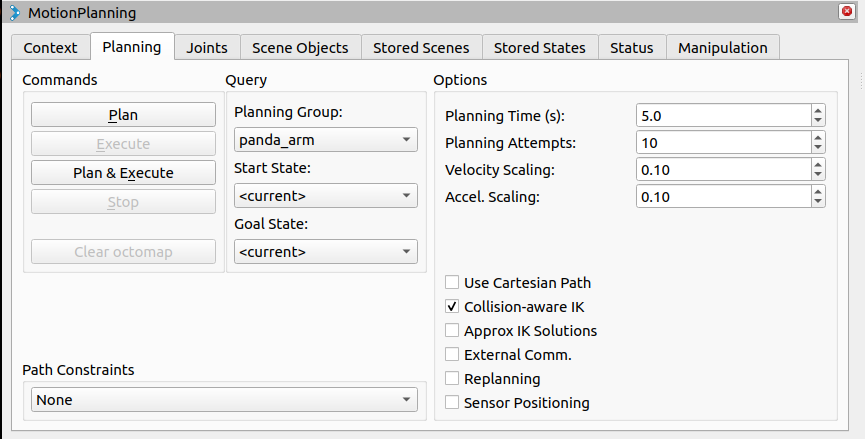
-
拖动机器人末端,点击Plan和Execute
2-5 Joints
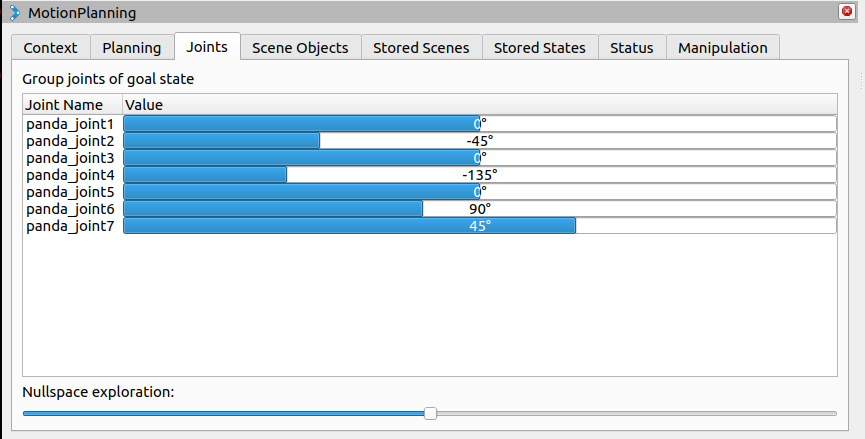
Joints面板可以直接拖动单个关节的角度滑块,看每个关节的运动- 对 Panda 这种 7 自由度机械臂,还有一个 Null Space(零空间) 滑块------拖动它,机械臂可以在末端位姿不变的情况下改变手臂姿态
- 这就是第一期 4-2 节讲的冗余自由度 :多出来的那个自由度不改变末端位置,只改变"摆造型",避障时特别好用
2-6 Scene Objects
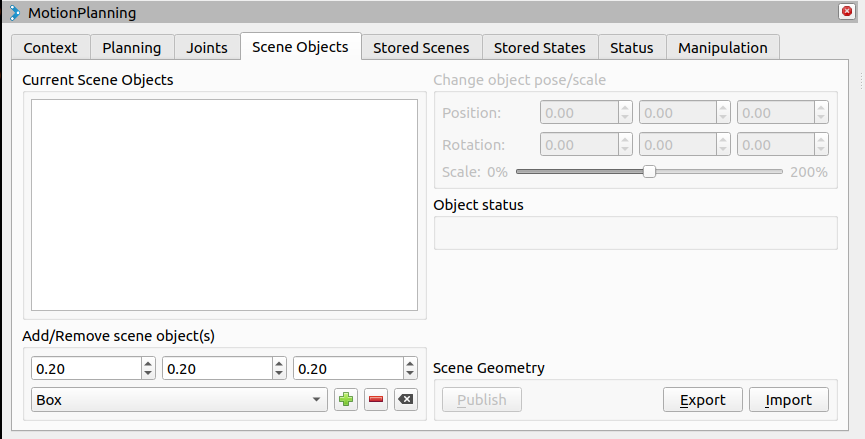
Scene Objects面板管理规划场景里的物体------在这里可以添加盒子、圆柱等碰撞物体,模拟环境- 这些物体会被加进规划场景(
Planning Scene),move_group规划时把它们当成障碍物来避障 - 这就是后面"规划时避开物体"演示的基础:在手臂旁边加一个盒子,规划出来的路径会自动绕开它
2-7 Stored Scenes
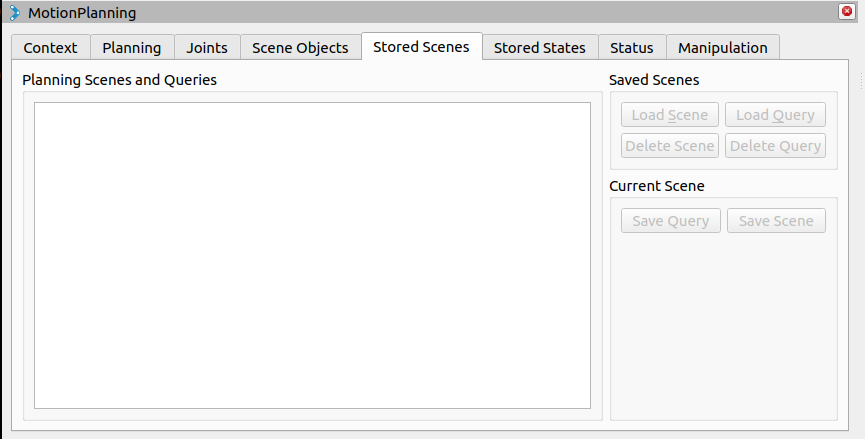
Stored Scenes面板用来保存/加载规划场景 ------把当前场景里的物体、状态存成一个命名场景,下次一键恢复
2-8 Stored States
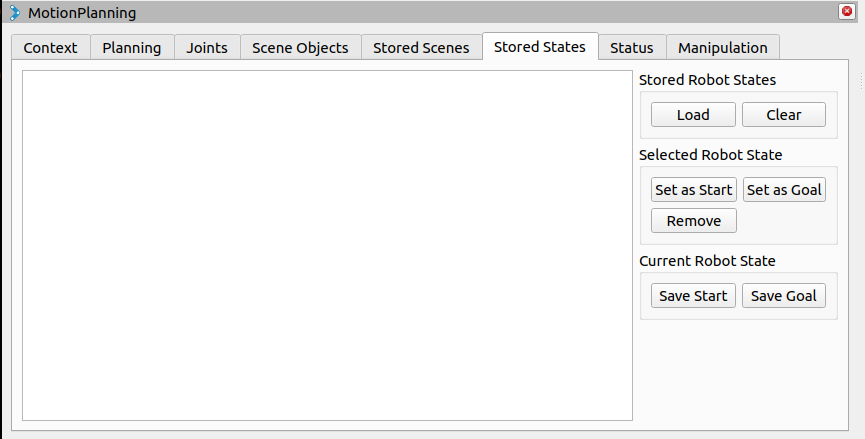
Stored States面板保存/加载命名的机器人状态- Panda 的 SRDF 里预置了几个状态:手臂有
ready、extended、transport,夹爪有open、close(3-3 节会看到)------选一个直接应用,机械臂立刻摆出对应姿势
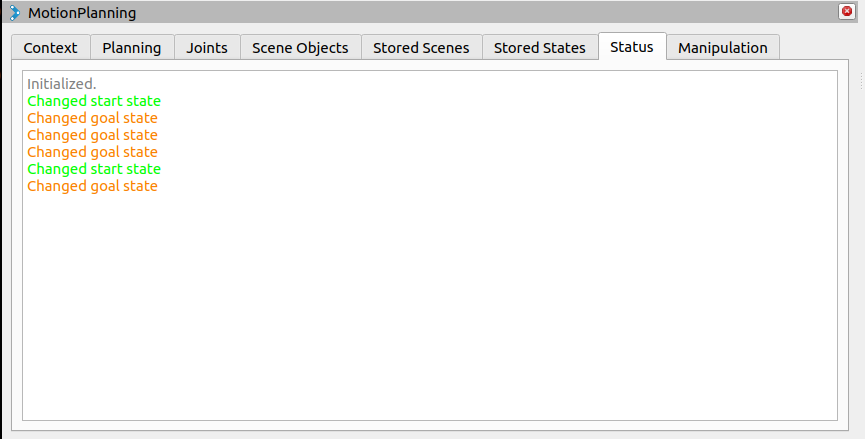
2-9 Status
Status面板显示 MoveIt 各模块的运行状态(Planning Scene Monitor、运动学求解器等),正常是绿色 OK- 如果哪一步配置不对(比如 TF 没起来),这里会出现错误提示------排错时先看这里
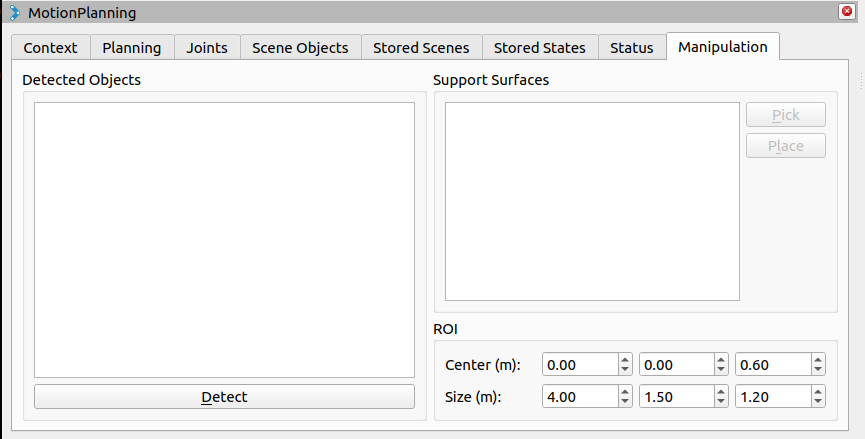
2-10 Manipulation
Manipulation面板用于操作任务 (抓取、放置等),是MoveIt Task Constructor这类任务级规划器的入口- 本期先不用它,知道有这个入口就行,后面做抓取时再细讲
3 MoveIt 2 核心架构
3-1 整体
- 跑通了 demo,我们来看它到底启动了哪些东西
- demo 的 launch 文件在:
moveit2_tutorials/doc/tutorials/quickstart_in_rviz/launch/demo.launch.py
- demo 的 launch 文件在:
- 结构很简单:
generate_launch_description()里声明一个参数rviz_config,然后通过OpaqueFunction把真正的启动逻辑丢给launch_setup()执行
python
import os
from launch import LaunchDescription
from launch.actions import DeclareLaunchArgument, OpaqueFunction
from launch.substitutions import LaunchConfiguration, PathJoinSubstitution
from launch.conditions import IfCondition, UnlessCondition
from launch_ros.actions import Node
from launch_ros.substitutions import FindPackageShare
from launch.actions import ExecuteProcess
from ament_index_python.packages import get_package_share_directory
from moveit_configs_utils import MoveItConfigsBuilder


def generate_launch_description():

    declared_arguments = []
    declared_arguments.append(
        DeclareLaunchArgument(
            "rviz_config",
            default_value="panda_moveit_config_demo.rviz",
            description="RViz configuration file",
        )
    )

    return LaunchDescription(
        declared_arguments + [OpaqueFunction(function=launch_setup)]
    )


def launch_setup(context, *args, **kwargs):

    moveit_config = (
        MoveItConfigsBuilder("moveit_resources_panda")
        .robot_description(file_path="config/panda.urdf.xacro")
        .trajectory_execution(file_path="config/gripper_moveit_controllers.yaml")
        .planning_scene_monitor(
            publish_robot_description=True, publish_robot_description_semantic=True
        )
        .planning_pipelines(
            pipelines=["ompl", "chomp", "pilz_industrial_motion_planner"]
        )
        .to_moveit_configs()
    )

    # Start the actual move_group node/action server
    run_move_group_node = Node(
        package="moveit_ros_move_group",
        executable="move_group",
        output="screen",
        parameters=[moveit_config.to_dict()],
    )

    rviz_base = LaunchConfiguration("rviz_config")
    rviz_config = PathJoinSubstitution(
        [FindPackageShare("moveit2_tutorials"), "launch", rviz_base]
    )

    # RViz
    rviz_node = Node(
        package="rviz2",
        executable="rviz2",
        name="rviz2",
        output="log",
        arguments=["-d", rviz_config],
        parameters=[
            moveit_config.robot_description,
            moveit_config.robot_description_semantic,
            moveit_config.robot_description_kinematics,
            moveit_config.planning_pipelines,
            moveit_config.joint_limits,
        ],
    )

    # Static TF
    static_tf = Node(
        package="tf2_ros",
        executable="static_transform_publisher",
        name="static_transform_publisher",
        output="log",
        arguments=["0.0", "0.0", "0.0", "0.0", "0.0", "0.0", "world", "panda_link0"],
    )

    # Publish TF
    robot_state_publisher = Node(
        package="robot_state_publisher",
        executable="robot_state_publisher",
        name="robot_state_publisher",
        output="both",
        parameters=[moveit_config.robot_description],
    )

    # ros2_control using FakeSystem as hardware
    ros2_controllers_path = os.path.join(
        get_package_share_directory("moveit_resources_panda_moveit_config"),
        "config",
        "ros2_controllers.yaml",
    )
    ros2_control_node = Node(
        package="controller_manager",
        executable="ros2_control_node",
        parameters=[moveit_config.robot_description, ros2_controllers_path],
        output="both",
    )

    joint_state_broadcaster_spawner = Node(
        package="controller_manager",
        executable="spawner",
        arguments=[
            "joint_state_broadcaster",
            "--controller-manager-timeout",
            "300",
            "--controller-manager",
            "/controller_manager",
        ],
    )

    arm_controller_spawner = Node(
        package="controller_manager",
        executable="spawner",
        arguments=["panda_arm_controller", "-c", "/controller_manager"],
    )

    hand_controller_spawner = Node(
        package="controller_manager",
        executable="spawner",
        arguments=["panda_hand_controller", "-c", "/controller_manager"],
    )
    nodes_to_start = [
        rviz_node,
        static_tf,
        robot_state_publisher,
        run_move_group_node,
        ros2_control_node,
        joint_state_broadcaster_spawner,
        arm_controller_spawner,
        hand_controller_spawner,
    ]

return nodes_to_start- 整个文件的核心就一句话:
MoveItConfigsBuilder负责把机器人模型和所有配置读进来,然后启动move_group+ RViz + TF +robot_state_publisher+ros2_control这一整套节点 - 下面 3-2 到 3-9 一节一个组件拆开看
3-2 核心部分
launch_setup()里最核心的是这段:用MoveItConfigsBuilder读配置,再喂给move_group
python
moveit_config = (
    MoveItConfigsBuilder("moveit_resources_panda")
    .robot_description(file_path="config/panda.urdf.xacro")
    .trajectory_execution(
        file_path="config/gripper_moveit_controllers.yaml"
    )
    .planning_scene_monitor(
        publish_robot_description=True,
        publish_robot_description_semantic=True
    )
    .planning_pipelines(
        pipelines=["ompl", "chomp", "pilz_industrial_motion_planner"]
    )
    .to_moveit_configs()
)
# Start the actual move_group node/action server
run_move_group_node = Node(
	package="moveit_ros_move_group",
	executable="move_group",
	output="screen",
	parameters=[moveit_config.to_dict()],
)MoveItConfigsBuilder是moveit_configs_utils提供的建造者模式(Builder Pattern) 工具类,官方源码注释原话:它用来"Simplify loading moveit config parameters... to simplify loading moveit related parameters found inrobot_moveit_configpackage generated by moveit setup assistant"
一句话:它把 MoveIt Setup Assistant 生成的配置包(
robot_name_moveit_config)里的所有 yaml/xacro 统一读进来,整理成一组 ROS 参数
- 它的职责链条:
.robot_description(file_path=...):加载 URDF(3-3 节).trajectory_execution(...):加载控制器管理配置gripper_moveit_controllers.yaml(3-4 节,逐行解读在 4-7 节).planning_scene_monitor(...):配置 Planning Scene Monitor,并让它把robot_description发布成话题(3-5 节).planning_pipelines(...):加载ompl/chomp/pilz_industrial_motion_planner三条规划管线(3-6 节).to_moveit_configs():收尾,返回一个装着所有参数的MoveItConfigs对象
- 最后
moveit_config.to_dict()把参数打包成 dict,喂给move_group节点 - 各模块和参数的关系(对应 3-3 到 3-9 节):
#mermaid-svg-0vkEMStzZpROa1P1{font-family:"trebuchet ms",verdana,arial,sans-serif;font-size:16px;fill:#333;}@keyframes edge-animation-frame{from{stroke-dashoffset:0;}}@keyframes dash{to{stroke-dashoffset:0;}}#mermaid-svg-0vkEMStzZpROa1P1 .edge-animation-slow{stroke-dasharray:9,5!important;stroke-dashoffset:900;animation:dash 50s linear infinite;stroke-linecap:round;}#mermaid-svg-0vkEMStzZpROa1P1 .edge-animation-fast{stroke-dasharray:9,5!important;stroke-dashoffset:900;animation:dash 20s linear infinite;stroke-linecap:round;}#mermaid-svg-0vkEMStzZpROa1P1 .error-icon{fill:#552222;}#mermaid-svg-0vkEMStzZpROa1P1 .error-text{fill:#552222;stroke:#552222;}#mermaid-svg-0vkEMStzZpROa1P1 .edge-thickness-normal{stroke-width:1px;}#mermaid-svg-0vkEMStzZpROa1P1 .edge-thickness-thick{stroke-width:3.5px;}#mermaid-svg-0vkEMStzZpROa1P1 .edge-pattern-solid{stroke-dasharray:0;}#mermaid-svg-0vkEMStzZpROa1P1 .edge-thickness-invisible{stroke-width:0;fill:none;}#mermaid-svg-0vkEMStzZpROa1P1 .edge-pattern-dashed{stroke-dasharray:3;}#mermaid-svg-0vkEMStzZpROa1P1 .edge-pattern-dotted{stroke-dasharray:2;}#mermaid-svg-0vkEMStzZpROa1P1 .marker{fill:#333333;stroke:#333333;}#mermaid-svg-0vkEMStzZpROa1P1 .marker.cross{stroke:#333333;}#mermaid-svg-0vkEMStzZpROa1P1 svg{font-family:"trebuchet ms",verdana,arial,sans-serif;font-size:16px;}#mermaid-svg-0vkEMStzZpROa1P1 p{margin:0;}#mermaid-svg-0vkEMStzZpROa1P1 .label{font-family:"trebuchet ms",verdana,arial,sans-serif;color:#333;}#mermaid-svg-0vkEMStzZpROa1P1 .cluster-label text{fill:#333;}#mermaid-svg-0vkEMStzZpROa1P1 .cluster-label span{color:#333;}#mermaid-svg-0vkEMStzZpROa1P1 .cluster-label span p{background-color:transparent;}#mermaid-svg-0vkEMStzZpROa1P1 .label text,#mermaid-svg-0vkEMStzZpROa1P1 span{fill:#333;color:#333;}#mermaid-svg-0vkEMStzZpROa1P1 .node rect,#mermaid-svg-0vkEMStzZpROa1P1 .node circle,#mermaid-svg-0vkEMStzZpROa1P1 .node ellipse,#mermaid-svg-0vkEMStzZpROa1P1 .node polygon,#mermaid-svg-0vkEMStzZpROa1P1 .node path{fill:#ECECFF;stroke:#9370DB;stroke-width:1px;}#mermaid-svg-0vkEMStzZpROa1P1 .rough-node .label text,#mermaid-svg-0vkEMStzZpROa1P1 .node .label text,#mermaid-svg-0vkEMStzZpROa1P1 .image-shape .label,#mermaid-svg-0vkEMStzZpROa1P1 .icon-shape .label{text-anchor:middle;}#mermaid-svg-0vkEMStzZpROa1P1 .node .katex path{fill:#000;stroke:#000;stroke-width:1px;}#mermaid-svg-0vkEMStzZpROa1P1 .rough-node .label,#mermaid-svg-0vkEMStzZpROa1P1 .node .label,#mermaid-svg-0vkEMStzZpROa1P1 .image-shape .label,#mermaid-svg-0vkEMStzZpROa1P1 .icon-shape .label{text-align:center;}#mermaid-svg-0vkEMStzZpROa1P1 .node.clickable{cursor:pointer;}#mermaid-svg-0vkEMStzZpROa1P1 .root .anchor path{fill:#333333!important;stroke-width:0;stroke:#333333;}#mermaid-svg-0vkEMStzZpROa1P1 .arrowheadPath{fill:#333333;}#mermaid-svg-0vkEMStzZpROa1P1 .edgePath .path{stroke:#333333;stroke-width:2.0px;}#mermaid-svg-0vkEMStzZpROa1P1 .flowchart-link{stroke:#333333;fill:none;}#mermaid-svg-0vkEMStzZpROa1P1 .edgeLabel{background-color:rgba(232,232,232, 0.8);text-align:center;}#mermaid-svg-0vkEMStzZpROa1P1 .edgeLabel p{background-color:rgba(232,232,232, 0.8);}#mermaid-svg-0vkEMStzZpROa1P1 .edgeLabel rect{opacity:0.5;background-color:rgba(232,232,232, 0.8);fill:rgba(232,232,232, 0.8);}#mermaid-svg-0vkEMStzZpROa1P1 .labelBkg{background-color:rgba(232, 232, 232, 0.5);}#mermaid-svg-0vkEMStzZpROa1P1 .cluster rect{fill:#ffffde;stroke:#aaaa33;stroke-width:1px;}#mermaid-svg-0vkEMStzZpROa1P1 .cluster text{fill:#333;}#mermaid-svg-0vkEMStzZpROa1P1 .cluster span{color:#333;}#mermaid-svg-0vkEMStzZpROa1P1 div.mermaidTooltip{position:absolute;text-align:center;max-width:200px;padding:2px;font-family:"trebuchet ms",verdana,arial,sans-serif;font-size:12px;background:hsl(80, 100%, 96.2745098039%);border:1px solid #aaaa33;border-radius:2px;pointer-events:none;z-index:100;}#mermaid-svg-0vkEMStzZpROa1P1 .flowchartTitleText{text-anchor:middle;font-size:18px;fill:#333;}#mermaid-svg-0vkEMStzZpROa1P1 rect.text{fill:none;stroke-width:0;}#mermaid-svg-0vkEMStzZpROa1P1 .icon-shape,#mermaid-svg-0vkEMStzZpROa1P1 .image-shape{background-color:rgba(232,232,232, 0.8);text-align:center;}#mermaid-svg-0vkEMStzZpROa1P1 .icon-shape p,#mermaid-svg-0vkEMStzZpROa1P1 .image-shape p{background-color:rgba(232,232,232, 0.8);padding:2px;}#mermaid-svg-0vkEMStzZpROa1P1 .icon-shape .label rect,#mermaid-svg-0vkEMStzZpROa1P1 .image-shape .label rect{opacity:0.5;background-color:rgba(232,232,232, 0.8);fill:rgba(232,232,232, 0.8);}#mermaid-svg-0vkEMStzZpROa1P1 .label-icon{display:inline-block;height:1em;overflow:visible;vertical-align:-0.125em;}#mermaid-svg-0vkEMStzZpROa1P1 .node .label-icon path{fill:currentColor;stroke:revert;stroke-width:revert;}#mermaid-svg-0vkEMStzZpROa1P1 :root{--mermaid-font-family:"trebuchet ms",verdana,arial,sans-serif;} config/panda.urdf.xacro
URDF 机器人模型 (3-3)
MoveItConfigsBuilder
gripper_moveit_controllers.yaml
轨迹执行配置 (3-4)
planning_scene_monitor 参数
(3-5)
config/*_planning.yaml
OMPL/CHOMP/Pilz (3-6)
MoveItConfigs 参数集合
move_group 节点 (3-7)
RViz 节点
robot_state_publisher (3-8)
ros2_control (3-9)
3-3 机器人模型 URDF / SRDF
python
.robot_description(file_path="config/panda.urdf.xacro")- 加载的是机器人的 URDF
- 官方 URDF/SRDF 教程原话:URDF(Unified Robot Description Format)是 "the native format for describing robots in ROS and ROS2"------ROS 里描述机器人的原生格式,本质上就是第一期讲的连杆 + 关节树
- demo 用的
panda.urdf.xacro本身很薄,它用 xacro 宏做了三件事:引入基础 URDF、引入 ros2_control 描述、实例化仿真硬件:
xml
<?xml version="1.0"?>
<robot xmlns:xacro="http://www.ros.org/wiki/xacro" name="panda">
    <xacro:arg name="initial_positions_file" default="initial_positions.yaml" />
    <xacro:arg name="ros2_control_hardware_type" default="mock_components" />

    <!-- Import panda urdf file -->
    <xacro:include filename="$(find moveit_resources_panda_description)/urdf/panda.urdf" />

    <!-- Import panda ros2_control description -->
    <xacro:include filename="panda.ros2_control.xacro" />
    <xacro:include filename="panda_hand.ros2_control.xacro" />

    <xacro:panda_ros2_control name="PandaFakeSystem" initial_positions_file="$(arg initial_positions_file)" ros2_control_hardware_type="$(arg ros2_control_hardware_type)"/>
    <xacro:panda_hand_ros2_control name="PandaHandFakeSystem" ros2_control_hardware_type="$(arg ros2_control_hardware_type)"/>
</robot>- 这里的
PandaFakeSystem/PandaHandFakeSystem就是 3-9 节要讲的仿真硬件 (ros2_control_hardware_type默认mock_components,即"假硬件") - 光有 URDF 还不够,
move_group还需要 SRDF (Semantic Robot Description Format)- 官方原话:SRDF 补充 URDF,"specifies joint groups, default robot configurations, additional collision checking information, and additional transforms"------它描述机器人的语义信息:规划组、默认位姿、碰撞检测配置
- 注意:SRDF 不是 URDF 的替代品,也不扩展 URDF,它引用的关节/连杆都必须先在 URDF 里定义过(这是 SRDF 文件头注释里官方写的原话)
- Panda 的 SRDF 关键内容:
- 规划组 group :
panda_arm是一个运动链 (<chain base_link="panda_link0" tip_link="panda_link8"/>);hand是一组连杆 + 关节;panda_arm_hand是子组组合 - group_state :
ready/extended/transport(手臂)、open/close(夹爪)等命名位姿 - virtual_joint :
world与panda_link0之间的虚拟关节(floating类型,机械臂整个"悬浮"在世界里) - disable_collisions :禁用某些连杆对之间的碰撞检测,
reason="Adjacent"(相邻连杆)、"Never"(永不相撞)或"Default"(默认不检测) - end_effector :
hand被指定为末端执行器,挂在panda_arm的panda_link8上
- 规划组 group :
xml
<?xml version="1.0" encoding="utf-8"?>
<!-- =================================================================================== -->
<!-- |    This document was autogenerated by xacro from panda_arm_hand.srdf.xacro      | -->
<!-- |    EDITING THIS FILE BY HAND IS NOT RECOMMENDED                                 | -->
<!-- =================================================================================== -->
<!--This does not replace URDF, and is not an extension of URDF.
    This is a format for representing semantic information about the robot structure.
    A URDF file must exist for this robot as well, where the joints and the links that are referenced are defined
-->
<robot name="panda">
  <!--GROUPS: Representation of a set of joints and links. This can be useful for specifying DOF to plan for, defining arms, end effectors, etc-->
  <!--LINKS: When a link is specified, the parent joint of that link (if it exists) is automatically included-->
  <!--JOINTS: When a joint is specified, the child link of that joint (which will always exist) is automatically included-->
  <!--CHAINS: When a chain is specified, all the links along the chain (including endpoints) are included in the group. Additionally, all the joints that are parents to included links are also included. This means that joints along the chain and the parent joint of the base link are included in the group-->
  <!--SUBGROUPS: Groups can also be formed by referencing to already defined group names-->
  <group name="panda_arm">
    <chain base_link="panda_link0" tip_link="panda_link8"/>
  </group>
  <!--GROUP STATES: Purpose: Define a named state for a particular group, in terms of joint values. This is useful to define states like 'folded arms'-->
  <group_state group="panda_arm" name="ready">
    <joint name="panda_joint1" value="0"/>
    <joint name="panda_joint2" value="-0.785"/>
    <joint name="panda_joint3" value="0"/>
    <joint name="panda_joint4" value="-2.356"/>
    <joint name="panda_joint5" value="0"/>
    <joint name="panda_joint6" value="1.571"/>
    <joint name="panda_joint7" value="0.785"/>
  </group_state>
  <group_state group="panda_arm" name="extended">
    <joint name="panda_joint1" value="0"/>
    <joint name="panda_joint2" value="0"/>
    <joint name="panda_joint3" value="0"/>
    <joint name="panda_joint4" value="0"/>
    <joint name="panda_joint5" value="0"/>
    <joint name="panda_joint6" value="1.571"/>
    <joint name="panda_joint7" value="0.785"/>
  </group_state>
  <group_state group="panda_arm" name="transport">
    <joint name="panda_joint1" value="0"/>
    <joint name="panda_joint2" value="-0.5599"/>
    <joint name="panda_joint3" value="0"/>
    <joint name="panda_joint4" value="-2.97"/>
    <joint name="panda_joint5" value="0"/>
    <joint name="panda_joint6" value="0"/>
    <joint name="panda_joint7" value="0.785"/>
  </group_state>
  <!--END EFFECTOR: Purpose: Represent information about an end effector.-->
  <!--VIRTUAL JOINT: Purpose: this element defines a virtual joint between a robot link and an external frame of reference (considered fixed with respect to the robot)-->
  <virtual_joint child_link="panda_link0" name="virtual_joint" parent_frame="world" type="floating"/>
  <!--DISABLE COLLISIONS: By default it is assumed that any link of the robot could potentially come into collision with any other link in the robot. This tag disables collision checking between a specified pair of links. -->
  <disable_collisions link1="panda_link0" link2="panda_link1" reason="Adjacent"/>
  <disable_collisions link1="panda_link0" link2="panda_link2" reason="Never"/>
  <disable_collisions link1="panda_link0" link2="panda_link3" reason="Never"/>
  <disable_collisions link1="panda_link0" link2="panda_link4" reason="Never"/>
  <disable_collisions link1="panda_link1" link2="panda_link2" reason="Adjacent"/>
  <disable_collisions link1="panda_link1" link2="panda_link3" reason="Never"/>
  <disable_collisions link1="panda_link1" link2="panda_link4" reason="Never"/>
  <disable_collisions link1="panda_link2" link2="panda_link3" reason="Adjacent"/>
  <disable_collisions link1="panda_link2" link2="panda_link4" reason="Never"/>
  <disable_collisions link1="panda_link2" link2="panda_link6" reason="Never"/>
  <disable_collisions link1="panda_link3" link2="panda_link4" reason="Adjacent"/>
  <disable_collisions link1="panda_link3" link2="panda_link5" reason="Never"/>
  <disable_collisions link1="panda_link3" link2="panda_link6" reason="Never"/>
  <disable_collisions link1="panda_link3" link2="panda_link7" reason="Never"/>
  <disable_collisions link1="panda_link4" link2="panda_link5" reason="Adjacent"/>
  <disable_collisions link1="panda_link4" link2="panda_link6" reason="Never"/>
  <disable_collisions link1="panda_link4" link2="panda_link7" reason="Never"/>
  <disable_collisions link1="panda_link5" link2="panda_link6" reason="Adjacent"/>
  <disable_collisions link1="panda_link6" link2="panda_link7" reason="Adjacent"/>
  <!--GROUPS: Representation of a set of joints and links. This can be useful for specifying DOF to plan for, defining arms, end effectors, etc-->
  <!--LINKS: When a link is specified, the parent joint of that link (if it exists) is automatically included-->
  <!--JOINTS: When a joint is specified, the child link of that joint (which will always exist) is automatically included-->
  <!--CHAINS: When a chain is specified, all the links along the chain (including endpoints) are included in the group. Additionally, all the joints that are parents to included links are also included. This means that joints along the chain and the parent joint of the base link are included in the group-->
  <!--SUBGROUPS: Groups can also be formed by referencing to already defined group names-->
  <group name="hand">
    <link name="panda_hand"/>
    <link name="panda_leftfinger"/>
    <link name="panda_rightfinger"/>
    <joint name="panda_finger_joint1"/>
    <passive_joint name="panda_finger_joint2"/>
  </group>
  <!--GROUP STATES: Purpose: Define a named state for a particular group, in terms of joint values. This is useful to define states like 'folded arms'-->
  <!--END EFFECTOR: Purpose: Represent information about an end effector.-->
  <!--DISABLE COLLISIONS: By default it is assumed that any link of the robot could potentially come into collision with any other link in the robot. This tag disables collision checking between a specified pair of links. -->
  <disable_collisions link1="panda_hand" link2="panda_leftfinger" reason="Adjacent"/>
  <disable_collisions link1="panda_hand" link2="panda_rightfinger" reason="Adjacent"/>
  <disable_collisions link1="panda_leftfinger" link2="panda_rightfinger" reason="Default"/>
  <!--GROUPS: Representation of a set of joints and links. This can be useful for specifying DOF to plan for, defining arms, end effectors, etc-->
  <!--LINKS: When a link is specified, the parent joint of that link (if it exists) is automatically included-->
  <!--JOINTS: When a joint is specified, the child link of that joint (which will always exist) is automatically included-->
  <!--CHAINS: When a chain is specified, all the links along the chain (including endpoints) are included in the group. Additionally, all the joints that are parents to included links are also included. This means that joints along the chain and the parent joint of the base link are included in the group-->
  <!--SUBGROUPS: Groups can also be formed by referencing to already defined group names-->
  <group name="panda_arm_hand">
    <group name="panda_arm"/>
    <group name="hand"/>
  </group>
  <group_state group="hand" name="open">
    <joint name="panda_finger_joint1" value="0.035"/>
    <joint name="panda_finger_joint2" value="0.035"/>
  </group_state>
  <group_state group="hand" name="close">
    <joint name="panda_finger_joint1" value="0"/>
    <joint name="panda_finger_joint2" value="0"/>
  </group_state>
  <!--END EFFECTOR: Purpose: Represent information about an end effector.-->
  <end_effector group="hand" name="hand" parent_group="panda_arm" parent_link="panda_link8"/>
  <!--DISABLE COLLISIONS: By default it is assumed that any link of the robot could potentially come into collision with any other link in the robot. This tag disables collision checking between a specified pair of links. -->
  <disable_collisions link1="panda_hand" link2="panda_link3" reason="Never"/>
  <disable_collisions link1="panda_hand" link2="panda_link4" reason="Never"/>
  <disable_collisions link1="panda_hand" link2="panda_link6" reason="Never"/>
  <disable_collisions link1="panda_hand" link2="panda_link7" reason="Adjacent"/>
  <disable_collisions link1="panda_leftfinger" link2="panda_link3" reason="Never"/>
  <disable_collisions link1="panda_leftfinger" link2="panda_link4" reason="Never"/>
  <disable_collisions link1="panda_leftfinger" link2="panda_link6" reason="Never"/>
  <disable_collisions link1="panda_leftfinger" link2="panda_link7" reason="Never"/>
  <disable_collisions link1="panda_link3" link2="panda_rightfinger" reason="Never"/>
  <disable_collisions link1="panda_link4" link2="panda_rightfinger" reason="Never"/>
  <disable_collisions link1="panda_link6" link2="panda_rightfinger" reason="Never"/>
  <disable_collisions link1="panda_link7" link2="panda_rightfinger" reason="Never"/>
</robot>- 值得注意的是
hand组里的<passive_joint name="panda_finger_joint2"/>------这是官方 SRDF 教程里专门讲过的 passive joint(被动关节):不可直接控制的关节(比如并联夹爪的从动指),要让规划/控制管线知道它没法直接驱动,运动学上把它当作从动处理。
3-4 trajectory_execution
python
.trajectory_execution(file_path="config/gripper_moveit_controllers.yaml")- 这里配置的是轨迹执行 ------规划出来的轨迹,到底交给哪个 controller 去执行
- 官方
move_group文档原话:move_group 通过FollowJointTrajectoryAction接口跟机器人上的控制器通信,"This server is not provided by move_group itself"------它自己只做客户端,真正服务这个 action 的是机器人那边的控制器
- 官方
- 这份
gripper_moveit_controllers.yaml具体怎么读,我们留到 4-7 节 Trajectory Execution 里逐行拆
说人话:
trajectory_execution就是一张"送货单"------告诉move_group:手臂轨迹送到 1 号控制器,夹爪指令送到 2 号控制器。没有它,规划出来的轨迹不知道该发给谁
3-5 planning_scene_monitor
python
.planning_scene_monitor(publish_robot_description=True, publish_robot_description_semantic=True)- 配置的是 Planning Scene Monitor(PSM)
- 官方概念文档原话:planning scene 是 "an object used for storing the representation of the world around the robot and also the state of the robot itself"------存的是"机器人周围的世界 + 机器人自身状态"
- PSM 负责在线程安全的方式下维护这个 planning scene,让其他模块能安全地读写
- 它还负责维护世界几何 :从机器人传感器(激光雷达、深度相机)或用户输入构建环境模型(官方原话),2-6 节添加的 Scene Objects 就会进到这里
publish_robot_description=True的意思是:把robot_description发布成 topic------官方 URDF/SRDF 教程原话:"Publishing the robot description as a topic only needs to be done once, not in each node that requires the description."(只发一次,其他节点订阅就行,不用每个节点都配一遍 URDF 参数)publish_robot_description_semantic=True:同理把 SRDF(robot_description_semantic,3-3 那个含规划组/虚拟关节的语义模型)也发布成话题,让规划场景 / RViz 拿到机器人的"语义信息"
- 这也解释了为什么 RViz 能拿到机器人模型:它订阅的就是这个 topic
3-6 planning_pipelines
python
.planning_pipelines(pipelines=["ompl", "chomp", "pilz_industrial_motion_planner"])- 配置规划管线
- 官方 motion planning 文档原话:"MoveIt works with motion planners through a plugin interface"------MoveIt 通过插件机制对接不同运动规划库,想换规划器不用改代码,加个插件就行
- demo 里加载了三条管线:
ompl:默认的、最常用的采样式规划库(Open Motion Planning Library,开放运动规划库)chomp:基于轨迹优化的规划器,输出更平滑pilz_industrial_motion_planner:工业标准的规划器(PTP 点到点、LIN 直线、CIRC 圆弧)
- 官方还强调了一个重点:
move_group返回的是"轨迹"(trajectory)而不是"路径"(path)------原话是 "the result coming out of move_group is a trajectory and not just a path",规划器会遵守关节层的速度/加速度限制(4-7 节详讲) - 每条管线都有自己的
_planning.yaml配置,比如ompl_planning.yaml里:planning_plugin: ompl_interface/OMPLPlanner:指定插件request_adapters:一串规划请求适配器(FixStartStateBounds、AddTimeOptimalParameterization 等,4-6 节讲)planner_configs:一大串 OMPL 算法配置(RRT、RRTConnect、PRM、RRTstar 等)
- 一句话分工:
move_group负责调度,OMPL负责真正规划路径
3-7 move_group(核心)
- 所有配置都加载好了,真正干活的"集成器"登场:
python
run_move_group_node = Node(
	package="moveit_ros_move_group",
	executable="move_group",
	output="screen",
	parameters=[moveit_config.to_dict()],
)- 官方文档原话再贴一次:它 "serves as an integrator: pulling all the individual components together to provide a set of ROS actions and services for users to use"
- 它的"装配"过程(都是官方原话):
- 配置来源 :从 ROS 参数服务器读三类东西------URDF(
robot_description)、SRDF(robot_description_semantic)、以及 MoveIt 自己的配置(关节限位、运动学、规划、感知等) - 状态来源 :监听
/joint_states话题拿当前关节状态;用 TF 拿机器人位姿------它只听 TF,不发布(发布要robot_state_publisher干,3-8 节) - 控制出口 :通过
FollowJointTrajectoryAction跟控制器通信 - 规划场景:用 Planning Scene Monitor 维护 planning scene
- 配置来源 :从 ROS 参数服务器读三类东西------URDF(
- 用户访问
move_group有两条路------C++ 的MoveGroupInterface,或者 RViz 的 Motion Planning 插件(2-2 节刚玩过) - 一次请求在
move_group内部走的流程:
#mermaid-svg-KK77H7XCDQs7uPUR{font-family:"trebuchet ms",verdana,arial,sans-serif;font-size:16px;fill:#333;}@keyframes edge-animation-frame{from{stroke-dashoffset:0;}}@keyframes dash{to{stroke-dashoffset:0;}}#mermaid-svg-KK77H7XCDQs7uPUR .edge-animation-slow{stroke-dasharray:9,5!important;stroke-dashoffset:900;animation:dash 50s linear infinite;stroke-linecap:round;}#mermaid-svg-KK77H7XCDQs7uPUR .edge-animation-fast{stroke-dasharray:9,5!important;stroke-dashoffset:900;animation:dash 20s linear infinite;stroke-linecap:round;}#mermaid-svg-KK77H7XCDQs7uPUR .error-icon{fill:#552222;}#mermaid-svg-KK77H7XCDQs7uPUR .error-text{fill:#552222;stroke:#552222;}#mermaid-svg-KK77H7XCDQs7uPUR .edge-thickness-normal{stroke-width:1px;}#mermaid-svg-KK77H7XCDQs7uPUR .edge-thickness-thick{stroke-width:3.5px;}#mermaid-svg-KK77H7XCDQs7uPUR .edge-pattern-solid{stroke-dasharray:0;}#mermaid-svg-KK77H7XCDQs7uPUR .edge-thickness-invisible{stroke-width:0;fill:none;}#mermaid-svg-KK77H7XCDQs7uPUR .edge-pattern-dashed{stroke-dasharray:3;}#mermaid-svg-KK77H7XCDQs7uPUR .edge-pattern-dotted{stroke-dasharray:2;}#mermaid-svg-KK77H7XCDQs7uPUR .marker{fill:#333333;stroke:#333333;}#mermaid-svg-KK77H7XCDQs7uPUR .marker.cross{stroke:#333333;}#mermaid-svg-KK77H7XCDQs7uPUR svg{font-family:"trebuchet ms",verdana,arial,sans-serif;font-size:16px;}#mermaid-svg-KK77H7XCDQs7uPUR p{margin:0;}#mermaid-svg-KK77H7XCDQs7uPUR .label{font-family:"trebuchet ms",verdana,arial,sans-serif;color:#333;}#mermaid-svg-KK77H7XCDQs7uPUR .cluster-label text{fill:#333;}#mermaid-svg-KK77H7XCDQs7uPUR .cluster-label span{color:#333;}#mermaid-svg-KK77H7XCDQs7uPUR .cluster-label span p{background-color:transparent;}#mermaid-svg-KK77H7XCDQs7uPUR .label text,#mermaid-svg-KK77H7XCDQs7uPUR span{fill:#333;color:#333;}#mermaid-svg-KK77H7XCDQs7uPUR .node rect,#mermaid-svg-KK77H7XCDQs7uPUR .node circle,#mermaid-svg-KK77H7XCDQs7uPUR .node ellipse,#mermaid-svg-KK77H7XCDQs7uPUR .node polygon,#mermaid-svg-KK77H7XCDQs7uPUR .node path{fill:#ECECFF;stroke:#9370DB;stroke-width:1px;}#mermaid-svg-KK77H7XCDQs7uPUR .rough-node .label text,#mermaid-svg-KK77H7XCDQs7uPUR .node .label text,#mermaid-svg-KK77H7XCDQs7uPUR .image-shape .label,#mermaid-svg-KK77H7XCDQs7uPUR .icon-shape .label{text-anchor:middle;}#mermaid-svg-KK77H7XCDQs7uPUR .node .katex path{fill:#000;stroke:#000;stroke-width:1px;}#mermaid-svg-KK77H7XCDQs7uPUR .rough-node .label,#mermaid-svg-KK77H7XCDQs7uPUR .node .label,#mermaid-svg-KK77H7XCDQs7uPUR .image-shape .label,#mermaid-svg-KK77H7XCDQs7uPUR .icon-shape .label{text-align:center;}#mermaid-svg-KK77H7XCDQs7uPUR .node.clickable{cursor:pointer;}#mermaid-svg-KK77H7XCDQs7uPUR .root .anchor path{fill:#333333!important;stroke-width:0;stroke:#333333;}#mermaid-svg-KK77H7XCDQs7uPUR .arrowheadPath{fill:#333333;}#mermaid-svg-KK77H7XCDQs7uPUR .edgePath .path{stroke:#333333;stroke-width:2.0px;}#mermaid-svg-KK77H7XCDQs7uPUR .flowchart-link{stroke:#333333;fill:none;}#mermaid-svg-KK77H7XCDQs7uPUR .edgeLabel{background-color:rgba(232,232,232, 0.8);text-align:center;}#mermaid-svg-KK77H7XCDQs7uPUR .edgeLabel p{background-color:rgba(232,232,232, 0.8);}#mermaid-svg-KK77H7XCDQs7uPUR .edgeLabel rect{opacity:0.5;background-color:rgba(232,232,232, 0.8);fill:rgba(232,232,232, 0.8);}#mermaid-svg-KK77H7XCDQs7uPUR .labelBkg{background-color:rgba(232, 232, 232, 0.5);}#mermaid-svg-KK77H7XCDQs7uPUR .cluster rect{fill:#ffffde;stroke:#aaaa33;stroke-width:1px;}#mermaid-svg-KK77H7XCDQs7uPUR .cluster text{fill:#333;}#mermaid-svg-KK77H7XCDQs7uPUR .cluster span{color:#333;}#mermaid-svg-KK77H7XCDQs7uPUR div.mermaidTooltip{position:absolute;text-align:center;max-width:200px;padding:2px;font-family:"trebuchet ms",verdana,arial,sans-serif;font-size:12px;background:hsl(80, 100%, 96.2745098039%);border:1px solid #aaaa33;border-radius:2px;pointer-events:none;z-index:100;}#mermaid-svg-KK77H7XCDQs7uPUR .flowchartTitleText{text-anchor:middle;font-size:18px;fill:#333;}#mermaid-svg-KK77H7XCDQs7uPUR rect.text{fill:none;stroke-width:0;}#mermaid-svg-KK77H7XCDQs7uPUR .icon-shape,#mermaid-svg-KK77H7XCDQs7uPUR .image-shape{background-color:rgba(232,232,232, 0.8);text-align:center;}#mermaid-svg-KK77H7XCDQs7uPUR .icon-shape p,#mermaid-svg-KK77H7XCDQs7uPUR .image-shape p{background-color:rgba(232,232,232, 0.8);padding:2px;}#mermaid-svg-KK77H7XCDQs7uPUR .icon-shape .label rect,#mermaid-svg-KK77H7XCDQs7uPUR .image-shape .label rect{opacity:0.5;background-color:rgba(232,232,232, 0.8);fill:rgba(232,232,232, 0.8);}#mermaid-svg-KK77H7XCDQs7uPUR .label-icon{display:inline-block;height:1em;overflow:visible;vertical-align:-0.125em;}#mermaid-svg-KK77H7XCDQs7uPUR .node .label-icon path{fill:currentColor;stroke:revert;stroke-width:revert;}#mermaid-svg-KK77H7XCDQs7uPUR :root{--mermaid-font-family:"trebuchet ms",verdana,arial,sans-serif;} Planning Request
目标 Pose
IK
碰撞检测
规划
FollowJointTrajectoryAction
RViz / MoveGroupInterface
move_group
KDL IK 求解
Planning Scene + FCL
Planning Pipeline (OMPL)
Joint Trajectory 轨迹
Controller
机械臂
- 这里先简单提一下
MoveGroupInterface------它是我们和move_group打交道的 C++ 接口,第 5 章会详细展开
3-8 TF和robot_state_publisher
static_tf用static_transform_publisher发布一个固定的静态变换 :world→panda_link0(六个参数全 0,两个坐标系原点重合)- 因为 Panda 是固定基座的机械臂,基座和 world 的关系不变,用静态 TF 就够了
robot_state_publisher负责发布关节之间的动态 TF ------它订阅/joint_states,结合 URDF 算每个连杆坐标系之间的变换并发布- 官方
move_group文档原话:move_group "only listens to TF. To publish TF information from your robot, you will need to have arobot_state_publishernode running on your robot" - 所以这一对节点是让 RViz /
move_group的 TF 树完整起来的关键
python
static_tf = Node(
    package="tf2_ros",
    executable="static_transform_publisher",
    ...
    arguments=[
        "0.0", "0.0", "0.0",
        "0.0", "0.0", "0.0",
        "world", "panda_link0"
    ],
)
robot_state_publisher = Node(
    package="robot_state_publisher",
    executable="robot_state_publisher",
    parameters=[moveit_config.robot_description],
)
3-9 ros2_control
python
 # ros2_control using FakeSystem as hardware
    ros2_controllers_path = os.path.join(
        get_package_share_directory("moveit_resources_panda_moveit_config"),
        "config",
        "ros2_controllers.yaml",
    )
    ros2_control_node = Node(
        package="controller_manager",
        executable="ros2_control_node",
        parameters=[moveit_config.robot_description, ros2_controllers_path],
        output="both",
)demo.launch.py的注释写得很直白:# ros2_control using FakeSystem as hardware------用 FakeSystem(假硬件) 做执行ros2_control_node是controller_manager,它读入ros2_controllers.yaml拿到控制器定义;再用三个spawner把控制器"加载"起来:joint_state_broadcaster:发布关节状态panda_arm_controller:手臂的JointTrajectoryControllerpanda_hand_controller:夹爪的GripperActionController
这样做的原因是:ros2_control 里控制器不是独立节点,而是
controller_manager进程内的插件 ------它们不能单独ros2 run,必须由controller_manager完成load → configure → activate的生命周期管理;同时controller_manager还负责仲裁硬件接口 ,保证同一时刻只有 active 的控制器能对硬件下发指令(手臂控制器管 7 个关节,夹爪控制器管手指,互不干扰)。spawner只是把这些 service 调用(/controller_manager的 load/configure/activate)打包成一条命令的快捷工具。换来的是运行时灵活性:不用重启系统就能加载、切换、停用某个控制器。
ros2_controllers.yaml里定义了这些控制器的类型和接口(手臂控制器用command_interfaces: position、state_interfaces: position/velocity,控制panda_joint1..7):
yaml
controller_manager:
  ros__parameters:
    update_rate: 100  # Hz

    panda_arm_controller:
      type: joint_trajectory_controller/JointTrajectoryController

    panda_hand_controller:
      type: position_controllers/GripperActionController

    joint_state_broadcaster:
      type: joint_state_broadcaster/JointStateBroadcaster

panda_arm_controller:
  ros__parameters:
    command_interfaces:
      - position
    state_interfaces:
      - position
      - velocity
    joints:
      - panda_joint1
      - panda_joint2
      - panda_joint3
      - panda_joint4
      - panda_joint5
      - panda_joint6
- panda_joint7- 3-3 节那个
FakeSystem对应的就是 xacro 里的mock_components/GenericSystem插件------硬件层被模拟了:控制器发出的位置指令,被假硬件"模拟执行"并反馈状态 - 对应第一期 8-4 节:这里就是把"执行层"跑在了仿真里
3-10 spawner 加载控制器
python
# 手臂控制器:把 panda_arm_controller 激活(加载)进 controller_manager
arm_controller_spawner = Node(
    package="controller_manager",   # spawner 可执行文件来自 controller_manager 包
    executable="spawner",           # spawner:向 controller_manager 请求激活一个控制器
    # 参数 1:要激活的控制器名;参数 2:-c(--controller-manager)指定操作哪个 controller_manager 节点
    arguments=["panda_arm_controller", "-c", "/controller_manager"],
)

# 夹爪控制器,用法完全一样
hand_controller_spawner = Node(
    package="controller_manager",
    executable="spawner",
    arguments=["panda_hand_controller", "-c", "/controller_manager"],
)- 作用:把
panda_arm_controller、panda_hand_controller这两个控制器**激活(加载)**进controller_manager------3-9 节ros2_controllers.yaml只是"定义了"控制器,spawner 才是真正把它们"跑起来"的那一步spawner是ros2_control提供的命令行工具,-c是--controller-manager的缩写,指定它去操作哪个controller_manager节点joint_state_broadcaster也是用同样的 spawner 方式加载的(demo 里它还带了--controller-manager-timeout 300,给足 controller_manager 启动的等待时间)
说人话:
ros2_control_node是"控制器管家",spawner就是管家手里的"上岗通知"------每个控制器要开始干活,都得由 spawner 喊一嗓子
3-11 demo 的流程
- 把 3-2 到 3-9 拼起来,一次 Plan → Execute 的完整旅程:
#mermaid-svg-vHO3IfVgUpjiXHxF{font-family:"trebuchet ms",verdana,arial,sans-serif;font-size:16px;fill:#333;}@keyframes edge-animation-frame{from{stroke-dashoffset:0;}}@keyframes dash{to{stroke-dashoffset:0;}}#mermaid-svg-vHO3IfVgUpjiXHxF .edge-animation-slow{stroke-dasharray:9,5!important;stroke-dashoffset:900;animation:dash 50s linear infinite;stroke-linecap:round;}#mermaid-svg-vHO3IfVgUpjiXHxF .edge-animation-fast{stroke-dasharray:9,5!important;stroke-dashoffset:900;animation:dash 20s linear infinite;stroke-linecap:round;}#mermaid-svg-vHO3IfVgUpjiXHxF .error-icon{fill:#552222;}#mermaid-svg-vHO3IfVgUpjiXHxF .error-text{fill:#552222;stroke:#552222;}#mermaid-svg-vHO3IfVgUpjiXHxF .edge-thickness-normal{stroke-width:1px;}#mermaid-svg-vHO3IfVgUpjiXHxF .edge-thickness-thick{stroke-width:3.5px;}#mermaid-svg-vHO3IfVgUpjiXHxF .edge-pattern-solid{stroke-dasharray:0;}#mermaid-svg-vHO3IfVgUpjiXHxF .edge-thickness-invisible{stroke-width:0;fill:none;}#mermaid-svg-vHO3IfVgUpjiXHxF .edge-pattern-dashed{stroke-dasharray:3;}#mermaid-svg-vHO3IfVgUpjiXHxF .edge-pattern-dotted{stroke-dasharray:2;}#mermaid-svg-vHO3IfVgUpjiXHxF .marker{fill:#333333;stroke:#333333;}#mermaid-svg-vHO3IfVgUpjiXHxF .marker.cross{stroke:#333333;}#mermaid-svg-vHO3IfVgUpjiXHxF svg{font-family:"trebuchet ms",verdana,arial,sans-serif;font-size:16px;}#mermaid-svg-vHO3IfVgUpjiXHxF p{margin:0;}#mermaid-svg-vHO3IfVgUpjiXHxF .label{font-family:"trebuchet ms",verdana,arial,sans-serif;color:#333;}#mermaid-svg-vHO3IfVgUpjiXHxF .cluster-label text{fill:#333;}#mermaid-svg-vHO3IfVgUpjiXHxF .cluster-label span{color:#333;}#mermaid-svg-vHO3IfVgUpjiXHxF .cluster-label span p{background-color:transparent;}#mermaid-svg-vHO3IfVgUpjiXHxF .label text,#mermaid-svg-vHO3IfVgUpjiXHxF span{fill:#333;color:#333;}#mermaid-svg-vHO3IfVgUpjiXHxF .node rect,#mermaid-svg-vHO3IfVgUpjiXHxF .node circle,#mermaid-svg-vHO3IfVgUpjiXHxF .node ellipse,#mermaid-svg-vHO3IfVgUpjiXHxF .node polygon,#mermaid-svg-vHO3IfVgUpjiXHxF .node path{fill:#ECECFF;stroke:#9370DB;stroke-width:1px;}#mermaid-svg-vHO3IfVgUpjiXHxF .rough-node .label text,#mermaid-svg-vHO3IfVgUpjiXHxF .node .label text,#mermaid-svg-vHO3IfVgUpjiXHxF .image-shape .label,#mermaid-svg-vHO3IfVgUpjiXHxF .icon-shape .label{text-anchor:middle;}#mermaid-svg-vHO3IfVgUpjiXHxF .node .katex path{fill:#000;stroke:#000;stroke-width:1px;}#mermaid-svg-vHO3IfVgUpjiXHxF .rough-node .label,#mermaid-svg-vHO3IfVgUpjiXHxF .node .label,#mermaid-svg-vHO3IfVgUpjiXHxF .image-shape .label,#mermaid-svg-vHO3IfVgUpjiXHxF .icon-shape .label{text-align:center;}#mermaid-svg-vHO3IfVgUpjiXHxF .node.clickable{cursor:pointer;}#mermaid-svg-vHO3IfVgUpjiXHxF .root .anchor path{fill:#333333!important;stroke-width:0;stroke:#333333;}#mermaid-svg-vHO3IfVgUpjiXHxF .arrowheadPath{fill:#333333;}#mermaid-svg-vHO3IfVgUpjiXHxF .edgePath .path{stroke:#333333;stroke-width:2.0px;}#mermaid-svg-vHO3IfVgUpjiXHxF .flowchart-link{stroke:#333333;fill:none;}#mermaid-svg-vHO3IfVgUpjiXHxF .edgeLabel{background-color:rgba(232,232,232, 0.8);text-align:center;}#mermaid-svg-vHO3IfVgUpjiXHxF .edgeLabel p{background-color:rgba(232,232,232, 0.8);}#mermaid-svg-vHO3IfVgUpjiXHxF .edgeLabel rect{opacity:0.5;background-color:rgba(232,232,232, 0.8);fill:rgba(232,232,232, 0.8);}#mermaid-svg-vHO3IfVgUpjiXHxF .labelBkg{background-color:rgba(232, 232, 232, 0.5);}#mermaid-svg-vHO3IfVgUpjiXHxF .cluster rect{fill:#ffffde;stroke:#aaaa33;stroke-width:1px;}#mermaid-svg-vHO3IfVgUpjiXHxF .cluster text{fill:#333;}#mermaid-svg-vHO3IfVgUpjiXHxF .cluster span{color:#333;}#mermaid-svg-vHO3IfVgUpjiXHxF div.mermaidTooltip{position:absolute;text-align:center;max-width:200px;padding:2px;font-family:"trebuchet ms",verdana,arial,sans-serif;font-size:12px;background:hsl(80, 100%, 96.2745098039%);border:1px solid #aaaa33;border-radius:2px;pointer-events:none;z-index:100;}#mermaid-svg-vHO3IfVgUpjiXHxF .flowchartTitleText{text-anchor:middle;font-size:18px;fill:#333;}#mermaid-svg-vHO3IfVgUpjiXHxF rect.text{fill:none;stroke-width:0;}#mermaid-svg-vHO3IfVgUpjiXHxF .icon-shape,#mermaid-svg-vHO3IfVgUpjiXHxF .image-shape{background-color:rgba(232,232,232, 0.8);text-align:center;}#mermaid-svg-vHO3IfVgUpjiXHxF .icon-shape p,#mermaid-svg-vHO3IfVgUpjiXHxF .image-shape p{background-color:rgba(232,232,232, 0.8);padding:2px;}#mermaid-svg-vHO3IfVgUpjiXHxF .icon-shape .label rect,#mermaid-svg-vHO3IfVgUpjiXHxF .image-shape .label rect{opacity:0.5;background-color:rgba(232,232,232, 0.8);fill:rgba(232,232,232, 0.8);}#mermaid-svg-vHO3IfVgUpjiXHxF .label-icon{display:inline-block;height:1em;overflow:visible;vertical-align:-0.125em;}#mermaid-svg-vHO3IfVgUpjiXHxF .node .label-icon path{fill:currentColor;stroke:revert;stroke-width:revert;}#mermaid-svg-vHO3IfVgUpjiXHxF :root{--mermaid-font-family:"trebuchet ms",verdana,arial,sans-serif;} Planning Request
规划
RobotTrajectory
Execute
follow_joint_trajectory
/joint_states
planning scene
RViz 拖末端到目标位姿
move_group (3-7)
OMPL 规划管线 (3-6)
Trajectory Execution (3-4)
panda_arm_controller
ros2_control FakeSystem (3-9)
Planning Scene Monitor (3-5)
- 官方文档的一句话总结:
move_group把各个组件集成起来,对外提供一套 ROS action/service------用户发一个目标,它内部完成 IK、碰撞、规划、执行的全流程
说人话:整个 demo 就是一台"机械臂收银台"------RViz 是顾客(提需求),
move_group是收银员(调度),OMPL 是后厨(做规划),ros2_control是服务员(端菜给机械臂吃)。FakeSystem 就是"假厨房"------菜不用真做,假装端了一下
4 MoveGroup
- 第 3 章我们把
demo.launch.py拆了一遍,看到move_group是个"集成器" - 本章不碰具体配置,把它内部的核心模块逐一讲透------这些概念官方文档里都有专门章节
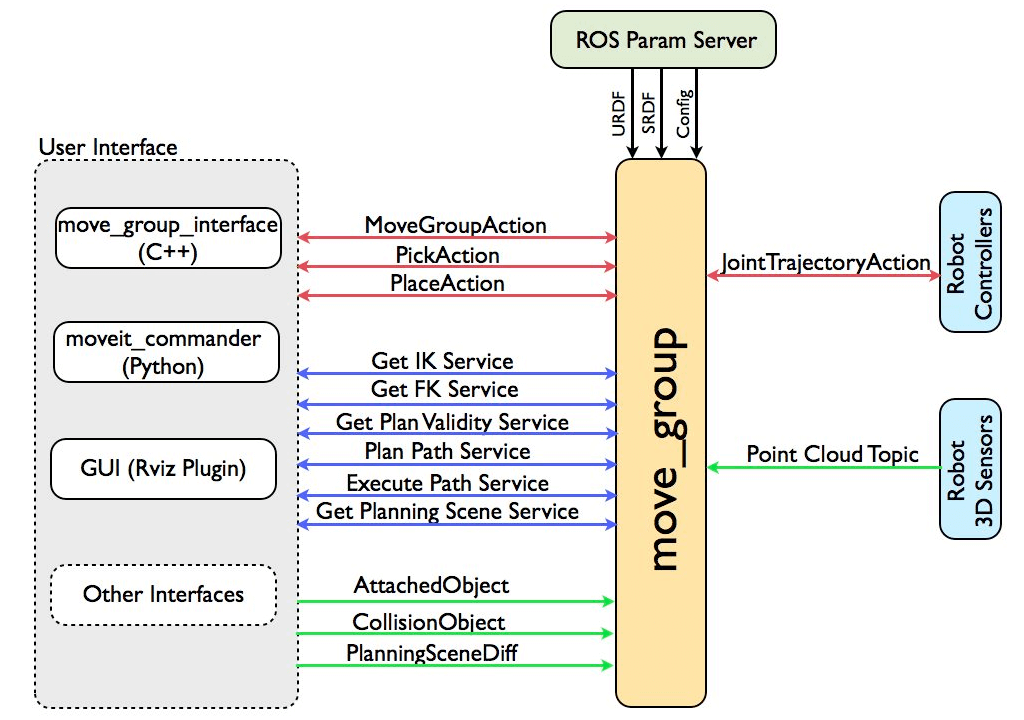
- 官方架构图里
move_group周围挂的,就是下面 4-2 到 4-7 这几块
4-1 介绍
move_group官方定位是 MoveIt 的"关键节点"(key node),也是用户跟 MoveIt 交互的唯一入口- 它的核心价值是集成:把运动学、规划场景、碰撞检测、规划器、控制器这些组件"捏"到一起,对外统一暴露
- 它自己不实现算法,算法都在各个插件/模块里------它只负责调度
说人话:
move_group就像公司里的"项目经理",自己不干活,但所有活都由它派下去------IK 找 A 组,碰撞找 B 组,规划找 C 组,然后它把结果汇总给你
4-2 核心模块
move_group内部按职责拆成五个核心模块:
#mermaid-svg-RdSkpoE9sXu5Lrji{font-family:"trebuchet ms",verdana,arial,sans-serif;font-size:16px;fill:#333;}@keyframes edge-animation-frame{from{stroke-dashoffset:0;}}@keyframes dash{to{stroke-dashoffset:0;}}#mermaid-svg-RdSkpoE9sXu5Lrji .edge-animation-slow{stroke-dasharray:9,5!important;stroke-dashoffset:900;animation:dash 50s linear infinite;stroke-linecap:round;}#mermaid-svg-RdSkpoE9sXu5Lrji .edge-animation-fast{stroke-dasharray:9,5!important;stroke-dashoffset:900;animation:dash 20s linear infinite;stroke-linecap:round;}#mermaid-svg-RdSkpoE9sXu5Lrji .error-icon{fill:#552222;}#mermaid-svg-RdSkpoE9sXu5Lrji .error-text{fill:#552222;stroke:#552222;}#mermaid-svg-RdSkpoE9sXu5Lrji .edge-thickness-normal{stroke-width:1px;}#mermaid-svg-RdSkpoE9sXu5Lrji .edge-thickness-thick{stroke-width:3.5px;}#mermaid-svg-RdSkpoE9sXu5Lrji .edge-pattern-solid{stroke-dasharray:0;}#mermaid-svg-RdSkpoE9sXu5Lrji .edge-thickness-invisible{stroke-width:0;fill:none;}#mermaid-svg-RdSkpoE9sXu5Lrji .edge-pattern-dashed{stroke-dasharray:3;}#mermaid-svg-RdSkpoE9sXu5Lrji .edge-pattern-dotted{stroke-dasharray:2;}#mermaid-svg-RdSkpoE9sXu5Lrji .marker{fill:#333333;stroke:#333333;}#mermaid-svg-RdSkpoE9sXu5Lrji .marker.cross{stroke:#333333;}#mermaid-svg-RdSkpoE9sXu5Lrji svg{font-family:"trebuchet ms",verdana,arial,sans-serif;font-size:16px;}#mermaid-svg-RdSkpoE9sXu5Lrji p{margin:0;}#mermaid-svg-RdSkpoE9sXu5Lrji .label{font-family:"trebuchet ms",verdana,arial,sans-serif;color:#333;}#mermaid-svg-RdSkpoE9sXu5Lrji .cluster-label text{fill:#333;}#mermaid-svg-RdSkpoE9sXu5Lrji .cluster-label span{color:#333;}#mermaid-svg-RdSkpoE9sXu5Lrji .cluster-label span p{background-color:transparent;}#mermaid-svg-RdSkpoE9sXu5Lrji .label text,#mermaid-svg-RdSkpoE9sXu5Lrji span{fill:#333;color:#333;}#mermaid-svg-RdSkpoE9sXu5Lrji .node rect,#mermaid-svg-RdSkpoE9sXu5Lrji .node circle,#mermaid-svg-RdSkpoE9sXu5Lrji .node ellipse,#mermaid-svg-RdSkpoE9sXu5Lrji .node polygon,#mermaid-svg-RdSkpoE9sXu5Lrji .node path{fill:#ECECFF;stroke:#9370DB;stroke-width:1px;}#mermaid-svg-RdSkpoE9sXu5Lrji .rough-node .label text,#mermaid-svg-RdSkpoE9sXu5Lrji .node .label text,#mermaid-svg-RdSkpoE9sXu5Lrji .image-shape .label,#mermaid-svg-RdSkpoE9sXu5Lrji .icon-shape .label{text-anchor:middle;}#mermaid-svg-RdSkpoE9sXu5Lrji .node .katex path{fill:#000;stroke:#000;stroke-width:1px;}#mermaid-svg-RdSkpoE9sXu5Lrji .rough-node .label,#mermaid-svg-RdSkpoE9sXu5Lrji .node .label,#mermaid-svg-RdSkpoE9sXu5Lrji .image-shape .label,#mermaid-svg-RdSkpoE9sXu5Lrji .icon-shape .label{text-align:center;}#mermaid-svg-RdSkpoE9sXu5Lrji .node.clickable{cursor:pointer;}#mermaid-svg-RdSkpoE9sXu5Lrji .root .anchor path{fill:#333333!important;stroke-width:0;stroke:#333333;}#mermaid-svg-RdSkpoE9sXu5Lrji .arrowheadPath{fill:#333333;}#mermaid-svg-RdSkpoE9sXu5Lrji .edgePath .path{stroke:#333333;stroke-width:2.0px;}#mermaid-svg-RdSkpoE9sXu5Lrji .flowchart-link{stroke:#333333;fill:none;}#mermaid-svg-RdSkpoE9sXu5Lrji .edgeLabel{background-color:rgba(232,232,232, 0.8);text-align:center;}#mermaid-svg-RdSkpoE9sXu5Lrji .edgeLabel p{background-color:rgba(232,232,232, 0.8);}#mermaid-svg-RdSkpoE9sXu5Lrji .edgeLabel rect{opacity:0.5;background-color:rgba(232,232,232, 0.8);fill:rgba(232,232,232, 0.8);}#mermaid-svg-RdSkpoE9sXu5Lrji .labelBkg{background-color:rgba(232, 232, 232, 0.5);}#mermaid-svg-RdSkpoE9sXu5Lrji .cluster rect{fill:#ffffde;stroke:#aaaa33;stroke-width:1px;}#mermaid-svg-RdSkpoE9sXu5Lrji .cluster text{fill:#333;}#mermaid-svg-RdSkpoE9sXu5Lrji .cluster span{color:#333;}#mermaid-svg-RdSkpoE9sXu5Lrji div.mermaidTooltip{position:absolute;text-align:center;max-width:200px;padding:2px;font-family:"trebuchet ms",verdana,arial,sans-serif;font-size:12px;background:hsl(80, 100%, 96.2745098039%);border:1px solid #aaaa33;border-radius:2px;pointer-events:none;z-index:100;}#mermaid-svg-RdSkpoE9sXu5Lrji .flowchartTitleText{text-anchor:middle;font-size:18px;fill:#333;}#mermaid-svg-RdSkpoE9sXu5Lrji rect.text{fill:none;stroke-width:0;}#mermaid-svg-RdSkpoE9sXu5Lrji .icon-shape,#mermaid-svg-RdSkpoE9sXu5Lrji .image-shape{background-color:rgba(232,232,232, 0.8);text-align:center;}#mermaid-svg-RdSkpoE9sXu5Lrji .icon-shape p,#mermaid-svg-RdSkpoE9sXu5Lrji .image-shape p{background-color:rgba(232,232,232, 0.8);padding:2px;}#mermaid-svg-RdSkpoE9sXu5Lrji .icon-shape .label rect,#mermaid-svg-RdSkpoE9sXu5Lrji .image-shape .label rect{opacity:0.5;background-color:rgba(232,232,232, 0.8);fill:rgba(232,232,232, 0.8);}#mermaid-svg-RdSkpoE9sXu5Lrji .label-icon{display:inline-block;height:1em;overflow:visible;vertical-align:-0.125em;}#mermaid-svg-RdSkpoE9sXu5Lrji .node .label-icon path{fill:currentColor;stroke:revert;stroke-width:revert;}#mermaid-svg-RdSkpoE9sXu5Lrji :root{--mermaid-font-family:"trebuchet ms",verdana,arial,sans-serif;} move_group
IK 逆运动学
Kinematics
Planning Scene 规划场景
Collision Detection 碰撞检测
Planning Pipeline 规划管线
OMPL
Trajectory Execution 轨迹执行
4-3 RobotModel
RobotModel是访问机械臂运动学的核心类- 官方 robot_model 教程原话:
RobotModel"contains the relationships between all links and joints including their joint limit properties as loaded from the URDF"------它装着 URDF 里所有连杆/关节的关系和关节限位属性
- 官方 robot_model 教程原话:
- 更重要的是:它会把连杆和关节按 SRDF 里定义的规划组 分组------所以你才能对
panda_arm这个组统一规划 - 它是"静态"的模型描述,不随时间变;每次加载机器人都要先建一个
RobotModel
说人话:
RobotModel就是机器人的"户口本"------谁连着谁、关节能转多少度、分属哪个组,全记在上面。它是静态的,机械臂动起来之后看的是 4-4 的 Planning Scene
4-4 Planning Scene
4-4-1 介绍
PlanningScene是"世界 + 机器人"的当前状态 (3-5 节 PSM 维护的那个对象)- 官方 collision 文档原话:碰撞检测在 planning scene 里通过
CollisionWorld对象进行,主要由 FCL(Flexible Collision Library)完成------FCL 是 MoveIt 主要的碰撞检测库
- 官方 collision 文档原话:碰撞检测在 planning scene 里通过
- 官方原话,碰撞检测支持三种物体:
- 网格 Mesh :
.stl/.dae文件描述的连杆或物体 - 基本形状 Primitive Shapes:盒子、圆柱、圆锥、球、平面
- Octomap:八叉树占用地图,可以直接用来做碰撞检测(对应传感器点云/深度图)
- 网格 Mesh :
4-4-2 ACM(Allowed Collision Matrix,允许碰撞矩阵)
- 还有个关键概念 ACM(Allowed Collision Matrix,允许碰撞矩阵)------碰撞检测很贵,官方说它 "often accounting for close to 90% of the computational expense during motion planning"
- ACM 用二进制矩阵记录"哪些物体对不用查碰撞"(比如永远够不着的、默认就接触着的),能大幅省时间
- 每个格子存的值不是简单的 0/1,官方 C++ 定义是一个三态枚举
AllowedCollision::Type:
cpp
// moveit_core/collision_detection/collision_matrix.h(官方定义)
namespace AllowedCollision
{
enum Type
{
  NEVER,       // 这对物体碰撞永不合法------一旦接触就算"碰撞状态"
  ALWAYS,      // 这对物体允许碰撞------直接跳过碰撞检查,省时间的关键
  CONDITIONAL  // 条件允许------是否查碰撞由回调函数(DecideContactFn)判断
};
}- ACM 在 ROS 消息里的官方形式是
AllowedCollisionMatrix.msg------一个名字列表 + 一个按名字顺序排好的对称方阵:
cpp
# moveit_msgs/AllowedCollisionMatrix.msg(官方消息定义)
# The list of entry names in the matrix
string[] entry_names                     # 所有参与碰撞检查的物体/连杆名
# square, symmetric, with same order as entry_names(官方注释:方阵、对称、与 entry_names 同序)
AllowedCollisionEntry[] entry_values     # 每个条目对应方阵的一行/一列

# 矩阵里查不到的对子,退回用默认条目兜底
string[] default_entry_names
bool[] default_entry_values- 其中每个
AllowedCollisionEntry就是一行 bool(官方注释原话:"whether or not collision checking is enabled"------这格要不要查碰撞):
cpp
# moveit_msgs/AllowedCollisionEntry.msg(官方消息定义)
# whether or not collision checking is enabled
bool[] enabled- SRDF 里的
disable_collisions(3-3 节看到的)就是初始化 ACM 用的------官方collision_matrix.cpp构造函数拿到getDisabledCollisionPairs()后逐对setEntry(link1, link2, true),true即"这对允许碰撞、跳过检查":
cpp
// moveit_core/collision_detection/collision_matrix.cpp(官方构造函数)
// *finally* disable selected collision pairs
for (auto const& collision : srdf.getDisabledCollisionPairs())
setEntry(collision.link1_, collision.link2_, true);- 拿 Panda 真实数据看最直观,官方
panda.srdf里就是一行行disable_collisions:
xml
<disable_collisions link1="panda_link0" link2="panda_link1" reason="Adjacent"/>
<disable_collisions link1="panda_link0" link2="panda_link2" reason="Never"/>
<disable_collisions link1="panda_link0" link2="panda_link3" reason="Never"/>
<disable_collisions link1="panda_link1" link2="panda_link2" reason="Adjacent"/>
<disable_collisions link1="panda_link1" link2="panda_link3" reason="Never"/>
<disable_collisions link1="panda_link2" link2="panda_link3" reason="Adjacent"/>- 翻译成 ACM 就是一张对称表(✓ = 免检,即
ALWAYS):
| panda_link0 | panda_link1 | panda_link2 | panda_link3 | |
|---|---|---|---|---|
| panda_link0 | --- | ✓ Adjacent | ✓ Never | ✓ Never |
| panda_link1 | ✓ | --- | ✓ Adjacent | ✓ Never |
| panda_link2 | ✓ | ✓ | --- | ✓ Adjacent |
| panda_link3 | ✓ | ✓ | ✓ | --- |
reason看真实数据就能对上:Adjacent 的都是相邻连杆(共用一个关节、天生贴在一起,不用查),Never 的都是隔了几节的连杆(物理上永远碰不到,也不用查)------最终都映射成ALWAYS,跳过碰撞检查- 所以点云生成的 Octomap 就是"世界障碍"------它不在 ACM 豁免名单里,没有免检资格,碰撞检测照做,规划器自然绕着它走
说人话:Planning Scene 就是 move_group 眼里的"世界快照"------机器人在哪、周围有什么障碍物。碰撞检测就是拿这张快照去查"会不会撞"。ACM 是张"免检清单",把永远碰不到的对子记下来,省得每次规划都白查
4-5 Kinematics
- 运动学模块解决"末端位姿 ↔ 关节角"的换算
- 官方 kinematics 文档原话:"Forward kinematics and finding jacobians is integrated within the
RobotStateclass itself"------正运动学和雅可比直接内建在RobotState里,不用额外配置
- 官方 kinematics 文档原话:"Forward kinematics and finding jacobians is integrated within the
- 逆运动学是插件式的:默认用 KDL 数值求解器,基于雅可比迭代(正是第一期 3-3 节数值法的工程实现)
- 配置在
kinematics.yaml里(3-2 节 builder 自动读的)
yaml
panda_arm:
  kinematics_solver: kdl_kinematics_plugin/KDLKinematicsPlugin
  kinematics_solver_search_resolution: 0.005
  kinematics_solver_timeout: 0.05
一句话:先用 Kinematics 把"末端要去的位姿"用 IK 换算成"目标关节角"------因为 OMPL 是在关节空间规划的,只认关节角、不认末端位姿
4-6 Planning Pipeline
4-6-1 路径规划模块
- 规划管线模块负责"从 A 到 B 怎么走"
- 官方原话:"MoveIt works with motion planners through a plugin interface"------不同规划器是插件,装进去就能用
- demo 里有三条:
ompl(默认)、chomp、pilz_industrial_motion_planner,各自特点:- OMPL:采样式规划库,包含 RRT、RRTConnect、PRM、RRTstar 等一大堆算法,默认主力
- CHOMP:基于轨迹优化,输出更平滑
- Pilz:工业标准规划器,提供 PTP、LIN、CIRC 指令,符合工业习惯
也就是三选一,默认使用OMPL
4-6-2 轨迹规划模块
- 官方 trajectory processing 文档原话:运动规划器通常只生成 "paths"(没有时间信息的路径),MoveIt 用 trajectory processing 算法给它加上时间参数化 ,遵守
joint_limits.yaml里的速度/加速度限制;官方推荐算法是 TOTG(TimeOptimalTrajectoryGeneration),前提是机械臂起止都要静止,默认时间步长 0.1s - 管线里还有一层关键部件叫 Planning Request Adapters(规划请求适配器) ,做规划前后的加工(官方原话:pre-processing motion plan requests and post-processing motion plan responses),官方列了几个默认的:
FixStartStateBounds:把略超关节限位的起点"拉"回限位内FixStartStateCollision:起点在碰撞里时,微小扰动采样一个新的无碰撞起点FixWorkspaceBounds:没给工作空间就默认 10m x 10m x 10m 的立方体AddTimeParameterization/AddTimeOptimalParameterization:给没有时间的路径加上时间参数化(速度/加速度约束)------就是第一期第 6 章轨迹规划的官方实现ResolveConstraintFrames:把子坐标系上的约束换算到物体/机器人坐标系FixStartStatePathConstraints:起点不满足路径约束时,先规划一条子路径把起点带到一个满足约束的位形,再以它为新起点做正式规划(官方 motion_planning 文档定义)
- OMPL 的算法参数全在
ompl_planning.yaml的planner_configs里
yaml
# ===== 顶层:选哪个规划插件 =====
# 官方插件接口原话:MoveIt works with motion planners through a plugin interface
# 这一行告诉 move_group:运动规划用 OMPL 这个插件
planning_plugin: ompl_interface/OMPLPlanner
# ===== 规划请求适配器(规划前/后加工,逐个作用见上面正文 4-6 的列表) =====
# 注意:>- 是折叠块字符串,6 个适配器会串成一条传给 move_group,所以下面的行内不能再加注释
request_adapters: >-
  default_planner_request_adapters/AddTimeOptimalParameterization
  default_planner_request_adapters/ResolveConstraintFrames
  default_planner_request_adapters/FixWorkspaceBounds
  default_planner_request_adapters/FixStartStateBounds
  default_planner_request_adapters/FixStartStateCollision
  default_planner_request_adapters/FixStartStatePathConstraints
# 起点状态超出关节限位的最大允许误差(弧度)------超了就会用上面的 FixStartStateBounds 修正
start_state_max_bounds_error: 0.1
# ===== planner_configs:每种算法的默认参数集 =====
# 每个 <名字>kConfigDefault 是「一种算法 + 一组默认参数」;下面各规划组再从中挑选能用的算法
planner_configs:
  # 24 种是 OMPL 自带的全家福,逐个介绍留到后面讲规划算法时再展开;这里只标注几个最常用的
  SBLkConfigDefault:
    type: geometric::SBL
    range: 0.0  # Max motion added to tree. ==> maxDistance_ default: 0.0, if 0.0, set on setup()
  ESTkConfigDefault:
    type: geometric::EST
    range: 0.0  # Max motion added to tree. ==> maxDistance_ default: 0.0, if 0.0 setup()
    goal_bias: 0.05  # When close to goal select goal, with this probability. default: 0.05
  LBKPIECEkConfigDefault:
    type: geometric::LBKPIECE
    range: 0.0  # Max motion added to tree. ==> maxDistance_ default: 0.0, if 0.0, set on setup()
    border_fraction: 0.9  # Fraction of time focused on boarder default: 0.9
    min_valid_path_fraction: 0.5  # Accept partially valid moves above fraction. default: 0.5
  BKPIECEkConfigDefault:
    type: geometric::BKPIECE
    range: 0.0  # Max motion added to tree. ==> maxDistance_ default: 0.0, if 0.0, set on setup()
    border_fraction: 0.9  # Fraction of time focused on boarder default: 0.9
    failed_expansion_score_factor: 0.5  # When extending motion fails, scale score by factor. default: 0.5
    min_valid_path_fraction: 0.5  # Accept partially valid moves above fraction. default: 0.5
  KPIECEkConfigDefault:
    type: geometric::KPIECE
    range: 0.0  # Max motion added to tree. ==> maxDistance_ default: 0.0, if 0.0, set on setup()
    goal_bias: 0.05  # When close to goal select goal, with this probability. default: 0.05
    border_fraction: 0.9  # Fraction of time focused on boarder default: 0.9 (0.0,1.]
    failed_expansion_score_factor: 0.5  # When extending motion fails, scale score by factor. default: 0.5
    min_valid_path_fraction: 0.5  # Accept partially valid moves above fraction. default: 0.5
  # RRT:快速探索随机树,最经典的采样算法
  RRTkConfigDefault:
    type: geometric::RRT
    range: 0.0  # Max motion added to tree. ==> maxDistance_ default: 0.0, if 0.0, set on setup()
    goal_bias: 0.05  # When close to goal select goal, with this probability? default: 0.05
  # RRTConnect:双向 RRT,起点终点同时长树、收敛快------机械臂场景最常用的默认规划器
  RRTConnectkConfigDefault:
    type: geometric::RRTConnect
    range: 0.0  # Max motion added to tree. ==> maxDistance_ default: 0.0, if 0.0, set on setup()
  # RRTstar:RRT 的渐进最优版本,规划时间越长路径越好
  RRTstarkConfigDefault:
    type: geometric::RRTstar
    range: 0.0  # Max motion added to tree. ==> maxDistance_ default: 0.0, if 0.0, set on setup()
    goal_bias: 0.05  # When close to goal select goal, with this probability? default: 0.05
    delay_collision_checking: 1  # Stop collision checking as soon as C-free parent found. default 1
  TRRTkConfigDefault:
    type: geometric::TRRT
    range: 0.0  # Max motion added to tree. ==> maxDistance_ default: 0.0, if 0.0, set on setup()
    goal_bias: 0.05  # When close to goal select goal, with this probability. default: 0.05
    max_states_failed: 10  # when to start increasing temp. default: 10
    temp_change_factor: 2.0  # how much to increase or decrease temp. default: 2.0
    min_temperature: 10e-10  # lower limit of temp change. default: 10e-10
    init_temperature: 10e-6  # initial temperature. default: 10e-6
    frountier_threshold: 0.0  # dist new state to nearest neighbor to disqualify as frontier. default: 0.0 set in setup()
    frountierNodeRatio: 0.1  # 1/10, or 1 nonfrontier for every 10 frontier. default: 0.1
    k_constant: 0.0  # value used to normalize expresssion. default: 0.0 set in setup()
  # PRM:概率路标图------先随机采样建图,再在图上搜路径
  PRMkConfigDefault:
    type: geometric::PRM
    max_nearest_neighbors: 10  # use k nearest neighbors. default: 10
  PRMstarkConfigDefault:
    type: geometric::PRMstar
  FMTkConfigDefault:
    type: geometric::FMT
    num_samples: 1000  # number of states that the planner should sample. default: 1000
    radius_multiplier: 1.1  # multiplier used for the nearest neighbors search radius. default: 1.1
    nearest_k: 1  # use Knearest strategy. default: 1
    cache_cc: 1  # use collision checking cache. default: 1
    heuristics: 0  # activate cost to go heuristics. default: 0
    extended_fmt: 1  # activate the extended FMT*: adding new samples if planner does not finish successfully. default: 1
  BFMTkConfigDefault:
    type: geometric::BFMT
    num_samples: 1000  # number of states that the planner should sample. default: 1000
    radius_multiplier: 1.0  # multiplier used for the nearest neighbors search radius. default: 1.0
    nearest_k: 1  # use the Knearest strategy. default: 1
    balanced: 0  # exploration strategy: balanced true expands one tree every iteration. False will select the tree with lowest maximum cost to go. default: 1
    optimality: 1  # termination strategy: optimality true finishes when the best possible path is found. Otherwise, the algorithm will finish when the first feasible path is found. default: 1
    heuristics: 1  # activates cost to go heuristics. default: 1
    cache_cc: 1  # use the collision checking cache. default: 1
    extended_fmt: 1  # Activates the extended FMT*: adding new samples if planner does not finish successfully. default: 1
  PDSTkConfigDefault:
    type: geometric::PDST
  STRIDEkConfigDefault:
    type: geometric::STRIDE
    range: 0.0  # Max motion added to tree. ==> maxDistance_ default: 0.0, if 0.0, set on setup()
    goal_bias: 0.05  # When close to goal select goal, with this probability. default: 0.05
    use_projected_distance: 0  # whether nearest neighbors are computed based on distances in a projection of the state rather distances in the state space itself. default: 0
    degree: 16  # desired degree of a node in the Geometric Near-neightbor Access Tree (GNAT). default: 16
    max_degree: 18  # max degree of a node in the GNAT. default: 12
    min_degree: 12  # min degree of a node in the GNAT. default: 12
    max_pts_per_leaf: 6  # max points per leaf in the GNAT. default: 6
    estimated_dimension: 0.0  # estimated dimension of the free space. default: 0.0
    min_valid_path_fraction: 0.2  # Accept partially valid moves above fraction. default: 0.2
  BiTRRTkConfigDefault:
    type: geometric::BiTRRT
    range: 0.0  # Max motion added to tree. ==> maxDistance_ default: 0.0, if 0.0, set on setup()
    temp_change_factor: 0.1  # how much to increase or decrease temp. default: 0.1
    init_temperature: 100  # initial temperature. default: 100
    frountier_threshold: 0.0  # dist new state to nearest neighbor to disqualify as frontier. default: 0.0 set in setup()
    frountier_node_ratio: 0.1  # 1/10, or 1 nonfrontier for every 10 frontier. default: 0.1
    cost_threshold: 1e300  # the cost threshold. Any motion cost that is not better will not be expanded. default: inf
  LBTRRTkConfigDefault:
    type: geometric::LBTRRT
    range: 0.0  # Max motion added to tree. ==> maxDistance_ default: 0.0, if 0.0, set on setup()
    goal_bias: 0.05  # When close to goal select goal, with this probability. default: 0.05
    epsilon: 0.4  # optimality approximation factor. default: 0.4
  BiESTkConfigDefault:
    type: geometric::BiEST
    range: 0.0  # Max motion added to tree. ==> maxDistance_ default: 0.0, if 0.0, set on setup()
  ProjESTkConfigDefault:
    type: geometric::ProjEST
    range: 0.0  # Max motion added to tree. ==> maxDistance_ default: 0.0, if 0.0, set on setup()
    goal_bias: 0.05  # When close to goal select goal, with this probability. default: 0.05
  LazyPRMkConfigDefault:
    type: geometric::LazyPRM
    range: 0.0  # Max motion added to tree. ==> maxDistance_ default: 0.0, if 0.0, set on setup()
  LazyPRMstarkConfigDefault:
    type: geometric::LazyPRMstar
  SPARSkConfigDefault:
    type: geometric::SPARS
    stretch_factor: 3.0  # roadmap spanner stretch factor. multiplicative upper bound on path quality. It does not make sense to make this parameter more than 3. default: 3.0
    sparse_delta_fraction: 0.25  # delta fraction for connection distance. This value represents the visibility range of sparse samples. default: 0.25
    dense_delta_fraction: 0.001  # delta fraction for interface detection. default: 0.001
    max_failures: 1000  # maximum consecutive failure limit. default: 1000
  SPARStwokConfigDefault:
    type: geometric::SPARStwo
    stretch_factor: 3.0  # roadmap spanner stretch factor. multiplicative upper bound on path quality. It does not make sense to make this parameter more than 3. default: 3.0
    sparse_delta_fraction: 0.25  # delta fraction for connection distance. This value represents the visibility range of sparse samples. default: 0.25
    dense_delta_fraction: 0.001  # delta fraction for interface detection. default: 0.001
    max_failures: 5000  # maximum consecutive failure limit. default: 5000
  # TrajOpt:轨迹优化(非采样类,对已规划路径做局部优化)
  TrajOptDefault:
    type: geometric::TrajOpt

# ===== 规划组:panda_arm(手臂)可用的算法 =====
panda_arm:
  planner_configs:
    - SBLkConfigDefault
    - ESTkConfigDefault
    - LBKPIECEkConfigDefault
    - BKPIECEkConfigDefault
    - KPIECEkConfigDefault
    - RRTkConfigDefault
    - RRTConnectkConfigDefault
    - RRTstarkConfigDefault
    - TRRTkConfigDefault
    - PRMkConfigDefault
    - PRMstarkConfigDefault
    - FMTkConfigDefault
    - BFMTkConfigDefault
    - PDSTkConfigDefault
    - STRIDEkConfigDefault
    - BiTRRTkConfigDefault
    - LBTRRTkConfigDefault
    - BiESTkConfigDefault
    - ProjESTkConfigDefault
    - LazyPRMkConfigDefault
    - LazyPRMstarkConfigDefault
    - SPARSkConfigDefault
    - SPARStwokConfigDefault
    - TrajOptDefault
# ===== 规划组:panda_arm_hand(整臂 + 夹爪)可用的算法(同上) =====
panda_arm_hand:
  planner_configs:
    - SBLkConfigDefault
    - ESTkConfigDefault
    - LBKPIECEkConfigDefault
    - BKPIECEkConfigDefault
    - KPIECEkConfigDefault
    - RRTkConfigDefault
    - RRTConnectkConfigDefault
    - RRTstarkConfigDefault
    - TRRTkConfigDefault
    - PRMkConfigDefault
    - PRMstarkConfigDefault
    - FMTkConfigDefault
    - BFMTkConfigDefault
    - PDSTkConfigDefault
    - STRIDEkConfigDefault
    - BiTRRTkConfigDefault
    - LBTRRTkConfigDefault
    - BiESTkConfigDefault
    - ProjESTkConfigDefault
    - LazyPRMkConfigDefault
    - LazyPRMstarkConfigDefault
    - SPARSkConfigDefault
    - SPARStwokConfigDefault
    - TrajOptDefault
# ===== 规划组:hand(夹爪)可用的算法(同上) =====
hand:
  planner_configs:
    - SBLkConfigDefault
    - ESTkConfigDefault
    - LBKPIECEkConfigDefault
    - BKPIECEkConfigDefault
    - KPIECEkConfigDefault
    - RRTkConfigDefault
    - RRTConnectkConfigDefault
    - RRTstarkConfigDefault
    - TRRTkConfigDefault
    - PRMkConfigDefault
    - PRMstarkConfigDefault
    - FMTkConfigDefault
    - BFMTkConfigDefault
    - PDSTkConfigDefault
    - STRIDEkConfigDefault
    - BiTRRTkConfigDefault
    - LBTRRTkConfigDefault
    - BiESTkConfigDefault
    - ProjESTkConfigDefault
    - LazyPRMkConfigDefault
    - LazyPRMstarkConfigDefault
    - SPARSkConfigDefault
    - SPARStwokConfigDefault
    - TrajOptDefault
说人话:Planning Pipeline 就是"导航 App"------OMPL、CHOMP 是不同公司做的"路线算法",request adapters 是出发前的"检查清单"(油箱加满没、起点能不能停、终点范围多大)。App 先过检查清单,再调用算法,最后把带时间戳的路线吐给你
4-7 Trajectory Execution
- 轨迹执行模块把"规划出来的轨迹"真正发给控制器
- 时间参数化(TOTG)在上一节(4-6)规划管线里就做完了,交到执行这步的已经是带时间轴的 trajectory
- 但轨迹该发给谁,由 3-4 节加载的这份
gripper_moveit_controllers.yaml决定 gripper_moveit_controllers.yaml
yaml
# MoveIt uses this configuration for controller management
# (官方文件自带的首行注释:MoveIt 用这份配置做"控制器管理"------规划出的轨迹该交给谁)

trajectory_execution:
  # 允许的执行时长 = 期望时长 * scaling + margin,一旦超时,轨迹会被取消(官方原话)
  # 这里 1.2 表示:允许比理论执行时长多出 20%
  allowed_execution_duration_scaling: 1.2
  # 在缩放之后再额外多给的宽限时间(秒),达到这个上限才触发轨迹取消
  allowed_goal_duration_margin: 0.5
  # 校验"轨迹第一点"和"当前关节状态"是否一致的关节值容差
  # 官方原话:If set to zero will skip waiting for robot to stop after execution
  allowed_start_tolerance: 0.01

# 指定用哪个 controller manager 插件
# 官方原话:如果你的机器人控制器已经提供了 FollowJointTrajectory 的 ROS action,用 MoveItSimpleControllerManager 就够了
moveit_controller_manager: moveit_simple_controller_manager/MoveItSimpleControllerManager

moveit_simple_controller_manager:
  # 列出机器人上所有可用的控制器
  controller_names:
    - panda_arm_controller    # 机械臂控制器
    - panda_hand_controller   # 夹爪控制器

  # ---- 机械臂:走 FollowJointTrajectory action(关节轨迹) ----
  panda_arm_controller:
    # action 命名空间,官方调试说明:接口必须位于 /panda_arm_controller/follow_joint_trajectory 命名空间下
    # 也就是该命名空间下的 goal / feedback / result 一组 topic
    action_ns: follow_joint_trajectory
    type: FollowJointTrajectory   # 接口类型:关节轨迹控制(MoveIt 发布机械臂运动命令走的接口)
    default: true                 # 默认控制器:MoveIt 默认用它跟这组关节通信
    joints:                       # 这个控制器负责的关节
      - panda_joint1
      - panda_joint2
      - panda_joint3
      - panda_joint4
      - panda_joint5
      - panda_joint6
      - panda_joint7

  # ---- 夹爪:走 GripperCommand action(平行夹爪指令) ----
  panda_hand_controller:
    # action 命名空间,官方调试说明:接口必须位于 /panda_hand_controller/gripper_cmd 这个命名空间下
    action_ns: gripper_cmd
    type: GripperCommand         # 接口类型:平行夹爪指令
    default: true                # 默认控制器
    joints:
      # 夹爪关节;这里没写 command_joint,官方默认取 joints 里第一个(panda_finger_joint1)作为唯一发送给控制器的指令关节
- panda_finger_joint1- 也就是说:手臂轨迹走
follow_joint_trajectoryaction,夹爪指令走gripper_cmdaction- 这样
move_group规划完就知道"手上的轨迹该发给谁"
- 这样
- 然后按这份
gripper_moveit_controllers.yaml配置,通过FollowJointTrajectoryAction发给panda_arm_controller,由ros2_control执行 - 这一整段对应的正是第一期第 6 章的轨迹规划 + 第 7 章的控制:规划器给路径,时间参数化给速度/加速度,控制器负责"逼真"执行
4-8 完整的流程
- 把 4-3 到 4-7 串起来,一次规划请求在
move_group内的完整路径:
#mermaid-svg-tKQSNXXTZyQKyLqm{font-family:"trebuchet ms",verdana,arial,sans-serif;font-size:16px;fill:#333;}@keyframes edge-animation-frame{from{stroke-dashoffset:0;}}@keyframes dash{to{stroke-dashoffset:0;}}#mermaid-svg-tKQSNXXTZyQKyLqm .edge-animation-slow{stroke-dasharray:9,5!important;stroke-dashoffset:900;animation:dash 50s linear infinite;stroke-linecap:round;}#mermaid-svg-tKQSNXXTZyQKyLqm .edge-animation-fast{stroke-dasharray:9,5!important;stroke-dashoffset:900;animation:dash 20s linear infinite;stroke-linecap:round;}#mermaid-svg-tKQSNXXTZyQKyLqm .error-icon{fill:#552222;}#mermaid-svg-tKQSNXXTZyQKyLqm .error-text{fill:#552222;stroke:#552222;}#mermaid-svg-tKQSNXXTZyQKyLqm .edge-thickness-normal{stroke-width:1px;}#mermaid-svg-tKQSNXXTZyQKyLqm .edge-thickness-thick{stroke-width:3.5px;}#mermaid-svg-tKQSNXXTZyQKyLqm .edge-pattern-solid{stroke-dasharray:0;}#mermaid-svg-tKQSNXXTZyQKyLqm .edge-thickness-invisible{stroke-width:0;fill:none;}#mermaid-svg-tKQSNXXTZyQKyLqm .edge-pattern-dashed{stroke-dasharray:3;}#mermaid-svg-tKQSNXXTZyQKyLqm .edge-pattern-dotted{stroke-dasharray:2;}#mermaid-svg-tKQSNXXTZyQKyLqm .marker{fill:#333333;stroke:#333333;}#mermaid-svg-tKQSNXXTZyQKyLqm .marker.cross{stroke:#333333;}#mermaid-svg-tKQSNXXTZyQKyLqm svg{font-family:"trebuchet ms",verdana,arial,sans-serif;font-size:16px;}#mermaid-svg-tKQSNXXTZyQKyLqm p{margin:0;}#mermaid-svg-tKQSNXXTZyQKyLqm .label{font-family:"trebuchet ms",verdana,arial,sans-serif;color:#333;}#mermaid-svg-tKQSNXXTZyQKyLqm .cluster-label text{fill:#333;}#mermaid-svg-tKQSNXXTZyQKyLqm .cluster-label span{color:#333;}#mermaid-svg-tKQSNXXTZyQKyLqm .cluster-label span p{background-color:transparent;}#mermaid-svg-tKQSNXXTZyQKyLqm .label text,#mermaid-svg-tKQSNXXTZyQKyLqm span{fill:#333;color:#333;}#mermaid-svg-tKQSNXXTZyQKyLqm .node rect,#mermaid-svg-tKQSNXXTZyQKyLqm .node circle,#mermaid-svg-tKQSNXXTZyQKyLqm .node ellipse,#mermaid-svg-tKQSNXXTZyQKyLqm .node polygon,#mermaid-svg-tKQSNXXTZyQKyLqm .node path{fill:#ECECFF;stroke:#9370DB;stroke-width:1px;}#mermaid-svg-tKQSNXXTZyQKyLqm .rough-node .label text,#mermaid-svg-tKQSNXXTZyQKyLqm .node .label text,#mermaid-svg-tKQSNXXTZyQKyLqm .image-shape .label,#mermaid-svg-tKQSNXXTZyQKyLqm .icon-shape .label{text-anchor:middle;}#mermaid-svg-tKQSNXXTZyQKyLqm .node .katex path{fill:#000;stroke:#000;stroke-width:1px;}#mermaid-svg-tKQSNXXTZyQKyLqm .rough-node .label,#mermaid-svg-tKQSNXXTZyQKyLqm .node .label,#mermaid-svg-tKQSNXXTZyQKyLqm .image-shape .label,#mermaid-svg-tKQSNXXTZyQKyLqm .icon-shape .label{text-align:center;}#mermaid-svg-tKQSNXXTZyQKyLqm .node.clickable{cursor:pointer;}#mermaid-svg-tKQSNXXTZyQKyLqm .root .anchor path{fill:#333333!important;stroke-width:0;stroke:#333333;}#mermaid-svg-tKQSNXXTZyQKyLqm .arrowheadPath{fill:#333333;}#mermaid-svg-tKQSNXXTZyQKyLqm .edgePath .path{stroke:#333333;stroke-width:2.0px;}#mermaid-svg-tKQSNXXTZyQKyLqm .flowchart-link{stroke:#333333;fill:none;}#mermaid-svg-tKQSNXXTZyQKyLqm .edgeLabel{background-color:rgba(232,232,232, 0.8);text-align:center;}#mermaid-svg-tKQSNXXTZyQKyLqm .edgeLabel p{background-color:rgba(232,232,232, 0.8);}#mermaid-svg-tKQSNXXTZyQKyLqm .edgeLabel rect{opacity:0.5;background-color:rgba(232,232,232, 0.8);fill:rgba(232,232,232, 0.8);}#mermaid-svg-tKQSNXXTZyQKyLqm .labelBkg{background-color:rgba(232, 232, 232, 0.5);}#mermaid-svg-tKQSNXXTZyQKyLqm .cluster rect{fill:#ffffde;stroke:#aaaa33;stroke-width:1px;}#mermaid-svg-tKQSNXXTZyQKyLqm .cluster text{fill:#333;}#mermaid-svg-tKQSNXXTZyQKyLqm .cluster span{color:#333;}#mermaid-svg-tKQSNXXTZyQKyLqm div.mermaidTooltip{position:absolute;text-align:center;max-width:200px;padding:2px;font-family:"trebuchet ms",verdana,arial,sans-serif;font-size:12px;background:hsl(80, 100%, 96.2745098039%);border:1px solid #aaaa33;border-radius:2px;pointer-events:none;z-index:100;}#mermaid-svg-tKQSNXXTZyQKyLqm .flowchartTitleText{text-anchor:middle;font-size:18px;fill:#333;}#mermaid-svg-tKQSNXXTZyQKyLqm rect.text{fill:none;stroke-width:0;}#mermaid-svg-tKQSNXXTZyQKyLqm .icon-shape,#mermaid-svg-tKQSNXXTZyQKyLqm .image-shape{background-color:rgba(232,232,232, 0.8);text-align:center;}#mermaid-svg-tKQSNXXTZyQKyLqm .icon-shape p,#mermaid-svg-tKQSNXXTZyQKyLqm .image-shape p{background-color:rgba(232,232,232, 0.8);padding:2px;}#mermaid-svg-tKQSNXXTZyQKyLqm .icon-shape .label rect,#mermaid-svg-tKQSNXXTZyQKyLqm .image-shape .label rect{opacity:0.5;background-color:rgba(232,232,232, 0.8);fill:rgba(232,232,232, 0.8);}#mermaid-svg-tKQSNXXTZyQKyLqm .label-icon{display:inline-block;height:1em;overflow:visible;vertical-align:-0.125em;}#mermaid-svg-tKQSNXXTZyQKyLqm .node .label-icon path{fill:currentColor;stroke:revert;stroke-width:revert;}#mermaid-svg-tKQSNXXTZyQKyLqm :root{--mermaid-font-family:"trebuchet ms",verdana,arial,sans-serif;} RobotTrajectory
MoveGroup
Planning Scene
当前世界+机器人状态
IK 逆运动学
Planning Pipeline
OMPL
Trajectory Execution
Controller
ros2_control
- 一句话:MoveGroup → Planning Scene → IK → Planning Pipeline → Controller
- move_group 规划完、要执行了------但它自己不会动关节。
- 因为"执行"这一步,move_group 只是 FollowJointTrajectory action 的客户端(client) ,轨迹实际是发给 ros2_control 的 controller 的
panda_arm_controller是一个JointTrajectoryController,在/follow_joint_trajectory话题上开着 action server ------4-7 节那份gripper_moveit_controllers.yaml干的就是告诉 move_group"往这个 action 发"- move_group 把轨迹作为 action 目标发过去,controller 接住后再驱动硬件接口(真机驱动 / FakeSystem 仿真),自己一根关节线都不用动
- 所以执行链是:move_group(客户端)→
/follow_joint_trajectoryaction → controller(服务端)→ 硬件接口 → 真机/仿真
5 MoveGroupInterface
5-1 介绍
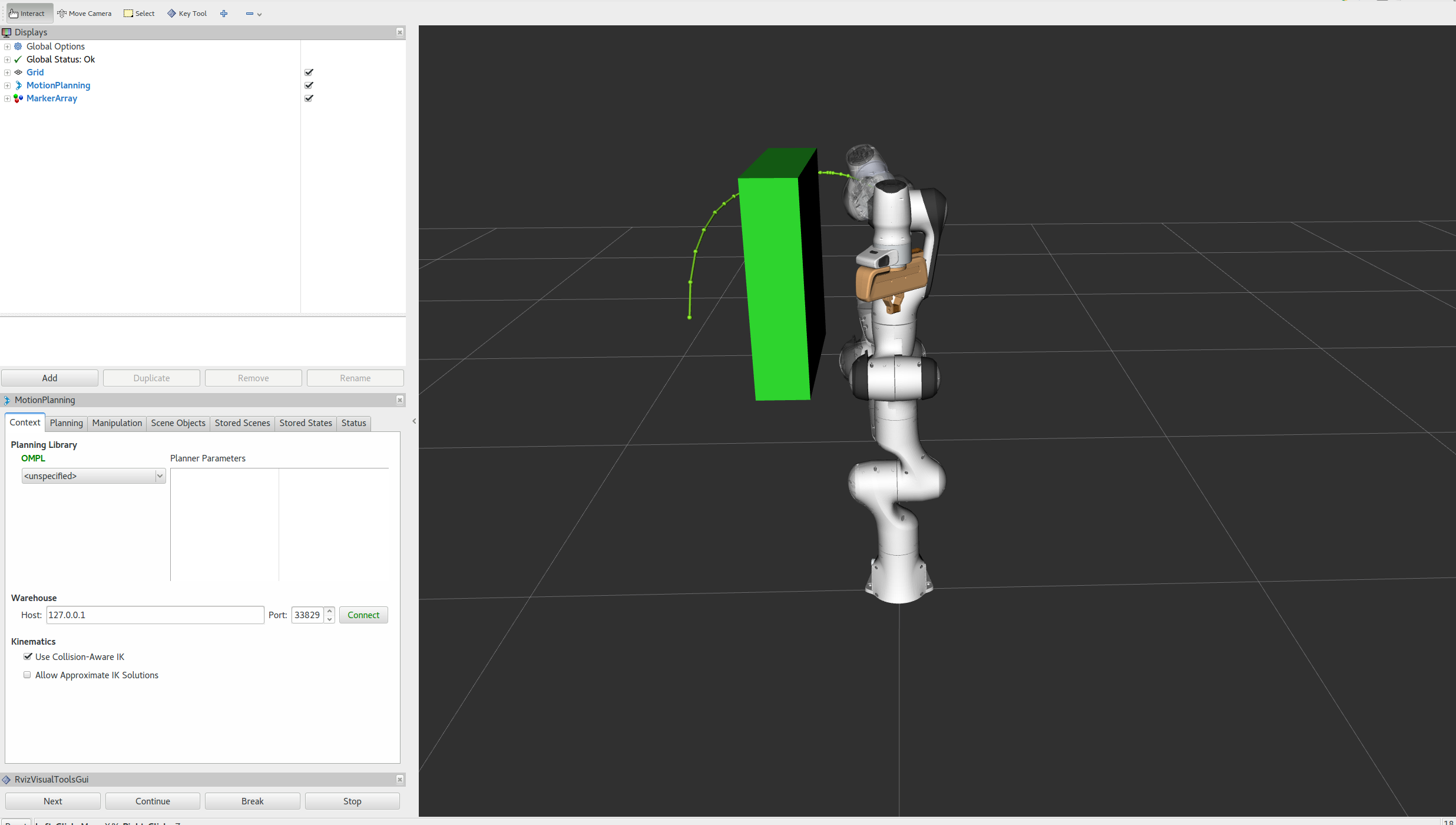
- 用户代码怎么用
move_group?官方给出的最简单方式就是MoveGroupInterface- 官方 move_group_interface 教程原话:"In MoveIt, the simplest user interface is through the MoveGroupInterface class. It provides easy to use functionality for most operations that a user may want to carry out, specifically setting joint or pose goals, creating motion plans, moving the robot, adding objects into the environment and attaching/detaching objects from the robot."
- 也就是:设目标、做规划、移动机器人、加/挂物体------最常用的操作全被它封装好了
- 它底层通过 ROS 的话题/服务/action 跟
move_group节点通信(官方原话)
#mermaid-svg-ZnDQG7o3a5QzGKJQ{font-family:"trebuchet ms",verdana,arial,sans-serif;font-size:16px;fill:#333;}@keyframes edge-animation-frame{from{stroke-dashoffset:0;}}@keyframes dash{to{stroke-dashoffset:0;}}#mermaid-svg-ZnDQG7o3a5QzGKJQ .edge-animation-slow{stroke-dasharray:9,5!important;stroke-dashoffset:900;animation:dash 50s linear infinite;stroke-linecap:round;}#mermaid-svg-ZnDQG7o3a5QzGKJQ .edge-animation-fast{stroke-dasharray:9,5!important;stroke-dashoffset:900;animation:dash 20s linear infinite;stroke-linecap:round;}#mermaid-svg-ZnDQG7o3a5QzGKJQ .error-icon{fill:#552222;}#mermaid-svg-ZnDQG7o3a5QzGKJQ .error-text{fill:#552222;stroke:#552222;}#mermaid-svg-ZnDQG7o3a5QzGKJQ .edge-thickness-normal{stroke-width:1px;}#mermaid-svg-ZnDQG7o3a5QzGKJQ .edge-thickness-thick{stroke-width:3.5px;}#mermaid-svg-ZnDQG7o3a5QzGKJQ .edge-pattern-solid{stroke-dasharray:0;}#mermaid-svg-ZnDQG7o3a5QzGKJQ .edge-thickness-invisible{stroke-width:0;fill:none;}#mermaid-svg-ZnDQG7o3a5QzGKJQ .edge-pattern-dashed{stroke-dasharray:3;}#mermaid-svg-ZnDQG7o3a5QzGKJQ .edge-pattern-dotted{stroke-dasharray:2;}#mermaid-svg-ZnDQG7o3a5QzGKJQ .marker{fill:#333333;stroke:#333333;}#mermaid-svg-ZnDQG7o3a5QzGKJQ .marker.cross{stroke:#333333;}#mermaid-svg-ZnDQG7o3a5QzGKJQ svg{font-family:"trebuchet ms",verdana,arial,sans-serif;font-size:16px;}#mermaid-svg-ZnDQG7o3a5QzGKJQ p{margin:0;}#mermaid-svg-ZnDQG7o3a5QzGKJQ .label{font-family:"trebuchet ms",verdana,arial,sans-serif;color:#333;}#mermaid-svg-ZnDQG7o3a5QzGKJQ .cluster-label text{fill:#333;}#mermaid-svg-ZnDQG7o3a5QzGKJQ .cluster-label span{color:#333;}#mermaid-svg-ZnDQG7o3a5QzGKJQ .cluster-label span p{background-color:transparent;}#mermaid-svg-ZnDQG7o3a5QzGKJQ .label text,#mermaid-svg-ZnDQG7o3a5QzGKJQ span{fill:#333;color:#333;}#mermaid-svg-ZnDQG7o3a5QzGKJQ .node rect,#mermaid-svg-ZnDQG7o3a5QzGKJQ .node circle,#mermaid-svg-ZnDQG7o3a5QzGKJQ .node ellipse,#mermaid-svg-ZnDQG7o3a5QzGKJQ .node polygon,#mermaid-svg-ZnDQG7o3a5QzGKJQ .node path{fill:#ECECFF;stroke:#9370DB;stroke-width:1px;}#mermaid-svg-ZnDQG7o3a5QzGKJQ .rough-node .label text,#mermaid-svg-ZnDQG7o3a5QzGKJQ .node .label text,#mermaid-svg-ZnDQG7o3a5QzGKJQ .image-shape .label,#mermaid-svg-ZnDQG7o3a5QzGKJQ .icon-shape .label{text-anchor:middle;}#mermaid-svg-ZnDQG7o3a5QzGKJQ .node .katex path{fill:#000;stroke:#000;stroke-width:1px;}#mermaid-svg-ZnDQG7o3a5QzGKJQ .rough-node .label,#mermaid-svg-ZnDQG7o3a5QzGKJQ .node .label,#mermaid-svg-ZnDQG7o3a5QzGKJQ .image-shape .label,#mermaid-svg-ZnDQG7o3a5QzGKJQ .icon-shape .label{text-align:center;}#mermaid-svg-ZnDQG7o3a5QzGKJQ .node.clickable{cursor:pointer;}#mermaid-svg-ZnDQG7o3a5QzGKJQ .root .anchor path{fill:#333333!important;stroke-width:0;stroke:#333333;}#mermaid-svg-ZnDQG7o3a5QzGKJQ .arrowheadPath{fill:#333333;}#mermaid-svg-ZnDQG7o3a5QzGKJQ .edgePath .path{stroke:#333333;stroke-width:2.0px;}#mermaid-svg-ZnDQG7o3a5QzGKJQ .flowchart-link{stroke:#333333;fill:none;}#mermaid-svg-ZnDQG7o3a5QzGKJQ .edgeLabel{background-color:rgba(232,232,232, 0.8);text-align:center;}#mermaid-svg-ZnDQG7o3a5QzGKJQ .edgeLabel p{background-color:rgba(232,232,232, 0.8);}#mermaid-svg-ZnDQG7o3a5QzGKJQ .edgeLabel rect{opacity:0.5;background-color:rgba(232,232,232, 0.8);fill:rgba(232,232,232, 0.8);}#mermaid-svg-ZnDQG7o3a5QzGKJQ .labelBkg{background-color:rgba(232, 232, 232, 0.5);}#mermaid-svg-ZnDQG7o3a5QzGKJQ .cluster rect{fill:#ffffde;stroke:#aaaa33;stroke-width:1px;}#mermaid-svg-ZnDQG7o3a5QzGKJQ .cluster text{fill:#333;}#mermaid-svg-ZnDQG7o3a5QzGKJQ .cluster span{color:#333;}#mermaid-svg-ZnDQG7o3a5QzGKJQ div.mermaidTooltip{position:absolute;text-align:center;max-width:200px;padding:2px;font-family:"trebuchet ms",verdana,arial,sans-serif;font-size:12px;background:hsl(80, 100%, 96.2745098039%);border:1px solid #aaaa33;border-radius:2px;pointer-events:none;z-index:100;}#mermaid-svg-ZnDQG7o3a5QzGKJQ .flowchartTitleText{text-anchor:middle;font-size:18px;fill:#333;}#mermaid-svg-ZnDQG7o3a5QzGKJQ rect.text{fill:none;stroke-width:0;}#mermaid-svg-ZnDQG7o3a5QzGKJQ .icon-shape,#mermaid-svg-ZnDQG7o3a5QzGKJQ .image-shape{background-color:rgba(232,232,232, 0.8);text-align:center;}#mermaid-svg-ZnDQG7o3a5QzGKJQ .icon-shape p,#mermaid-svg-ZnDQG7o3a5QzGKJQ .image-shape p{background-color:rgba(232,232,232, 0.8);padding:2px;}#mermaid-svg-ZnDQG7o3a5QzGKJQ .icon-shape .label rect,#mermaid-svg-ZnDQG7o3a5QzGKJQ .image-shape .label rect{opacity:0.5;background-color:rgba(232,232,232, 0.8);fill:rgba(232,232,232, 0.8);}#mermaid-svg-ZnDQG7o3a5QzGKJQ .label-icon{display:inline-block;height:1em;overflow:visible;vertical-align:-0.125em;}#mermaid-svg-ZnDQG7o3a5QzGKJQ .node .label-icon path{fill:currentColor;stroke:revert;stroke-width:revert;}#mermaid-svg-ZnDQG7o3a5QzGKJQ :root{--mermaid-font-family:"trebuchet ms",verdana,arial,sans-serif;} ROS 2 接口
你的 ROS 2 C++ 节点
MoveGroupInterface
move_group
Planning Pipeline
Controller
说人话:
MoveGroupInterface就是你的 C++ 程序和move_group之间的"遥控器"------你按"去这个位姿"的按钮,它帮你把话翻译成 ROS 消息发给move_group,再把结果拿回来
5-2 常用API
- 官方教程里出现频率最高的 API 就这几个:
- 1. 获取机器人状态
getCurrentState():拿当前机器人状态(RobotState)getCurrentJointValues():拿当前关节角
- 2. 设置目标
setJointValueTarget():设关节角目标setPoseTarget():设末端位姿目标(最常用)setPositionTarget():只设末端位置(不管姿态)
- 3. 规划
plan():规划一条轨迹到目标
- 4. 执行
execute():执行规划好的轨迹
- 5. 运动参数
setMaxVelocityScalingFactor():速度缩放setMaxAccelerationScalingFactor():加速度缩放
- 1. 获取机器人状态
- 下面 5-3 到 5-5 我们重点看
setPoseTarget→plan→execute这三个核心调用各自发生了什么
5-3 move_group.setPoseTarget(pose)
setPoseTarget()传入一个末端位姿Pose,MoveGroupInterface会把它存成内部目标 (官方实现里是一个std::map<std::string, std::vector<PoseStamped>>),真正转成 kinematic constraints 是在 5-4 的plan()里(constructMotionPlanRequest)- 官方 your_first_project 教程特别说明:只设目标位姿,起点是隐式的 ------默认用当前
/joint_states发布的机器人状态作为起点(想改起点用setStartState*系列函数)
- 官方 your_first_project 教程特别说明:只设目标位姿,起点是隐式的 ------默认用当前
- 流程:
#mermaid-svg-JBPouS7qAsWZ1LSE{font-family:"trebuchet ms",verdana,arial,sans-serif;font-size:16px;fill:#333;}@keyframes edge-animation-frame{from{stroke-dashoffset:0;}}@keyframes dash{to{stroke-dashoffset:0;}}#mermaid-svg-JBPouS7qAsWZ1LSE .edge-animation-slow{stroke-dasharray:9,5!important;stroke-dashoffset:900;animation:dash 50s linear infinite;stroke-linecap:round;}#mermaid-svg-JBPouS7qAsWZ1LSE .edge-animation-fast{stroke-dasharray:9,5!important;stroke-dashoffset:900;animation:dash 20s linear infinite;stroke-linecap:round;}#mermaid-svg-JBPouS7qAsWZ1LSE .error-icon{fill:#552222;}#mermaid-svg-JBPouS7qAsWZ1LSE .error-text{fill:#552222;stroke:#552222;}#mermaid-svg-JBPouS7qAsWZ1LSE .edge-thickness-normal{stroke-width:1px;}#mermaid-svg-JBPouS7qAsWZ1LSE .edge-thickness-thick{stroke-width:3.5px;}#mermaid-svg-JBPouS7qAsWZ1LSE .edge-pattern-solid{stroke-dasharray:0;}#mermaid-svg-JBPouS7qAsWZ1LSE .edge-thickness-invisible{stroke-width:0;fill:none;}#mermaid-svg-JBPouS7qAsWZ1LSE .edge-pattern-dashed{stroke-dasharray:3;}#mermaid-svg-JBPouS7qAsWZ1LSE .edge-pattern-dotted{stroke-dasharray:2;}#mermaid-svg-JBPouS7qAsWZ1LSE .marker{fill:#333333;stroke:#333333;}#mermaid-svg-JBPouS7qAsWZ1LSE .marker.cross{stroke:#333333;}#mermaid-svg-JBPouS7qAsWZ1LSE svg{font-family:"trebuchet ms",verdana,arial,sans-serif;font-size:16px;}#mermaid-svg-JBPouS7qAsWZ1LSE p{margin:0;}#mermaid-svg-JBPouS7qAsWZ1LSE .label{font-family:"trebuchet ms",verdana,arial,sans-serif;color:#333;}#mermaid-svg-JBPouS7qAsWZ1LSE .cluster-label text{fill:#333;}#mermaid-svg-JBPouS7qAsWZ1LSE .cluster-label span{color:#333;}#mermaid-svg-JBPouS7qAsWZ1LSE .cluster-label span p{background-color:transparent;}#mermaid-svg-JBPouS7qAsWZ1LSE .label text,#mermaid-svg-JBPouS7qAsWZ1LSE span{fill:#333;color:#333;}#mermaid-svg-JBPouS7qAsWZ1LSE .node rect,#mermaid-svg-JBPouS7qAsWZ1LSE .node circle,#mermaid-svg-JBPouS7qAsWZ1LSE .node ellipse,#mermaid-svg-JBPouS7qAsWZ1LSE .node polygon,#mermaid-svg-JBPouS7qAsWZ1LSE .node path{fill:#ECECFF;stroke:#9370DB;stroke-width:1px;}#mermaid-svg-JBPouS7qAsWZ1LSE .rough-node .label text,#mermaid-svg-JBPouS7qAsWZ1LSE .node .label text,#mermaid-svg-JBPouS7qAsWZ1LSE .image-shape .label,#mermaid-svg-JBPouS7qAsWZ1LSE .icon-shape .label{text-anchor:middle;}#mermaid-svg-JBPouS7qAsWZ1LSE .node .katex path{fill:#000;stroke:#000;stroke-width:1px;}#mermaid-svg-JBPouS7qAsWZ1LSE .rough-node .label,#mermaid-svg-JBPouS7qAsWZ1LSE .node .label,#mermaid-svg-JBPouS7qAsWZ1LSE .image-shape .label,#mermaid-svg-JBPouS7qAsWZ1LSE .icon-shape .label{text-align:center;}#mermaid-svg-JBPouS7qAsWZ1LSE .node.clickable{cursor:pointer;}#mermaid-svg-JBPouS7qAsWZ1LSE .root .anchor path{fill:#333333!important;stroke-width:0;stroke:#333333;}#mermaid-svg-JBPouS7qAsWZ1LSE .arrowheadPath{fill:#333333;}#mermaid-svg-JBPouS7qAsWZ1LSE .edgePath .path{stroke:#333333;stroke-width:2.0px;}#mermaid-svg-JBPouS7qAsWZ1LSE .flowchart-link{stroke:#333333;fill:none;}#mermaid-svg-JBPouS7qAsWZ1LSE .edgeLabel{background-color:rgba(232,232,232, 0.8);text-align:center;}#mermaid-svg-JBPouS7qAsWZ1LSE .edgeLabel p{background-color:rgba(232,232,232, 0.8);}#mermaid-svg-JBPouS7qAsWZ1LSE .edgeLabel rect{opacity:0.5;background-color:rgba(232,232,232, 0.8);fill:rgba(232,232,232, 0.8);}#mermaid-svg-JBPouS7qAsWZ1LSE .labelBkg{background-color:rgba(232, 232, 232, 0.5);}#mermaid-svg-JBPouS7qAsWZ1LSE .cluster rect{fill:#ffffde;stroke:#aaaa33;stroke-width:1px;}#mermaid-svg-JBPouS7qAsWZ1LSE .cluster text{fill:#333;}#mermaid-svg-JBPouS7qAsWZ1LSE .cluster span{color:#333;}#mermaid-svg-JBPouS7qAsWZ1LSE div.mermaidTooltip{position:absolute;text-align:center;max-width:200px;padding:2px;font-family:"trebuchet ms",verdana,arial,sans-serif;font-size:12px;background:hsl(80, 100%, 96.2745098039%);border:1px solid #aaaa33;border-radius:2px;pointer-events:none;z-index:100;}#mermaid-svg-JBPouS7qAsWZ1LSE .flowchartTitleText{text-anchor:middle;font-size:18px;fill:#333;}#mermaid-svg-JBPouS7qAsWZ1LSE rect.text{fill:none;stroke-width:0;}#mermaid-svg-JBPouS7qAsWZ1LSE .icon-shape,#mermaid-svg-JBPouS7qAsWZ1LSE .image-shape{background-color:rgba(232,232,232, 0.8);text-align:center;}#mermaid-svg-JBPouS7qAsWZ1LSE .icon-shape p,#mermaid-svg-JBPouS7qAsWZ1LSE .image-shape p{background-color:rgba(232,232,232, 0.8);padding:2px;}#mermaid-svg-JBPouS7qAsWZ1LSE .icon-shape .label rect,#mermaid-svg-JBPouS7qAsWZ1LSE .image-shape .label rect{opacity:0.5;background-color:rgba(232,232,232, 0.8);fill:rgba(232,232,232, 0.8);}#mermaid-svg-JBPouS7qAsWZ1LSE .label-icon{display:inline-block;height:1em;overflow:visible;vertical-align:-0.125em;}#mermaid-svg-JBPouS7qAsWZ1LSE .node .label-icon path{fill:currentColor;stroke:revert;stroke-width:revert;}#mermaid-svg-JBPouS7qAsWZ1LSE :root{--mermaid-font-family:"trebuchet ms",verdana,arial,sans-serif;} setPoseTarget
plan 阶段转成 kinematic constraints
Pose 目标位姿
MoveGroupInterface
把目标位姿存进 pose_targets_
move_group
Planning Request
- 到这一步只是"声明了目标",还没真正规划------动手的是 5-4 的
plan() - 光说概念不够,直接看官方源码。先看头文件里的声明(官方
move_group_interface.h):
cpp
// moveit_ros/planning_interface/move_group_interface/include/moveit/move_group_interface/move_group_interface.h
// 传入 geometry_msgs::msg::Pose 的重载(hello_moveit 教程用的就是它),end_effector_link 可指定末端执行器 link
bool setPoseTarget(const geometry_msgs::msg::Pose& target, const std::string& end_effector_link = "");- 再看官方实现(
move_group_interface.cpp)------它根本没做规划,只是把Pose包成带时间戳的PoseStamped,再交给内部函数存起来:
cpp
// moveit_ros/planning_interface/move_group_interface/src/move_group_interface.cpp
bool MoveGroupInterface::setPoseTarget(const geometry_msgs::msg::Pose& target, const std::string& end_effector_link)
{
  std::vector<geometry_msgs::msg::PoseStamped> pose_msg(1);
  pose_msg[0].pose = target;
  pose_msg[0].header.frame_id = getPoseReferenceFrame();   // 默认是机器人的模型参考系(如 base_link)
  pose_msg[0].header.stamp = impl_->getClock()->now();
  return setPoseTargets(pose_msg, end_effector_link);
}- 真正存目标的内部函数长这样(
impl_是官方典型的 Pimpl 私有实现手法):
cpp
// MoveGroupInterfaceImpl::setPoseTargets()(官方实现)
bool setPoseTargets(const std::vector<geometry_msgs::msg::PoseStamped>& poses, const std::string& end_effector_link)
{
  const std::string& eef = end_effector_link.empty() ? end_effector_link_ : end_effector_link;
  if (eef.empty())
  {
    RCLCPP_ERROR(LOGGER, "No end-effector to set the pose for");
    return false;
  }
  else
  {
    pose_targets_[eef] = poses;   // 按末端执行器 link 名字存进 map
    // 官方注释原文:make sure we don't store an actual stamp, since that will become stale
    // can potentially cause tf errors(别存真实时间戳,时间一久就过期,会引起 tf 报错)
    std::vector<geometry_msgs::msg::PoseStamped>& stored_poses = pose_targets_[eef];
    for (geometry_msgs::msg::PoseStamped& stored_pose : stored_poses)
      stored_pose.header.stamp = rclcpp::Time(0);   // 时间戳清零
  }
  return true;
}- 所以
setPoseTarget()返回的true只代表"存进去了",不代表"规划好了" - 为什么把时间戳清零?因为目标是"将来才用"的,如果存的是调用那一刻的时间戳,等
plan()真正用到它时,tf 会觉得这个数据"过期了"反而报错------官方注释写得很明白
说人话:
setPoseTarget()就像在地图上"打了一个目的地标记"------它只负责记录你要去哪,具体怎么走(规划)是后面plan()的事
5-4 move_group.plan(plan)
plan()生成一条轨迹 (不是路径!)- 官方原话:"the result coming out of move_group is a trajectory and not just a path"------它会遵守速度/加速度限制,做时间参数化(对应 4-7 节)
plan()内部把 Planning Request 喂给规划管线,涉及规划场景(碰撞检测)、运动学(IK)、规划器(OMPL)一路处理:
#mermaid-svg-IreyNVNj9bAMo9gf{font-family:"trebuchet ms",verdana,arial,sans-serif;font-size:16px;fill:#333;}@keyframes edge-animation-frame{from{stroke-dashoffset:0;}}@keyframes dash{to{stroke-dashoffset:0;}}#mermaid-svg-IreyNVNj9bAMo9gf .edge-animation-slow{stroke-dasharray:9,5!important;stroke-dashoffset:900;animation:dash 50s linear infinite;stroke-linecap:round;}#mermaid-svg-IreyNVNj9bAMo9gf .edge-animation-fast{stroke-dasharray:9,5!important;stroke-dashoffset:900;animation:dash 20s linear infinite;stroke-linecap:round;}#mermaid-svg-IreyNVNj9bAMo9gf .error-icon{fill:#552222;}#mermaid-svg-IreyNVNj9bAMo9gf .error-text{fill:#552222;stroke:#552222;}#mermaid-svg-IreyNVNj9bAMo9gf .edge-thickness-normal{stroke-width:1px;}#mermaid-svg-IreyNVNj9bAMo9gf .edge-thickness-thick{stroke-width:3.5px;}#mermaid-svg-IreyNVNj9bAMo9gf .edge-pattern-solid{stroke-dasharray:0;}#mermaid-svg-IreyNVNj9bAMo9gf .edge-thickness-invisible{stroke-width:0;fill:none;}#mermaid-svg-IreyNVNj9bAMo9gf .edge-pattern-dashed{stroke-dasharray:3;}#mermaid-svg-IreyNVNj9bAMo9gf .edge-pattern-dotted{stroke-dasharray:2;}#mermaid-svg-IreyNVNj9bAMo9gf .marker{fill:#333333;stroke:#333333;}#mermaid-svg-IreyNVNj9bAMo9gf .marker.cross{stroke:#333333;}#mermaid-svg-IreyNVNj9bAMo9gf svg{font-family:"trebuchet ms",verdana,arial,sans-serif;font-size:16px;}#mermaid-svg-IreyNVNj9bAMo9gf p{margin:0;}#mermaid-svg-IreyNVNj9bAMo9gf .label{font-family:"trebuchet ms",verdana,arial,sans-serif;color:#333;}#mermaid-svg-IreyNVNj9bAMo9gf .cluster-label text{fill:#333;}#mermaid-svg-IreyNVNj9bAMo9gf .cluster-label span{color:#333;}#mermaid-svg-IreyNVNj9bAMo9gf .cluster-label span p{background-color:transparent;}#mermaid-svg-IreyNVNj9bAMo9gf .label text,#mermaid-svg-IreyNVNj9bAMo9gf span{fill:#333;color:#333;}#mermaid-svg-IreyNVNj9bAMo9gf .node rect,#mermaid-svg-IreyNVNj9bAMo9gf .node circle,#mermaid-svg-IreyNVNj9bAMo9gf .node ellipse,#mermaid-svg-IreyNVNj9bAMo9gf .node polygon,#mermaid-svg-IreyNVNj9bAMo9gf .node path{fill:#ECECFF;stroke:#9370DB;stroke-width:1px;}#mermaid-svg-IreyNVNj9bAMo9gf .rough-node .label text,#mermaid-svg-IreyNVNj9bAMo9gf .node .label text,#mermaid-svg-IreyNVNj9bAMo9gf .image-shape .label,#mermaid-svg-IreyNVNj9bAMo9gf .icon-shape .label{text-anchor:middle;}#mermaid-svg-IreyNVNj9bAMo9gf .node .katex path{fill:#000;stroke:#000;stroke-width:1px;}#mermaid-svg-IreyNVNj9bAMo9gf .rough-node .label,#mermaid-svg-IreyNVNj9bAMo9gf .node .label,#mermaid-svg-IreyNVNj9bAMo9gf .image-shape .label,#mermaid-svg-IreyNVNj9bAMo9gf .icon-shape .label{text-align:center;}#mermaid-svg-IreyNVNj9bAMo9gf .node.clickable{cursor:pointer;}#mermaid-svg-IreyNVNj9bAMo9gf .root .anchor path{fill:#333333!important;stroke-width:0;stroke:#333333;}#mermaid-svg-IreyNVNj9bAMo9gf .arrowheadPath{fill:#333333;}#mermaid-svg-IreyNVNj9bAMo9gf .edgePath .path{stroke:#333333;stroke-width:2.0px;}#mermaid-svg-IreyNVNj9bAMo9gf .flowchart-link{stroke:#333333;fill:none;}#mermaid-svg-IreyNVNj9bAMo9gf .edgeLabel{background-color:rgba(232,232,232, 0.8);text-align:center;}#mermaid-svg-IreyNVNj9bAMo9gf .edgeLabel p{background-color:rgba(232,232,232, 0.8);}#mermaid-svg-IreyNVNj9bAMo9gf .edgeLabel rect{opacity:0.5;background-color:rgba(232,232,232, 0.8);fill:rgba(232,232,232, 0.8);}#mermaid-svg-IreyNVNj9bAMo9gf .labelBkg{background-color:rgba(232, 232, 232, 0.5);}#mermaid-svg-IreyNVNj9bAMo9gf .cluster rect{fill:#ffffde;stroke:#aaaa33;stroke-width:1px;}#mermaid-svg-IreyNVNj9bAMo9gf .cluster text{fill:#333;}#mermaid-svg-IreyNVNj9bAMo9gf .cluster span{color:#333;}#mermaid-svg-IreyNVNj9bAMo9gf div.mermaidTooltip{position:absolute;text-align:center;max-width:200px;padding:2px;font-family:"trebuchet ms",verdana,arial,sans-serif;font-size:12px;background:hsl(80, 100%, 96.2745098039%);border:1px solid #aaaa33;border-radius:2px;pointer-events:none;z-index:100;}#mermaid-svg-IreyNVNj9bAMo9gf .flowchartTitleText{text-anchor:middle;font-size:18px;fill:#333;}#mermaid-svg-IreyNVNj9bAMo9gf rect.text{fill:none;stroke-width:0;}#mermaid-svg-IreyNVNj9bAMo9gf .icon-shape,#mermaid-svg-IreyNVNj9bAMo9gf .image-shape{background-color:rgba(232,232,232, 0.8);text-align:center;}#mermaid-svg-IreyNVNj9bAMo9gf .icon-shape p,#mermaid-svg-IreyNVNj9bAMo9gf .image-shape p{background-color:rgba(232,232,232, 0.8);padding:2px;}#mermaid-svg-IreyNVNj9bAMo9gf .icon-shape .label rect,#mermaid-svg-IreyNVNj9bAMo9gf .image-shape .label rect{opacity:0.5;background-color:rgba(232,232,232, 0.8);fill:rgba(232,232,232, 0.8);}#mermaid-svg-IreyNVNj9bAMo9gf .label-icon{display:inline-block;height:1em;overflow:visible;vertical-align:-0.125em;}#mermaid-svg-IreyNVNj9bAMo9gf .node .label-icon path{fill:currentColor;stroke:revert;stroke-width:revert;}#mermaid-svg-IreyNVNj9bAMo9gf :root{--mermaid-font-family:"trebuchet ms",verdana,arial,sans-serif;} plan()
Planning Request
Planning Scene
碰撞检测
Kinematics
IK
Planning Pipeline
OMPL
RobotTrajectory
- 返回值是一个
(success, plan):success表示规划是否成功,plan装着整条轨迹- 官方教程里用
static_cast<bool>(move_group_interface.plan(msg))来拿成功标志
- 官方教程里用
- 先看官方声明和
Plan结构体(move_group_interface.h):
cpp
// 官方原话:Compute a motion plan that takes the group declared in the constructor
// from the current state to the specified target. No execution is performed.
// The resulting plan is stored in plan
moveit::core::MoveItErrorCode plan(Plan& plan);

// Plan 结构体(官方定义):三个成员,全是"输出"
struct Plan
{
  moveit_msgs::msg::RobotState start_state_;        // 规划的起始状态
  moveit_msgs::msg::RobotTrajectory trajectory_;    // 整条轨迹(时间参数化后的)
  double planning_time_;                            // 花了多少秒规划出来
};- 重点:
Plan& plan是输出参数 ,plan()把结果填进这个对象;返回值MoveItErrorCode只告诉你成败 - 官方实现揭示了一个关键事实------
plan()不是本地算出来的,而是一次 ROS action 调用:
cpp
// MoveGroupInterfaceImpl::plan()(官方实现)
moveit::core::MoveItErrorCode plan(Plan& plan)
{
  if (!move_action_client_ || !move_action_client_->action_server_is_ready())
  {
    RCLCPP_INFO_STREAM(LOGGER, "MoveGroup action client/server not ready");
    return moveit::core::MoveItErrorCode::FAILURE;   // move_group 节点没起来,直接失败
  }

  moveit_msgs::action::MoveGroup::Goal goal;
  constructGoal(goal);               // 把内部存的目标装进 Goal 消息(见下面 constructMotionPlanRequest)
  goal.planning_options.plan_only = true;   // 关键开关:只规划,不执行
  goal.planning_options.look_around = false;
  goal.planning_options.replan = false;
  goal.planning_options.planning_scene_diff.is_diff = true;
  goal.planning_options.planning_scene_diff.robot_state.is_diff = true;

  bool done = false;
  rclcpp_action::ResultCode code = rclcpp_action::ResultCode::UNKNOWN;
  std::shared_ptr<moveit_msgs::action::MoveGroup::Result> res;
  auto send_goal_opts = rclcpp_action::Client<moveit_msgs::action::MoveGroup>::SendGoalOptions();

  // 回调1:move_group 收到请求时触发
  send_goal_opts.goal_response_callback =
      [&](const rclcpp_action::ClientGoalHandle<moveit_msgs::action::MoveGroup>::SharedPtr& goal_handle) {
        if (!goal_handle)
        {
          done = true;
          RCLCPP_INFO(LOGGER, "Planning request rejected");
        }
        else
          RCLCPP_INFO(LOGGER, "Planning request accepted");
      };
  // 回调2:move_group 规划完返回结果时触发
  send_goal_opts.result_callback =
      [&](const rclcpp_action::ClientGoalHandle<moveit_msgs::action::MoveGroup>::WrappedResult& result) {
        res = result.result;
        code = result.code;
        done = true;
      };

  auto goal_handle_future = move_action_client_->async_send_goal(goal, send_goal_opts);

  // 阻塞等待:一直等到 result_callback 把 done 置 true(官方就是这么实现"阻塞"的)
  while (!done)
  {
    std::this_thread::sleep_for(std::chrono::milliseconds(1));
  }

  if (code != rclcpp_action::ResultCode::SUCCEEDED)
  {
    RCLCPP_ERROR_STREAM(LOGGER, "MoveGroupInterface::plan() failed or timeout reached");
    return res->error_code;
  }

  // 把 action 结果写进输出参数 plan
  plan.trajectory_ = res->planned_trajectory;   // 时间参数化好的轨迹
  plan.start_state_ = res->trajectory_start;    // 起始状态
  plan.planning_time_ = res->planning_time;     // 规划耗时
  RCLCPP_INFO(LOGGER, "time taken to generate plan: %g seconds", plan.planning_time_);

  return res->error_code;
}- 关键点:
plan()走的是MoveGroup这个 action,action server 在move_group节点里------真正的碰撞检测、IK、OMPL 全在move_group那边完成,客户端只是"发请求 + 收结果" - 那
setPoseTarget()存的目标是怎么变成规划请求的?就在constructGoal()→constructMotionPlanRequest()里:
cpp
// MoveGroupInterfaceImpl::constructMotionPlanRequest()(官方实现,节选)
request.group_name = opt_.group_name_;
request.num_planning_attempts = num_planning_attempts_;
request.max_velocity_scaling_factor = max_velocity_scaling_factor_;        // 速度缩放
request.max_acceleration_scaling_factor = max_acceleration_scaling_factor_; // 加速度缩放
request.allowed_planning_time = allowed_planning_time_;
request.pipeline_id = planning_pipeline_id_;
request.planner_id = planner_id_;
request.workspace_parameters = workspace_parameters_;
request.start_state = considered_start_state_;   // 起点:默认就是当前状态(对应 5-3 说的"隐式起点")

if (active_target_ == JOINT)   // 目标是关节角(setJointValueTarget 走这条)
{
  request.goal_constraints.resize(1);
  request.goal_constraints[0] = kinematic_constraints::constructGoalConstraints(
      getTargetRobotState(), joint_model_group_, goal_joint_tolerance_);
}
else if (active_target_ == POSE || active_target_ == POSITION || active_target_ == ORIENTATION)  // 目标是位姿
{
  // 遍历每个末端执行器的目标位姿,转成 GoalConstraints(就是 5-3 说的 kinematic constraints)
  for (const auto& pose_target : pose_targets_)
  {
    for (std::size_t i = 0; i < pose_target.second.size(); ++i)
    {
      moveit_msgs::msg::Constraints c = kinematic_constraints::constructGoalConstraints(
          pose_target.first, pose_target.second[i], goal_position_tolerance_, goal_orientation_tolerance_);
      request.goal_constraints[i] = kinematic_constraints::mergeConstraints(request.goal_constraints[i], c);
    }
  }
}- 这下对上了:
setPoseTarget()存的pose_targets_,在plan()里通过constructGoalConstraints()变成goal_constraints - 官方默认容差:位置
goal_position_tolerance_ = 1e-4(0.1 mm)、姿态goal_orientation_tolerance_ = 1e-3(约 0.1 度)
5-5 move_group.execute(plan)
- 规划成功,
execute(plan)把RobotTrajectory交给move_group,走轨迹执行链路发给控制器,最终落到ros2_control - 流程:
#mermaid-svg-DZud0xqZp8Fd2zJY{font-family:"trebuchet ms",verdana,arial,sans-serif;font-size:16px;fill:#333;}@keyframes edge-animation-frame{from{stroke-dashoffset:0;}}@keyframes dash{to{stroke-dashoffset:0;}}#mermaid-svg-DZud0xqZp8Fd2zJY .edge-animation-slow{stroke-dasharray:9,5!important;stroke-dashoffset:900;animation:dash 50s linear infinite;stroke-linecap:round;}#mermaid-svg-DZud0xqZp8Fd2zJY .edge-animation-fast{stroke-dasharray:9,5!important;stroke-dashoffset:900;animation:dash 20s linear infinite;stroke-linecap:round;}#mermaid-svg-DZud0xqZp8Fd2zJY .error-icon{fill:#552222;}#mermaid-svg-DZud0xqZp8Fd2zJY .error-text{fill:#552222;stroke:#552222;}#mermaid-svg-DZud0xqZp8Fd2zJY .edge-thickness-normal{stroke-width:1px;}#mermaid-svg-DZud0xqZp8Fd2zJY .edge-thickness-thick{stroke-width:3.5px;}#mermaid-svg-DZud0xqZp8Fd2zJY .edge-pattern-solid{stroke-dasharray:0;}#mermaid-svg-DZud0xqZp8Fd2zJY .edge-thickness-invisible{stroke-width:0;fill:none;}#mermaid-svg-DZud0xqZp8Fd2zJY .edge-pattern-dashed{stroke-dasharray:3;}#mermaid-svg-DZud0xqZp8Fd2zJY .edge-pattern-dotted{stroke-dasharray:2;}#mermaid-svg-DZud0xqZp8Fd2zJY .marker{fill:#333333;stroke:#333333;}#mermaid-svg-DZud0xqZp8Fd2zJY .marker.cross{stroke:#333333;}#mermaid-svg-DZud0xqZp8Fd2zJY svg{font-family:"trebuchet ms",verdana,arial,sans-serif;font-size:16px;}#mermaid-svg-DZud0xqZp8Fd2zJY p{margin:0;}#mermaid-svg-DZud0xqZp8Fd2zJY .label{font-family:"trebuchet ms",verdana,arial,sans-serif;color:#333;}#mermaid-svg-DZud0xqZp8Fd2zJY .cluster-label text{fill:#333;}#mermaid-svg-DZud0xqZp8Fd2zJY .cluster-label span{color:#333;}#mermaid-svg-DZud0xqZp8Fd2zJY .cluster-label span p{background-color:transparent;}#mermaid-svg-DZud0xqZp8Fd2zJY .label text,#mermaid-svg-DZud0xqZp8Fd2zJY span{fill:#333;color:#333;}#mermaid-svg-DZud0xqZp8Fd2zJY .node rect,#mermaid-svg-DZud0xqZp8Fd2zJY .node circle,#mermaid-svg-DZud0xqZp8Fd2zJY .node ellipse,#mermaid-svg-DZud0xqZp8Fd2zJY .node polygon,#mermaid-svg-DZud0xqZp8Fd2zJY .node path{fill:#ECECFF;stroke:#9370DB;stroke-width:1px;}#mermaid-svg-DZud0xqZp8Fd2zJY .rough-node .label text,#mermaid-svg-DZud0xqZp8Fd2zJY .node .label text,#mermaid-svg-DZud0xqZp8Fd2zJY .image-shape .label,#mermaid-svg-DZud0xqZp8Fd2zJY .icon-shape .label{text-anchor:middle;}#mermaid-svg-DZud0xqZp8Fd2zJY .node .katex path{fill:#000;stroke:#000;stroke-width:1px;}#mermaid-svg-DZud0xqZp8Fd2zJY .rough-node .label,#mermaid-svg-DZud0xqZp8Fd2zJY .node .label,#mermaid-svg-DZud0xqZp8Fd2zJY .image-shape .label,#mermaid-svg-DZud0xqZp8Fd2zJY .icon-shape .label{text-align:center;}#mermaid-svg-DZud0xqZp8Fd2zJY .node.clickable{cursor:pointer;}#mermaid-svg-DZud0xqZp8Fd2zJY .root .anchor path{fill:#333333!important;stroke-width:0;stroke:#333333;}#mermaid-svg-DZud0xqZp8Fd2zJY .arrowheadPath{fill:#333333;}#mermaid-svg-DZud0xqZp8Fd2zJY .edgePath .path{stroke:#333333;stroke-width:2.0px;}#mermaid-svg-DZud0xqZp8Fd2zJY .flowchart-link{stroke:#333333;fill:none;}#mermaid-svg-DZud0xqZp8Fd2zJY .edgeLabel{background-color:rgba(232,232,232, 0.8);text-align:center;}#mermaid-svg-DZud0xqZp8Fd2zJY .edgeLabel p{background-color:rgba(232,232,232, 0.8);}#mermaid-svg-DZud0xqZp8Fd2zJY .edgeLabel rect{opacity:0.5;background-color:rgba(232,232,232, 0.8);fill:rgba(232,232,232, 0.8);}#mermaid-svg-DZud0xqZp8Fd2zJY .labelBkg{background-color:rgba(232, 232, 232, 0.5);}#mermaid-svg-DZud0xqZp8Fd2zJY .cluster rect{fill:#ffffde;stroke:#aaaa33;stroke-width:1px;}#mermaid-svg-DZud0xqZp8Fd2zJY .cluster text{fill:#333;}#mermaid-svg-DZud0xqZp8Fd2zJY .cluster span{color:#333;}#mermaid-svg-DZud0xqZp8Fd2zJY div.mermaidTooltip{position:absolute;text-align:center;max-width:200px;padding:2px;font-family:"trebuchet ms",verdana,arial,sans-serif;font-size:12px;background:hsl(80, 100%, 96.2745098039%);border:1px solid #aaaa33;border-radius:2px;pointer-events:none;z-index:100;}#mermaid-svg-DZud0xqZp8Fd2zJY .flowchartTitleText{text-anchor:middle;font-size:18px;fill:#333;}#mermaid-svg-DZud0xqZp8Fd2zJY rect.text{fill:none;stroke-width:0;}#mermaid-svg-DZud0xqZp8Fd2zJY .icon-shape,#mermaid-svg-DZud0xqZp8Fd2zJY .image-shape{background-color:rgba(232,232,232, 0.8);text-align:center;}#mermaid-svg-DZud0xqZp8Fd2zJY .icon-shape p,#mermaid-svg-DZud0xqZp8Fd2zJY .image-shape p{background-color:rgba(232,232,232, 0.8);padding:2px;}#mermaid-svg-DZud0xqZp8Fd2zJY .icon-shape .label rect,#mermaid-svg-DZud0xqZp8Fd2zJY .image-shape .label rect{opacity:0.5;background-color:rgba(232,232,232, 0.8);fill:rgba(232,232,232, 0.8);}#mermaid-svg-DZud0xqZp8Fd2zJY .label-icon{display:inline-block;height:1em;overflow:visible;vertical-align:-0.125em;}#mermaid-svg-DZud0xqZp8Fd2zJY .node .label-icon path{fill:currentColor;stroke:revert;stroke-width:revert;}#mermaid-svg-DZud0xqZp8Fd2zJY :root{--mermaid-font-family:"trebuchet ms",verdana,arial,sans-serif;} RobotTrajectory
move_group
Trajectory Execution
Controller
ros2_control
- 对应第一期第 8 章的全链路:这里就是把"规划 → 执行 → 反馈"闭环跑起来的标准实现
- 先看官方声明(
move_group_interface.h):
cpp
// 官方原话:Given a plan, execute it while waiting for completion.(阻塞等待执行完)
moveit::core::MoveItErrorCode execute(const Plan& plan);
// 官方原话:Given a plan, execute it without waiting for completion.(不等待,异步)
moveit::core::MoveItErrorCode asyncExecute(const Plan& plan);- 官方外层实现其实很短------把
Plan拆开只取trajectory_,第二个参数决定"要不要阻塞等待":
cpp
// move_group_interface.cpp(官方实现)
moveit::core::MoveItErrorCode MoveGroupInterface::execute(const Plan& plan)
{
  return impl_->execute(plan.trajectory_, true);   // true = 阻塞,等机械臂真正走完
}

moveit::core::MoveItErrorCode MoveGroupInterface::asyncExecute(const Plan& plan)
{
  return impl_->execute(plan.trajectory_, false);  // false = 不等待,把轨迹发出去就返回
}- 注意:
Plan里的start_state_在这里被忽略了------execute()只关心轨迹本身 - 再看内部实现,一个关键发现------
execute()走的是另一个 action:ExecuteTrajectory,和plan()的MoveGroupaction 是两条独立的链路:
cpp
// MoveGroupInterfaceImpl::execute()(官方实现)
moveit::core::MoveItErrorCode execute(const moveit_msgs::msg::RobotTrajectory& trajectory, bool wait)
{
  if (!execute_action_client_ || !execute_action_client_->action_server_is_ready())
  {
    RCLCPP_INFO_STREAM(LOGGER, "execute_action_client_ client/server not ready");
    return moveit::core::MoveItErrorCode::FAILURE;   // 执行 action server 没起来
  }

  bool done = false;
  rclcpp_action::ResultCode code = rclcpp_action::ResultCode::UNKNOWN;
  std::shared_ptr<moveit_msgs::action::ExecuteTrajectory_Result> res;
  auto send_goal_opts = rclcpp_action::Client<moveit_msgs::action::ExecuteTrajectory>::SendGoalOptions();

  // 回调:move_group 执行完轨迹、返回结果时触发
  send_goal_opts.result_callback =
      [&](const rclcpp_action::ClientGoalHandle<moveit_msgs::action::ExecuteTrajectory>::WrappedResult& result) {
        res = result.result;
        code = result.code;
        done = true;
      };

  moveit_msgs::action::ExecuteTrajectory::Goal goal;
  goal.trajectory = trajectory;   // 整条轨迹作为 goal 发过去

  auto goal_handle_future = execute_action_client_->async_send_goal(goal, send_goal_opts);
  if (!wait)   // 异步模式:不等,直接返回成功
    return moveit::core::MoveItErrorCode::SUCCESS;

  // 阻塞模式:等执行完成
  while (!done)
  {
    std::this_thread::sleep_for(std::chrono::milliseconds(1));
  }

  if (code != rclcpp_action::ResultCode::SUCCEEDED)
  {
    RCLCPP_ERROR_STREAM(LOGGER, "MoveGroupInterface::execute() failed or timeout reached");
  }
  return res->error_code;
}- 所以一条完整的
setPoseTarget → plan → execute会经过两次 action :plan():发MoveGroupaction,plan_only=true,只求轨迹不执行execute():发ExecuteTrajectoryaction,把轨迹丢给执行链路
ExecuteTrajectory的 action server 在move_group节点里,收到轨迹后走轨迹执行管理器(对应 4-7 节),最终下发给ros2_control的控制器
说人话:
plan()是"问路",execute()是"上路"。问路和上路在官方代码里就是两个独立的 action client
6 第一个MoveGroupInterface C++ 节点
6-1 介绍
- 第 5 章讲了接口,本章动手写第一个
MoveIt2C++ 程序------照官方 Your First MoveIt Project 教程走 - 目标:新建一个功能包,用
MoveGroupInterface让 Panda 规划并执行到一个目标位姿 - 前置:会 ROS 2 的基础(建节点、用
rclcpp),官方教程要求先过完 ROS 2 官方的 "Writing a simple publisher and Subscriber (C++)" - 我们复用 2-1 节的
demo.launch.py当"后端"(它提供move_group和机器人描述),我们的程序当"客户端"
6-2 功能包创建
- 进入工作空间,用
ros2 pkg create创建hello_moveit包:
bash
cd ~/moveit2_ws/src
ros2 pkg create \
  --build-type ament_cmake \
  --dependencies moveit_ros_planning_interface rclcpp \
--node-name hello_moveit hello_moveit- 两个关键依赖:
rclcpp:ROS 2 C++ 客户端库moveit_ros_planning_interface:MoveGroupInterface所在的功能包
- 官方教程原话:这会把
package.xml和CMakeLists.txt都改好,让我们能依赖这两个包 - 创建完成后,打开自动生成的
src/hello_moveit.cpp
6-3 核心代码
- 核心代码分三步:建节点 → 设目标 → 规划并执行
- 第一步:建 ROS 节点
cpp
#include <memory>

#include <rclcpp/rclcpp.hpp>
#include <moveit/move_group_interface/move_group_interface.h>

int main(int argc, char * argv[])
{
  // Initialize ROS and create the Node
  rclcpp::init(argc, argv);
  auto const node = std::make_shared<rclcpp::Node>(
    "hello_moveit",
    rclcpp::NodeOptions().automatically_declare_parameters_from_overrides(true)
  );

  // Create a ROS logger
  auto const logger = rclcpp::get_logger("hello_moveit");

  // Shutdown ROS
  rclcpp::shutdown();
  return 0;
}- 官方原话:第二个参数
automatically_declare_parameters_from_overrides(true)是 MoveIt 必须的,因为 MoveIt 依赖 ROS 参数的工作方式 - 第二步:创建 MoveGroupInterface 并设目标
cpp
  // Create the MoveIt MoveGroup Interface
  using moveit::planning_interface::MoveGroupInterface;
  auto move_group_interface = MoveGroupInterface(node, "panda_arm");

  // Set a target Pose
  auto const target_pose = []{
    geometry_msgs::msg::Pose msg;
    msg.orientation.w = 1.0;
    msg.position.x = 0.28;
    msg.position.y = -0.2;
    msg.position.z = 0.5;
    return msg;
  }();
  move_group_interface.setPoseTarget(target_pose);
MoveGroupInterface(node, "panda_arm")的第二个参数就是规划组名------SRDF 里定义过的panda_arm(3-3 节),官方原话:这就是我们要操作的关节组- 官方原话:
target_pose用 lambda(IIFE 技巧) 构造,是现在 C++ 代码库常见的声明式写法 - 第三步:规划并执行
cpp
  // Create a plan to that target pose
  auto const [success, plan] = [&move_group_interface]{
    moveit::planning_interface::MoveGroupInterface::Plan msg;
    auto const ok = static_cast<bool>(move_group_interface.plan(msg));
    return std::make_pair(ok, msg);
  }();

  // Execute the plan
  if(success) {
    move_group_interface.execute(plan);
  } else {
    RCLCPP_ERROR(logger, "Planing failed!");
}- 编译并运行:
bash
cd ~/moveit2_ws
colcon build --mixin debug
source install/setup.bash
# 另开一个终端跑官方 demo(提供 move_group 和机器人描述)
ros2 launch moveit2_tutorials demo.launch.py
# 再开一个终端跑我们的程序
ros2 run hello_moveit hello_moveit- 运行前记得在 RViz 的
MotionPlanning/Planning Request里取消勾选Query Goal State(官方教程步骤),否则会和我们设的目标位姿冲突 - 正常的话,RViz 里 Panda 会自己规划并动到
(0.28, -0.2, 0.5)这个位姿 - 官方还埋了个坑:如果没先启动 demo 直接跑
hello_moveit,它会等 10 秒然后报错:
bash
[ERROR] [hello_moveit]: Could not find parameter robot_description and did not receive robot_description via std_msgs::msg::String subscription within 10.000000 seconds.- 官方解释:
demo.launch.py里的move_group负责提供 robot description,MoveGroupInterface构造时会去找发布 robot description 的节点,10 秒内找不到就报错退出------这也正好印证了 3-5 节publish_robot_description=True的作用
总结
- 本期我们从零开始玩转了
MoveIt2:安装、跑通官方 RViz 快速入门 demo、逐行拆解demo.launch.py、深入move_group核心架构、认识MoveGroupInterface,并亲手写了第一个 C++ 节点 - 核心要点回顾:
MoveIt2全家桶 :运动规划、IK、碰撞检测、控制一体化的 ROS 框架,核心是move_group这个"集成器"节点demo.launch.py:MoveItConfigsBuilder读配置 → 启动move_group+ RViz + TF +robot_state_publisher+ros2_control- URDF / SRDF:URDF 描述机器人本体,SRDF 描述语义信息(规划组、命名位姿、碰撞豁免、末端执行器)
move_group五件套:RobotModel、Planning Scene、Kinematics、Planning Pipeline、Trajectory ExecutionMoveGroupInterface三板斧 :setPoseTarget→plan→execute
- 下一期我们准备把机械臂接进
Gazebo仿真,把ros2_control的FakeSystem换成真正的仿真硬件,在仿真里完整跑一遍规划 → 执行 → 反馈闭环 - 如有错误,欢迎指出!感谢观看!