路线数据没有变化,但手机适合纵向卡片,平板适合列表加详情,电脑窗口还需要额外的信息栏。
界面可以先稳定下来,但真正决定功能是否成立的是窗口等级、区域显隐、稳定路线ID和详情状态。让窗口断点只决定布局,不重新创建路线数据和当前选择。
1|路线数据只保留一份
最容易暴露的问题是:把选中状态放进某个宽屏组件后,窗口缩小时组件销毁会连同选择一起丢失。我先切断布局与业务对象之间的隐式绑定。
ts
export type WindowClass = 'compact' | 'medium' | 'expanded'

export interface LayoutState {
  windowClass: WindowClass
  showList: boolean
  showDetail: boolean
  showInspector: boolean
  selectedId: string
}

export class FeatureController {
  private state: LayoutState = { windowClass: 'expanded', showList: true, showDetail: true, showInspector: true, selectedId: 'route-a' }
模型至此与窗口宽度解耦,后续布局变化不会创建第二份业务对象。
2|窗口宽度决定区域而非状态
这一段接入分配各区域显隐。无效目标在入口处结束,不进入后面的状态写入。
触摸入口与系统回调最终调用同一方法,避免两条路径得到不同结果。
ts
  applyWidth(widthVp: number): LayoutState {
    if (widthVp < 600) {
      this.state.windowClass = 'compact'
      this.state.showList = false
      this.state.showDetail = true
      this.state.showInspector = false
    } else if (widthVp < 960) {
      this.state.windowClass = 'medium'
      this.state.showList = true
      this.state.showDetail = true
      this.state.showInspector = false
    } else {
      this.state.windowClass = 'expanded'
      this.state.showList = true
稳定ID让快速操作仍指向原对象,也避开了把选中状态放进某个宽屏组件后,窗口缩小时组件销毁会连同选择一起丢失。
3|选中路线始终使用稳定ID
来到界面层,只需要回答区域如何摆放。面向手机、折叠屏、平板与鸿蒙电脑,当前方案是:紧凑宽度显示详情单页,中等宽度双栏,展开宽度增加检查面板。
紧凑宽度显示详情单页,中等宽度双栏,展开宽度增加检查面板。各区域读取同一个控制器,却拥有不同的信息密度。
ts
import { FeatureController } from '../features/FeatureController'

interface FeatureItem {
  id: number
  title: string
  detail: string
}

@Entry
@Component
struct Index {
  private featureController: FeatureController = new FeatureController()
  @State selectedId: number = 1
  @State message: string = '卡片、地图与详情按窗口宽度组合'
  @State wide: boolean = false
  @State query: string = ''
  @State preview: boolean = true
  @State editorText: string = '在这里编辑当前内容,窗口变化时草稿不会丢失。'
  private items: FeatureItem[] = [
    { id: 1, title: '地铁 2 号线', detail: '可交互能力 1' },
    { id: 2, title: '公交快线', detail: '可交互能力 2' },
    { id: 3, title: '骑行接驳', detail: '可交互能力 3' }
  ]

  private selected(): FeatureItem {
    return this.items.find((item: FeatureItem) =>
      item.id === this.selectedId
    ) ?? this.items[0]
  }

  private visible(): FeatureItem[] {
    const key: string = this.query.trim().toLowerCase()
    return key.length === 0 ? this.items : this.items.filter((item: FeatureItem) => item.title.toLowerCase().includes(key))
  }

  private selectDocument(id: number): void {
    this.selectedId = id
    this.editorText = `${this.selected().title}\n\n保持选择、草稿和滚动位置。`
    this.message = `已打开:${this.selected().title}`
  }

  build() {
    Column({ space: 13 }) {
      Row() { Text('__TITLE__').fontSize(28).fontWeight(FontWeight.Bold); Blank(); Button(this.preview ? '隐藏预览' : '显示预览').backgroundColor('__ACCENT__').onClick(() => { this.preview = !this.preview }) }.width('100%')
      Text(this.message).fontSize(12).fontColor('#667085').width('100%')
      Row({ space: 12 }) {
        Column({ space: 10 }) { TextInput({ text: this.query, placeholder: '搜索或输入命令' }).onChange((value: string) => { this.query = value }); List({ space: 7 }) { ForEach(this.visible(), (item: FeatureItem) => { ListItem() { Text(item.title).fontSize(14).fontColor(this.selectedId === item.id ? Color.White : '#344054').padding(12).width('100%').borderRadius(12).backgroundColor(this.selectedId === item.id ? '__ACCENT__' : '#EEF1F5').onClick(() => this.selectDocument(item.id)) } }, (item: FeatureItem) => item.id.toString()) }.layoutWeight(1) }.width(this.wide ? '24%' : '30%').height('100%')
        Column({ space: 8 }) { Text('编辑区').fontSize(16).fontWeight(FontWeight.Bold).width('100%'); TextArea({ text: this.editorText }).layoutWeight(1).width('100%').backgroundColor('#FAFBFD').onChange((value: string) => { this.editorText = value; this.message = '草稿尚未保存' }); Row({ space: 8 }) { Button('Ctrl + K').onClick(() => { this.message = '命令面板已唤起' }); Button('保存').backgroundColor('__ACCENT__').onClick(() => { this.message = '当前内容已保存' }) } }.layoutWeight(1).height('100%').padding(16).borderRadius(20).backgroundColor(Color.White)
        if (this.preview && this.wide) { Column({ space: 10 }) { Text('实时预览').fontSize(16).fontWeight(FontWeight.Bold); Text(this.editorText).fontSize(14).fontColor('#475467'); Blank(); Text('宽窗口显示第三栏').fontSize(12).fontColor('__ACCENT__') }.width('30%').height('100%').padding(16).borderRadius(20).backgroundColor('#EEF1F8') }
      }.layoutWeight(1).width('100%')
    }.width('100%').height('100%').padding(18).backgroundColor('#F5F6F9').onAreaChange((oldArea: Area, newArea: Area) => { this.wide = Number(newArea.width) >= 820 })
  }
}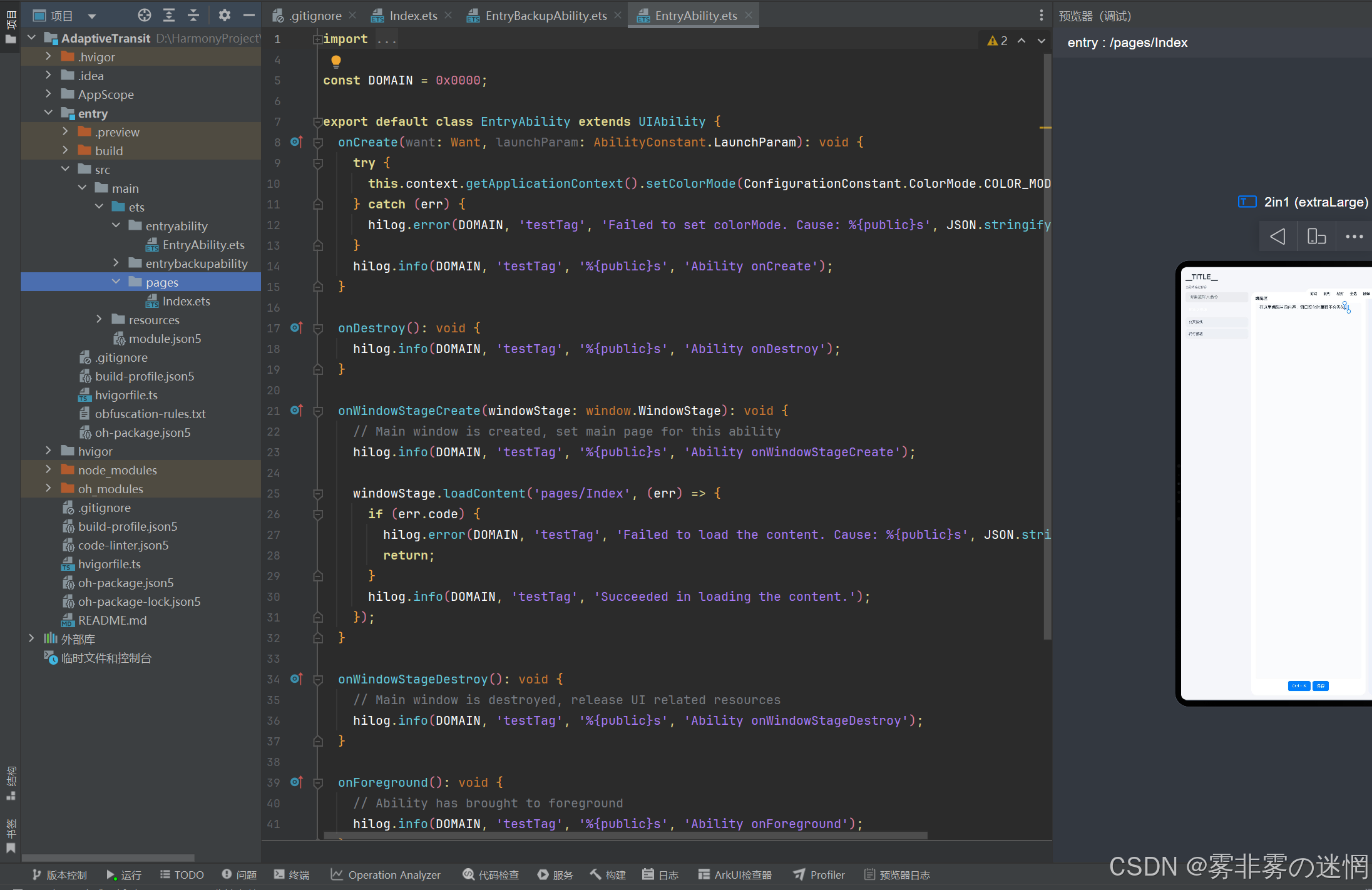
Index.ets在这里读取控制器结果并组织紧凑宽度显示详情单页,中等宽度双栏,展开宽度增加检查面板。计算仍留在功能层,因此更换设备形态只需调整区域组合。
4|手机单页和平板双栏各自组织
异常路径从保持稳定选择旁边展开:失败不清空当前数据,重试也不创建第二份对象。
ts
      this.state.showDetail = true
      this.state.showInspector = true
    }
    return this.getState()
  }

  select(id: string): void {
    this.state.selectedId = id
  }

  getState(): LayoutState {
    return { windowClass: this.state.windowClass, showList: this.state.showList, showDetail: this.state.showDetail, showInspector: this.state.showInspector, selectedId: this.state.selectedId }
  }
}
这一阶段同时处理过期回调和页面离开,旧任务不能继续写入当前界面。
5|AdaptiveTransit的响应式拆分
下面是AdaptiveTransit当前使用的目录。pages负责紧凑宽度显示详情单页,中等宽度双栏,展开宽度增加检查面板,features保存本文展示的业务链路。
text
AdaptiveTransit/
├─ entry/src/main/ets/
│  ├─ pages/Index.ets                 # 首屏与响应式布局
│  ├─ features/FeatureController.ets # 模型、动作和边界
│  ├─ entryability/EntryAbility.ets   # 页面入口与生命周期
│  └─ adapters/                       # 真机能力或数据源接口
├─ entry/src/main/resources/          # 颜色、文字和媒体资源
└─ build-profile.json5                # 工程构建配置
Index.ets只组合界面,FeatureController.ets处理窗口等级、区域显隐、稳定路线ID和详情状态。如果后面接入真实设备或网络服务,只需增加适配器并把结果转换成控制器认识的状态。