1. harbor的介绍
Harbor(港湾),是一个用于存储和分发 Docker 镜像的企业级 Registry 服务器。以前的镜像私有仓库采用官方的 Docker Registry,不便于管理镜像。
Harbor 是由 VMWare 在 Docker Registry 的基础之上进行了二次封装,加进去了很多额外程序,而且提供了一个 web 界面。其主要组件如下图:
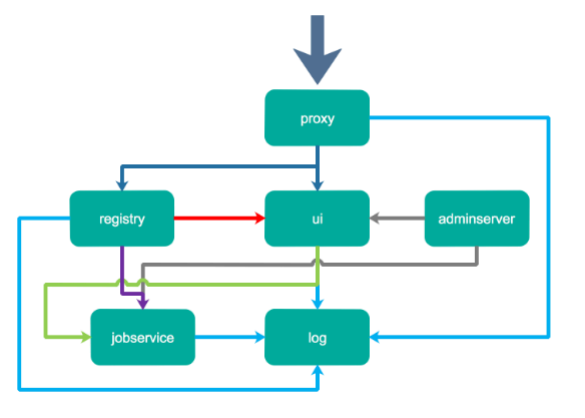
主要组件包括:
- proxy:一个nginx前端代理,主要是分发前端页面ui访问和镜像上传和下载流量。
- ui:提供了一个web管理页面,当然还包括了一个前端页面和后端API,底层使用mysql数据库。
- registry:是镜像仓库,负责存储镜像文件,当镜像上传完毕后通过 hook 通知 ui 创建repository。
- adminserver:是系统的配置管理中心附带检查存储用量,ui 和 jobserver 启动时候需要加载 adminserver 的配置,jobsevice 是负责镜像复制工作的,他和 registry 通信,从一个registry pull 镜像然后 push 到另一个 registry,并记录 job_log。
- log 是日志汇总组件,通过 docker 的 log-driver 把日志汇总到一起。
2. 环境准备
安装一个系统,CPU 2 核,内存 4 G,磁盘 100G,两块网卡,一块仅主机一块NAT。
由于仅主机模式不能访问外网,所以后面找一个软件模拟路由,集群通过路由网络与外界进行交换。
模拟路由地址为192.168.216.200(仅主机模式不能访问外网,通过该网关出去)
2.1 修改主机名
bash
[root@localhost ~]# hostnamectl hostname harbor2.2 修改IP地址
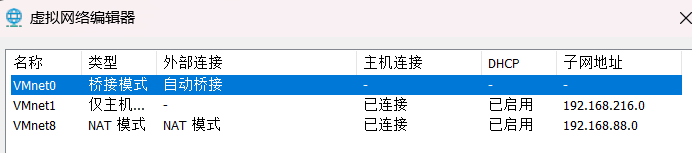
我的虚拟机仅主机模式网段是216(此处为ens160),nat模式网段是88(此处为ens224)
- 我们为NAT模式网络配置IP地址
bash
[root@localhost ~]# nmcli c show
NAME                UUID                                  TYPE      DEVICE
Wired connection 1  5d6817ac-072e-3979-b5d2-2881c6f6dd0c  ethernet  ens224
ens160              4b6ed3ee-1c23-339d-b733-609829075468  ethernet  ens160
lo                  69f1e288-4e72-425a-8b08-b5814f084063  loopback  lo
docker0             307d7c66-763c-49dc-8d4c-25704c19a8bd  bridge    docker0
[root@localhost ~]# nmcli c m "Wired connection 1" connection.id ens224
[root@localhost ~]# nmcli c show
NAME     UUID                                  TYPE      DEVICE
ens224   5d6817ac-072e-3979-b5d2-2881c6f6dd0c  ethernet  ens224
ens160   4b6ed3ee-1c23-339d-b733-609829075468  ethernet  ens160
lo       69f1e288-4e72-425a-8b08-b5814f084063  loopback  lo
docker0  307d7c66-763c-49dc-8d4c-25704c19a8bd  bridge    docker0
[root@localhost ~]# nmcli c m ens224 ipv4.method manual ipv4.addresses 192.168.88.20/24 ipv4.gateway 192.168.88.2 ipv4.dns 223.5.5.5 connection.autoconnect yes
[root@localhost ~]# nmcli c up ens224- 我们为仅主机模式网络配置IP地址
bash
[root@harbor ~]# nmcli c m ens160 ipv4.method manual ipv4.addresses
192.168.216.20/24 ipv4.gateway 192.168.216.200 ipv4.dns "223.5.5.5
8.8.8.8" connection.autoconnect yes
[root@harbor ~]# nmcli c up ens160
Connection successfully activated (D-Bus active path:
/org/freedesktop/NetworkManager/ActiveConnection/5)
bash
[root@harbor ~]# ip a
1: lo: <LOOPBACK,UP,LOWER_UP> mtu 65536 qdisc noqueue state UNKNOWN group default qlen 1000
    link/loopback 00:00:00:00:00:00 brd 00:00:00:00:00:00
    inet 127.0.0.1/8 scope host lo
       valid_lft forever preferred_lft forever
    inet6 ::1/128 scope host
       valid_lft forever preferred_lft forever
2: ens160: <BROADCAST,MULTICAST,UP,LOWER_UP> mtu 1500 qdisc mq state UP group default qlen 1000
    link/ether 00:0c:29:3c:a1:14 brd ff:ff:ff:ff:ff:ff
    altname enp3s0
    inet 192.168.216.20/24 brd 192.168.216.255 scope global noprefixroute ens160
       valid_lft forever preferred_lft forever
    inet 192.168.216.132/24 brd 192.168.216.255 scope global secondary dynamic noprefixroute ens160
       valid_lft 1744sec preferred_lft 1744sec
    inet6 fe80::20c:29ff:fe3c:a114/64 scope link noprefixroute
       valid_lft forever preferred_lft forever
3: ens224: <BROADCAST,MULTICAST,UP,LOWER_UP> mtu 1500 qdisc mq state UP group default qlen 1000
    link/ether 00:0c:29:3c:a1:1e brd ff:ff:ff:ff:ff:ff
    altname enp19s0
    inet 192.168.88.20/24 brd 192.168.88.255 scope global noprefixroute ens224
       valid_lft forever preferred_lft forever
    inet6 fe80::6cdf:7433:b5a4:a80c/64 scope link noprefixroute
       valid_lft forever preferred_lft forever
4: docker0: <NO-CARRIER,BROADCAST,MULTICAST,UP> mtu 1500 qdisc noqueue state DOWN group default
    link/ether f6:29:55:76:c0:31 brd ff:ff:ff:ff:ff:ff
    inet 172.17.0.1/16 brd 172.17.255.255 scope global docker0
       valid_lft forever preferred_lft forever
[root@harbor ~]# ping www.baidu.com
PING www.a.shifen.com (183.2.172.17) 56(84) bytes of data.
64 bytes from 183.2.172.17 (183.2.172.17): icmp_seq=1 ttl=128 time=28.5 ms
64 bytes from 183.2.172.17 (183.2.172.17): icmp_seq=2 ttl=128 time=28.7 ms
64 bytes from 183.2.172.17 (183.2.172.17): icmp_seq=3 ttl=128 time=28.6 ms
64 bytes from 183.2.172.17 (183.2.172.17): icmp_seq=4 ttl=128 time=29.2 ms
64 bytes from 183.2.172.17 (183.2.172.17): icmp_seq=5 ttl=128 time=29.2 ms
^C
--- www.a.shifen.com ping statistics ---
5 packets transmitted, 5 received, 0% packet loss, time 4003ms
rtt min/avg/max/mdev = 28.499/28.842/29.201/0.286 ms
2.3 开启路由转发
bash
[root@harbor ~]# echo 'net.ipv4.ip_forward=1' >> /etc/sysctl.conf
[root@harbor ~]# sysctl -p  ##使其生效
net.ipv4.ip_forward = 1
2.4 配置主机映射
harbor搭建成功后能访问的地址
bash
[root@harbor ~]# vim /etc/hosts  #shift+g最后一行,o创建添加ip
[root@harbor ~]# cat /etc/hosts
127.0.0.1   localhost localhost.localdomain localhost4 localhost4.localdomain4
::1         localhost localhost.localdomain localhost6 localhost6.localdomain6
192.168.216.11 k8s-master01 m1
192.168.216.12 k8s-node01 n1
192.168.216.13 k8s-node02 n2
192.168.216.20 harbor.registry.com harbor
3. 安装DOCKER
3.1 添加Docker源
bash
[root@harbor ~]# dnf install yum-utils -y
[root@harbor ~]# yum-config-manager --add-repo https://mirrors.aliyun.com/docker-ce/linux/rhel/docker-ce.repo
3.2 安装Docker
bash
[root@harbor ~]# dnf install docker-ce docker-ce-cli containerd.iodocker-buildx-plugin docker-compose-plugin -y查看docker是否安装成功,环境是否ok
bash
[root@harbor ~]# systemctl is-active docker
active
[root@harbor ~]# docker info
Client: Docker Engine - Community
 Version:    28.0.4
 Context:    default
 Debug Mode: false
 Plugins:
  buildx: Docker Buildx (Docker Inc.)
    Version:  v0.22.0
    Path:     /usr/libexec/docker/cli-plugins/docker-buildx
  compose: Docker Compose (Docker Inc.)
    Version:  v2.34.0
    Path:     /usr/libexec/docker/cli-plugins/docker-compose

Server:
 Containers: 0
  Running: 0
  Paused: 0
  Stopped: 0
 Images: 0
 Server Version: 28.0.4
 Storage Driver: overlay2
  Backing Filesystem: xfs
  Supports d_type: true
  Using metacopy: false
  Native Overlay Diff: true
  userxattr: false
 Logging Driver: json-file
 Cgroup Driver: systemd
 Cgroup Version: 2
 Plugins:
  Volume: local
  Network: bridge host ipvlan macvlan null overlay
  Log: awslogs fluentd gcplogs gelf journald json-file local splunk syslog
 Swarm: inactive
 Runtimes: io.containerd.runc.v2 runc
 Default Runtime: runc
 Init Binary: docker-init
 containerd version: 05044ec0a9a75232cad458027ca83437aae3f4da
 runc version: v1.2.5-0-g59923ef
 init version: de40ad0
 Security Options:
  seccomp
   Profile: builtin
  cgroupns
 Kernel Version: 5.14.0-503.11.1.el9_5.x86_64
 Operating System: Red Hat Enterprise Linux 9.5 (Plow)
 OSType: linux
 Architecture: x86_64
 CPUs: 4
 Total Memory: 3.541GiB
 Name: harbor
 ID: d6a58f9b-b125-4948-abc8-ae7177a4eaf5
 Docker Root Dir: /var/lib/docker
 Debug Mode: false
 Experimental: false
 Insecure Registries:
  ::1/128
  127.0.0.0/8
 Registry Mirrors:
  https://docker.1ms.run/
  https://func.ink/
  https://proxy.1panel.live/
  https://docker-0.unsee.tech/
  https://docker.zhai.cm/
  https://a.ussh.net/
  https://docker.melikeme.cn/
  https://lispy.org/
  https://docker.hlmirror.com/
  https://docker.1panel.live/
  https://docker.xiaogenban1993.com/
  https://docker.1panel.top/
  https://docker.kejilion.pro/
  https://dockerpull.cn/
  https://docker.xuanyuan.me/
  https://docker.anye.in/
  https://hub.fast360.xyz/
 Live Restore Enabled: false
3.3 配置Docker
文件为/etc/docker/daemon.json
3.3.1 创建目录/data/docker
bash
[root@harbor ~]# cd /data
-bash: cd: /data: No such file or directory
[root@harbor ~]# mkdir /data/docker -p
3.3.2 配置
bash
[root@harbor ~]# vim /etc/docker/daemon.json
[root@harbor ~]# cat /etc/docker/daemon.json
{
	"default-ipc-mode": "shareable", #打开ipc模式,ipc就是容器与容器之间的通信。后续要这些容器共享网络,pid,ipc。
	"data-root": "/data/docker", #指定docker的数据放在哪个目录,默认是在/var/lib/docker下面
	"exec-opts": ["native.cgroupdriver=systemd"], #指定 cgroup 驱动程序方式为systemd(官方推荐的一种方式)
	"log-driver": "json-file", #指定日志文件格式
	"log-opts": {
		"max-size": "100m", #设置单个日志文件的最大大小为 100MB。
		"max-file": "50" #设置最多保留 50 个日志文件
	},
	"insecure-registries": ["https://harbor.registry.com"], #自己的仓库地址(私有仓库),可以从自己仓库地址下载或上传镜像
	"registry-mirrors":[#公共仓库,当自己的没有某个镜像时,就从该地址拉取(当你拉取镜像时,如果设置了镜像加速器,Docker 将首先尝试从这些加速器下载镜像,而不是直接从 Docker Hub 下载)
		"https://docker.m.daocloud.io",
		"https://docker.imgdb.de",
		"https://docker-0.unsee.tech",
		"https://docker.hlmirror.com",
		"https://docker.1ms.run",
		"https://func.ink",
		"https://lispy.org",
		"https://docker.xiaogenban1993.com"
	]
}
[root@harbor ~]#
3.3.3 重启docker服务
因为对docker进行了配置
bash
[root@harbor ~]# systemctl restart docker
[root@harbor ~]# ls /data/docker
buildkit  containers  engine-id  image  network  overlay2  plugins  runtimes  swarm  tmp  volumes
4. 安装docker-compose
也可以直接将安装包拉到xshell中的/root下,进行移动、赋权和验证
4.1 下载
bash
[root@harbor ~]# wget https://github.com/docker/compose/releases/download/v2.35.1/dockercompose-linux-x86_644.2 安装
bash
[root@harbor ~]# mv docker-compose-linux-x86_64 /usr/bin/docker-compose4.3 赋权
bash
[root@harbor ~]# chmod +x /usr/bin/docker-compose4.4 验证
bash
[root@harbor ~]# docker-compose --version
Docker Compose version v2.35.1
5. 准备harbor
官网地址:https://goharbor.io/docs/2.13.0/install-config/installation-prereqs/
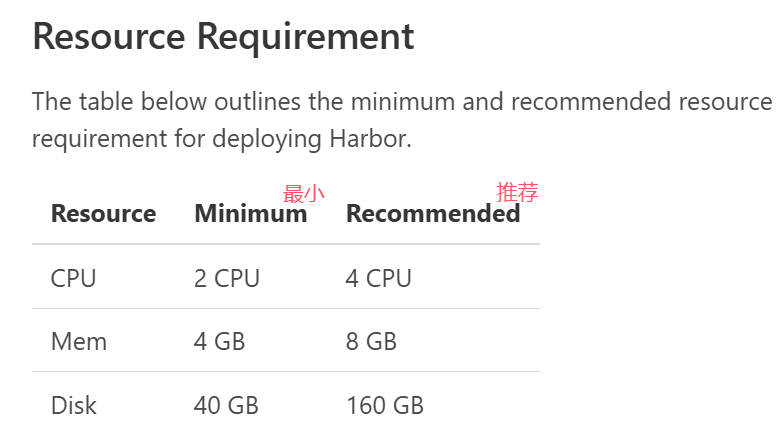
安装要求:
cpu最小是2,推荐是4
内存最小4g,推荐8g
磁盘最小40g,最好160g
5.1 下载harbor并移动
bash
[root@harbor ~]# cd /data/
[root@harbor data]# mv /root/harbor-offline-installer-v2.13.0.tgz . #将harbor移动到当前目录下
[root@harbor data]# ls
docker  harbor-offline-installer-v2.13.0.tgz
5.2 解压文件
f后面紧跟解压文件
bash
[root@harbor data]# tar -xzf harbor-offline-installer-v2.13.0.tgz #解压
[root@harbor data]# ls
docker  harbor  harbor-offline-installer-v2.13.0.tgz
[root@harbor data]# rm -f *.tgz #删掉tgz文件
[root@harbor data]# cd harbor/ #切换目录到harbor
[root@harbor harbor]# ls
common.sh  harbor.v2.13.0.tar.gz  harbor.yml.tmpl  install.sh  LICENSE  prepare
#common.sh: 这是一个Shell脚本,通常包含一些公用的函数或变量定义,可以在其他脚本(如 install.sh 或 prepare)中引用。它可能包括路径设置、环境配置等。
#harbor.v2.13.0.tar.gz放的是所有的镜像文件
#harbor.yml.tmpl:这是Harbor配置文件的模板。当你准备部署Harbor实例时,会基于这个模板生成实际的配置文件harbor.yml。
#nstall.sh: 这是一个用于安装Harbor的Shell脚本。
#LICENSE: 该文件包含了Harbor软件的许可协议文本。
#prepare: 这个脚本主要用于准备工作,比如生成配置文件、验证环境是否满足要求等。它会在运行install.sh时被调用,确保所有必要的前置条件都已满足,并准备好一切以顺利安装Harbor。
5.3 配置证书
5.3.1 生成CA证书
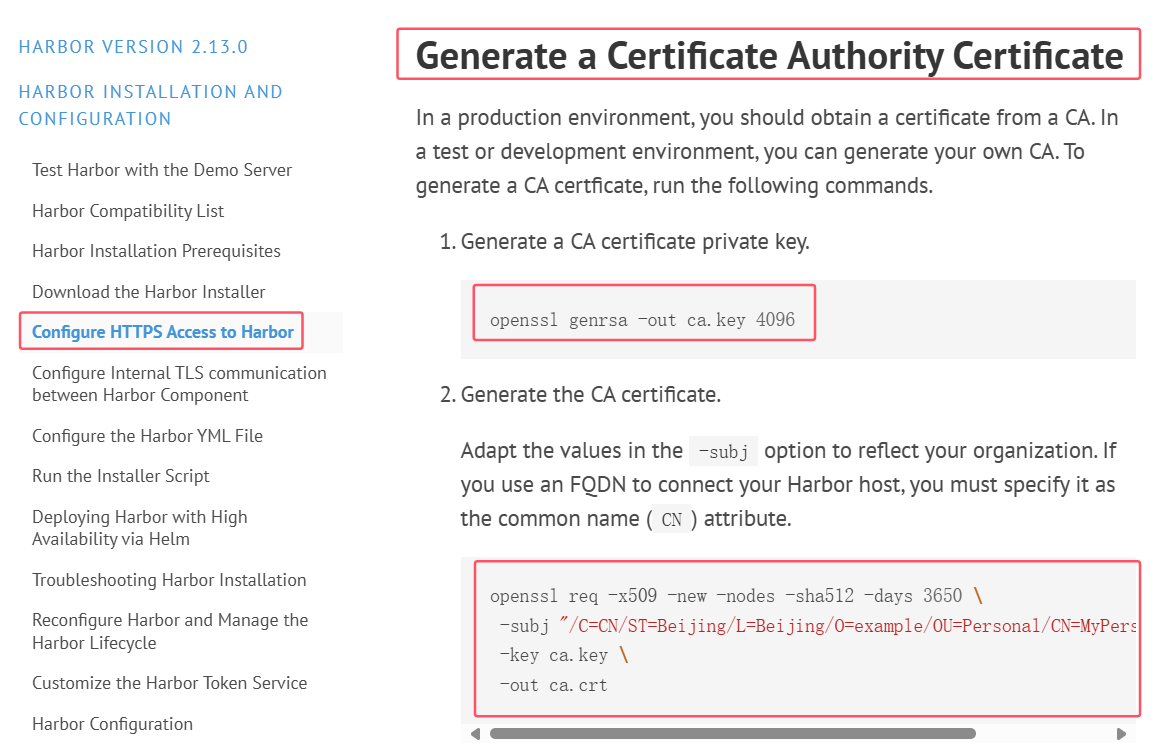
通过私钥生成ca证书
bash
[root@harbor harbor]# mkdir ssl # ssl做加密或者证书的目录文件
[root@harbor harbor]# cd ssl

# 生成CA证书私钥
[root@harbor ssl]# openssl genrsa -out ca.key 4096
# 生成CA证书
[root@harbor ssl]# openssl req -x509 -new -nodes -sha512 -days 3650 \
-subj "/C=CN/ST=Chongqing/L=Banan/O=example/OU=Personal/CN=MyPersonal
Root CA" \
-key ca.key \
-out ca.crt
#将地址改为重庆巴南
# 查看文件
[root@harbor ssl]# ls
ca.crt ca.key
5.3.2 生成服务器证书
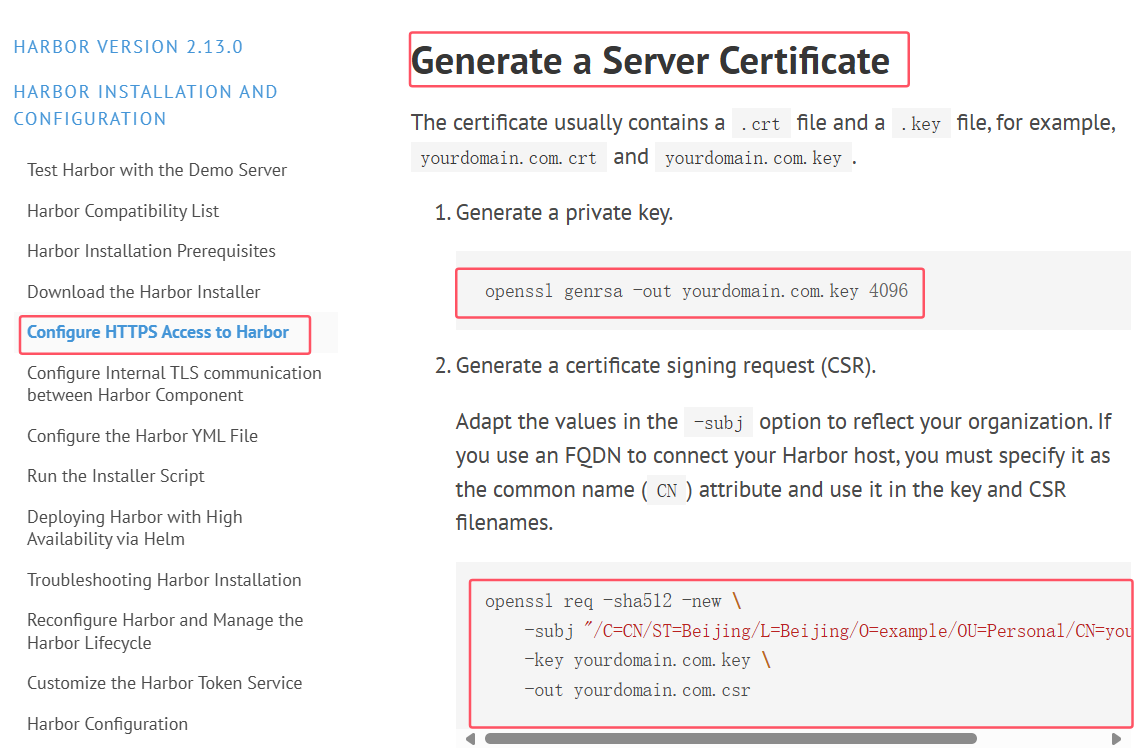
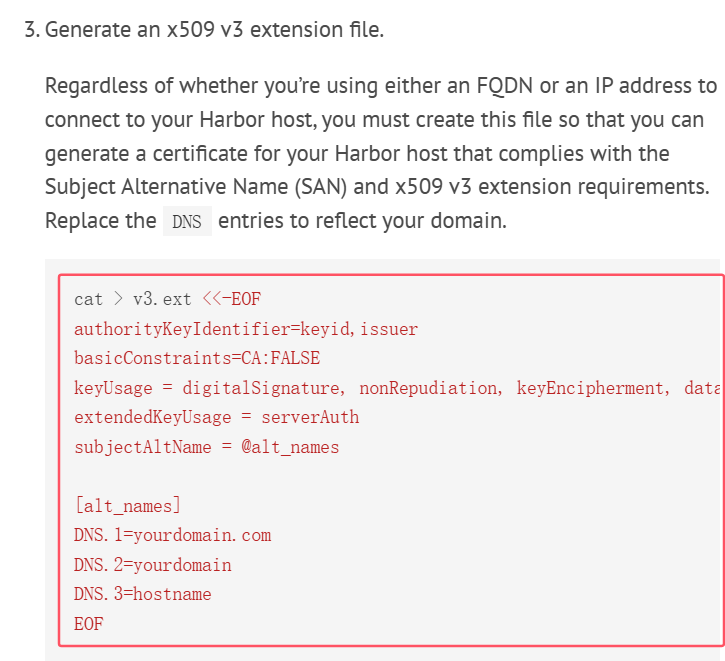
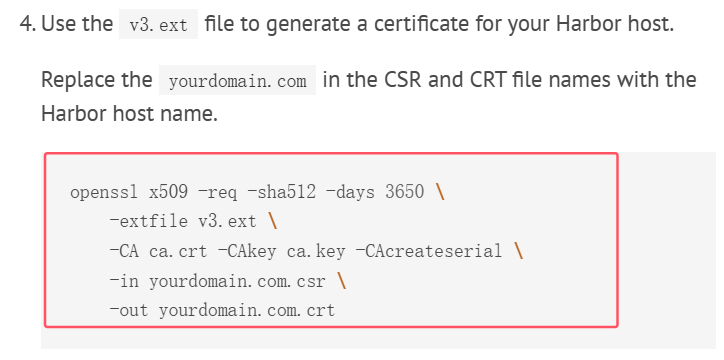
证书通常包含一个.crt 文件和一个.key 文件
通过ca证书生成服务器证书
bash
# 1. 生成私钥
[root@harbor ssl]# openssl genrsa -out harbor.registry.com.key 4096
#yourdomain改为自己的域名harbor.registry.com
[root@harbor ssl]# ls
ca.crt  ca.key  harbor.registry.com.key
# 2. 生成证书签名请求(CSR)
[root@harbor ssl]# openssl req -sha512 -new \
-subj "/C=CN/ST=Chongqing/L=Banan/O=example/OU=Personal/CN=harbor.registry.com" \
-key harbor.registry.com.key \
-out harbor.registry.com.csr
#将yourdomain改为自己的域名harbor.registry.com,地址改为重庆巴南
[root@harbor ssl]# ls
ca.crt  ca.key  harbor.registry.com.csr  harbor.registry.com.key
# 3. 生成一个x509 v3扩展文件,修改yourdomain的地方
[root@harbor ssl]# cat > v3.ext <<-EOF
authorityKeyIdentifier=keyid,issuer
basicConstraints=CA:FALSE
keyUsage = digitalSignature, nonRepudiation, keyEncipherment,
dataEncipherment
extendedKeyUsage = serverAuth
subjectAltName = @alt_names
[alt_names]
DNS.1=harbor.registry.com
DNS.2=harbor.registry
DNS.3=harbor
EOF
[root@harbor ssl]# ls
ca.crt  ca.key  harbor.registry.com.csr  harbor.registry.com.key  v3.ext
# 4. 使用该v3.ext文件为您的Harbor主机生成证书
[root@harbor ssl]# openssl x509 -req -sha512 -days 3650 \
    -extfile v3.ext \
    -CA ca.crt -CAkey ca.key -CAcreateserial \
    -in harbor.registry.com.csr \
    -out harbor.registry.com.crt
Certificate request self-signature ok
subject=C=CN, ST=Chongqing, L=Banan, O=example, OU=Personal, CN=harbor.registry.com
[root@harbor ssl]# ls
ca.crt  ca.key  ca.srl  harbor.registry.com.crt  harbor.registry.com.csr  harbor.registry.com.key
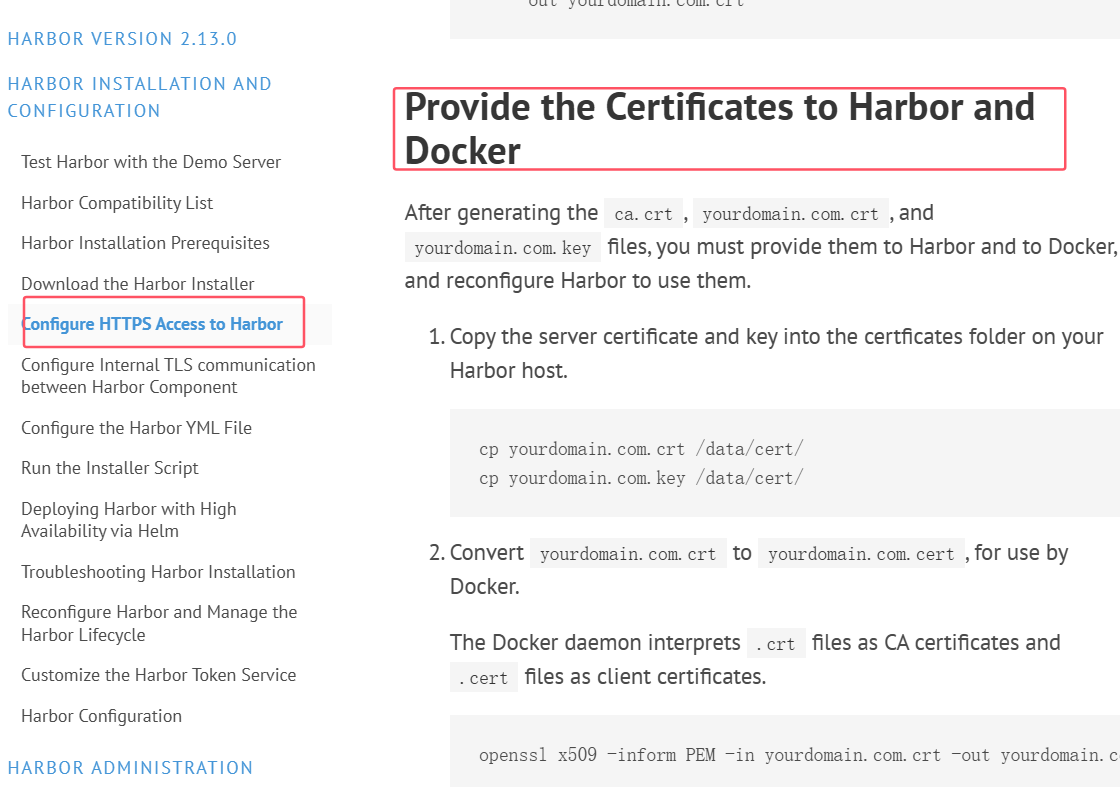
5.4 向Harbor和Docker提供证书
生成 ca.crt、harbor.registry.com.crt 和 harbor.registry.com密钥文件后,您必须将它们提
供给Harbor和Docker,并重新配置Harbor以使用它们。
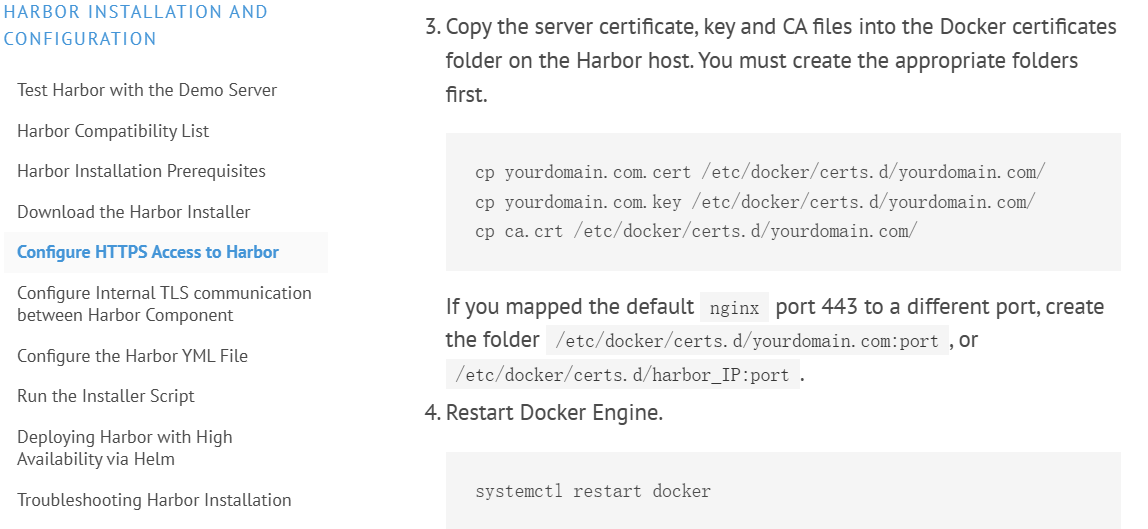
bash
# 1. 将服务器证书和密钥复制到 Harbor 主机上的 certficates 文件夹中
[root@harbor ssl]# mkdir /data/cert
[root@harbor ssl]# cp harbor.registry.com.crt /data/cert/
[root@harbor ssl]# cp harbor.registry.com.key /data/cert/

# 2. 转换 harbor.registry.com.crt 为 harbor.registry.com.cert,供 Docker使用
[root@harbor ssl]# openssl x509 -inform PEM -in harbor.registry.com.crt -out harbor.registry.com.cert
[root@harbor ssl]# ls
ca.crt  ca.srl                    harbor.registry.com.crt  harbor.registry.com.key
ca.key  harbor.registry.com.cert  harbor.registry.com.csr  v3.ext

# 3. 将服务器证书,密钥和 CA 文件复制到 Harbor 主机上的 Docker 证书文件夹中。必须首先创建适当的文件夹
[root@harbor ssl]# mkdir -p /etc/docker/certs.d/harbor.registry.com:443
[root@harbor ssl]# cp harbor.registry.com.cert /etc/docker/certs.d/harbor.registry.com:443/
[root@harbor ssl]# cp harbor.registry.com.key /etc/docker/certs.d/harbor.registry.com:443/
[root@harbor ssl]# cp ca.crt /etc/docker/certs.d/harbor.registry.com:443/
# 4. 重新启动Docker Engine
[root@harbor ssl]# systemctl restart docker
#5.查看服务是否启动成功
[root@harbor ssl]# systemctl status docker
● docker.service - Docker Application Container Engine
     Loaded: loaded (/usr/lib/systemd/system/docker.service; enabled; preset: disabled)
     Active: active (running) since Sat 2025-05-24 17:32:20 CST; 28s ago
TriggeredBy: ● docker.socket
       Docs: https://docs.docker.com
   Main PID: 2887 (dockerd)
      Tasks: 10
     Memory: 25.8M
        CPU: 276ms
     CGroup: /system.slice/docker.service
             └─2887 /usr/bin/dockerd -H fd:// --containerd=/run/containerd/containerd.sock
5.5 配置harbor
bash
# 1 从配置模板复制配置文件
[root@harbor ssl]# cd ..
[root@harbor harbor]# ls
common.sh harbor.v2.13.0.tar.gz harbor.yml.tmpl install.sh LICENSE
prepare ssl
[root@harbor harbor]# cp harbor.yml.tmpl harbor.yml #将harbor.yml.tmpl复制出来,怕在该文件中配置错误
[root@harbor harbor]# vim harbor.yml #修改该文件,修改内容如下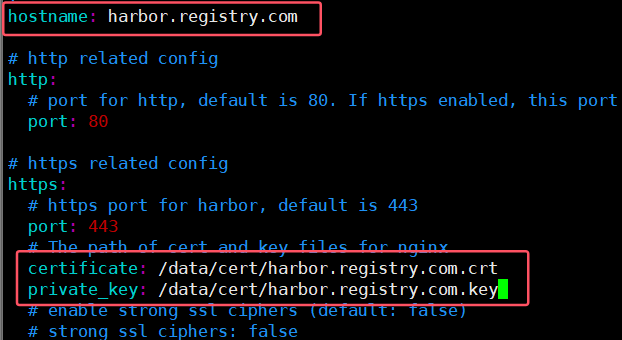
hostname改为自己的域名
certificate: /data/cert/harbor.registry.com.crt
private_key: /data/cert/harbor.registry.com.key 服务器私钥和证书的地址

密码目前不用改,真实环境下需要改
5.6 加载镜像
bash
[root@harbor harbor]# docker images
REPOSITORY   TAG       IMAGE ID   CREATED   SIZE
[root@harbor harbor]# docker load -i harbor.v2.13.0.tar.gz
[root@harbor harbor]# docker images
REPOSITORY                      TAG       IMAGE ID       CREATED       SIZE
goharbor/harbor-exporter        v2.13.0   0be56feff492   6 weeks ago   127MB
goharbor/redis-photon           v2.13.0   7c0d9781ab12   6 weeks ago   166MB
goharbor/trivy-adapter-photon   v2.13.0   f2b4d5497558   6 weeks ago   381MB
goharbor/harbor-registryctl     v2.13.0   bbd957df71d6   6 weeks ago   162MB
goharbor/registry-photon        v2.13.0   fa23989bf194   6 weeks ago   85.9MB
goharbor/nginx-photon           v2.13.0   c922d86a7218   6 weeks ago   151MB
goharbor/harbor-log             v2.13.0   463b8f469e21   6 weeks ago   164MB
goharbor/harbor-jobservice      v2.13.0   112a1616822d   6 weeks ago   174MB
goharbor/harbor-core            v2.13.0   b90fcb27fd54   6 weeks ago   197MB
goharbor/harbor-portal          v2.13.0   858f92a0f5f9   6 weeks ago   159MB
goharbor/harbor-db              v2.13.0   13a2b78e8616   6 weeks ago   273MB
goharbor/prepare                v2.13.0   2380b5a4f127   6 weeks ago   205MB
5.6.1 检查安装环境
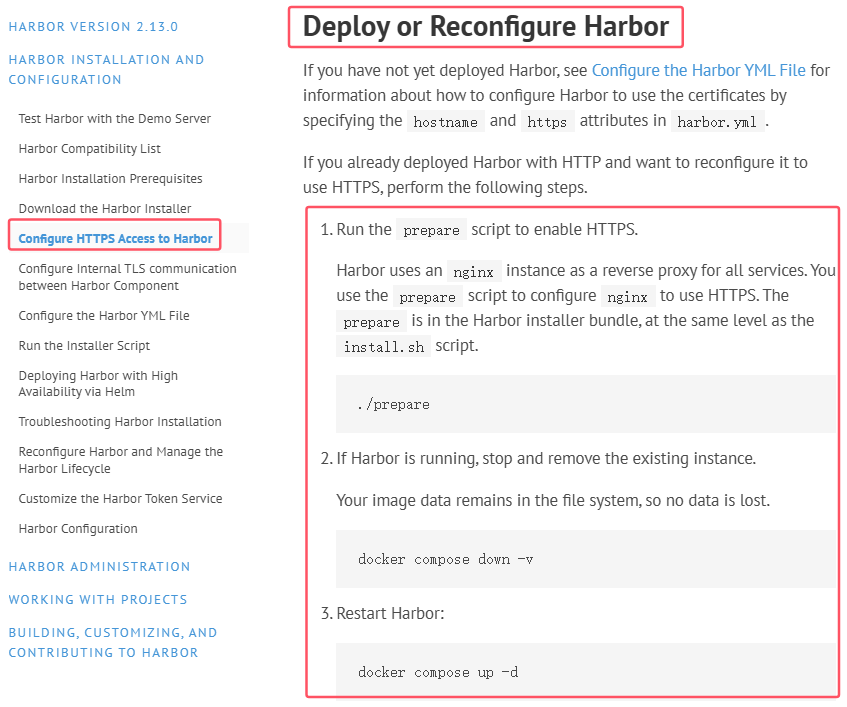
bash
[root@harbor harbor]# ./prepare
prepare base dir is set to /data/harbor
Generated configuration file: /config/portal/nginx.conf
Generated configuration file: /config/log/logrotate.conf
Generated configuration file: /config/log/rsyslog_docker.conf
Generated configuration file: /config/nginx/nginx.conf
Generated configuration file: /config/core/env
Generated configuration file: /config/core/app.conf
Generated configuration file: /config/registry/config.yml
Generated configuration file: /config/registryctl/env
Generated configuration file: /config/registryctl/config.yml
Generated configuration file: /config/db/env
Generated configuration file: /config/jobservice/env
Generated configuration file: /config/jobservice/config.yml
copy /data/secret/tls/harbor_internal_ca.crt to shared trust ca dir as name harbor_internal_ca.crt ...
ca file /hostfs/data/secret/tls/harbor_internal_ca.crt is not exist
copy  to shared trust ca dir as name storage_ca_bundle.crt ...
copy None to shared trust ca dir as name redis_tls_ca.crt ...
Generated and saved secret to file: /data/secret/keys/secretkey
Successfully called func: create_root_cert
Generated configuration file: /compose_location/docker-compose.yml
Clean up the input dir
5.6.2 启动Harbor
bash
[root@harbor harbor]# ./install.sh

[Step 0]: checking if docker is installed ...

Note: docker version: 28.0.4

[Step 1]: checking docker-compose is installed ...

Note: Docker Compose version v2.34.0

[Step 2]: loading Harbor images ...
Loaded image: goharbor/harbor-db:v2.13.0
Loaded image: goharbor/harbor-jobservice:v2.13.0
Loaded image: goharbor/harbor-registryctl:v2.13.0
Loaded image: goharbor/redis-photon:v2.13.0
Loaded image: goharbor/trivy-adapter-photon:v2.13.0
Loaded image: goharbor/nginx-photon:v2.13.0
Loaded image: goharbor/registry-photon:v2.13.0
Loaded image: goharbor/prepare:v2.13.0
Loaded image: goharbor/harbor-portal:v2.13.0
Loaded image: goharbor/harbor-core:v2.13.0
Loaded image: goharbor/harbor-log:v2.13.0
Loaded image: goharbor/harbor-exporter:v2.13.0


[Step 3]: preparing environment ...

[Step 4]: preparing harbor configs ...
prepare base dir is set to /data/harbor
Clearing the configuration file: /config/portal/nginx.conf
Clearing the configuration file: /config/log/logrotate.conf
Clearing the configuration file: /config/log/rsyslog_docker.conf
Clearing the configuration file: /config/nginx/nginx.conf
Clearing the configuration file: /config/core/env
Clearing the configuration file: /config/core/app.conf
Clearing the configuration file: /config/registry/passwd
Clearing the configuration file: /config/registry/config.yml
Clearing the configuration file: /config/registryctl/env
Clearing the configuration file: /config/registryctl/config.yml
Clearing the configuration file: /config/db/env
Clearing the configuration file: /config/jobservice/env
Clearing the configuration file: /config/jobservice/config.yml
Generated configuration file: /config/portal/nginx.conf
Generated configuration file: /config/log/logrotate.conf
Generated configuration file: /config/log/rsyslog_docker.conf
Generated configuration file: /config/nginx/nginx.conf
Generated configuration file: /config/core/env
Generated configuration file: /config/core/app.conf
Generated configuration file: /config/registry/config.yml
Generated configuration file: /config/registryctl/env
Generated configuration file: /config/registryctl/config.yml
Generated configuration file: /config/db/env
Generated configuration file: /config/jobservice/env
Generated configuration file: /config/jobservice/config.yml
copy /data/secret/tls/harbor_internal_ca.crt to shared trust ca dir as name harbor_internal_ca.crt ...
ca file /hostfs/data/secret/tls/harbor_internal_ca.crt is not exist
copy  to shared trust ca dir as name storage_ca_bundle.crt ...
copy None to shared trust ca dir as name redis_tls_ca.crt ...
loaded secret from file: /data/secret/keys/secretkey
Generated configuration file: /compose_location/docker-compose.yml
Clean up the input dir


Note: stopping existing Harbor instance ...


[Step 5]: starting Harbor ...
[+] Running 10/10
 ✔ Network harbor_harbor        Created                                                0.0s
 ✔ Container harbor-log         Started                                                0.2s
 ✔ Container harbor-db          Started                                                0.6s
 ✔ Container redis              Started                                                0.5s
 ✔ Container registryctl        Started                                                0.7s
 ✔ Container harbor-portal      Started                                                0.5s
 ✔ Container registry           Started                                                0.6s
 ✔ Container harbor-core        Started                                                0.7s
 ✔ Container nginx              Started                                                0.9s
 ✔ Container harbor-jobservice  Started                                                0.9s
✔ ----Harbor has been installed and started successfully.----
5.6.3 查看容器的启动
bash
[root@harbor harbor]# docker ps
CONTAINER ID   IMAGE                                 COMMAND                  CREATED              STATUS                        PORTS                                                                                NAMES
93d95d648cad   goharbor/harbor-jobservice:v2.13.0    "/harbor/entrypoint...."   About a minute ago   Up About a minute (healthy)                                                                                        harbor-jobservice
62c55991f6ea   goharbor/nginx-photon:v2.13.0         "nginx -g 'daemon of..."   About a minute ago   Up About a minute (healthy)   0.0.0.0:80->8080/tcp, [::]:80->8080/tcp, 0.0.0.0:443->8443/tcp, [::]:443->8443/tcp   nginx
55d6aef519b7   goharbor/harbor-core:v2.13.0          "/harbor/entrypoint...."   About a minute ago   Up About a minute (healthy)                                                                                        harbor-core
2d1a12f3c5dd   goharbor/redis-photon:v2.13.0         "redis-server /etc/r..."   About a minute ago   Up About a minute (healthy)                                                                                        redis
3d4c8d91ae2b   goharbor/harbor-portal:v2.13.0        "nginx -g 'daemon of..."   About a minute ago   Up About a minute (healthy)                                                                                        harbor-portal
c47816dd5620   goharbor/harbor-registryctl:v2.13.0   "/home/harbor/start...."   About a minute ago   Up About a minute (healthy)                                                                                        registryctl
0191a19f1136   goharbor/registry-photon:v2.13.0      "/home/harbor/entryp..."   About a minute ago   Up About a minute (healthy)                                                                                        registry
b6e69a958f53   goharbor/harbor-db:v2.13.0            "/docker-entrypoint...."   About a minute ago   Up About a minute (healthy)                                                                                        harbor-db
f8455c19f197   goharbor/harbor-log:v2.13.0           "/bin/sh -c /usr/loc..."   About a minute ago   Up About a minute (healthy)   127.0.0.1:1514->10514/tcp
[root@harbor harbor]# docker-compose ps
NAME                IMAGE                                 COMMAND                  SERVICE       CREATED          STATUS                    PORTS
harbor-core         goharbor/harbor-core:v2.13.0          "/harbor/entrypoint...."   core          41 minutes ago   Up 41 minutes (healthy)
harbor-db           goharbor/harbor-db:v2.13.0            "/docker-entrypoint...."   postgresql    41 minutes ago   Up 41 minutes (healthy)
harbor-jobservice   goharbor/harbor-jobservice:v2.13.0    "/harbor/entrypoint...."   jobservice    41 minutes ago   Up 41 minutes (healthy)
harbor-log          goharbor/harbor-log:v2.13.0           "/bin/sh -c /usr/loc..."   log           41 minutes ago   Up 41 minutes (healthy)   127.0.0.1:1514->10514/tcp
harbor-portal       goharbor/harbor-portal:v2.13.0        "nginx -g 'daemon of..."   portal        41 minutes ago   Up 41 minutes (healthy)
nginx               goharbor/nginx-photon:v2.13.0         "nginx -g 'daemon of..."   proxy         41 minutes ago   Up 41 minutes (healthy)   0.0.0.0:80->8080/tcp, [::]:80->8080/tcp, 0.0.0.0:443->8443/tcp, [::]:443->8443/tcp
redis               goharbor/redis-photon:v2.13.0         "redis-server /etc/r..."   redis         41 minutes ago   Up 41 minutes (healthy)
registry            goharbor/registry-photon:v2.13.0      "/home/harbor/entryp..."   registry      41 minutes ago   Up 41 minutes (healthy)
registryctl         goharbor/harbor-registryctl:v2.13.0   "/home/harbor/start...."   registryctl   41 minutes ago   Up 41 minutes (healthy)
5.7 配置启动服务
5.7.1 停止harbor
由于现在启动 Harbor 的操作必须是在 docker-compose.yml 文件所在目录下执行,非常不方便。所有需要配置启动服务。所以我们先使用 docker-compose 命令来关闭 Harbor 服务。
注意:在harbor目录下停止
ocker-compose down被执行后,他会把容器删掉但是镜像不会删
bash
[root@harbor harbor]# docker-compose down
[+] Running 10/10
 ✔ Container harbor-jobservice  Removed                                                                          0.2s
 ✔ Container nginx              Removed                                                                          0.3s
 ✔ Container registryctl        Removed                                                                          0.2s
 ✔ Container harbor-portal      Removed                                                                          0.4s
 ✔ Container harbor-core        Removed                                                                          0.4s
 ✔ Container harbor-db          Removed                                                                          0.6s
 ✔ Container redis              Removed                                                                          0.5s
 ✔ Container registry           Removed                                                                          0.4s
 ✔ Container harbor-log         Removed                                                                         10.5s
 ✔ Network harbor_harbor        Removed
 [root@harbor harbor]# docker-compose ps
NAME      IMAGE     COMMAND   SERVICE   CREATED   STATUS    PORTS
[root@harbor harbor]# docker ps
CONTAINER ID   IMAGE     COMMAND   CREATED   STATUS    PORTS     NAMES
[root@harbor harbor]# docker images
REPOSITORY                      TAG       IMAGE ID       CREATED       SIZE
goharbor/harbor-exporter        v2.13.0   0be56feff492   6 weeks ago   127MB
goharbor/redis-photon           v2.13.0   7c0d9781ab12   6 weeks ago   166MB
goharbor/trivy-adapter-photon   v2.13.0   f2b4d5497558   6 weeks ago   381MB
goharbor/harbor-registryctl     v2.13.0   bbd957df71d6   6 weeks ago   162MB
goharbor/registry-photon        v2.13.0   fa23989bf194   6 weeks ago   85.9MB
goharbor/nginx-photon           v2.13.0   c922d86a7218   6 weeks ago   151MB
goharbor/harbor-log             v2.13.0   463b8f469e21   6 weeks ago   164MB
goharbor/harbor-jobservice      v2.13.0   112a1616822d   6 weeks ago   174MB
goharbor/harbor-core            v2.13.0   b90fcb27fd54   6 weeks ago   197MB
goharbor/harbor-portal          v2.13.0   858f92a0f5f9   6 weeks ago   159MB
goharbor/harbor-db              v2.13.0   13a2b78e8616   6 weeks ago   273MB
goharbor/prepare                v2.13.0   2380b5a4f127   6 weeks ago   205MB
5.7.2 编写服务文件
服务文件一般放在/usr/lib/systemd/system/下面
为了方便在任意地方都可以启动服务而不是在 harbor 安装目录下,我们需要在/usr/lib/systemd/system/ 目录下新建 harbor.service 服务启动文件。
该服务文件有三个板块,分别是单元、服务、安装
单元:定义服务启动的依赖关系以及启动的顺序
服务:定义服务的启动、重启等操作
安装:安装到什么组
bash
[root@harbor harbor]# vim /usr/lib/systemd/system/harbor.service
[root@harbor harbor]# cat /usr/lib/systemd/system/harbor.service
[Unit] #单元
Description=Harbor  #harbor的服务
After=docker.service systemd-networkd.service systemd-resolved.service #定义依赖关系和启动顺序,after什么什么服务之后启动,但这些服务不是必须先启动
Requires=docker.service #该服务必须先启动
Documentation=http://github.com/vmware/harbor #harbor官方地址

[Service] #服务
Type=simple #服务启动进程的使用方式
Restart=on-failure #如果失败就重启(策略)
RestartSec=5 #重启间隔时间5s
ExecStart=/usr/bin/docker-compose --file /data/harbor/docker-compose.yml up #当systemctl是大写时执行这条指令,找到docker-compose的/data/harbor/dockercompose.yml文件并启动
ExecStop=/usr/bin/docker-compose --file /data/harbor/docker-compose.yml down  #down停止并删除

[Install] #安装
WantedBy=multi-user.target  #安装到multi-user.target组
5.7.3 启动harbor
bash
[root@harbor harbor]# systemctl daemon-reload #重新加载
[root@harbor harbor]# systemctl start harbor.service #启动
[root@harbor harbor]# docker ps
CONTAINER ID   IMAGE                                 COMMAND                  CREATED          STATUS                    PORTS                                                                                NAMES
5a3c38345185   goharbor/nginx-photon:v2.13.0         "nginx -g 'daemon of..."   40 seconds ago   Up 39 seconds (healthy)   0.0.0.0:80->8080/tcp, [::]:80->8080/tcp, 0.0.0.0:443->8443/tcp, [::]:443->8443/tcp   nginx
7d5cb81dcc58   goharbor/harbor-jobservice:v2.13.0    "/harbor/entrypoint...."   40 seconds ago   Up 38 seconds (healthy)                                                                                        harbor-jobservice
c17e40e8ba33   goharbor/harbor-core:v2.13.0          "/harbor/entrypoint...."   40 seconds ago   Up 39 seconds (healthy)                                                                                        harbor-core
640f58ddee7d   goharbor/registry-photon:v2.13.0      "/home/harbor/entryp..."   40 seconds ago   Up 39 seconds (healthy)                                                                                        registry
7aa3a8575c37   goharbor/harbor-db:v2.13.0            "/docker-entrypoint...."   40 seconds ago   Up 39 seconds (healthy)                                                                                        harbor-db
6561fcc9a2e7   goharbor/redis-photon:v2.13.0         "redis-server /etc/r..."   40 seconds ago   Up 39 seconds (healthy)                                                                                        redis
f85e618e4793   goharbor/harbor-registryctl:v2.13.0   "/home/harbor/start...."   40 seconds ago   Up 39 seconds (healthy)                                                                                        registryctl
06d45b2f9061   goharbor/harbor-portal:v2.13.0        "nginx -g 'daemon of..."   40 seconds ago   Up 39 seconds (healthy)                                                                                        harbor-portal
b8e99294f7f5   goharbor/harbor-log:v2.13.0           "/bin/sh -c /usr/loc..."   40 seconds ago   Up 40 seconds (healthy)   127.0.0.1:1514->10514/tcp                                                            harbor-log
[root@harbor harbor]# systemctl enable harbor.service #设置开机自启动
Created symlink /etc/systemd/system/multi-user.target.wants/harbor.service → /usr/lib/systemd/system/harbor.service.
5.8 访问
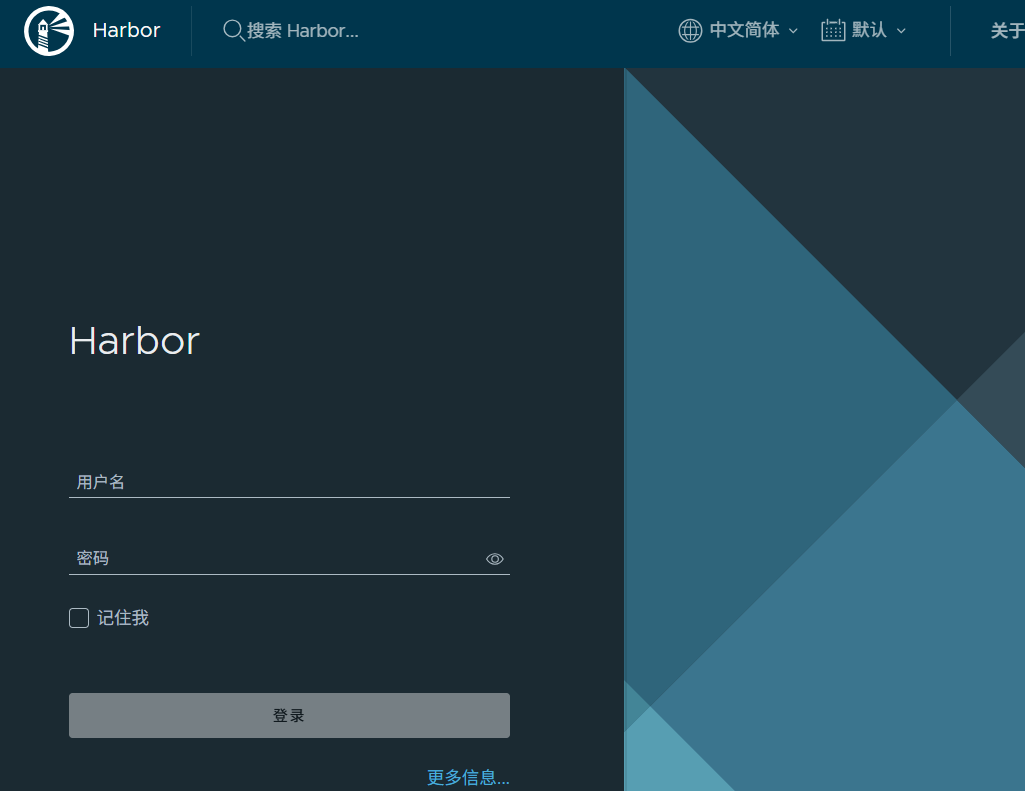
在浏览器上输入ip
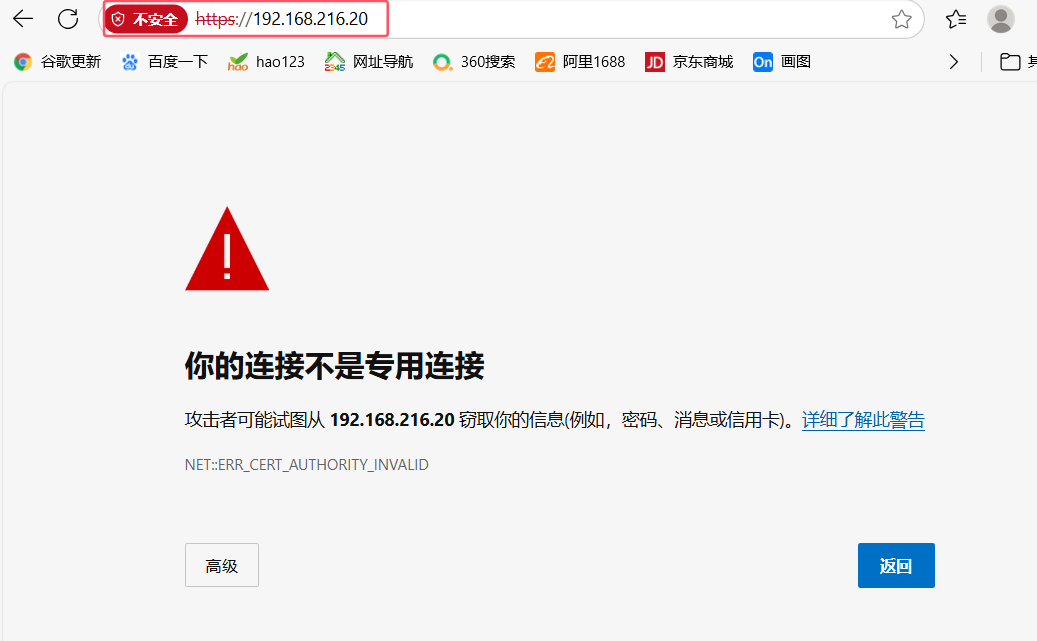
选择高级,点击继续访问,出现以下界面
5.8.1 配置映射
为了访问方便,实现域名也能访问,可以在 windows 的 hosts 文件中配置 IP 和主机映射。
c盘→windows→system32→drivers→etc→hosts
修改hosts文件可能没有权限,因此可以将该文件复制到桌面上,修改完成后保存,将修改后的文件复制过去,将etc中的原hosts文件覆盖掉。
5.8.2 配置仓库
1、打开浏览器,输入 https://192.168.216.20
2、输入用户名 admin,密码:Harbor12345 后进入管理界面。
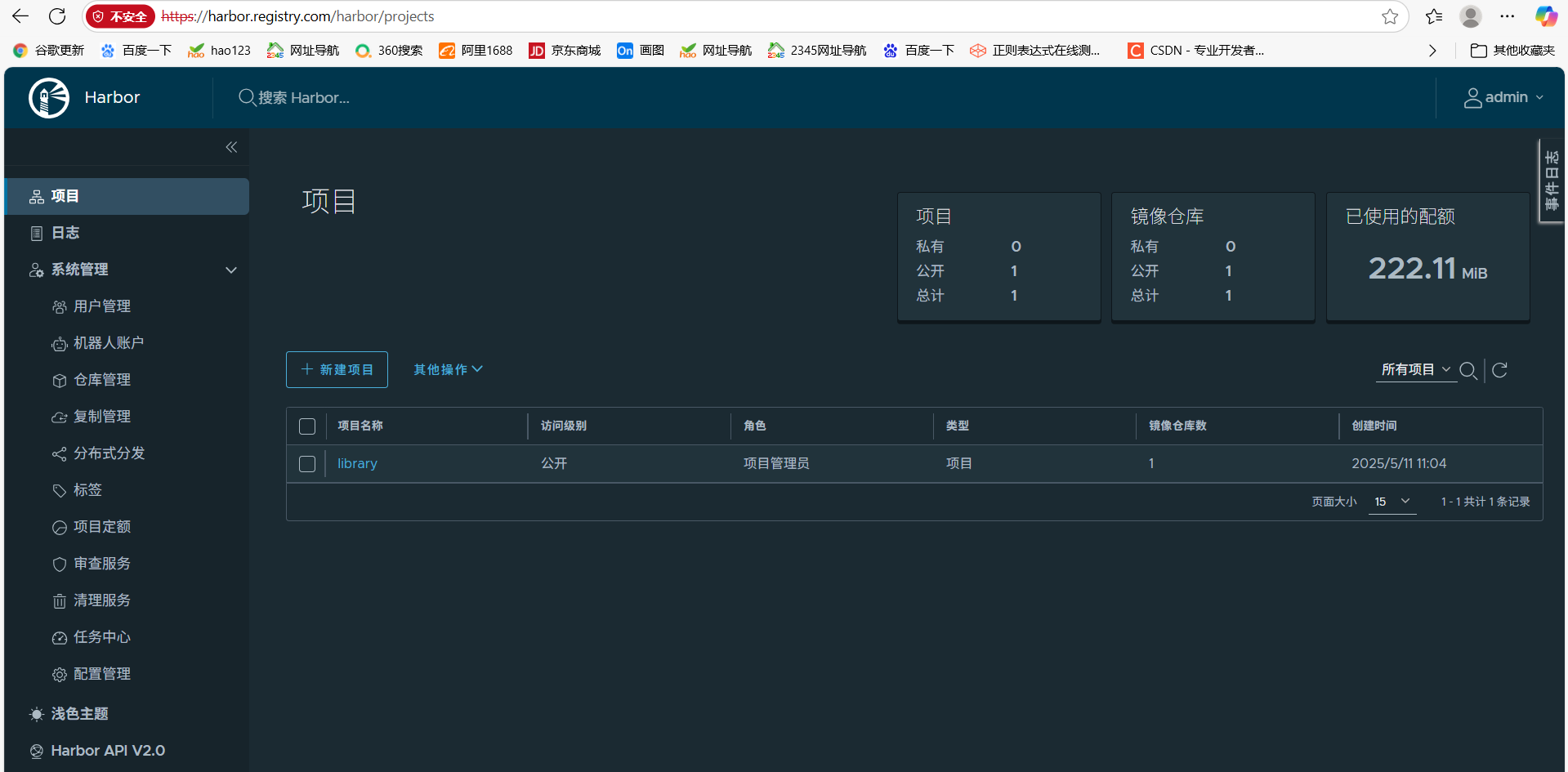
3、若想仓库不公开,可以修改 daemon.json,默认 http 私有仓库不能访问,设置后才可以:
bash
{
"insecure-registries" : ["https://registry.harbor.com"]
}
# 重启Docker进程
systemctl restart docker
# 重启Harbor
systemctl restart harbor
5.9 测试本地仓库
5.9.1 拉取镜像
拉取这三个镜像redis:8.0.0、nginx:1.28.0、mysql:9.3.0,为测试本地仓库做准备
bash
[root@harbor harbor]# docker pull redis:8.0.0
8.0.0: Pulling from library/redis
254e724d7786: Pull complete
cd07ede39ddc: Pull complete
63df650ee4e0: Pull complete
c175c1c9487d: Pull complete
91cf9601b872: Pull complete
4f4fb700ef54: Pull complete
c70d7dc4bd70: Pull complete
Digest: sha256:a4b90e7079b67c41bdf4ca6f9d87197079e4c1c3273b7f489a74f2687d85a05e
Status: Downloaded newer image for redis:8.0.0
docker.io/library/redis:8.0.0

[root@harbor harbor]# docker pull nginx:1.28.0
1.28.0: Pulling from library/nginx
61320b01ae5e: Pull complete
6b9ebf396424: Pull complete
40d6655d5ba7: Pull complete
9f3bad97f602: Pull complete
549226c4c0af: Pull complete
1cb882c6067f: Pull complete
ddd1dd60e7e5: Pull complete
Digest: sha256:eaa7e36decc3421fc04478c586dfea0d931cebe47d5bc0b15d758a32ba51126f
Status: Downloaded newer image for nginx:1.28.0
docker.io/library/nginx:1.28.0
[root@harbor harbor]# docker pull mysql:9.3.0
9.3.0: Pulling from library/mysql
c2eb5d06bfea: Pull complete
ba361f0ba5e7: Pull complete
0e83af98b000: Pull complete
770e931107be: Pull complete
a2be1b721112: Pull complete
68c594672ed3: Pull complete
cfd201189145: Pull complete
e9f009c5b388: Pull complete
61a291920391: Downloading  59.97MB/152.4MB
c8604ede059a: Download complete

[root@harbor ~]# docker images
REPOSITORY                      TAG       IMAGE ID       CREATED       SIZE
redis                           8.0.0     d62dbaef1b81   2 weeks ago   128MB
nginx                           1.28.0    93ad19b5b847   4 weeks ago   192MB
goharbor/harbor-exporter        v2.13.0   0be56feff492   6 weeks ago   127MB
goharbor/redis-photon           v2.13.0   7c0d9781ab12   6 weeks ago   166MB
goharbor/trivy-adapter-photon   v2.13.0   f2b4d5497558   6 weeks ago   381MB
goharbor/harbor-registryctl     v2.13.0   bbd957df71d6   6 weeks ago   162MB
goharbor/registry-photon        v2.13.0   fa23989bf194   6 weeks ago   85.9MB
goharbor/nginx-photon           v2.13.0   c922d86a7218   6 weeks ago   151MB
goharbor/harbor-log             v2.13.0   463b8f469e21   6 weeks ago   164MB
goharbor/harbor-jobservice      v2.13.0   112a1616822d   6 weeks ago   174MB
goharbor/harbor-core            v2.13.0   b90fcb27fd54   6 weeks ago   197MB
goharbor/harbor-portal          v2.13.0   858f92a0f5f9   6 weeks ago   159MB
goharbor/harbor-db              v2.13.0   13a2b78e8616   6 weeks ago   273MB
goharbor/prepare                v2.13.0   2380b5a4f127   6 weeks ago   205MB
5.9.2 镜像打标签
打完标签才能将镜像推到harbor.registry.com/library/中
bash
[root@harbor ~]# docker images #打标签前
REPOSITORY                      TAG       IMAGE ID       CREATED       SIZE
redis                           8.0.0     d62dbaef1b81   2 weeks ago   128MB
nginx                           1.28.0    93ad19b5b847   4 weeks ago   192MB
goharbor/harbor-exporter        v2.13.0   0be56feff492   6 weeks ago   127MB
[root@harbor ~]# docker tag --help
Usage:  docker tag SOURCE_IMAGE[:TAG] TARGET_IMAGE[:TAG]

Create a tag TARGET_IMAGE that refers to SOURCE_IMAGE

Aliases:
  docker image tag, docker tag
[root@harbor ~]# docker tag redis:8.0.0 harbor.registry.com/library/redis:8.0.0
[root@harbor ~]# docker images #打标签后,出现了harbor.registry.com/library/redis8.0.0
REPOSITORY                          TAG       IMAGE ID       CREATED       SIZE
redis                               8.0.0     d62dbaef1b81   2 weeks ago   128MB
harbor.registry.com/library/redis   8.0.0     d62dbaef1b81   2 weeks ago   128MB
nginx                               1.28.0    93ad19b5b847   4 weeks ago   192MB

[root@harbor ~]# docker tag nginx:1.28.0 harbor.registry.com/library/nginx:1.28.0
[root@harbor ~]# docker images
REPOSITORY                          TAG       IMAGE ID       CREATED       SIZE
redis                               8.0.0     d62dbaef1b81   2 weeks ago   128MB
harbor.registry.com/library/redis   8.0.0     d62dbaef1b81   2 weeks ago   128MB
nginx                               1.28.0    93ad19b5b847   4 weeks ago   192MB
harbor.registry.com/library/nginx   1.28.0    93ad19b5b847   4 weeks ago   192MB
5.9.3 登录仓库
bash
[root@harbor ~]# docker login harbor.registry.com
Username: admin

i Info → A Personal Access Token (PAT) can be used instead.
         To create a PAT, visit https://app.docker.com/settings


Password:

WARNING! Your credentials are stored unencrypted in '/root/.docker/config.json'.
Configure a credential helper to remove this warning. See
https://docs.docker.com/go/credential-store/

Login Succeeded
5.9.4 推送镜像
5.9.3登陆后,将打好标签的镜像推送到harbor私有仓库
从镜像仓库拉取不需要登录
bash
[root@harbor ~]# docker push harbor.registry.com/library/redis:8.0.0
The push refers to repository [harbor.registry.com/library/redis]
ba7ac8bfc794: Pushed
5f70bf18a086: Pushed
466ee81cc0c4: Pushed
275b6714fc25: Pushed
560e553534a4: Pushed
183aa91cf85e: Pushed
6c4c763d22d0: Pushed
8.0.0: digest: sha256:9918b5032afc54f27539f9ee9ffe465bb04ee362b51219e893763e21d3df835e size: 1776
[root@harbor ~]# docker push harbor.registry.com/library/nginx:1.28.0
The push refers to repository [harbor.registry.com/library/nginx]
c700b2a88f58: Pushed
d93e092afe54: Pushed
43b825d36546: Pushed
b29fcdf26339: Pushed
1e6515e47e80: Pushed
ccfa3b2405fb: Pushed
ace34d1d784c: Pushed
1.28.0: digest: sha256:62894e343bcc15caa4ef00b2081b9b6953fe1328b9a4fc441b12e372d0cffa45 size: 1778
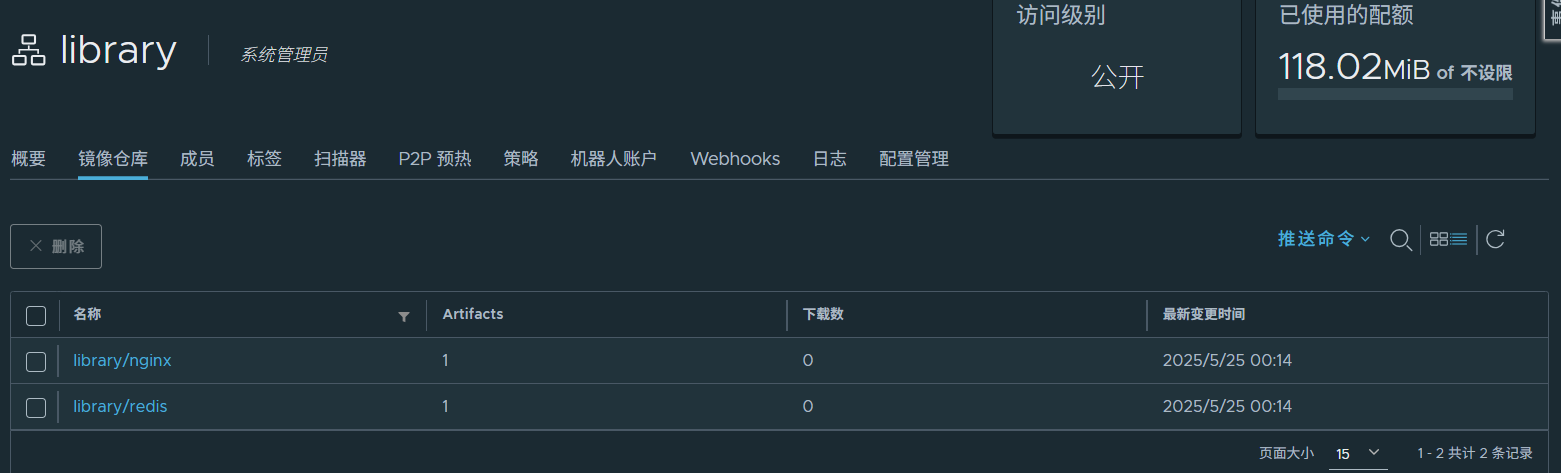
打开library,可以看到推送的镜像
继续推送镜像
-
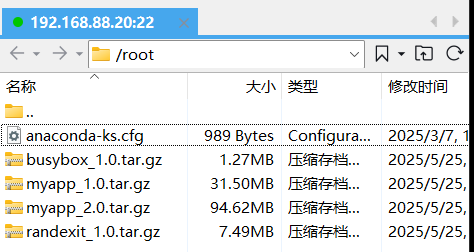
将安装包拖到xshell中,myapp_1.0.tar.gz randexit_1.0.tar.gz busybox_1.0.tar.gz myapp_2.0.tar.gz这四个镜像加载到虚拟机中
-
1、加载
bash
[root@harbor ~]# ls
anaconda-ks.cfg     myapp_1.0.tar.gz  randexit_1.0.tar.gz
busybox_1.0.tar.gz  myapp_2.0.tar.gz
[root@harbor ~]# docker load -i myapp_1.0.tar.gz
36b50b131297: Loading layer  7.346MB/7.346MB
f19699507d9b: Loading layer  12.32MB/12.32MB
815f740174b2: Loading layer   6.65MB/6.65MB
6e0c4635e765: Loading layer  6.656kB/6.656kB
87148573fd9a: Loading layer  3.072kB/3.072kB
0987da630a8c: Loading layer  6.664MB/6.664MB
3fc8ca173d59: Loading layer  4.608kB/4.608kB
24ceb411aba0: Loading layer  10.75kB/10.75kB
Loaded image: myapp:1.0
[root@harbor ~]# docker load -i randexit_1.0.tar.gz
8d3ac3489996: Loading layer  5.866MB/5.866MB
3c2b5486050b: Loading layer   1.97MB/1.97MB
Loaded image: randexit:1.0
[root@harbor ~]# docker load -i myapp_2.0.tar.gz
a5ba7c7ae3ae: Loading layer  84.21MB/84.21MB
1016918def6b: Loading layer  3.072kB/3.072kB
39e88fb8cafd: Loading layer   1.79MB/1.79MB
b0d958a2fdf7: Loading layer  338.4kB/338.4kB
2476cb9a086c: Loading layer  5.632kB/5.632kB
46dd8f75115d: Loading layer  12.77MB/12.77MB
bba109905203: Loading layer  46.08kB/46.08kB
e63054a00258: Loading layer   2.56kB/2.56kB
ef9ed078ce32: Loading layer  4.608kB/4.608kB
8625d586caf9: Loading layer   2.56kB/2.56kB
c83ce901734b: Loading layer  4.096kB/4.096kB
5f70bf18a086: Loading layer  1.024kB/1.024kB
Loaded image: myapp:2.0
[root@harbor ~]# docker load -i busybox_1.0.tar.gz
d7f400ce6d52: Loading layer  1.311MB/1.311MB
5f70bf18a086: Loading layer  1.024kB/1.024kB
Loaded image: busybox:1.0- 2、加载后,为减少内存,删除tar.gz包
bash
[root@harbor ~]# rm -f *
[root@harbor ~]# docker images
REPOSITORY                          TAG       IMAGE ID       CREATED       SIZE
harbor.registry.com/library/redis   8.0.0     d62dbaef1b81   2 weeks ago   128MB
redis                               8.0.0     d62dbaef1b81   2 weeks ago   128MB
myapp                               1.0       e4ac4394936f   3 weeks ago   31.4MB
randexit                            1.0       31dab2fa7183   3 weeks ago   9.52MB
busybox                             1.0       6a7beaa1d311   3 weeks ago   1.11MB
myapp                               2.0       9ab797c41790   3 weeks ago   95.5MB
nginx                               1.28.0    93ad19b5b847   4 weeks ago   192MB
harbor.registry.com/library/nginx   1.28.0    93ad19b5b847   4 weeks ago   192MB
mysql                               9.3.0     2c849dee4ca9   5 weeks ago   859MB
goharbor/harbor-exporter            v2.13.0   0be56feff492   6 weeks ago   127MB
goharbor/redis-photon               v2.13.0   7c0d9781ab12   6 weeks ago   166MB
goharbor/trivy-adapter-photon       v2.13.0   f2b4d5497558   6 weeks ago   381MB
goharbor/harbor-registryctl         v2.13.0   bbd957df71d6   6 weeks ago   162MB
goharbor/registry-photon            v2.13.0   fa23989bf194   6 weeks ago   85.9MB
goharbor/nginx-photon               v2.13.0   c922d86a7218   6 weeks ago   151MB
goharbor/harbor-log                 v2.13.0   463b8f469e21   6 weeks ago   164MB
goharbor/harbor-jobservice          v2.13.0   112a1616822d   6 weeks ago   174MB
goharbor/harbor-core                v2.13.0   b90fcb27fd54   6 weeks ago   197MB
goharbor/harbor-portal              v2.13.0   858f92a0f5f9   6 weeks ago   159MB
goharbor/harbor-db                  v2.13.0   13a2b78e8616   6 weeks ago   273MB
goharbor/prepare v2.13.0 2380b5a4f127 6 weeks ago 205MB- 3、打标签
bash
[root@harbor ~]# docker tag myapp:1.0 harbor.registry.com/library/myapp:1.0
[root@harbor ~]# docker tag myapp:2.0 harbor.registry.com/library/myapp:2.0
[root@harbor ~]# docker tag randexit:1.0 harbor.registry.com/library/randexit:1.0
[root@harbor ~]# docker tag busybox:1.0 harbor.registry.com/library/busybox:1.0
[root@harbor ~]# docker images
REPOSITORY                             TAG       IMAGE ID       CREATED       SIZE
redis                                  8.0.0     d62dbaef1b81   2 weeks ago   128MB
harbor.registry.com/library/redis      8.0.0     d62dbaef1b81   2 weeks ago   128MB
myapp                                  1.0       e4ac4394936f   3 weeks ago   31.4MB
harbor.registry.com/library/myapp      1.0       e4ac4394936f   3 weeks ago   31.4MB
randexit                               1.0       31dab2fa7183   3 weeks ago   9.52MB
harbor.registry.com/library/randexit   1.0       31dab2fa7183   3 weeks ago   9.52MB
busybox                                1.0       6a7beaa1d311   3 weeks ago   1.11MB
harbor.registry.com/library/busybox    1.0       6a7beaa1d311   3 weeks ago   1.11MB
myapp                                  2.0       9ab797c41790   3 weeks ago   95.5MB
harbor.registry.com/library/myapp      2.0       9ab797c41790   3 weeks ago   95.5MB
nginx                                  1.28.0    93ad19b5b847   4 weeks ago   192MB
harbor.registry.com/library/nginx 1.28.0 93ad19b5b847 4 weeks ago 192MB- 4、推送
bash
[root@harbor ~]# docker push harbor.registry.com/library/myapp:1.0
The push refers to repository [harbor.registry.com/library/myapp]
24ceb411aba0: Pushed
3fc8ca173d59: Pushed
0987da630a8c: Pushed
87148573fd9a: Pushed
6e0c4635e765: Pushed
815f740174b2: Pushed
f19699507d9b: Pushed
36b50b131297: Pushed
1.0: digest: sha256:f9132f778905888fce4d3b691c4e67afa963e417786e308969ef745666ae2bd1 size: 1990
[root@harbor ~]# docker push harbor.registry.com/library/myapp:2.0
The push refers to repository [harbor.registry.com/library/myapp]
5f70bf18a086: Mounted from library/redis
c83ce901734b: Pushed
8625d586caf9: Pushed
ef9ed078ce32: Pushed
e63054a00258: Pushed
bba109905203: Pushed
46dd8f75115d: Pushed
2476cb9a086c: Pushed
b0d958a2fdf7: Pushed
39e88fb8cafd: Pushed
1016918def6b: Pushed
a5ba7c7ae3ae: Pushed
2.0: digest: sha256:61f2d1cb8f35566d03900aeeb798dd04625a7f2502db467c4325d4677a78953d size: 2814
[root@harbor ~]# docker push harbor.registry.com/library/randexit:1.0
The push refers to repository [harbor.registry.com/library/randexit]
3c2b5486050b: Pushed
8d3ac3489996: Pushed
1.0: digest: sha256:08376ae8aa4f3762701d638066a3f8445d47a871883016fd43cce8fdbb2cfbe9 size: 950
[root@harbor ~]# docker push harbor.registry.com/library/busybox:1.0
The push refers to repository [harbor.registry.com/library/busybox]
5f70bf18a086: Mounted from library/myapp
d7f400ce6d52: Pushed
1.0: digest: sha256:31df394c7ec2260c73f50bdd619c25a85b03a393e7f87db6a5df2041673930fb size: 733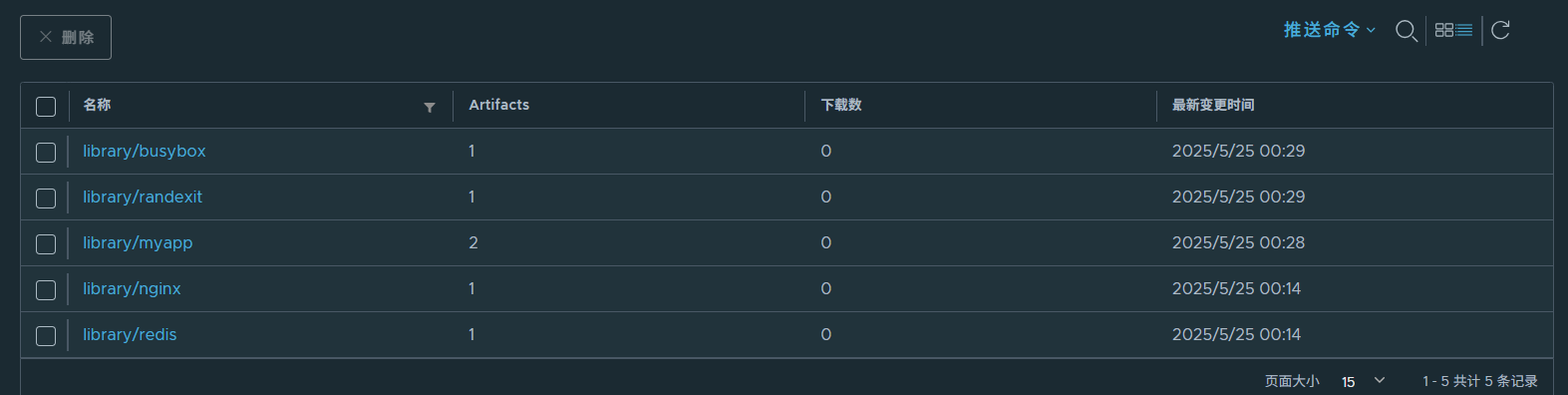

- 5、删掉已经推送上去的镜像,节约空间
rmi是删除镜像
bash
[root@harbor ~]# docker rmi -f d62dbaef1b81 e4ac4394936f 6a7beaa1d311 9ab797c41790
[root@harbor ~]# docker rmi -f 31dab2fa7183 93ad19b5b847
[root@harbor ~]# docker images
REPOSITORY                      TAG       IMAGE ID       CREATED       SIZE
mysql                           9.3.0     2c849dee4ca9   5 weeks ago   859MB
goharbor/harbor-exporter        v2.13.0   0be56feff492   6 weeks ago   127MB
goharbor/redis-photon           v2.13.0   7c0d9781ab12   6 weeks ago   166MB
goharbor/trivy-adapter-photon   v2.13.0   f2b4d5497558   6 weeks ago   381MB
goharbor/harbor-registryctl     v2.13.0   bbd957df71d6   6 weeks ago   162MB
goharbor/registry-photon        v2.13.0   fa23989bf194   6 weeks ago   85.9MB
goharbor/nginx-photon           v2.13.0   c922d86a7218   6 weeks ago   151MB
goharbor/harbor-log             v2.13.0   463b8f469e21   6 weeks ago   164MB
goharbor/harbor-jobservice      v2.13.0   112a1616822d   6 weeks ago   174MB
goharbor/harbor-core            v2.13.0   b90fcb27fd54   6 weeks ago   197MB
goharbor/harbor-portal          v2.13.0   858f92a0f5f9   6 weeks ago   159MB
goharbor/harbor-db              v2.13.0   13a2b78e8616   6 weeks ago   273MB
goharbor/prepare                v2.13.0   2380b5a4f127   6 weeks ago   205MB
5.9.5 拉取镜像
从harbor仓库中拉取镜像
bash
[root@harbor ~]# docker images
REPOSITORY                      TAG       IMAGE ID       CREATED       SIZE
goharbor/harbor-exporter        v2.13.0   0be56feff492   6 weeks ago   127MB
goharbor/redis-photon           v2.13.0   7c0d9781ab12   6 weeks ago   166MB
goharbor/trivy-adapter-photon   v2.13.0   f2b4d5497558   6 weeks ago   381MB
goharbor/harbor-registryctl     v2.13.0   bbd957df71d6   6 weeks ago   162MB
goharbor/registry-photon        v2.13.0   fa23989bf194   6 weeks ago   85.9MB
goharbor/nginx-photon           v2.13.0   c922d86a7218   6 weeks ago   151MB
goharbor/harbor-log             v2.13.0   463b8f469e21   6 weeks ago   164MB
goharbor/harbor-jobservice      v2.13.0   112a1616822d   6 weeks ago   174MB
goharbor/harbor-core            v2.13.0   b90fcb27fd54   6 weeks ago   197MB
goharbor/harbor-portal          v2.13.0   858f92a0f5f9   6 weeks ago   159MB
goharbor/harbor-db              v2.13.0   13a2b78e8616   6 weeks ago   273MB
goharbor/prepare                v2.13.0   2380b5a4f127   6 weeks ago   205MB
[root@harbor ~]# docker pull harbor.registry.com/library/redis:8.0.0
8.0.0: Pulling from library/redis
61ffccc6e275: Pull complete
cd07ede39ddc: Pull complete
63df650ee4e0: Pull complete
c175c1c9487d: Pull complete
91cf9601b872: Pull complete
4f4fb700ef54: Pull complete
c70d7dc4bd70: Pull complete
Digest: sha256:9918b5032afc54f27539f9ee9ffe465bb04ee362b51219e893763e21d3df835e
Status: Downloaded newer image for harbor.registry.com/library/redis:8.0.0
harbor.registry.com/library/redis:8.0.0
[root@harbor ~]# docker images
REPOSITORY                          TAG       IMAGE ID       CREATED       SIZE
harbor.registry.com/library/redis   8.0.0     d62dbaef1b81   2 weeks ago   128MB
goharbor/harbor-exporter            v2.13.0   0be56feff492   6 weeks ago   127MB
goharbor/redis-photon               v2.13.0   7c0d9781ab12   6 weeks ago   166MB
goharbor/trivy-adapter-photon       v2.13.0   f2b4d5497558   6 weeks ago   381MB
goharbor/harbor-registryctl         v2.13.0   bbd957df71d6   6 weeks ago   162MB
goharbor/registry-photon            v2.13.0   fa23989bf194   6 weeks ago   85.9MB
goharbor/nginx-photon               v2.13.0   c922d86a7218   6 weeks ago   151MB
goharbor/harbor-log                 v2.13.0   463b8f469e21   6 weeks ago   164MB
goharbor/harbor-jobservice          v2.13.0   112a1616822d   6 weeks ago   174MB
goharbor/harbor-core                v2.13.0   b90fcb27fd54   6 weeks ago   197MB
goharbor/harbor-portal              v2.13.0   858f92a0f5f9   6 weeks ago   159MB
goharbor/harbor-db                  v2.13.0   13a2b78e8616   6 weeks ago   273MB
goharbor/prepare                    v2.13.0   2380b5a4f127   6 weeks ago   205MB
同时harbor仓库有下载次数
