一、项目背景
你有一个Python脚本PolarHR.py,使用bleak库异步扫描并连接蓝牙心率设备,后台线程持续获取心率数据,并每2秒打印最新心率。
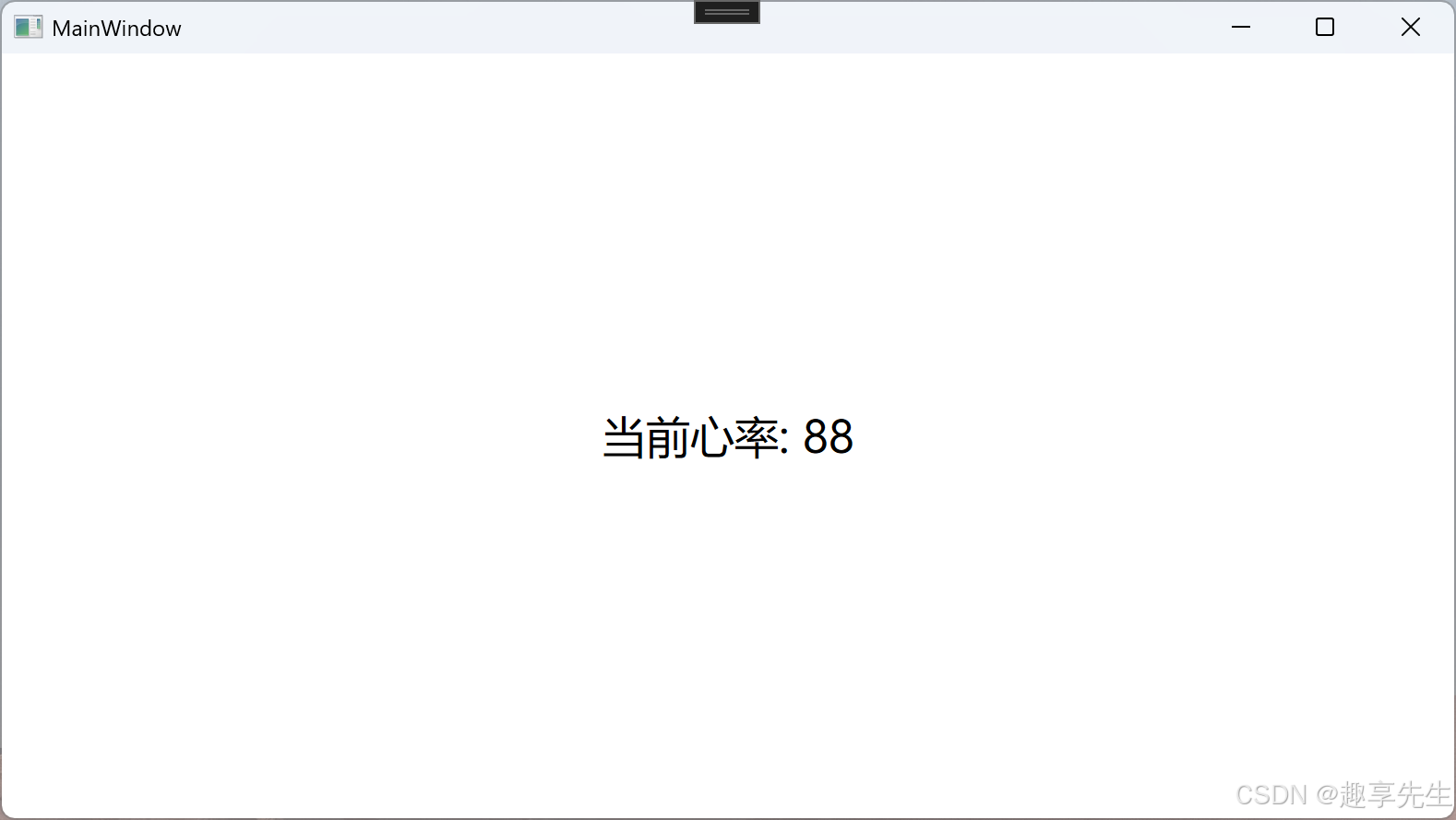
你希望在WPF程序中启动该Python脚本,实时获取心率数据并显示。
二、Python脚本(PolarHR.py)
请确保Python脚本内容如下,重点是:
- 使用
print(..., flush=True)确保输出不被缓冲,WPF能及时读取。 - 每2秒打印格式为
当前心率: 数字的字符串,方便WPF解析。
python
import asyncio
import threading
from bleak import BleakScanner, BleakClient
import time

HR_UUID = "00002a37-0000-1000-8000-00805f9b34fb"
_latest_heart_rate = None
_lock = threading.Lock()

async def _heart_rate_worker():
    global _latest_heart_rate
    print("开始扫描设备...", flush=True)
    devices = await BleakScanner.discover(timeout=5)
    print(f"扫描到设备数量: {len(devices)}", flush=True)
    polar_devices = [d for d in devices if d.name and "Polar" in d.name]
    print(f"找到 Polar 设备数量: {len(polar_devices)}", flush=True)
    if not polar_devices:
        print("未找到 Polar 设备", flush=True)
        return
    device = polar_devices[0]

    async with BleakClient(device.address) as client:
        queue = asyncio.Queue()

        def callback(sender, data):
            flags = data[0]
            hr_format = flags & 0x01
            if hr_format:
                hr = int.from_bytes(data[1:3], byteorder='little')
            else:
                hr = data[1]
            queue.put_nowait(hr)

        await client.start_notify(HR_UUID, callback)
        print(f"已连接设备 {device.name},开始接收心率数据...", flush=True)

        while True:
            hr = await queue.get()
            with _lock:
                _latest_heart_rate = hr

def _start_loop(loop):
    asyncio.set_event_loop(loop)
    loop.run_until_complete(_heart_rate_worker())

def start_heart_rate_monitor():
    loop = asyncio.new_event_loop()
    t = threading.Thread(target=_start_loop, args=(loop,), daemon=True)
    t.start()

def get_latest_heart_rate():
    with _lock:
        return _latest_heart_rate

if __name__ == "__main__":
    start_heart_rate_monitor()
    while True:
        hr = get_latest_heart_rate()
        if hr is not None:
            print(f"当前心率: {hr}", flush=True)
        else:
            print("当前心率: None", flush=True)
        time.sleep(2)
三、WPF项目代码示例
1. MainWindow.xaml
xml
<Window x:Class="HeartRateWpfApp.MainWindow"
        xmlns="http://schemas.microsoft.com/winfx/2006/xaml/presentation"
        Title="心率监测" Height="200" Width="300">
    <Grid>
        <TextBlock x:Name="HeartRateTextBlock" FontSize="24" HorizontalAlignment="Center" VerticalAlignment="Center"/>
    </Grid>
</Window>
2. MainWindow.xaml.cs
csharp
using System;
using System.Diagnostics;
using System.Text.RegularExpressions;
using System.Windows;
using System.Windows.Threading;

namespace HeartRateWpfApp
{
    public partial class MainWindow : Window
    {
        private Process _pythonProcess;
        private string _latestHeartRate = null;
        private DispatcherTimer _timer;

        public MainWindow()
        {
            InitializeComponent();
            StartPythonProcess();
            StartTimer();
        }

        private void StartPythonProcess()
        {
            var psi = new ProcessStartInfo
            {
                FileName = @"C:\Path\To\Your\Python\python.exe",  // 替换为你的python.exe完整路径
                Arguments = "-u PolarHR.py",  // -u 禁用缓冲,PolarHR.py是脚本名
                WorkingDirectory = @"C:\Users\86730\Desktop\步态资料\步态资料", // 脚本所在目录
                UseShellExecute = false,
                RedirectStandardOutput = true,
                RedirectStandardError = true,
                CreateNoWindow = true
            };

            _pythonProcess = new Process();
            _pythonProcess.StartInfo = psi;
            _pythonProcess.OutputDataReceived += PythonOutputDataReceived;
            _pythonProcess.ErrorDataReceived += PythonErrorDataReceived;
            _pythonProcess.Start();
            _pythonProcess.BeginOutputReadLine();
            _pythonProcess.BeginErrorReadLine();
        }

        private void PythonOutputDataReceived(object sender, DataReceivedEventArgs e)
        {
            if (string.IsNullOrEmpty(e.Data)) return;

            // 调试输出,方便查看Python打印内容
            Console.WriteLine("Python STDOUT: " + e.Data);

            // 匹配格式:当前心率: 数字
            var match = Regex.Match(e.Data, @"当前心率:\s*(\d+)");
            if (match.Success)
            {
                _latestHeartRate = match.Groups[1].Value;
            }
        }

        private void PythonErrorDataReceived(object sender, DataReceivedEventArgs e)
        {
            if (!string.IsNullOrEmpty(e.Data))
            {
                Console.WriteLine("Python STDERR: " + e.Data);
            }
        }

        private void StartTimer()
        {
            _timer = new DispatcherTimer();
            _timer.Interval = TimeSpan.FromSeconds(2);
            _timer.Tick += Timer_Tick;
            _timer.Start();
        }

        private void Timer_Tick(object sender, EventArgs e)
        {
            if (string.IsNullOrEmpty(_latestHeartRate))
            {
                HeartRateTextBlock.Text = "等待心率数据...";
            }
            else
            {
                HeartRateTextBlock.Text = $"当前心率: {_latestHeartRate}";
            }
        }

        protected override void OnClosed(EventArgs e)
        {
            base.OnClosed(e);
            if (_pythonProcess != null && !_pythonProcess.HasExited)
            {
                _pythonProcess.Kill();
                _pythonProcess.Dispose();
            }
        }
    }
}
四、注意事项
-
替换Python路径
将
FileName中的路径替换为你本机Python解释器的完整路径,例如:C:\Users\86730\AppData\Local\Programs\Python\Python310\python.exe -
确保Python环境安装依赖
确保
bleak库已安装:C:\Path\To\Your\Python\python.exe -m pip install bleak -
确保Python脚本路径正确
WorkingDirectory设置为Python脚本所在目录,Arguments只写脚本名。 -
调试输出
运行WPF程序时,查看输出窗口(Console)是否有Python的标准输出和错误输出,确认Python脚本是否正常启动。
-
蓝牙权限
确保WPF程序有权限访问蓝牙设备,必要时以管理员身份运行。
五、总结
- Python脚本后台线程持续采集心率数据,主线程每2秒打印格式为
当前心率: 数字的字符串。 - WPF启动Python进程,异步读取标准输出,使用正则表达式匹配并提取数字心率。
- WPF用
DispatcherTimer每2秒刷新UI显示最新心率。