文章目录
目录
[3.配置Windows VM1](#3.配置Windows VM1)
[4.配置Ubuntu VM2](#4.配置Ubuntu VM2)
[6.编译acrn 内核](#6.编译acrn 内核)
前言
ACRN 可以把一台多核心 的工控机通过软件配置方式分割多台的工控机,并在分割出来的工控机安装不同的操作系统,各系统完全隔离,独立流畅运行,接近裸机操作。用户可根据需求把不同操作系统上的应用整合到一台工控机上,取代以前需要多套电脑的方案,省钱、省电、省空间。
ACRN 不是要替代 VMware、VirtualBox 这种在服务器或电脑上跑几十个虚拟机的"巨人",而是一个专为 嵌入式、物联网、车载等场景设计的"特种兵",它的核心绝活就是 用最低的成本和开销,在一台设备上安全地融合一个"死都不能卡"的系统和一个"什么都能干"的系统**。**
本篇文章直不详细介绍arcn基本的开发配置及编译步骤,如需了解详细步骤请参考此前发布的文章
Intel-ECI 之ACRN虚拟机安装双系统,标准Ubuntu22.04系统及Ubuntu22.04+ Xenomai 内核+IgH Ethercat+codesys PLC-CSDN博客
一、测试硬件及资源分配说明
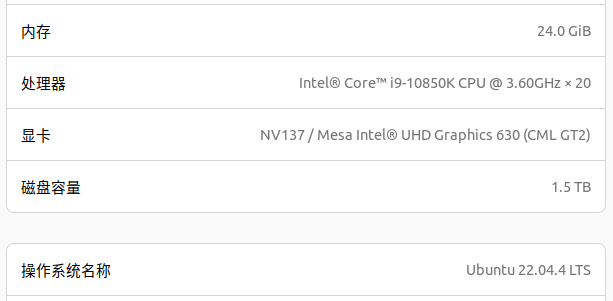
本次实战测试使用一台小型工控机作为测试平台,硬件配置如下:
1、10代I9-10850k(20核心)
2、内存24G
3、硬盘1.5T的
4、NVIDIA 1050ti 显卡
5、双网卡 intel I219 、 Intel I211
安装Ubuntu 22.04 操作系统
硬件资源分割
|--------------|---------|----|------|----------------------|
| 系统 | CPU 核心数 | 内存 | 储存 | 硬件 |
| Windows10 | 8核心 | 6G | 100G | USB、集成显卡 |
| Ubuntu 22.04 | 8核心 | 4G | 30G | NVIDIA 1050ti 显卡 |
| PREEMPT_RT | 4核心 | 4G | 20G | Intel I211(ethcat应用) |
二、配置应用场景
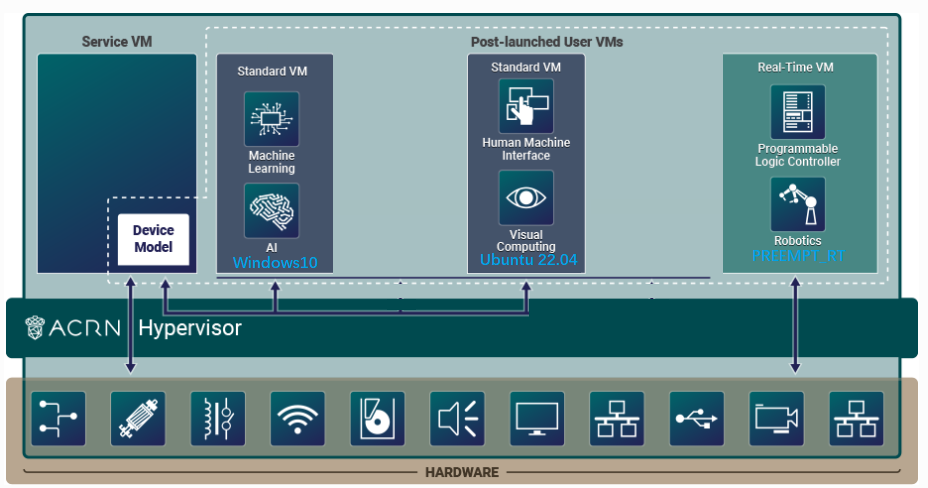
使用资源共享场景安装Windows10 、ubuntu22.04 、PREEMPT_RT 三系统。,
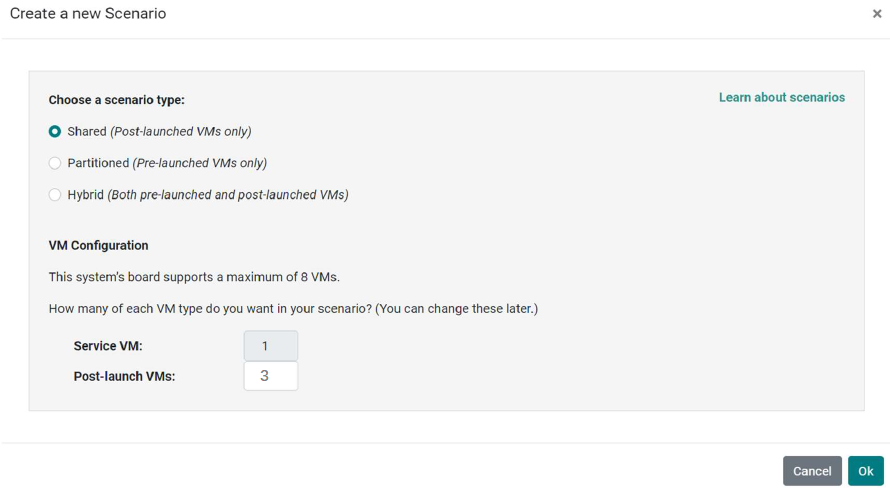
1.创建场景
1个service VM,3个post-launch VM ,如下图
点击OK 后,如下图方式显示service vm及3个Post-Lanched

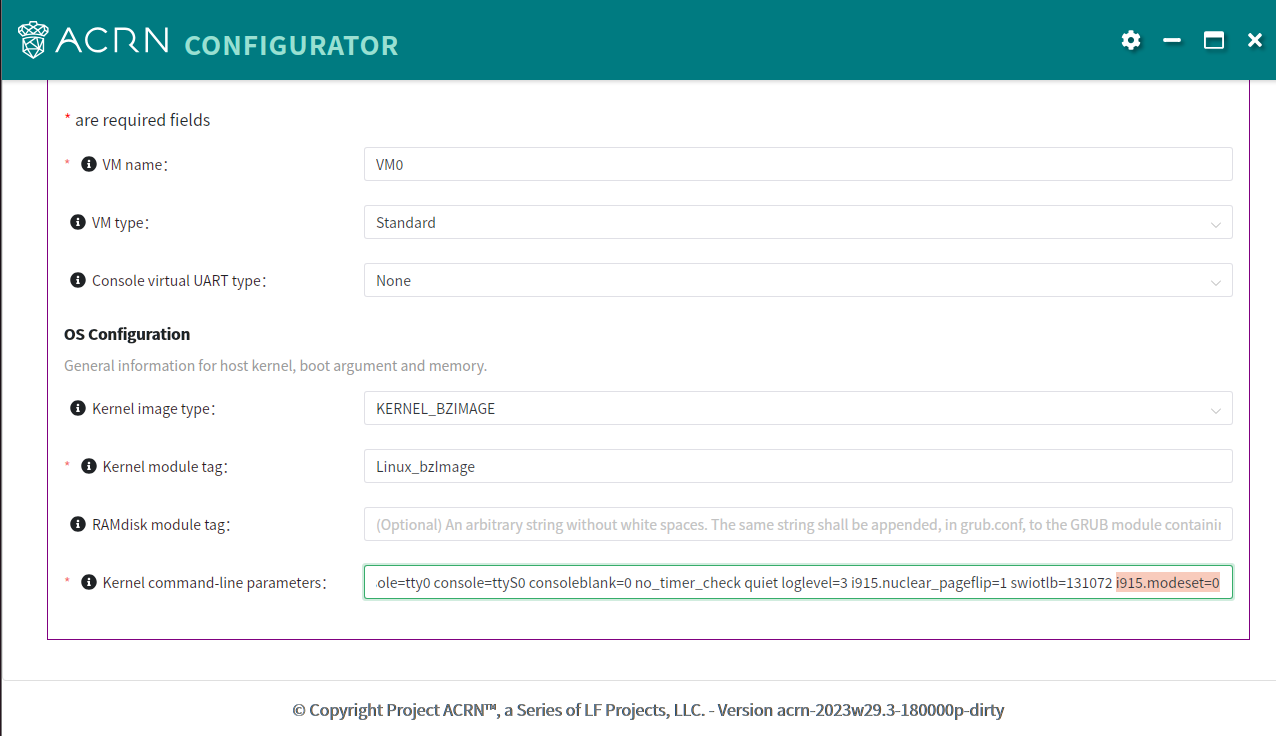
2.配置VM0
如下图kernel command-line后面添加 i915.modeset=0(集成显卡留给Windows10 使用)
3.配置Windows VM1
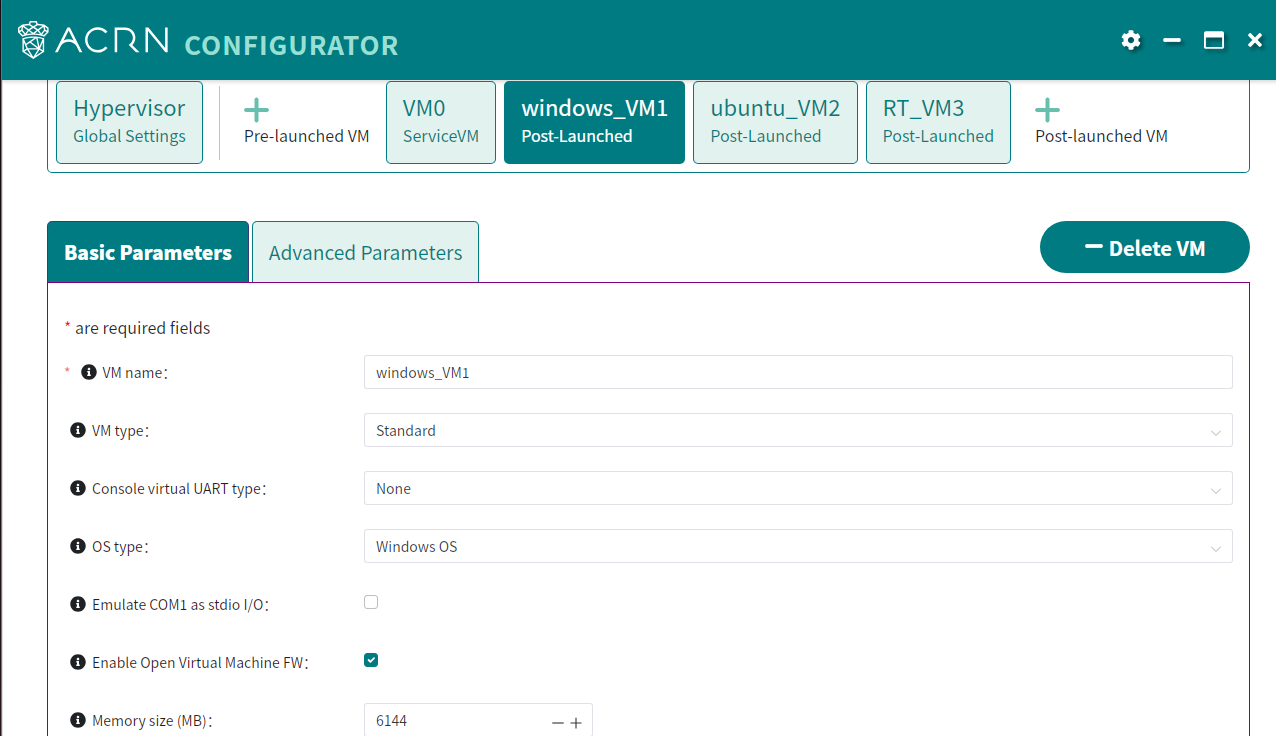
OS type 选择Windows OS ,Memory size设置6144(6G)
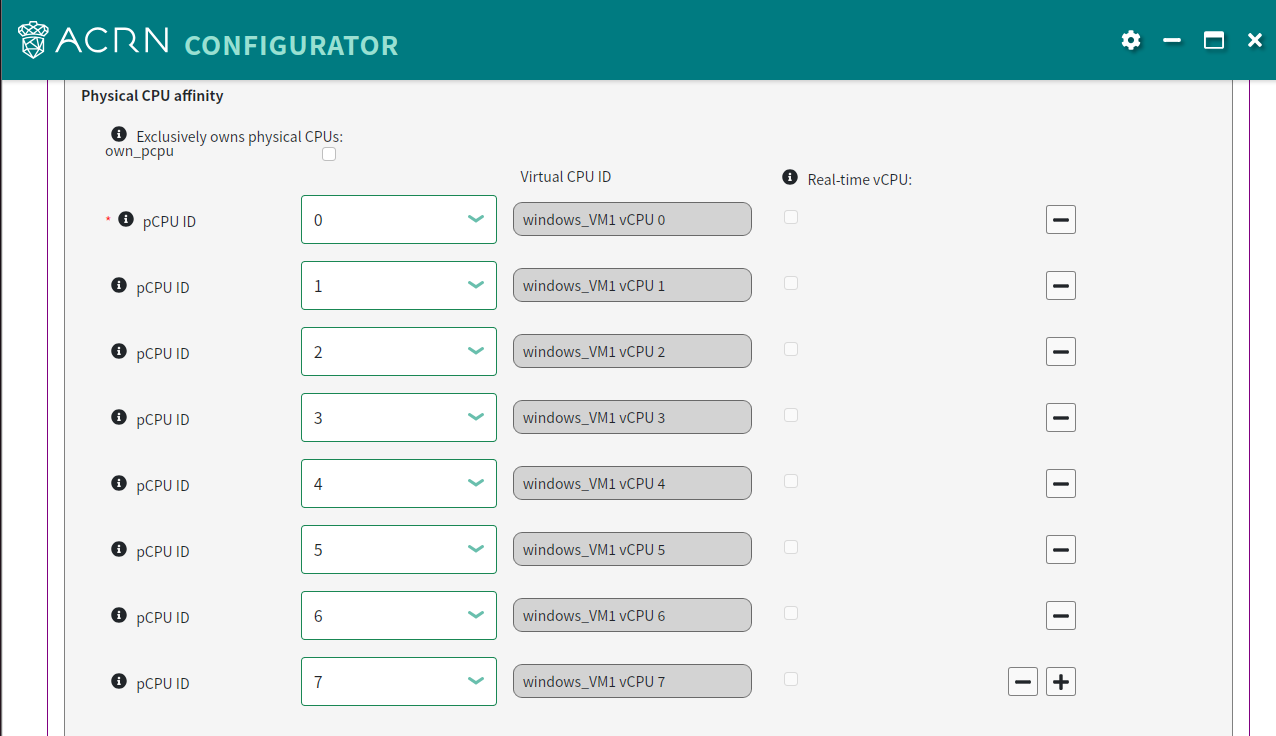
CPU 设置8核心 0~7
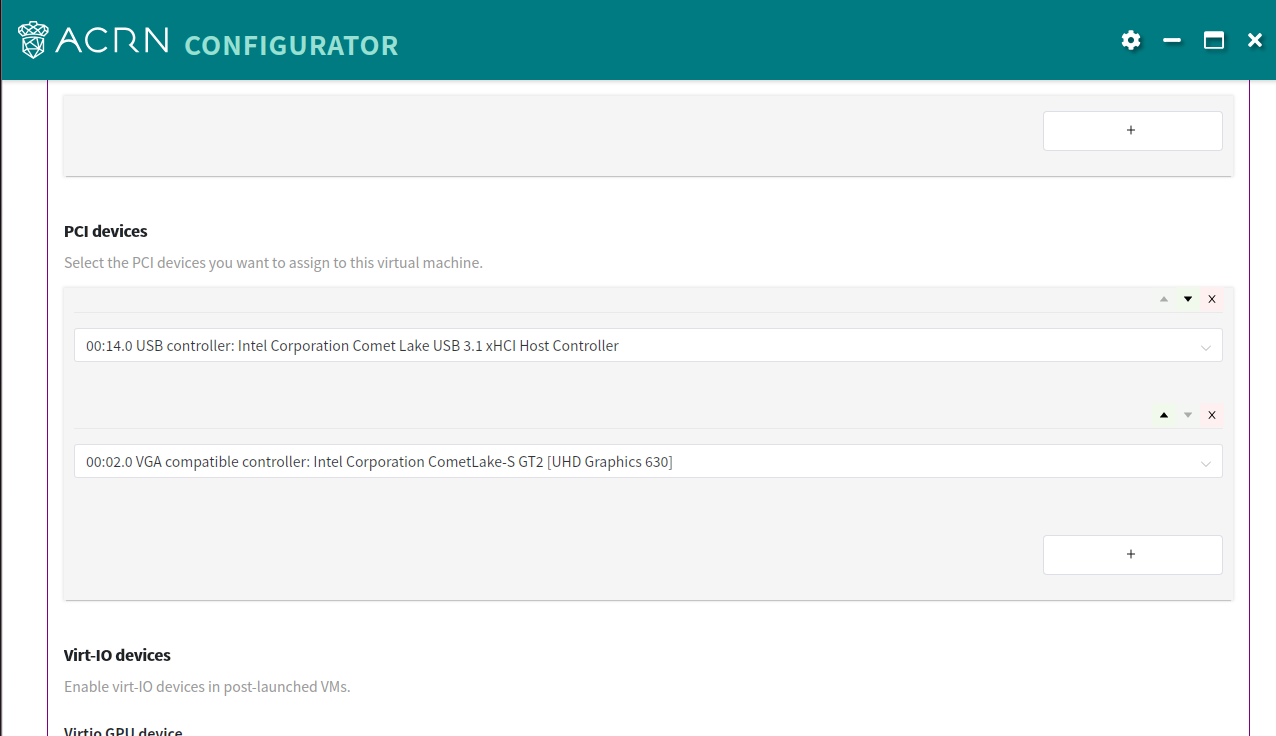
PCI devices 添加 USB controller 及 UHD graphics (集成显卡)
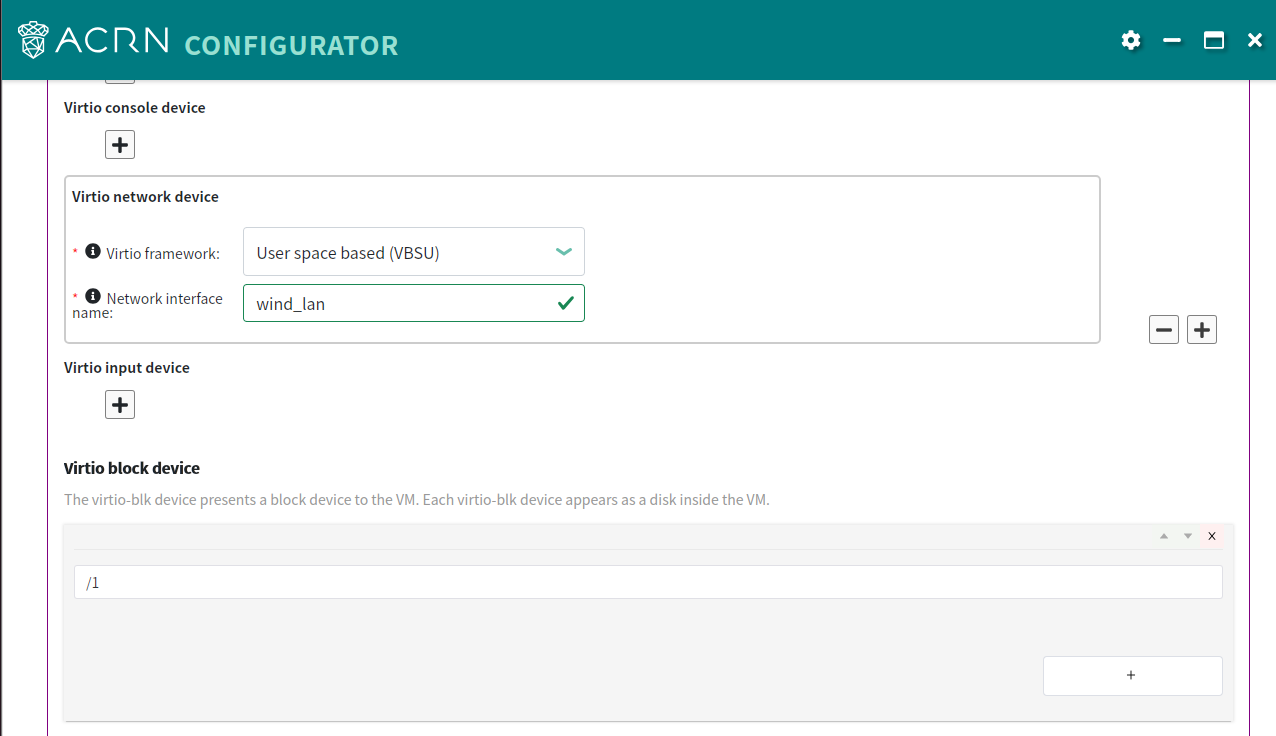
Virtio network device 设置wnd_lan (虚拟机间通讯网桥)
Virtio block device 先随便写一下,后续根据实际路径添加Windows10 镜像路径
4.配置Ubuntu VM2
OS type 选择Non-Windows OS ,Memory size设置4096(4G)
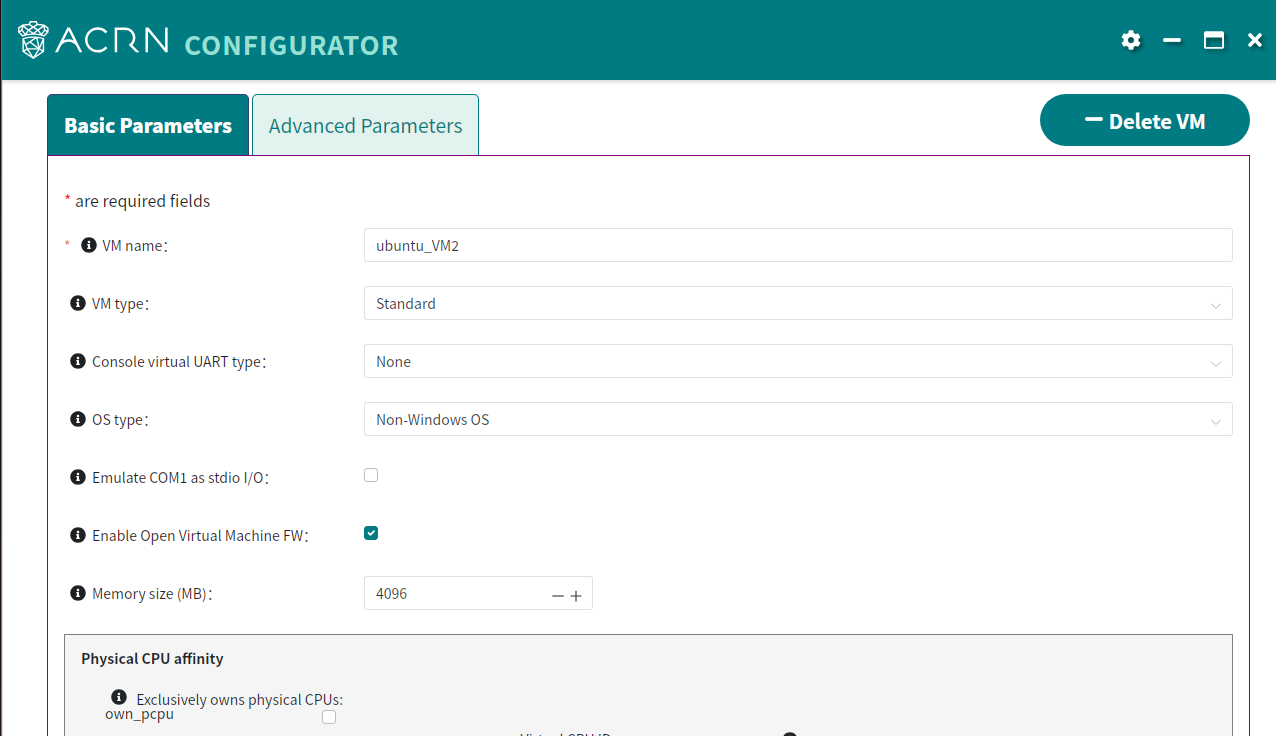
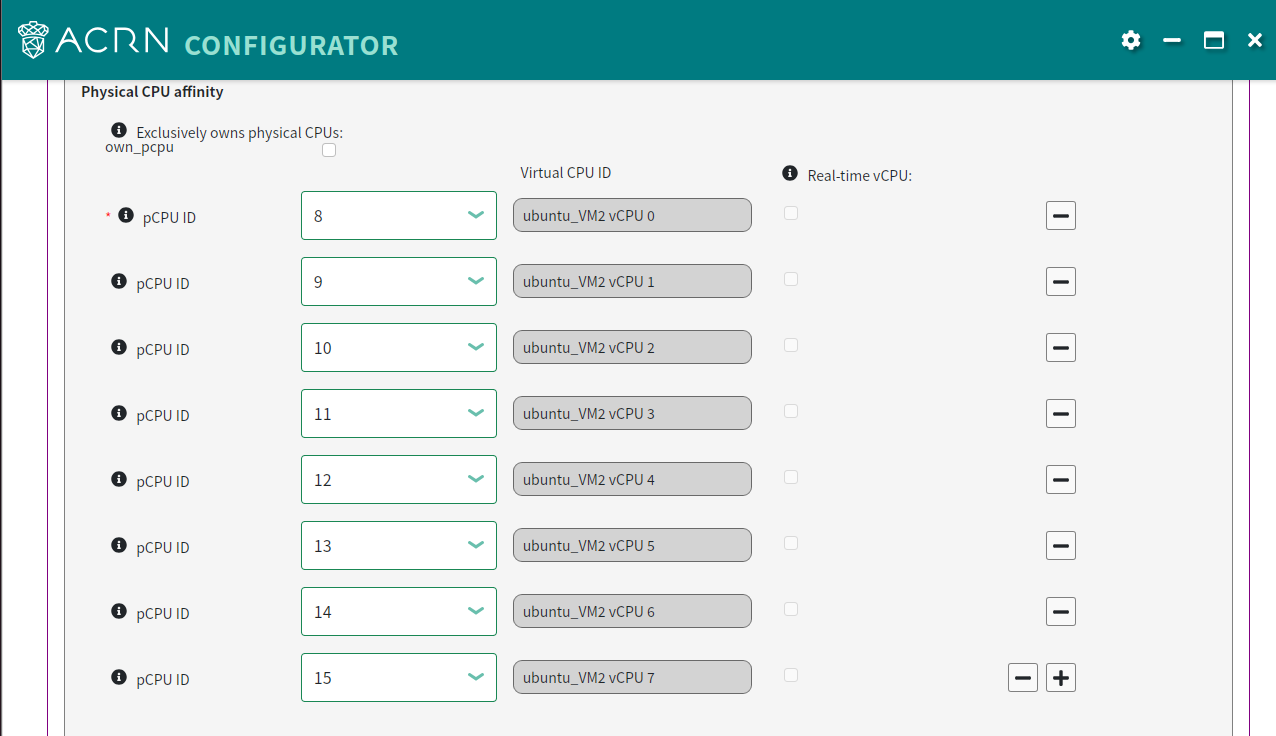
CPU 设置8核心 8~15
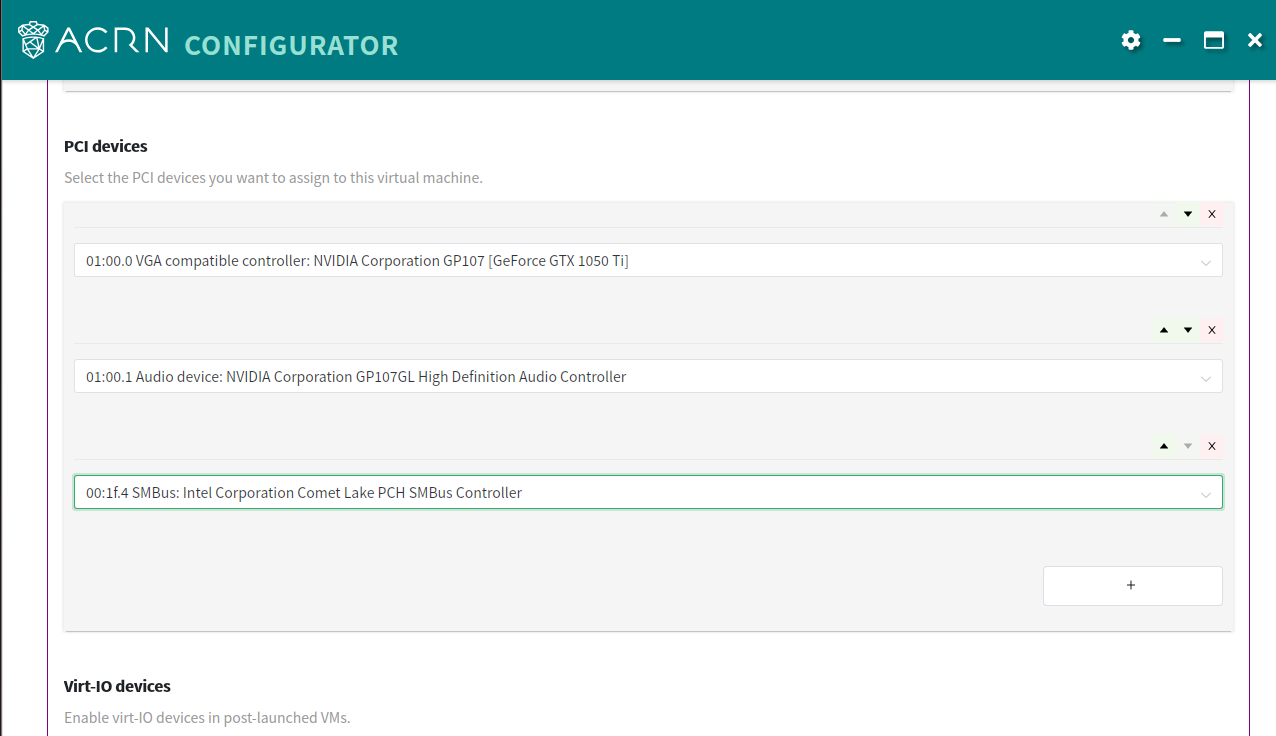
PCI devices 添加 GTX 1050ti (独立显卡)
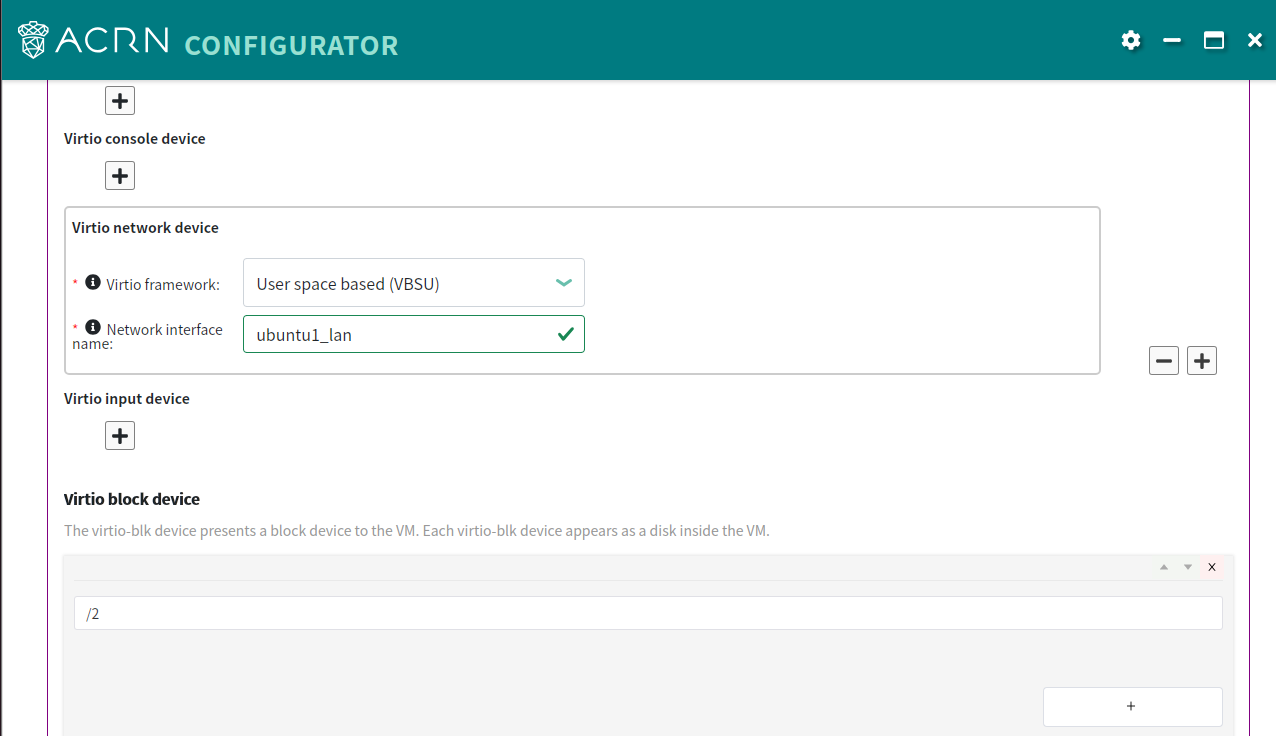
Virtio network device 设置Ubuntu1_lan (虚拟机间通讯网桥)
Virtio block device 先随便写一下,后续根据实际路径添加Ubuntu22.04 镜像路径
5.配置RT_VM3
WM type 选择Real-time , OS type 选择Non-Windows OS ,Memory size设置4096(4G)
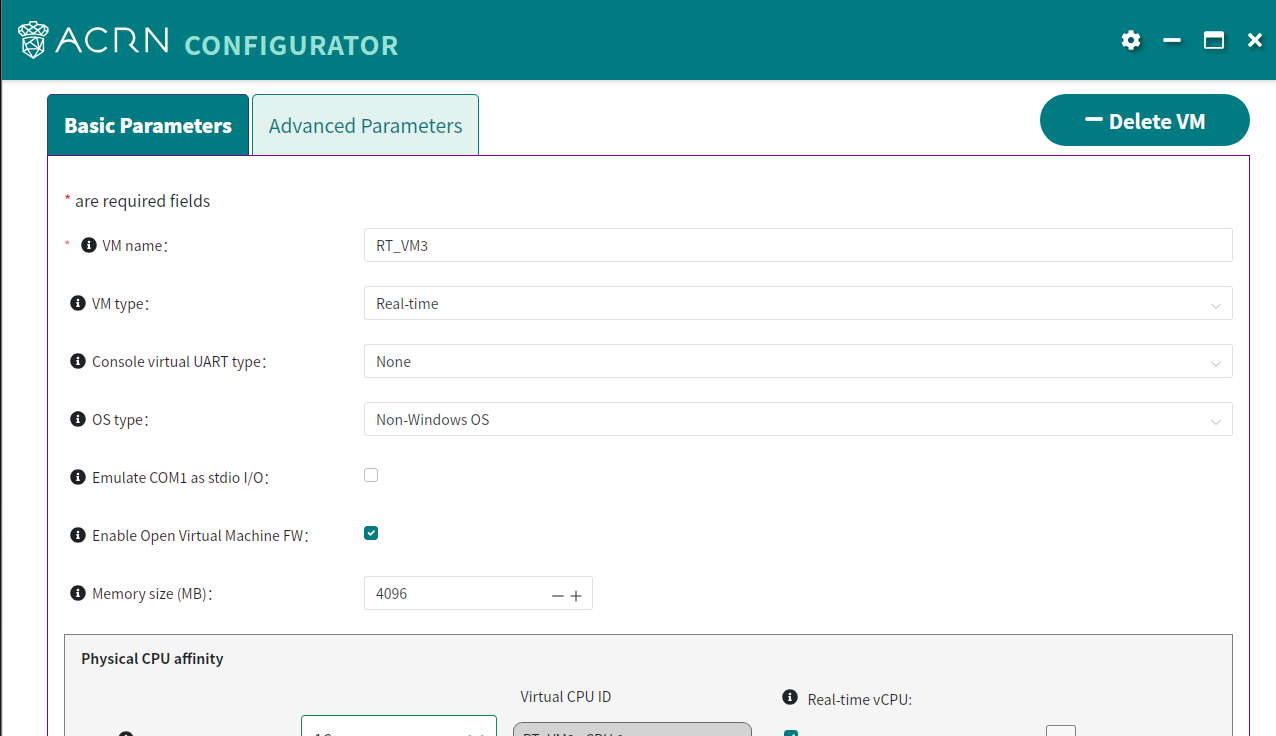
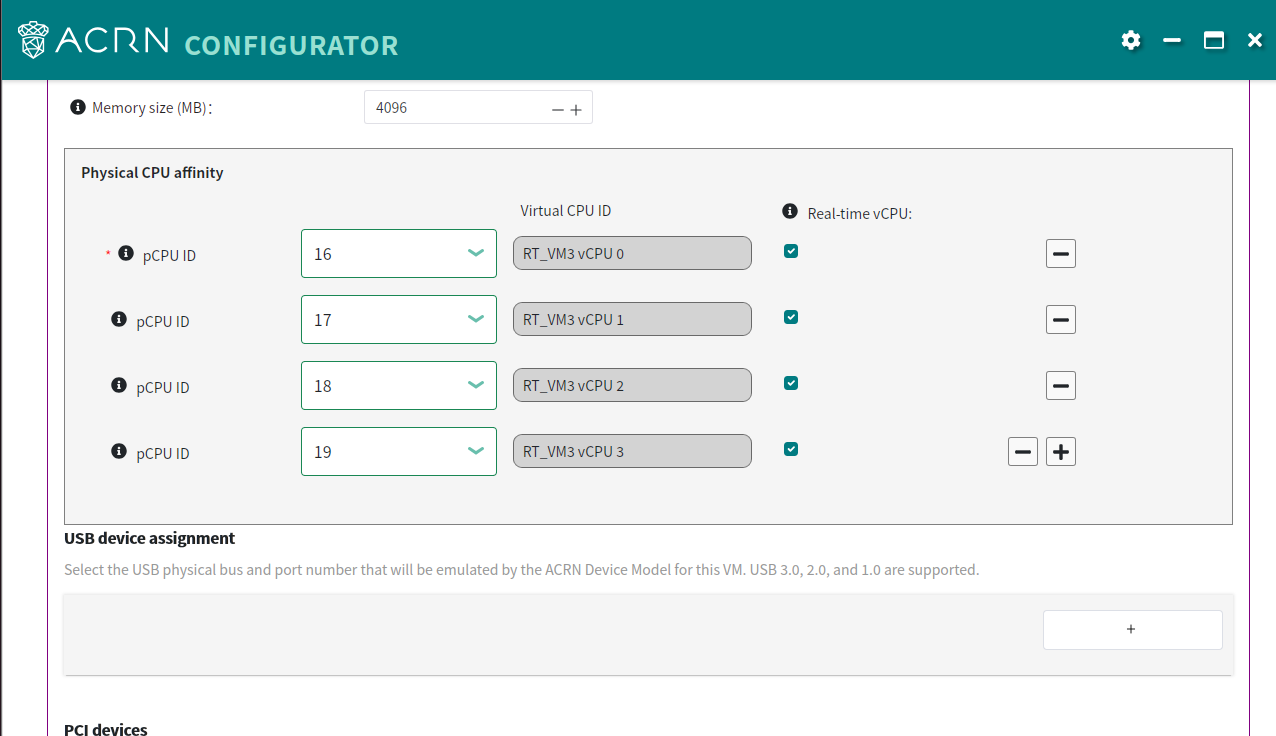
CPU 设置4核心 16~19,Real-time vCPU 4个核心全部勾选,表示CPU隔离不与其他VM 共享。
PCI devices 添加 I211网口(作为实时系统的ethcat 使用)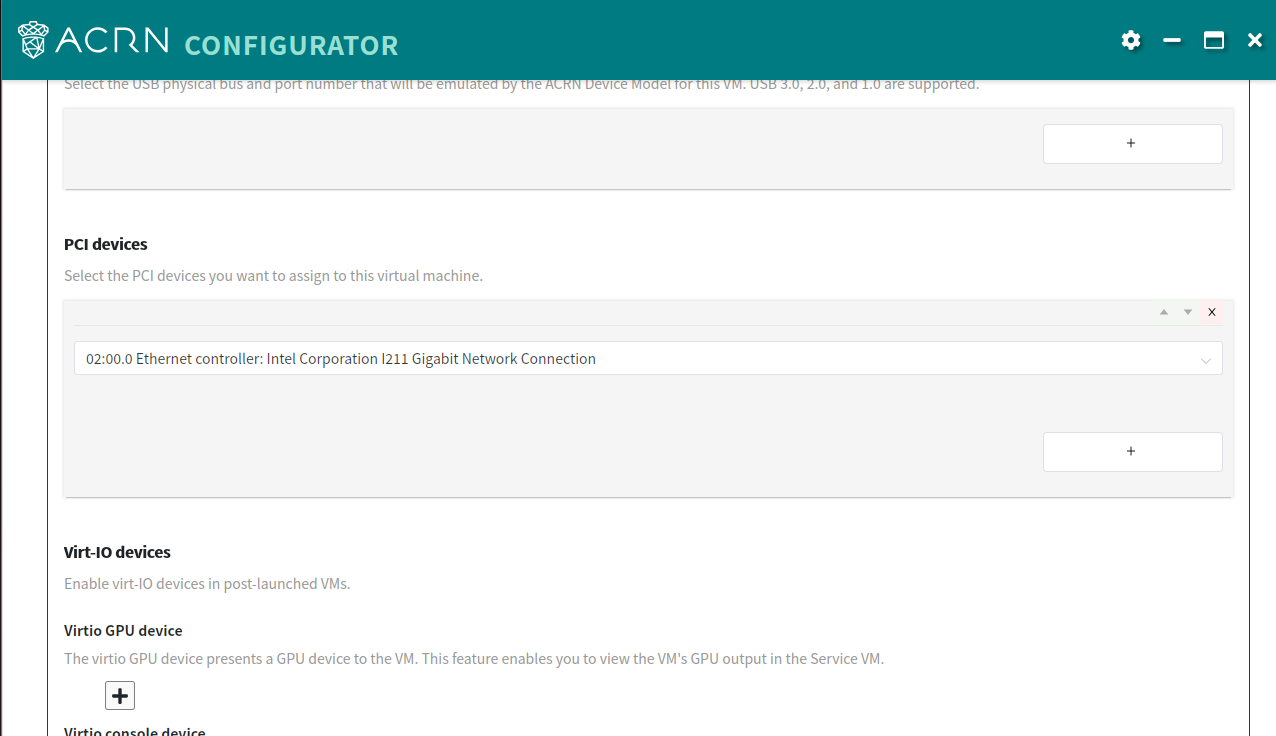
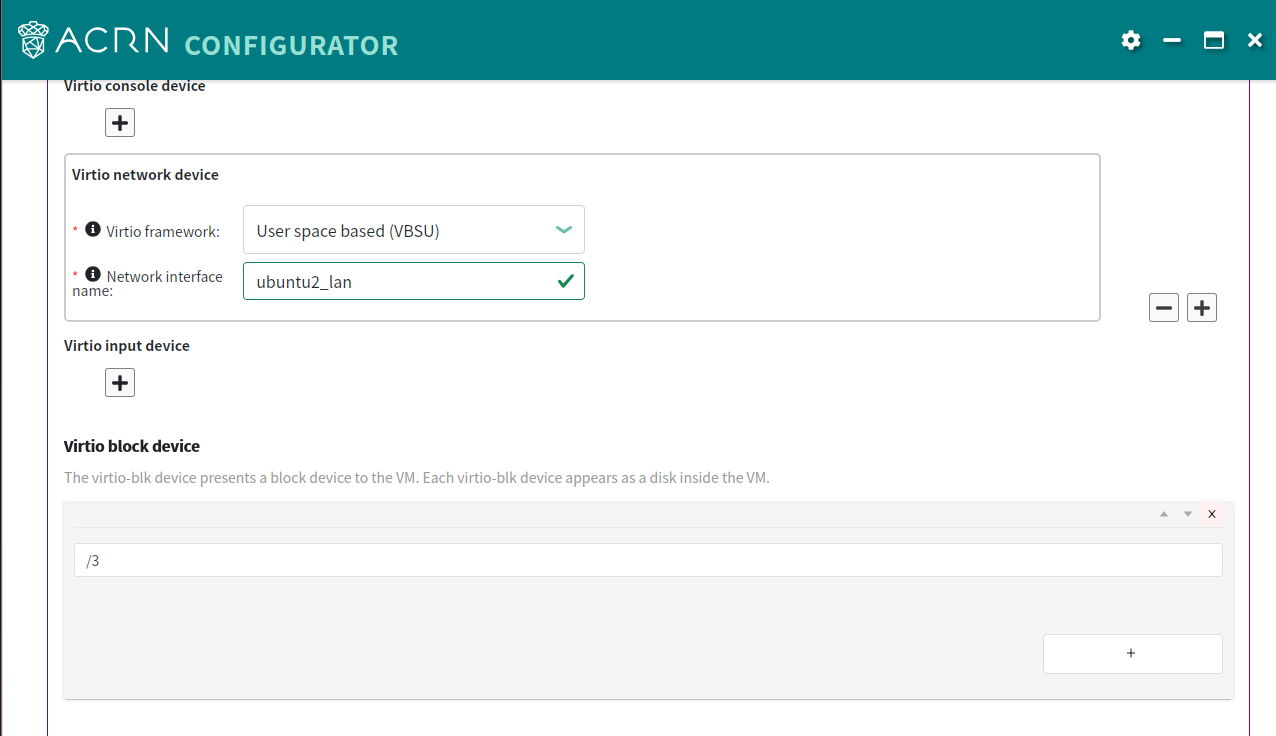
Virtio network device 设置Ubuntu2_lan (虚拟机间通讯网桥)
Virtio block device 先随便写一下,后续根据实际路径添加RTVM 镜像路径
点击Advanced Parameters 勾选LAPIC passthrough 及I/O completion polling
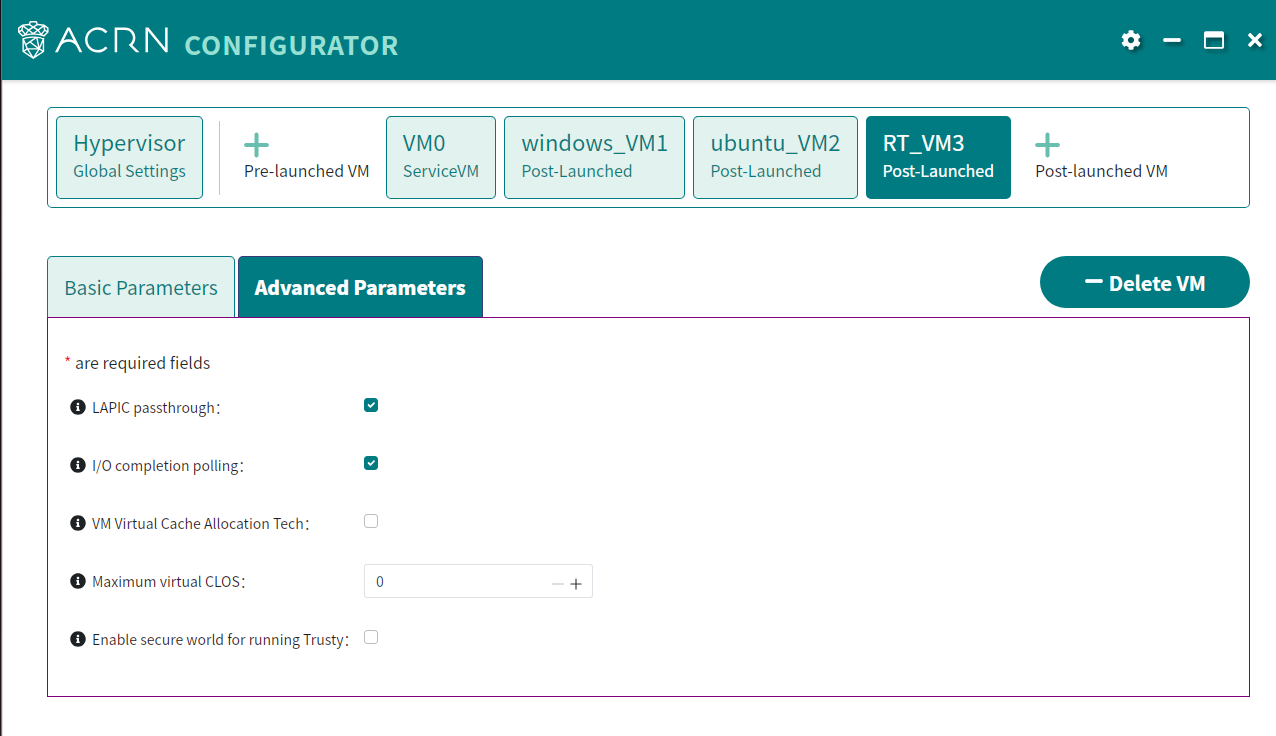
设置完成后保存即可退出
6.编译acrn 内核
编译完成后把文件拷贝到工控机安装(编译细节请参考文章前面的链接)
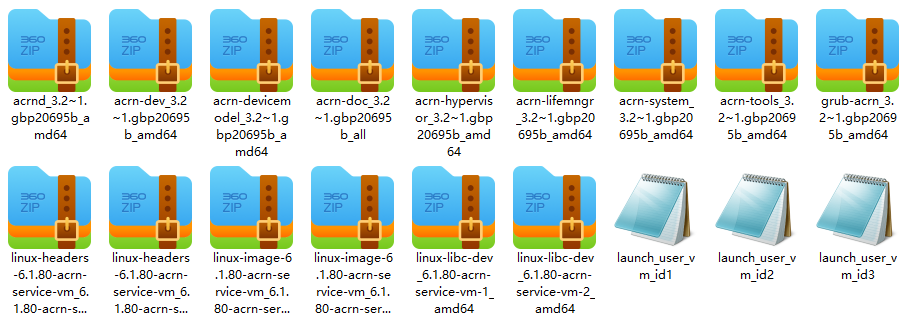
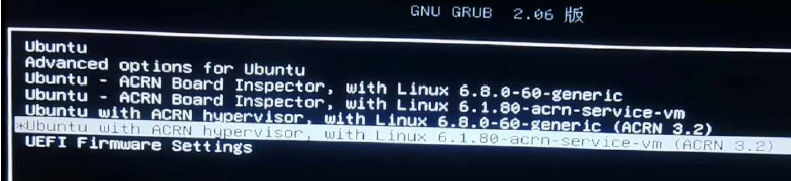
安装后开机选择acrn-service-vm(ACRN3.2)启动,开机后显示屏不会其他显示信息,需要通过ssh 登录到service vm 再运行其他user vm 的开机脚本。
7.修改开机脚本
重启系统先选择Ubuntu 进入系统,进行启动脚本修改。
- 新建一个acrn-work目录
- 将launch_user_vm_id1.sh(Windows启动脚本)、launch_user_vm_id2.sh(Ubuntu22.04启动脚本)、launch_user_vm_id2.sh(PREEMPT_RT启动脚本)拷贝到acrn-work目录中。
- 由于Windows10 系统,ubuntu 22.04系统,PREEMPT_RT系统做好一次后是可以拷贝到其他机器直接使用的,本人已经做好系统img 文件,直接下载好解压会得到win10-lts.img(Windows系统文件)、rt_vm.img(PREEMPT_RT系统文件)、ubuntu_ecivm.img(Ubuntu22.04系统文件)三个系统文件,将3个系统文件拷贝到acrn-work目录中。
bash
buntu 22.04 img网盘分享的文件
链接: https://pan.baidu.com/s/14AZdPY8QFldvzqIVAajA9g 提取码: emak
bash
window10 img网盘分享的文件:
链接: https://pan.baidu.com/s/1QpuQKTwULROhwpfWi_VMXA 提取码: vev9
bash
RT_VM img网盘分享的文件:
链接: https://pan.baidu.com/s/1xDyuiLKhx7h4C4G-C4dX9A 提取码: 7ak2- 下载Windows10直通集成显卡驱动文件OVMF.fd,下载后拷贝到acrn-work目录中。
bash
OVMF.fd网盘分享的文件:
链接: https://pan.baidu.com/s/1eCIg17Ll4_8sk8YGN7TX6g 提取码: k8xb- 修改launch_user_vm_id1.sh脚本,找到以下位置,修改OVMF.fd及win10-lts.img文件路径
bash
dm_params=(
    --windows
    `add_cpus                                 0 2 4 6 8 10 12 14`
    -m 6144M
    --ovmf /home/acrn-work/OVMF.fd
    `add_virtual_device                       1:0 lpc`
    `add_virtual_device                       0:0 hostbridge`
    `add_virtual_device                       3 virtio-net tap=wind_lan,mac_seed=${mac:0:17}-windows_VM1`
    `add_passthrough_device                   4 0000:00:14.0 d3hot_reset`
    `add_interrupt_storm_monitor              10000 10 1 100`
    `add_passthrough_device                   2 0000:00:02.0`
    `add_logger_settings                      console=4 kmsg=3 disk=5`
     -s 6,ahci,cd:/home/acrn/acrn-work/windows/winvirtio.iso
     `add_virtual_device                       5 virtio-blk /home/acrn-work/win10-ltsc.img`
   # `add_passthrough_device                   8 0000:01:00.0`
   # `add_passthrough_device                   7 0000:01:00.1`
    windows_VM1
)- 修改launch_user_vm_id12.sh脚本,找到以下位置修改ubuntu_ecivm.img文件路径
bash
dm_params=(
    `add_cpus                                 1 3 5 7 9 11 16 18`
    -m 4096M
    --ovmf /usr/share/acrn/bios/OVMF.fd
    `add_virtual_device                       1:0 lpc`
    `add_virtual_device                       0:0 hostbridge`
    `add_virtual_device                       3 virtio-net tap=ubuntu1_lan,mac_seed=${mac:0:17}-ubuntu_VM2`
    `add_virtual_device                       4 virtio-blk /home/acrn-work/ubuntu_ecivm.img`
    `add_passthrough_device                   2 0000:01:00.0`
    `add_passthrough_device                   5 0000:01:00.1`
    `add_interrupt_storm_monitor              10000 10 1 100`
    `add_logger_settings                      console=4 kmsg=3 disk=5`
   # `add_passthrough_device                   6 0000:00:14.0 d3hot_reset`
    ubuntu_VM2
)- 修改launch_user_vm_id13.sh脚本,找到以下位置修改rt_vm.img文件路径
bash
dm_params=(
    `add_cpus                                 13 15 17 19`
    -m 4096M
    --ovmf /usr/share/acrn/bios/OVMF.fd
    `add_virtual_device                       0:0 hostbridge`
    --virtio_poll 1000000
    `add_virtual_device                       3 virtio-net tap=ubuntu2_lan,mac_seed=${mac:0:17}-RT_VM3`
    `add_virtual_device                       4 virtio-blk /home/acrn-work/rt_vm.img`
    `add_passthrough_device                   5 0000:02:00.0`
    `add_interrupt_storm_monitor              10000 10 1 100`
    --rtvm
    --lapic_pt
    `add_logger_settings                      console=4 kmsg=3 disk=5`
    RT_VM3
)- 在acrn-work 目录新建一个autorun.sh 文件,写入以下内容,用于启动3个VM 的脚本,并设置好网桥
bash
#!/bin/bash
/home/acrn/acrn-work/launch_user_vm_id1.sh &
/home/acrn/acrn-work/launch_user_vm_id2.sh &
/home/acrn/acrn-work/launch_user_vm_id3.sh  &
sleep 20
sudo brctl addif br0 ubuntu1_lan
sudo brctl addif br0 ubuntu2_lan
sudo brctl addif br0 wind_lan
sudo ip link set dev ubuntu1_lan up
sudo ip link set dev ubuntu2_lan up
sudo ip link set dev wind_lan up- 设置网桥
bash
$ sudo apt update
$ sudo apt install bridge-utils net-tools -y
$ sudo gedit  /etc/netplan/01-network-manager-all.yaml
输入以下内容,本人设置enp2s0的物理网口作为网桥外部联网网口,不同机器可根据实际网口名称修改
bash
network:
  version: 2
  renderer: networkd
  ethernets:
    enp2s0:  # 物理网卡名称(通过 ip a 命令查看)
      dhcp4: no
      optional: true
  bridges:
    br0:     # 网桥名称
      interfaces: [enp2s0]  # 绑定的物理网卡
      dhcp4: yes           # 启用DHCP
      parameters:
        stp: false         # 关闭生成树协议(可选)
        forward-delay: 0    # 转发延迟(可选)
bash
sudo netplan apply到此完成启动脚本修改工作。
三、同时启动三个系统测试
重启系统选择acrn-service-vm(ACRN3.2)启动
出现此画面时,其他电脑通过ssh 的方式登录到service VM(配置网桥的网口需联网,可以通过路由器查找service VM的IP)

本人测试service VM 登录用户是acrn ,IP是192.168.101.245(根据实际情况修改),登录成功如下图
bash
C:\Users\hank>ssh acrn@192.168.101.245
acrn@192.168.101.245's password:
Welcome to Ubuntu 22.04.4 LTS (GNU/Linux 6.1.80-acrn-service-vm x86_64)

 * Documentation:  https://help.ubuntu.com
 * Management:     https://landscape.canonical.com
 * Support:        https://ubuntu.com/pro

扩展安全维护(ESM)Applications 未启用。

278 更新可以立即应用。
这些更新中有 172 个是标准安全更新。
要查看这些附加更新,请运行:apt list --upgradable

2 个额外的安全更新可以通过 ESM Apps 来获取安装。
可通过以下途径了解如何启用 ESM Apps:at https://ubuntu.com/esm


The list of available updates is more than a week old.
To check for new updates run: sudo apt update
New release '24.04.3 LTS' available.
Run 'do-release-upgrade' to upgrade to it.

Last login: Thu Dec  4 21:24:10 2025 from 192.168.101.240
acrn@acrn-ATO-H6060:~$
运行autorun.sh 脚本,出现以下信息,表示3个系统启动完成
bash
acrn@acrn-ATO-H6060:~$ cd /home/acrn/acrn-work/
acrn@acrn-ATO-H6060:~/acrn-work$ sudo ./autorun.sh
cpu16 online=1
Device "ubuntu1_lan" does not exist.
Device "wind_lan" does not exist.
cpu17 online=1
cpu18 online=1
cpu19 online=1
Device "ubuntu2_lan" does not exist.
/home/acrn/acrn-work/launch_user_vm_id1.sh: 第 55 行: echo: 写入错误:设备或资源忙
/home/acrn/acrn-work/launch_user_vm_id3.sh: 第 55 行: echo: 写入错误:设备或资源忙
Launch device model with parameters: --windows --cpu_affinity 0,2,4,6,8,10,12,14 -m 6144M --ovmf /home/acrn/image/OVMF.fd -s 1:0,lpc -s 0:0,hostbridge -s 3,virtio-net,tap=wind_lan,mac_seed=d8:5e:d3:8d:cf:26-windows_VM1 -s 4,passthru,0/14/0,d3hot_reset --intr_monitor 10000,10,1,100 -s 2,passthru,0/2/0 --logger_setting console,level=4;kmsg,level=3;disk,level=5 -s 6,ahci,cd:/home/acrn/acrn-work/windows/winvirtio.iso -s 5,virtio-blk,/home/acrn/image/win10-ltsc.img windows_VM1
Launch device model with parameters: --cpu_affinity 13,15,17,19 -m 4096M --ovmf /usr/share/acrn/bios/OVMF.fd -s 0:0,hostbridge --virtio_poll 1000000 -s 3,virtio-net,tap=ubuntu2_lan,mac_seed=d8:5e:d3:8d:cf:26-RT_VM3 -s 4,virtio-blk,/home/acrn/image/rt_vm_b.img -s 5,passthru,2/0/0 --intr_monitor 10000,10,1,100 --rtvm --lapic_pt --logger_setting console,level=4;kmsg,level=3;disk,level=5 RT_VM3
SW_LOAD: get ovmf path /home/acrn/image/OVMF.fd, size 0x200000
logger: name=console, level=4
logger: name=kmsg, level=3
logger: name=disk, level=5
SW_LOAD: get ovmf path /usr/share/acrn/bios/OVMF.fd, size 0x200000
logger: name=console, level=4
logger: name=kmsg, level=3
logger: name=disk, level=5
Found default iasl path: /usr/bin/iasl
Found default iasl path: /usr/bin/iasl
iasl version: 20200925
iasl version: 20200925
vm_create: RT_VM3
vm_create: windows_VM1
vm setup asyncio page
ACRN_IOCTL_SBUF_PAGE ioctl() returned an error: Undefined operation
ASYNIO capability is not supported by kernel or hyperviosr!
vm_setup_memory: size=0x180000000
level 0 free/need pages:0/9 page size:0x200000
level 1 free/need pages:14/6 page size:0x40000000
to reserve more free pages:
vm setup asyncio page
ACRN_IOCTL_SBUF_PAGE ioctl() returned an error: Undefined operation
ASYNIO capability is not supported by kernel or hyperviosr!
vm_setup_memory: size=0x100000000
to reserve pages (+orig 0): echo 9 > /sys/kernel/mm/hugepages/hugepages-2048kB/nr_hugepages
now enough free pages are reserved!

try to setup hugepage with:
        level 0 - lowmem 0x0, fbmem 0x1000000, biosmem 0x200000, highmem 0x0
        level 1 - lowmem 0x80000000, fbmem 0x0, biosmem 0x0, highmem 0x100000000
total_size 0x240000000

mmap ptr 0x0x7f18cb3ef000 -> baseaddr 0x0x7f1900000000
mmap 0x80000000@0x7f1900000000
touch 2 pages with pagesz 0x40000000
Launch device model with parameters: --cpu_affinity 1,3,5,7,9,11,16,18 -m 4096M --ovmf /usr/share/acrn/bios/OVMF.fd -s 1:0,lpc -s 0:0,hostbridge -s 3,virtio-net,tap=ubuntu1_lan,mac_seed=d8:5e:d3:8d:cf:26-ubuntu_VM2 -s 4,virtio-blk,/home/acrn/ubuntu_images/ubuntu_uservm.img -s 2,passthru,1/0/0 -s 5,passthru,1/0/1 --intr_monitor 10000,10,1,100 --logger_setting console,level=4;kmsg,level=3;disk,level=5 ubuntu_VM2
SW_LOAD: get ovmf path /usr/share/acrn/bios/OVMF.fd, size 0x200000
logger: name=console, level=4
logger: name=kmsg, level=3
logger: name=disk, level=5
Found default iasl path: /usr/bin/iasl
iasl version: 20200925
vm_create: ubuntu_VM2
vm setup asyncio page
ACRN_IOCTL_SBUF_PAGE ioctl() returned an error: Undefined operation
ASYNIO capability is not supported by kernel or hyperviosr!
vm_setup_memory: size=0x100000000
mmap 0x100000000@0x7f1a00000000
touch 4 pages with pagesz 0x40000000
mmap 0x200000@0x7f19ffe00000
touch 1 pages with pagesz 0x200000
mmap 0x1000000@0x7f19fee00000
touch 8 pages with pagesz 0x200000

really setup hugepage with:
        level 0 - lowmem 0x0, biosmem 0x200000, highmem 0x0
        level 1 - lowmem 0x80000000, biosmem 0x0, highmem 0x100000000
level 0 free/need pages:0/9 page size:0x200000
level 1 free/need pages:8/4 page size:0x40000000
to reserve more free pages:
to reserve pages (+orig 9): echo 18 > /sys/kernel/mm/hugepages/hugepages-2048kB/nr_hugepages
now enough free pages are reserved!

try to setup hugepage with:
        level 0 - lowmem 0x0, fbmem 0x1000000, biosmem 0x200000, highmem 0x0
        level 1 - lowmem 0x80000000, fbmem 0x0, biosmem 0x0, highmem 0x80000000
total_size 0x1c0000000

mmap ptr 0x0x7f62daa79000 -> baseaddr 0x0x7f6300000000
mmap 0x80000000@0x7f6300000000
touch 2 pages with pagesz 0x40000000
vm_init_vdevs
No pm notify channel given
Listening 0...
polling 37...
start monitor interrupt data...
pci init passthru
mmap 0x80000000@0x7f6400000000
touch 2 pages with pagesz 0x40000000
pci init passthru
pci init hostbridge
pci init lpc
pci init virtio-net
pci init virtio-blk
pci init ahci
pci init igd-lpc
tpm: init_vtpm2:Invalid socket path!
mpt_build_proc_entries, guest_cpu_bitmask: 0xff
basl_fwrite_madt, guest_cpu_bitmask: 0xff
basl_fwrite_madt, vcpu_id=0x0, pcpu_id=0x0, lapic_id=0x0
basl_fwrite_madt, vcpu_id=0x1, pcpu_id=0x1, lapic_id=0x2
basl_fwrite_madt, vcpu_id=0x2, pcpu_id=0x2, lapic_id=0x4
basl_fwrite_madt, vcpu_id=0x3, pcpu_id=0x3, lapic_id=0x6
basl_fwrite_madt, vcpu_id=0x4, pcpu_id=0x4, lapic_id=0x8
basl_fwrite_madt, vcpu_id=0x5, pcpu_id=0x5, lapic_id=0xa
basl_fwrite_madt, vcpu_id=0x6, pcpu_id=0x6, lapic_id=0xc
basl_fwrite_madt, vcpu_id=0x7, pcpu_id=0x7, lapic_id=0xe
ACRN_IOCTL_PM_GET_CPU_STATE ioctl() returned an error: Operation not permitted
ACRN_IOCTL_PM_GET_CPU_STATE ioctl() returned an error: Operation not permitted
ACRN_IOCTL_PM_GET_CPU_STATE ioctl() returned an error: Operation not permitted
ACRN_IOCTL_PM_GET_CPU_STATE ioctl() returned an error: Operation not permitted
ACRN_IOCTL_PM_GET_CPU_STATE ioctl() returned an error: Operation not permitted
ACRN_IOCTL_PM_GET_CPU_STATE ioctl() returned an error: Operation not permitted
ACRN_IOCTL_PM_GET_CPU_STATE ioctl() returned an error: Operation not permitted
ACRN_IOCTL_PM_GET_CPU_STATE ioctl() returned an error: Operation not permitted
acrn_sw_load
SW_LOAD: partition blob /home/acrn/image/OVMF.fd size 0x200000 copied to addr 0x7f19ffe00000
SW_LOAD: build e820 5 entries to addr: 0x7f19000ef008
SW_LOAD: entry[0]: addr 0x0000000000000000, size 0x00000000000a0000,  type 0x1
SW_LOAD: entry[1]: addr 0x0000000000100000, size 0x000000007befb000,  type 0x1
SW_LOAD: entry[2]: addr 0x000000007bffb000, size 0x0000000004005000,  type 0x2
SW_LOAD: entry[3]: addr 0x00000000e0000000, size 0x0000000020000000,  type 0x2
SW_LOAD: entry[4]: addr 0x0000000100000000, size 0x0000000100000000,  type 0x1
SW_LOAD: ovmf_entry 0xfffffff0
add_cpu
mmap 0x200000@0x7f63ffe00000
touch 1 pages with pagesz 0x200000
mmap 0x1000000@0x7f63fee00000
touch 8 pages with pagesz 0x200000

really setup hugepage with:
        level 0 - lowmem 0x0, biosmem 0x200000, highmem 0x0
        level 1 - lowmem 0x80000000, biosmem 0x0, highmem 0x80000000
level 0 free/need pages:0/9 page size:0x200000
level 1 free/need pages:4/4 page size:0x40000000
to reserve more free pages:
to reserve pages (+orig 18): echo 27 > /sys/kernel/mm/hugepages/hugepages-2048kB/nr_hugepages
now enough free pages are reserved!

try to setup hugepage with:
        level 0 - lowmem 0x0, fbmem 0x1000000, biosmem 0x200000, highmem 0x0
        level 1 - lowmem 0x80000000, fbmem 0x0, biosmem 0x0, highmem 0x80000000
total_size 0x1c0000000

mmap ptr 0x0x7fd447a19000 -> baseaddr 0x0x7fd480000000
mmap 0x80000000@0x7fd480000000
touch 2 pages with pagesz 0x40000000
mmap 0x80000000@0x7fd580000000
touch 2 pages with pagesz 0x40000000
mmap 0x200000@0x7fd57fe00000
touch 1 pages with pagesz 0x200000
mmap 0x1000000@0x7fd57ee00000
touch 8 pages with pagesz 0x200000

really setup hugepage with:
        level 0 - lowmem 0x0, biosmem 0x200000, highmem 0x0
        level 1 - lowmem 0x80000000, biosmem 0x0, highmem 0x80000000
vm_init_vdevs
No pm notify channel given
Listening 0...
polling 0...
start monitor interrupt data...
pci init passthru
reset dev 1/0/0 failed!
vm_init_vdevs
No pm notify channel given
Listening 0...
polling 0...
start monitor interrupt data...
pci init passthru
pci init hostbridge
pci init lpc
pci init virtio-net
pci init passthru
pci init virtio-blk
tpm: init_vtpm2:Invalid socket path!
mpt_build_proc_entries, guest_cpu_bitmask: 0xff00
basl_fwrite_madt, guest_cpu_bitmask: 0xff00
basl_fwrite_madt, vcpu_id=0x0, pcpu_id=0x8, lapic_id=0x10
basl_fwrite_madt, vcpu_id=0x1, pcpu_id=0x9, lapic_id=0x12
basl_fwrite_madt, vcpu_id=0x2, pcpu_id=0xa, lapic_id=0x1
basl_fwrite_madt, vcpu_id=0x3, pcpu_id=0xb, lapic_id=0x3
basl_fwrite_madt, vcpu_id=0x4, pcpu_id=0xc, lapic_id=0x5
basl_fwrite_madt, vcpu_id=0x5, pcpu_id=0xd, lapic_id=0x7
basl_fwrite_madt, vcpu_id=0x6, pcpu_id=0xe, lapic_id=0x9
basl_fwrite_madt, vcpu_id=0x7, pcpu_id=0xf, lapic_id=0xb
ACRN_IOCTL_PM_GET_CPU_STATE ioctl() returned an error: Operation not permitted
ACRN_IOCTL_PM_GET_CPU_STATE ioctl() returned an error: Operation not permitted
ACRN_IOCTL_PM_GET_CPU_STATE ioctl() returned an error: Operation not permitted
ACRN_IOCTL_PM_GET_CPU_STATE ioctl() returned an error: Operation not permitted
ACRN_IOCTL_PM_GET_CPU_STATE ioctl() returned an error: Operation not permitted
ACRN_IOCTL_PM_GET_CPU_STATE ioctl() returned an error: Operation not permitted
ACRN_IOCTL_PM_GET_CPU_STATE ioctl() returned an error: Operation not permitted
ACRN_IOCTL_PM_GET_CPU_STATE ioctl() returned an error: Operation not permitted
acrn_sw_load
SW_LOAD: partition blob /usr/share/acrn/bios/OVMF.fd size 0x200000 copied to addr 0x7fd57fe00000
SW_LOAD: build e820 4 entries to addr: 0x7fd4800ef008
SW_LOAD: entry[0]: addr 0x0000000000000000, size 0x00000000000a0000,  type 0x1
SW_LOAD: entry[1]: addr 0x0000000000100000, size 0x000000007ff00000,  type 0x1
SW_LOAD: entry[2]: addr 0x00000000e0000000, size 0x0000000020000000,  type 0x2
SW_LOAD: entry[3]: addr 0x0000000100000000, size 0x0000000080000000,  type 0x1
SW_LOAD: ovmf_entry 0xfffffff0
add_cpu
pci init hostbridge
pci init virtio-net
pci init virtio-blk
ACRN_IOCTL_SET_IRQLINE ioctl() returned an error: Operation not permitted
ACRN_IOCTL_SET_IRQLINE ioctl() returned an error: Operation not permitted
tpm: init_vtpm2:Invalid socket path!
mpt_build_proc_entries, guest_cpu_bitmask: 0xf0000
basl_fwrite_madt, guest_cpu_bitmask: 0xf0000
basl_fwrite_madt, vcpu_id=0x0, pcpu_id=0x10, lapic_id=0xd
basl_fwrite_madt, vcpu_id=0x1, pcpu_id=0x11, lapic_id=0xf
basl_fwrite_madt, vcpu_id=0x2, pcpu_id=0x12, lapic_id=0x11
basl_fwrite_madt, vcpu_id=0x3, pcpu_id=0x13, lapic_id=0x13
ACRN_IOCTL_PM_GET_CPU_STATE ioctl() returned an error: Operation not permitted
ACRN_IOCTL_PM_GET_CPU_STATE ioctl() returned an error: Operation not permitted
ACRN_IOCTL_PM_GET_CPU_STATE ioctl() returned an error: Operation not permitted
ACRN_IOCTL_PM_GET_CPU_STATE ioctl() returned an error: Operation not permitted
acrn_sw_load
SW_LOAD: partition blob /usr/share/acrn/bios/OVMF.fd size 0x200000 copied to addr 0x7f63ffe00000
SW_LOAD: build e820 4 entries to addr: 0x7f63000ef008
SW_LOAD: entry[0]: addr 0x0000000000000000, size 0x00000000000a0000,  type 0x1
SW_LOAD: entry[1]: addr 0x0000000000100000, size 0x000000007ff00000,  type 0x1
SW_LOAD: entry[2]: addr 0x00000000e0000000, size 0x0000000020000000,  type 0x2
SW_LOAD: entry[3]: addr 0x0000000100000000, size 0x0000000080000000,  type 0x1
SW_LOAD: ovmf_entry 0xfffffff0
add_cpu
out instr on NMI port (0x61) not supported
out instr on NMI port (0x61) not supported
out instr on NMI port (0x61) not supported
out instr on NMI port (0x61) not supported
out instr on NMI port (0x61) not supported
out instr on NMI port (0x61) not supported
Unhandled ps2 mouse command 0xe1
Unhandled ps2 mouse command 0x0a
Unhandled ps2 mouse command 0x01
Unhandled ps2 mouse command 0x41
Unhandled ps2 mouse command 0x88
启动后,Windows10 系统会在集成显卡的显示接口输出,ubuntu22.04 会在独立显卡的显示接口输出,PREEMPT_RT实时系统无输出,需通过ssh方式登录
以下是三个系统的硬件信息与资源分配方式一致
|--------------|---------|----|------|----------------------|
| 系统 | CPU 核心数 | 内存 | 储存 | 硬件 |
| Windows10 | 8核心 | 6G | 100G | USB、集成显卡 |
| Ubuntu 22.04 | 8核心 | 4G | 30G | NVIDIA 1050ti 显卡 |
| PREEMPT_RT | 4核心 | 4G | 20G | Intel I211(ethcat应用) |
Windows 10 系统 8核心,内存6GB
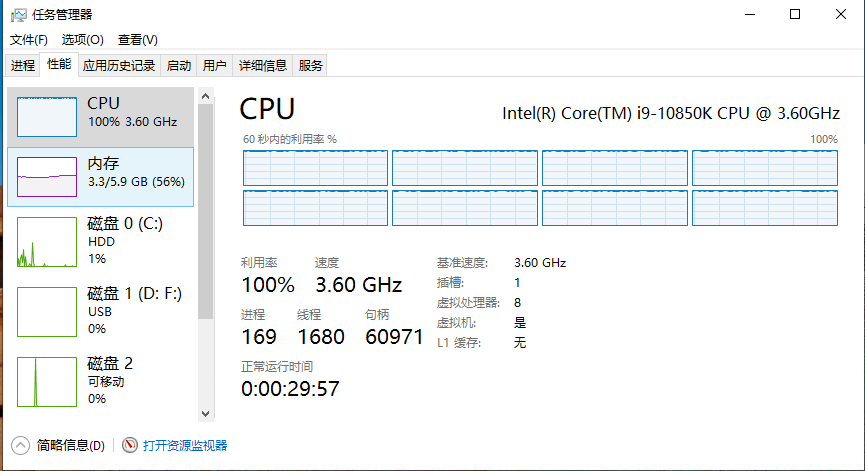
Ubuntu22.04系统 8核心,内存4GB
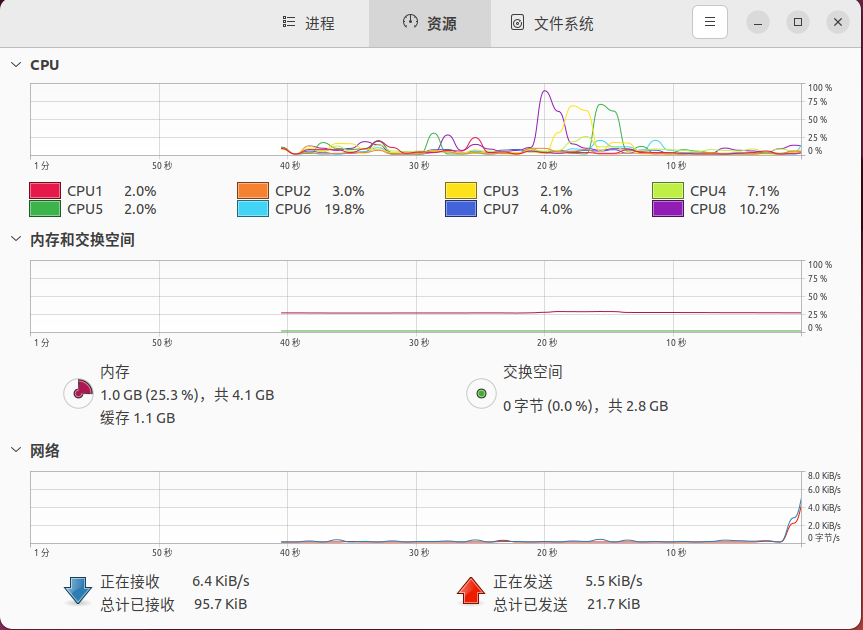
PREEMPT_RT实时系统 4核心,内存4GB

四、实时性测试
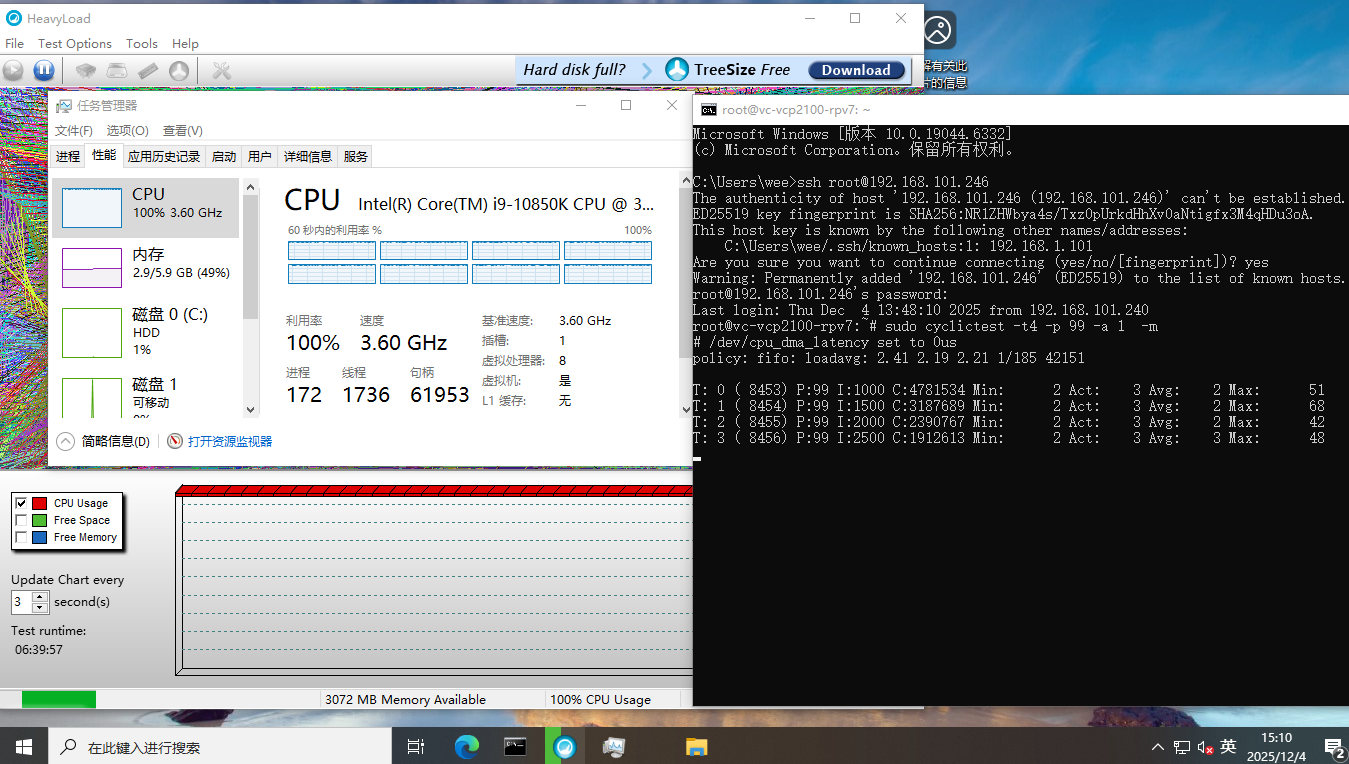
我们在Windows10 系统下通过实时SSH 方式登录到PREEMPT_RT实时系统,在实时系统中运行cyclictest软件测试系统抖动,同时Windows10 系统CPU 满足跑,验证是否干扰PREEMPT_RT系统是实时性
Windows10 SSH 方式登录到PREEMPT_RT系统,本次测试PREEMPT_RT系统IP为:192.168.101.246,账号root,密码root
bash
C:\Users\hank>ssh root@192.168.101.246
root@192.168.101.246's password:
Last login: Thu Dec  4 13:45:49 2025 from 192.168.101.240
root@vc-vcp2100-rpv7:~#
测试条件:
1、一台工控机同时运行Windows10、Ubuntu22.04、Ubuntu PREEMPT_RT三个系统。
2、Windows10 系统 8核心100%满载运行。
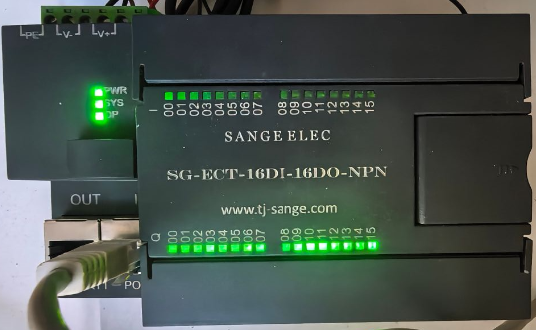
3、Ubuntu PREEMPT_RT跑codesys runtime 运行PCL 程序,通过ethercat 控制远程IO 每隔1毫秒开关一次外部IO,如下图。
测试结果:
在工控如此极致运行条件下,PREEMPT_RT系统仍能保持良好的抖动性。
总结
ACRN 共享模式下,能在一台电脑上同时运行Windows10、Ubuntu22.04、Ubuntu PREEMPT_RT实时系统,并且在流畅运行同时也确保系统之间互不干预。