目录
1.项目效果
2.项目实现思路
3.项目关键代码
4.项目难点
5.项目开源链接
前言
本篇博客主要是使用QCustomPlot在Qt6中实现多窗口绘制数据,其中GPU加速使用的是Freeglut,项目环境为Windows x64。
项目效果
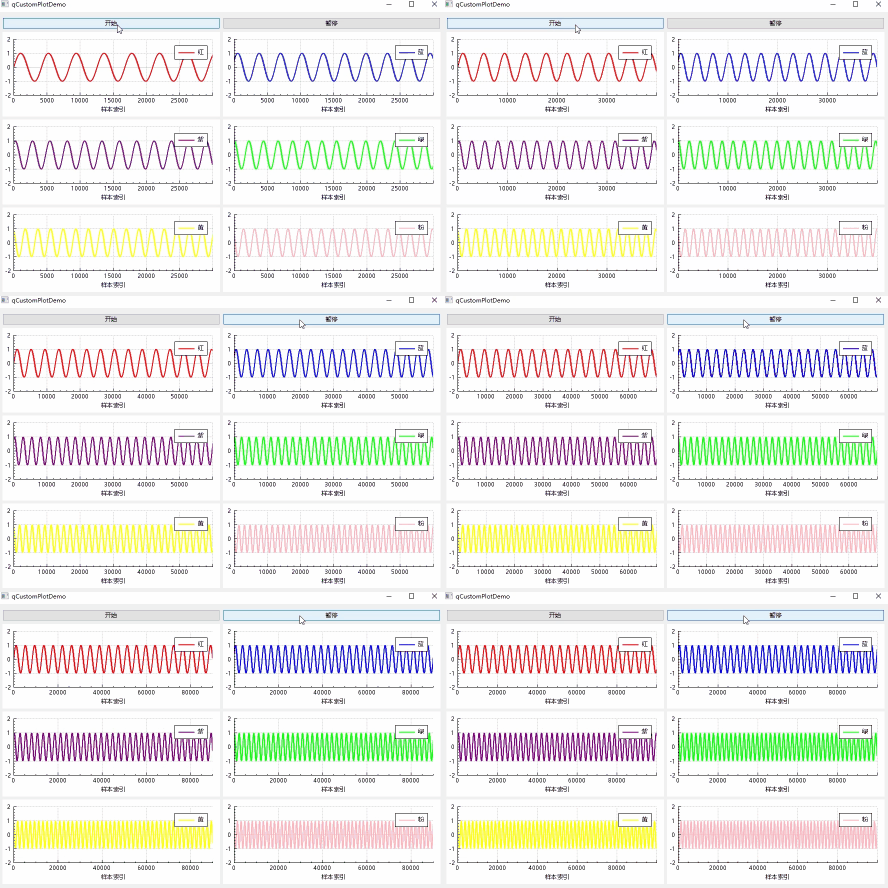
图1.项目效果
PS:由于CSDN的原因导致图片不能传输大于5MB,部分的细节没有展示
项目实现思路
主窗口qCustomPlotDemo持有六个QCustomPlot控件,数据生成在子线程DataWorker中完成,生成后的数据通过信号槽接收数据并更新曲线与坐标轴,实现主线程只负责 UI 刷新,子线程只负责数据的生成的功能。并且经过测试,当前项目支持高达5千万个点刷新不卡顿,五千万个点同时显示并且没有进行替换,项目链接中的代码已经增加类似于滑动窗口的机制,将旧数据进行了替换,读者有需要的可以自行修改代码。以下是项目构建中使用到的模块:
1.Qt Core:提供非GUI的基础服务,是所有Qt应用的基石
2.Qt GUI:提供图形用户界面所需的底层抽象,如窗口、事件、基本绘图
3.Qt OpenGL Widget:专门用于在Qt控件架构中嵌入和渲染OpenGL内容
4.Qt Print Support:提供跨平台的打印功能支持
5.Qt Widgets:提供基于控件的传统用户界面组件
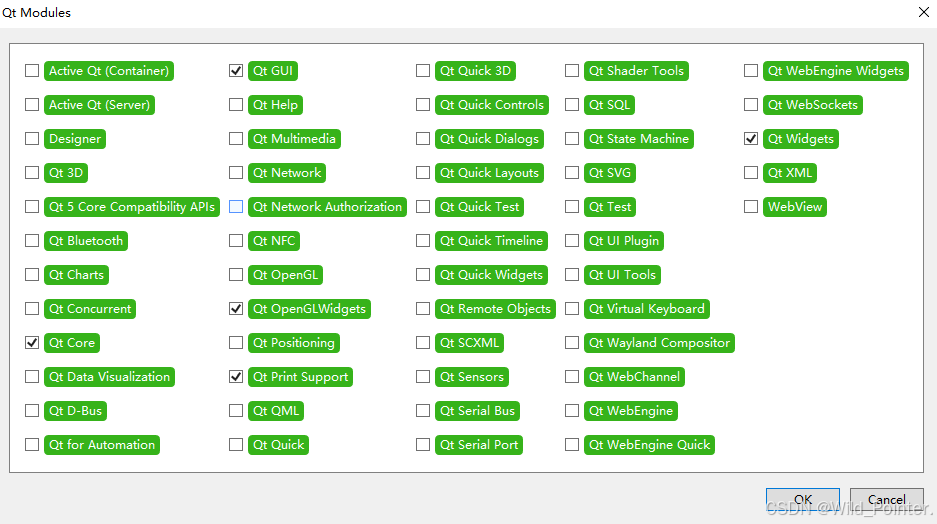
图2.导入的模块
由于项目中使用到了Freeglut,还没有配置的读者可以参考下面这篇位置,使用CMake和Visual Studio进行编译。具体链接如下
环境配置:编译并使用Freeglut工具库 https://blog.csdn.net/weixin_67035108/article/details/155578244?sharetype=blogdetail&sharerId=155578244&sharerefer=PC&sharesource=weixin_67035108&spm=1011.2480.3001.8118
项目关键代码
cpp
/*  初始化信号槽
*/
void qCustomPlotDemo::init_Connect() {
    //信号:开始按钮被点击    槽:开始生成数据
    connect(m_startBtn, &QPushButton::clicked, this, &qCustomPlotDemo::handle_startGeneration);
    //信号:暂停按钮被点击    槽:暂停生成数据
    connect(m_pauseBtn, &QPushButton::clicked, this, &qCustomPlotDemo::handle_pauseGeneration);
    //信号:数据就绪
    connect(m_worker, &DataWorker::handle_sendDataReady, this, &qCustomPlotDemo::handle_showData, Qt::QueuedConnection);

    // 事件循环起始时再次启用OpenGL与设备像素比,确保上下文有效
    QTimer::singleShot(0, this, [this]() {
        for (auto* p : m_plots) {
            p->setOpenGl(true, 8);
            p->replot(QCustomPlot::rpImmediateRefresh);
        }
    });
}

/*  初始化数据生成模块
*/
void qCustomPlotDemo::init_workerModule()
{
    m_workerThread = new QThread(this);
    m_worker = new DataWorker(m_graphs.size());
    m_worker->moveToThread(m_workerThread);
    qRegisterMetaType<QVector<double>>("QVector<double>");
    m_workerThread->start();
}

/*  开始生成数据
*/
void qCustomPlotDemo::handle_startGeneration()
{
    if (!m_running){
        m_running = true;
        QMetaObject::invokeMethod(m_worker, "handle_Start", Qt::QueuedConnection);
    }
}

/*  暂停生成数据
*/
void qCustomPlotDemo::handle_pauseGeneration()
{
    m_running = false;
    QMetaObject::invokeMethod(m_worker, "handle_Stop", Qt::QueuedConnection);
}

/*  显示数据
*   idx:X轴索引    keys:    values:    lastKey:
*/
void qCustomPlotDemo::handle_showData(int idx, const QVector<double>& keys, const QVector<double>& values, int lastKey)
{
    m_key = lastKey;
    if (m_key <= m_capPoints) {
        m_graphs[idx]->addData(keys, values);
    } else {
        m_graphs[idx]->data()->removeBefore(m_key - m_capPoints + 1);
        m_graphs[idx]->addData(keys, values);
    }
    double startKey = m_key > m_capPoints ? (m_key - m_capPoints + 1) : 0;
    m_plots[idx]->xAxis->setRange(startKey, m_key);
    m_plots[idx]->replot(QCustomPlot::rpQueuedReplot);
}
项目难点
1.使用GPU加速后显示的折线图颜色异常,这时候需要我们修改QCustomPlot中的QCPPaintBuffrtGlFbo::draw代码,具体如图:
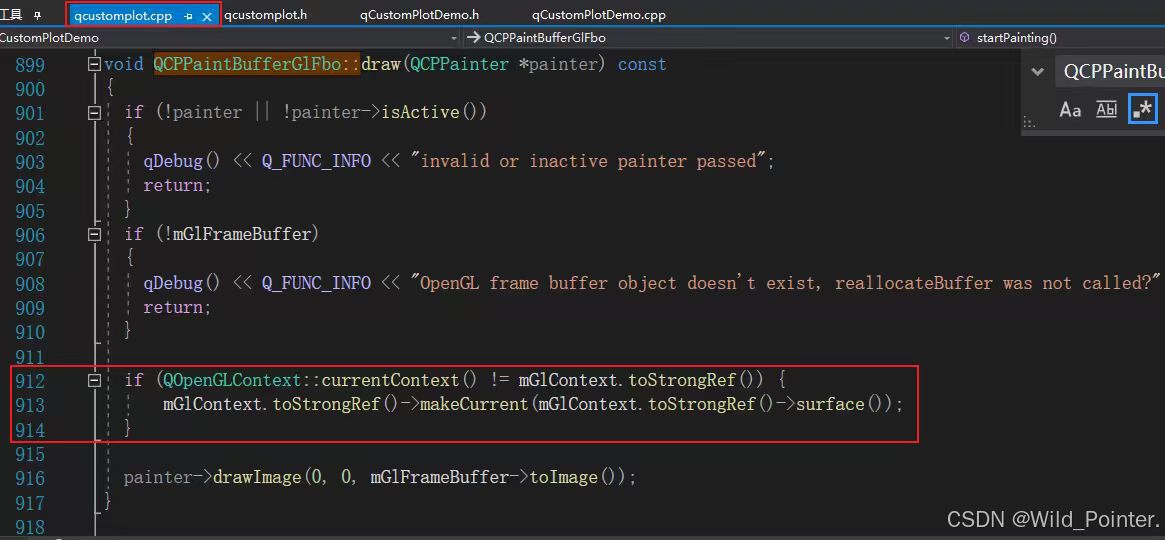
图3.修改QCustomPlot代码
具体的代码如下,可以直接复制粘贴:
cpp
if (QOpenGLContext::currentContext() != mGlContext.toStrongRef()) {
      mGlContext.toStrongRef()->makeCurrent(mGlContext.toStrongRef()->surface());
}2.使用OpenGL导致像素异常 ,这个时候我们只需要在项目中添加上下面这段代码即可,不需要修改源码:
cpp
// 事件循环起始时再次启用OpenGL与设备像素比,确保上下文有效
QTimer::singleShot(0, this, [this]() {
    for (auto* p : m_plots) {
        p->setOpenGl(true, 8);
        p->replot(QCustomPlot::rpImmediateRefresh);
    }
});
项目开源链接
1.Gitee开源链接:
QCustomPlotDemo: 使用QCustomPlot实现多窗口绘制数据(支持GPU加速)https://gitee.com/Mr-Xuiiii/qcustom-plot-demo 2.Github开源链接:
https://github.com/3020Xmy/qCustomPlotDemohttps://github.com/3020Xmy/qCustomPlotDemo