我们在上节中创建了两个单选按钮,你会发现它们自动进行了分组。
我们现在再创建两个单选按钮控件。
QRadioButton *radioButton1, * radioButton2, ***radioButton3, ***radioButton4;
radioButton3 = new QRadioButton(this);
radioButton3->setText("单选按钮3");
radioButton3->setGeometry(300, 20, 100, 30);
radioButton4 = new QRadioButton(this);
radioButton4->setText("单选按钮4");
radioButton4->setGeometry(300, 50, 100, 30);
我们想让12成为一组34为另一组,但实际上他们4个是一组。
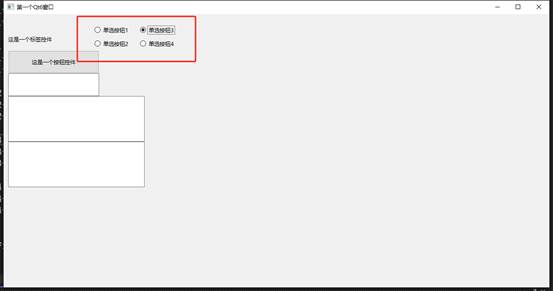
要解决这个问题,我们需要对单选按钮进行分组。
在 Qt 中,对单选按钮(QRadioButton)分组,主要有两种方式,使它们在同组内实现互斥选择
1. 利用父控件(自动分组)
如果多个单选按钮放在同一个父控件(比如同一个 QWidget 或 QGroupBox)内,Qt 会自动把它们归为一组,实现互斥。
我们创建的单选按钮使用的是同一个父控件,所以他们四个会自动分为一组。
示例:
QGroupBox* groupBox = new QGroupBox("选项组", this);
QRadioButton* radio1 = new QRadioButton("选项1", groupBox);
QRadioButton* radio2 = new QRadioButton("选项2", groupBox);
QVBoxLayout* layout = new QVBoxLayout(groupBox);
layout->addWidget(radio1);
layout->addWidget(radio2);
groupBox->setLayout(layout);
2. 使用 QButtonGroup 显式分组
如果单选按钮不在同一个父控件下,或者想更灵活地管理按钮组,可以使用 QButtonGroup。
- 创建 QButtonGroup 对象
- 使用 addButton() 把按钮添加进组
- 按钮组内部自动实现互斥
示例:
QRadioButton* radio1 = new QRadioButton("选项1", this);
QRadioButton* radio2 = new QRadioButton("选项2", this);
QButtonGroup* group = new QButtonGroup(this);
group->addButton(radio1);
group->addButton(radio2);
额外说明
- 默认情况下,QButtonGroup 的按钮是互斥的(单选)
- 可以通过 setExclusive(false) 关闭互斥(允许多选)
- 可以通过 buttonClicked(int id) 信号监听按钮点击事件
由于现在的单选按钮父控件相同,我们可以使用显式分组
为组定义一个变量
QButtonGroup* radioGroup;
新建组并向组内添加控件
radioGroup = new QButtonGroup(this);
radioGroup->addButton(radioButton3, 3);
radioGroup->addButton(radioButton4, 4);
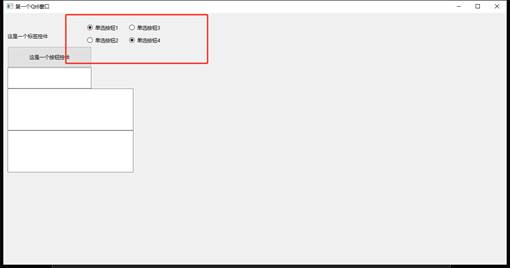
执行程序后你就能实现分组选择
#include "MyFirstQt6.h"
#include <QtWidgets>
MyFirstQt6::MyFirstQt6(QWidget* parent)
: QMainWindow(parent)
{
setWindowTitle("第一个Qt6窗口");
resize(1200, 600);
QLabel* label = new QLabel(this);
label->setText("这是一个标签控件");
label->setGeometry(10, 30, 200, 50);
QPushButton* button = new QPushButton(this);
button->setText("这是一个按钮控件");
button->setGeometry(10, 80, 200, 50);
connect(button, &QPushButton::clicked, this, &MyFirstQt6::onButtonClicked);
lineEdit = new QLineEdit(this);
lineEdit->setGeometry(10, 130, 200, 50);
TextEdit = new QTextEdit(this);
TextEdit->setGeometry(10, 180, 300, 100);
PlainTextEdit = new QPlainTextEdit(this);
PlainTextEdit->setGeometry(10, 280, 300, 100);
radioButton1 = new QRadioButton(this);
radioButton1->setText("单选按钮1");
radioButton1->setGeometry(200, 20, 100, 30);
radioButton2 = new QRadioButton(this);
radioButton2->setText("单选按钮2");
radioButton2->setGeometry(200, 50, 100, 30);
radioButton3 = new QRadioButton(this);
radioButton3->setText("单选按钮3");
radioButton3->setGeometry(300, 20, 100, 30);
radioButton4 = new QRadioButton(this);
radioButton4->setText("单选按钮4");
radioButton4->setGeometry(300, 50, 100, 30);
radioGroup = new QButtonGroup(this);
radioGroup->addButton(radioButton3, 3);
radioGroup->addButton(radioButton4, 4);
}
MyFirstQt6::~MyFirstQt6()
{}
void MyFirstQt6::onButtonClicked()
{
QString text = TextEdit->to PlainText();
QMessageBox::information(this, "信息", "你输入的内容是: " + text);
}
部分内容省略了,课程内容有完整的详细教程。
计算机技术课程 https://blog.csdn.net/2301_76542477/article/details/149032632?spm=1011.2415.3001.5331