鸿蒙学习实战之路-Core Vision Kit人脸检测实现指南
Core Vision Kit(基础视觉服务)提供了机器视觉相关的基础能力,什么意思呢?通俗点说,就是让你的鸿蒙应用"长一双眼睛"------能看懂图片里的内容是人脸还是文字,甚至是通用物体。这套能力封装在 @kit.CoreVisionKit 这个包里,今天咱们先来聊聊最常用的人脸检测功能。
害,说起人脸检测,我有个朋友去年做美颜相机 App,光是调研人脸检测方案就花了两周时间,又是研究第三方 SDK,又是担心隐私合规问题,结果发现鸿蒙系统早就内置了这套能力!悔得肠子都青了,今天这篇文章,我就手把手带你用 Core Vision Kit 实现人脸检测,全程不超过 10 分钟~
适用场景
人脸检测技术可以识别图片中的人脸并返回高精度信息,适用于多种场景:
- 人脸美化与修饰:自动定位眼睛、鼻子、嘴巴等五官位置,磨皮美白更精准
- 人脸识别与验证:刷脸登录、支付验证,安全性更高
- 人脸聚类与分组:给相册里的人脸自动分组,找照片更方便
- 拍照时人脸自动对焦:手机摄像头自动锁定人脸,拍照不虚焦
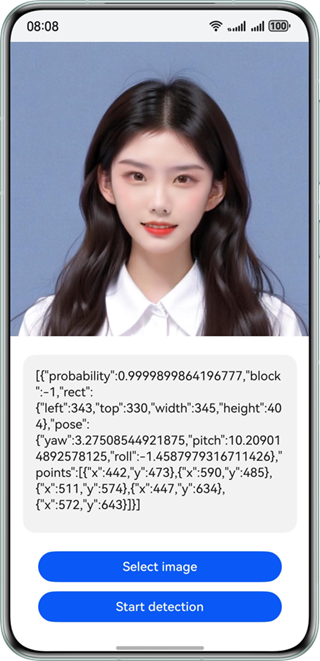
约束与限制
在开始写代码之前,有些坑咱们得先避开,省得写到一半发现不支持,白忙活一场:
| 约束项 | 具体说明 |
|---|---|
| 图像质量 | 建议 720p 以上,224px < 高度 < 15210px,100px < 宽度 < 10000px |
| 宽高比例 | 建议 10:1 以下(高度小于宽度的 10 倍) |
| 实时性 | 接口调用耗时较久,不适合实时检测场景 |
| 并发限制 | 不支持同一用户启用多个线程 |
| 设备支持 | 不支持模拟器 |
🥦 西兰花警告 :
记得上次有个兄弟拿 50x50 像素的头像去做人脸检测,信心满满说肯定能识别,结果返回空数据来找我"维权"。害,官方建议最小宽度 100px 呢,这锅咱鸿蒙可不背啊!
世界坐标系
人脸朝向判断是基于世界坐标系的,这个概念稍微有点抽象,我给大家伙儿解释一下:
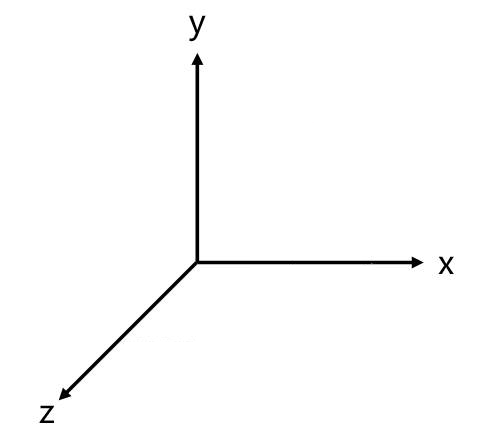
简单理解,Core Vision Kit 内部定义了一套标准的人脸朝向参考系,当你传入一张照片时,它会判断人脸相对于这个参考系偏转了多少度。听起来有点玄乎对吧?没关系,实际开发中你只需要知道返回值 orientation 代表什么就行,具体怎么判断朝向,鸿蒙已经帮你做好了。
开发步骤
好,铺垫完了咱们开始上代码!整体流程大概是:导入依赖 → 设计页面 → 选择图片 → 执行检测 → 处理结果。
1. 导入依赖
首先得把要用到的模块 import 进来,这一步没啥好说的,照着抄就行:
typescript
import { faceDetector } from "@kit.CoreVisionKit";
import { image } from "@kit.ImageKit";
import { photoAccessHelper } from "@kit.MediaLibraryKit";
import { fileIo } from "@kit.CoreFileKit";
🥦 西兰花小贴士 :
这里 faceDetector 是人脸检测的核心 API,类似 JavaScript 里的 face-api.js,但人家是鸿蒙亲儿子,优化做得更好!
2. 页面布局设计
页面结构很简单:一个图片展示区、一个结果显示区、两个按钮。代码就像 Vue 的模板一样,写起来很直观:
typescript
build() {
  Column() {
    // 显示选中的图片
    Image(this.chooseImage)
      .objectFit(ImageFit.Fill)
      .height('60%')

    // 显示检测结果
    Text(this.dataValues)
      .copyOption(CopyOptions.LocalDevice)
      .height('15%')
      .margin(10)
      .width('60%')

    // 选择图片按钮
    Button('选择图片')
      .type(ButtonType.Capsule)
      .fontColor(Color.White)
      .alignSelf(ItemAlign.Center)
      .width('80%')
      .margin(10)
      .onClick(() => this.selectImage())

    // 人脸检测按钮
    Button('人脸检测')
      .type(ButtonType.Capsule)
      .fontColor(Color.White)
      .alignSelf(ItemAlign.Center)
      .width('80%')
      .margin(10)
      .onClick(() => this.detectFace())
  }
  .width('100%')
  .height('100%')
  .justifyContent(FlexAlign.Center)
}
这布局就像叠积木一样,Column 组件把子元素竖着排列,Image 显示图片,Text 显示文字,Button 就是按钮,有没有觉得有点像写 Flutter 或者 Jetpack Compose? ArkUI 的声明式写法就是这种感觉!
3. 图片选择与加载
用户点击"选择图片"按钮后,我们需要调用系统图库获取图片,然后加载成 PixelMap 格式------这是鸿蒙处理图像的统一格式。
typescript
// 选择图片
private async selectImage() {
  const uri = await this.openPhoto();
  if (uri) this.loadImage(uri);
}

// 打开图库
private openPhoto(): Promise<string> {
  return new Promise((resolve) => {
    const photoPicker = new photoAccessHelper.PhotoViewPicker();
    photoPicker.select({
      MIMEType: photoAccessHelper.PhotoViewMIMETypes.IMAGE_TYPE,
      maxSelectNumber: 1
    }).then((res) => {
      resolve(res.photoUris[0]);
    }).catch((err) => {
      console.error(`选择图片失败: ${err.code} - ${err.message}`);
      resolve('');
    });
  });
}

// 加载图片并转换为PixelMap
private loadImage(uri: string) {
  setTimeout(async () => {
    try {
      const fileSource = await fileIo.open(uri, fileIo.OpenMode.READ_ONLY);
      const imageSource = image.createImageSource(fileSource.fd);
      this.chooseImage = await imageSource.createPixelMap();
      this.dataValues = '';
      await fileIo.close(fileSource);
    } catch (error) {
      console.error(`加载图片失败: ${error}`);
    }
  }, 100);
}
解释一下这段代码在干嘛:
openPhoto():调用系统图库,让用户选一张图片,返回图片的 URIloadImage():根据 URI 打开文件,创建 ImageSource,最后生成 PixelMap 给 UI 显示- 这里加了个
setTimeout(..., 100),是因为有时候图片刚选出来立马加载会出问题,稍微等一下更稳妥
4. 执行人脸检测
重头戏来了!检测本身其实就几行代码的事儿,但前后有不少准备工作:
typescript
private async detectFace() {
  if (!this.chooseImage) return;

  try {
    // 初始化人脸检测器
    await faceDetector.init();

    // 配置检测参数
    const visionInfo: faceDetector.VisionInfo = {
      pixelMap: this.chooseImage // 传入PixelMap对象
    };

    // 执行人脸检测
    const faces: faceDetector.Face[] = await faceDetector.detect(visionInfo);

    // 处理检测结果
    if (faces.length === 0) {
      this.dataValues = "未检测到人脸,请选择包含人脸的图片";
    } else {
      // 格式化输出检测结果
      const result = faces.map((face, index) => {
        return `人脸 ${index + 1}:
  矩形框: ${JSON.stringify(face.rect)}
  置信度: ${face.confidence}
  朝向: ${face.orientation}
  关键点: ${face.landmarks.length}个`;
      }).join('\n\n');

      this.dataValues = result;
    }
  } catch (error) {
    console.error(`人脸检测失败: ${(error as BusinessError).message}`);
    this.dataValues = `检测失败: ${(error as BusinessError).message}`;
  } finally {
    // 释放资源
    faceDetector.release();
  }
}
流程一目了然:初始化 → 构造 VisionInfo → 调用 detect → 处理结果 → 释放资源。记住 finally 里一定要调 release(),跟 Java 里的 finally { stream.close() } 一个道理!
完整代码示例
上面拆开讲了一遍,现在把完整的可运行代码给大家,直接复制到 DevEco Studio 里就能跑:
typescript
import { faceDetector } from '@kit.CoreVisionKit';
import { image } from '@kit.ImageKit';
import { hilog } from '@kit.PerformanceAnalysisKit';
import { BusinessError } from '@kit.BasicServicesKit';
import { fileIo } from '@kit.CoreFileKit';
import { photoAccessHelper } from '@kit.MediaLibraryKit';
import { Button, ButtonType, Column, Image, ImageFit, ItemAlign, Text } from '@kit.ArkUI';

@Entry
@Component
struct FaceDetectionPage {
  @State chooseImage: PixelMap | undefined = undefined;
  @State dataValues: string = '';

  build() {
    Column() {
      Image(this.chooseImage)
        .objectFit(ImageFit.Fill)
        .height('60%')

      Text(this.dataValues)
        .copyOption(Text.CopyOptions.LocalDevice)
        .height('15%')
        .margin(10)
        .width('90%')
        .backgroundColor('#f5f5f5')
        .padding(10)
        .borderRadius(5)

      Button('选择图片')
        .type(ButtonType.Capsule)
        .fontColor(Color.White)
        .alignSelf(ItemAlign.Center)
        .width('80%')
        .margin(10)
        .backgroundColor('#007dff')
        .onClick(() => this.selectImage())

      Button('人脸检测')
        .type(ButtonType.Capsule)
        .fontColor(Color.White)
        .alignSelf(ItemAlign.Center)
        .width('80%')
        .margin(10)
        .backgroundColor('#007dff')
        .onClick(() => this.detectFace())
    }
    .width('100%')
    .height('100%')
    .justifyContent(FlexAlign.Center)
  }

  private async selectImage() {
    const uri = await this.openPhoto();
    if (uri) this.loadImage(uri);
  }

  private openPhoto(): Promise<string> {
    return new Promise((resolve) => {
      const photoPicker = new photoAccessHelper.PhotoViewPicker();
      photoPicker.select({
        MIMEType: photoAccessHelper.PhotoViewMIMETypes.IMAGE_TYPE,
        maxSelectNumber: 1
      }).then((res) => {
        resolve(res.photoUris[0]);
      }).catch((err: BusinessError) => {
        hilog.error(0x0000, 'FaceDemo', `选择图片失败: ${err.code} - ${err.message}`);
        resolve('');
      });
    });
  }

  private loadImage(uri: string) {
    setTimeout(async () => {
      try {
        const fileSource = await fileIo.open(uri, fileIo.OpenMode.READ_ONLY);
        const imageSource = image.createImageSource(fileSource.fd);
        this.chooseImage = await imageSource.createPixelMap();
        this.dataValues = '';
        await fileIo.close(fileSource);
      } catch (error) {
        hilog.error(0x0000, 'FaceDemo', `加载图片失败: ${error}`);
      }
    }, 100);
  }

  private async detectFace() {
    if (!this.chooseImage) return;

    try {
      await faceDetector.init();

      const visionInfo: faceDetector.VisionInfo = {
        pixelMap: this.chooseImage
      };

      const faces: faceDetector.Face[] = await faceDetector.detect(visionInfo);

      if (faces.length === 0) {
        this.dataValues = "未检测到人脸,请选择包含人脸的图片";
      } else {
        this.dataValues = this.formatDetectionResult(faces);
      }
    } catch (error) {
      const err = error as BusinessError;
      hilog.error(0x0000, 'FaceDemo', `检测失败: ${err.code} - ${err.message}`);
      this.dataValues = `检测失败: ${err.message}`;
    } finally {
      faceDetector.release();
    }
  }

  private formatDetectionResult(faces: faceDetector.Face[]): string {
    return faces.map((face, index) => {
      return `人脸 ${index + 1}:
  位置: x:${face.rect.left}, y:${face.rect.top},
        宽:${face.rect.width}, 高:${face.rect.height}
  置信度: ${face.confidence.toFixed(2)}
  朝向: ${face.orientation}
  关键点: ${face.landmarks.length}个`;
    }).join('\n\n');
  }
}
这段代码直接把前面的功能整合到了一起,还加了 formatDetectionResult 方法把检测结果格式化输出,更清晰。
检测结果说明
人脸检测完成后,返回的 Face 对象包含以下关键信息:
| 属性 | 类型 | 描述 |
|---|---|---|
rect |
Rect |
人脸矩形框坐标(left, top, width, height) |
confidence |
number |
检测置信度(0-1 之间) |
orientation |
number |
人脸朝向(基于世界坐标系) |
landmarks |
Landmark[] |
人脸关键点坐标(眼睛、鼻子、嘴巴等) |
🥦 西兰花小贴士 :
confidence 是检测的可信度,如果返回 0.98,说明系统有 98% 的把握认为这里有张脸。如果你想做更严格的人脸识别,可以加个判断:if (face.confidence < 0.8) continue;
下一步
人脸检测做完了,还能玩出啥花样?官方文档里还提到了两个人脸相关的 API,感兴趣的朋友可以继续捣鼓:
- 人脸比对 :判断两张脸是不是同一个人 _
- 通用文字识别:前面讲过的 OCR,识别图片里的文字
推荐资料
📚 官方文档是个好东西!说三遍!
- 官方人脸检测文档:Core Vision Kit 人脸检测
- API 参考手册:FaceDetector API
我是盐焗西兰花,
不教理论,只给你能跑的代码和避坑指南。
下期见!🥦